
01Who this is for
- Field service companies that send technicians to client locations, because they need to match staff skills, hours and geography.
- Home repair or maintenance businesses that schedule appointments, as they require staff availability and route planning.
- Logistics firms managing on site visits, because they benefit from visit limits and area eligibility.
02Staff in field services, explained
A staff member in Field Services is a subaccount user who can be assigned to job visits. To become bookable, the staff profile must include defined working hours, at least one assigned service, and at least one eligible service area.
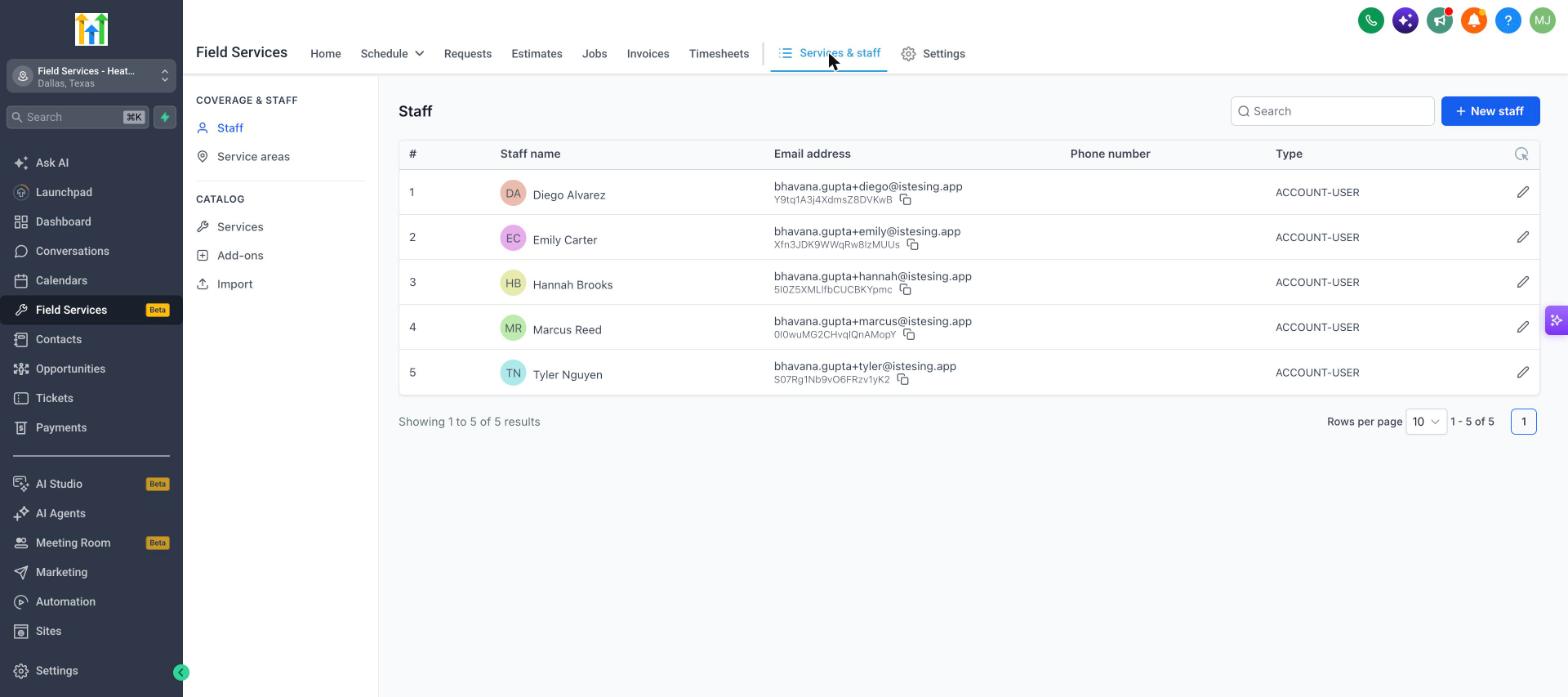
All staff settings are accessed under Field Services > Services & staff. Click Staff under Coverage & staff to open the list, then use the pencil icon to edit a staff member. The editor contains sections for basic details, service assignment, working hours, service areas, and dispatch settings where you configure start and end locations for routing.
03How businesses use staff in field services
- HVAC service company. Create a staff profile for each technician, assign the HVAC repair service, set their shift hours, and select the neighborhoods they cover. The platform will then suggest visit times that fit their schedule and optimize travel routes.
- Plumbing contractor. Add plumbers as staff, limit the number of daily assignments with a visit limit, and define the service zones they serve. When scheduling a call, the system picks plumbers who match the service type, area and have open hours.
- Cleaning service. Enter cleaners as staff, set multiple work intervals for morning and afternoon shifts, and set a route start address at the office. The dispatch engine uses these points to build the most efficient daily route.
04The numbers and rules that matter
- Visit limit can be set per day, week or month.
- Weekly working hours can include multiple intervals per day.
05Before you start
- Field Services must be enabled in the private beta for the account.
- The staff member must exist as a user in the subaccount.
06How to set up and use staff in field services in HighLevel
Add staff member
- Open the Staff page (Field Services > Services & staff > Staff) and click New staff.
- Enter the first name, last name and email address.
- Upload a photo if desired.
- Select the staff member’s timezone.
- Save the new staff record.
- Click the pencil icon next to the new staff member to configure hours, services, service areas and route.
Assign services and set a visit limit
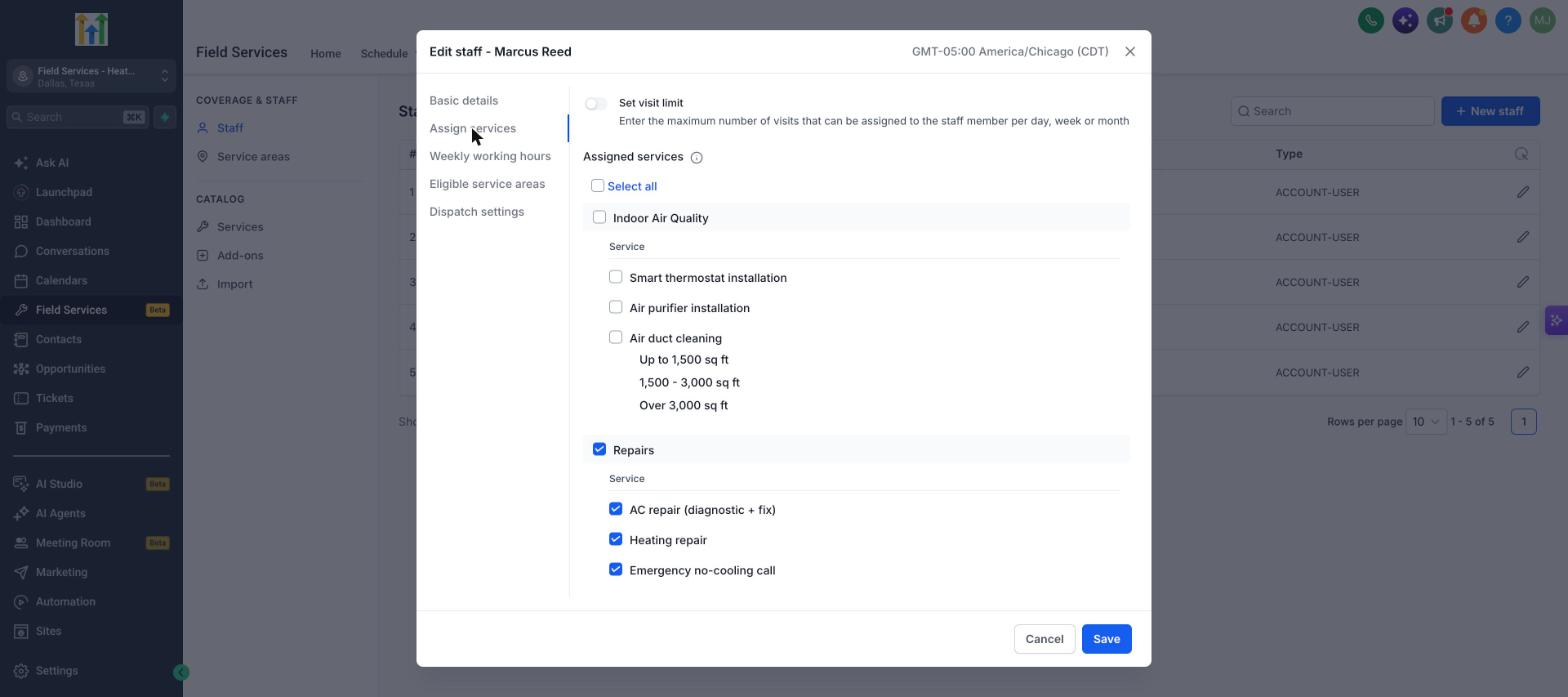
- Open the Assign services section for the staff member.
- Select the services or whole categories the staff can perform.
- Toggle Set visit limit and specify the daily, weekly or monthly cap.
Set weekly working hours
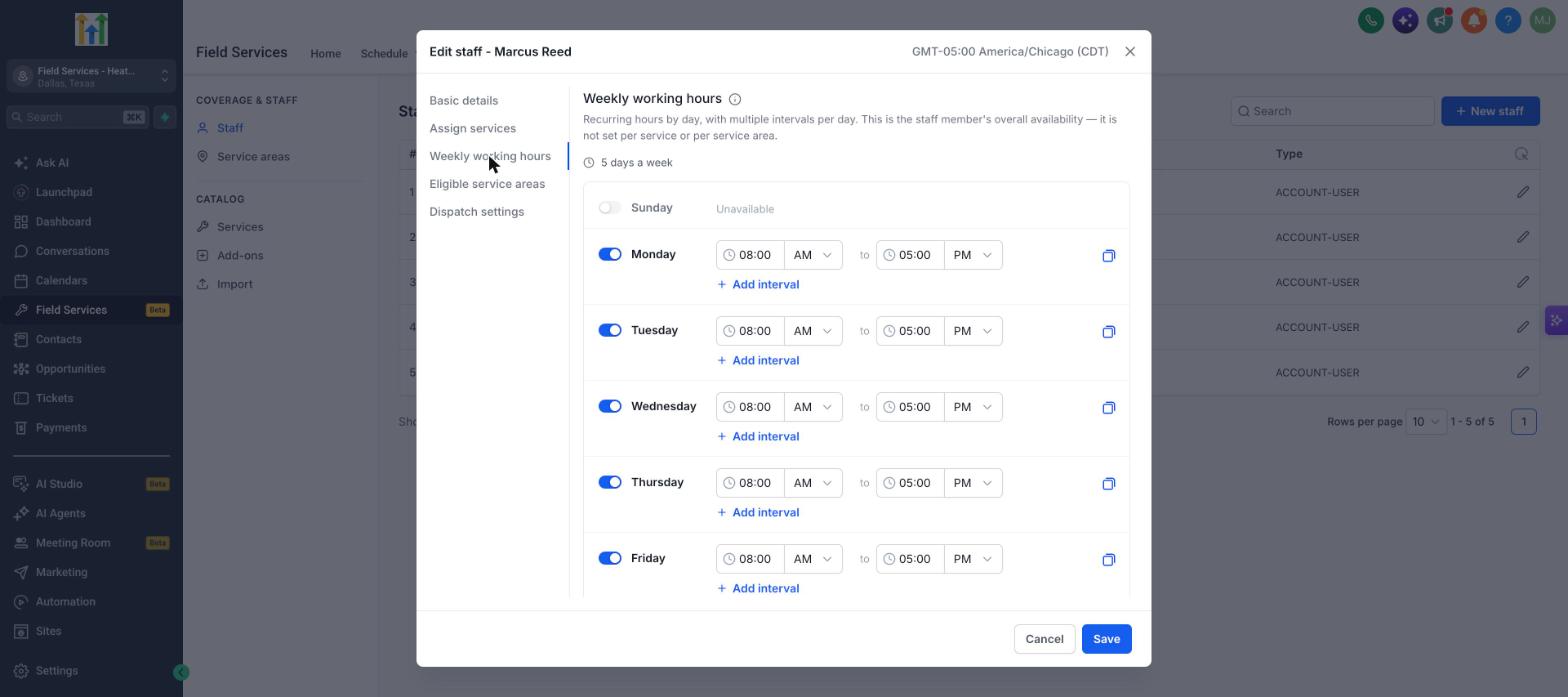
- Open the Weekly working hours panel.
- Turn on the day toggle for each day the staff works.
- Set the start and end times for the selected day.
- Add an interval if the staff has multiple shifts in one day.
- Use the copy icon to apply the same hours to other days.
Define eligible service areas
- Open the Eligible service areas section.
- Tick the specific areas where the staff can be assigned work, or use Select all/Deselect all.
- Save the service area selections.
Set dispatch settings
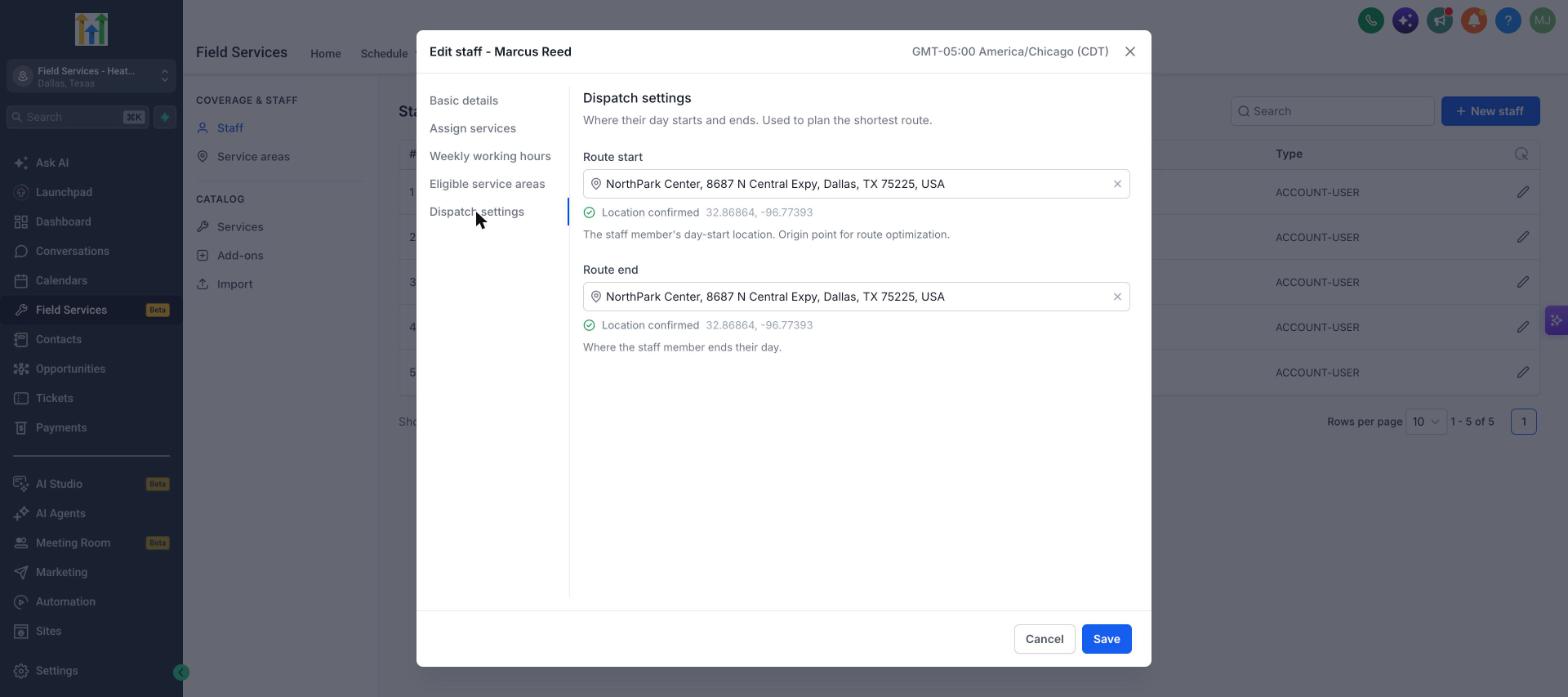
- Open the Dispatch settings panel.
- Enter the address for Route start and choose the suggested location.
- Enter the address for Route end and choose the suggested location.
- Click Save to store the start and end points.
07What it looks like in HighLevel
08Settings that matter
- Photo. Uploads a PNG, JPG or GIF that represents the staff member.
- First name. The given name of the staff member; required for the profile.
- Last name. The family name of the staff member; required for the profile.
- Email. Contact email for the staff member; required for the profile.
- Phone number. Optional telephone number for the staff member.
- Timezone. Sets the staff member’s local time zone so hours display correctly.
- Assign services. Chooses which services the staff member can perform, with category selection or Select all.
- Set visit limit. Caps the number of visits the staff member can receive per day, week or month.
- Weekly working hours. Defines the days and time blocks the staff member is available for scheduling.
- Eligible service areas. Specifies the geographic areas where the staff member may be assigned work.
- Route start. The address where the staff member’s day begins; used for route optimization.
- Route end. The address where the staff member ends their day; used for route optimization.
09Things to know before you rely on it
- Field Services is in a private beta and only available to selected accounts.
- A staff member becomes bookable only after having working hours, at least one assigned service, and at least one eligible service area.
- The visit limit setting restricts how many visits can be assigned within a chosen period.
- Route start and end locations are required for the platform’s route optimization feature.
- Staff who lack matching service, area, or hours, or who are already booked, will not appear in suggested times.
10If something goes wrong
- Staff member not showing in suggested times. Confirm the staff has working hours for that day, is assigned to the selected service, serves the customer’s service area, and is not already booked or blocked.
11How it connects to the rest of HighLevel
- Overview of Field Services and beta activation Field Services overview
- How to manage service areas for staff Service areas guide
- Understanding route optimization for staff dispatch Route optimization
Michael's take

Michael ReimerFounder of CRM Pros, HighLevel Commander and Certified Admin
Staff in Field Services lets you manage workers who go out on jobs.
Get More InformationOpens on HighLevelPublished November 3, 2026 · Updated November 17, 2026