
01Who this is for
- Field service managers can reduce technician travel by reordering daily visits.
- Small home service companies can keep appointment times fixed for customers while still improving routes.
- Logistics coordinators can see estimated drive times and adjust locked stops before confirming a schedule.
02Route optimization, explained
Route optimization takes a staff member and a date, looks at all visits scheduled for that day, and suggests a more efficient order based on drive times, working hours, travel buffers and existing bookings. The route always begins at the staff member’s predefined Route start location and ends at the Route end location.
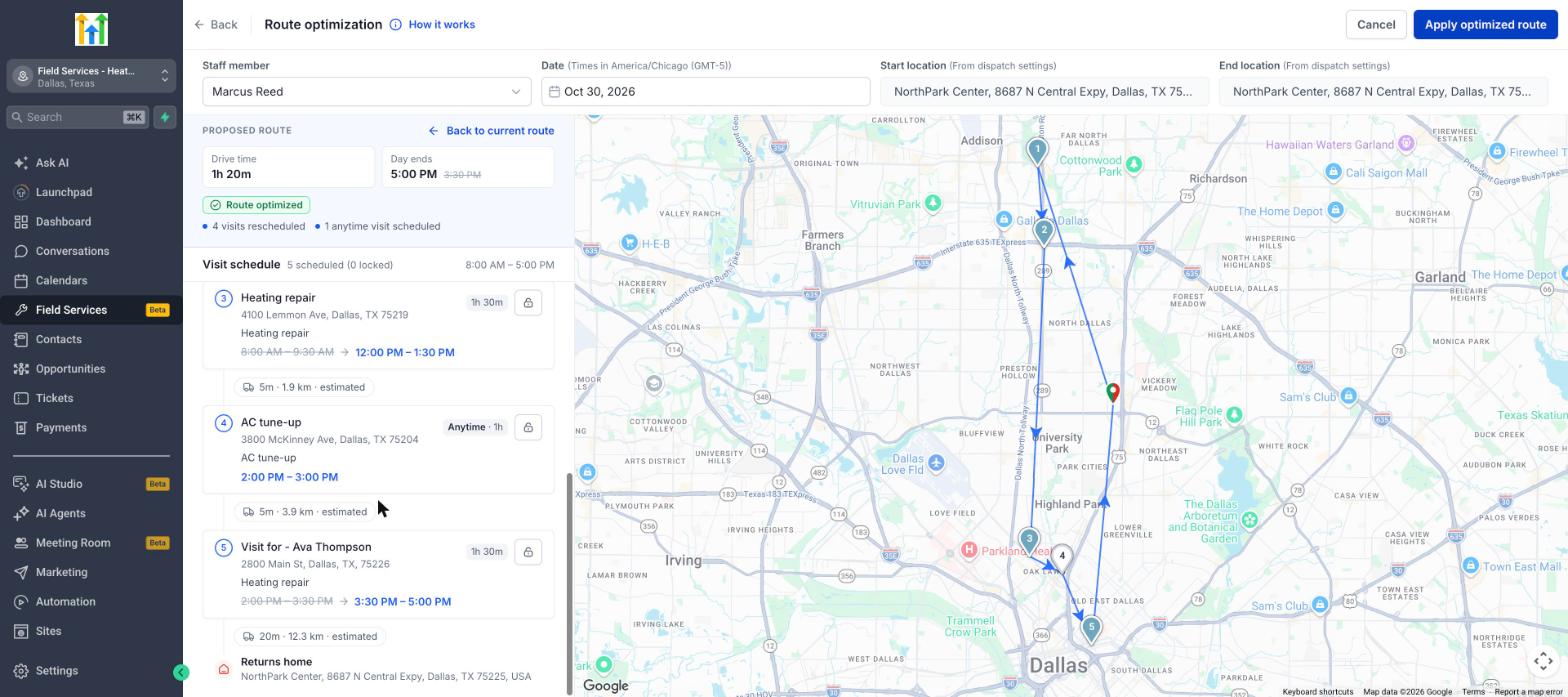
The feature lives inside the Field Services module. You access it from the Calendar view, open the Route optimization panel, unlock any visits that may move, and run the optimizer. Locked visits and visits assigned to multiple staff members remain unchanged. The proposed changes are shown with old times crossed out, and you must click Apply optimized route to commit them.
03How businesses use route optimization
- HVAC company. The dispatcher opens the Field Services calendar, selects a technician and a day, unlocks noncritical service calls, and runs optimization. After reviewing the new sequence, they apply it so the technician spends less time driving between homes.
- Plumbing service. The manager sets each plumber’s Route start and End locations in staff dispatch settings, then uses the optimizer to reorder visits while keeping emergency appointments locked, ensuring they stay at the agreed times.
- IT on site support firm. A scheduler selects a technician, unlocks routine support tickets that have flexible times, runs the route optimizer, reviews the proposed schedule and applies it, allowing the technician to cover more tickets in the workday.
04Before you start
- Set the Route start and Route end for each staff member in Services & staff > Staff > Edit > Dispatch settings.
- Ensure every visit you want to optimize has a service address and is assigned to the staff member.
05How to set up and use route optimization in HighLevel
Optimize a route
- Open Field Services > Schedule > Calendar view.
- Click the Route optimization button, the first icon in the toolbar on the right.
- Select a staff member from the list.
- Pick the date; the time zone appears next to the field.
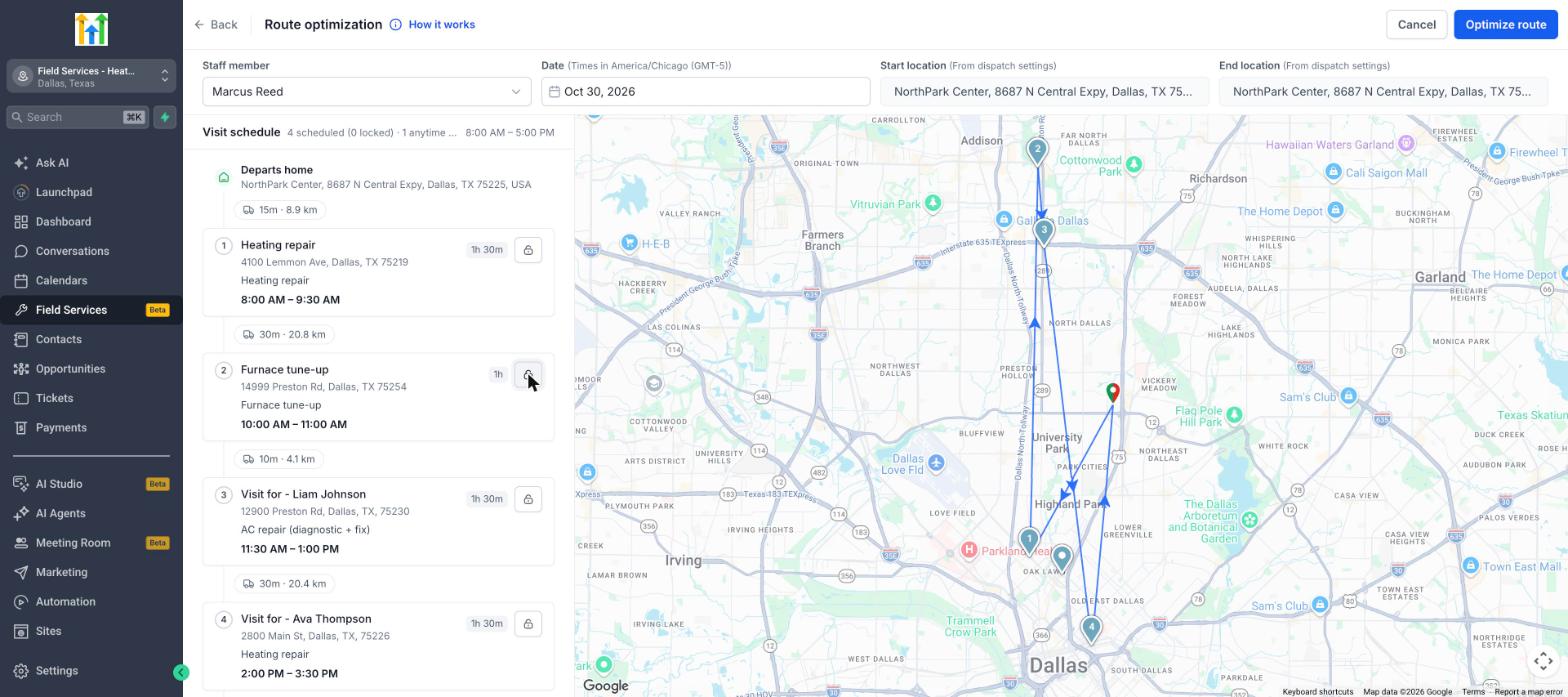
- Review the visit schedule and unlock any visits that may move.
- Click Optimize route.
Review and apply the proposed route
- Review the new order and times displayed.
- Click Apply optimized route to save the new times to the schedule.
- Click Back to current route to return without saving.
- Click Cancel to leave the schedule unchanged.
06What it looks like in HighLevel
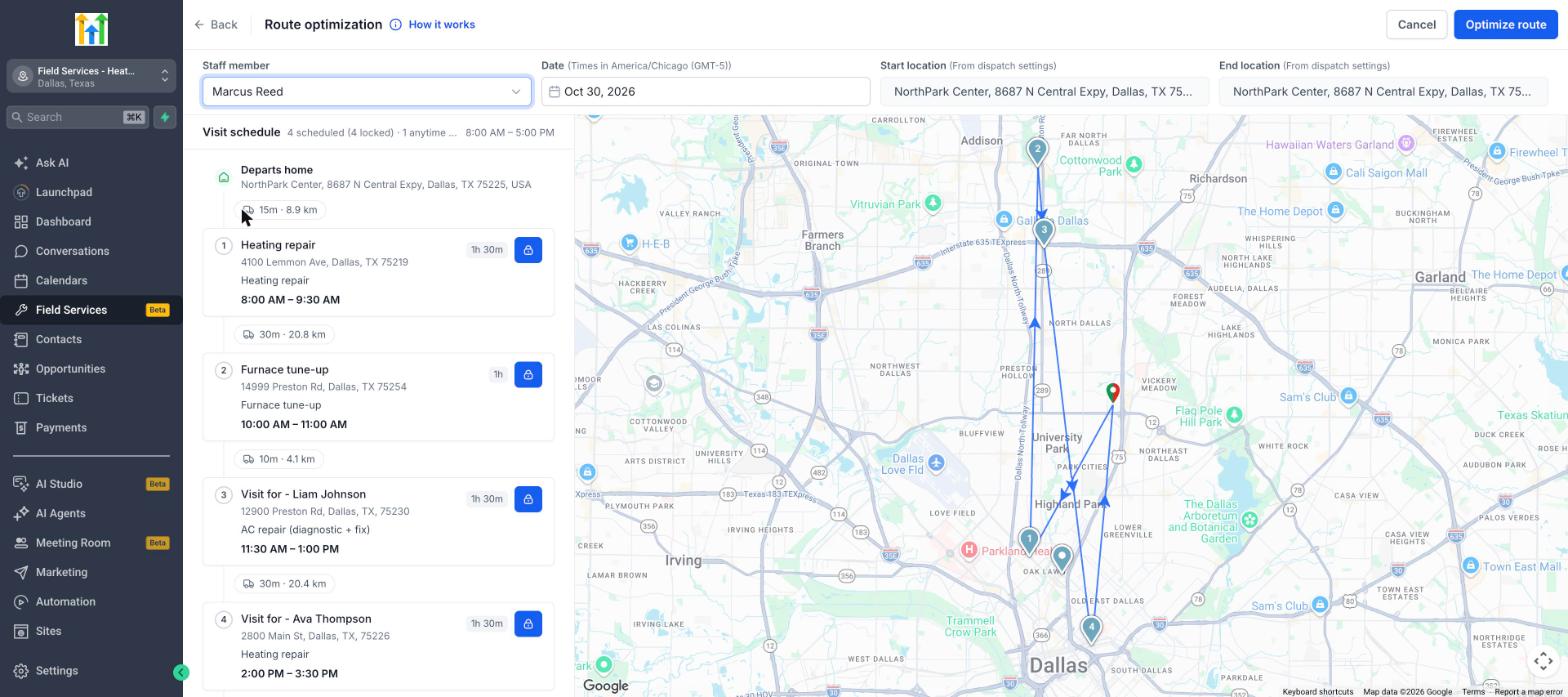
07Settings that matter
- Route start. Defines where the staff member’s day begins; it is read only on the optimization page and comes from the staff member’s dispatch settings.
- Route end. Defines where the staff member’s day ends; it is read only on the optimization page and comes from the staff member’s dispatch settings.
08Things to know before you rely on it
- Field Services is in a private beta and only available to selected accounts; screens may change.
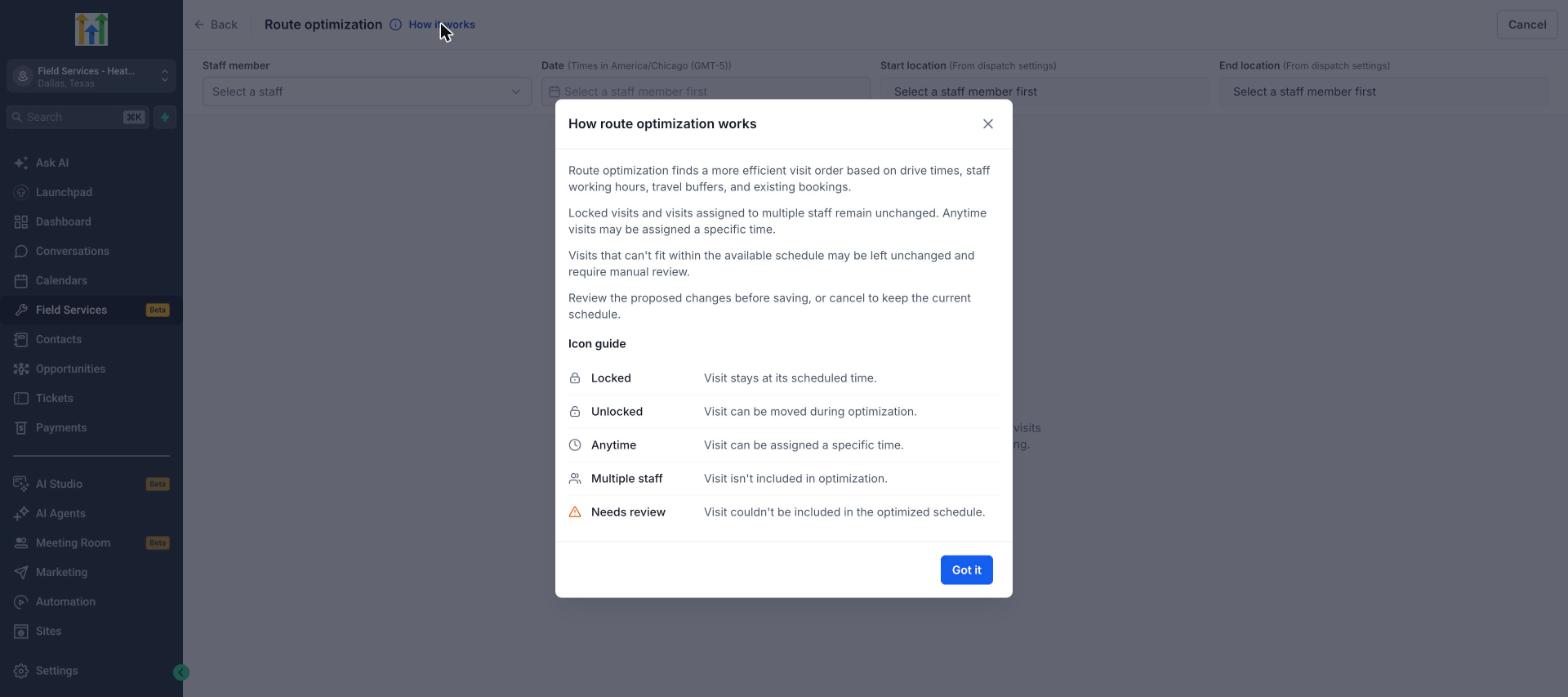
- Locked visits stay at their scheduled times and are not moved by optimization.
- Visits assigned to multiple staff members are excluded from optimization.
- A visit without a service address cannot be placed on a route.
- If a visit cannot fit within the available schedule, it may be left unchanged and marked Needs review.
09How it connects to the rest of HighLevel
- Set start and end locations for staff in the dispatch settings. Staff in Field Services
- Organize work orders and billing after routes are finalized. Jobs in Field Services
- Define service areas that influence routing policies. Service areas in Field Services
Michael's take

Route optimization is a practical way to cut driving time for field crews.