
01Who this is for
- Business owners can monitor cash flow and dispatch work from a single screen.
- Operations managers benefit from quick access to unassigned visits and pending jobs.
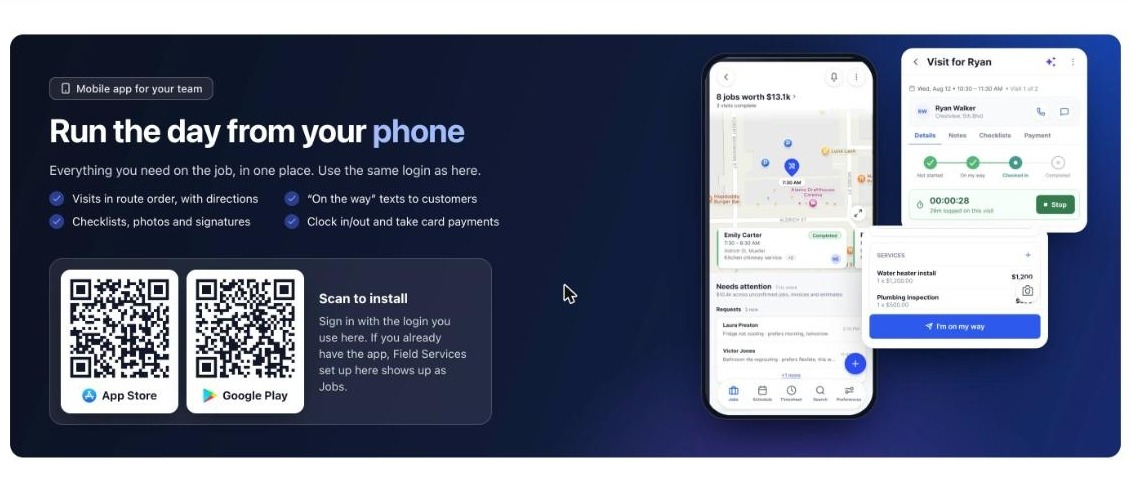
- Team leaders can use the mobile app links on the welcome page to equip field crews.
02Field Services Home, explained
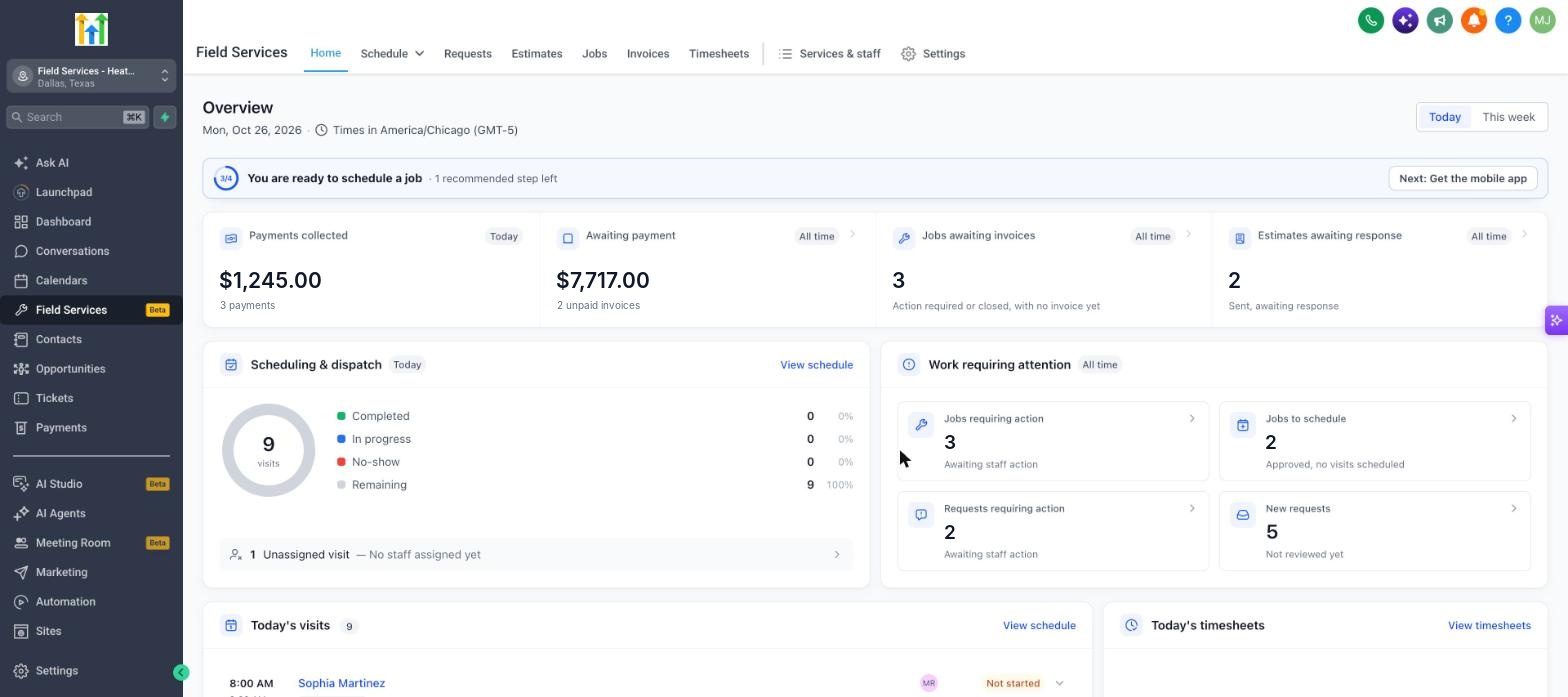
The Home page aggregates key metrics for a Field Services business. It displays four money cards, a schedule chart, and cards that count jobs, requests and visits needing action. Switching the view between Today and This week changes the reporting period.
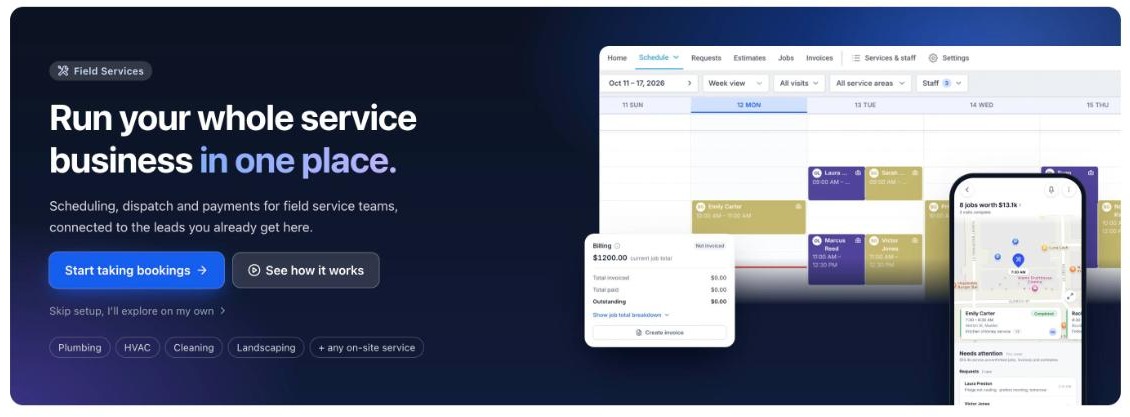
The page lives under the Field Services section of the left navigation. After opening a subaccount, click Field Services then Home. The first visit shows a welcome screen that guides new accounts through a short setup checklist before the dashboard appears.
All numbers on Home respect the business time zone, which appears beneath the page title. The dashboard updates in real time as jobs, estimates, invoices and visits are created.
03How businesses use Field Services Home
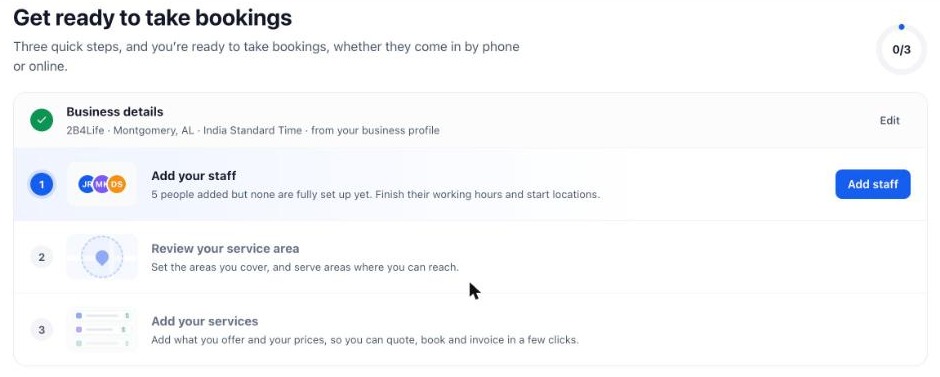
- Plumbing company. The owner opens the Home page to see unpaid invoices and jobs awaiting dispatch. They follow the welcome checklist to add plumbers, define the service area and list repair services. The schedule chart shows today’s appointments, allowing the owner to assign unassigned visits before the crew departs.
- HVAC service business. The manager reviews the money overview cards to confirm payments collected and to follow up on outstanding invoices. Using the three step setup, they add technicians, set service zones, and configure heating and cooling service offerings. The daily visits list lets the manager confirm that all scheduled jobs have a technician assigned.
- Lawn care provider. The Founder visits Home to view the count of new requests and jobs requiring action. They complete the welcome page steps by adding crew members, mapping the neighborhoods they service, and entering mowing and landscaping services with prices. The route optimization note on Home reminds them to use the route tool for efficient travel.
04Before you start
- Field Services must be enabled for the account as it is a private beta feature.
- You need access to a subaccount where Field Services is available.
05How to set up and use Field Services Home in HighLevel
Open the Field Services Home page
- Open your subaccount.
- Click Field Services in the left navigation.
- Click Home.
Complete the welcome page setup
- Select Start taking bookings on the welcome screen.
- Add your staff and define each person’s working hours and start location.
- Review and set your service area.
- Add the services you offer and set prices.
- Finish the checklist; the welcome page is replaced by the Home dashboard.
06What it looks like in HighLevel
07Settings that matter
- time zone. Determines the clock used for all counts and visit times shown on the Home page.
08Things to know before you rely on it
- Field Services is in a private beta and only selected accounts can use it.
- Features and screens may change as the beta evolves.
09If something goes wrong
- Numbers on Home show zero. Create work records such as requests, jobs, visits, estimates or invoices to populate the counts.
- Welcome page appears instead of the dashboard after login. Complete the three checklist steps, add staff, set service area, add services, to replace the welcome page with the dashboard.
10How it connects to the rest of HighLevel
- Set up workers and routes Staff in Field Services
- Define the geographic zones you cover Service areas
- Create service listings and pricing Services and add ons
- Work with estimates and invoices linked from Home Estimates and invoices
Michael's take

The Field Services Home feels like a small convenience that can become a real shift for any business that sends crews to jobs. It pulls together money, schedules and tasks so you know where to focus before you even open a work order.
A local HVAC company could find it useful; the manager can glance at unpaid invoices, assign unassigned visits and clear new requests all from one screen.