
01Who this is for
- Service technicians who need to propose prices before scheduling a visit can use estimates to get customer approval.
- Small business owners who collect payment after a job is finished rely on invoices to track what is owed and what has been paid.
02Estimates and invoices, explained
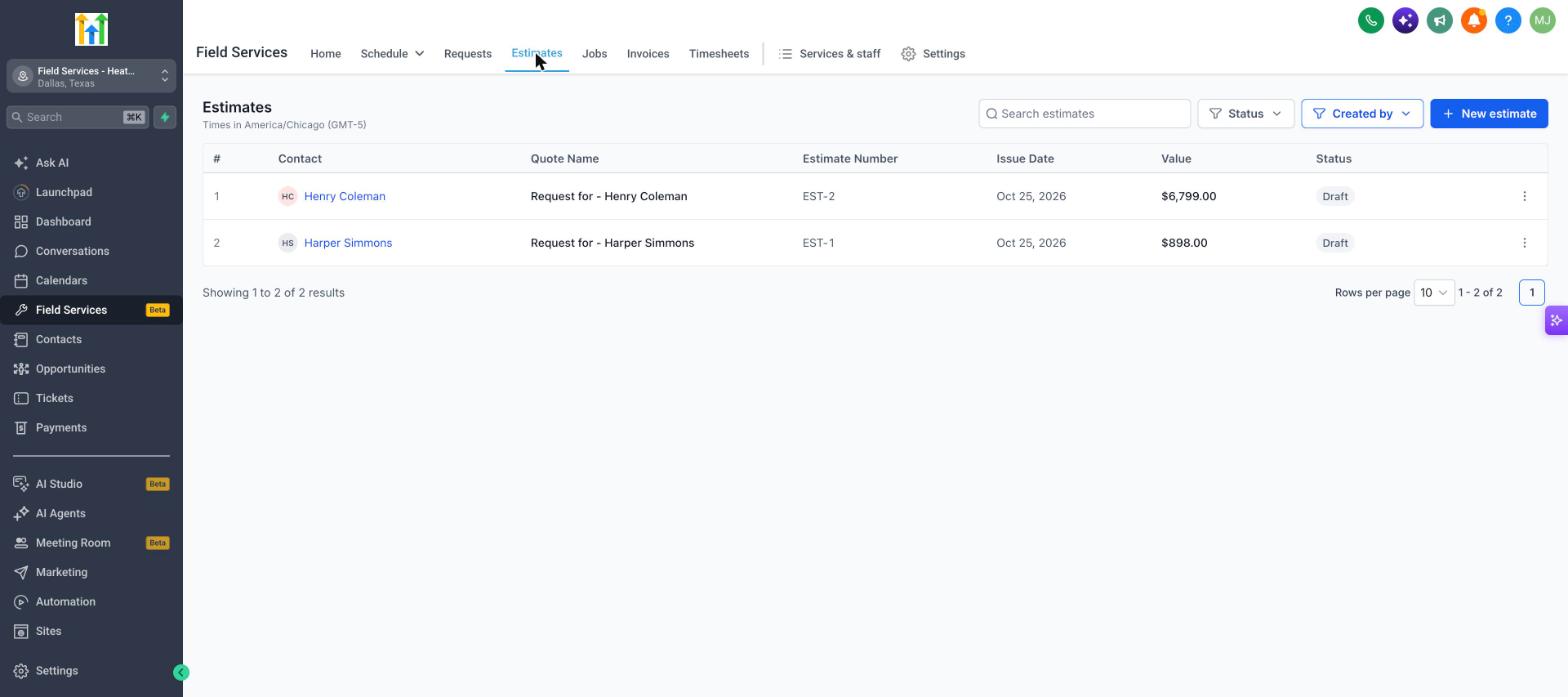
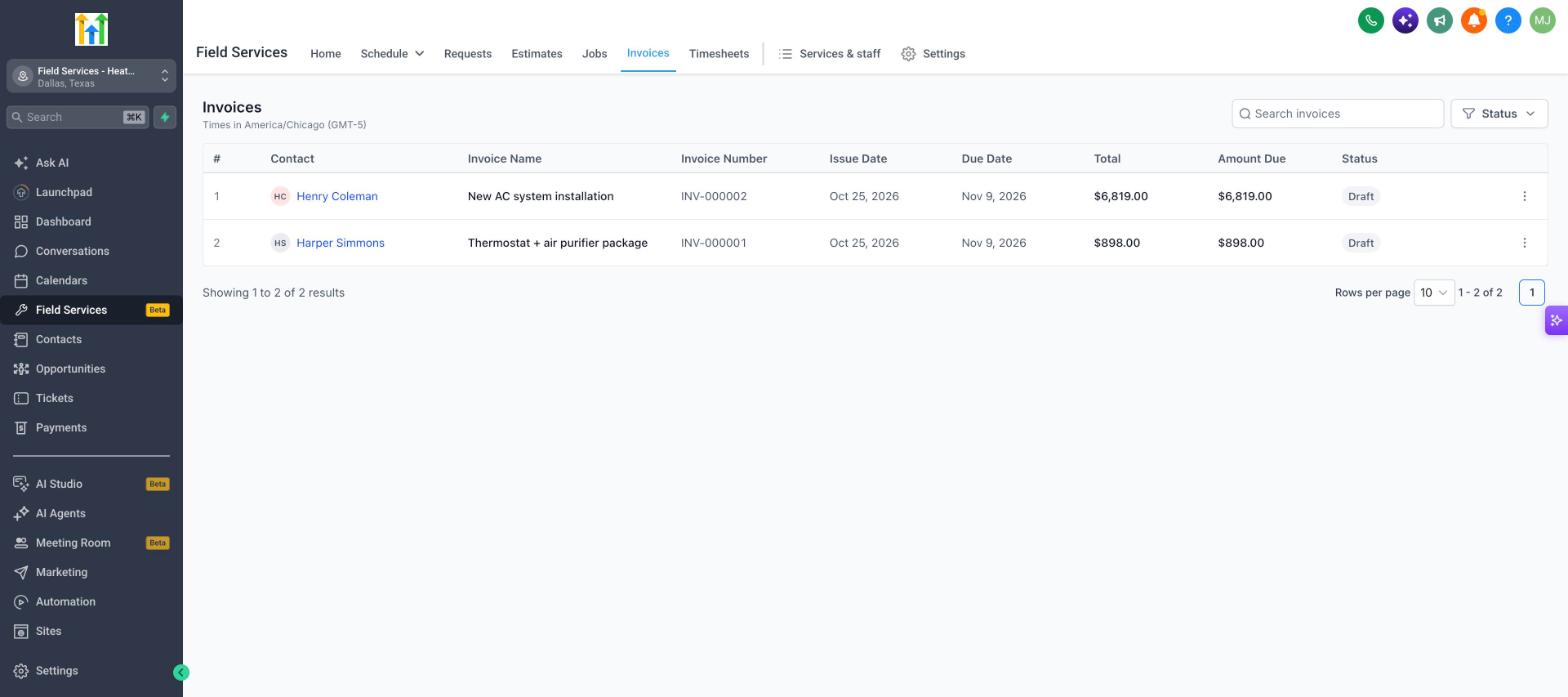
Estimates are created from the Estimates list or by converting a request. They list the services and products and show a total, but they do not demand payment. Invoices are generated from jobs using the Billing card. They record the amount due, payments received, and any outstanding balance. Both documents appear on the Field Services Home screen: estimates under “Estimates awaiting response” and invoices in sections such as “Jobs awaiting invoices,” “Awaiting payment,” and “Payments collected.” Billing a job is done from the job detail page; the Billing card shows the job total, what has been invoiced, and the remaining balance, and lets you view the total breakdown, create a new invoice, and see related transactions.
03How businesses use estimates and invoices
- Plumbing company. The plumber opens a new request, selects Convert to estimate, and sends the quote to the homeowner. After the homeowner approves, the plumber converts the request to a job, completes the work, and creates an invoice from the job’s Billing card.
- Home cleaning service. The cleaning service schedules a standard appointment from its booking page, skips the estimate, and creates a job directly. When the cleaning is finished, the owner opens the job, clicks Create invoice on the Billing card, and sends the bill to the client.
- HVAC repair business. A technician receives a service request, converts it to an estimate to outline parts and labor costs, and sends it for approval. Once approved, the request becomes a job; after each visit, the business uses the Billing card to issue partial invoices.
04Before you start
- Field Services must be enabled in private beta for the account.
- A request is needed to create an estimate, and a job is needed to create an invoice.
05How to set up and use estimates and invoices in HighLevel
Bill on a job
- Open the job that needs to be billed.
- Locate the Billing card on the job page.
- Review the job total breakdown if needed.
- Click the Create invoice button inside the Billing card.
- Check the Invoices and Transactions link to see the new invoice and any payments.
06What it looks like in HighLevel
07Settings that matter
- Created by filter. Controls whether the Estimates list shows only items created by Field Services or includes all estimates in the subaccount.
- Status filter. Lets you narrow the Estimates or Invoices view to specific document statuses such as Draft, Sent, or Paid.
08Things to know before you rely on it
- Field Services is in private beta; features and screens may change as the product evolves.
09How it connects to the rest of HighLevel
- Enable the Field Services beta and set up mobile access Enable beta
- Understand the Home page view for estimates and invoices Home page overview
- Learn how jobs organize work, visits, and billing Jobs and billing
Michael's take

I look at the request first; if the service has a fixed price, I convert it directly to a job and move straight to scheduling.
Once the job is done, I open the Billing card on the job page and click Create invoice. The card shows exactly what’s been invoiced and what’s still outstanding, so I can send a clean invoice without hunting through separate screens.