
01Who this is for
- Service based small businesses benefit because they can direct Google search traffic straight to their scheduling page.
- Home repair contractors gain a single booking link that appears on their Google Business Profile, reducing steps for callers.
- Health and wellness providers can showcase individual services with separate Book buttons on Google.
02Reserve with Google, explained
Reserve with Google creates a bridge between a business’s Google listing and the HighLevel appointment engine. When Google Organic Booking is enabled, Google can display a main Book Online button as well as individual service buttons that send users to the selected HighLevel calendars.
The feature lives inside Calendar Settings under the Connections area. From there, users select a Primary Action Feed, either a Service Menu or a Calendar Group, and choose which calendars to publish as separate services. After uploading, Google reviews the feeds and, once approved, the booking actions appear on the Google Business Profile automatically.
03How businesses use reserve with Google
- Dental practice. The practice configures a Service Menu that lists all dental procedures. Google then shows a single Book Online button that leads patients to choose a procedure, date, and time within HighLevel.
- HVAC company. The company selects individual calendars for installation, repair, and maintenance services. Each service appears on the Google Business Profile with its own Book button, sending customers to the matching HighLevel calendar.
- Personal trainer. The trainer publishes a Calendar Group that contains calendars for one on one sessions, group classes, and virtual coaching. Google displays a single Book Online link that redirects clients to the trainer’s HighLevel schedule.
04The numbers and rules that matter
- Removal may take 24 to 48 hours to appear on the Google Business Profile.
05Before you start
- Access to the correct HighLevel subaccount is required.
- All necessary calendars have been created in HighLevel.
- A Service Menu or Calendar Group exists for the Primary Action Feed.
- Each calendar selected for services has a clear name and matching description.
- The appropriate Google Business Profile is active and can be linked.
- The Local Services Ads account is able to link to that Google Business Profile.
06How to set up and use reserve with Google in HighLevel
Open Google Organic Booking Settings
- Open the chosen HighLevel subaccount.
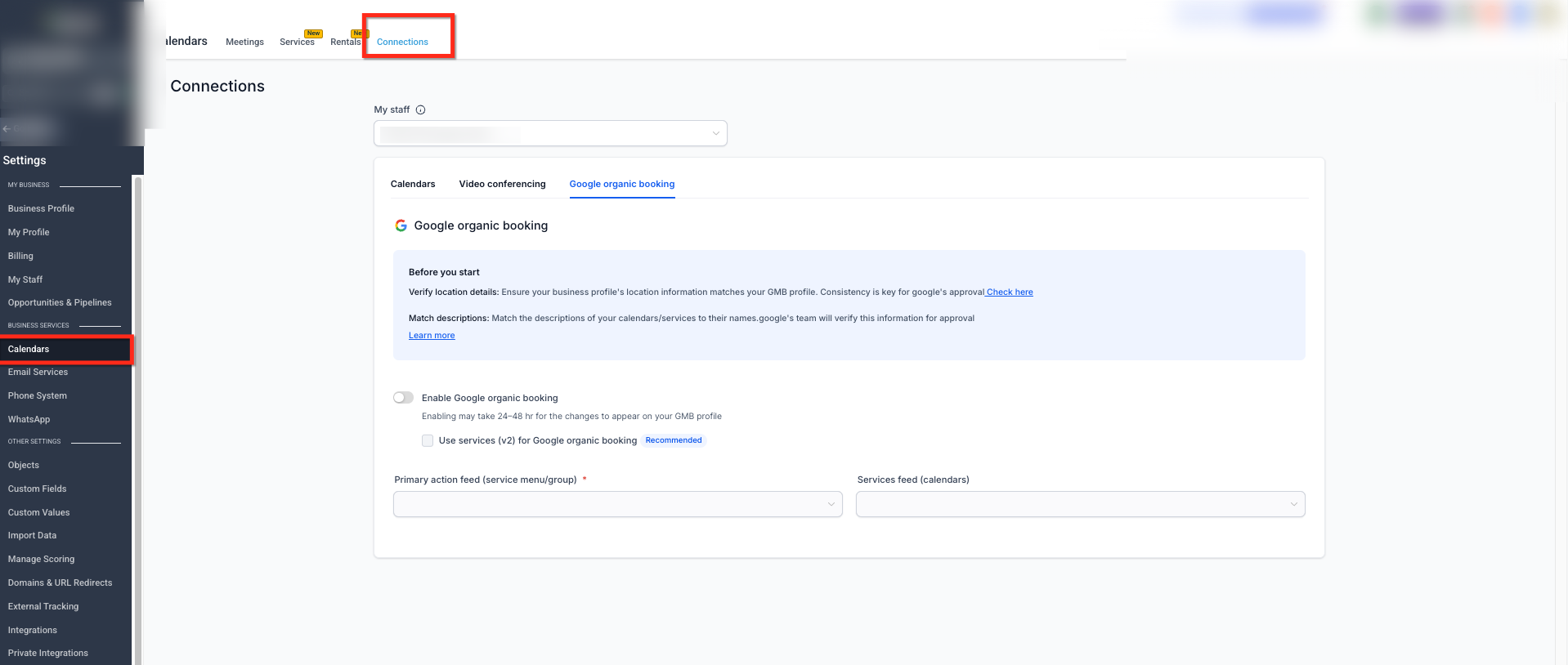
- Select Calendars from the main menu.
- Choose Calendar Settings.
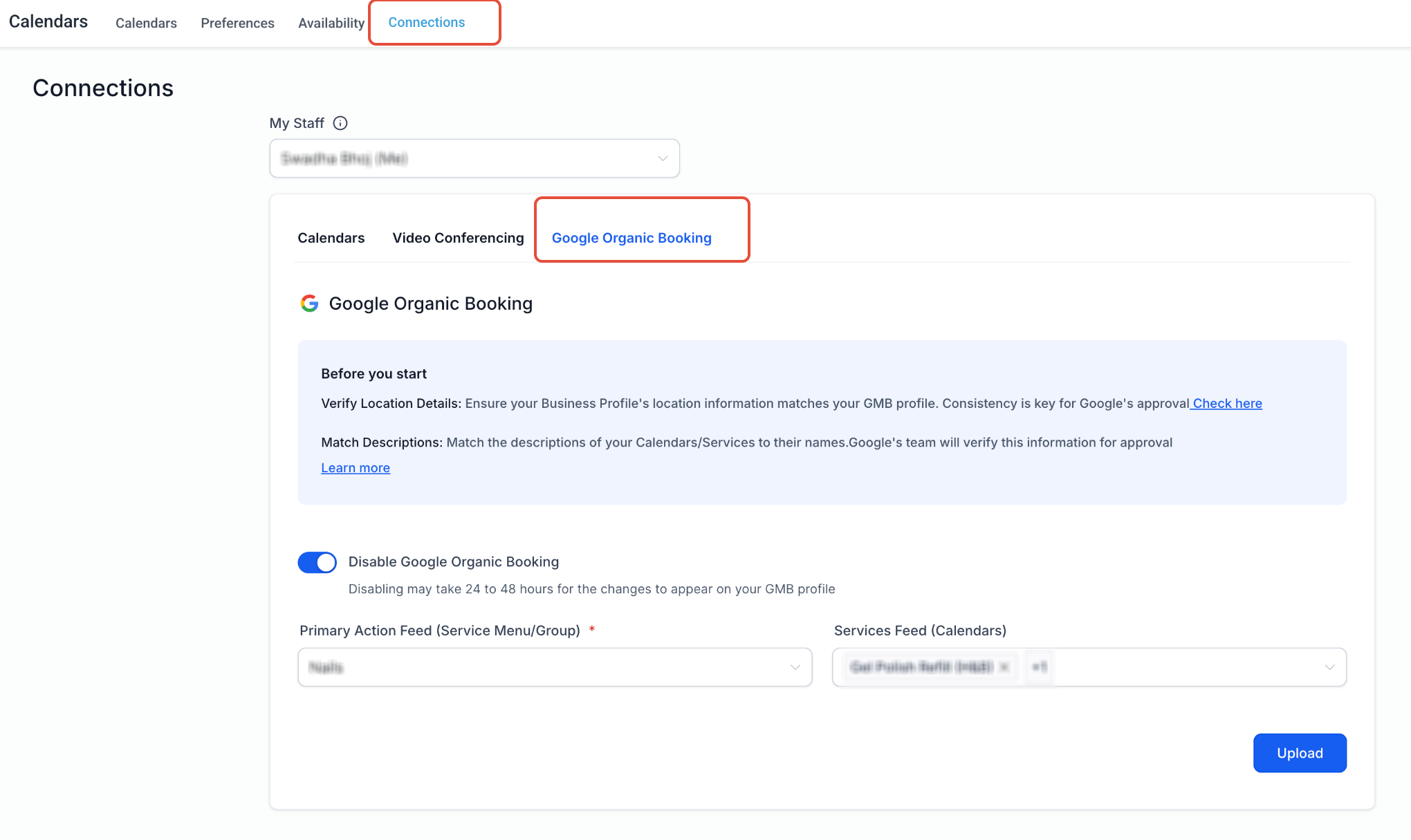
- Click the Connections tab.
- Pick the desired staff member from the My Staff dropdown, if needed.
- Open the Google Organic Booking tab.
Configure the Primary Action Feed
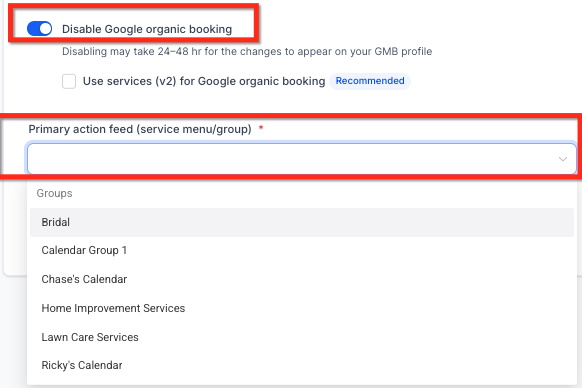
- Find the Primary Action Feed (Service Menu/Group) section.
- Open its dropdown menu.
- Pick the Service Menu or Calendar Group that should be the main booking destination.
- Verify that the selected destination includes the correct services and booking links.
Configure the Services Feed
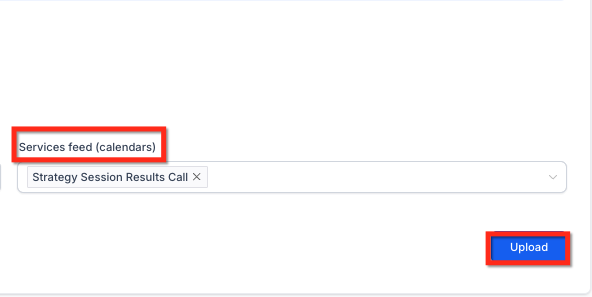
- Locate the Services Feed (Calendars) area.
- Open its dropdown menu.
- Select the calendars you wish to publish as individual services.
- Review each calendar’s name and description.
- Confirm that each description matches the service name clearly.
Upload the Booking Feeds
- Check the Primary Action Feed for accuracy.
- Check the calendars chosen in the Services Feed.
- Click the Upload button.
- Allow Google time to review and publish the feeds.
Link the LSA Account to the Google Business Profile
- Sign in to the Google Ads account linked to the business.
- Click the Tools icon.
- Open Data Manager.
- Find Google Business Profile under Connected products.
- Select Manage & link.
- Review any linked profiles and pending invitations.
- Link or confirm the correct Google Business Profile.
- Confirm the correct business location is selected.
Wait for Automatic Activation
- Google reviews the uploaded booking feeds.
- Google validates the business and service information.
- Approved booking actions are published to the Google Business Profile.
- Google associates the profile with the Local Services Ads account.
- LSA booking becomes available automatically.
- No separate Start Integration action is required in HighLevel.
07What it looks like in HighLevel

08Settings that matter
- Primary Action Feed (Service Menu/Group). Determines the main Book Online destination that appears on the Google Business Profile.
- Services Feed (Calendars). Specifies which individual HighLevel calendars are sent to Google as separate bookable services.
- Google Organic Booking. Enables the platform to publish the selected booking destinations to a Google Business Profile.
09Things to know before you rely on it
- Google typically needs one to two weeks to verify and publish the uploaded booking feeds.
- Disabling Google Organic Booking stops feed publication; removal may take 24 to 48 hours to disappear from the Google Business Profile.
- The Primary Action Feed must be set; the interface does not allow leaving it blank.
10If something goes wrong
- Book Online button does not appear on the Google Business Profile.. Confirm the feeds were uploaded, the correct Google Business Profile is linked, business and location details match, and the service names and descriptions are accurate.
11How it connects to the rest of HighLevel
- Learn how to sync HighLevel calendars with Google Calendar. Google Calendar integration
- Details on connecting a Google Business Profile for reputation management. Google Business Profile link
- Review HighLevel pricing and plan options. Pricing
Michael's take

In my experience, setting the Primary Action Feed first. Choosing the Service Menu or Calendar Group that best represents the core offering. Helps ensure the main booking button works before adding individual service feeds.