
01Who this is for
- Founders who manage client appointments and need to protect client calendar information.
- Coaches who schedule sessions with multiple team members and want each session to stay private.
- Marketing agencies that sync calendars across staff but must prevent internal users from seeing client event details.
02Private mode for synced events, explained
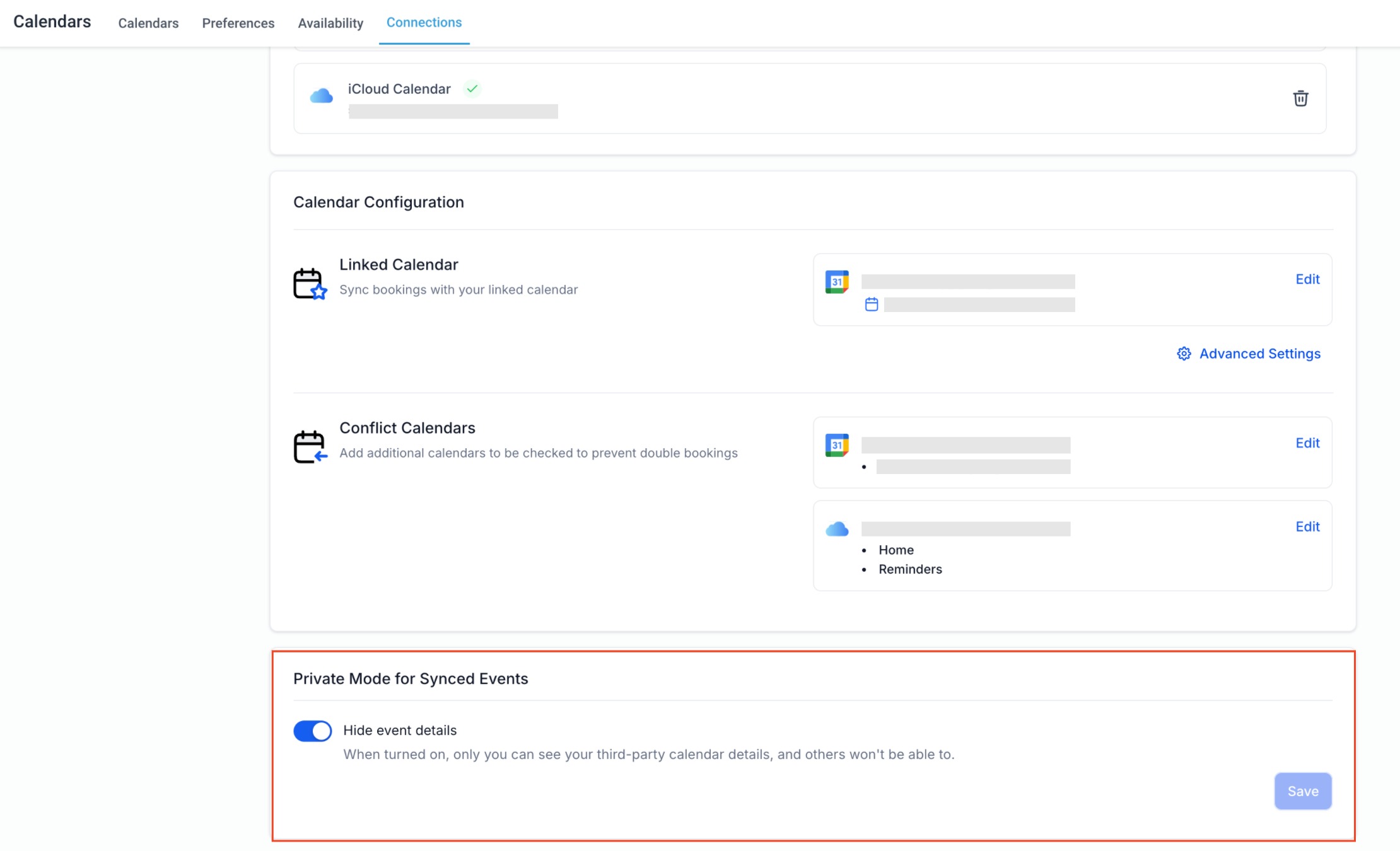
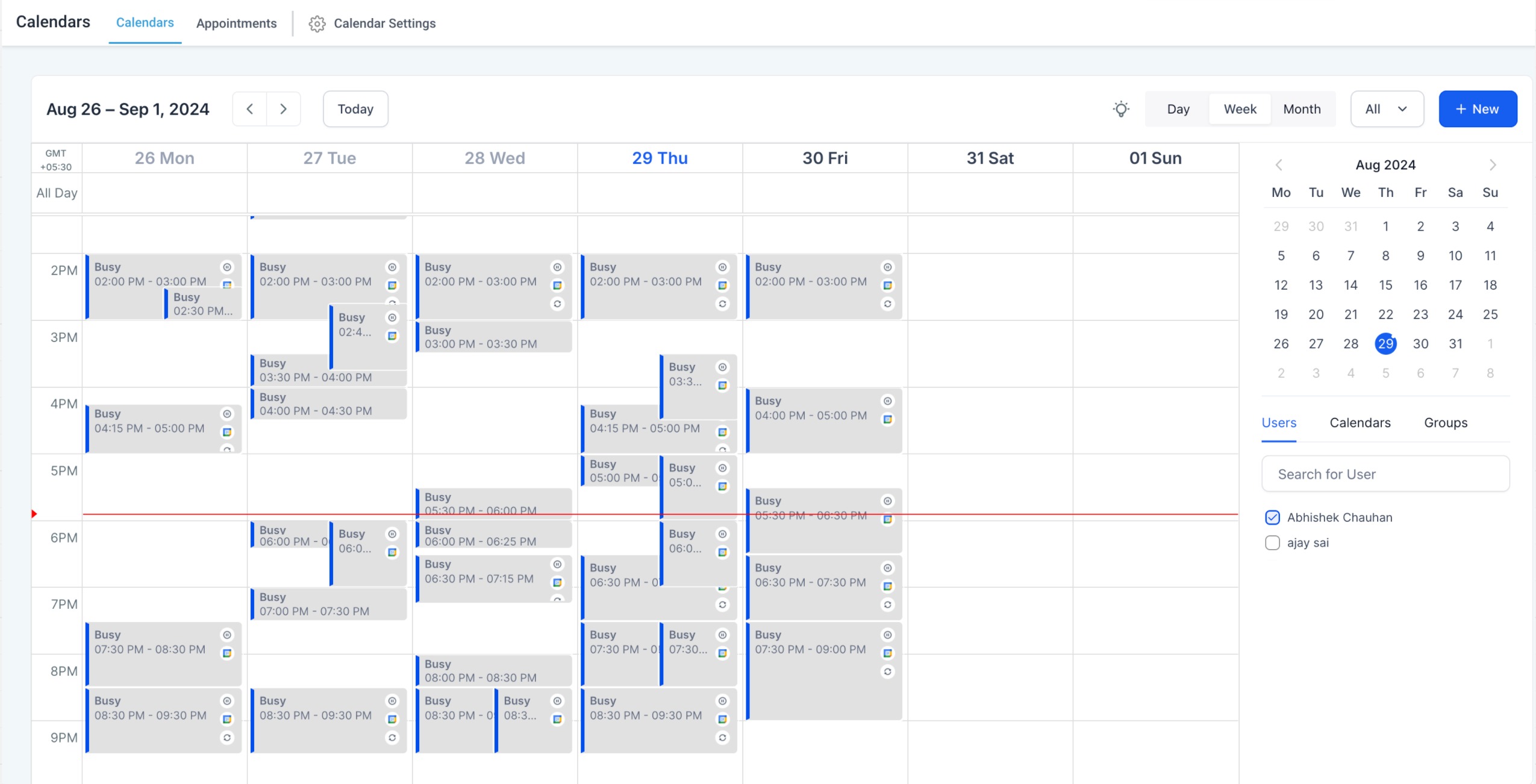
The Private Mode setting blocks calendar event information from being displayed to anyone else in the platform. When it is turned on, only the user who connected the Google or Outlook calendar can view the full details of synced events. All other users see the events as blocked or as a generic busy slot.
The feature lives in two places: the My Profile area under Calendar Configuration and the Calendar Settings > Connections page. Both locations contain a toggle labeled Private Mode for Synced Events that can be switched on or off.
If an event is already marked private in the source calendar, HighLevel hides its details automatically. An additional "Hide Events" toggle can be used to turn every synced event into a busy indicator, regardless of its original privacy status.
03How businesses use private mode for synced events
- Coaching practice. A coach links their Outlook calendar, enables Private Mode in My Profile, and ensures session details stay visible only to them. This prevents other team members from seeing client specific information.
- Digital marketing agency. The agency syncs a Google calendar for campaign launch dates, activates Private Mode via Calendar Settings, and guarantees that only the account owner can view the exact launch times, keeping strategy confidential.
- Real estate brokerage. An agent connects their Outlook calendar, switches on Private Mode, and makes property showing appointments appear as busy slots to other staff, while the agent retains full event visibility.
04Before you start
- A Google or Outlook calendar must be connected to HighLevel.
05How to set up and use private mode for synced events in HighLevel
Enable Private Mode via My Profile
- Open Settings and select My Profile.
- Scroll down to the Calendar Configuration section.
- Toggle the Private Mode for Synced Events option on or off.
Enable Private Mode via Calendar Settings
- Navigate to Calendar Settings and choose Connections.
- Scroll to locate the Private Mode for Synced Events setting.
- Switch the option on or off according to preference.
06What it looks like in HighLevel
07Settings that matter
- Private Mode for Synced Events. Controls whether only the calendar owner can view details of synced Google or Outlook events.
- Hide Events. When enabled, all synced events appear as busy slots, hiding both private and public details.
08Things to know before you rely on it
- The feature works only with Google and Outlook calendars; iCloud calendars do not support private or public event settings.
- Events already marked private in the source calendar are hidden in HighLevel regardless of the Private Mode toggle.
- The setting is part of Labs and is turned on for all users by default.
09How it connects to the rest of HighLevel
- How to integrate Google Calendar with HighLevel Google Calendar integration
- HighLevel Outlook calendar sync: setup and usage guide Outlook sync guide
- All Calendars & Appointments features overview Calendars feature list
Michael's take

Wondering if you really need to hide calendar details from your team? If your business shares a single calendar view, Private Mode lets each person keep their own appointments invisible to others, showing only that they’re busy. It’s a quick way to protect client names or sensitive meeting notes without reshuffling your whole scheduling setup.
I’d flip the toggle on right after linking Google or Outlook, then double check that the busy slots show up as expected. Once you confirm the view, you can relax knowing no one else can peek at the specifics.