
01Who this is for
- Coaches who schedule sessions through Calendly benefit by automatically creating client contacts and triggering follow up automations.
- Real estate teams can assign new property tour bookings to specific agents as soon as they appear in HighLevel.
02Calendly integrations, explained
The Calendly integration pulls events from the Calendly calendars you select and writes them into HighLevel calendars. Each imported event becomes an appointment that can be used in contacts, automations and user assignment.
The connection is managed in the Calendars > Calendar Settings area of the platform. After you grant permission, HighLevel imports upcoming events and any events from the past 180 days. Only future events can trigger automation workflows.
03How businesses use Calendly integration
- Coaching business. A coach logs into HighLevel, opens Calendar Settings, and adds a Calendly integration. They select the coaching session calendar and enable phone number sync from the meeting location. New client bookings then appear in HighLevel as appointments and contacts.
- Real estate agency. An agent connects the agency’s Calendly account, chooses the property tour calendar, and maps any phone numbers from the Calendly form. When a prospect books a showing, HighLevel creates a contact and assigns the appointment to the appropriate agent.
- Medical clinic. The clinic admin adds the Calendly integration, selects the patient intake calendar, and opts to sync the phone number entered in the meeting location. Each new patient appointment is imported, and the contact record is automatically updated with the phone number.
04The numbers and rules that matter
- Only Standard, Teams, and Enterprise Calendly plans are supported.
- Events from the last 180 days are imported when the connection is made.
05Before you start
- A Calendly account on a Standard, Teams, or Enterprise plan.
- Access to a HighLevel subaccount with at least one user.
06How to set up and use Calendly integration in HighLevel
Connect Calendly account
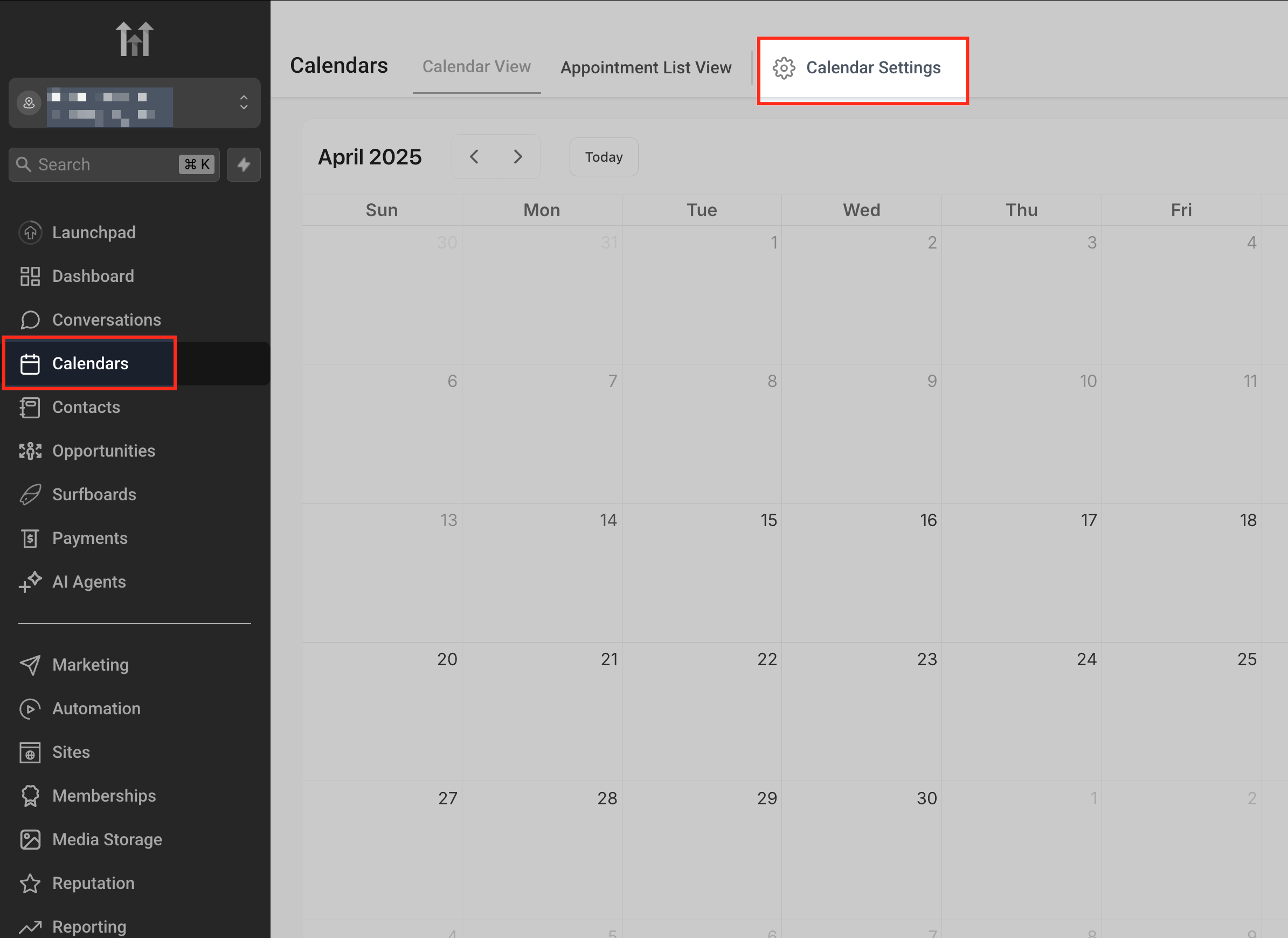
- Open Calendars then click Calendar Settings in the top right corner.
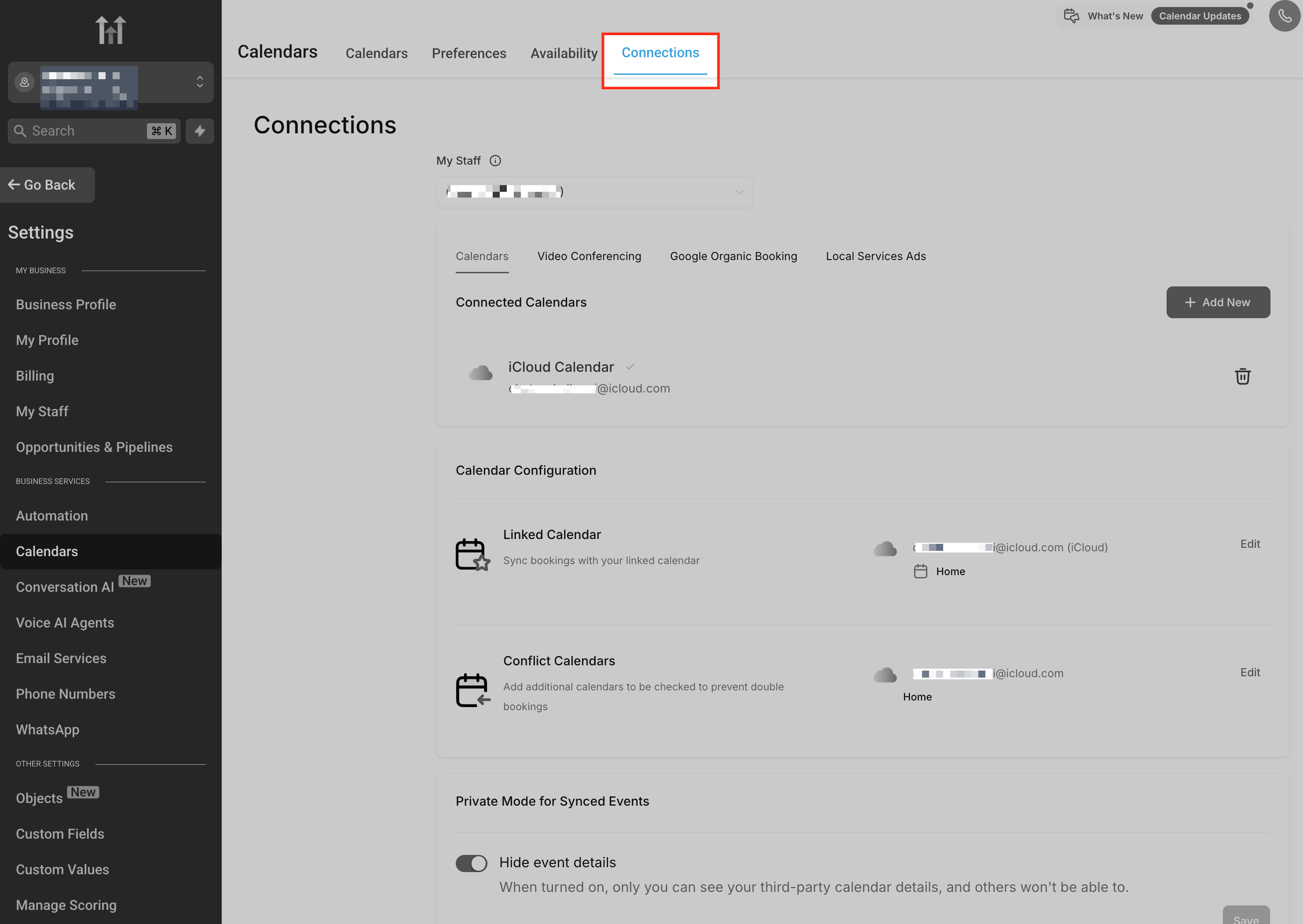
- Select the Connections tab at the top of the page.
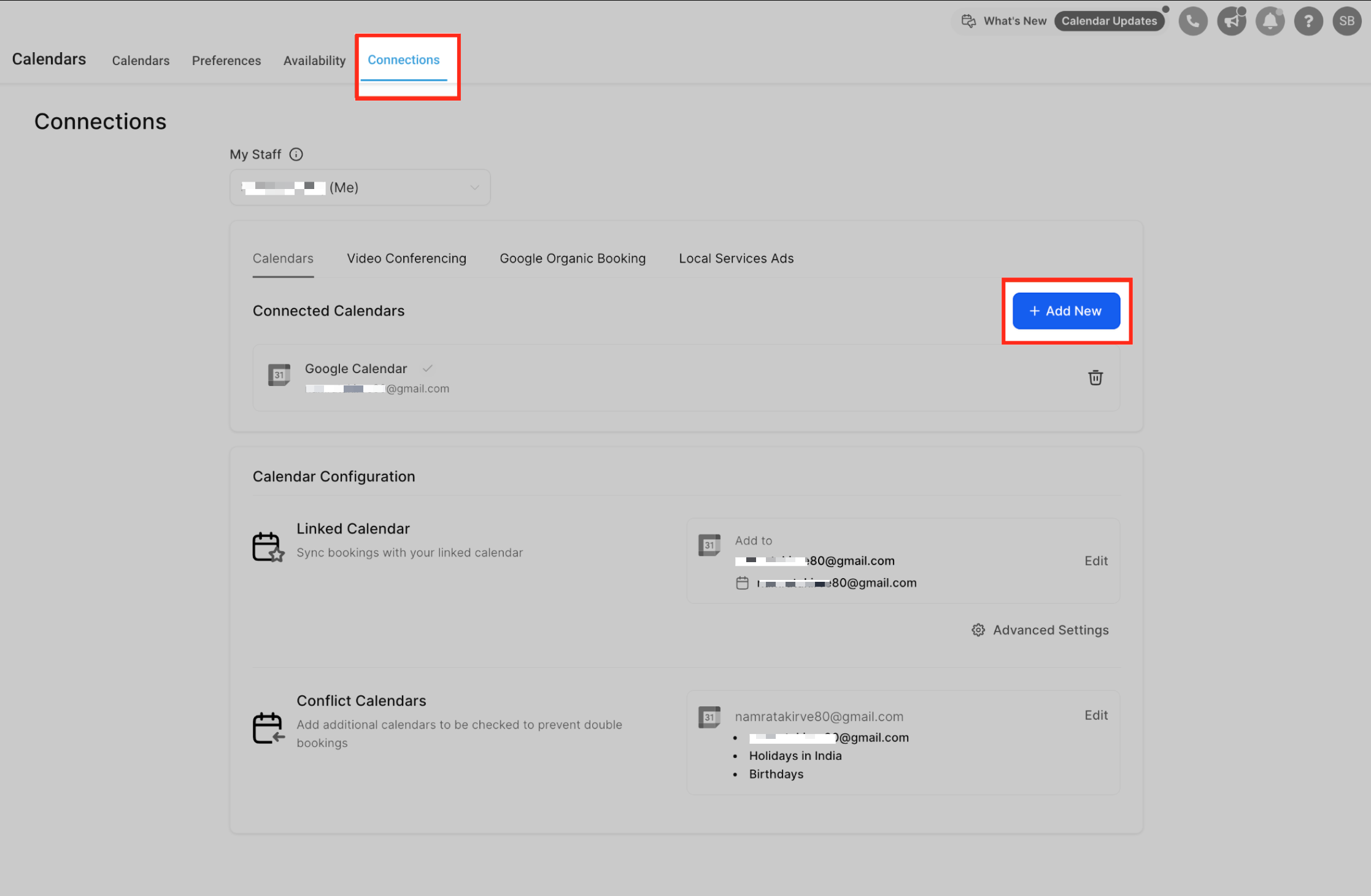
- Press the + Add New button to start a new calendar connection.
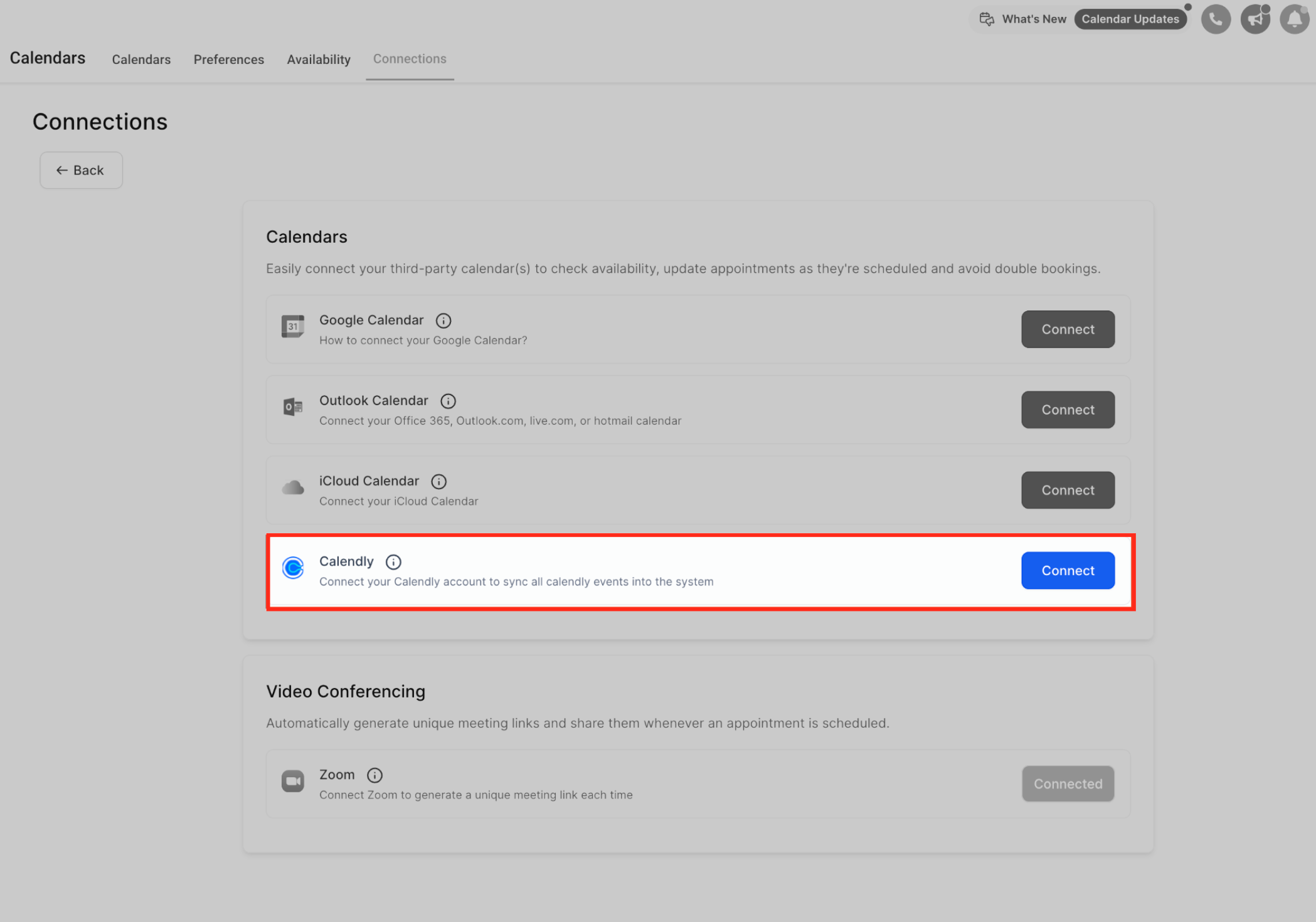
- Find Calendly in the provider list and click Connect.
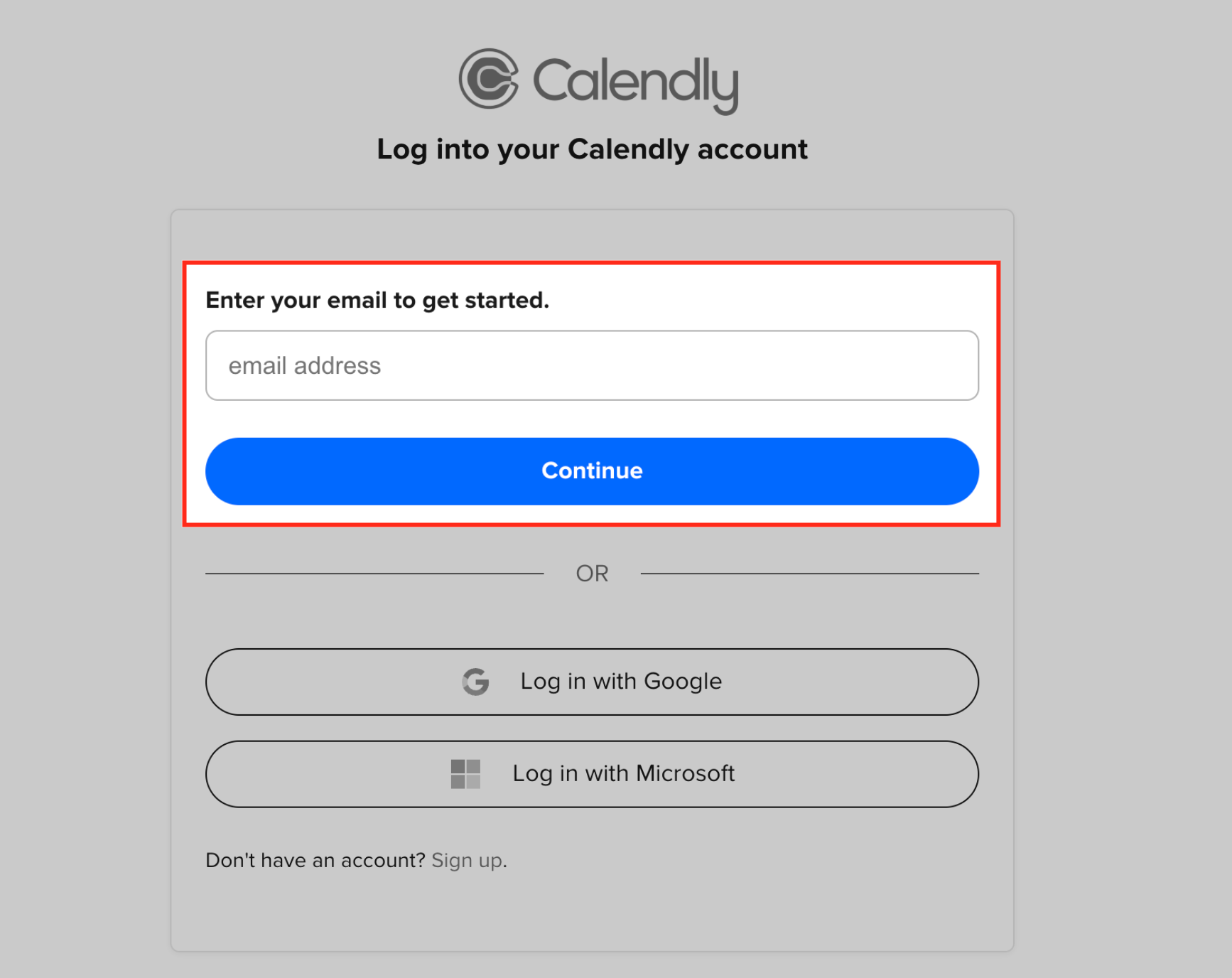
- Log into Calendly with the associated email or linked Google or Microsoft credentials and click Continue.
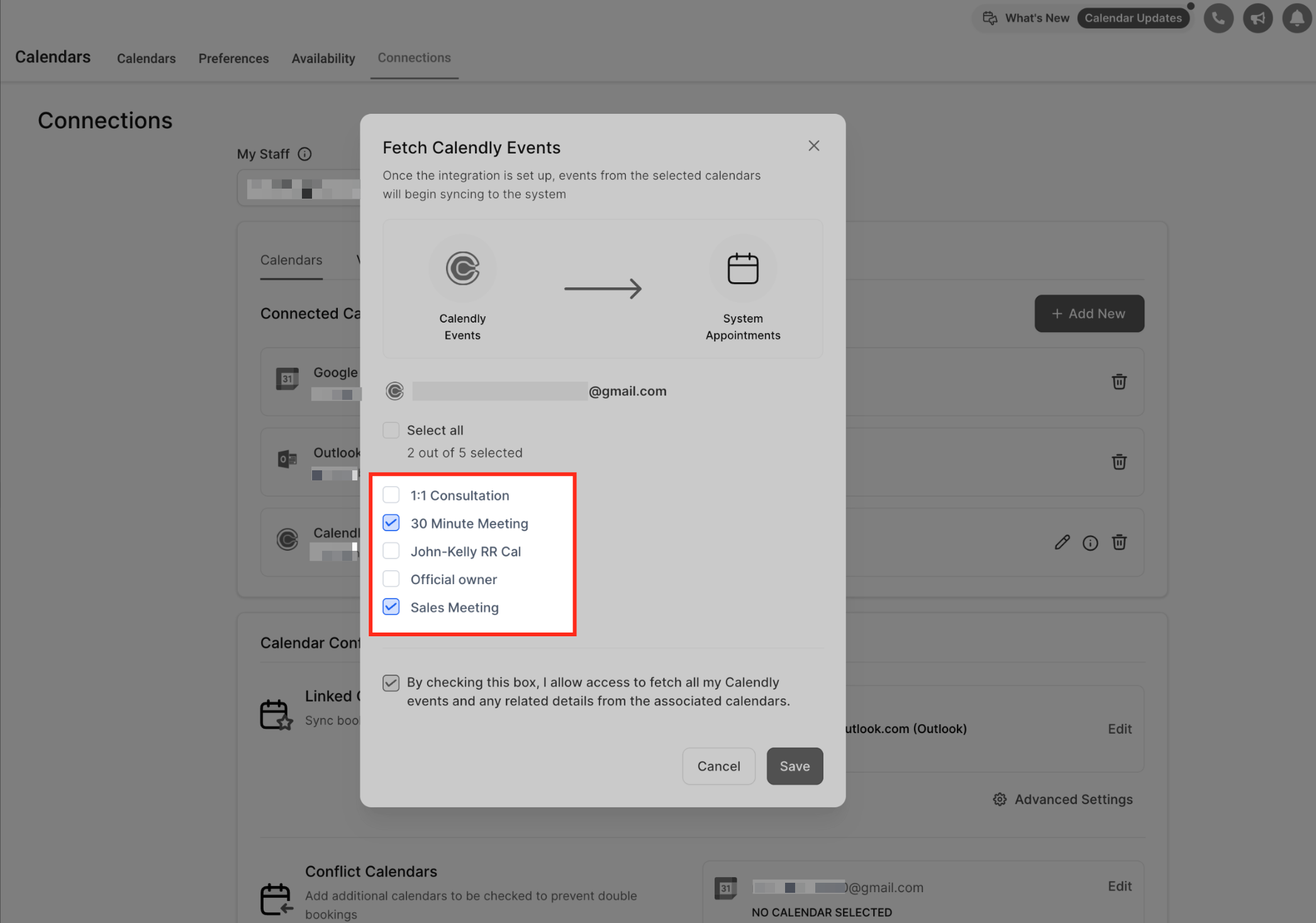
- Pick the Calendly calendars you want to bring into HighLevel.
- Check the consent box to allow data access and click Save to finish the setup.
Edit synced Calendars
- Locate the Connected Calendars list and click the pencil icon beside the Calendly entry.
- Check or uncheck the calendars you wish to keep synced.
- Click Save to apply the new selection.
- Remember that Calendly calendars can only be added as Conflict Calendars.
- Only the calendars marked will continue to sync future events.
07What it looks like in HighLevel
08Settings that matter
- Phone number sync (Location vs Form fields). Determines whether HighLevel pulls a guest’s phone number from the meeting location, a Calendly form field, or skips syncing the number.
- Mapping modal when phone numbers come from Calendly form fields. Provides a screen where you choose which phone field to map, whether to use the location phone, or to not sync a phone number.
09Things to know before you rely on it
- Only Standard, Teams, and Enterprise Calendly plans are compatible; Free and Essentials plans cannot be used.
- Each user may connect only one Calendly account per subaccount.
- A single Calendly account can be linked to multiple users across different subaccounts.
- During the initial connection, events from the past 180 days are imported, but only future events can trigger workflows.
- Calendly calendars can be added only as Conflict Calendars, not as Linked Calendars.
- If the trial ends without upgrading to a supported plan, the integration stops working.
10How it connects to the rest of HighLevel
- Sync Outlook appointments with HighLevel calendars Outlook sync guide
- Add Zoom meetings to appointments created from Calendly bookings Zoom integration
- Hide third party calendar details using private mode Private mode
Michael's take

People often think the integration will let them edit Calendly bookings from HighLevel. It won’t. The sync is one way, so any change has to be made back in Calendly. I’d focus on using the import to feed my automations, not as a scheduling editor.
If I were setting it up, I’d start by confirming I’m on a Standard, Teams or Enterprise Calendly plan, then link the calendars I need for each team member. After that I’d map the phone field I care about and test a new booking to make sure the contact is created and the workflow fires.