
01Who this is for
- Founders who need unified scheduling for themselves and their team to keep appointments aligned.
- Service based businesses such as coaches or consultants that want client bookings to reflect their existing Google calendar events.
- Agencies that manage multiple staff members and require separate calendar connections for each user.
02Google calendar integrations, explained
The integration creates a live link between a Google Calendar and HighLevel calendars. Appointments added in either system appear in the other without delay. This two way sync helps keep availability accurate.
When the connection is offline, new appointments are stored in HighLevel. Once the link is restored, the platform automatically synchronises those appointments. Switching to a different calendar also triggers a resynchronisation of upcoming events.
The feature is accessed from a subaccount. Choose Calendars from the left navigation, open Calendar Settings, go to the Connections tab and add a new Google Calendar. Required permissions are granted during the authentication step.
03How businesses use Google calendar integration
- Dental practice. The dentist opens Calendar Settings and adds a Google Calendar as the Linked Calendar. Additional calendars are set as Conflict Calendars to block off holidays. New patient appointments booked in HighLevel appear on the dentist’s Google schedule.
- Coaching business. A coach connects their personal Google Calendar through the Connections tab. When a client books a session, the time is immediately reflected on the coach’s Google calendar, preventing overlapping sessions.
- Real estate agency. Each agent signs in, navigates to Calendar Settings and links their own Google Calendar. Agents use Conflict Calendars to mark property showing windows, ensuring the agency’s booking page does not double book the same slot.
04The numbers and rules that matter
- Supports multiuser setups with calendar selection per profile.
05Before you start
- A valid Google account must exist.
- The user needs admin or user level access to HighLevel calendar settings.
- The calendar to be linked must not have sharing permissions that cause conflicts.
06How to set up and use Google calendar integration in HighLevel
Connect Google calendar to HighLevel
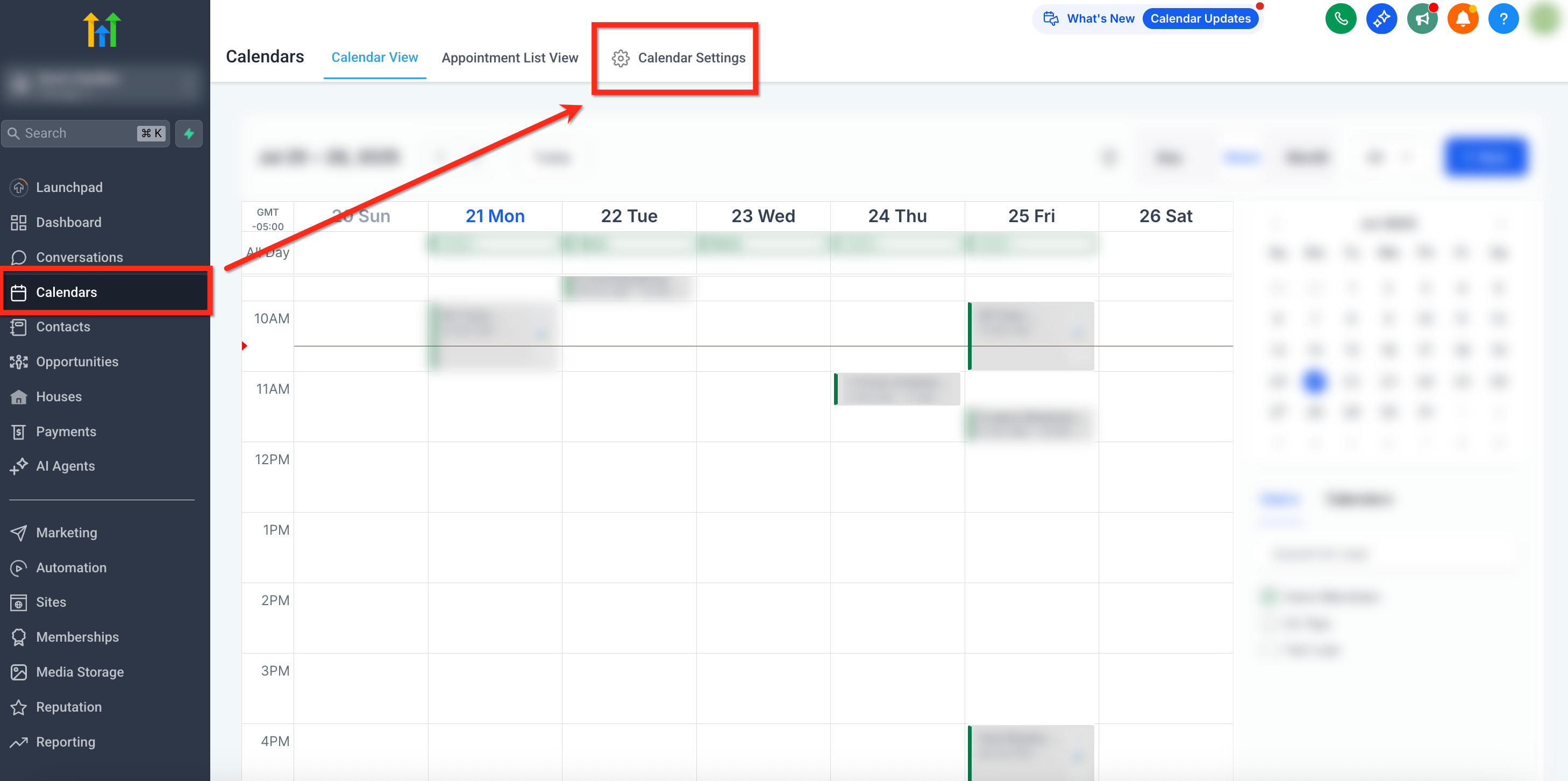
- Open the subaccount, select Calendars from the left navigation, then click Calendar Settings in the upper right corner.
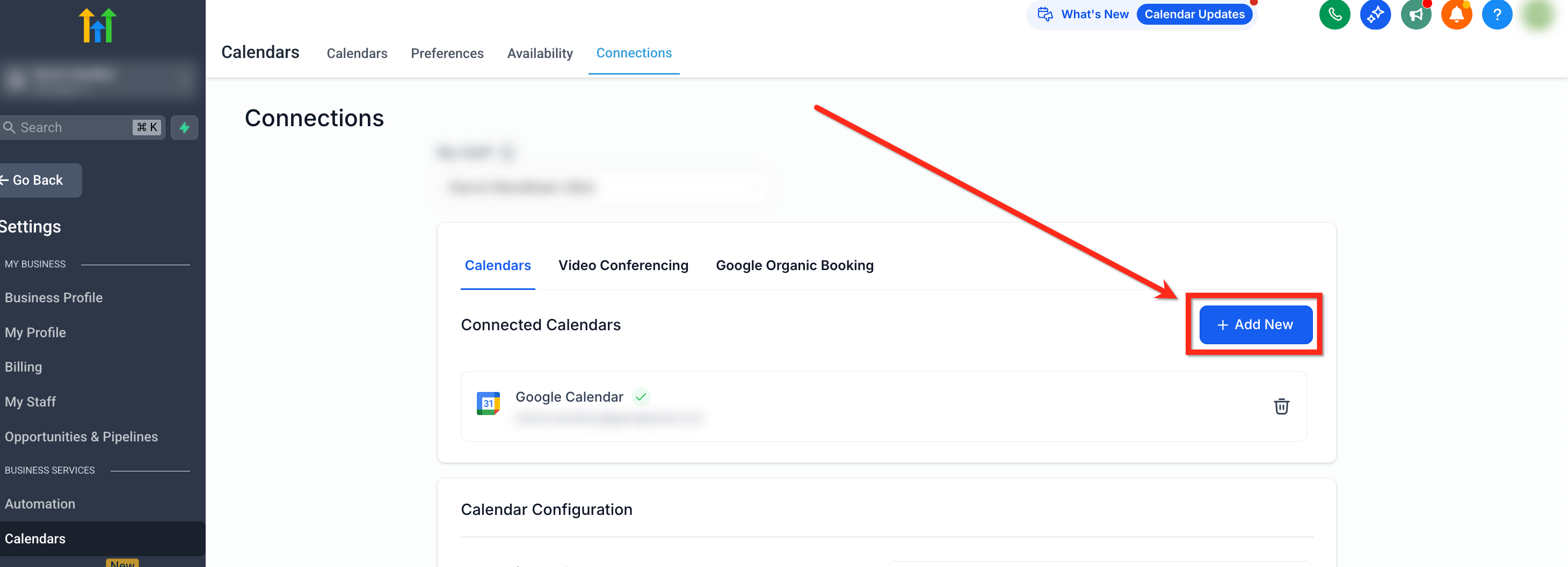
- In Calendar Settings, click the Connections tab on the top navigation bar.
- Press the + Add New button to start a new calendar connection.
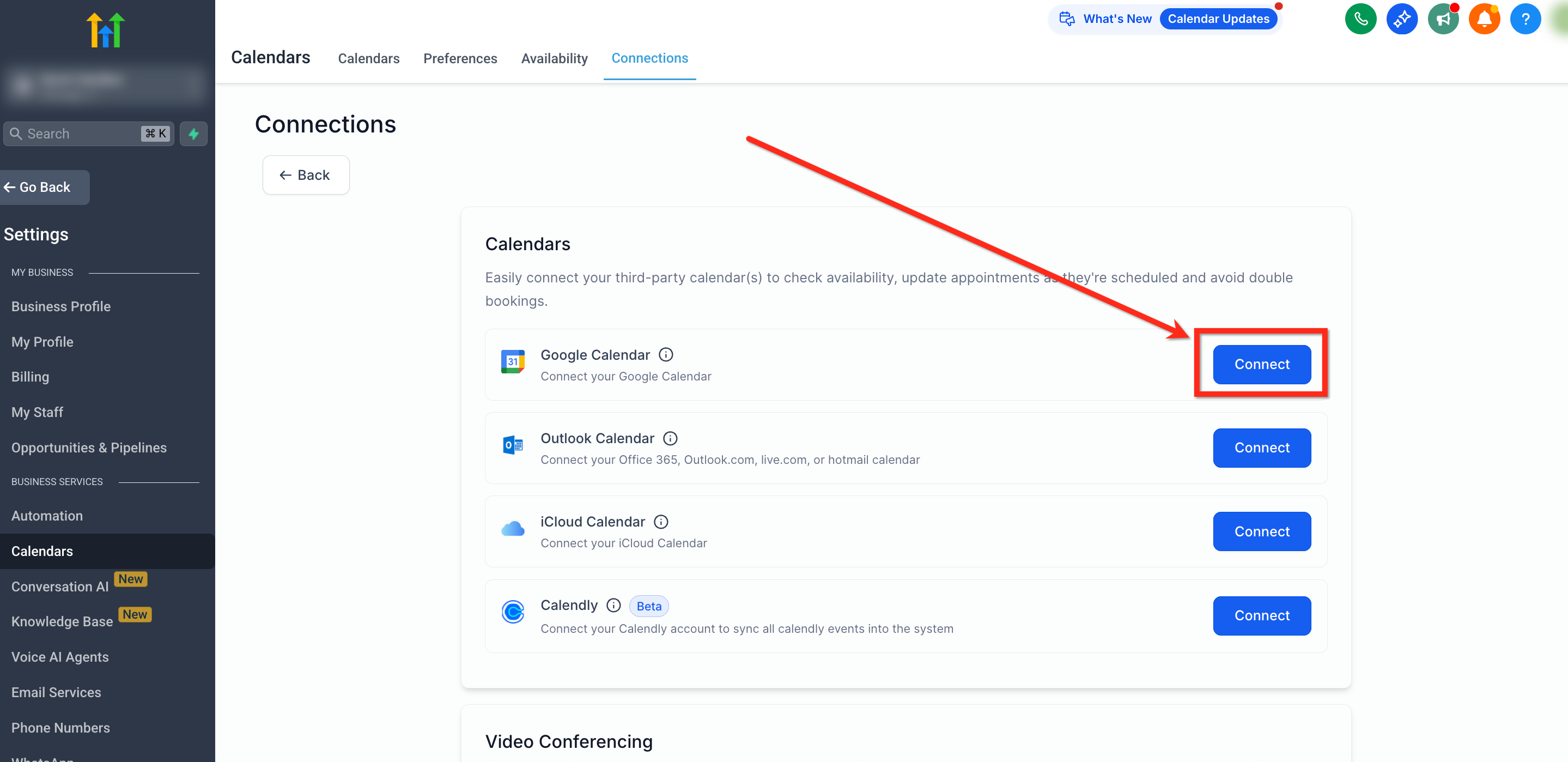
- On the Connections page, click the Connect button beside Google Calendar.
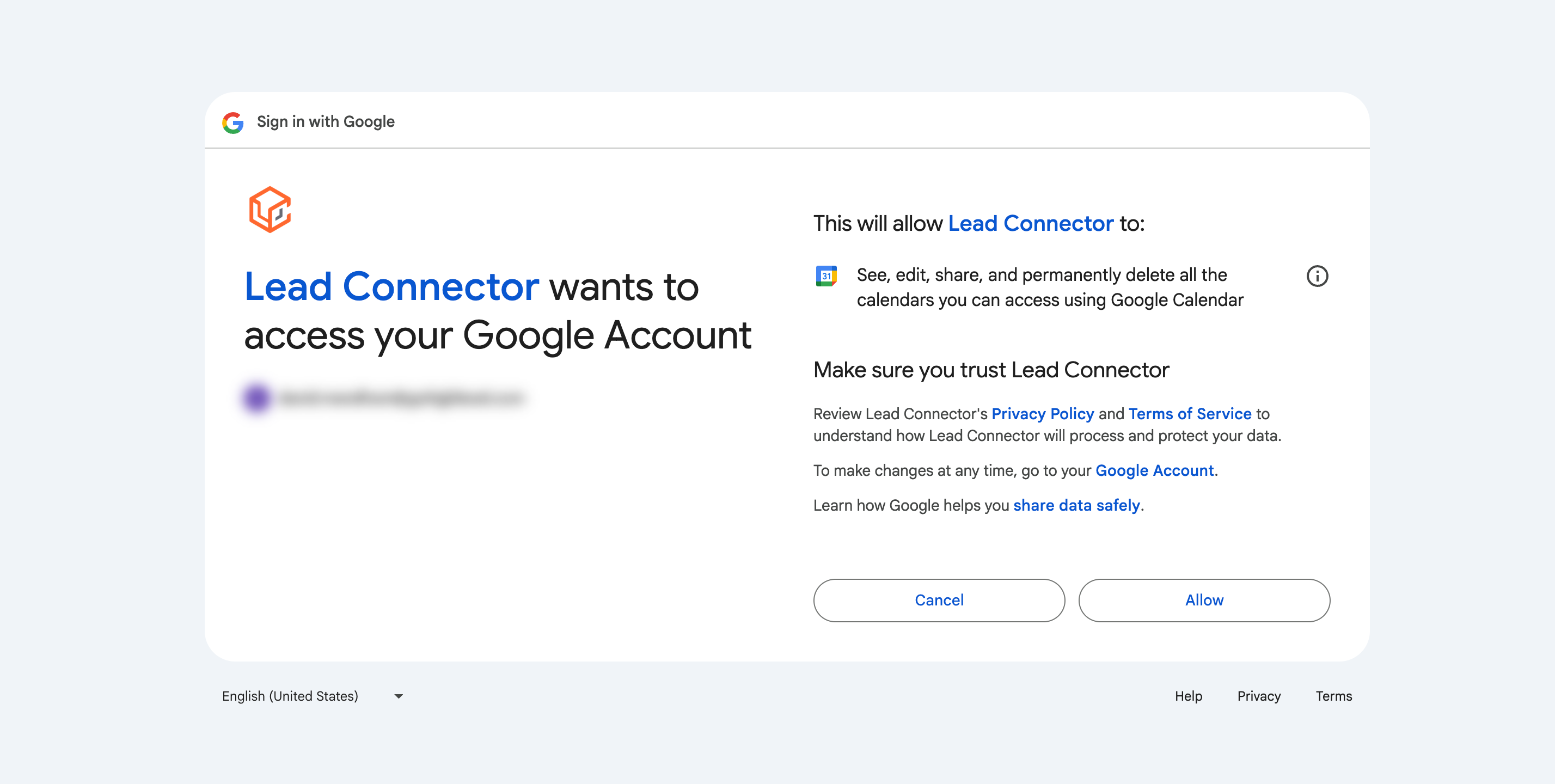
- Choose the Google account and grant Calendar (read/write), Profile, and Email permissions.
- If the connection continues loading indefinitely, clear the browser's cache and cookies, refresh the page, and verify a stable internet connection.
07What it looks like in HighLevel
08Settings that matter
- Settings → Integrations → Google. Shows warnings for missing permissions and provides a Reconnect option to restore full access.
- Calendar Settings. Opens the page where calendar connections are managed.
- Connections tab. Displays existing calendar links and lets users add new integrations.
- Linked Calendar. Designated calendar used for booking appointments.
- Conflict Calendars. Additional calendars checked to prevent double bookings.
09Things to know before you rely on it
- Integration is tied to individual user profiles; a single calendar cannot be shared across multiple users.
- Full write permission is required; without it, syncing may fail.
- Sync can break if the Google token expires, the calendar is deleted, or permissions are revoked.
- Multiple Google calendars can be linked, but each must be set as either a Linked Calendar or a Conflict Calendar.
10If something goes wrong
- Connection loading indefinitely. Clear the browser's cache and cookies, refresh the page, and verify a stable internet connection.
- Sync does not occur because of missing permissions. Open Settings > Integrations > Google, look for a missing permissions warning, and click Reconnect to grant the required access.
11How it connects to the rest of HighLevel
- Sync Outlook calendars with HighLevel Outlook sync guide
- Add Zoom meetings to HighLevel calendar events Zoom integration
- Connect Calendly to HighLevel calendars Calendly integration
Michael's take

It’s a straightforward way to keep your appointments in sync without juggling two separate schedules. Once the connection is live, any booking in HighLevel appears on your Google calendar, and appointments created in Google appear in HighLevel in real time.
If I were setting it up, I’d first verify that I’ve granted full read/write access, then run a quick test booking to confirm the two way sync works. A quick glance at the missing permissions warning can save you a lot of head scratching later.