
01Who this is for
- Founders who schedule client meetings need accurate availability across platforms.
- Marketing agencies managing multiple consultants can prevent double bookings by syncing Outlook calendars.
- Service based businesses that use Outlook for internal meetings can centralize appointment handling within HighLevel.
02Outlook calendar integrations, explained
The integration creates a two way link between an Outlook calendar and HighLevel calendars. When an event is added, changed, or removed in Outlook, the same change is reflected in HighLevel, and vice versa. This keeps the busy free schedule current for any appointment type.
The feature lives under the Calendar Connections area of a subaccount. After authentication, HighLevel pulls availability from the Outlook account and displays Outlook events as busy slots, preventing overlapping bookings. It works with cloud based Office 365, Outlook.com, live.com and hotmail calendars and allows the same Outlook account to be used in several subaccounts.
03How businesses use Outlook calendar integration
- Dental practice. A dental clinic links its Outlook calendar, then any appointment booked through HighLevel automatically appears in Outlook. When the dentist adds a personal event in Outlook, the time slot shows as busy on the clinic’s booking page, preventing patients from booking over that period.
- Real estate agency. Agents connect their individual Outlook accounts so that property showings entered in HighLevel show as occupied in each agent’s Outlook schedule. Likewise, meetings the agents create in Outlook block those times on the agency’s public booking calendar.
- Coaching business. A coach integrates multiple Outlook accounts to manage sessions for different client groups. Each group's calendar in HighLevel reflects the coach’s Outlook availability, ensuring that session slots do not clash with other commitments.
04The numbers and rules that matter
- Supported: Microsoft 365 / Exchange Online accounts.
- Supported account types: Office 365, Outlook.com, live.com, and hotmail calendar.
05Before you start
- An active Outlook (Microsoft) account must exist.
- You must be logged into your HighLevel user profile.
- Writer access is required to send events to Outlook.
06How to set up and use Outlook calendar integration in HighLevel
Connect Outlook calendar to HighLevel
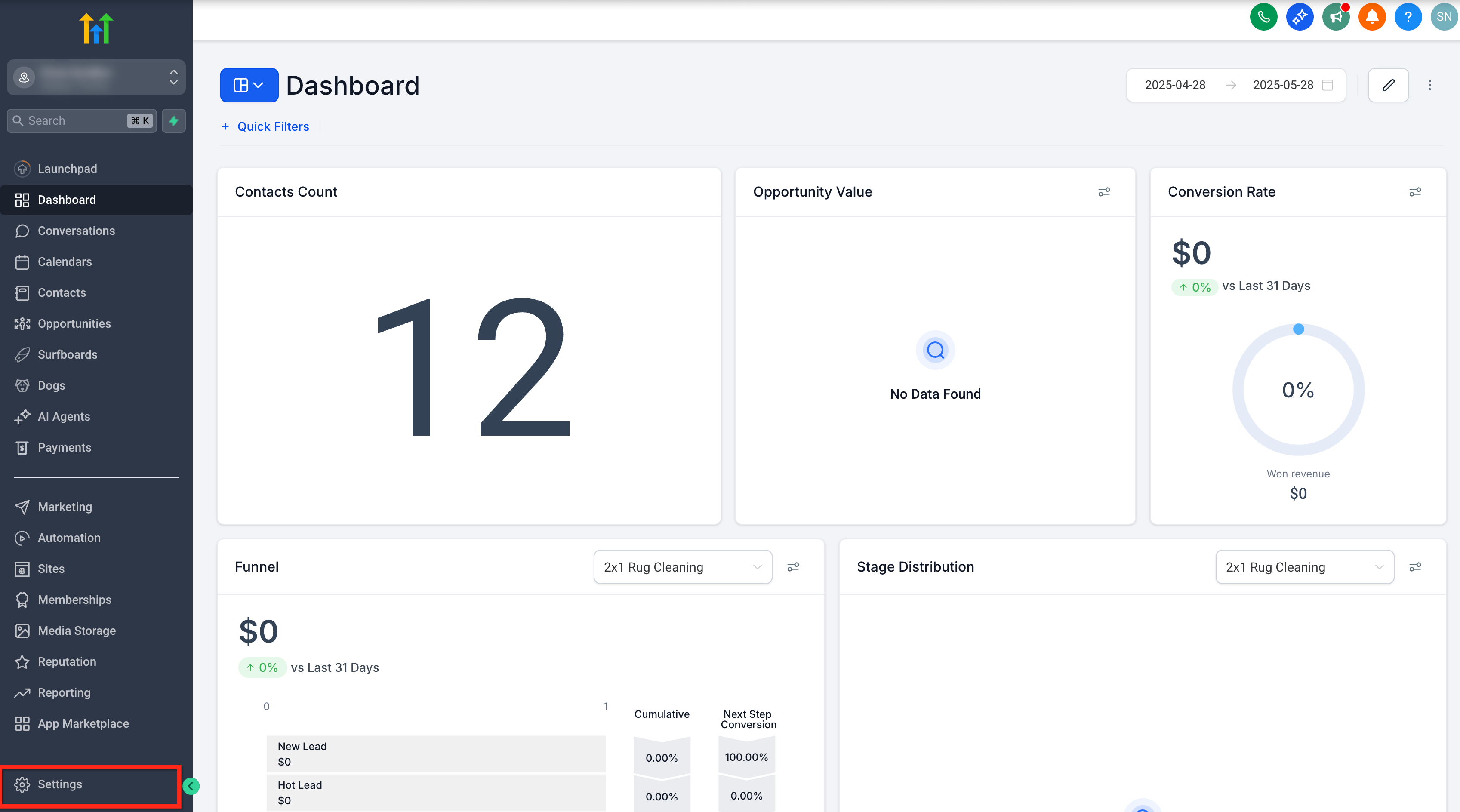
- Go to your subaccount Settings.
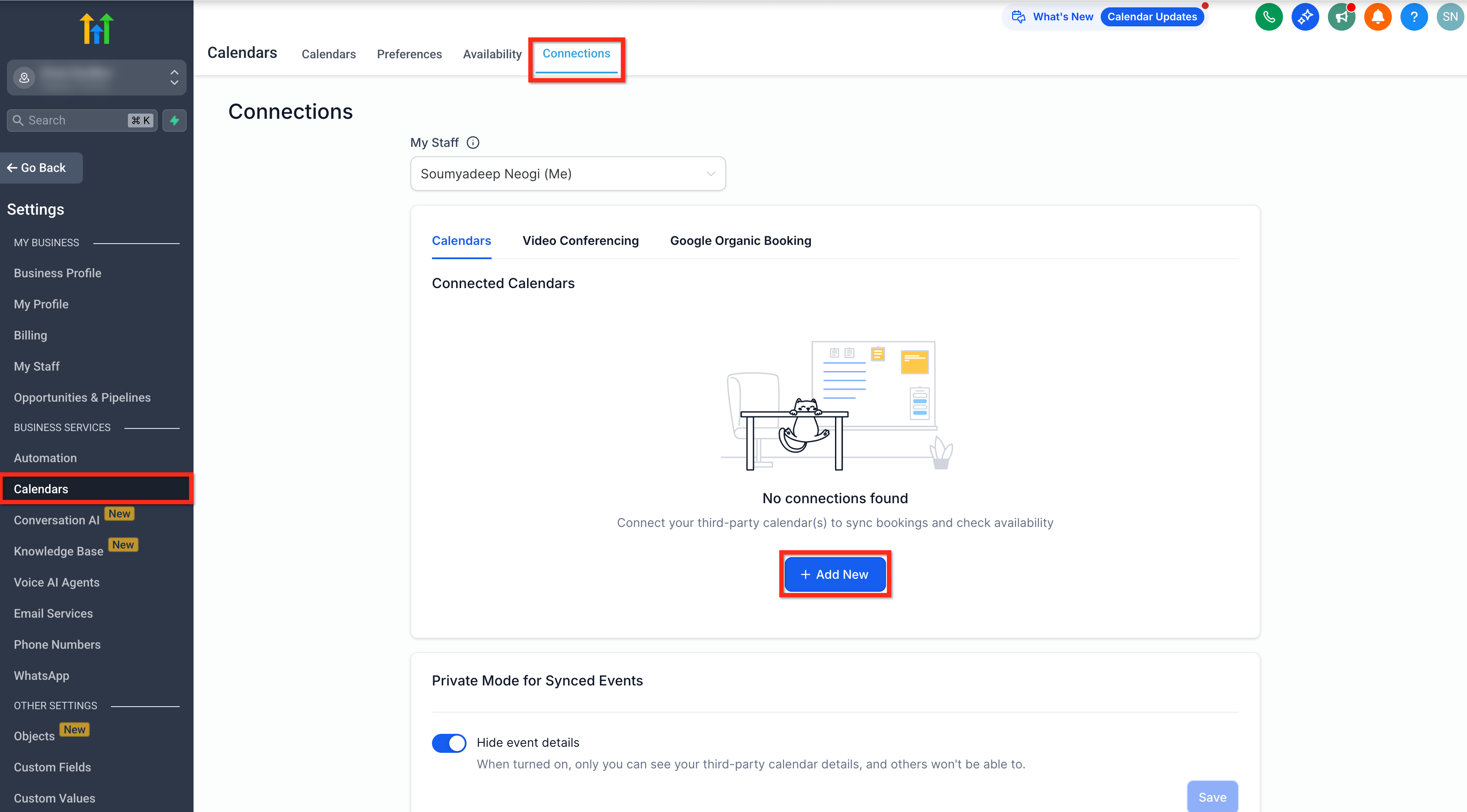
- Select Calendars under Business Services.
- Click the Connections tab.
- Click the + Add New button to add a new calendar.
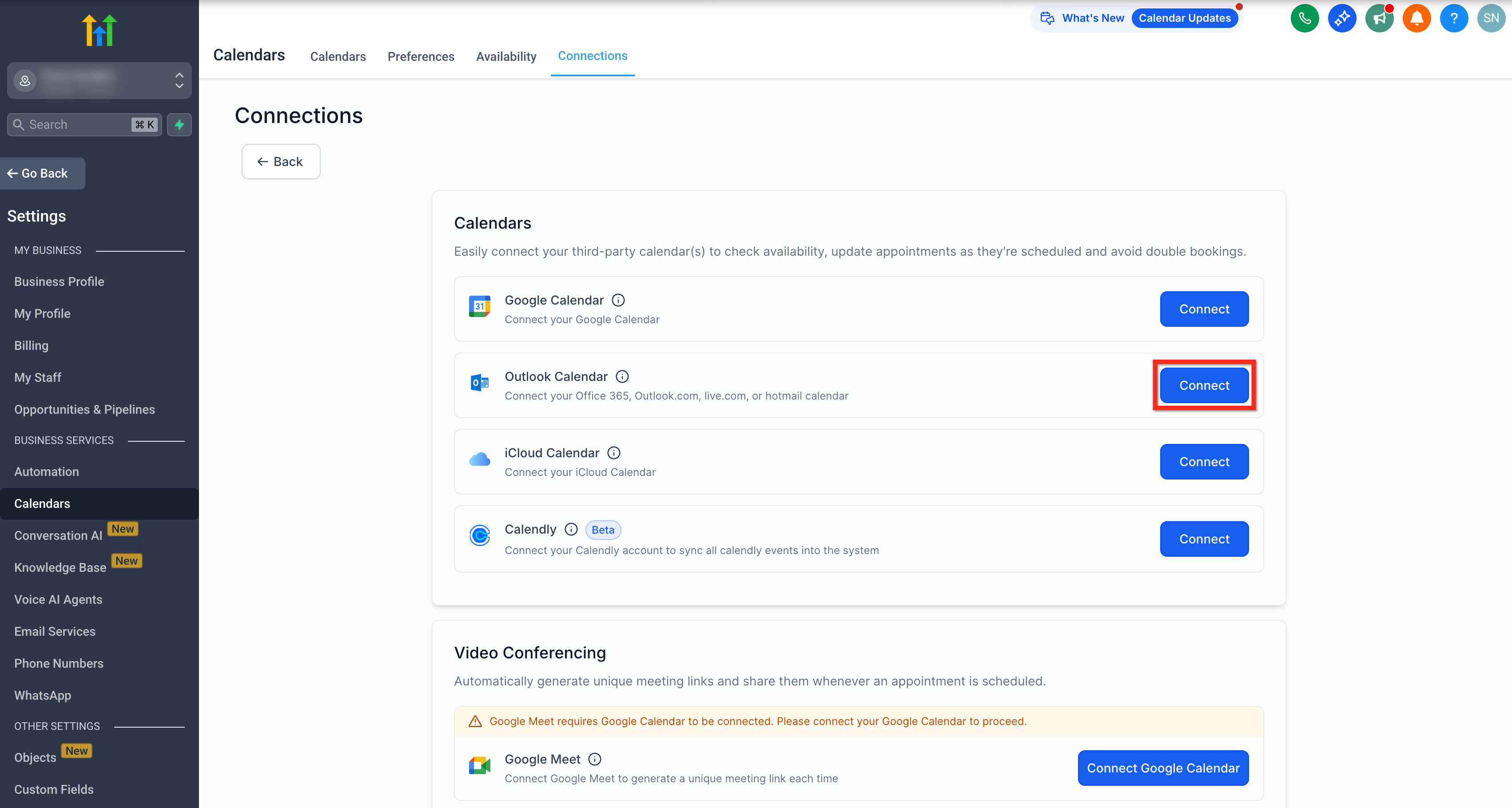
- On the Connections page, click the Connect button beside Outlook Calendar.
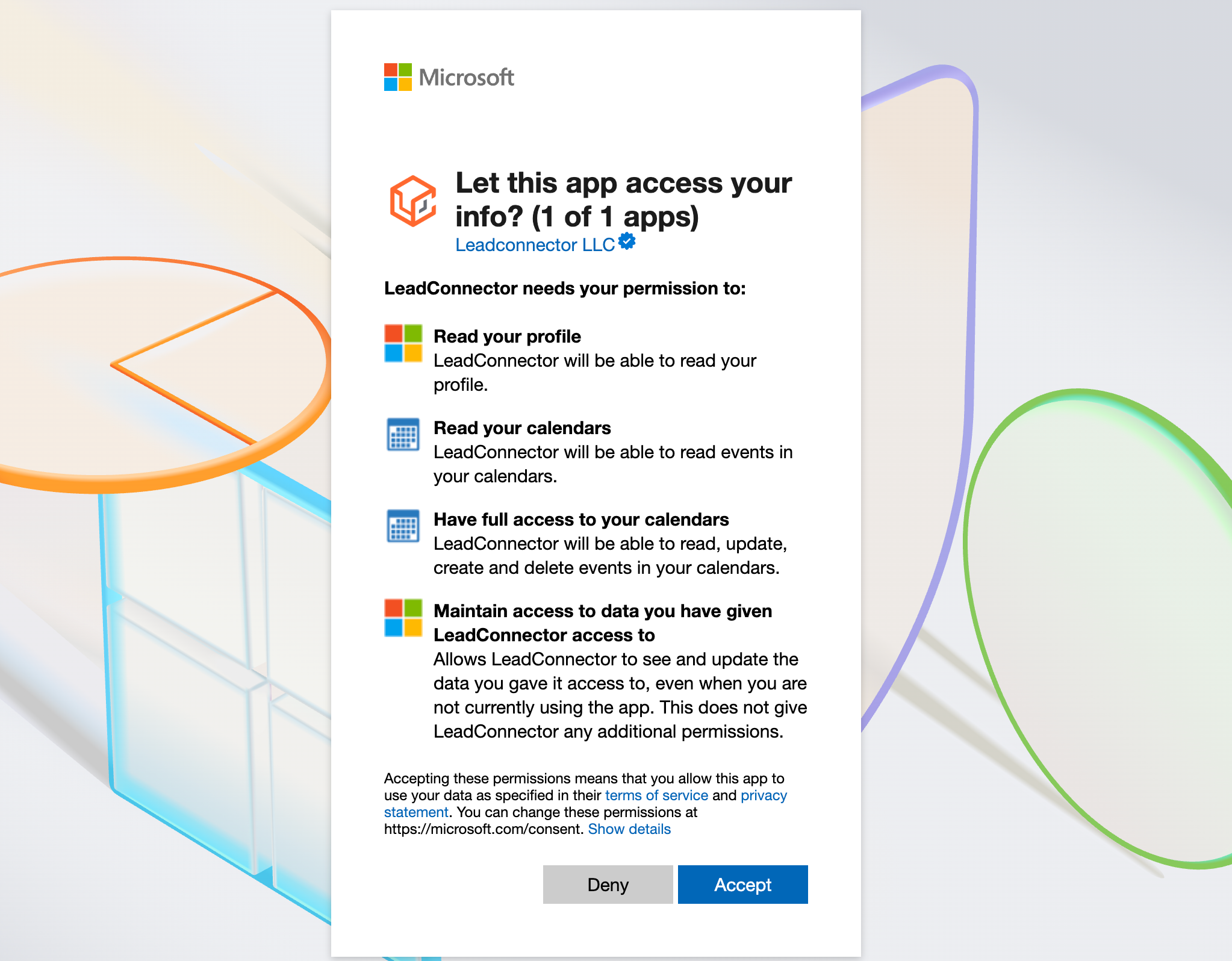
- Sign in to your Outlook account and accept the requested permissions.
07What it looks like in HighLevel
08Things to know before you rely on it
- Only Microsoft 365 and Exchange Online accounts are supported; stand alone or on premise Exchange servers are not.
- Outlook integration does not work with event calendars; those support only Google integration.
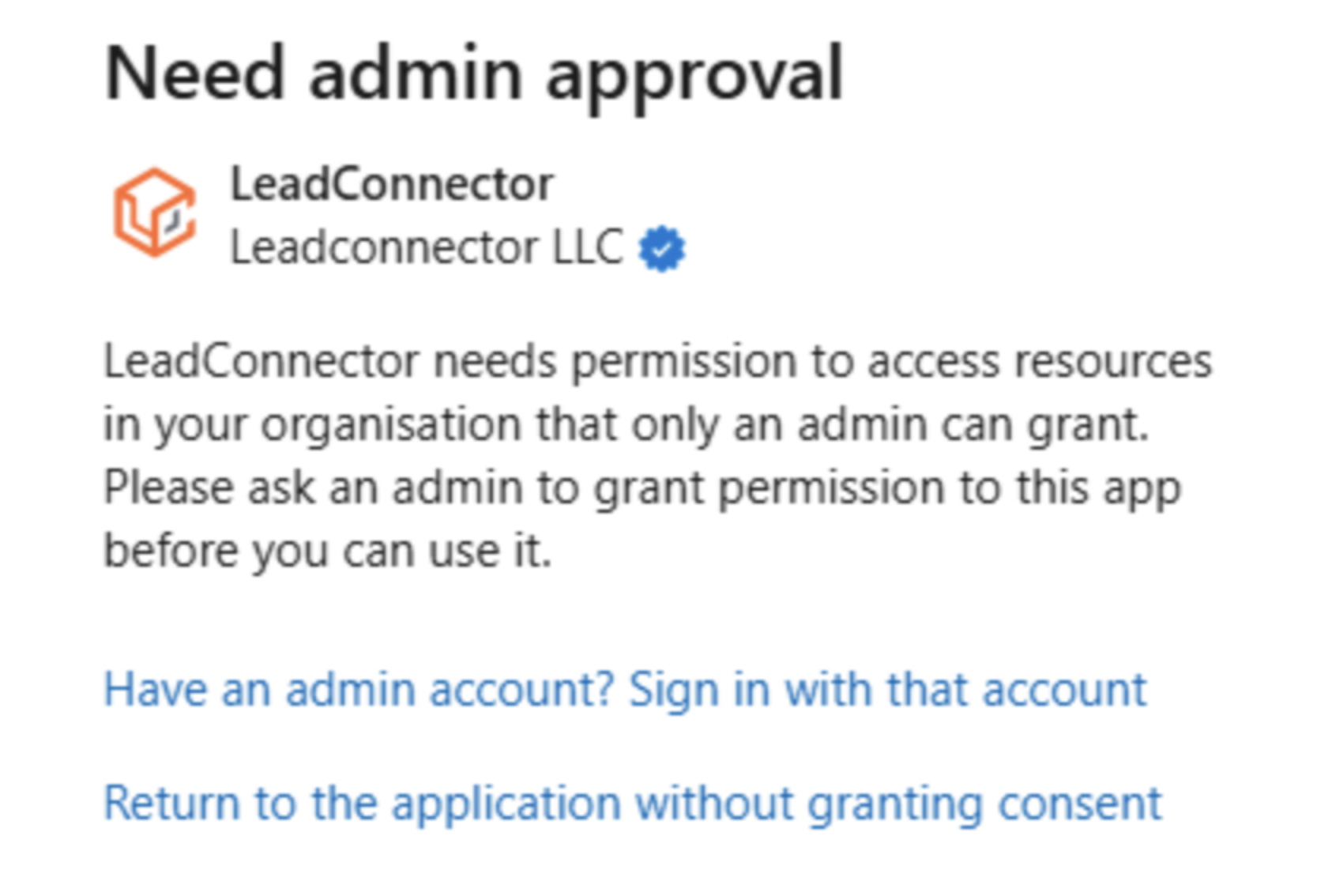
- If your organization requires admin consent, a user with admin rights must approve the connection in Microsoft Entra.
- The same Outlook account can be linked to multiple subaccounts, and multiple Outlook accounts can be added to a single subaccount.
09If something goes wrong
- Outlook calendar was deleted and an error banner appears in HighLevel. Click Fix This on the banner, review the deleted calendar instances, then choose Remove Deleted Calendars to clear the broken connection.
10How it connects to the rest of HighLevel
- Guide to sync HighLevel calendars with Outlook Outlook sync guide
- Integrate Google Calendar with HighLevel Google Calendar integration
- Set up linked and conflict calendars in HighLevel Linked calendars
Michael's take

Linking Outlook to HighLevel lets me manage appointments from a single dashboard, which I find convenient.
If a team relies on on premise Exchange or primarily uses event calendars, the integration may not meet those needs because those scenarios aren’t supported.