
01Who this is for
- Admins or Managers who need to keep team availability accurate across external calendars.
- Service based businesses that schedule client appointments and must avoid overlapping bookings.
- Coaches or consultants who use personal calendars and want those busy times reflected in HighLevel.
02Linked calendars and conflict calendars, explained
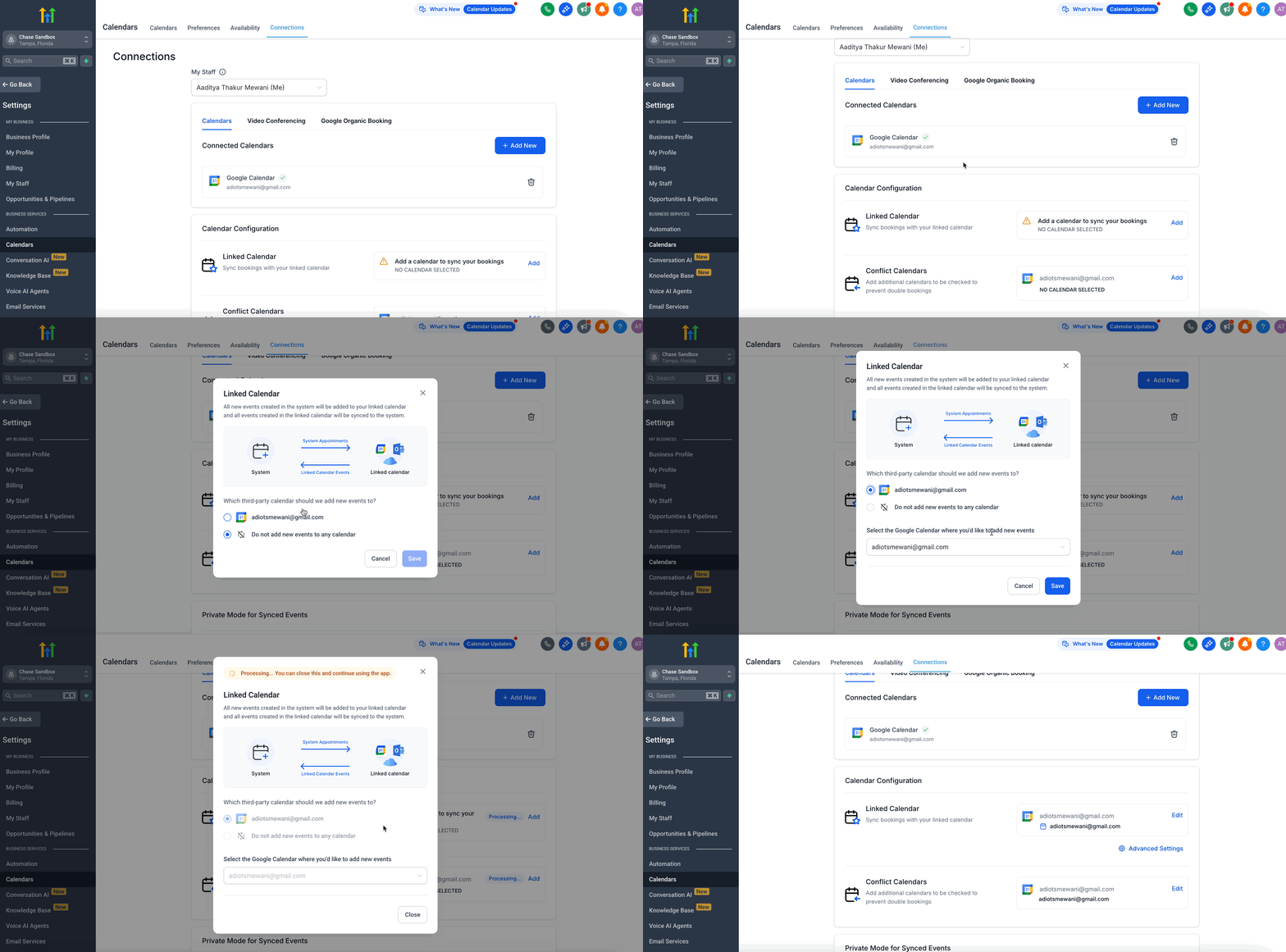
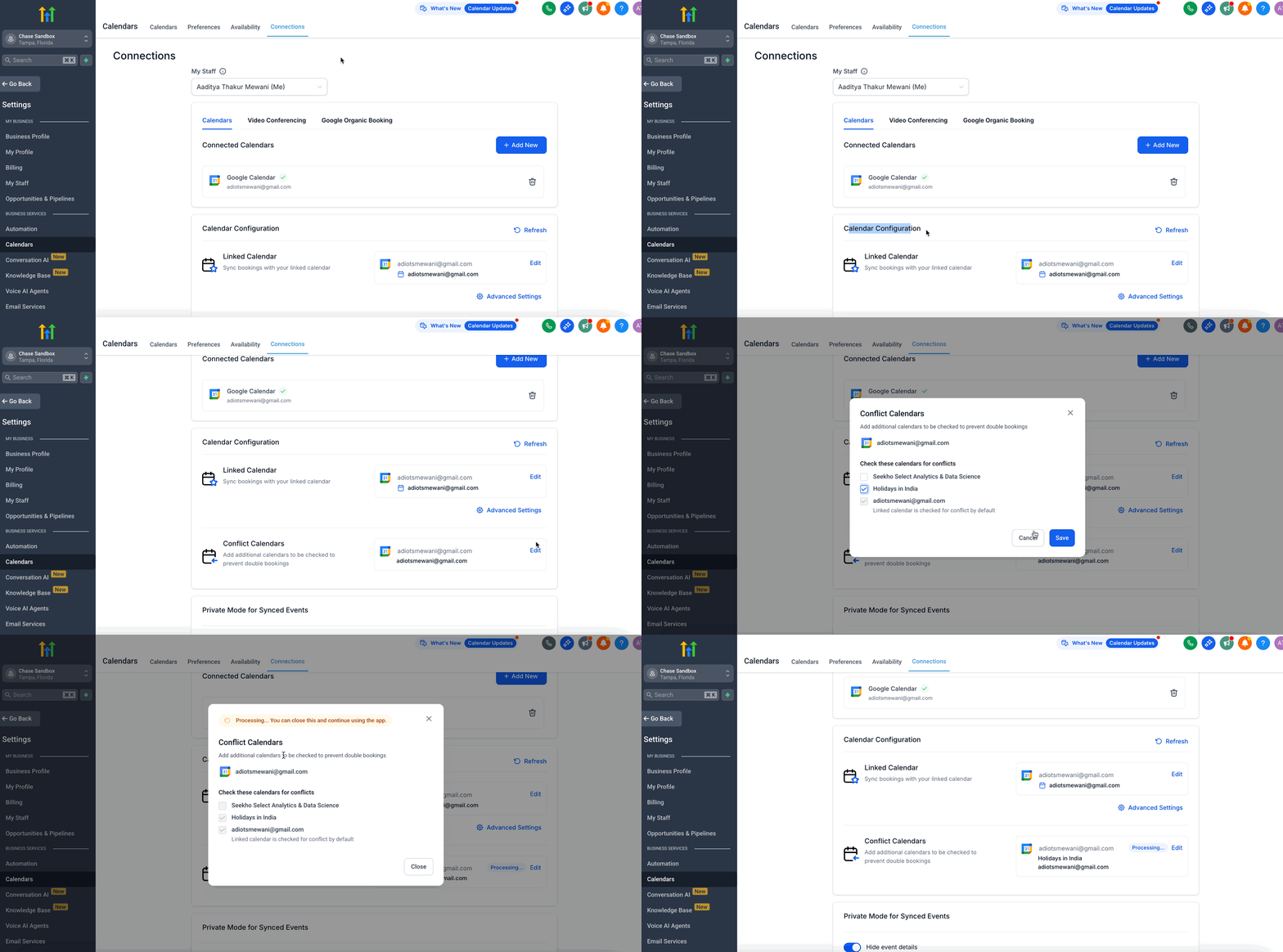
HighLevel can read events from external calendars you authorize. Connected Calendars give the platform permission to view (and optionally write) those events. When a connected calendar is selected as a Linked Calendar, its busy slots appear in HighLevel, showing true availability. Marking a connected calendar as a Conflict Calendar causes any busy event to automatically block booking slots in the system.
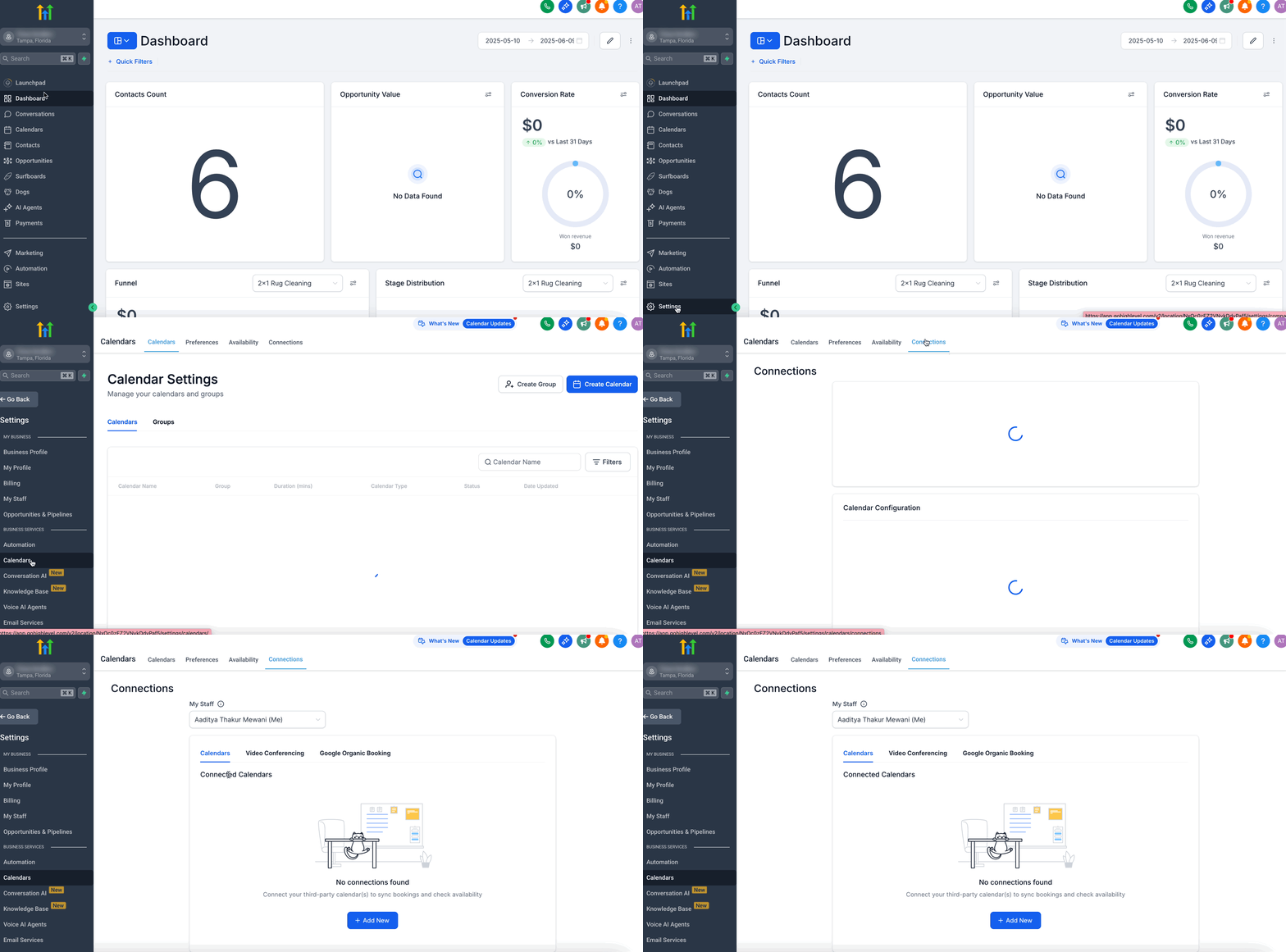
The feature lives under Settings > Calendars > Connections. From there you add external accounts, select which one to link, and set sync preferences. The platform shows external events as shaded blocks, HighLevel appointments as colored entries, and blocked times as Unavailable markings.
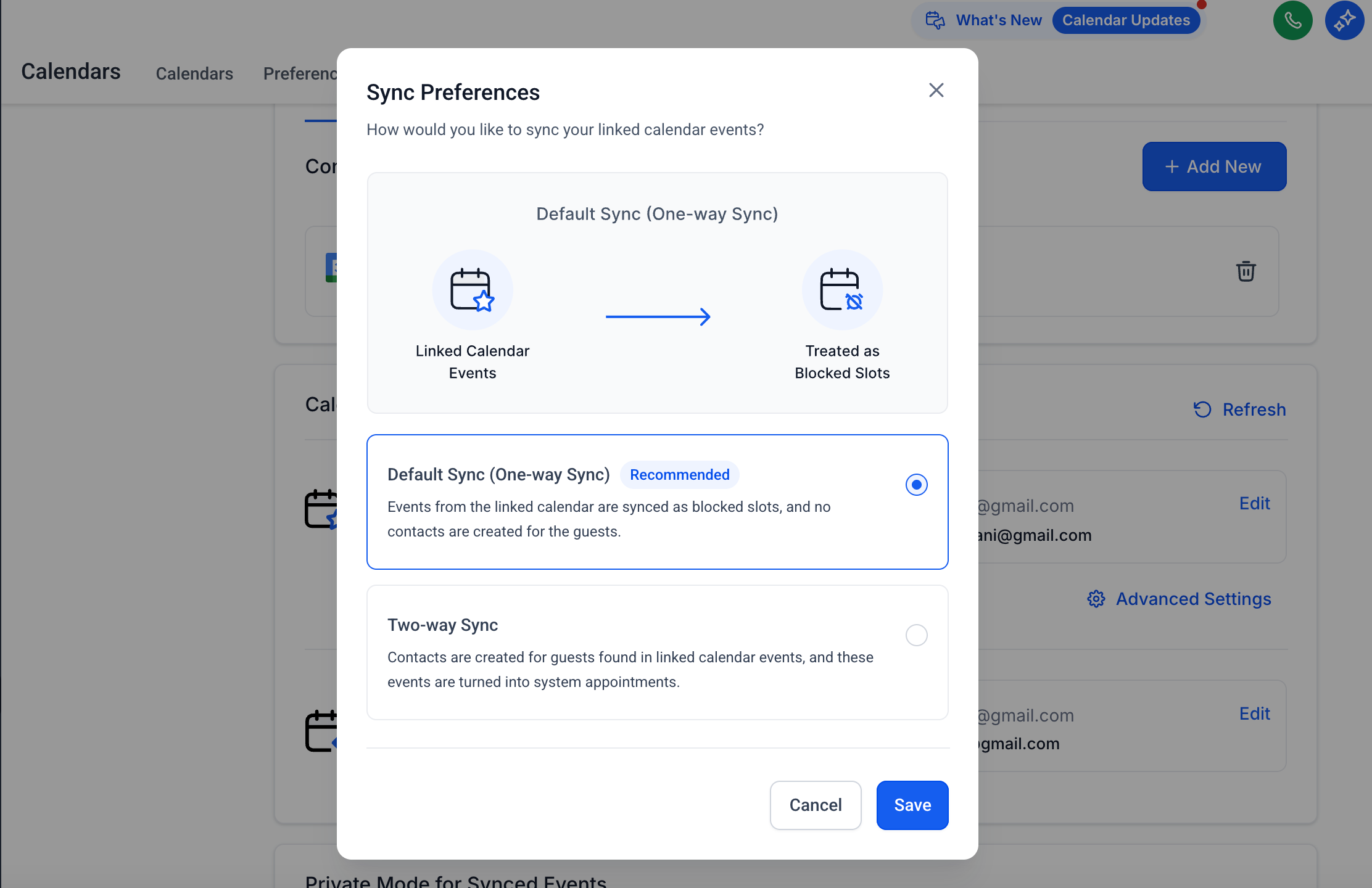
Sync behavior is controlled in Advanced Settings. You can choose a one way (blocked slots only) or two way sync (appointments created, contacts added, automations triggered). Write back toggles let bookings push back to the external calendar, while status only updates keep external calendars quiet.
03How businesses use linked calendars and conflict calendars
- Dental practice. Each dentist’s Google calendar is added as a Linked Calendar. When a dentist marks a procedure as busy, HighLevel blocks that time, preventing new patient bookings during the procedure.
- Consulting firm. Consultants connect their Outlook calendars and enable Conflict Calendar mode for personal events. Any personal meeting marked busy automatically hides those slots from client booking pages.
- Fitness studio. Trainers link their iCloud calendars and choose two way sync. When a trainer creates a class in HighLevel, the appointment appears in their iCloud calendar, and any class added directly in iCloud shows up as an available slot in HighLevel.
04The numbers and rules that matter
- Supported providers: Google, Outlook, iCloud, Calendly.
05Before you start
- User must have Admin or Manager role in the subaccount.
- External calendar account (Google, Office 365, or Outlook.com) must be active and accessible.
06How to set up and use linked calendars and conflict calendars in HighLevel
Set up a linked calendar
- Open Settings, choose Calendars, and click the Connections tab.
- Press the + Add New button under Connected Calendars.
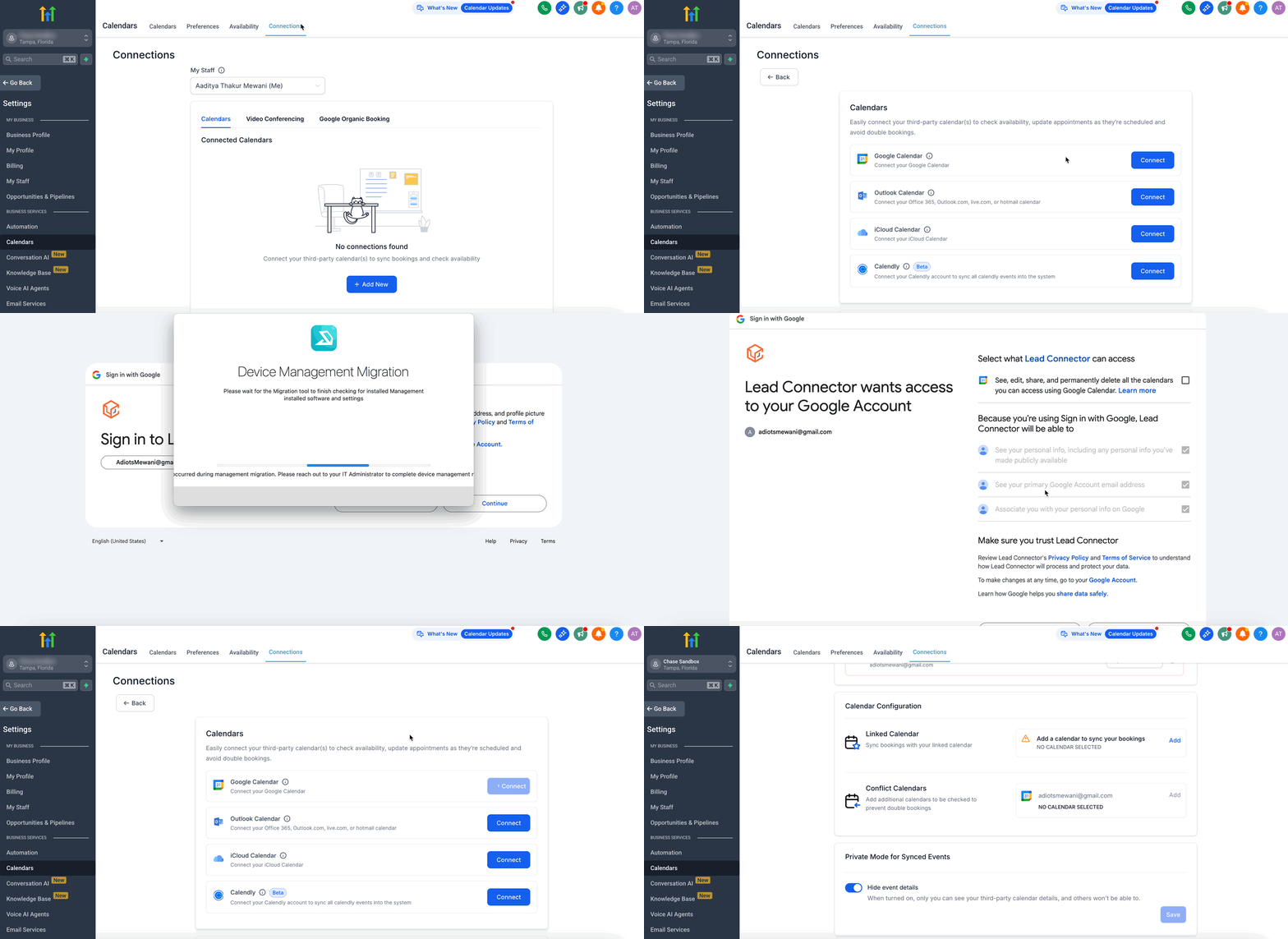
- Select the calendar provider you want to use (Google, Outlook, iCloud, or Calendly).
- Sign in with the external account’s credentials.
- Allow HighLevel to read events and, if desired, write back to the calendar.
- Confirm the provider icon and email appear in the Connected Calendars list.
- If a red banner appears, click Reconnect to refresh the OAuth token.
- In Calendar Configuration, click Add under Linked Calendar, choose the newly connected calendar, and save.
07What it looks like in HighLevel
08Settings that matter
- Writer's access. Controls whether a user can select a calendar as a linked calendar.
- Sync Preferences. Determines if events are synced as blocked slots only (one way) or as full appointments with contacts and automations (two way).
- Write Back Appointments. Enables or disables pushing HighLevel bookings back to the external calendar.
- Use as Conflict Calendar. Marks a connected calendar as a blocker, causing its busy events to render HighLevel slots Unavailable.
09Things to know before you rely on it
- Only events marked BUSY in the external calendar block availability; FREE events remain open.
- The external calendar’s time zone must match the HighLevel profile to avoid mismatched slots.
- Write back should be limited to a primary work calendar to prevent duplicate entries.
- Multiple calendars with write back enabled can create duplicate external events.
10If something goes wrong
- Integration shows as broken (red banner). Under Settings > Calendars > Connections, click Reconnect and re authorize.
- Events not appearing in HighLevel. In Calendar Configuration > Linked Calendar, edit the entry and ensure Sync Events is on.
- Slots are still bookable during external events. Open Conflict Calendars, edit the entry, toggle Use as Conflict Calendar, then save.
- HighLevel appointments are not writing back. Edit the Linked Calendar settings and enable Write Back Appointments, then save.
- Duplicate external events. Disable write back on secondary calendars or unlink any extra calendars you do not need.
11How it connects to the rest of HighLevel
- Learn how conflict calendars block availability Calendar scheduling conflicts
- Set a primary calendar for write back Assigning a Primary Calendar
- Integrate Google Calendar with HighLevel Google Calendar integration
Michael's take

Every business that schedules appointments online ends up juggling a personal calendar, a work calendar and the HighLevel booking page. When those places don’t talk to each other, double bookings and missed appointments become common. The first setting I would get right is the Conflict Calendar toggle on the primary work calendar so any BUSY event automatically blocks a booking slot. Once the blocker is solid, I would enable Two Way Sync on the staff’s linked Google calendars. That way appointments show up everywhere, contacts are created for guests, and any workflow you have tied to a new booking fires automatically. Test the flow with a single staff member before rolling it out to the whole team.