
01Who this is for
- Founders who need a quick, no frills booking page can use the Classic style for fast setup.
- Service based businesses that want to brand the booking experience benefit from the Neo style’s color and button customization.
- Coaches or educators running class bookings require the Neo widget to show seat availability per slot.
02Calendar widget styles, explained
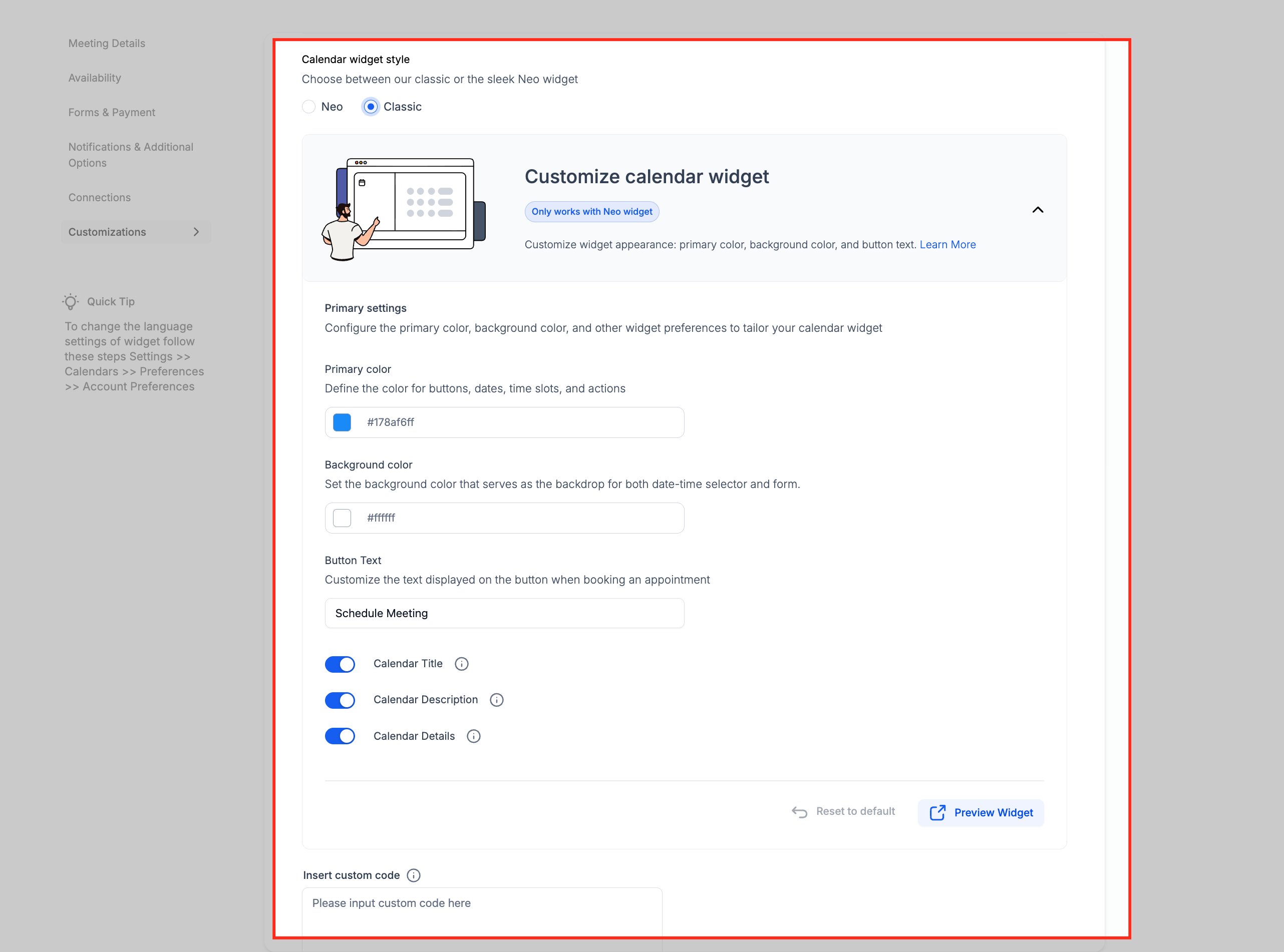
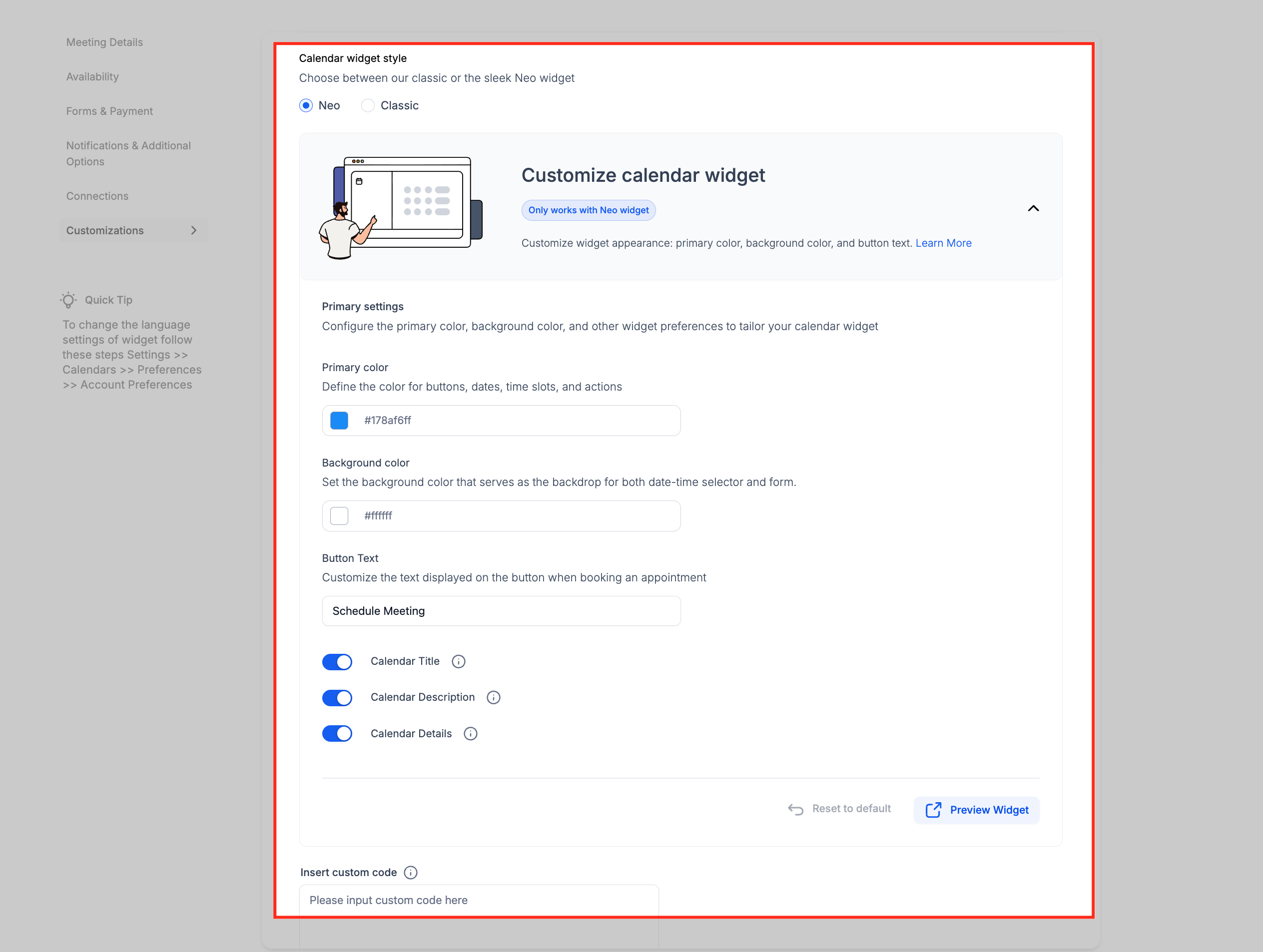
Calendar widget styles are settings that change the visual layout of a HighLevel booking calendar when it is shared with leads or customers. The platform supplies two designs: Classic, which shows a straightforward appointment form, and Neo, which adds modern visual options and extra steps such as staff selection.
The style is chosen in the calendar’s Customizations tab. Neo is automatically applied to group calendars, while Classic is the default for unassigned calendars. Both styles accept payment collection, but only Neo supports advanced customizations like colors, background images, step reordering, staff selection for round robin calendars, and seat displays for class bookings.
Changing the widget style does not modify any existing appointments. The new appearance takes effect immediately after selection, ensuring the booking page matches the chosen design.
03How businesses use calendar widget styles
- Solo consultant. Create a new calendar and keep the Classic widget selected. The simple layout lets clients book a single appointment type without extra visual tweaks.
- Fitness studio offering group classes. Set up a group calendar and let the platform apply the Neo widget. Use the seat display feature to show how many spots remain in each class.
- Multi provider clinic. Edit a round robin calendar, switch to the Neo widget, and enable staff selection so clients can choose a specific practitioner during booking.
04The numbers and rules that matter
- Customization options such as colors, backgrounds, and button text are only available in Neo.
05How to set up and use calendar widget styles in HighLevel
Set up or change calendar widget style
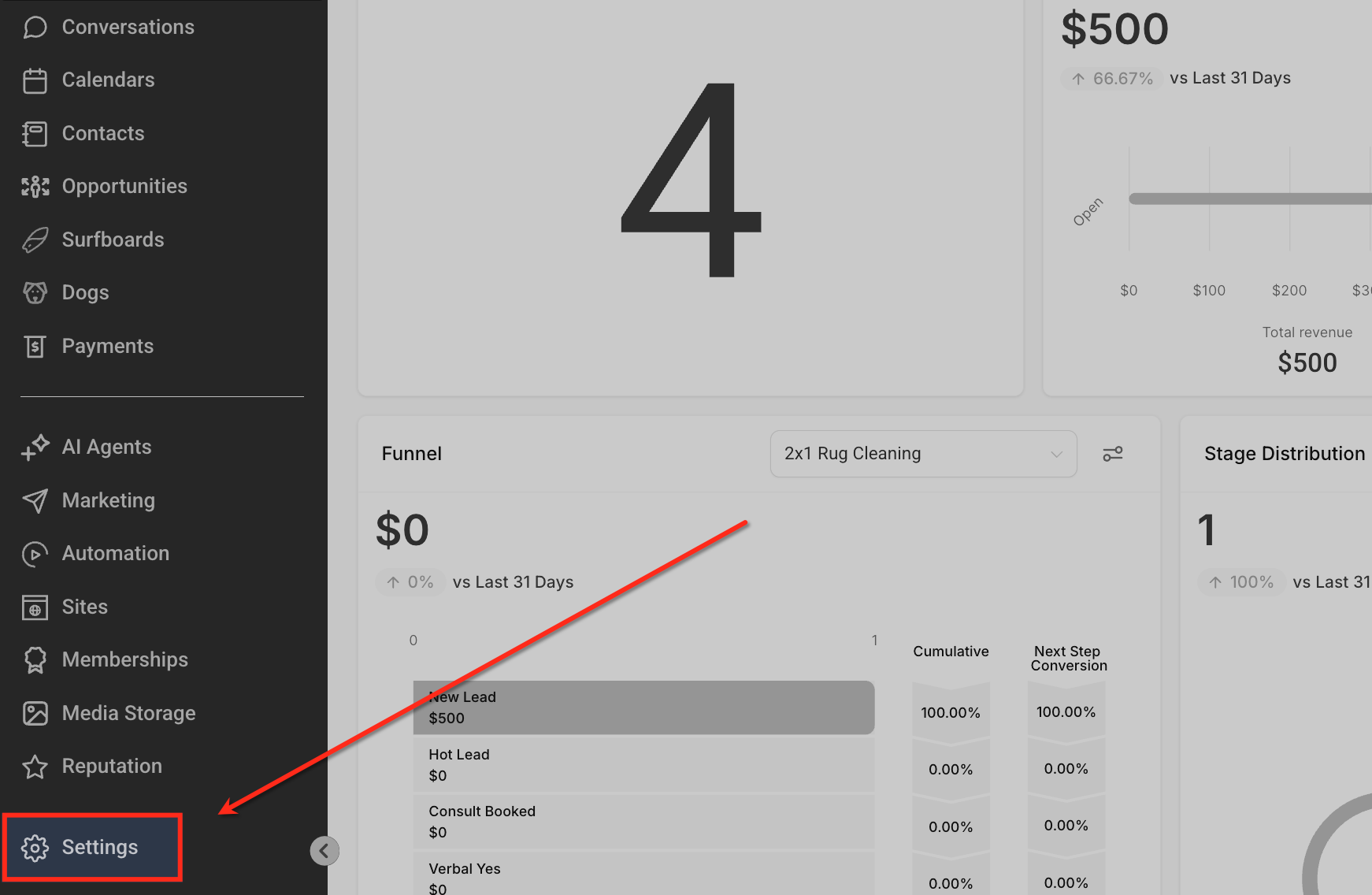
- Open the Settings menu from the left sidebar.
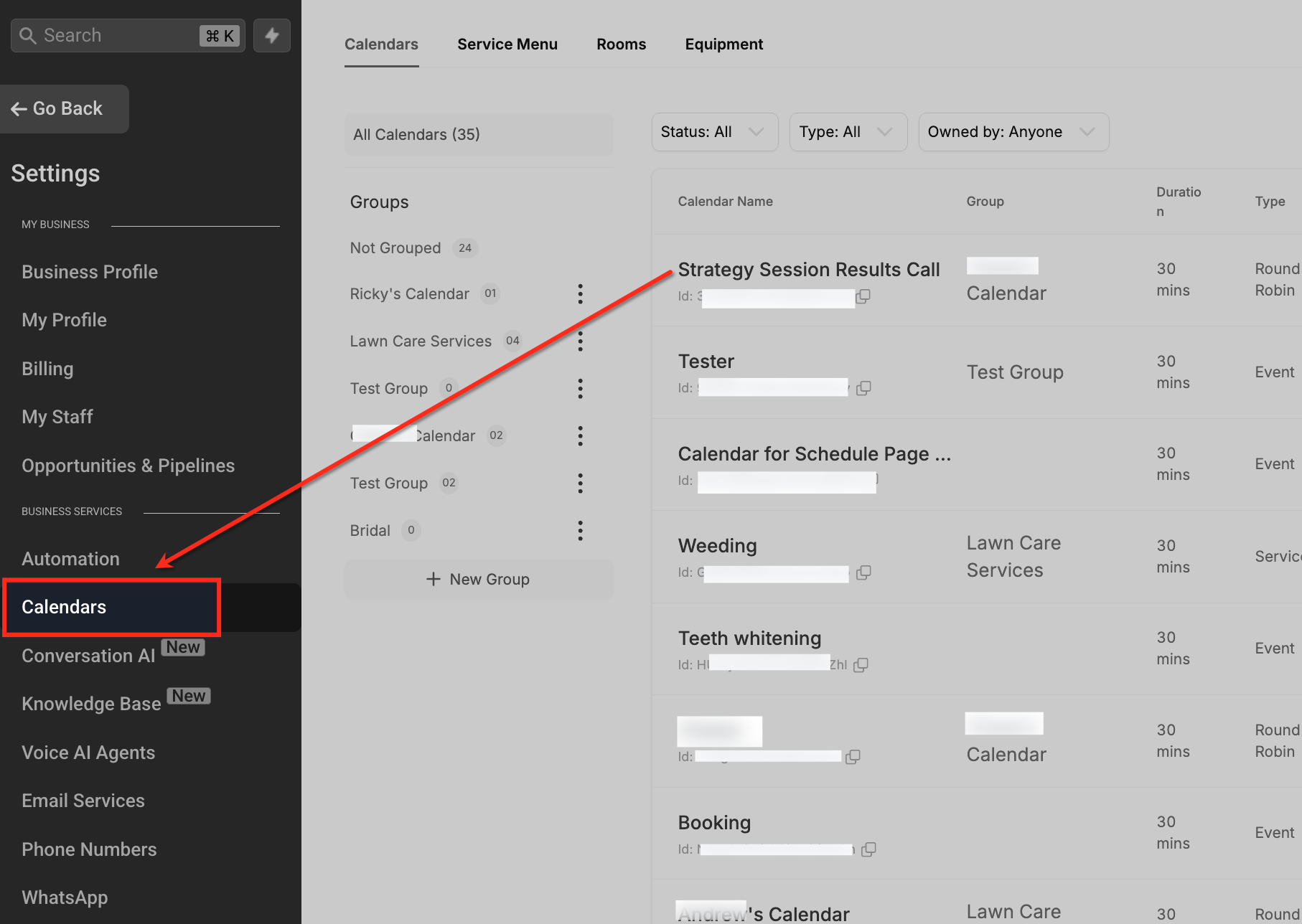
- Click Calendars under the Business Services section.
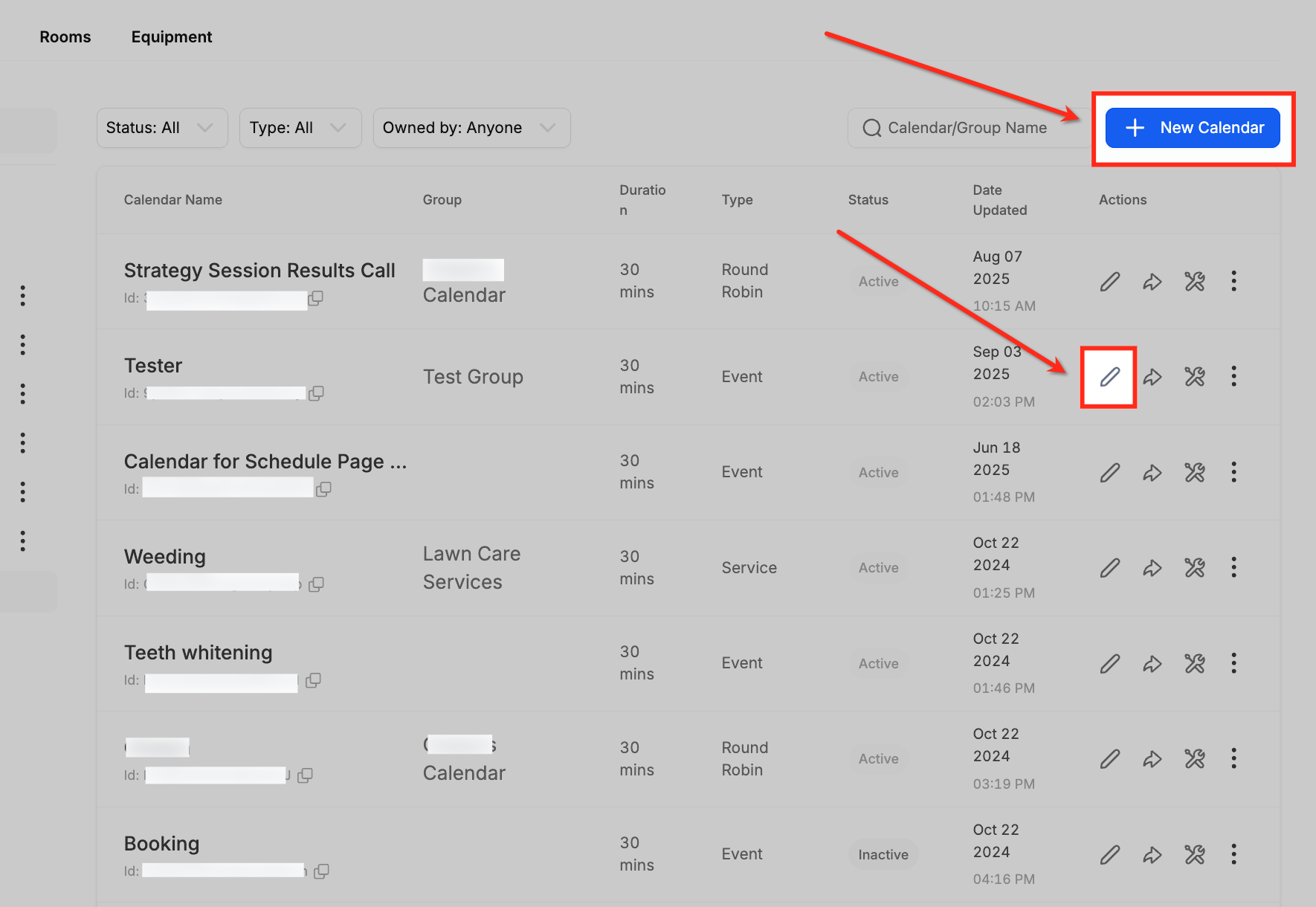
- Select New Calendar to create one or click the edit icon next to an existing calendar.
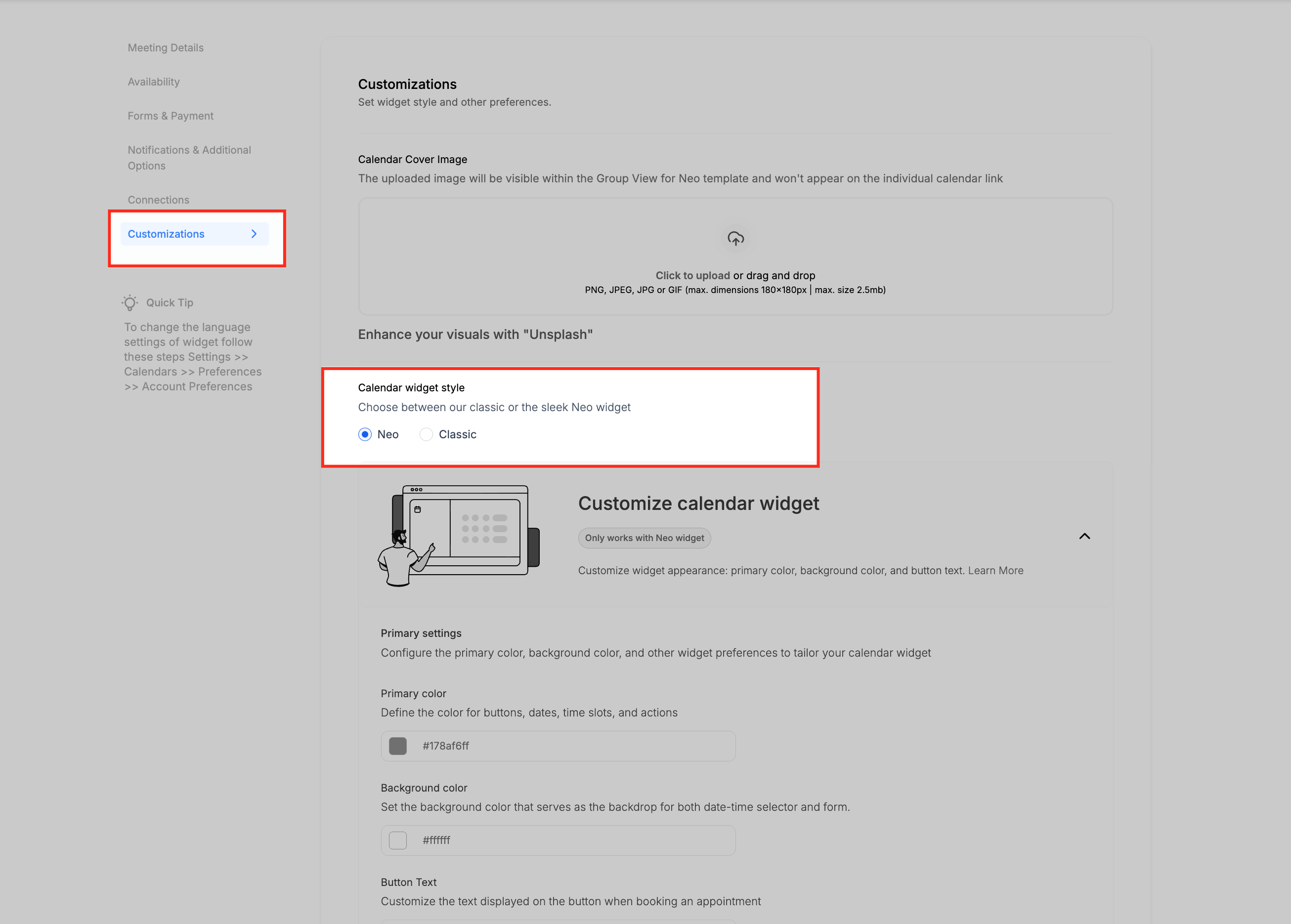
- In the calendar setup, open the Customizations tab.
- Locate the Calendar Widget Style field and choose Classic or Neo.
- The selected style is applied right away without altering existing bookings.
06What it looks like in HighLevel
07Settings that matter
- Calendar Widget Style. Controls whether the booking page uses the Classic simple layout or the Neo modern, customizable layout.
08Things to know before you rely on it
- Customization options such as colors, backgrounds, button text, step reordering, staff selection, and seat displays are only available with the Neo widget.
- Classic is the default style for unassigned calendars; Neo is the default for group calendars.
- Both Classic and Neo support payment collection.
- Switching between widget styles does not affect any previously scheduled appointments.
09How it connects to the rest of HighLevel
- How to set up a group calendar in HighLevel Group calendar setup
- Assigning a Primary Calendar Primary calendar guide
- HighLevel pricing and plans Pricing page
Michael's take

Choosing the right calendar widget style affects how your booking page looks to clients. Classic provides a simple, quick setup layout, while Neo offers more branding and advanced options like staff selection and seat displays.