
01Who this is for
- Service based businesses that require a fee to reserve time, because the payment can be taken during booking.
- Consultants who want to keep client cards on file for future invoices without charging at the appointment stage.
- Coaches offering classes with a discounted coupon, since the system skips payment when the final amount is zero.
02Calendar payments, explained
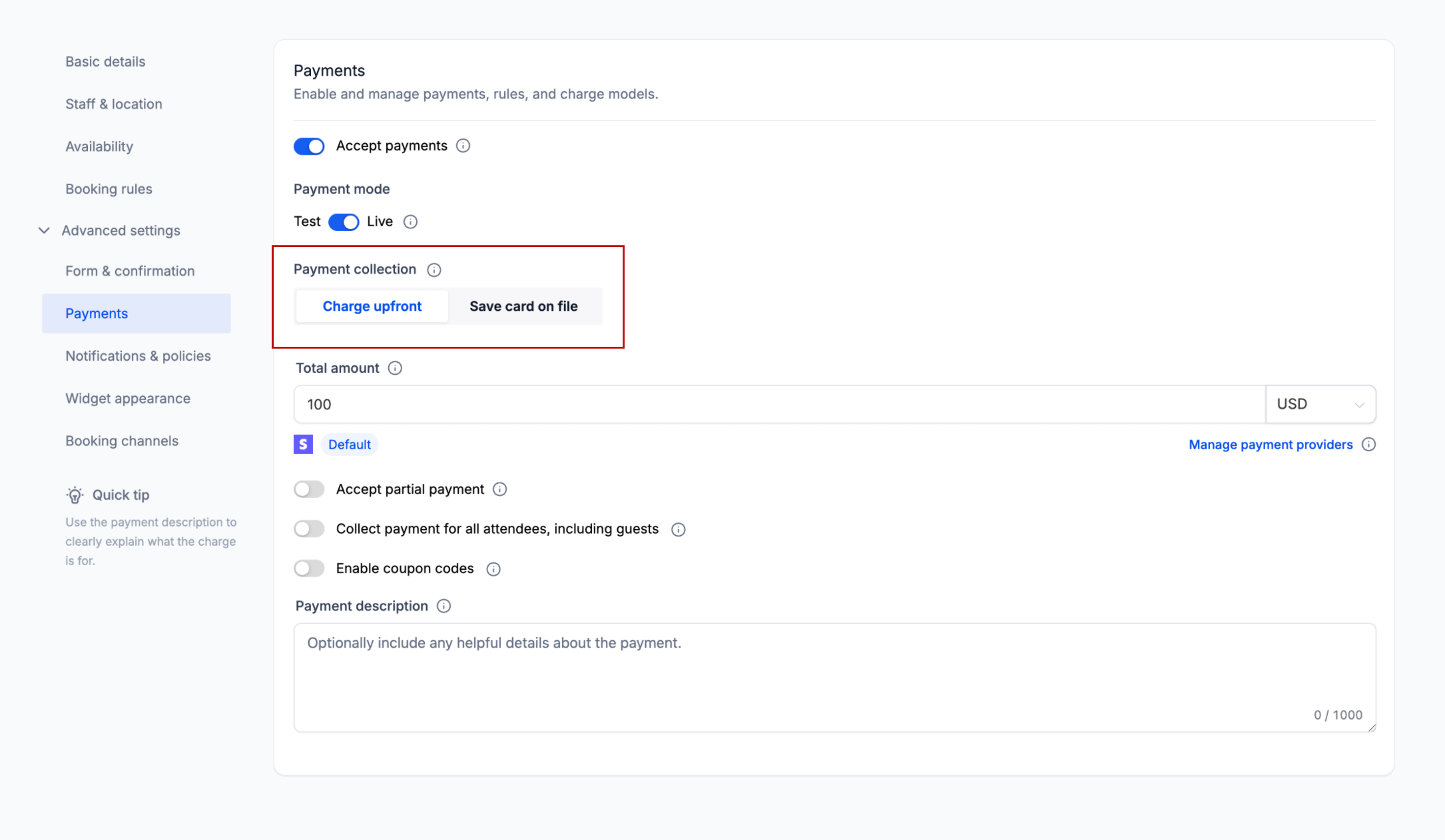
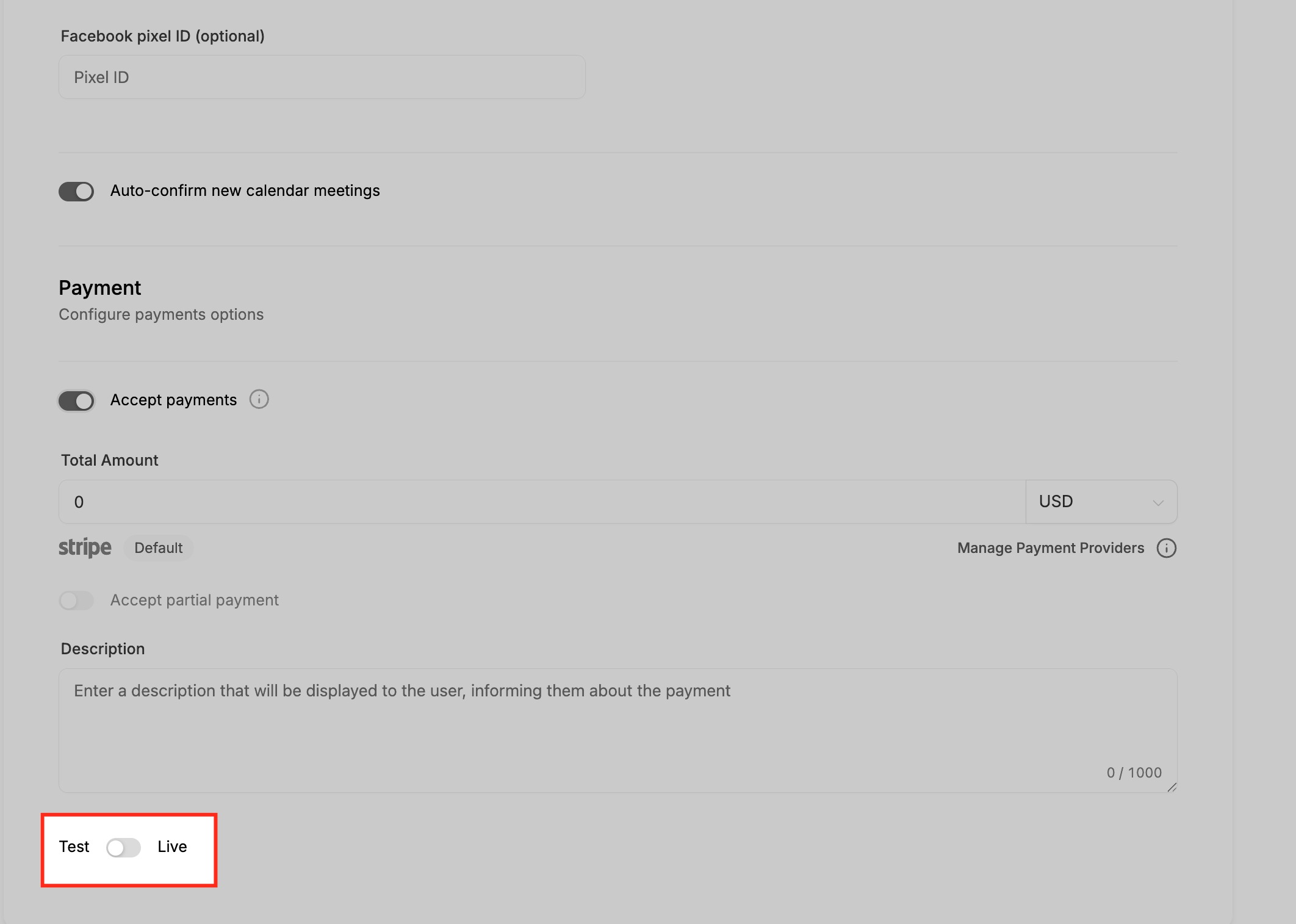
Calendar Payments add a payment form to the appointment booking flow. When the Accept Payments toggle is on, fields for amount, description and payment mode appear. The amount you set determines whether the card is collected and whether a transaction occurs.
The payment mode can be set to Test or Live. In Test mode no real charge is made; Live mode processes real transactions through the default gateway. The default gateway is the only one used even if multiple gateways are connected. Payment collection follows the rules shown in the article’s table, handling coupons and zero amount scenarios automatically.
03How businesses use calendar payments
- Fitness studio. The studio enables Charge upfront, sets the class fee, and selects Live mode. When a member books a session, the payment form appears and the member pays the full amount before the reservation is confirmed.
- Legal consultancy. The consultancy turns on Collect Card on File, adds a description, and leaves the amount at $0. Clients provide card details during booking, which the platform stores for future invoicing without creating an immediate charge (per HighLevel's help center, checked November 2026).
- Online tutoring service. The service configures a coupon that reduces the session price to $0, enables Charge upfront, and keeps the payment mode Live. The booking proceeds without prompting for card details because the final amount is zero (per HighLevel's help center, checked November 2026).
04The numbers and rules that matter
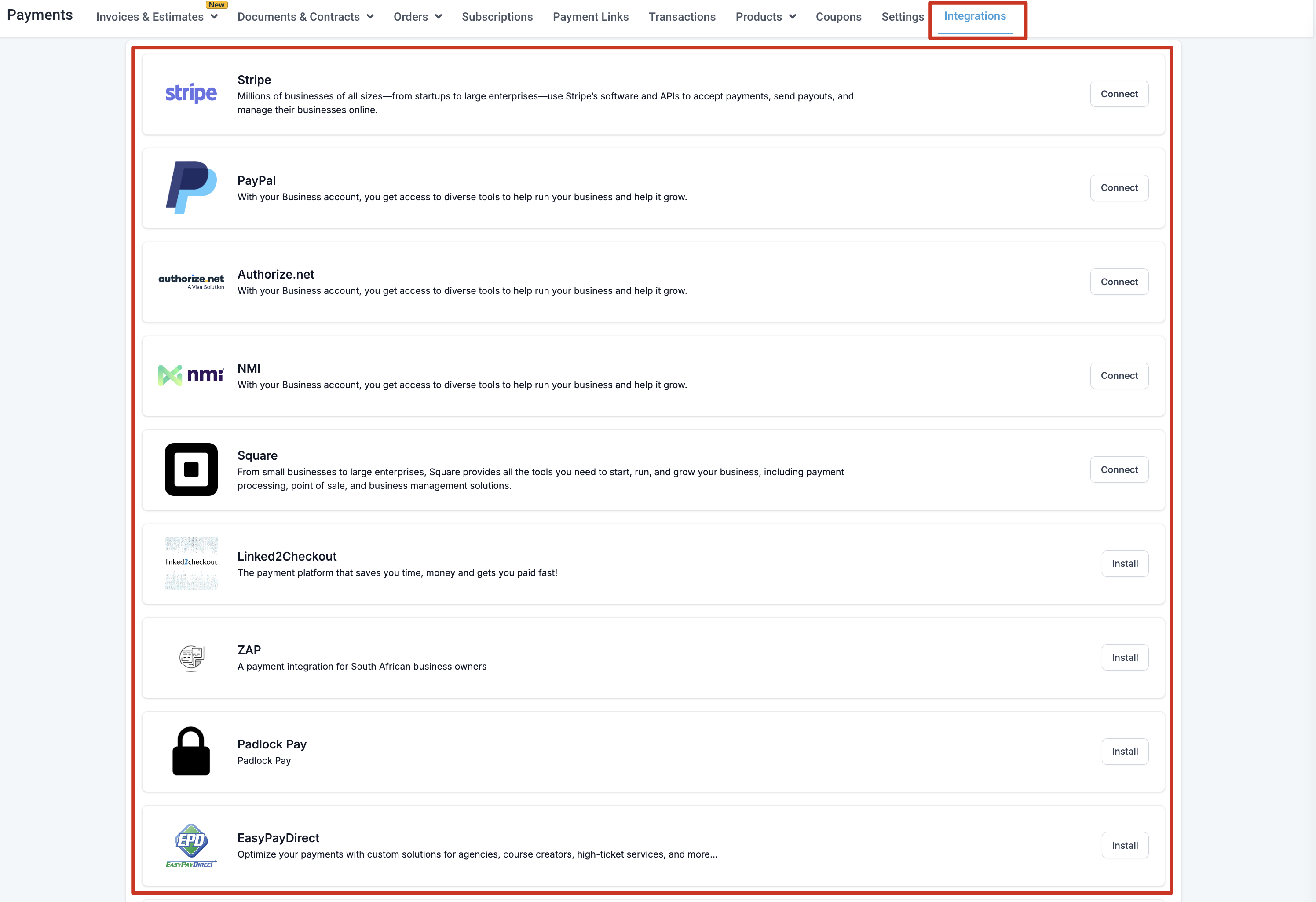
- Supported gateways: Stripe, NMI, Authorize.net, Razorpay, Square, PayPal.
- If a coupon reduces the amount but leaves a balance greater than $0, the customer pays the discounted amount (per HighLevel's help center, checked November 2026).
05Before you start
- Access to a subaccount with the Payments Tab > Integrations.
- An account with a supported payment provider such as Stripe, NMI, Authorize.net, Razorpay, Square or PayPal.
06How to set up and use calendar payments in HighLevel
Add payment gateway
- Open the subaccount and go to Payments Tab > Integrations.
- Click to add the desired payment gateway and complete the connection process.
- If multiple gateways are added, select the default payment gateway from the dropdown.
Enable payments for a calendar
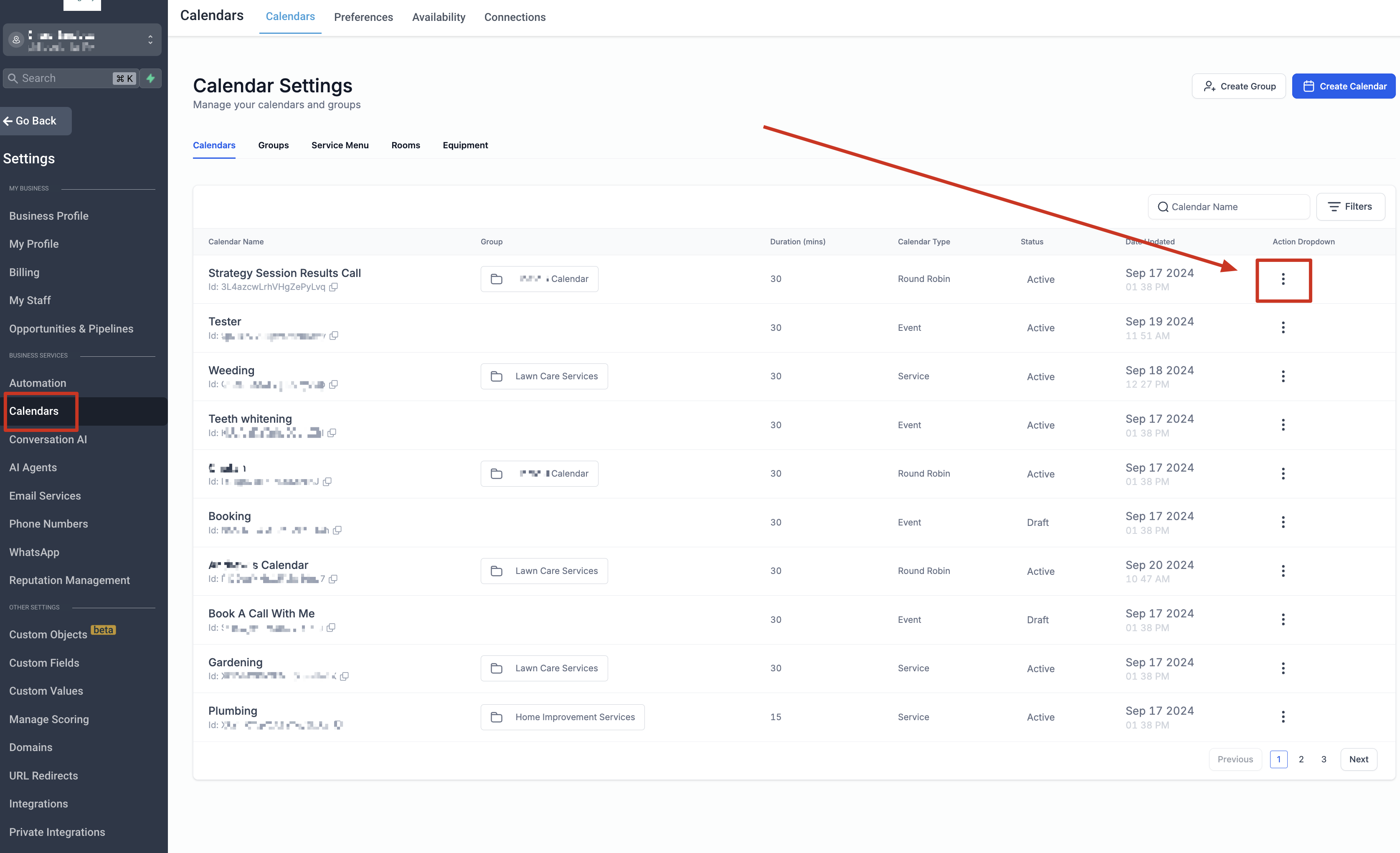
- Open Calendar Settings in HighLevel.
- Edit an existing calendar or create a new calendar using Advanced Settings.
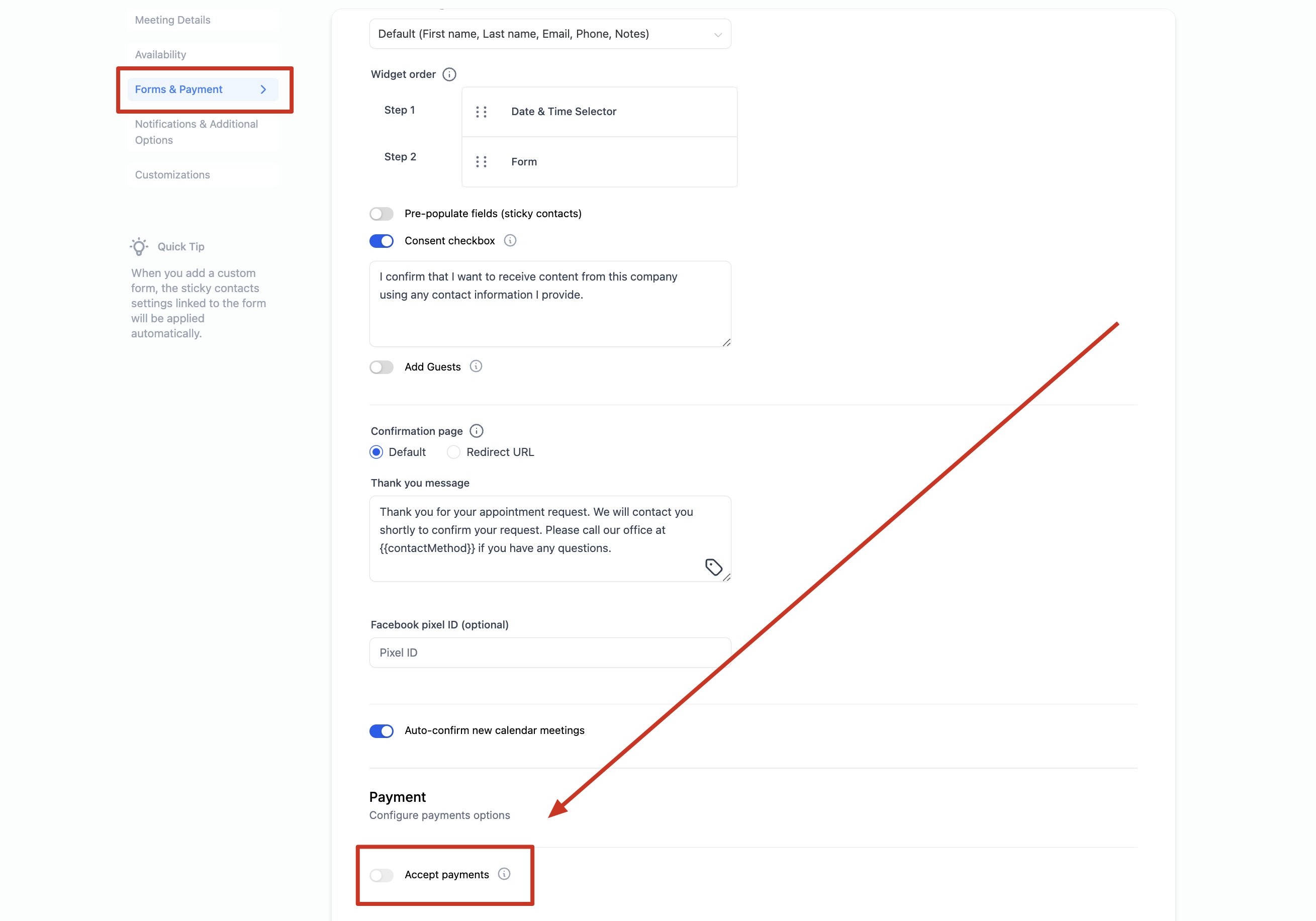
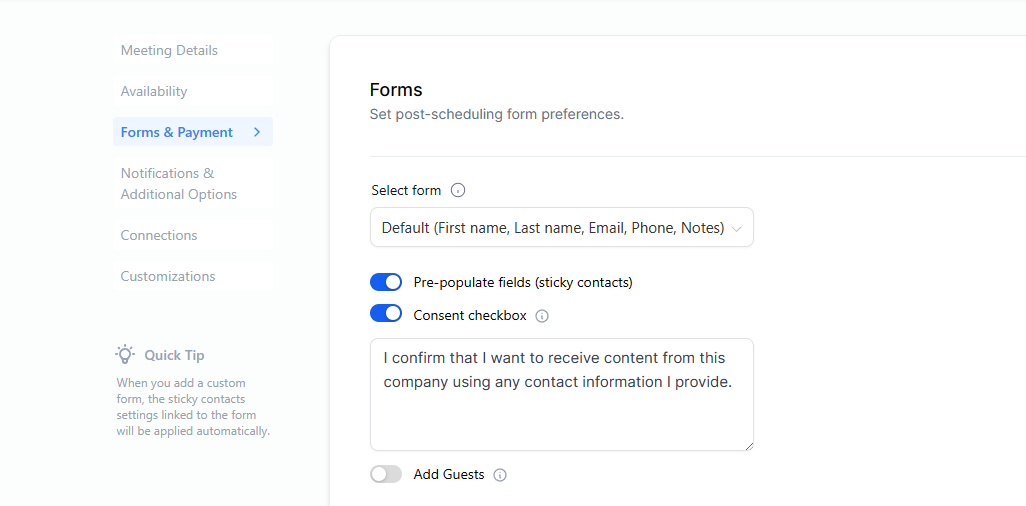
- Locate the Forms & Payments section.
- Turn on the Accept Payments toggle.
- Enter the payment amount and currency in the Amount field.
- Select Test or Live mode with the Payment mode toggle.
07What it looks like in HighLevel
08Settings that matter
- Accept Payments. Activates the payment form for the chosen calendar.
- Amount. Specifies the charge amount and currency that the client will see.
- Description. Provides a short text shown on the payment form.
- Payment mode. Switches the calendar between Test (no real charge) and Live (real charge) operation.
- Default Payment Gateway. Determines which connected gateway processes all calendar payments.
09Things to know before you rely on it
- Razorpay, NMI and Square cannot be used with the Classic Widget or Service menu.
- Partial payments are not supported for recurring calendars.
- Only the default payment gateway processes payments, even when several are connected.
- If the final amount is $0 or a coupon reduces it to $0, card collection and payment are skipped (per HighLevel's help center, checked November 2026).
10If something goes wrong
- Payment options do not appear in the calendar form.. Add and connect a payment gateway via Payments Tab > Integrations, then return to the calendar settings and enable Accept Payments.
11How it connects to the rest of HighLevel
- Set a primary calendar to control default booking behavior. Assigning a Primary Calendar
- Learn how to avoid double bookings with linked and conflict calendars. Linked and Conflict Calendars
- Configure email, SMS or WhatsApp reminders for paid appointments. Appointment Notifications
Michael's take

Be aware that calendar payments add a financial step to the booking experience, and you need a fully integrated gateway before the option appears. Skipping the gateway setup means the client won’t see any payment fields and you’ll lose the chance to collect deposits.
When the gateway is in place, you can either lock in a deposit at the moment of booking or keep the card on file for future billing.