
01Who this is for
- Founders of service based firms that rely on round robin or collective calendars, to keep staff from being double booked.
- Team managers who schedule classes or workshops across multiple experts and need to respect each member’s personal calendar.
- Administrators of group calendars that sync with external calendars, to ensure all external commitments are considered.
02Calendar scheduling conflicts, explained
The feature reads every event from calendars linked to a user’s profile, Google, Outlook, or iCloud, and marks those periods as unavailable in HighLevel team calendars. When an external event exists, the platform prevents the creation of a new appointment that would overlap that time. No new appointment records are generated during this check.
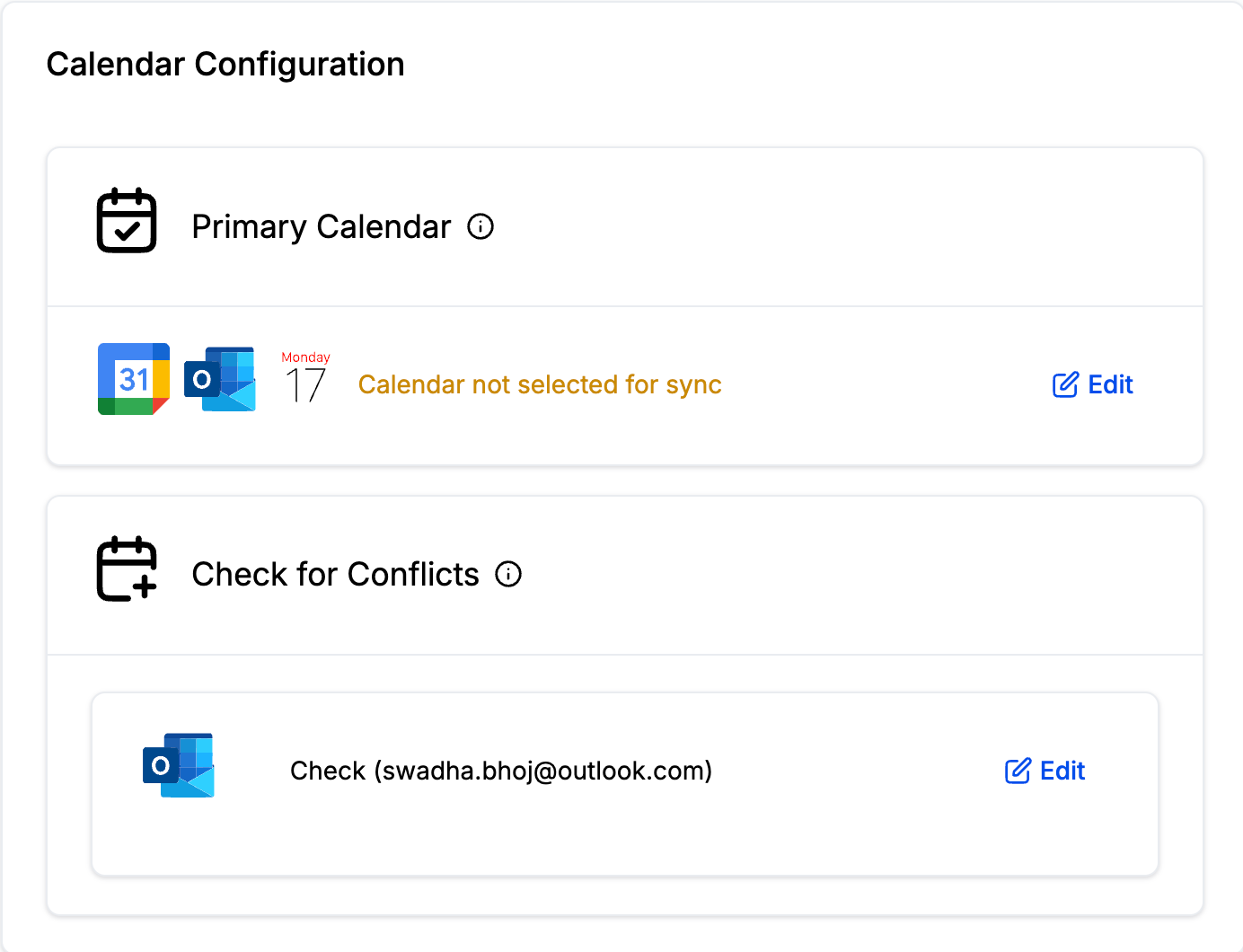
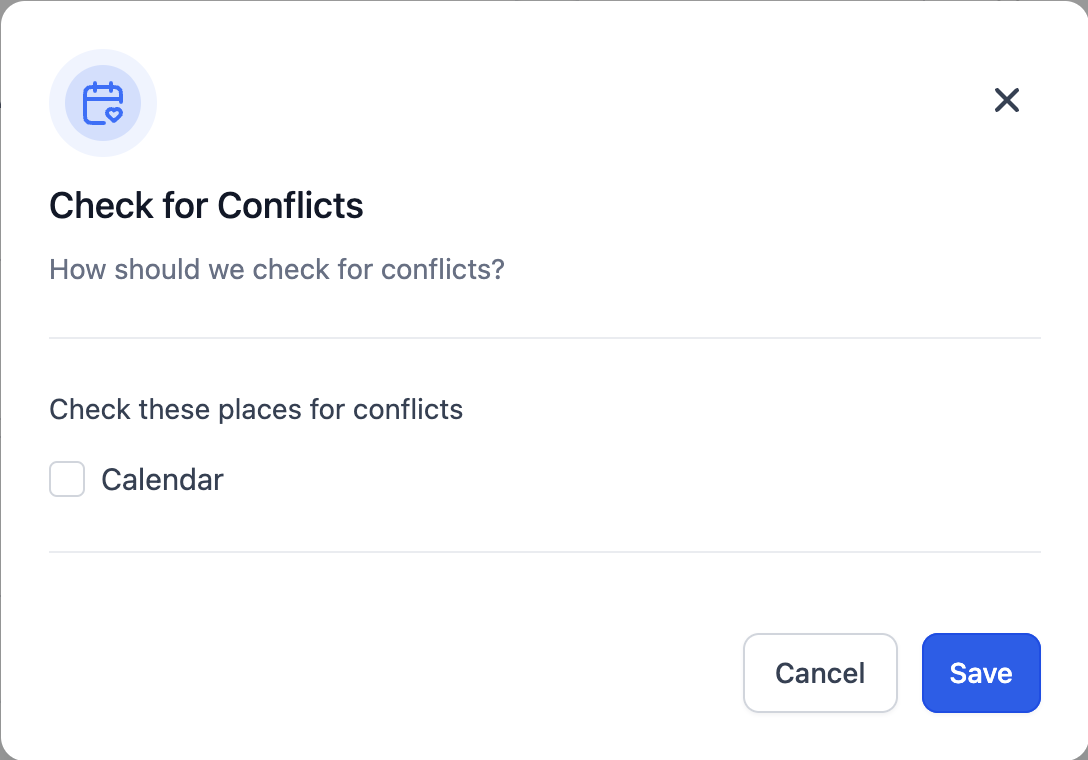
Settings for this behavior are found under Settings > My Profile. Two options appear: Primary Calendar, which designates the main external calendar for syncing, and Check for Conflicts, which determines which linked calendars are consulted to block busy times. All external calendars that the user has previously added are listed in these sections.
If a calendar is turned off in the Conflict section, it is assumed to already serve as the Primary Calendar. This ensures that the same calendar is not evaluated twice. The conflict logic works only for team or group calendar types such as Round Robin, Service, Class, and Collective calendars.
03How businesses use calendar scheduling conflicts
- Consulting agency. The agency links each consultant’s Google calendar, then enables conflict checking. When a client tries to book a strategy session, the system automatically blocks times that the consultant already has meetings, avoiding double bookings.
- Fitness studio. The studio sets up a class calendar and connects each trainer’s Outlook calendar. By turning on conflict checking, any personal appointments in the trainers’ Outlook calendars prevent class slots from being offered at those times.
- Online education platform. Course coordinators add iCloud calendars for guest instructors. Activating conflict checking ensures that live webinar slots are hidden when an instructor is flagged as busy in their personal calendar.
04The numbers and rules that matter
- Supported third party calendars: Google, Outlook, iCloud.
05Before you start
- User must have at least one external calendar (Google, Outlook, or iCloud) integrated under Settings > My Profile.
- The calendar must be part of a team or group calendar type such as Round Robin, Service, Class, or Collective.
06How to set up and use calendar scheduling conflicts in HighLevel
Configure calendar conflict checking
- Open Settings and select My Profile.
- Locate the Primary Calendar option and verify the desired external calendar is selected.
- Find the Check for Conflicts setting below the primary option.
- Review the list of linked Google, Outlook, or iCloud calendars displayed.
- Toggle each calendar on or off to control whether its events block appointment times.
07What it looks like in HighLevel
08Settings that matter
- Primary Calendar. Specifies which external calendar serves as the main source for syncing events into the HighLevel system.
- Check for Conflicts. Determines which linked external calendars are consulted to block times when the user is unavailable.
09Things to know before you rely on it
- Disabling a calendar in the Conflict section means it is already set as the Primary Calendar.
- The conflict feature only reads events; it does not create appointment records.
10How it connects to the rest of HighLevel
- Learn how to link Google, Outlook, or iCloud calendars to HighLevel. Integrate Google with HighLevel
- Set a primary calendar for your team or group calendar. Assign Primary Calendar
Michael's take

Calendar scheduling conflicts are a solid way to keep your team’s booking windows clean.
If you don’t rely on external calendars to manage availability, you can skip this feature.