
01Who this is for
- Marketing managers who need consistent, memorable links for campaigns and ads.
- Operations teams that route appointments to a pool and want clear naming for each calendar.
- Founder led businesses that manage multiple service locations and require a systematic slug strategy.
02Custom URL for Unassigned Calendars, explained
The feature adds a text box where you can type a short, lowercase slug for an Unassigned Calendar. The platform checks the slug against existing ones and, if free, attaches it to the API Domain you have set for branding. The resulting public link can be copied and used in emails, buttons, widgets or embeds.
You find the option inside the Calendars settings of a subaccount. It is visible only when the calendar type is set to Unassigned Booking. The slug becomes part of the calendar’s URL and shows under your branded domain if you have configured an API Domain.
Changing the slug later generates a new link, so any previously shared URLs stop working until they are updated. The system indicates availability with a check or cross icon before you can save.
03How businesses use custom URL for unassigned calendars
- Coaching business. Create a short slug like /free session for a pool based calendar, copy the generated link and place it in promotional emails. The link will direct prospects to the booking page while using the company’s branded domain.
- Dental practice with multiple offices. Assign unique slugs such as /nyc cleaning and /la cleaning to separate unassigned calendars. Update website buttons for each location to point to the appropriate link, keeping the naming clear for patients.
- Software SaaS onboarding team. Set a slug like /demo call for the onboarding pool calendar. Embed the link in the product’s help center and share it in chat widgets, ensuring a consistent URL across all touch points.
04Before you start
- User must have view and edit rights for Calendars in the subaccount.
- A branded API Domain should be configured beforehand if you want the link to appear under your own domain.
05How to set up and use custom URL for unassigned calendars in HighLevel
Set up custom URL for unassigned calendar
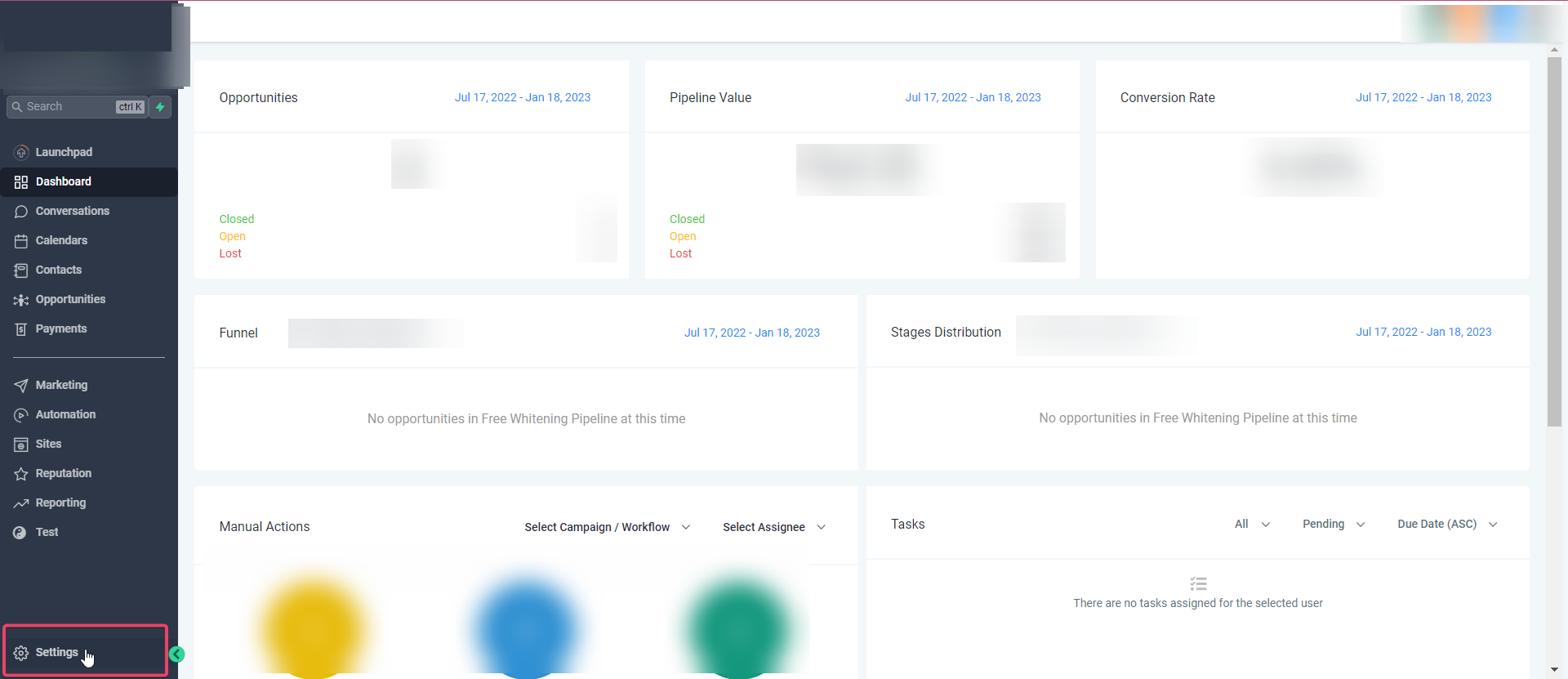
- Navigate to Settings > Calendars within the chosen subaccount.
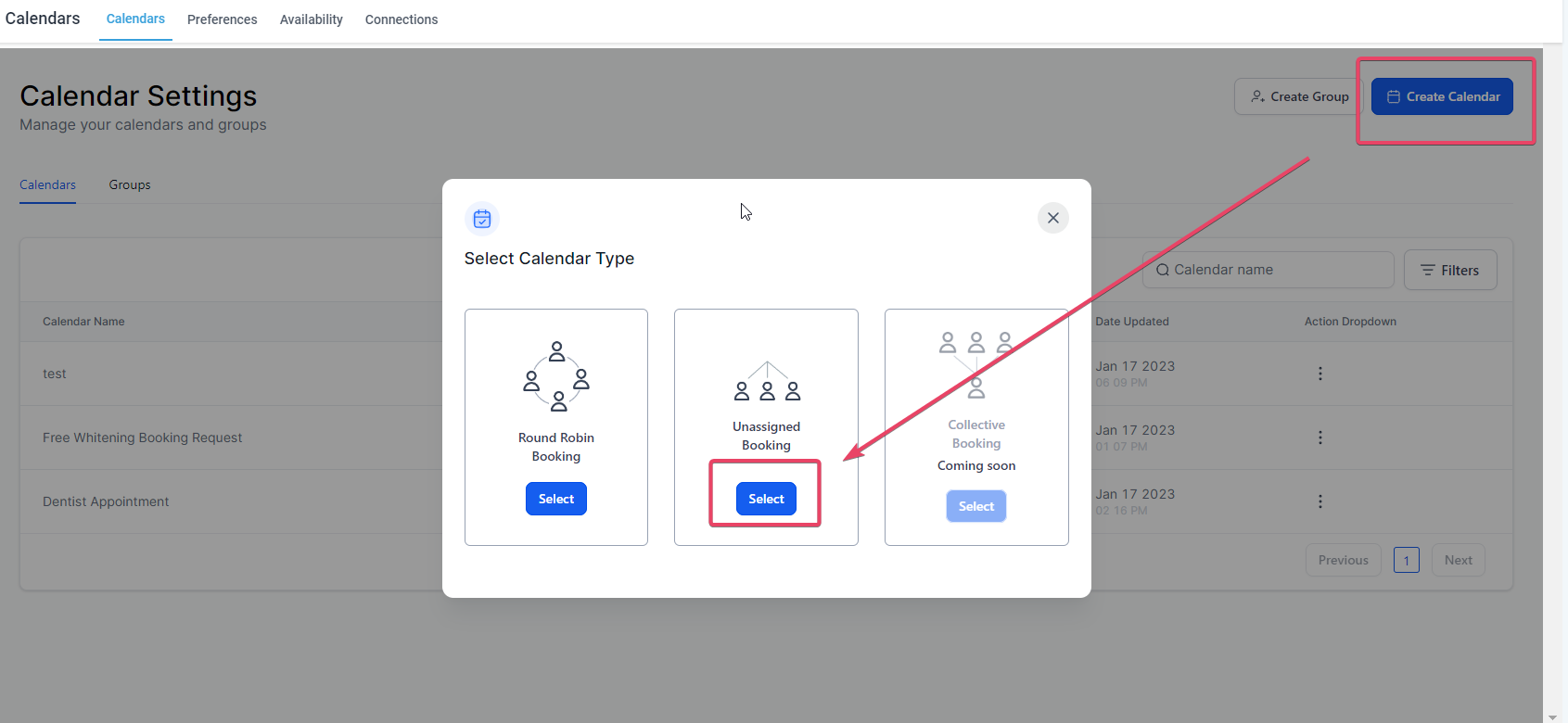
- Press Create Calendar or open an existing calendar you wish to edit.
- Select Unassigned Booking as the calendar type.
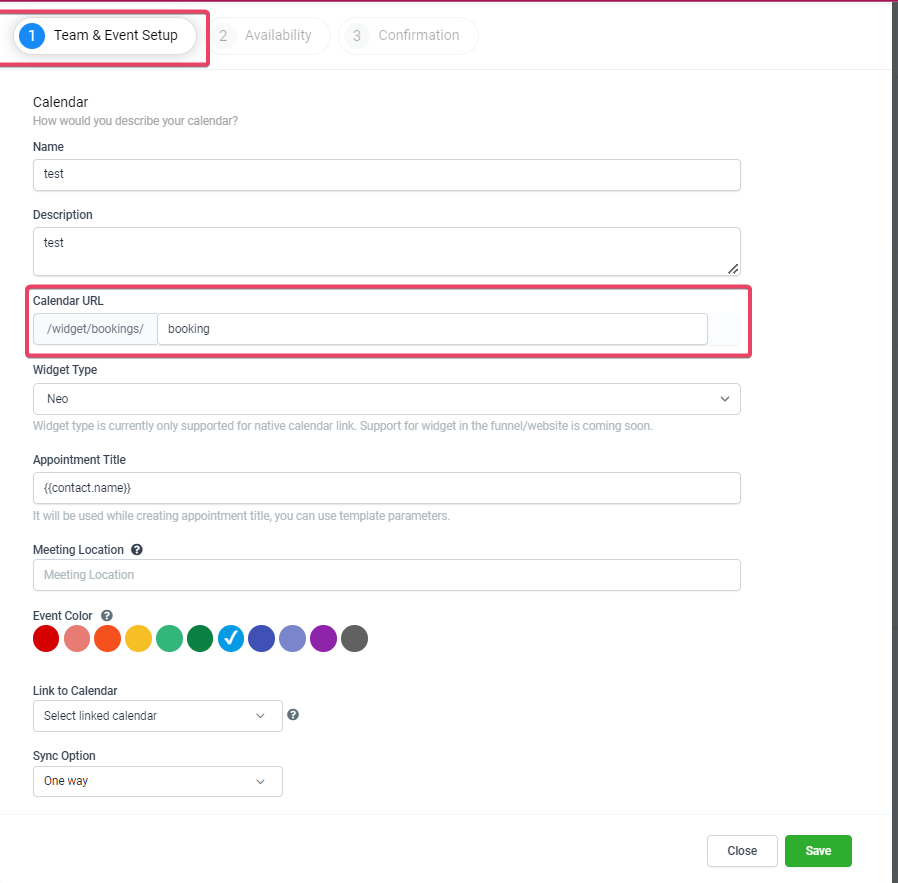
- Locate the Custom URL field inside the Team & Event Setup section.
- Click the field and type the desired slug.
- Allow the system to run an availability check on the entered slug.
- If a check icon appears, the slug is available; if a cross appears, modify the slug until it is available.
- Save the calendar so the custom URL is stored.
- Open the copied link in an incognito or private window to verify it loads correctly.
06What it looks like in HighLevel


07Settings that matter
- Custom URL. Controls the readable part of the public booking link for an Unassigned Calendar.
- API Domain. Determines the base domain that prefixes all system generated links, including calendar URLs.
08Things to know before you rely on it
- The slug must be unique where the calendar lives; a duplicate shows a cross icon.
- Only lowercase letters and hyphens are accepted; spaces and special characters cause validation to fail.
- Changing the slug creates a new public link, rendering any previously shared URLs inactive.
09If something goes wrong
- URL not available. Choose a different slug or add a location or product prefix to make it distinct.
- Validation fails. Remove spaces and special characters; use only lowercase letters and hyphens.
- Link does not open under branded domain. Confirm the API Domain is set up and propagated, then recopy the link.
- User can’t edit calendar. Check that the user has permission to view and edit Calendars in the subaccount.
10How it connects to the rest of HighLevel
- All calendars and appointments features Calendars overview
- Assigning a Primary Calendar Primary calendar guide
- HighLevel pricing and plans Pricing page
Michael's take

People often think any short link will work, but the slug has to be unique in the subaccount and follow strict character rules. Skipping the availability check or using spaces will cause the link to break and waste time updating assets.
I would lock down the API Domain first, then reserve all slugs in a simple spreadsheet before any calendar goes live. That way the URLs stay on brand, stay unique, and you avoid a cascade of broken links when you need to rename something later.