
01Who this is for
- Service based Founders who need to keep clients informed about appointment changes, because the feature delivers messages directly to customers and staff.
- Health clinic managers who must send reminders and follow up alerts to patients via email, SMS or WhatsApp to reduce no shows.
- Event organizers who coordinate multiple participants and want instant In App notifications for schedule updates.
02Customizable calendar notifications, explained
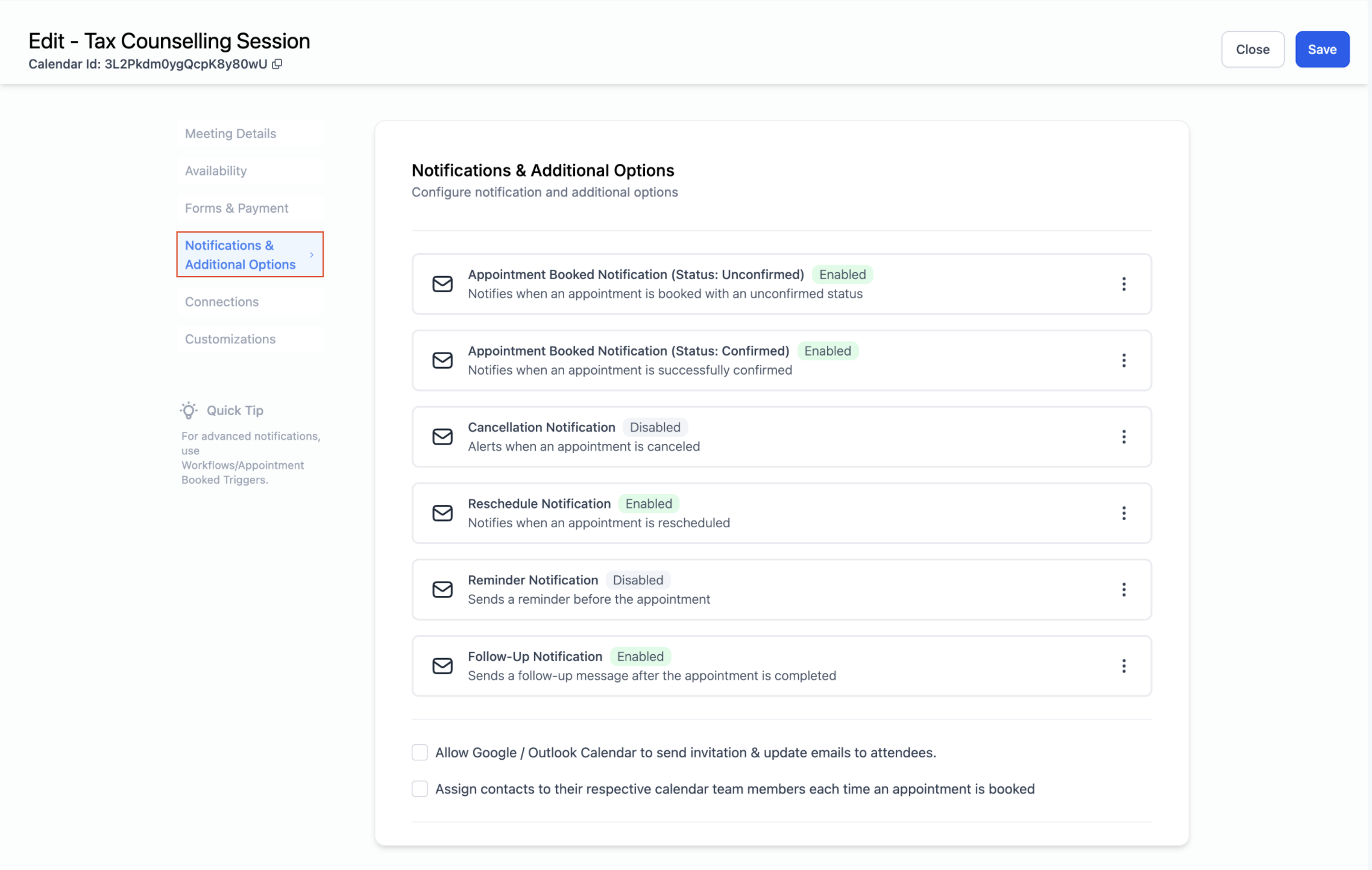
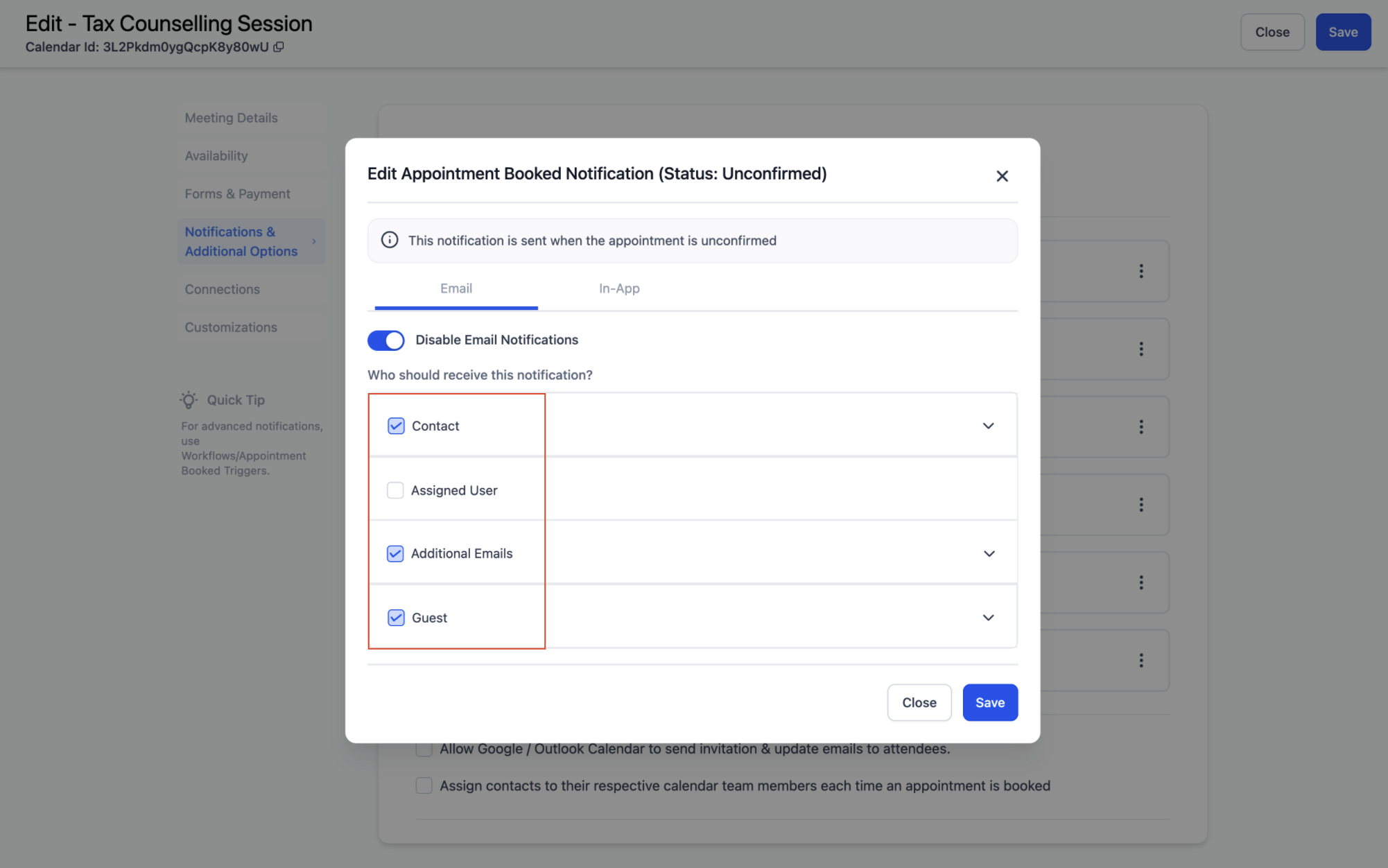
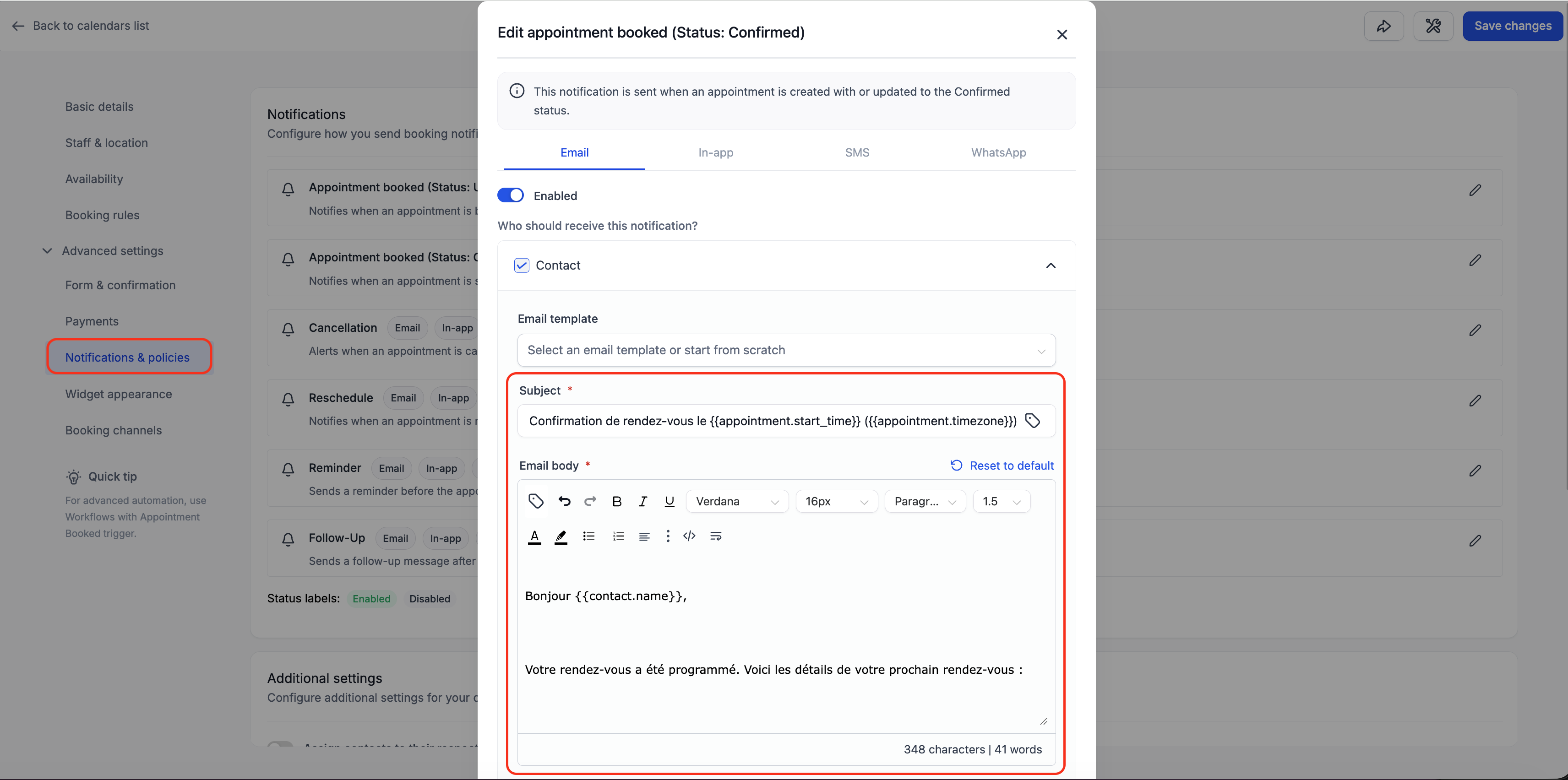
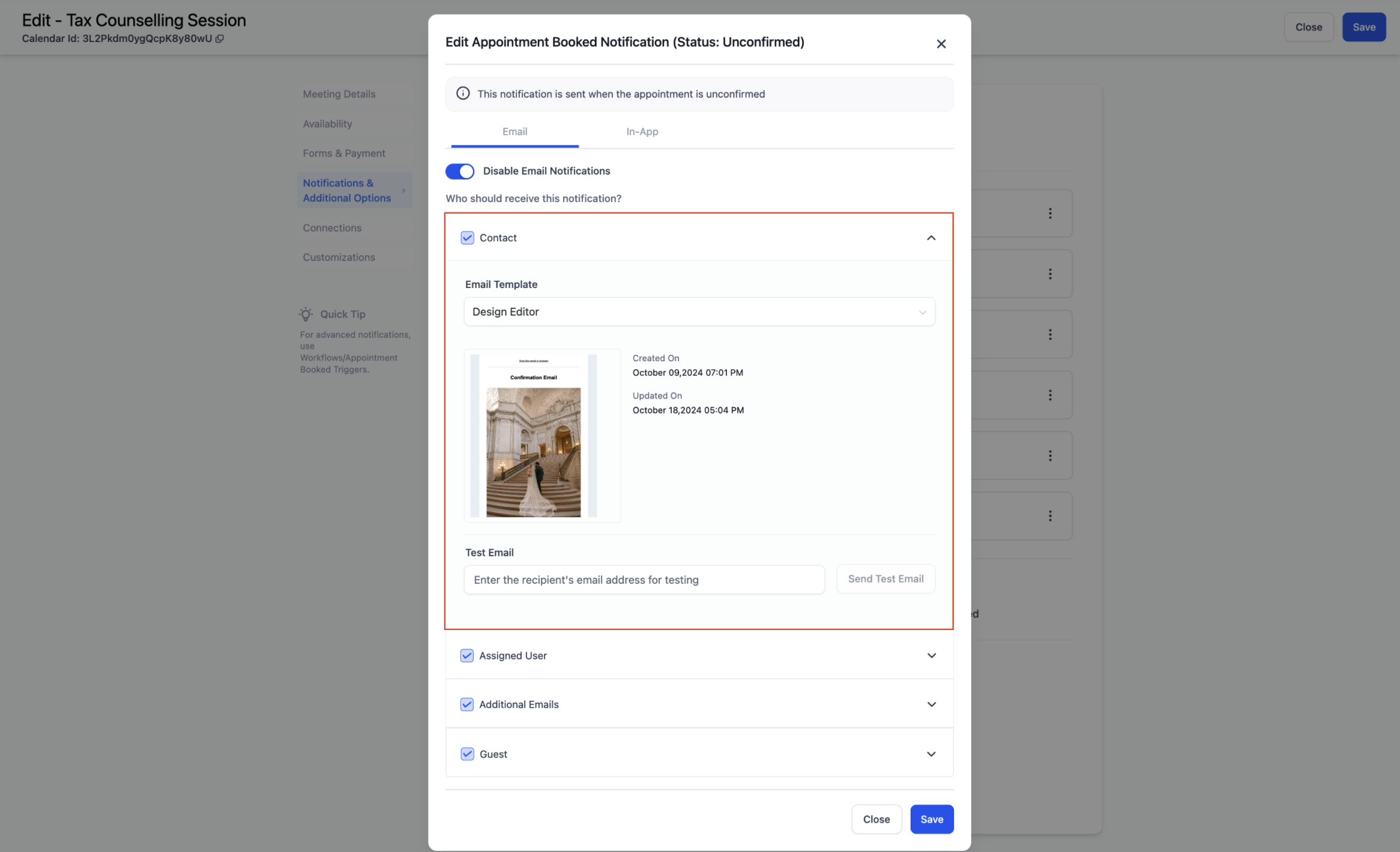
The notification system resides inside each calendar’s Settings area. After opening a calendar, the Notifications tab lists six appointment events, booked (unconfirmed), booked (confirmed), cancellation, reschedule, reminder and follow up. For each event you can enable In App alerts, email, SMS and WhatsApp messages and choose who receives them.
Content can be customized per receiver type. You may use default language localized templates or replace them with your own email, SMS or WhatsApp templates. Timing controls let you specify how far before an appointment a reminder is sent or how long after an appointment a follow up is delivered.
The feature also supports merge fields and Custom Values, so messages can contain appointment details, custom links or notes without manual editing.
03How businesses use customizable calendar notifications
- Dental practice. The office selects the "Appointment Booked (Confirmed)" type, enables email and SMS, and adds a reminder 24 hours before the visit. Patients receive a confirmation email and a text reminder, reducing missed appointments.
- Fitness studio. The studio turns on WhatsApp notifications for class cancellations. When a class is cancelled, the system sends a WhatsApp message to members and the assigned trainer, using an approved template.
- Consulting agency. The agency configures In App notifications for rescheduled meetings. When a client moves a meeting, the assigned consultant gets an internal alert, ensuring the team stays aligned.
04The numbers and rules that matter
- Default email, SMS, and WhatsApp templates use the Business Profile Platform Language wherever supported.
- SMS messages are billed per segment and are subject to charges.
05Before you start
- A calendar must already exist in the platform.
- Email templates need a subject line before they can be sent.
- A WhatsApp Business Account must be connected and verified to use WhatsApp notifications.
- Phone numbers added for SMS or WhatsApp must include country codes.
06How to set up and use customizable calendar notifications in HighLevel
Configure calendar notifications
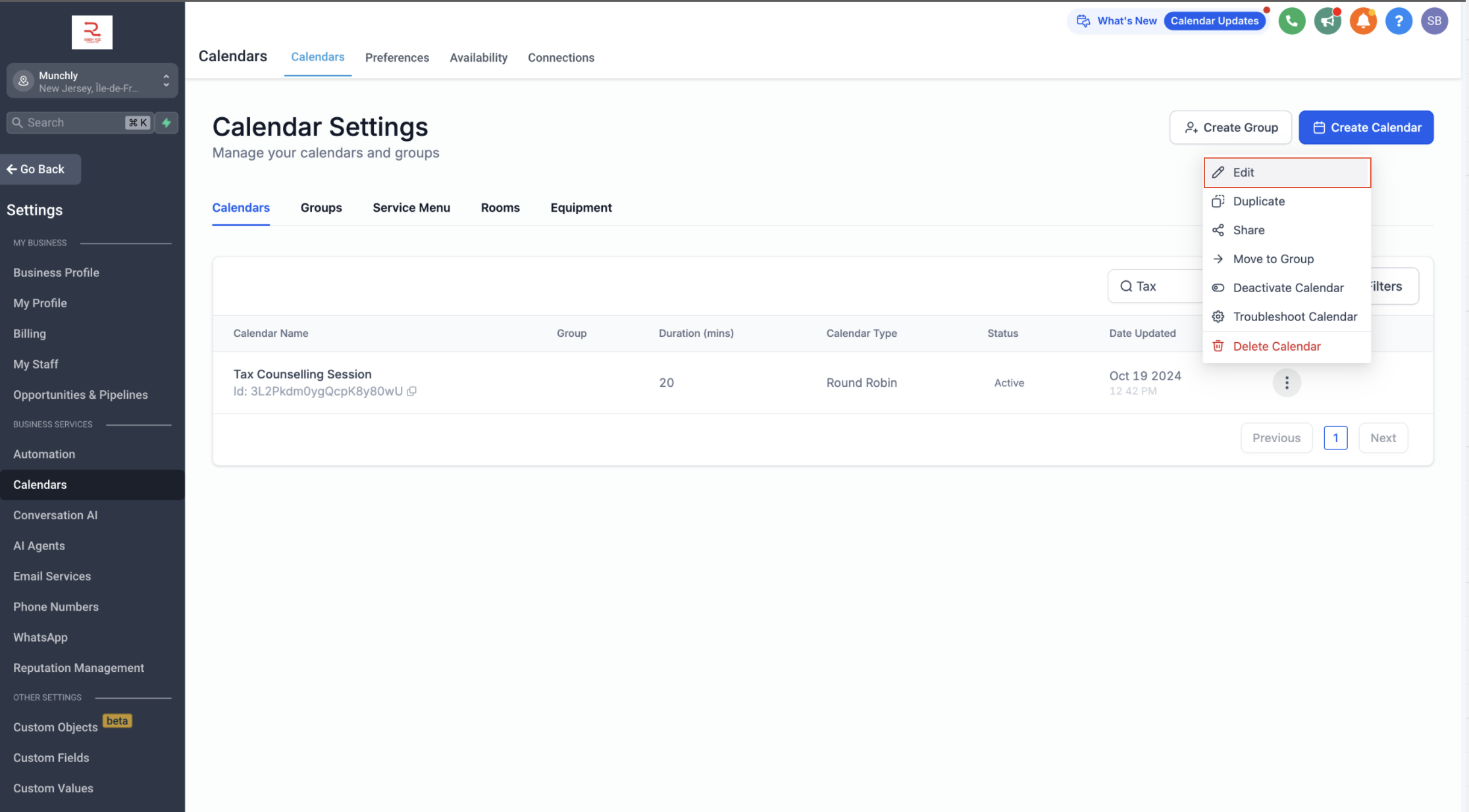
- Go to Calendar > Calendar Settings.
- Select the calendar you want to edit from the list.
- Click the Notifications tab for that calendar.
Set up email notifications
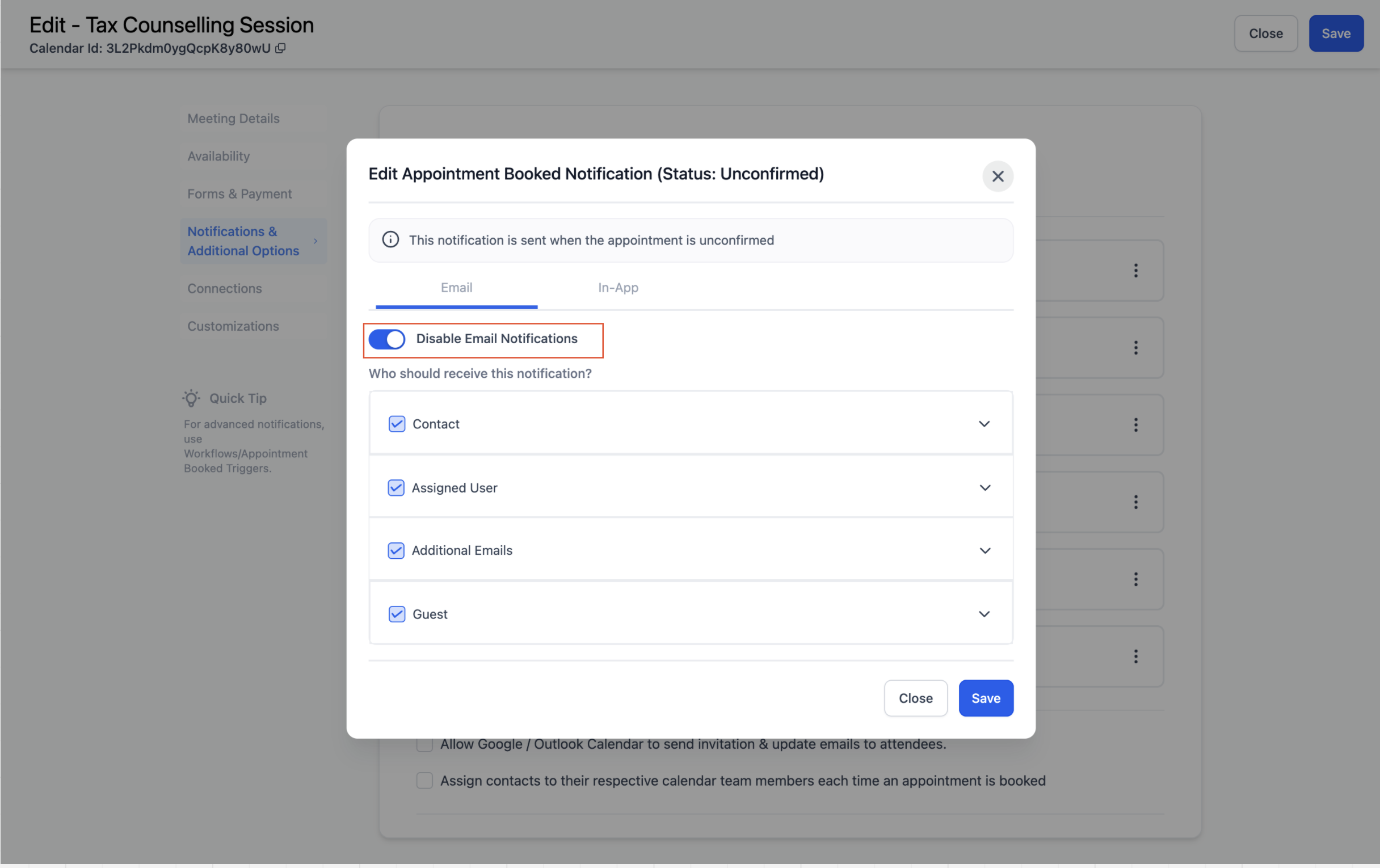
- Choose the notification type you wish to edit.
- Open the Email tab for that type.
- Turn on the email toggle.
- Select an existing template or edit the subject line and body.
- Optionally send a test email to preview it.
- Define trigger timing for reminders or follow up messages.
- Click Save to apply the settings.
Set up SMS notifications
- Pick the notification type you want to modify.
- Switch to the SMS tab.
- Select the recipients, Contact, Assigned User, or Additional Phone Numbers.
- Choose an existing SMS template or create a new one.
- Optionally send a test SMS to check the content.
- Set when reminder or follow up SMS should be sent, adding extra timings if needed.
- Click Save to apply the SMS notification settings.
Set up WhatsApp notifications
- Select the notification type to configure.
- Go to the WhatsApp tab and turn the toggle on.
- Choose the recipients, Contact, Assigned User, or Additional Numbers.
- Pick or create an approved WhatsApp template for the event.
- Use Send Test WhatsApp Notification to preview the message.
- Click Save to activate WhatsApp notifications.
07What it looks like in HighLevel
08Settings that matter
- Notify when meeting link/location is missing. Triggers an internal alert if an appointment is booked without a meeting link or location, helping staff avoid missed meetings.
09Things to know before you rely on it
- New calendars automatically receive localized default templates; existing calendars must reset templates manually to get localized versions.
- SMS messages are billed per segment, so keeping them concise helps manage costs.
- WhatsApp notifications require approved templates and a verified WhatsApp Business Account.
- Additional Emails and Additional Phone Numbers can be added, but the system only sends messages to those addresses or numbers.
10If something goes wrong
- Blank reschedule or cancellation link in a notification. Make sure the message is tied to an appointment record, use an appointment based workflow trigger, and test with a real booking.
11How it connects to the rest of HighLevel
- Learn how to set up linked and conflict calendars Linked calendars guide
- Find out how calendar payments collect or save cards Calendar payments
- Read about assigning a primary calendar for your account Primary calendar
Michael's take

Many people set up a single generic reminder and think it will cover every scenario. The result can be missed follow ups or unnecessary noise for staff. I would begin with mapping each appointment event. Booking, cancellation, reschedule, reminder and follow up. To its own notification channel, then customize the content for the audience that needs it.
Once the mapping is done, I test each channel with a real booking so the merge fields populate correctly. That quick check catches blank links or template issues before a client ever sees a broken message.