
01Who this is for
- Sales teams need a single view of meetings to avoid double booking.
- Project managers benefit from real time calendar updates across the crew.
- Small business owners can manage client appointments without leaving HighLevel.
02Outlook calendar integrations, explained
Outlook integration pulls events from a supported Outlook calendar into HighLevel and can push new appointments back. The feature works with group calendars and appears under the user’s profile settings. Users choose one Outlook account per user per subaccount.
The integration reads events for conflict detection and can write appointments when a primary calendar is set. It operates alongside other calendar sources such as Google, but only one write destination is allowed at a time.
03How businesses use Outlook calendar integrations
- Real estate brokerage. Agents log in, connect their Outlook account via Settings > Profile, pick a primary calendar, and then schedule property showings inside HighLevel. The appointments appear in Outlook, keeping personal and work calendars aligned.
- Health clinic. Front desk staff set up the Outlook integration, select the clinic’s shared calendar as the primary source, and create patient visits through HighLevel. The visits are automatically added to the Outlook schedule.
- Marketing agency. Team members link Outlook, configure a conflict check calendar, and book campaign planning meetings in HighLevel. The system alerts them if a time overlaps with existing Outlook events.
04The numbers and rules that matter
- Integration supports only Office 365, Outlook.com, live.com, or Hotmail calendars.
- Outlook integration is exclusive to the Freelancer 297 and Agency Pro 497 plans.
05Before you start
- The user must be logged into the appropriate subaccount.
- A supported Outlook account (Office 365, Outlook.com, live.com or Hotmail) is required.
06How to set up and use Outlook calendar integrations in HighLevel
Connect Outlook integration
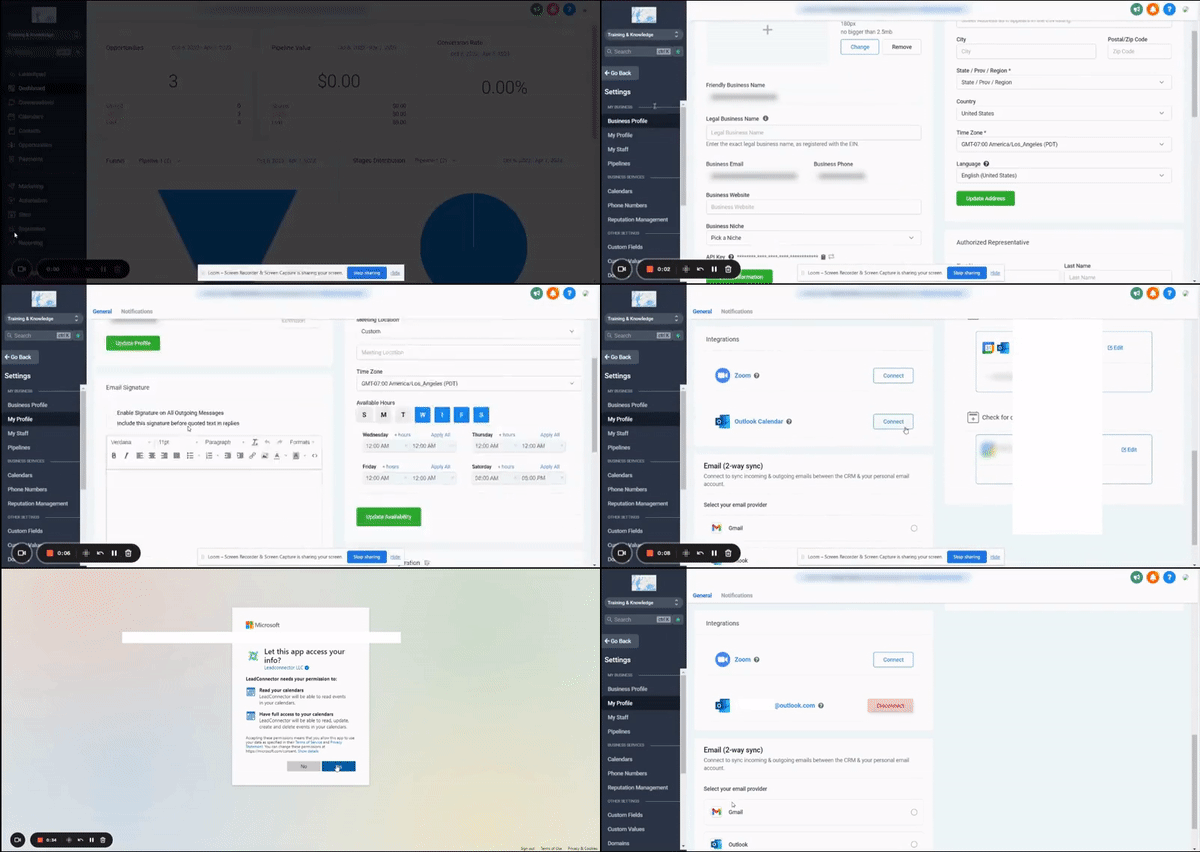
- Open Settings and choose Profile.
- Locate the Integrations section and click to connect Outlook.
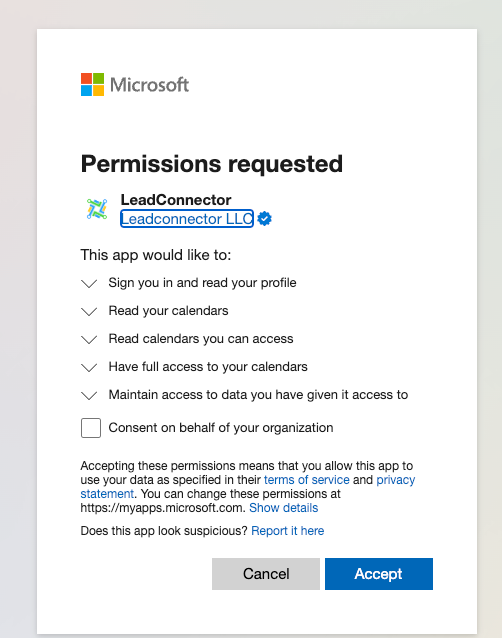
- Approve the permission request so LeadConnector can access the Outlook calendar.
Configure primary calendar
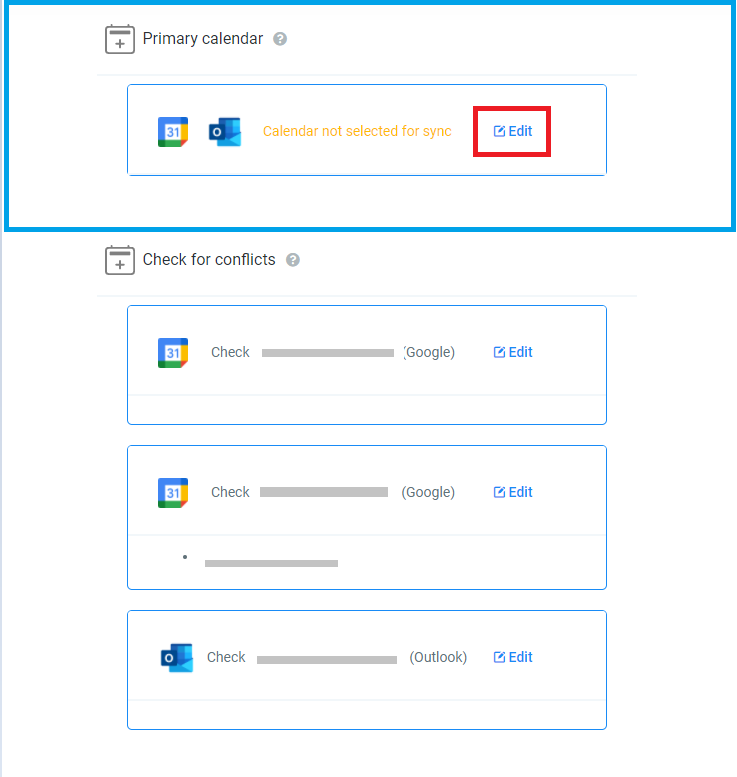
- Scroll to Calendar Configuration at the bottom of the Profile page.
- Press the edit button beneath Primary Calendar.
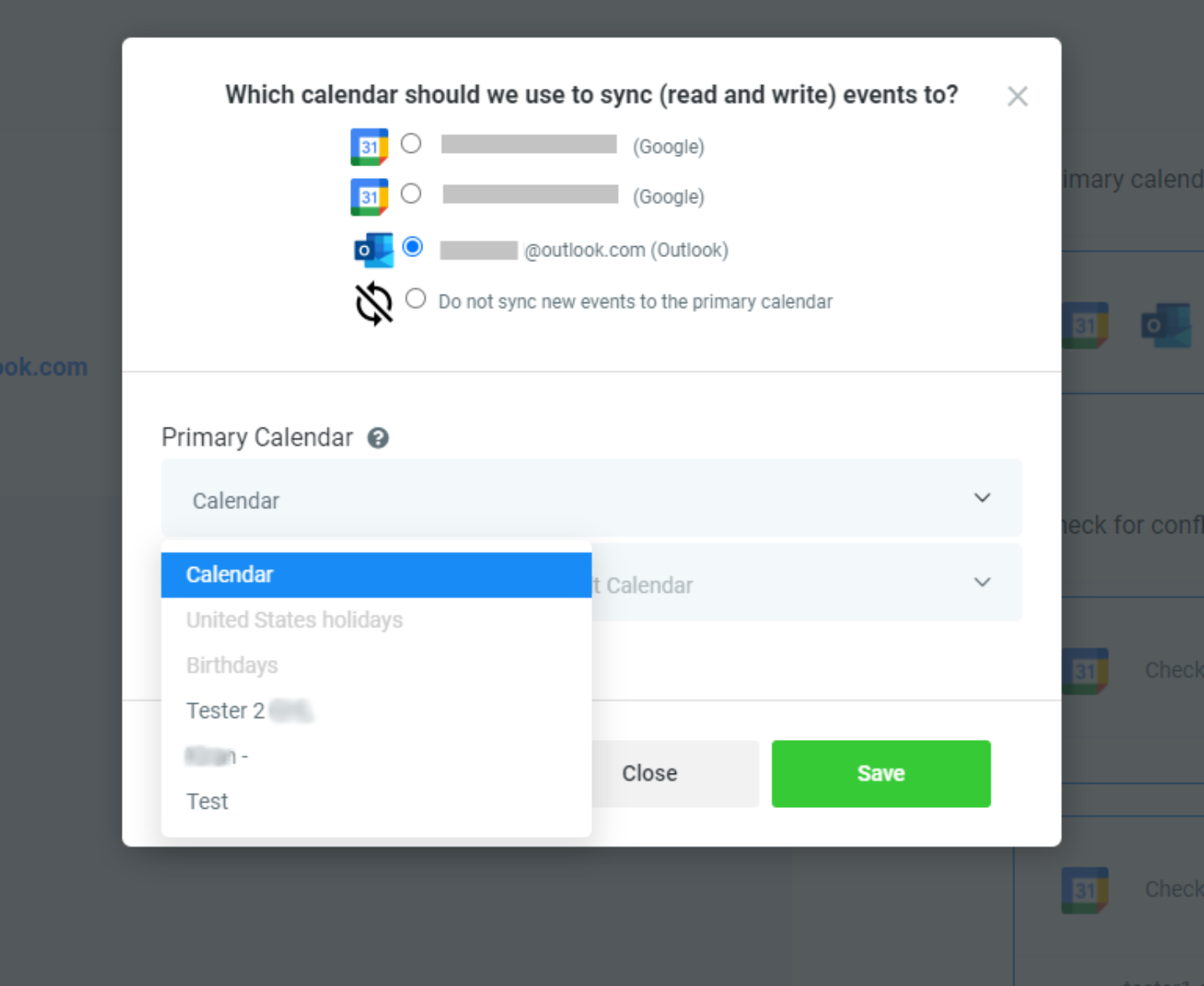
- Select the desired Outlook calendar from the dropdown list.
- Save the selection to enable read and write syncing.
Configure check for conflicts
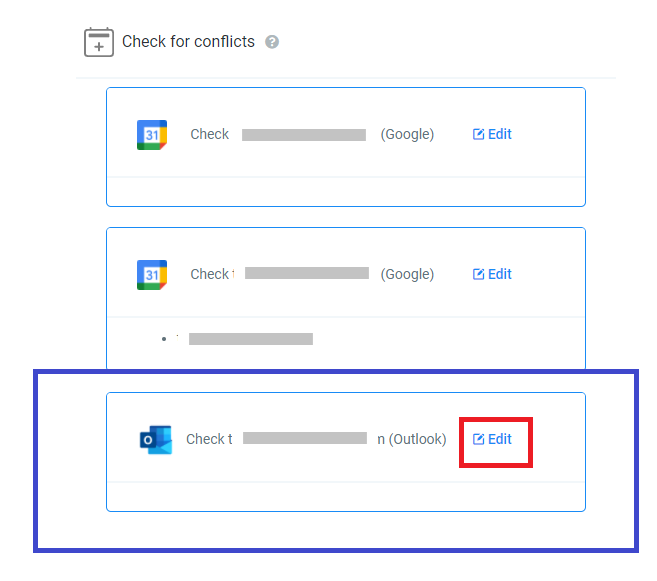
- Within Calendar Configuration, click the edit button under Check for Conflicts.
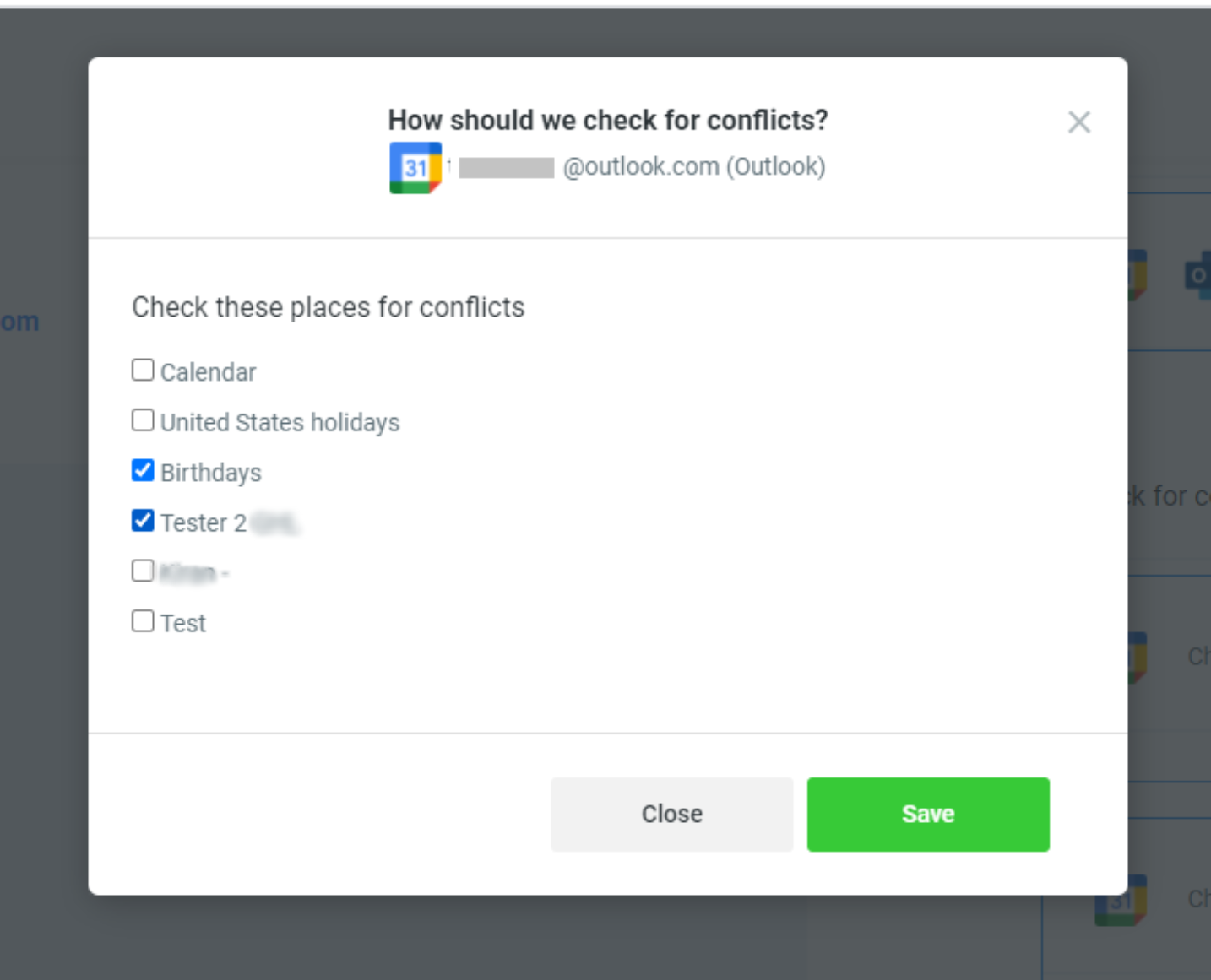
- Browse the list of Outlook calendars presented.
- Choose the calendar that should be monitored for overlapping events.
- Confirm the choice to activate conflict detection.
07What it looks like in HighLevel
08Settings that matter
- Primary Calendar. Determines which Outlook calendar receives new appointments from HighLevel and from which calendar events are read.
- Check for Conflicts. Specifies an Outlook calendar that HighLevel reads solely to warn about scheduling overlaps.
09Things to know before you rely on it
- Only one Outlook account can be linked to a single user in a location.
- The integration works only with group calendars, not with event calendars.
- Supported Outlook accounts are limited to Office 365, Outlook.com, live.com, and Hotmail; on premise Exchange is not accepted.
- Appointments can be written to only one calendar at a time; simultaneous writes to Google and Outlook are not possible.
- Feature access is limited to Freelancer 297 and Agency Pro 497 plans, as indicated by role specific messages.
10If something goes wrong
- Appointments do not sync between Outlook and HighLevel. Edit the Primary Calendar, choose ‘Do not sync events to the primary calendar’, save, then re select the original calendar.
- Unable to connect an Outlook account that is already linked to a different user. Connect a separate Outlook account to the new user, then share the needed Outlook calendar from the first account to the second.
11How it connects to the rest of HighLevel
- How to connect Google Calendar with HighLevel for real time sync Google Calendar sync
- Zoom integration with HighLevel calendars: how to set up Zoom integration
- Integrate Calendly with HighLevel calendars Calendly integration
- HighLevel pricing and plans Pricing
- Start a 30 day HighLevel trial Free trial
Michael's take

Michael ReimerFounder of CRM Pros, HighLevel Commander and Certified Admin
Outlook calendar integrations are only worth the effort if you already live in Microsoft’s ecosystem.
If you rely heavily on Outlook for scheduling, the sync can reduce double booking and app switching; otherwise, you can skip it.
Get More InformationOpens on HighLevelPublished November 2, 2026 · Updated November 16, 2026