
01Who this is for
- Coaches who hold virtual sessions benefit because each booked slot automatically contains a Zoom meeting link, eliminating the need to send separate invites.
- Service businesses with multiple locations gain consistency as the same Zoom account can be used across all calendar types, keeping client experiences uniform.
02Zoom integrations, explained
The feature links a Zoom account to HighLevel calendars. Once connected, any appointment scheduled on a Personal, Round Robin, Service or Collective calendar receives a fresh Zoom meeting link. The link appears in the appointment notification when the location is set to Zoom and the template includes the {{appointment.location}} field.
The integration lives under the Video Conferencing area of the Connections settings. Users can attach Zoom either from their personal profile or from the calendar specific settings page. After authorization, HighLevel stores the connection and uses it whenever a booking is created.
If the connection is broken and later restored, HighLevel retroactively creates Zoom links for appointments that were missing them during the downtime, so no manual updates are required.
03How businesses use Zoom integration with HighLevel calendars
- Fitness studio. The studio adds Zoom as the meeting location in its class booking calendar. When a member signs up, the system auto fills the confirmation email with the generated Zoom link, using the {{appointment.location}} merge field.
- Consulting firm. Consultants select the Zoom option in their round robin calendar. Each client booking receives a unique Zoom URL that appears in the SMS reminder, streamlining virtual consultations.
- Therapy practice. Therapists link a shared Zoom account to their service calendars. A new secure meeting link is added to every therapy session invite, ensuring consistent client access.
04The numbers and rules that matter
- Dynamic Zoom links are only available for Personal, Round Robin, Service and Collective Calendars.
- Only one Zoom account can be connected per user.
- Both Zoom and Google Meet can be connected, but only one video conferencing platform can be active per user profile or calendar at a time.
05How to set up and use Zoom integration with HighLevel calendars in HighLevel
Connect Zoom from My Profile
- Open My Profile from the Settings navigation.
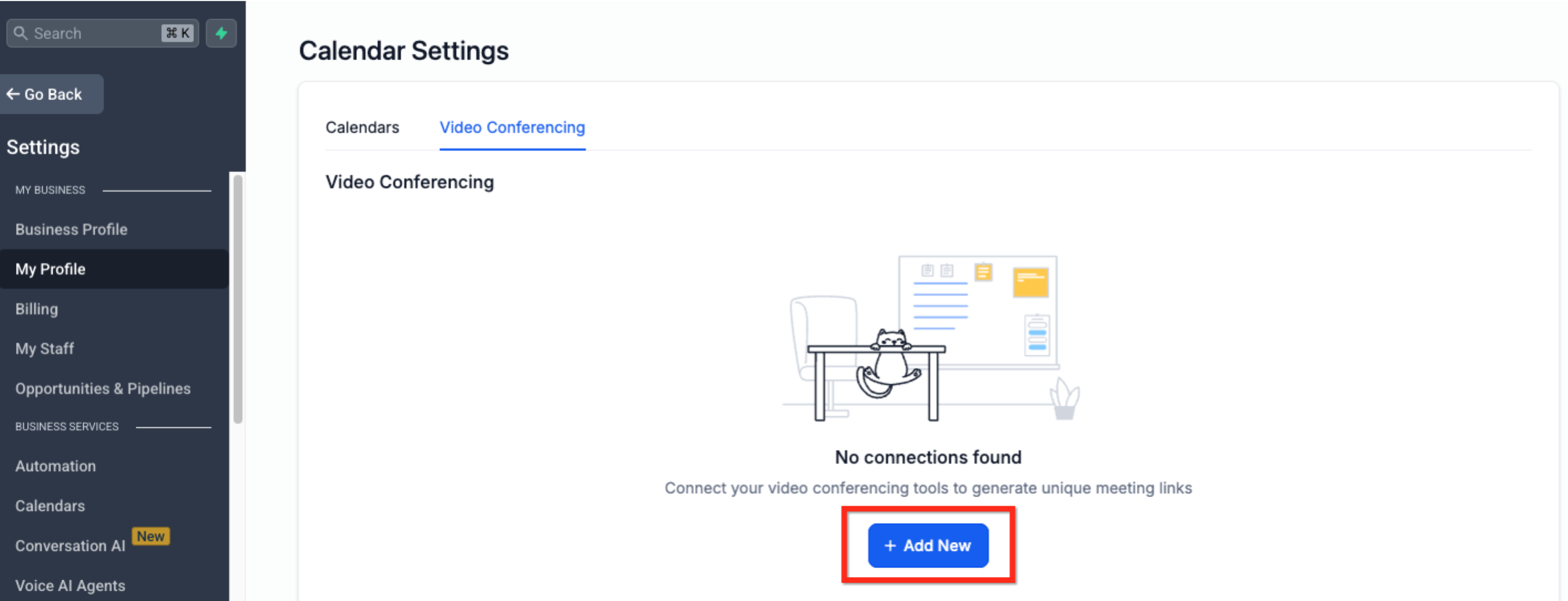
- Enter the Calendar portion and choose the Video Conferencing tab.
- Press the blue + Add New button.
- Select Connect beside Zoom, sign in to Zoom, and grant permission.
Connect Zoom via Calendar Settings
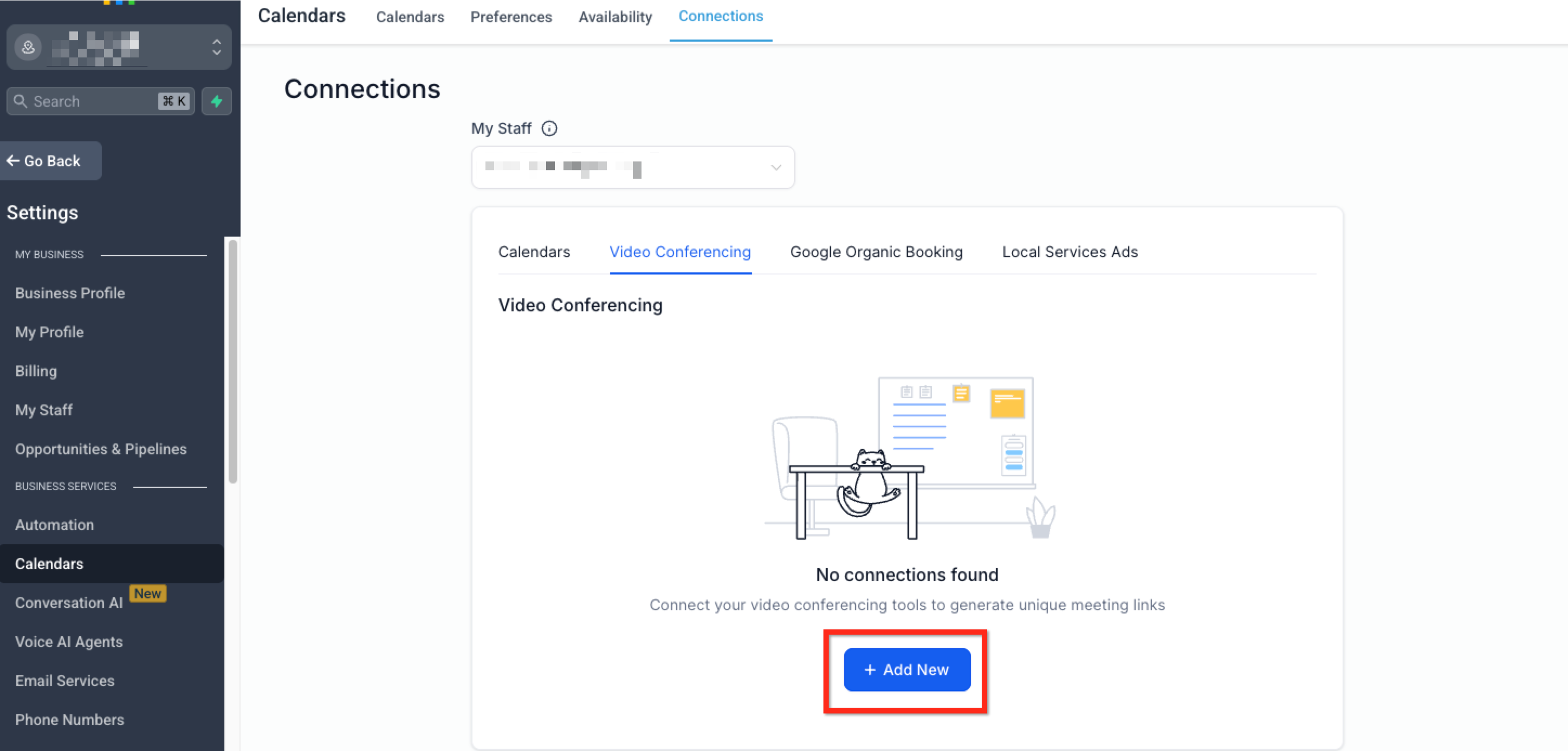
- Go to Calendar Settings under Settings.
- Open the Connections tab.
- Click the Video Conferencing option.
- Hit the blue Add New button within the Video Conferencing section.
- Choose Connect next to Zoom, log in, and approve access.
Check Your Connection Status
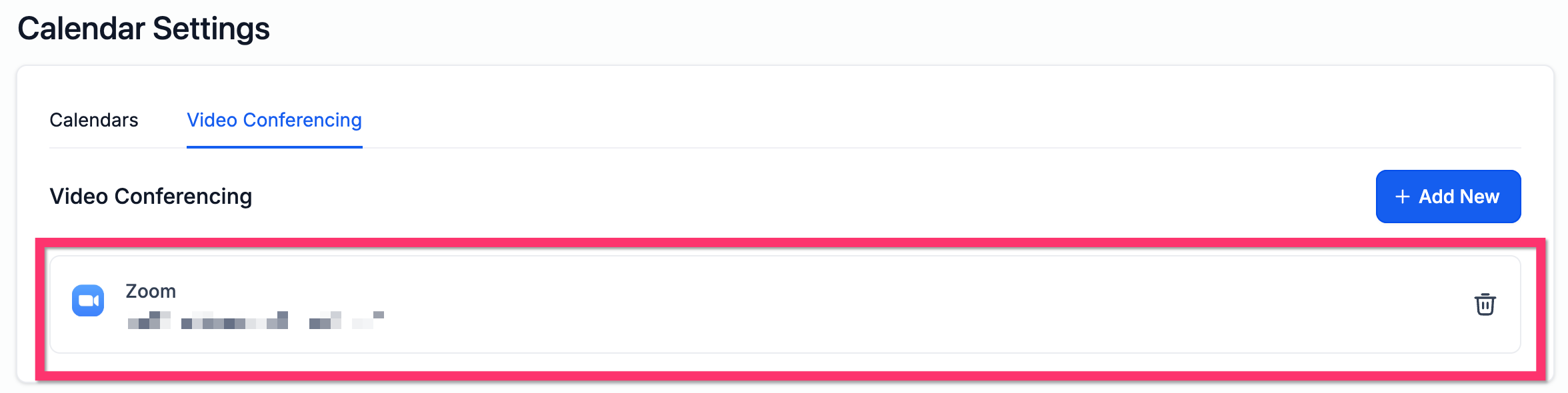
- Navigate to My Profile > Calendar Settings > Video Conferencing.
- Verify that the Zoom account appears as connected.
06What it looks like in HighLevel
07Settings that matter
- Video Conferencing. Controls which video meeting providers are linked to calendars and allows adding a Zoom connection.
08Things to know before you rely on it
- Dynamic Zoom links are created only for Personal, Round Robin, Service and Collective calendars.
- A user profile can link only one Zoom account at a time.
- Only one video conferencing platform can be active per user profile or calendar at a time.
09If something goes wrong
- Zoom meeting link missing from confirmation messages. Verify the appointment location is set to Zoom and the {{appointment.location}} merge field is present in the email or SMS template.
- Zoom account disconnected. Navigate to Calendar Settings > Connections > Video Conferencing (or My Profile > Calendar Settings > Video Conferencing), click Disconnect, then reconnect with the desired Zoom account.
10How it connects to the rest of HighLevel
- Integrate Google Calendar with HighLevel for combined scheduling Google Calendar integration
- Sync Outlook calendars with HighLevel appointments Outlook sync
- View pricing and plan options for HighLevel features Pricing
Michael's take

Zoom integration removes the manual step of creating meeting links, but teams that rely on multiple video platforms per user might find the single account limit restrictive.