
01Who this is for
- Founders who manage personal appointment booking and want iCloud events to block their availability.
- Small service businesses that rely on multiple team member calendars and need to prevent overlapping bookings.
- Coaches who use iCloud for personal scheduling and wish to keep their HighLevel calendar in sync without manual entry.
02ICloud calendar integrations, explained
The feature creates a connection between an iCloud calendar and HighLevel calendars. New events added in HighLevel appear on the chosen iCloud calendar, and events on the iCloud calendar are imported as blocked slots in HighLevel. The integration does not generate contacts from iCloud events.
The integration is managed from the Connected Calendars area of a subaccount. After adding the iCloud account, you set a primary linked calendar for event creation and select one or more conflict calendars whose busy times block availability. The sync works in a default one way mode; blocked slots created in HighLevel do not sync back to iCloud.
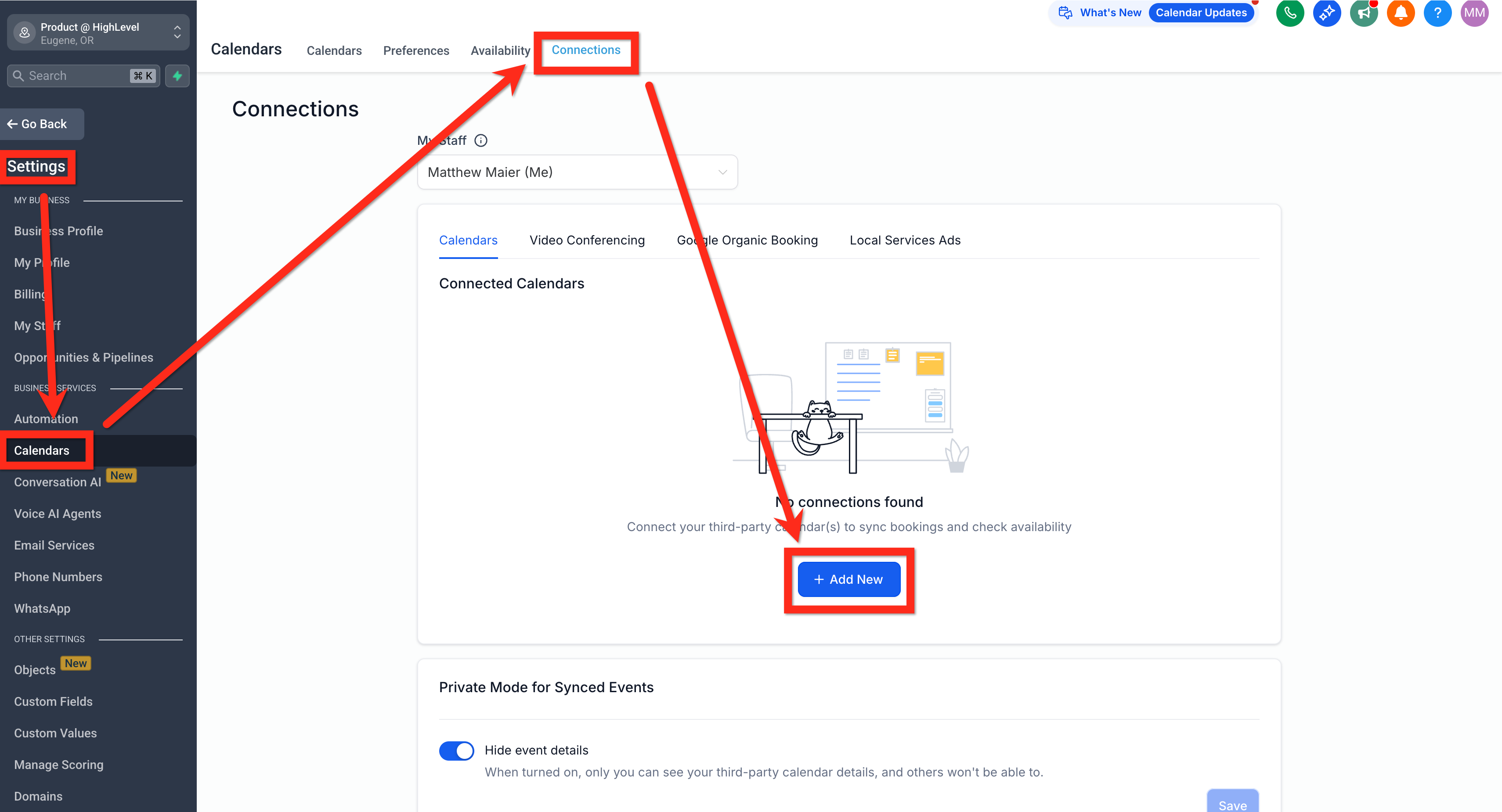
All settings are accessed through the subaccount > settings menu, either under Calendars > Connections or under My Profile > Calendar Configuration, which leads to the same configuration panel.
03How businesses use ICloud calendar integrations
- Fitness trainer. The trainer adds their iCloud calendar as a conflict calendar so any personal appointments marked busy prevent client bookings in HighLevel. They also set the iCloud calendar as the primary linked calendar so new client sessions are automatically added to their personal calendar.
- Legal consultancy. The consultancy connects multiple iCloud calendars, one per attorney, to the same subaccount. Each attorney’s calendar is added as a conflict calendar, ensuring that overlapping court dates or meetings block appointment slots in HighLevel.
- Real estate agency. The agency links a team iCloud calendar as the primary linked calendar. When a showing is scheduled in HighLevel, the event is pushed to the shared iCloud calendar, keeping the whole team aware of upcoming appointments.
04The numbers and rules that matter
- Each user can connect multiple iCloud integrations per subaccount.
05Before you start
- Two factor authentication must be enabled on the Apple ID.
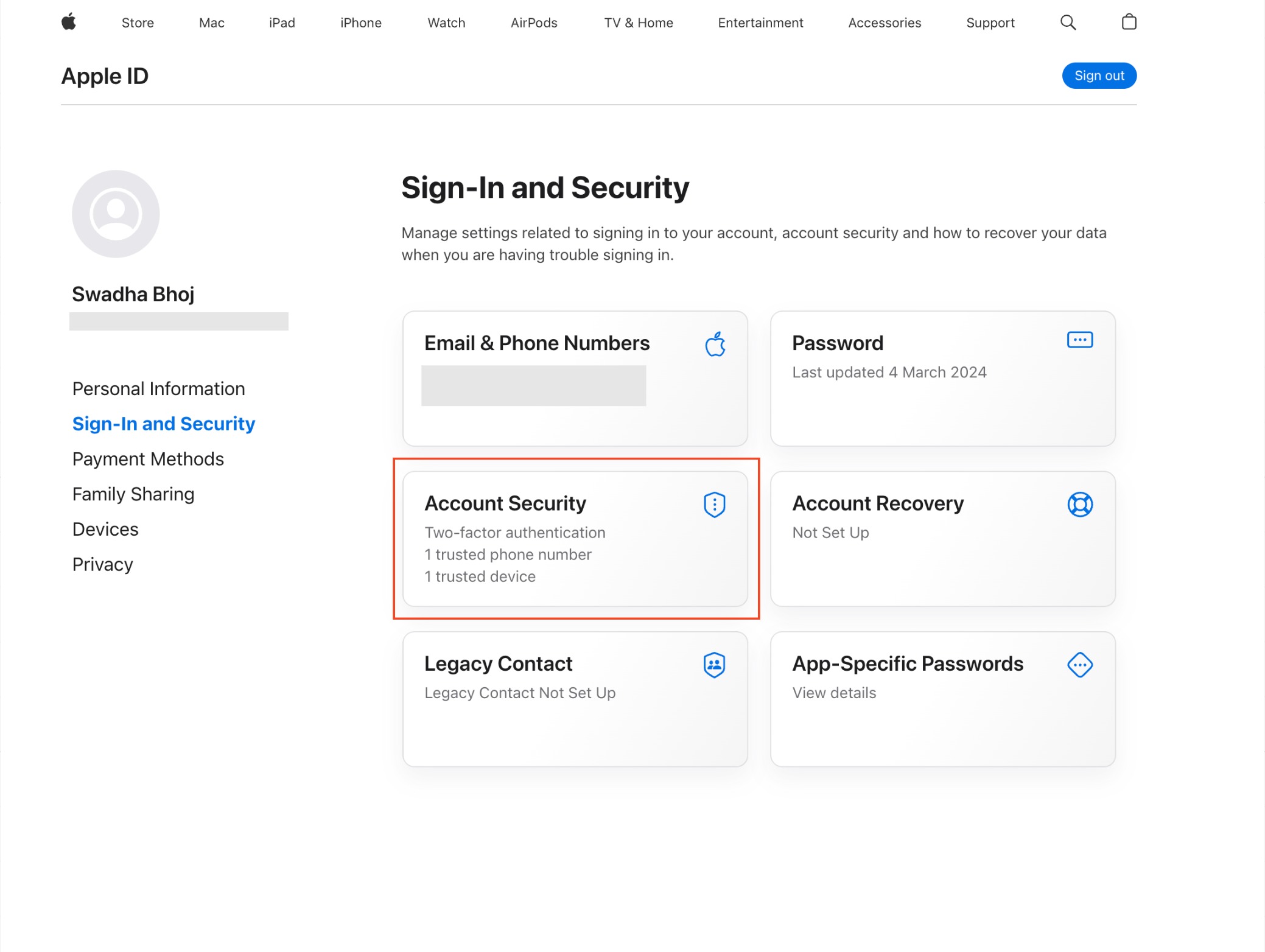
- An app specific password must be generated in the Apple ID security settings.
06How to set up and use ICloud calendar integrations in HighLevel
Obtain an app specific password from Apple
- Sign in to https://appleid.apple.com/.
- Enable two factor authentication under the Security section.
- If you skip enabling two factor authentication now and encounter trouble later, return to this step and enable it.
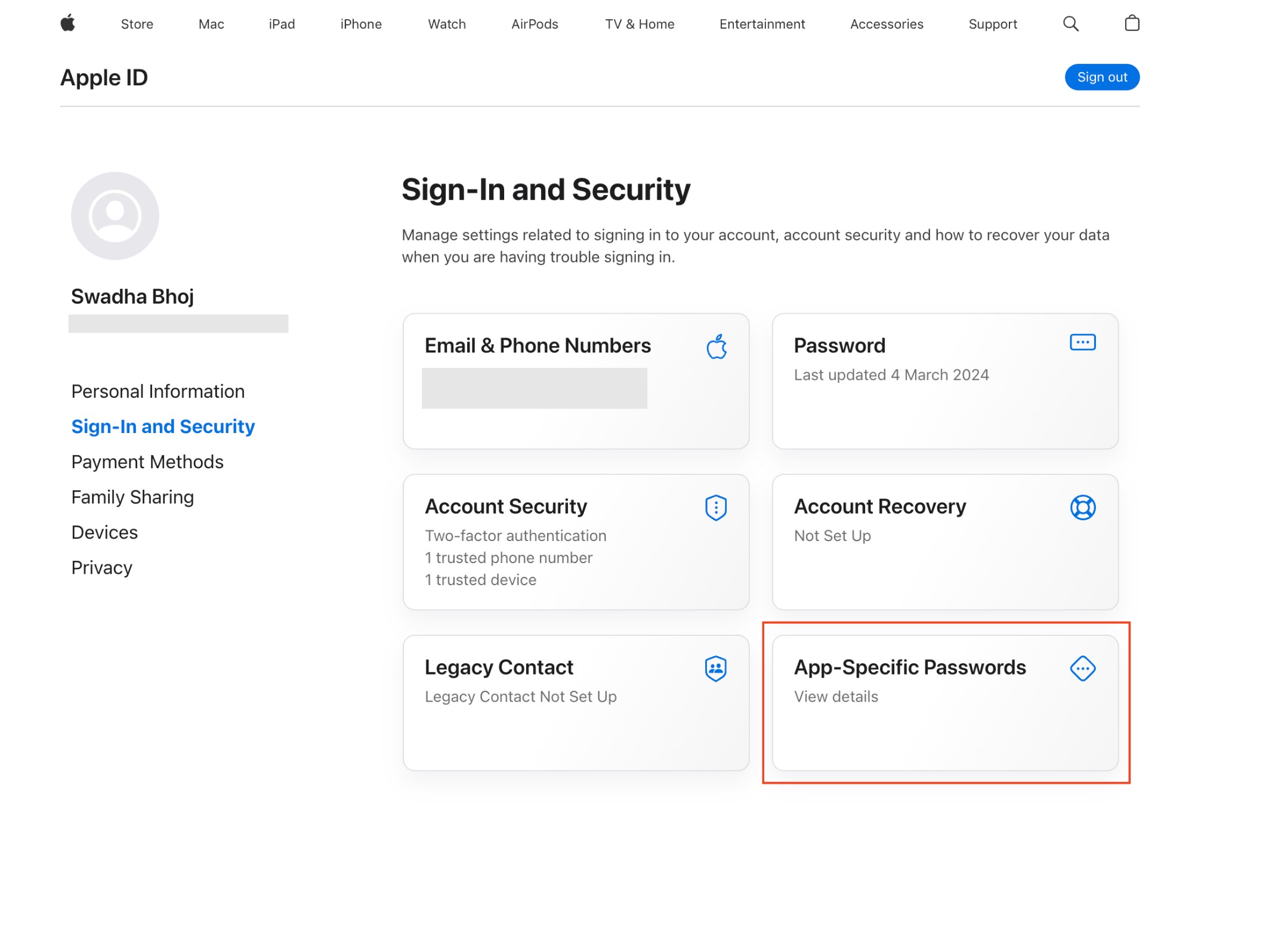
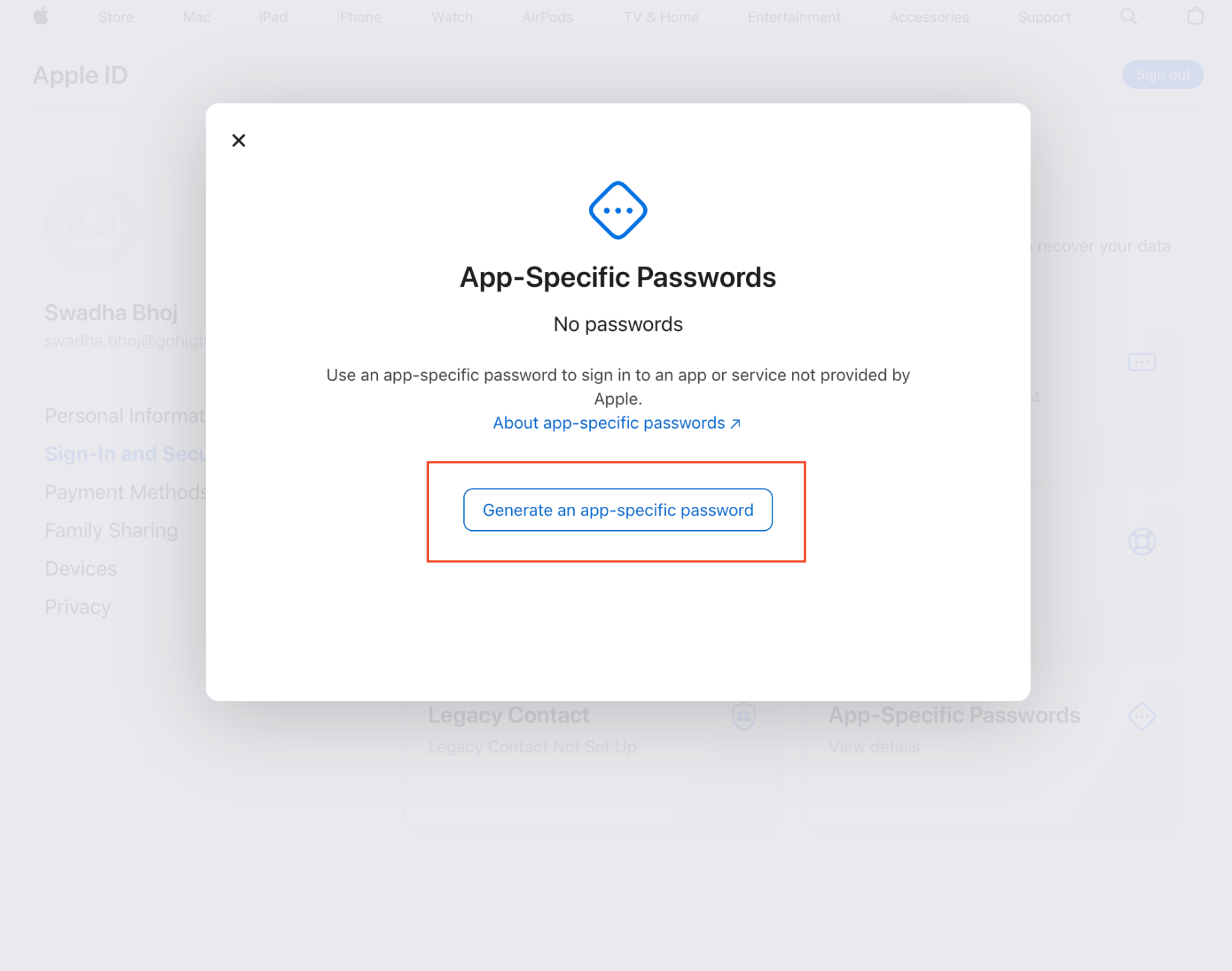
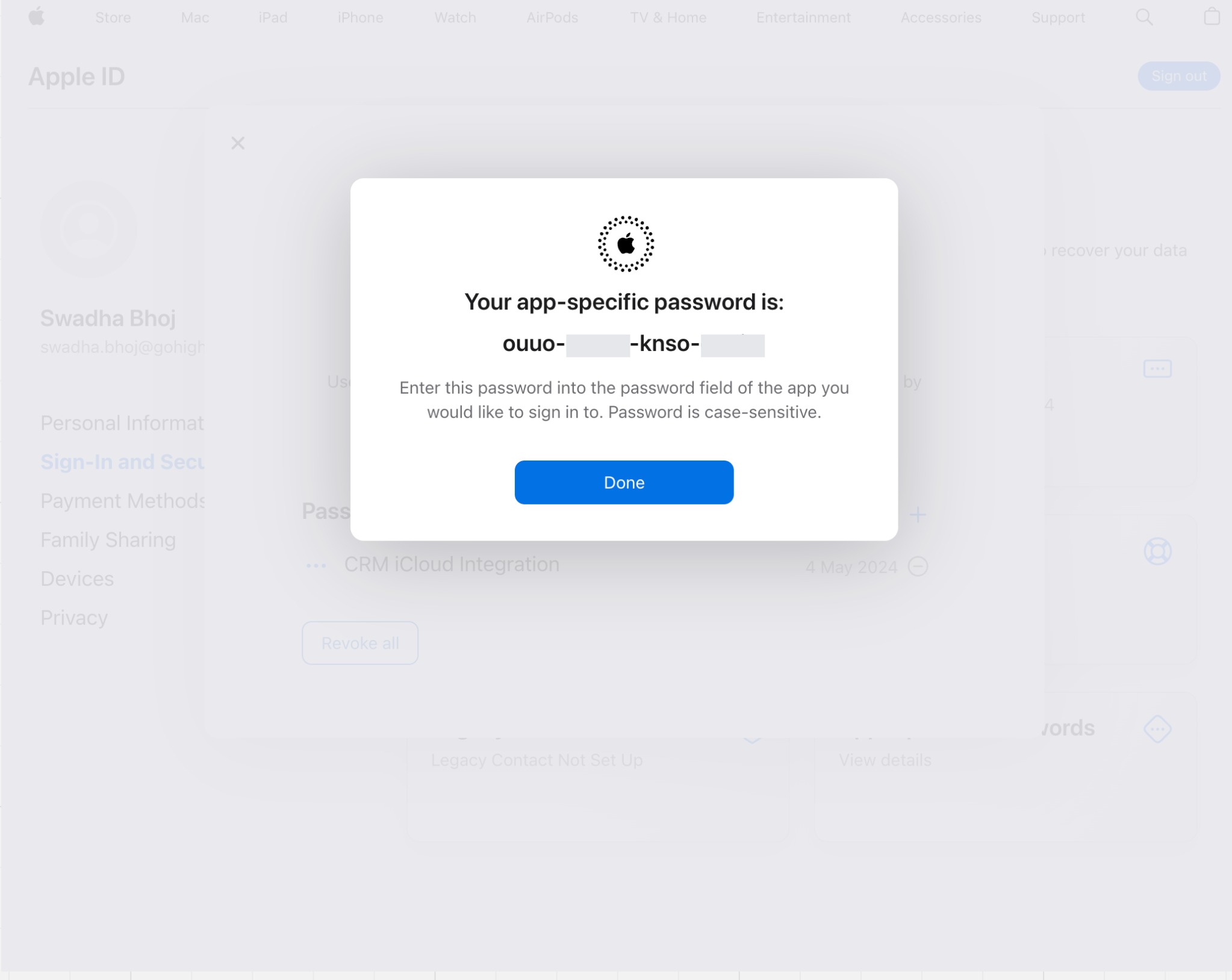
- Open the Sign in and Security area, select App Specific Password, and click Generate an app specific password.
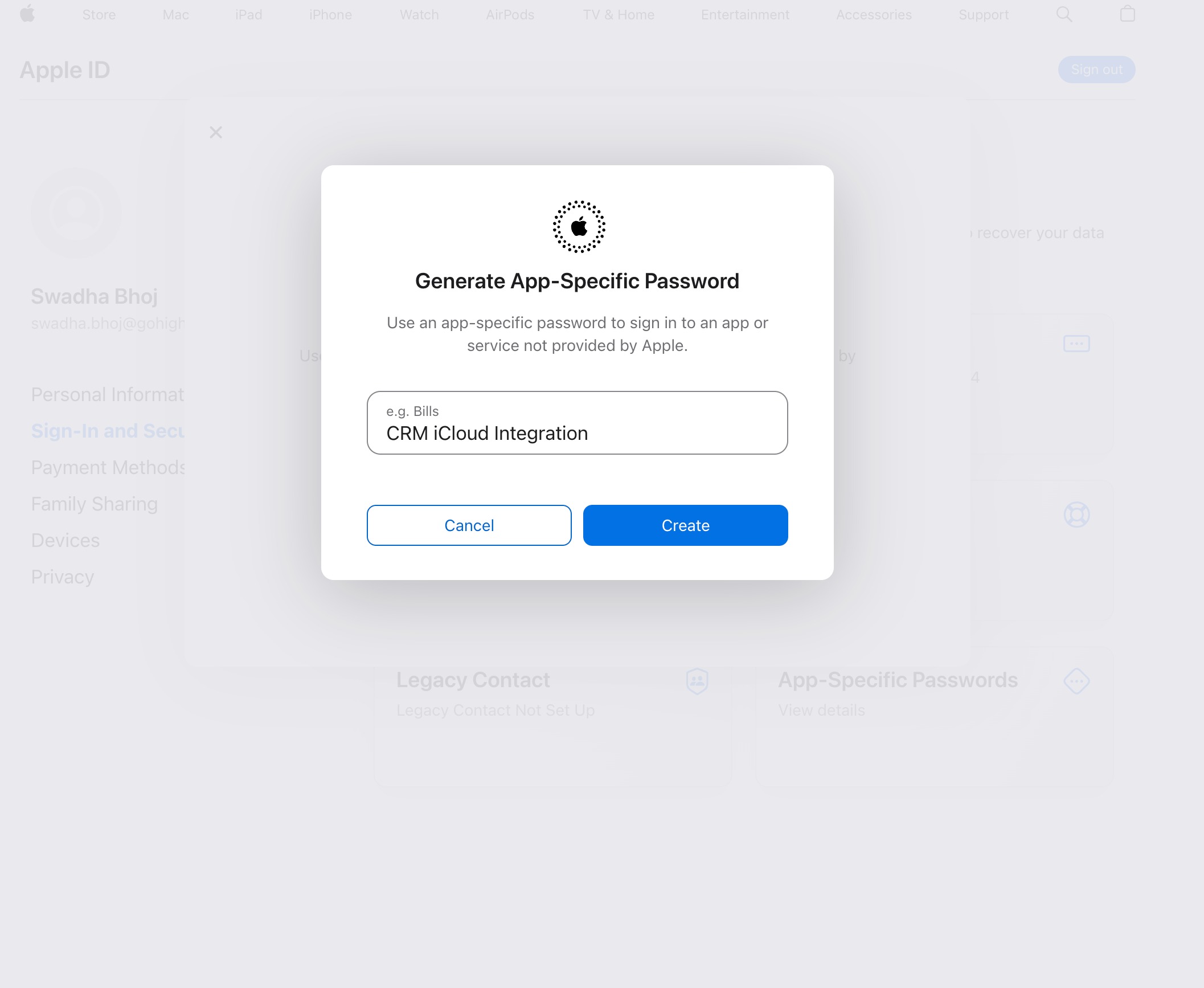
- Enter a label for the password, click Create, and copy the generated password for later use.
Connect your iCloud account to HighLevel
- Navigate to subaccount > settings > calendars > connections and click "+ Add New".
- Enter your iCloud Apple ID and the app specific password generated in Step 1.
- Click "Connect" to save the credentials and establish the connection.
Configure calendars
- Go to subaccount > settings > My Profile > Calendar Configuration (or subaccount > settings > calendars > connections > calendar configuration; both paths lead to the same panel).
- If you have not connected a third party calendar, this Calendar Configuration panel will not appear; return to Step 2 and connect a calendar first.
- Click "Edit" next to the Primary Linked Calendar and select the iCloud calendar that should receive new events.
- Click "Edit" next to Conflict Calendars and choose one or more calendars, such as holidays, your personal calendar, or team member calendars, to block busy times.
07What it looks like in HighLevel
08Settings that matter
- Primary Linked Calendar. Determines which iCloud calendar receives events created in HighLevel.
- Conflict Calendars. Lists calendars whose busy slots are imported to block availability in HighLevel.
09Things to know before you rely on it
- Contact creation from iCloud events is not supported.
- iCloud sync uses default one way mode; blocked slots created in HighLevel do not sync back to iCloud.
- Subscription calendars accessed via URL cannot be connected.
- Multiple iCloud integrations can be added per subaccount and shared across subaccounts.
10If something goes wrong
- Authentication Issues. Verify that the app specific password is correct and that two factor authentication is enabled on the Apple ID.
- Calendar Sync Issues. Make sure the intended iCloud calendar is selected as the Primary Linked Calendar.
- Scheduling Conflicts. Check that Conflict Calendars are set and that events in those calendars are marked as BUSY.
11How it connects to the rest of HighLevel
- Sync HighLevel calendars with Outlook for two way event flow Outlook sync guide
- Integrate Google Calendar with HighLevel for broader scheduling options Google Calendar integration
- Set up Calendly integration to capture external bookings Calendly integration
- Review all calendars and appointments features available in HighLevel Calendars overview
- Start a 30 day trial of HighLevel to test iCloud integration 30 day trial
Michael's take

If I were setting it up, I’d start by generating the app specific password, then test a single event round trip to confirm the block shows up correctly. Once that’s solid, I’d add the extra conflict calendars you rely on for holidays or team members.