
01Who this is for
- Coaches who schedule sessions online, because synced calendars prevent overlapping appointments.
- Medical practitioners who need precise availability, as iCloud events marked busy will block booking slots.
- Event spaces that host multiple activities, because conflict calendars keep the schedule clear.
02ICloud calendar integrations, explained
The feature links an iCloud calendar to the platform, allowing events from iCloud to be imported as blocked slots and new HighLevel bookings to be pushed to a linked iCloud calendar when writer access is granted. It works through Calendars > Calendar Settings > Connections. After connecting, you select a Linked Calendar that receives new system events and one or more Conflict Calendars whose busy slots block availability in HighLevel.
03How businesses use ICloud calendar integration
- Coaching business. Create a Linked Calendar in iCloud so every client session booked in HighLevel appears on the coach’s personal calendar. Select the same calendar as a Conflict Calendar to block times when the coach is already booked elsewhere.
- Dental practice. Add the practice’s iCloud calendar as a Conflict Calendar. Busy slots from dental appointments automatically prevent new bookings in HighLevel, ensuring the team sees accurate open windows.
- Community centre. Connect multiple iCloud calendars, one for each room, as Conflict Calendars. When a room is reserved in iCloud, the system treats that period as unavailable for any new event bookings.
04The numbers and rules that matter
- Each user can connect multiple iCloud integrations per subaccount.
05Before you start
- Access to the Apple ID that owns the iCloud calendar to be linked.
- Generation of an app specific password from the Apple account.
- Decision on whether the integration needs writer access (to add events) or read only access (to only fetch events).
06How to set up and use ICloud calendar integration in HighLevel
Obtain app specific password
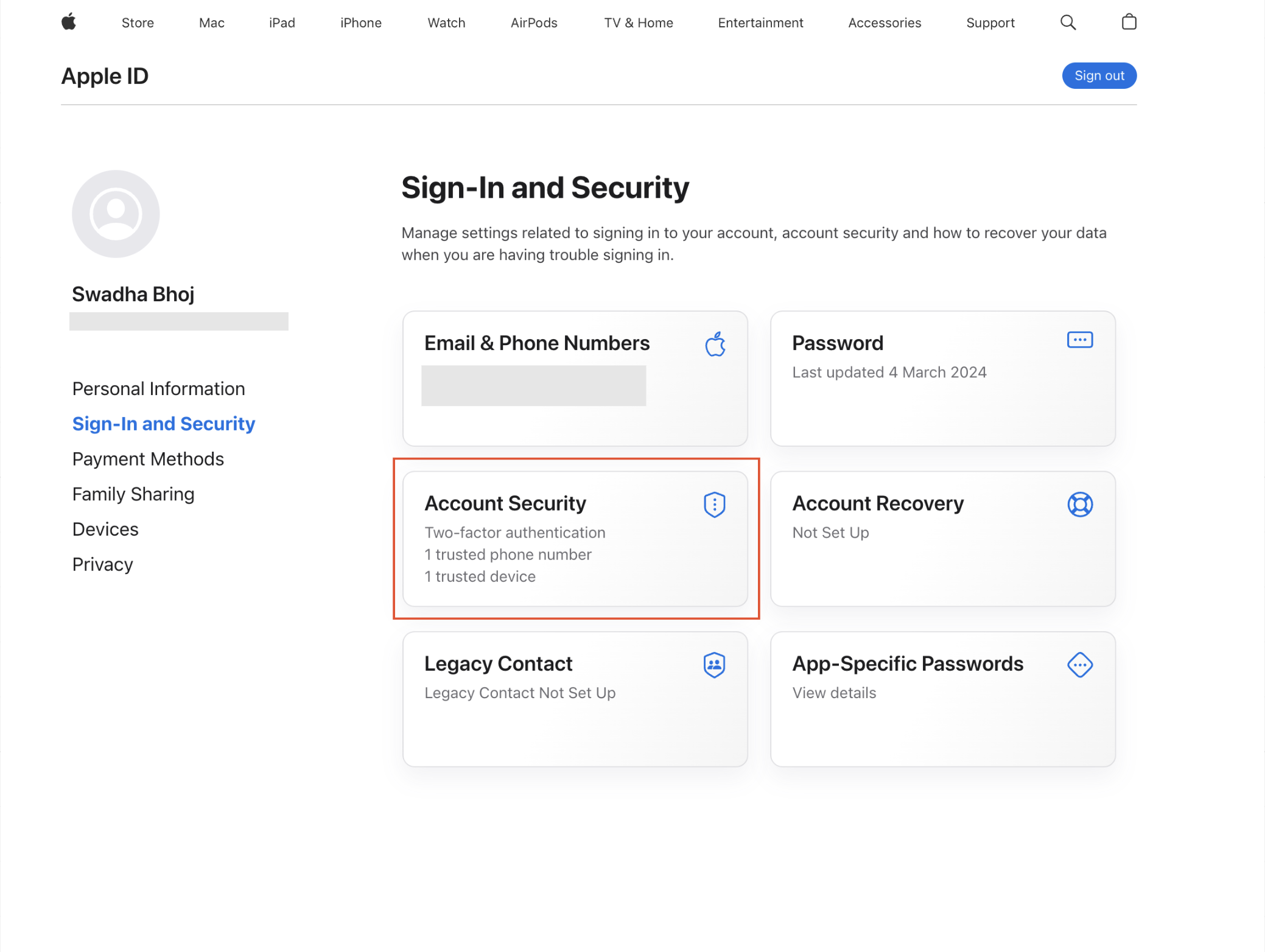
- Sign in at https://appleid.apple.com/.
- Turn on two factor authentication in the Security section if it is not already active.
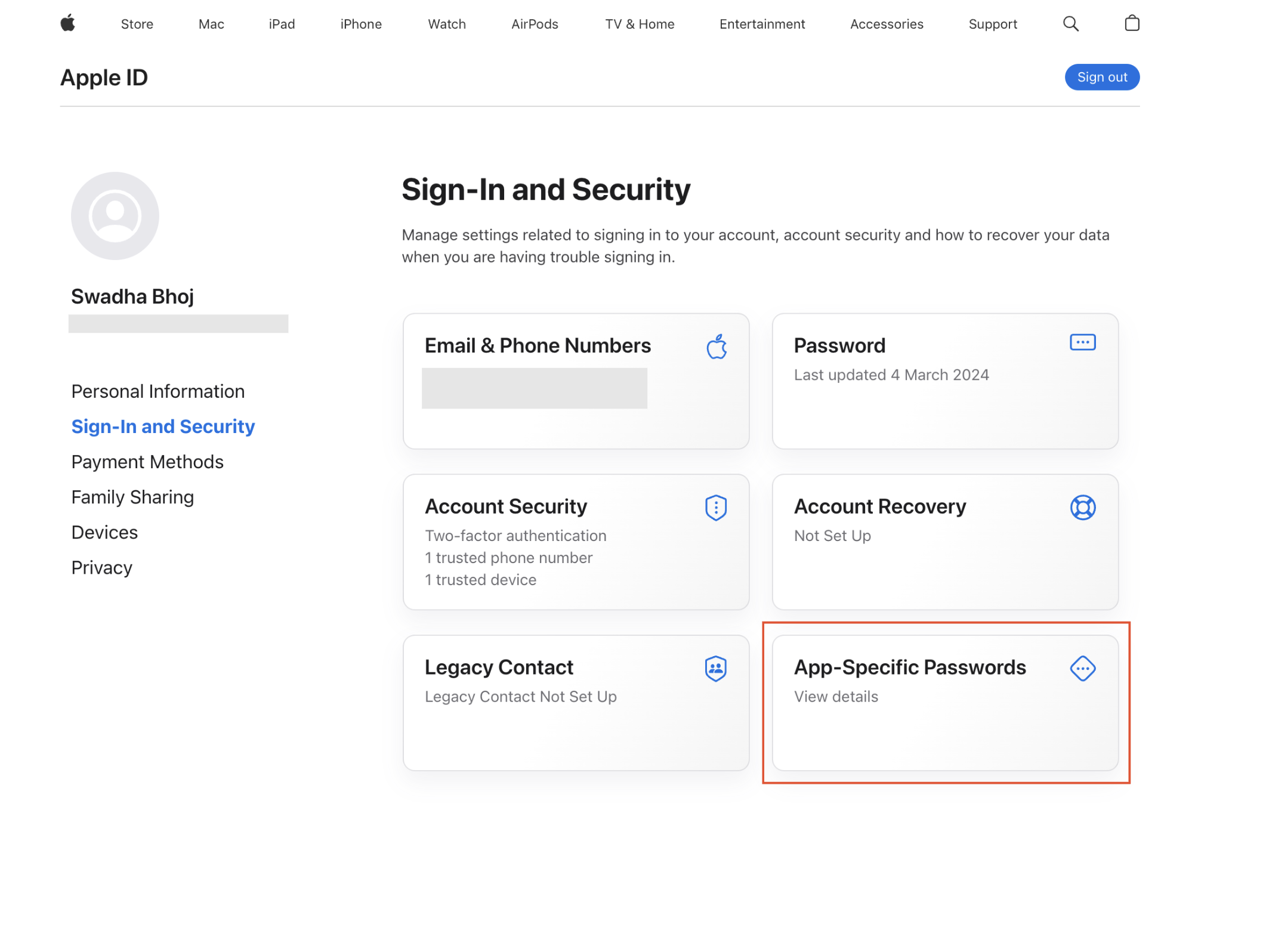
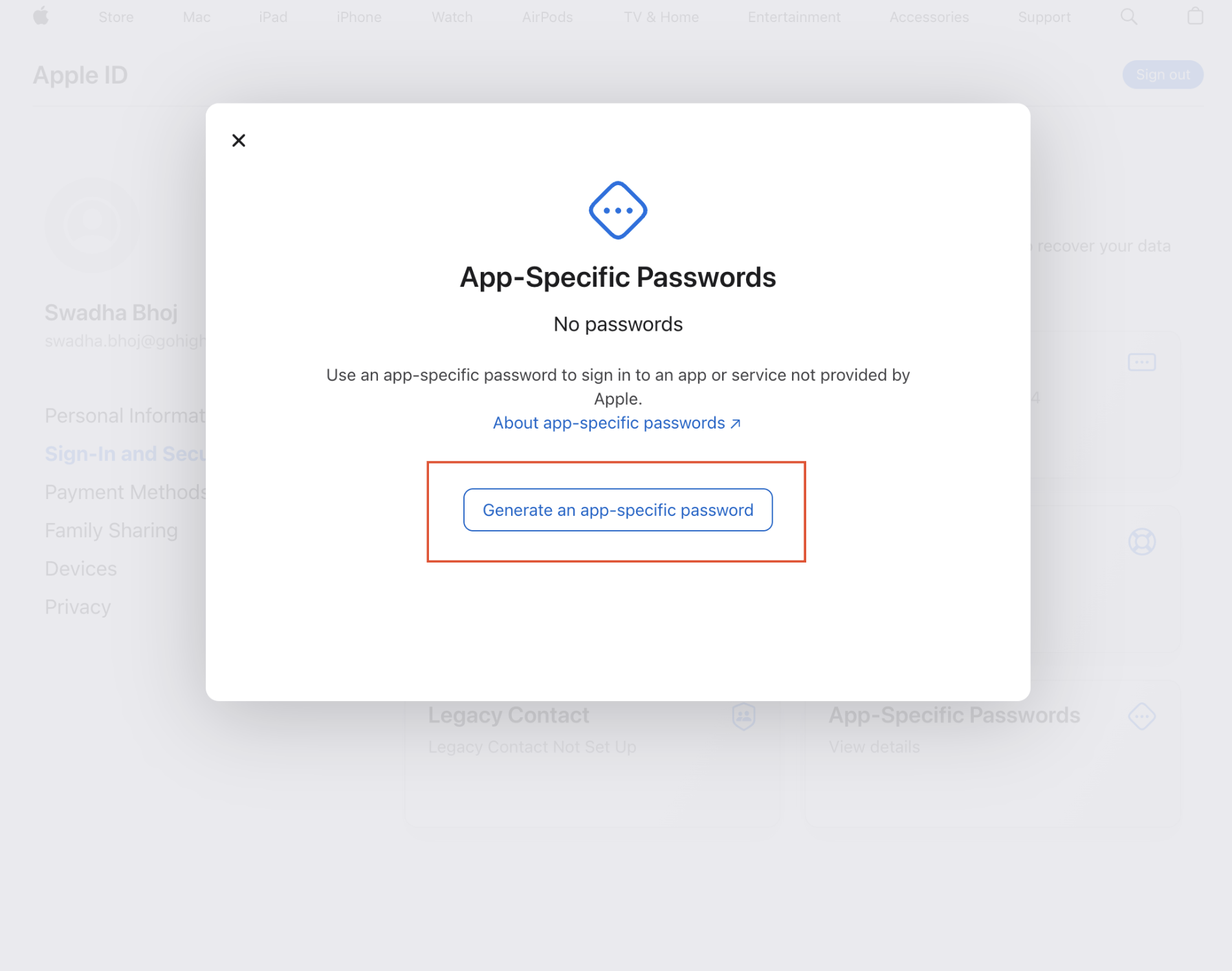
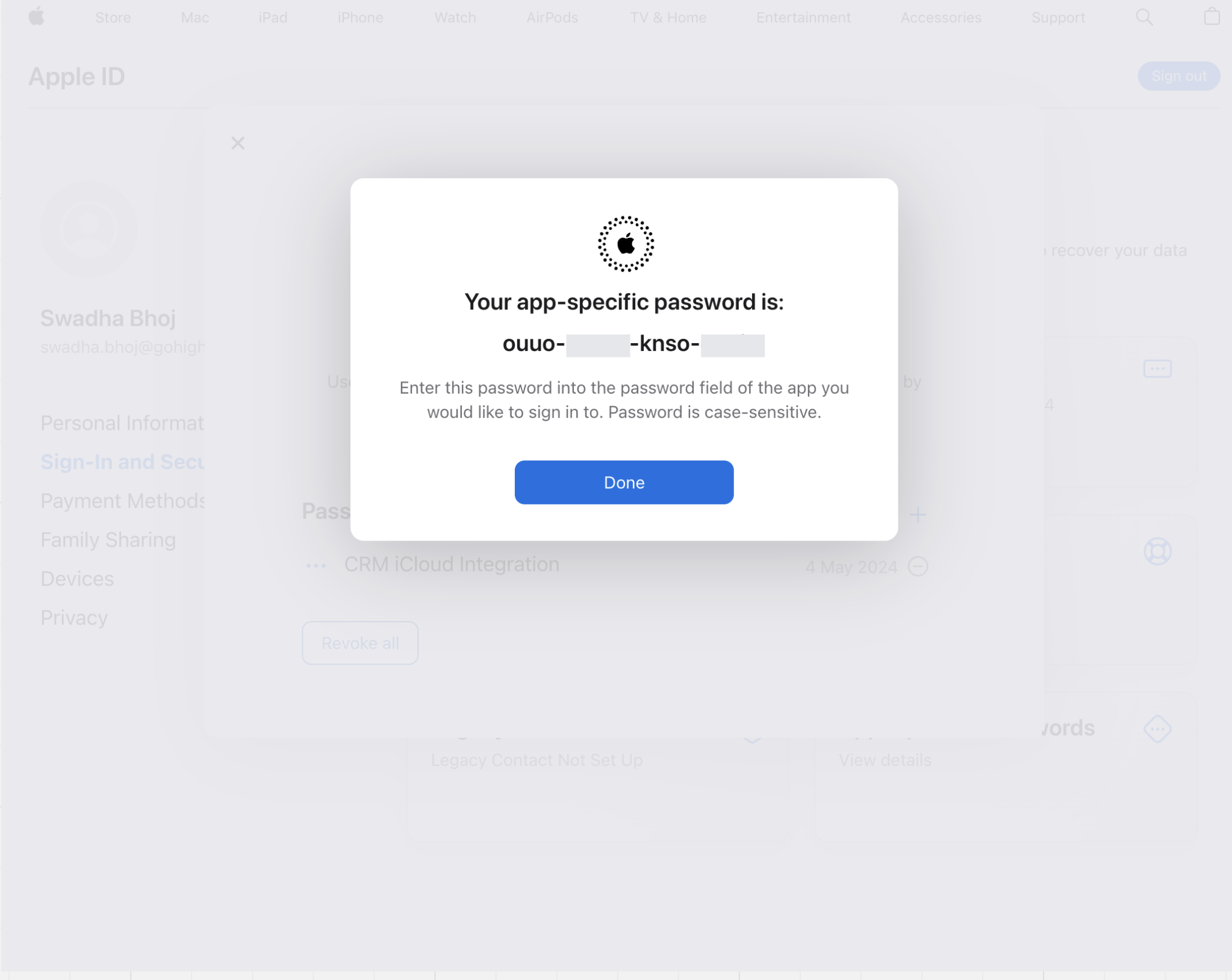
- Open the App Specific Passwords area and select Generate Password.
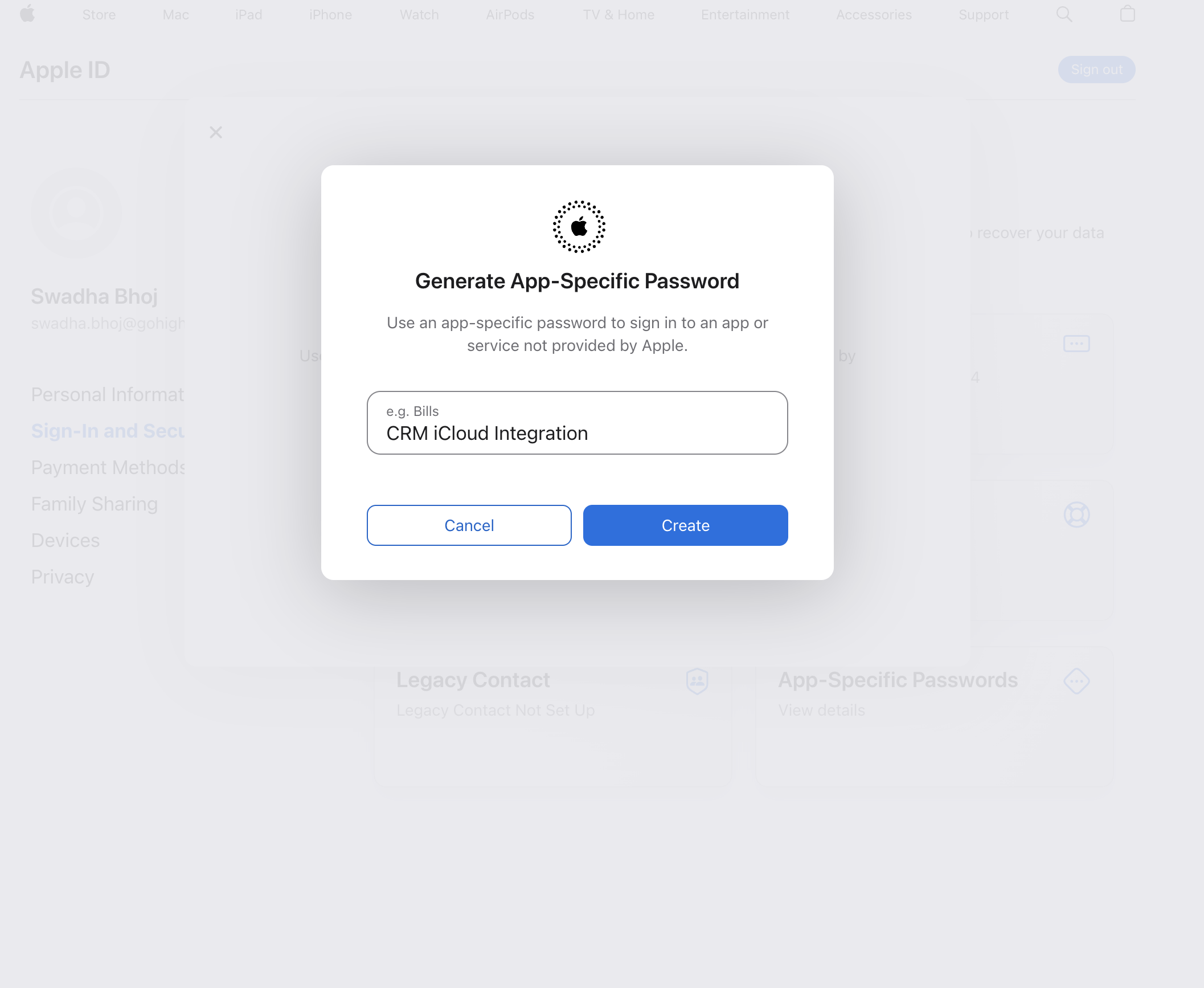
- Enter a descriptive label such as “CRM iCloud Integration” and confirm.
- Copy the new password and store it securely for later use.
Connect iCloud calendar
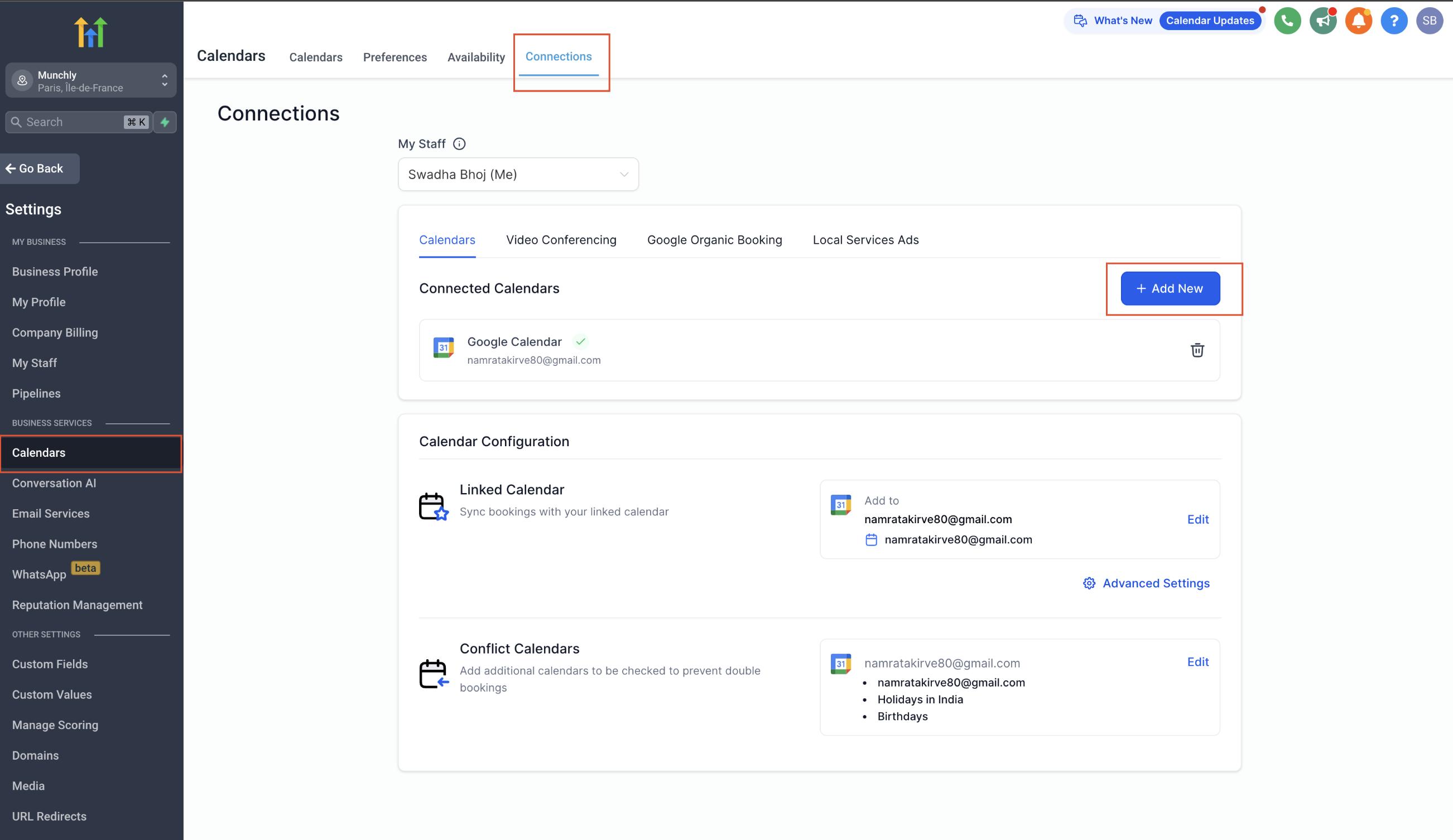
- In HighLevel go to Calendars > Calendar Settings > Connections.
- Click the Add New button.
- Select iCloud Calendar and choose Connect.
- Provide the Apple ID and the app specific password created earlier.
- Press Connect to finish the link.
Configure calendar settings
- Open the configuration panel that appears after a successful connection.
- Pick a calendar to serve as the Linked Calendar (writer access is required).
- Choose one or more calendars to act as Conflict Calendars.
07What it looks like in HighLevel
08Settings that matter
- Linked Calendar. Controls which iCloud calendar receives every new event that originates in HighLevel.
- Conflict Calendar. Designates iCloud calendars whose busy events block availability in the platform.
09Things to know before you rely on it
- iCloud sync is limited to a default one way flow; it does not offer adjustable sync preferences.
- Events imported from iCloud are treated only as blocked time slots; no guest contacts are created.
- Blocked slots created inside HighLevel do not push back to the iCloud calendar.
- A user may attach several iCloud accounts per subaccount, and the same account can be used across multiple subaccounts.
- Calendars that are added via subscription URLs cannot be linked to HighLevel.
10How it connects to the rest of HighLevel
- Guide to iCloud calendar integration in HighLevel iCloud integration guide
- How to integrate Google Calendar with HighLevel Google Calendar integration
- HighLevel Outlook calendar sync: setup and usage guide Outlook calendar sync
Michael's take

Adding iCloud calendar integration feels like a small convenience that can quickly stop double bookings for teams already using Apple calendars. The one way sync keeps your availability honest without extra steps.
A boutique wellness studio that books clients through HighLevel but tracks its personal calendar in iCloud would benefit. Set the iCloud calendar as the conflict source, and every class marked busy on Apple blocks the slot in HighLevel, keeping the schedule clean.