
01Who this is for
- Founders who need regular data updates can automate them without manual effort.
- Operations managers in service firms can schedule routine account checks or reporting tasks.
- Marketing teams that run recurring campaign reminders can set up automatic agent runs.
02Scheduled triggers, explained
Scheduled Triggers are a time based start point for Managed Agents. After a trigger fires, the platform launches the entire agent, applying its defined instructions, connected skills and any HighLevel actions.
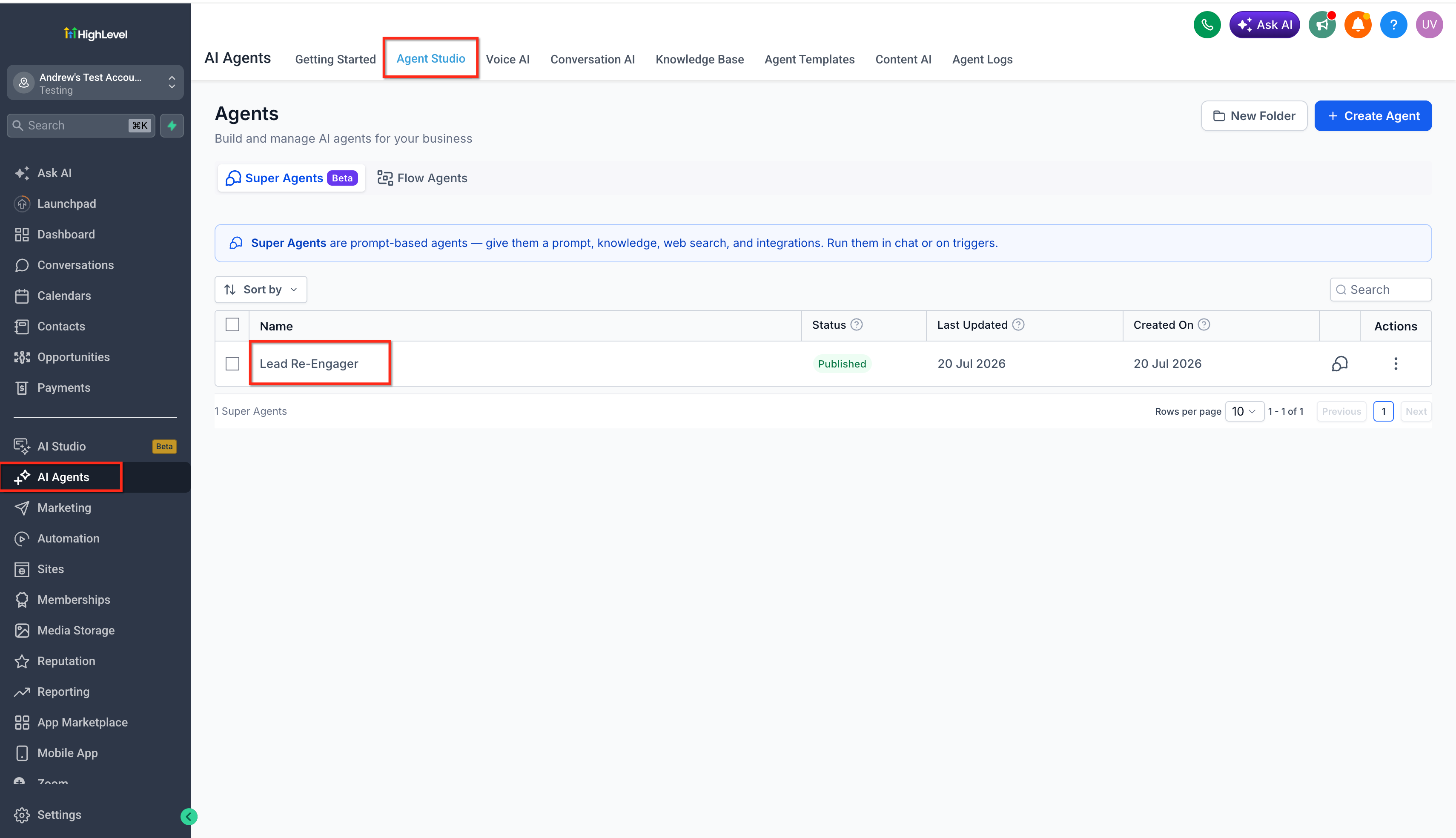
The trigger settings live in the Managed Agent’s Triggers section inside Agent Studio. Builders choose a mode, a one time run, a repeating interval, or a custom cron expression, then define the date, time, recurrence and end condition. The schedule follows the subaccount’s local timezone and appears in the agent’s Activity feed after each execution.
These triggers differ from the Workflow Scheduler, which starts a HighLevel workflow. Use Scheduled Triggers when the required work is built into a Managed Agent rather than a workflow.
03How businesses use scheduled triggers
- Real estate brokerage. The broker creates a Managed Agent that pulls new property listings each morning. Using a daily interval schedule, the agent runs at 7 AM local time, updates HighLevel and emails the team without any manual start.
- Dental practice. The practice sets up a one time trigger to send appointment reminders the day before a scheduled check up. The manager selects the specific date and time, publishes the agent, and the reminder is sent automatically.
- Ecommerce store. The store configures a cron based trigger to generate weekly sales summaries every Sunday at 2 AM. The cron expression defines the schedule, and each run compiles data and creates a CRM note.
04Before you start
- A Managed Agent must be created in Agent Studio before adding a scheduled trigger.
- The subaccount’s local timezone should be set correctly prior to scheduling.
05How to set up and use scheduled triggers in HighLevel
Set up a scheduled trigger for a Managed Agent
- Open Agent Studio in the appropriate subaccount and open the Managed Agent you want to schedule.
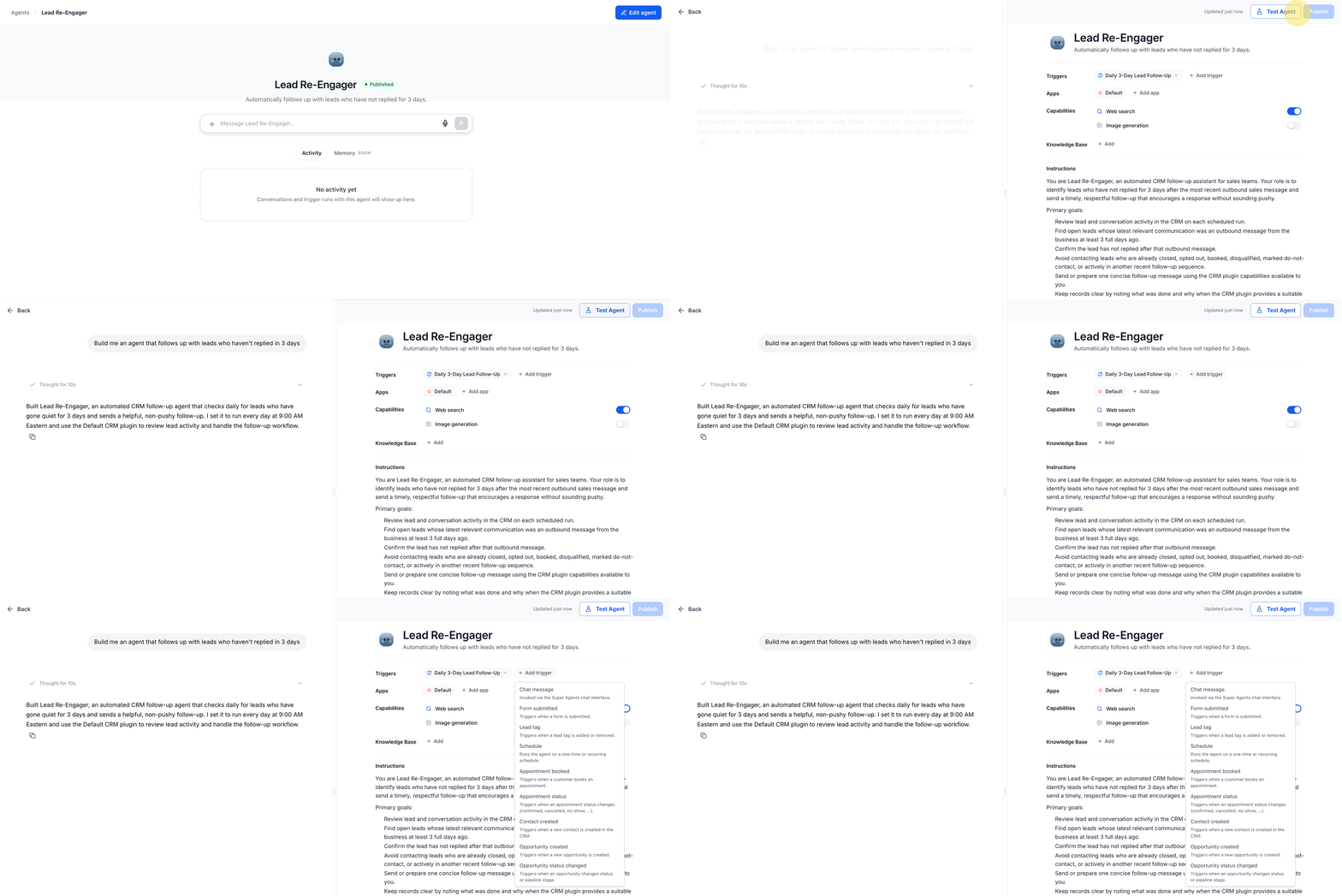
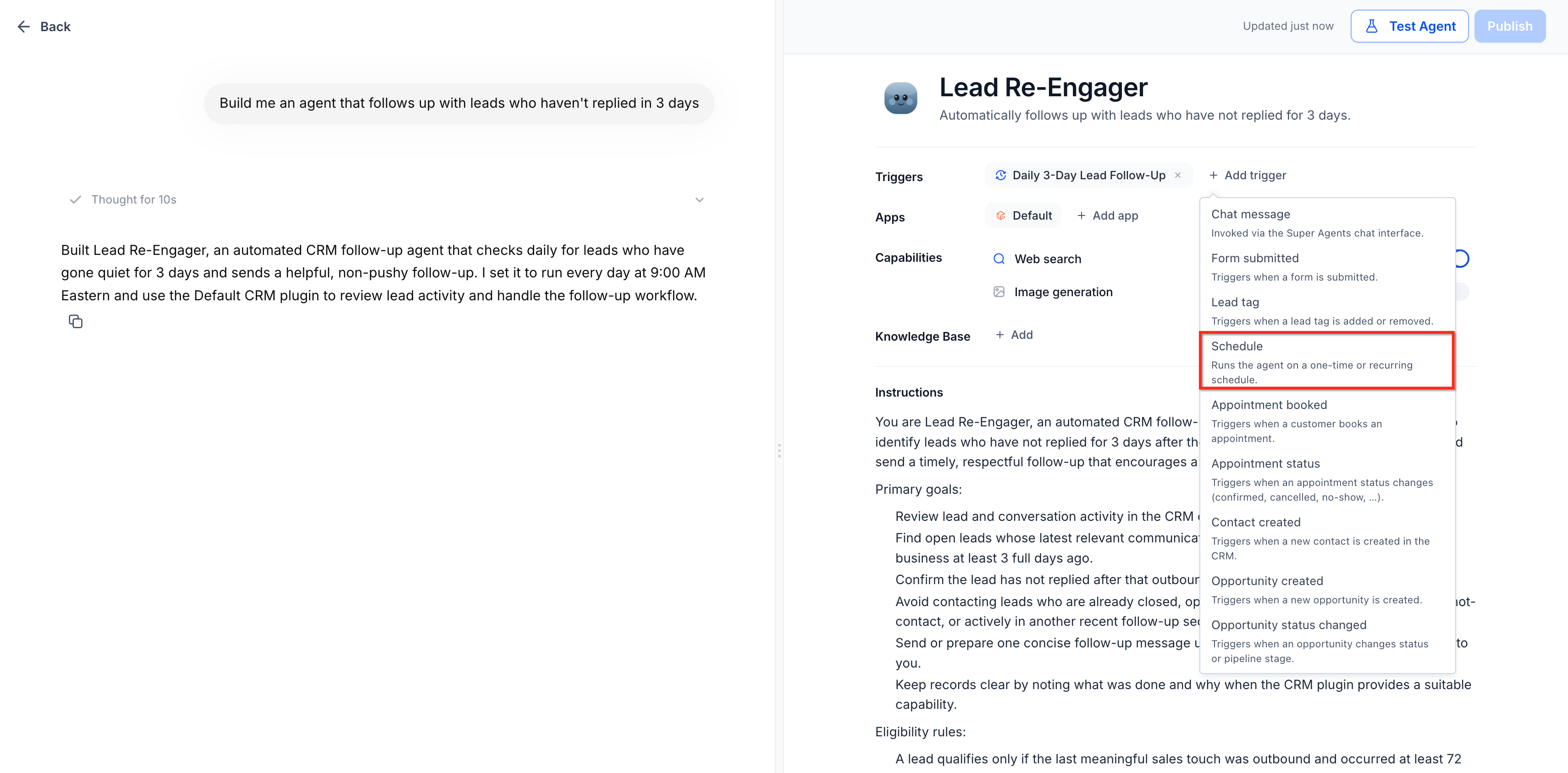
- Click Edit Agent and then Add trigger.
- Choose Schedule as the trigger type.
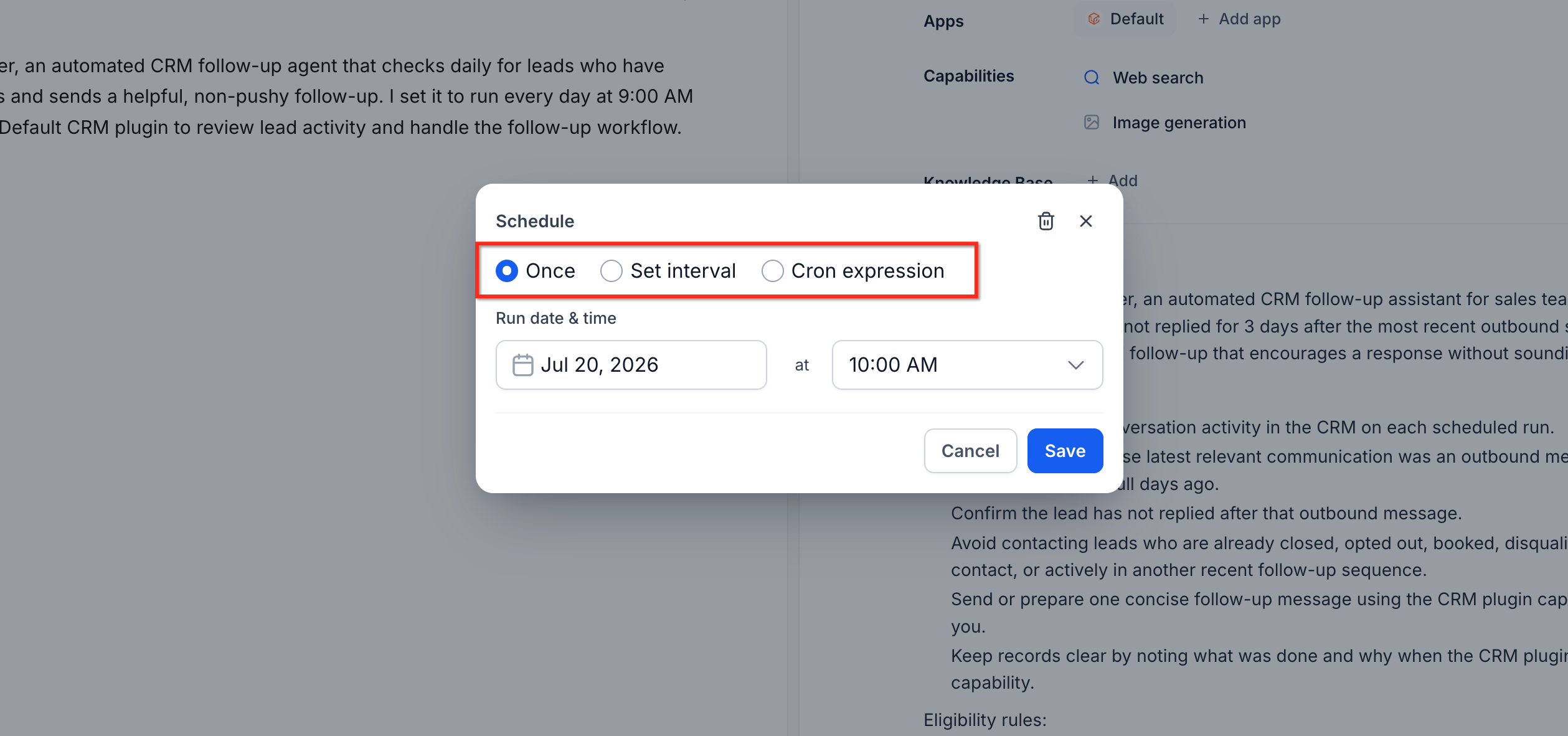
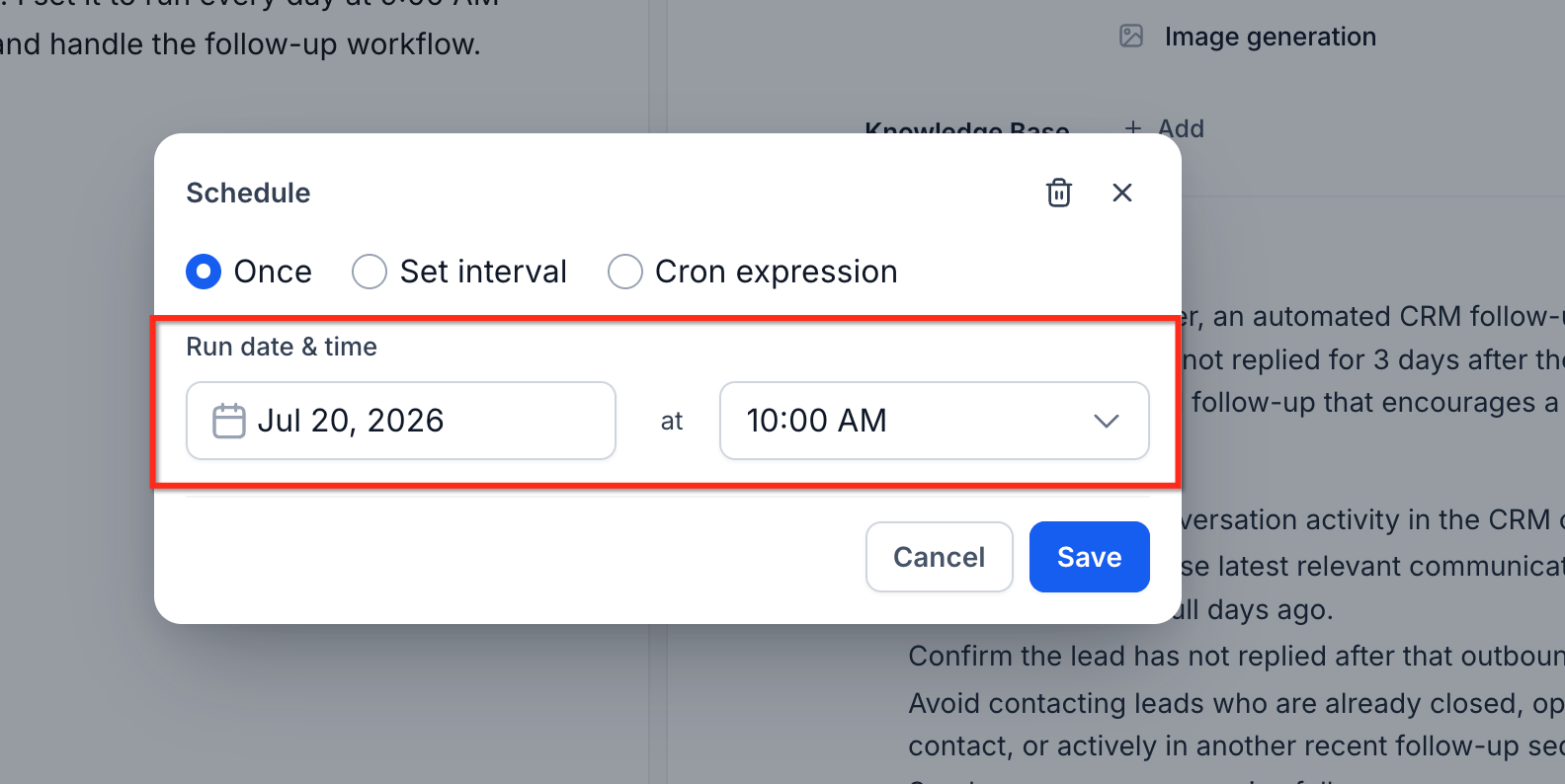
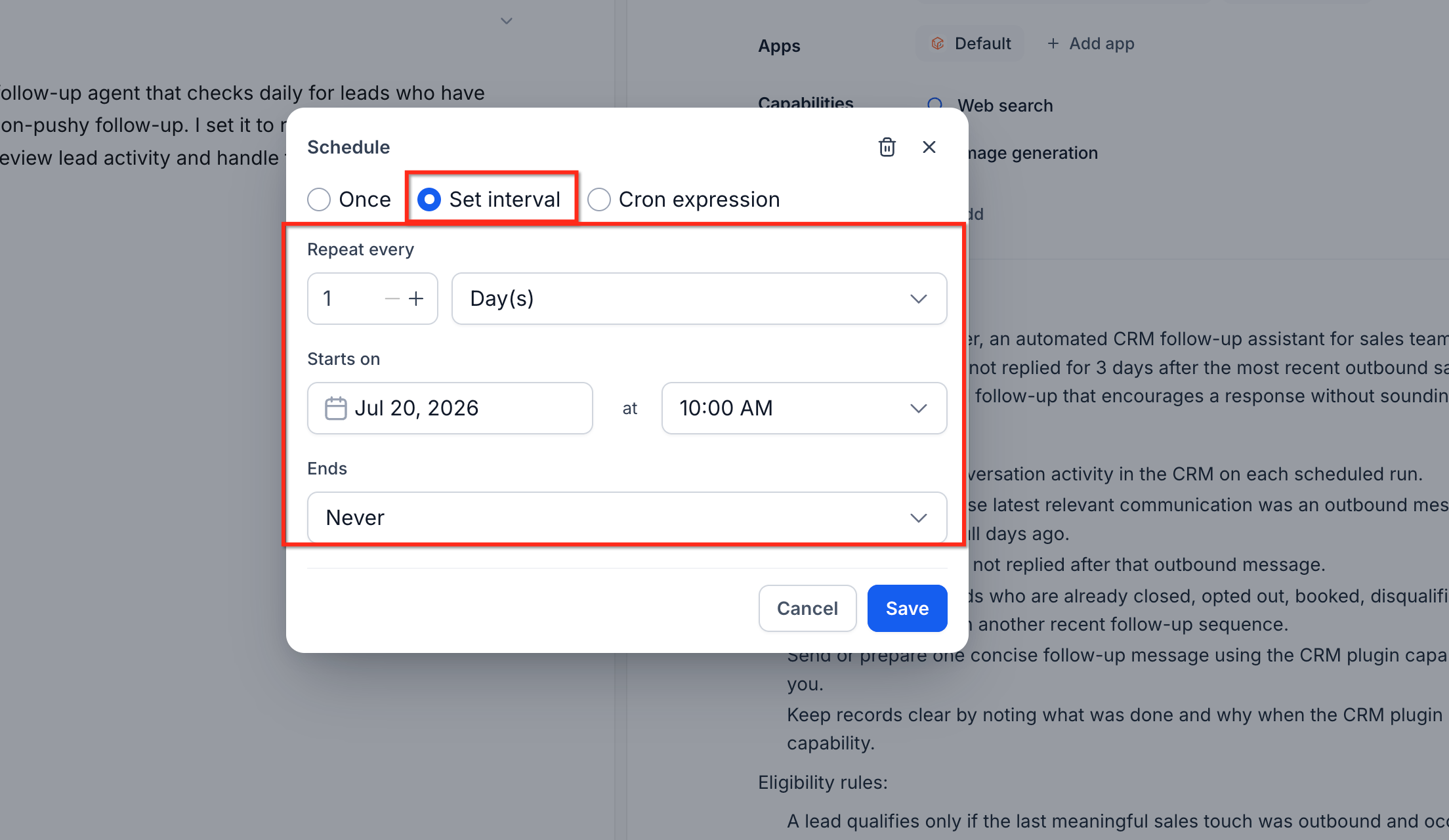
- Pick a schedule mode, Once, Set interval or Cron expression.
- If you chose Once, select the date and the time.
- If you chose Set interval, enter the interval value and choose minutes, hours, days, weeks or months.
- Still under Set interval, select any weekdays needed and set an end condition (never, specific date or run count).
- If you chose Cron expression, type the cron string that defines the schedule.
- Verify the schedule using the subaccount’s local timezone.
- Add another schedule if the Managed Agent requires more than one cadence.
- Review all settings before publishing to ensure the schedule works as intended.
- Publish the Managed Agent to activate the schedule. The schedule becomes active after publishing; no manual kickoff is required.
06What it looks like in HighLevel
07Settings that matter
- schedule mode. determines whether the trigger runs once, repeats at an interval, or follows a cron expression.
- date. specifies the calendar day for a one time schedule.
- time. sets the clock time for a one time schedule or for each interval execution.
- interval. numeric value that defines how often a recurring schedule repeats.
- interval unit. selects minutes, hours, days, weeks or months for the recurring interval.
- weekdays. limits a recurring schedule to specific days of the week.
- end condition. controls when a recurring schedule stops, never, on a specific date, or after a set number of runs.
- cron expression. advanced text string that defines a precise schedule.
- timezone. uses the subaccount’s local timezone to interpret all date and time settings.
08Things to know before you rely on it
- Cron expressions require careful review to ensure they represent the intended schedule.
- Natural language scheduling is interpreted by the builder; always confirm the resulting settings before publishing.
- Scheduled triggers operate only after the Managed Agent has been published.
09How it connects to the rest of HighLevel
- Learn how to set up triggers for flow agents in Agent Studio. Setting up triggers
- Get started with Managed Agents and their configuration. Managed Agents guide
- Manage existing flow agents and view their details. Agent overview
Michael's take

Wondering if you really need to set up a timer for your AI Agents? If you have tasks that must happen at the same time every day, week or month. Like a daily account check or a monthly report, Scheduled Triggers let the agent take care of it without anyone pressing a button.
I’d start by creating a simple once off schedule to see the agent run on its own, then add a recurring interval for the regular work. Double check the subaccount’s timezone before you publish, so you don’t get surprised by a run that fires at 2 AM instead of 9 AM.