
01Who this is for
- AI developers integrating real time web data into their agents.
- Businesses that need agents to answer questions with the latest information.
02Web Search Tool, explained
The Web Search Tool is an option inside the AI Agent Node. When the node runs, the tool can send a search request to the web and return the top results. The agent then incorporates those results into its reply. This capability works alongside other tools such as Knowledge Base and custom variables.
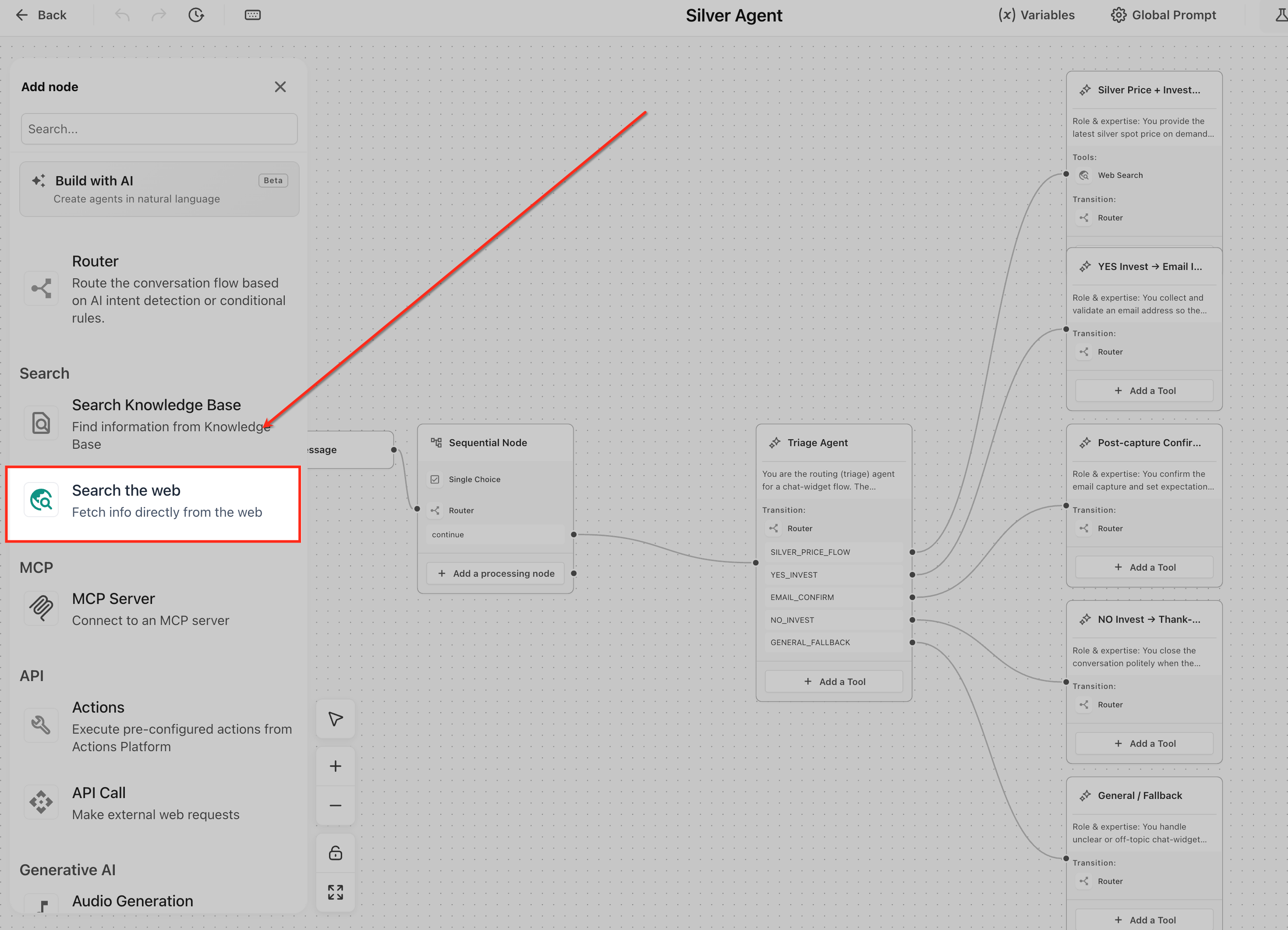
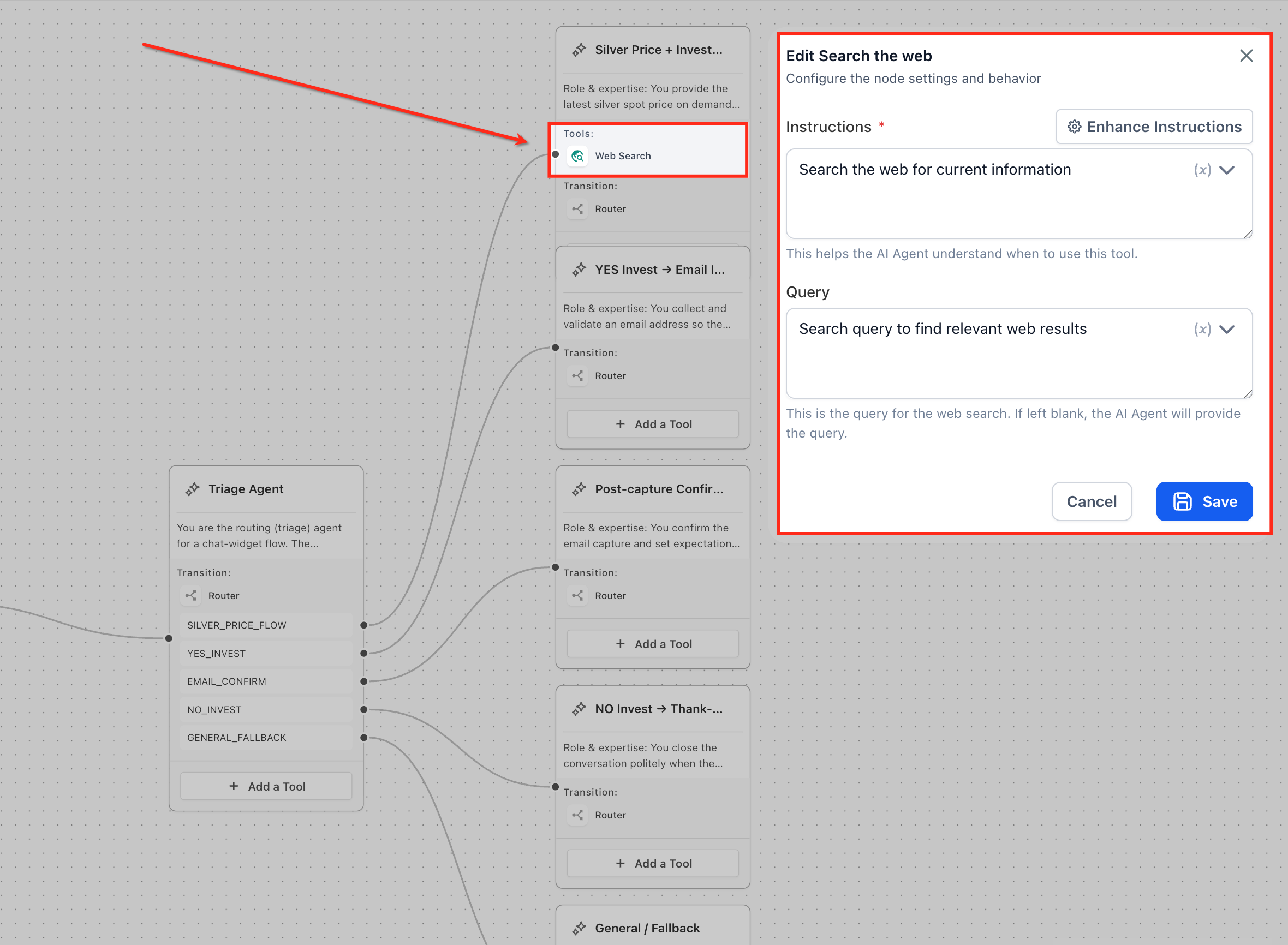
You locate the tool by opening an AI Agent Node, clicking Add a Tool, and choosing Search the Web. After adding it, you supply three elements: Instructions that tell the agent when to use the tool, a Query that defines what to search for, and Variables that allow the query to change based on what the user says. The configuration resides in the node’s settings panel.
03How businesses use web search tool
- Ecommerce store. The store adds the Web Search Tool to an agent that answers product questions. It writes instructions to search only when the internal catalog does not contain the requested item, and uses the customer's text as a variable in the query.
- Real estate agency. The agency configures the tool to pull current market listings. Instructions direct the agent to search when a user asks for recent property listings, and the agent passes the location entered by the user as a variable.
- Event planning service. The service sets up the tool to retrieve up to date venue availability. The agent is instructed to search when internal availability data is missing, and the user's date and city are inserted as variables in the query.
04How to set up and use web search tool in HighLevel
Configure the Web Search Tool
- Open the AI Agent Node, click Add a Tool, and select Search the Web from the list.
- In the Instructions field, define when the agent should use the tool, such as only when internal data does not contain the answer.
- In the Query field, specify the search text. Use a placeholder or static text as needed.
- Insert runtime variables with the {} picker so the query reflects the user’s input.
- Keep instructions clear and concise to avoid unnecessary searches.
- Test the agent with several user prompts to verify the tool returns relevant and accurate results.
05What it looks like in HighLevel
06Settings that matter
- Instructions. Guides the agent on the conditions under which it should activate the Web Search Tool.
- Query. Specifies the search text sent to the web, which can be fixed or built from variables.
- Variables. Allows user input or other runtime values to be inserted into the query for dynamic searches.
07How it connects to the rest of HighLevel
- Manage existing flow agents in Agent Studio Manage agents
- Set up and use managed agents in Agent Studio Managed agents
- HighLevel pricing and plans Pricing
Michael's take

People often hardcode the same search phrase and expect fresh answers every time. That approach defeats the purpose of real time retrieval because the agent will keep returning identical results.
I would set the query to use a runtime variable that captures the user’s exact question. That way each request triggers a new, relevant search and the agent delivers up to date information.