
01Who this is for
- Agency developers can edit code in external IDEs while AI Studio stays in sync, avoiding manual file transfers.
- Solo Founders building web apps benefit from automatic version tracking and easy branch management.
- Digital marketing teams that use AI generated pages keep their codebase consistent with GitHub repositories.
02Git sync, explained
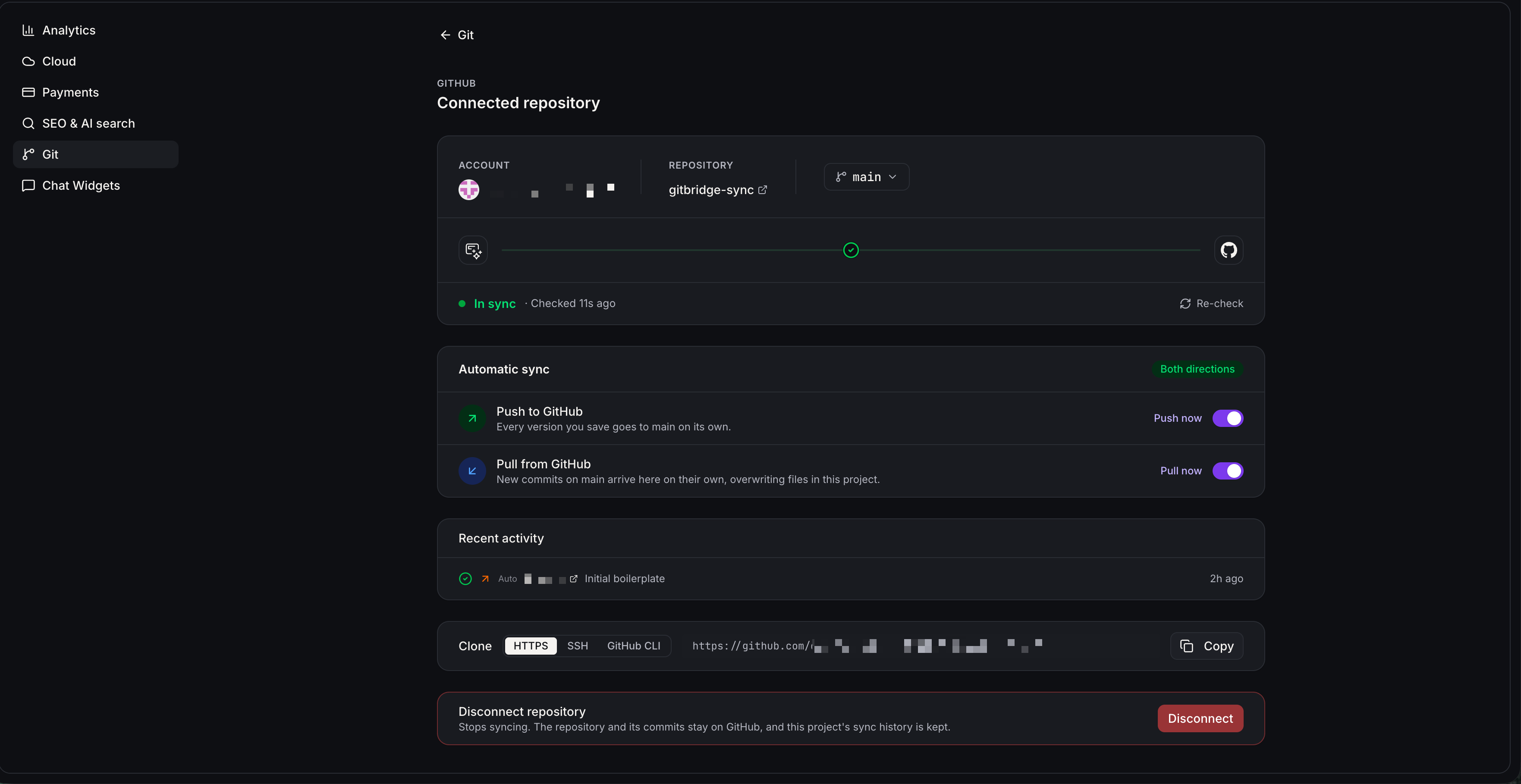
Git Sync is a two way integration that mirrors code changes between an AI Studio project and a connected GitHub repository. When you link a GitHub account, AI Studio creates a private repository, pushes the initial project version, and ties it to the main branch.
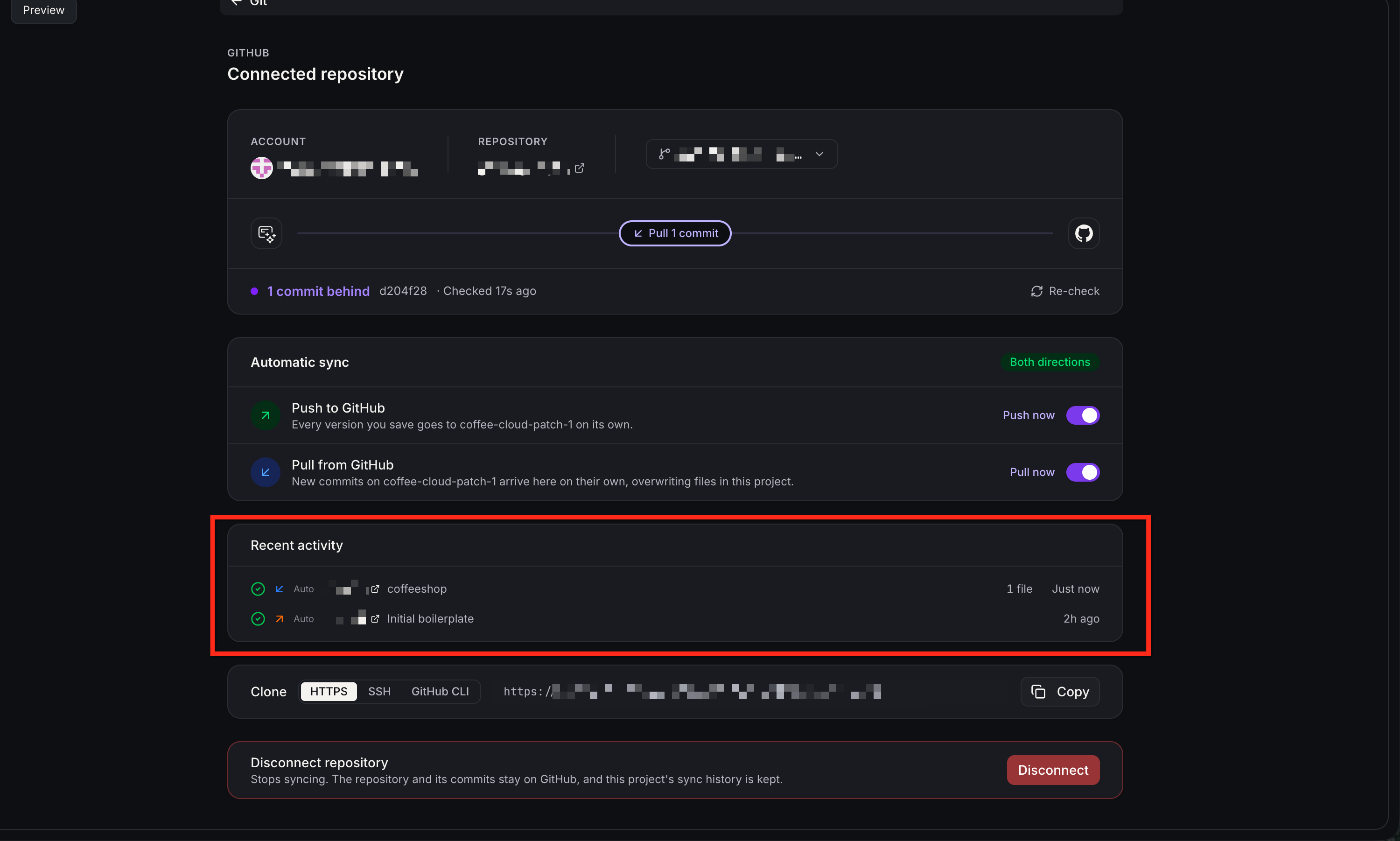
Automatic Push sends every saved AI Studio version to GitHub, while Automatic Pull brings new GitHub commits into AI Studio as new project versions. Both settings are active by default and can be turned off individually. The feature supports React (Vite) and TanStack Start projects, preserving binary assets such as images and fonts during sync.
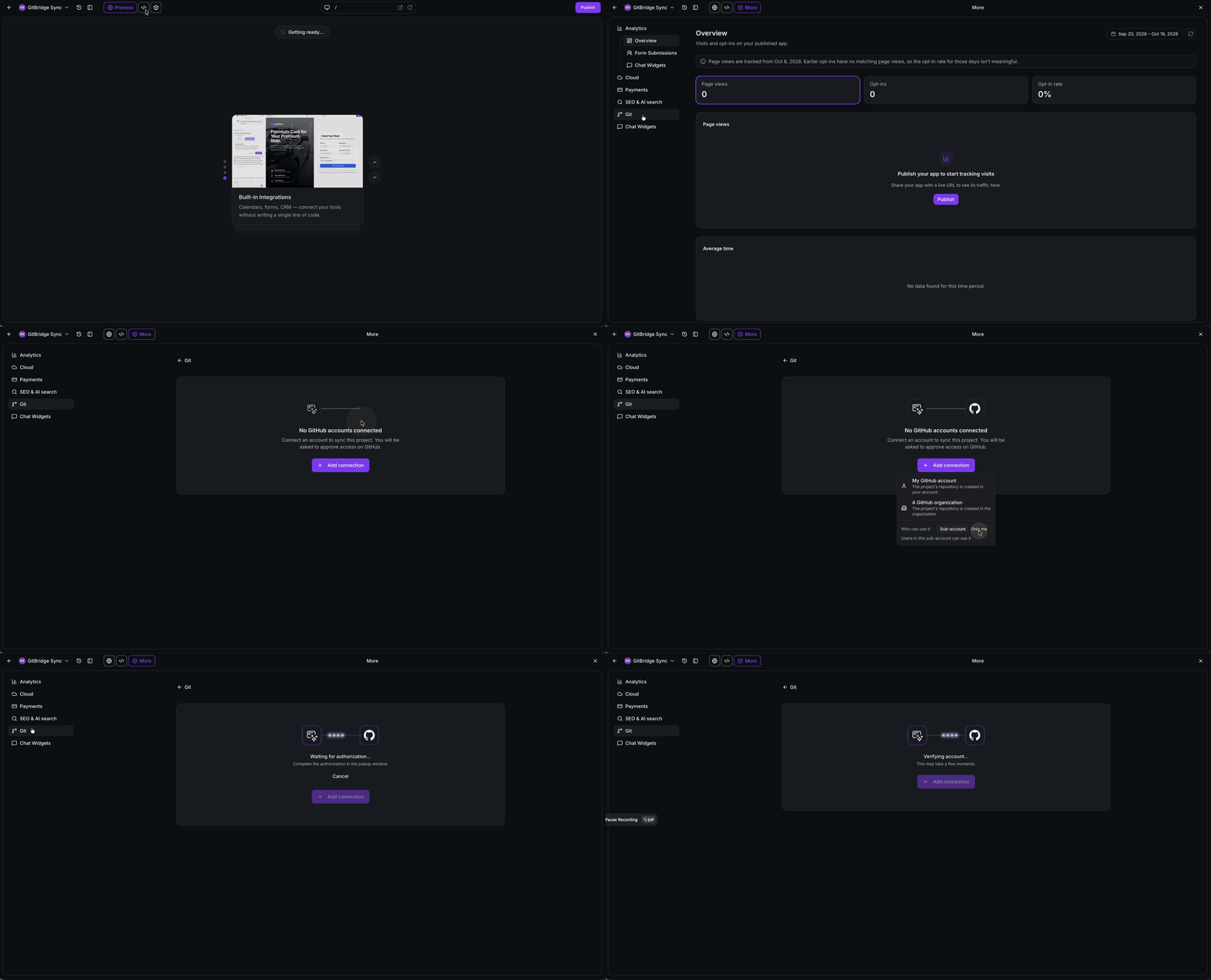
All Git related controls live under More > Git in the project interface. From there you can view sync history, switch or create branches, and disconnect or reconnect the GitHub connection.
03How businesses use git sync
- Software development agency. The agency connects each client’s AI Studio project to a GitHub repo, allowing developers to edit code in their preferred IDE. Commits made in the IDE automatically appear in AI Studio, creating new preview builds without manual uploads.
- Solo SaaS Founder. The Founder enables Git Sync to keep the AI Studio project versioned alongside a personal GitHub repository. When new features are coded locally, pulling them into AI Studio right away generates updated previews for stakeholder review.
- Digital marketing firm. Marketers use the branch selector to experiment with landing page variants in separate Git branches. Switching branches within AI Studio loads the corresponding code, letting the team preview each version without altering the main production branch.
04Before you start
- User must have the Manage Git & download code permission under Settings > Team > Permissions > AI Studio.
05How to set up and use git sync in HighLevel
Set up Git sync with GitHub
- Open your HighLevel subaccount, go to AI Studio, and select the target project.
- Click More > Git and choose GitHub as the provider.
- Press + Add connection to link a new GitHub account, or click Connect if it already appears.
- Select My GitHub account or Organization and decide whether the connection is for Only me or Subaccount users.
- Click Continue on the GitHub screen.
- Install and authorize Lead Connector on GitHub, completing any verification prompts.
- Return to AI Studio and let the setup finish; a private repository is created and the initial version is pushed to the main branch.
- Verify that Automatic Push and Automatic Pull are turned on.
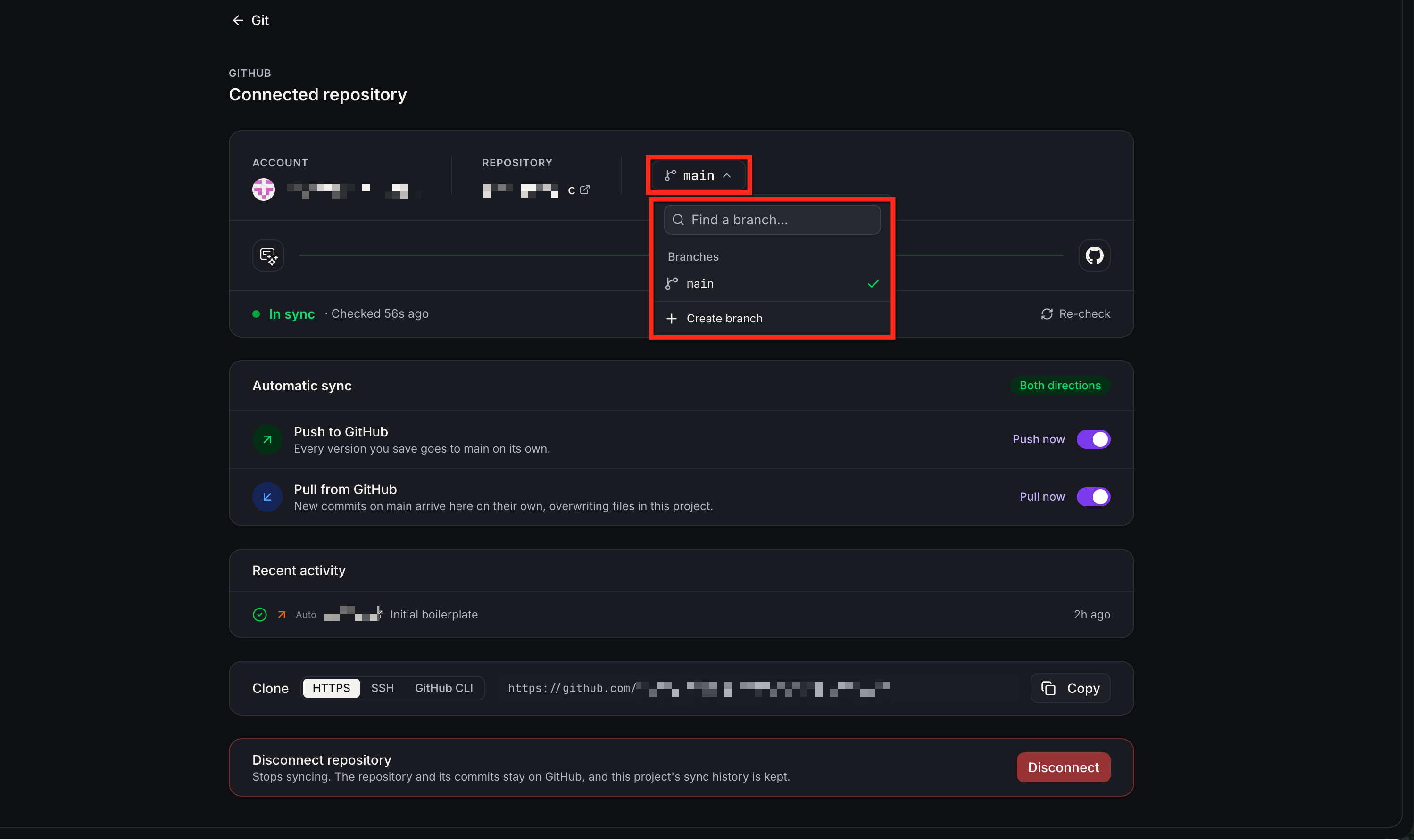
Switch or create a branch
- Open the AI Studio project and navigate to More > Git.
- Find the branch selector, pick an existing branch or type a new branch name.
- Confirm the choice; a new branch will be created on the next push if it did not exist.
Disconnect or reconnect GitHub
- Within the project, go to More > Git.
- Select Disconnect to break the current link, or choose reconnect to renew authorization.
- When reconnecting, AI Studio reuses the existing repository instead of generating a new one.
06What it looks like in HighLevel
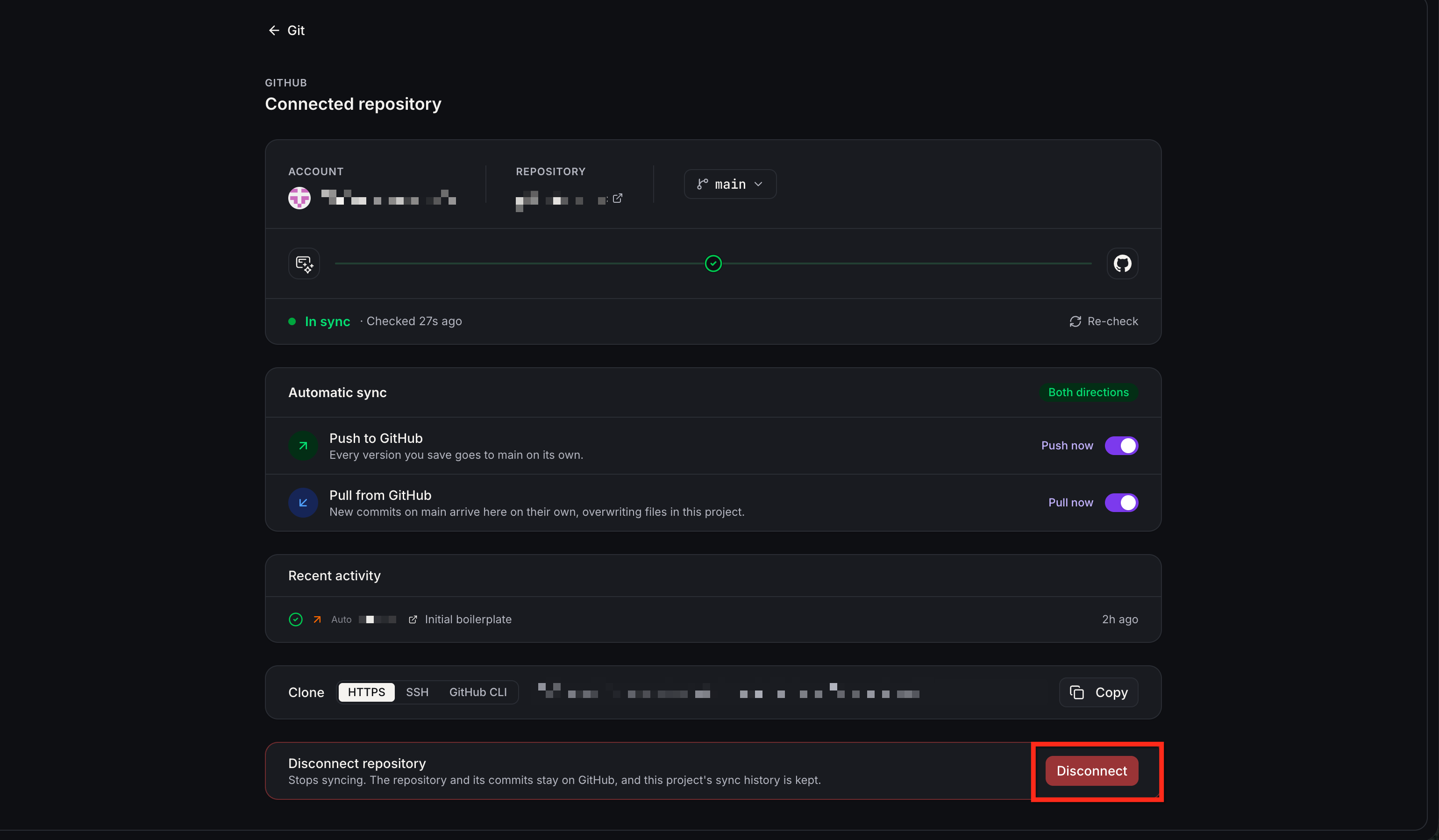
07Settings that matter
- Automatic Push. Controls whether each saved AI Studio version is sent to the connected GitHub repository.
- Automatic Pull. Controls whether new commits on the linked GitHub branch are automatically imported into AI Studio as new project versions.
08Things to know before you rely on it
- Git Sync only supports React (Vite) and TanStack Start project types.
- Binary files such as images and fonts are synchronized but cannot be previewed in the AI Studio Code Editor.
- Support for repository providers other than GitHub may vary and is not guaranteed.
- If both AI Studio and GitHub have new commits on the same branch, the branch is marked as diverged and must be resolved manually.
09If something goes wrong
- Branch diverged due to concurrent commits in AI Studio and GitHub. Open More > Git, select Review, and choose either Force push to keep the AI Studio version or New branch to preserve both sets of changes.
- Push blocked because of detected secrets. Review the warning about sensitive credentials, remove or mask the secret from the code, then retry the push.
10How it connects to the rest of HighLevel
- AI Studio pricing and usage tiers Pricing
- Edit code directly in AI Studio Code editor
- Advanced SEO settings in AI Studio SEO setup
Michael's take

Git sync feels like a small convenience that removes the friction of copying code between AI Studio and your favorite IDEs. The automatic push and pull keep everything current, which is helpful for teams that already use GitHub for version control.
A team building a React (Vite) front end can edit components in VS Code or work with GitHub Copilot, while AI Studio handles previews and builds. I would first connect the repo, confirm the automatic settings, and then make a quick edit in the external IDE to see the preview update in AI Studio.