
01Who this is for
- Founders who run multiple subaccounts can keep contact details consistent across agents.
- Support managers can ensure booking links and email addresses stay current without editing each agent.
- Marketing teams can reuse the same agent template for different locations while preserving local business info.
02Custom Values in Managed Agents, explained
Custom Values act as reusable tokens that insert subaccount data such as phone numbers, emails, or booking URLs into Managed Agent instructions. When the agent runs, it reads the latest value stored in Settings > Custom Values or the Business profile and inserts it at runtime.
The values appear as pills in the Instructions editor. Hovering over a pill displays its current content. If a value does not exist in the subaccount, the platform shows a Not set warning and blocks publishing until the missing information is supplied.
These placeholders are managed inside the Agent Studio interface. They do not add extra usage cost beyond entering the same text manually, though date and time placeholders may increase costs because they change on each execution.
03How businesses use Custom Values in managed agent instructions
- Real estate brokerage. The broker creates a Managed Agent that replies with property viewing links. By inserting a Custom Value for the booking URL, each office can provide its own scheduling link without editing the agent script.
- Dental practice. The practice uses a Managed Agent to confirm appointments. A Custom Value for the practice phone number is added to the confirmation text, ensuring the correct number appears for each clinic location.
- Ecommerce store. The store builds a Managed Agent that sends order support emails. A Custom Value containing the support email address is placed in the reply, allowing multiple storefront subaccounts to use their own support contact.
04How to set up and use Custom Values in managed agent instructions in HighLevel
Add Custom Values to Managed Agent instructions
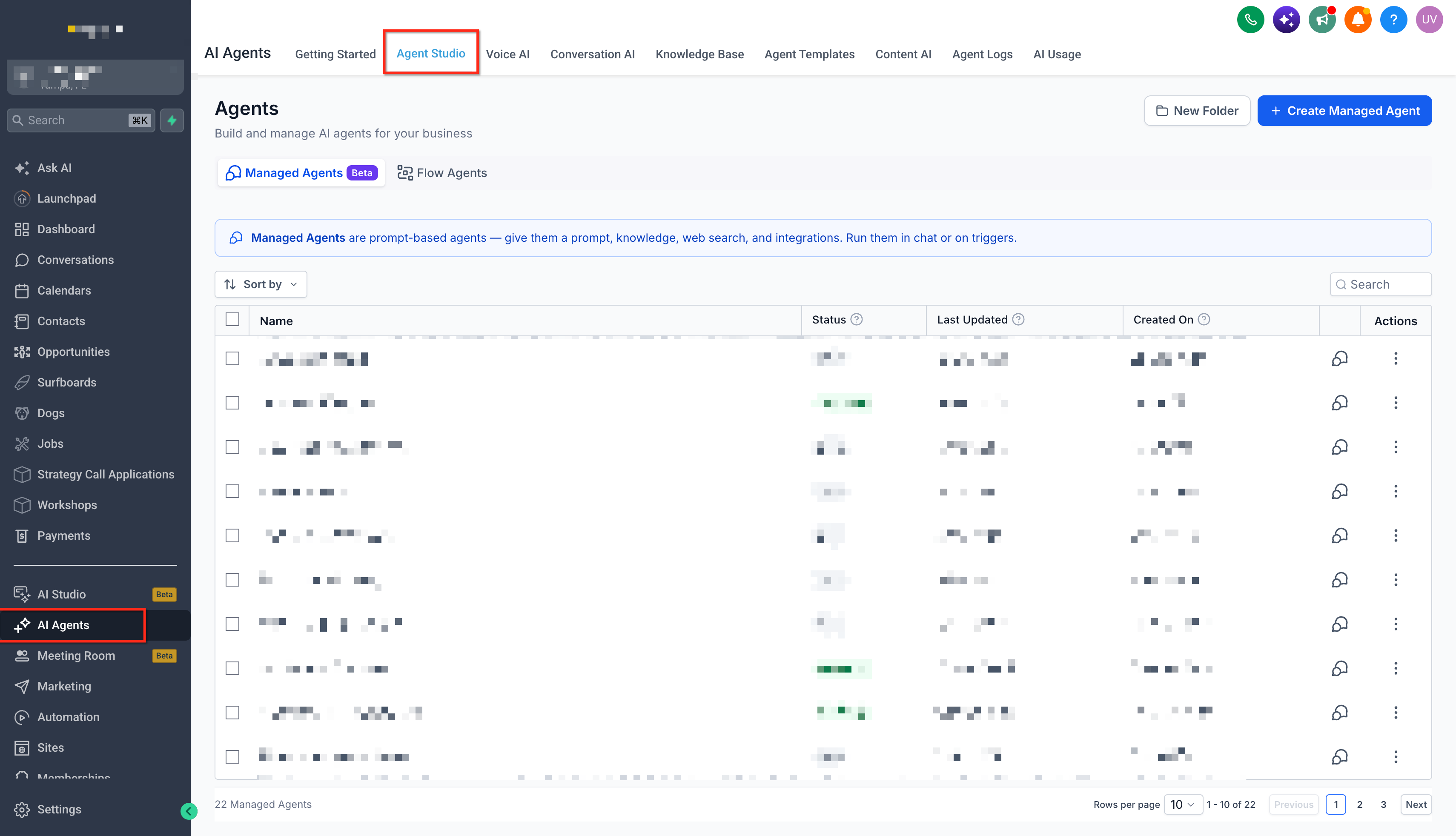
- Navigate to AI Agents > Agent Studio.
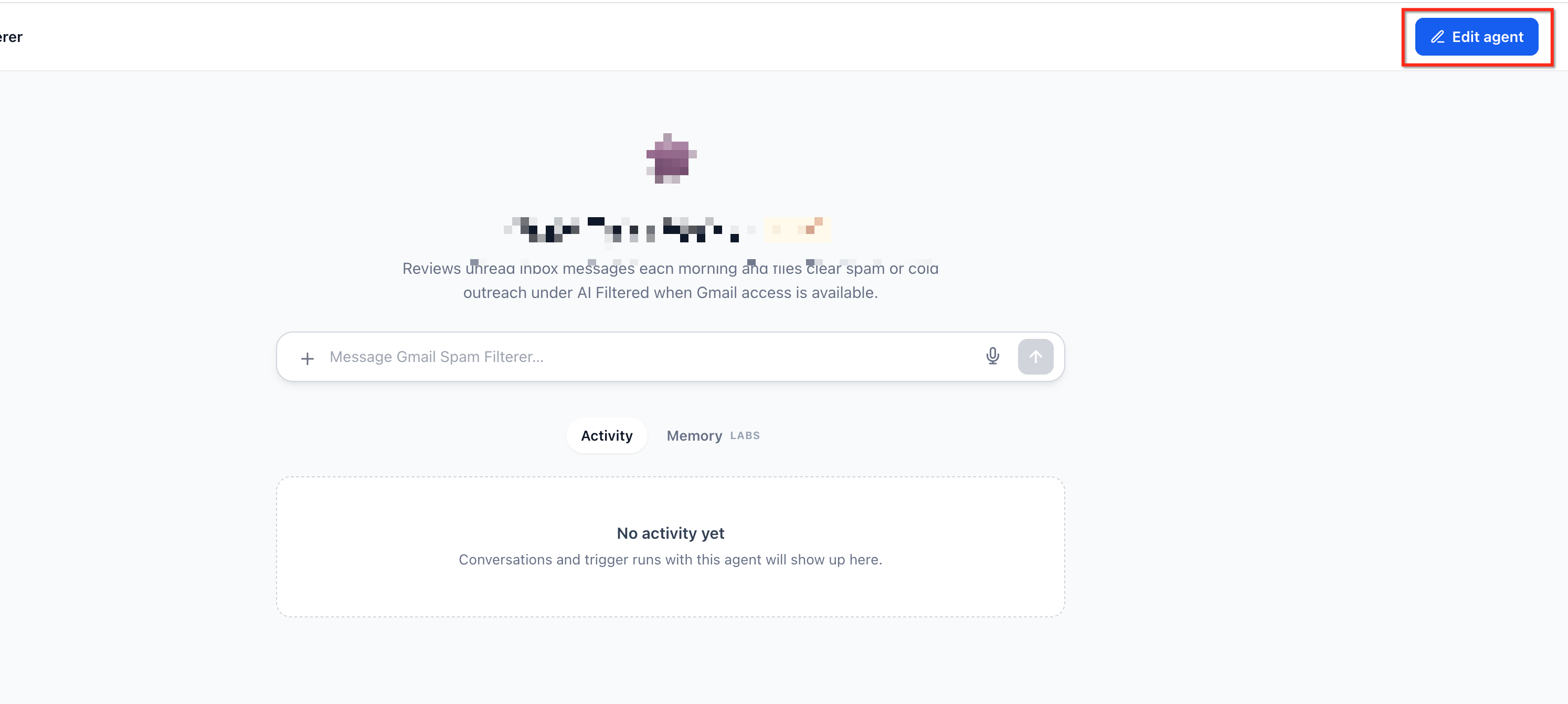
- Select the Managed Agent you want to edit and click Edit Agent.
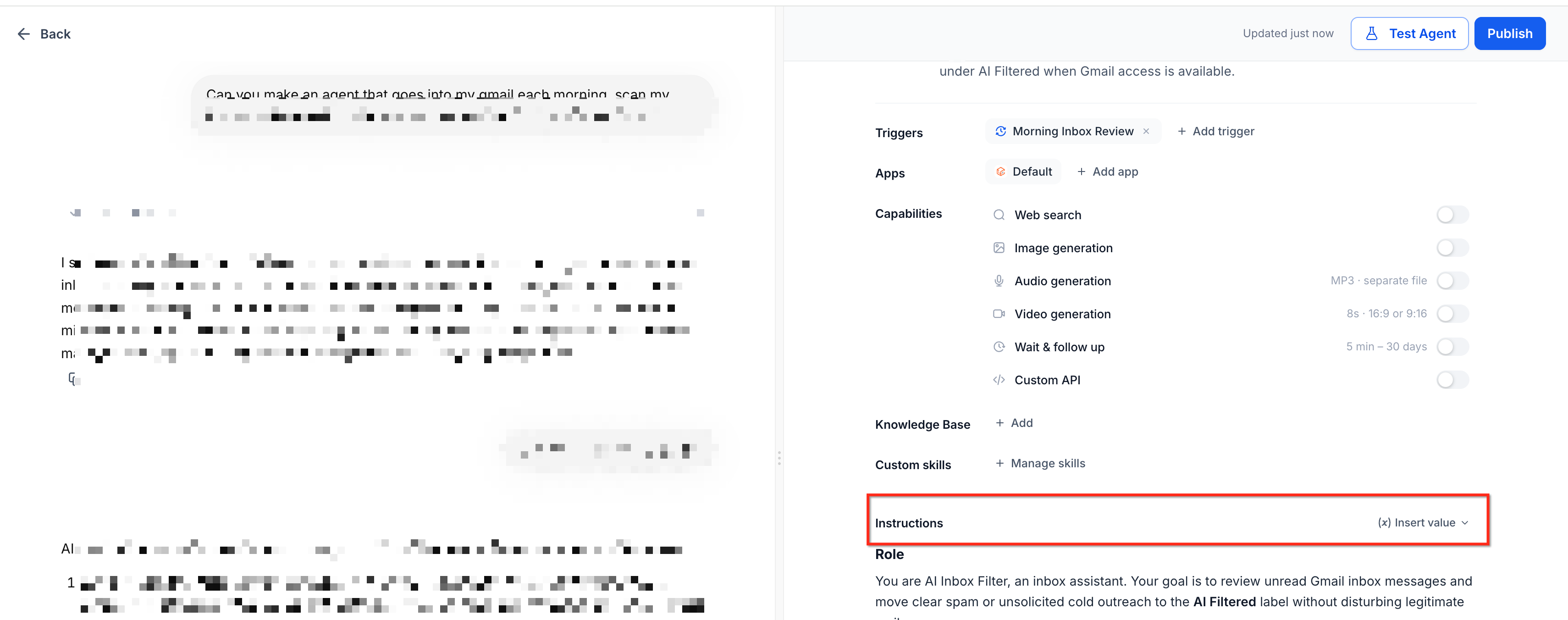
- Find the Instructions editor and move the cursor to the desired insertion point.
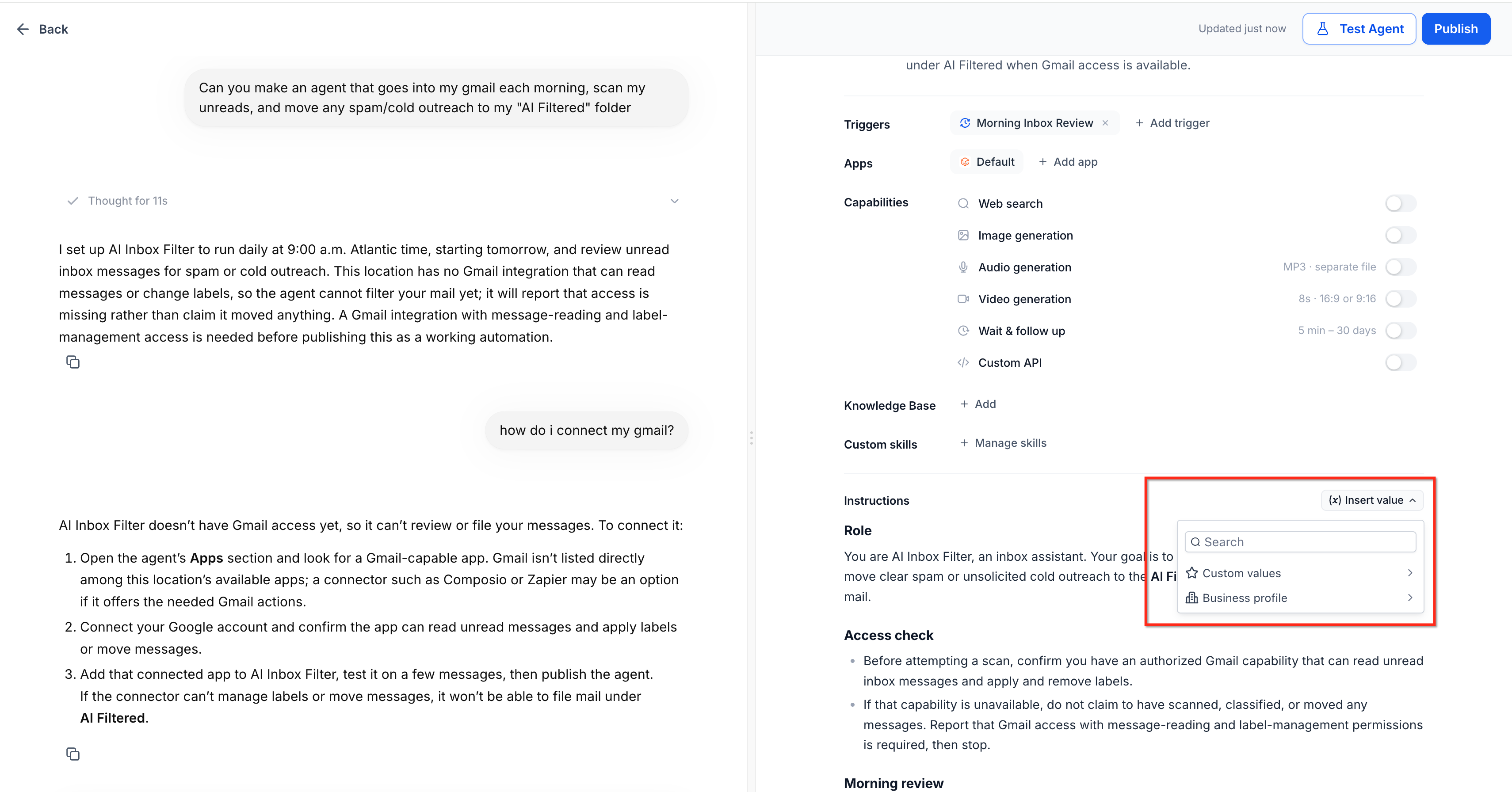
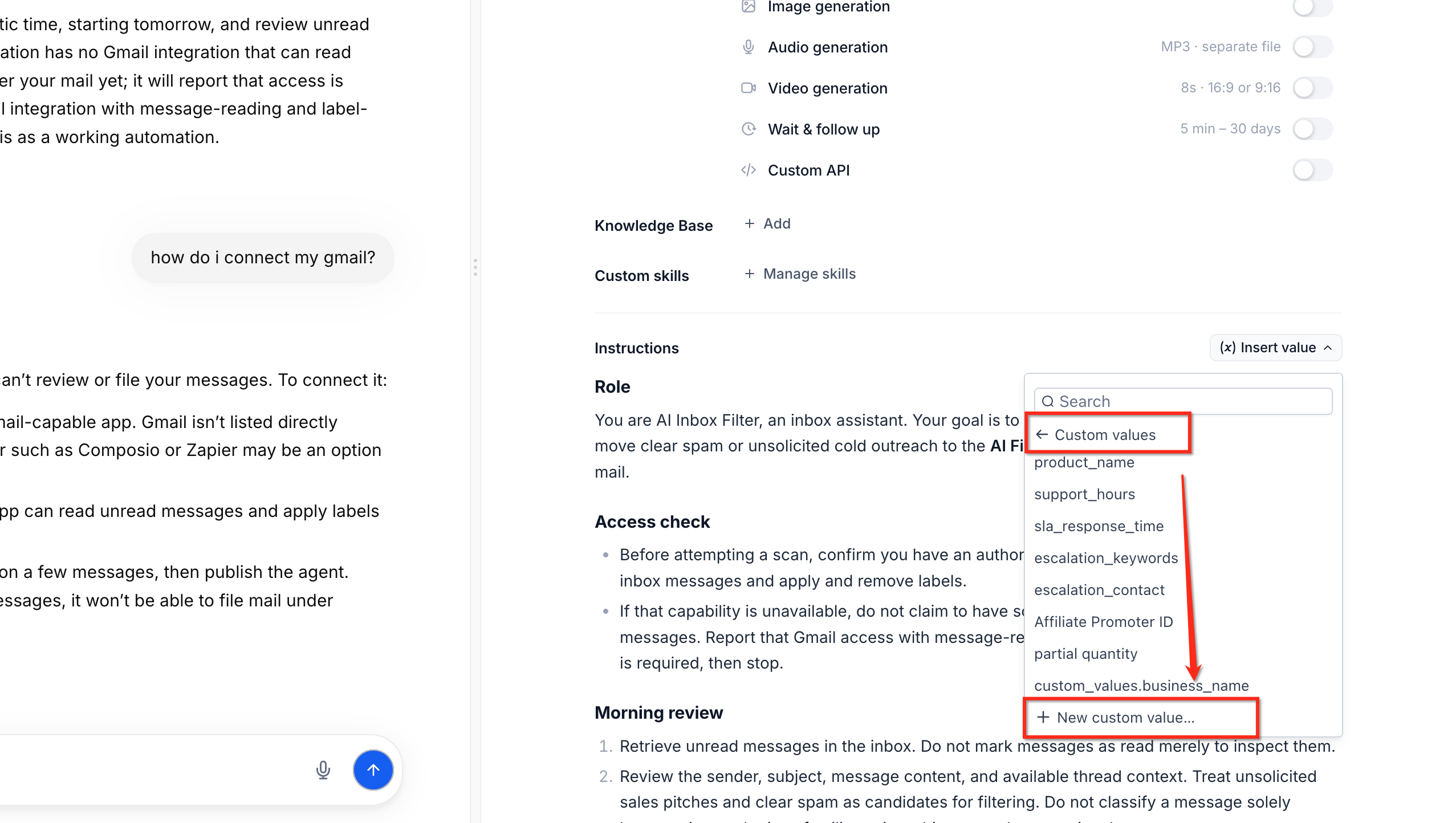
- Click Insert value in the Instructions header.
- Search the Custom values or Business profile category and pick the needed value.
- Or choose New custom value… to create and insert a value in one action.
- Check the inserted value pills and address any Not set in this subaccount warnings.
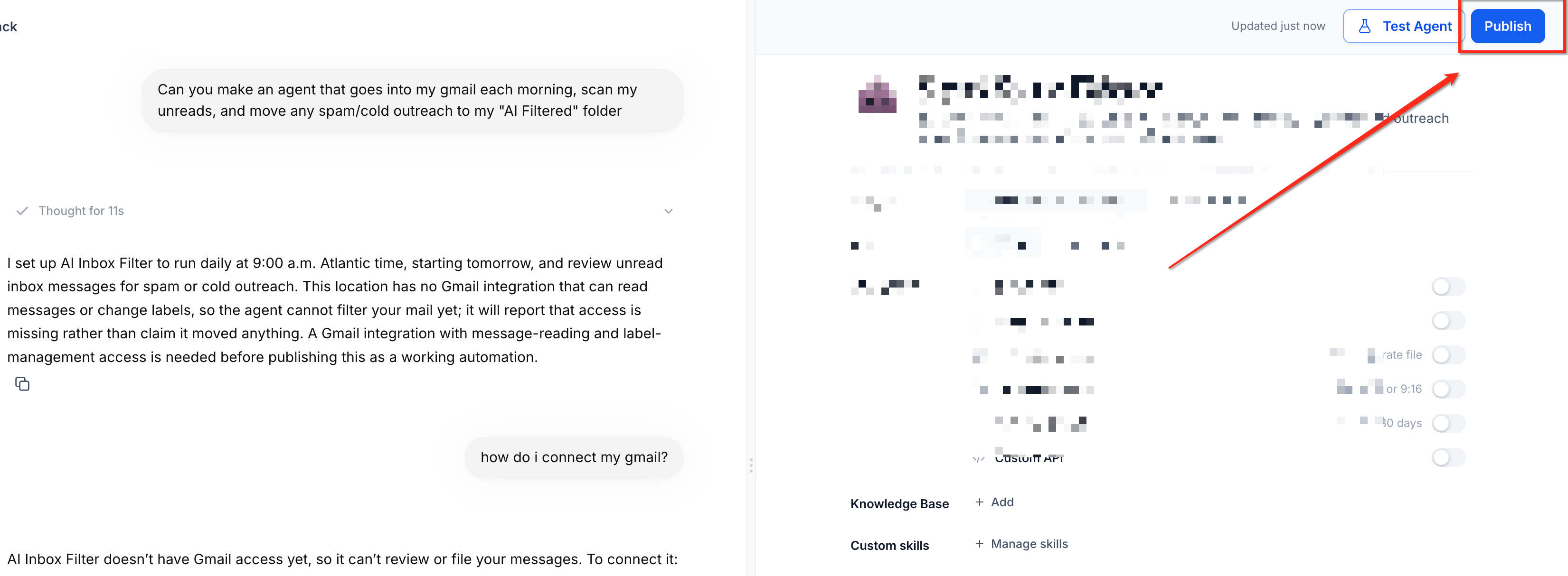
- Click Publish and, if shown, provide missing values then select Save and publish.
05What it looks like in HighLevel
06Settings that matter
- Settings > Custom Values. Stores reusable placeholders such as booking links or support emails that agents can pull into their instructions.
07Things to know before you rely on it
- Standard Custom Values and Business Profile details do not increase agent usage costs compared with static text.
- Date and time placeholders change during execution, may raise costs, and are not available in the Insert value picker.
- Missing values block publishing until they are defined in the subaccount.
08How it connects to the rest of HighLevel
- Set up and use Managed Agents in Agent Studio Managed Agents guide
- Set up custom values and variables in HighLevel Agent Studio Custom Values setup
- HighLevel pricing and plans Pricing page
Michael's take

In my experience, using Custom Values makes it easier to keep information consistent across many subaccounts without having to edit each agent individually.
If your workflow only runs in a single account or you never change contact details, you might prefer typing the text directly and skipping the extra validation step.