
01Who this is for
- Marketing managers who need every AI output to echo the company’s tone and visual guidelines.
- Content creators looking for a fast way to produce on brand graphics, videos or copy.
- Small business owners who want AI tools to automatically use their logo and brand colors.
02Brand voice and brand kit, explained
Brand Voice stores the language rules, tone and messaging you define for your company. When chosen in a Generative AI node, the AI follows those rules for any text or audio it creates.
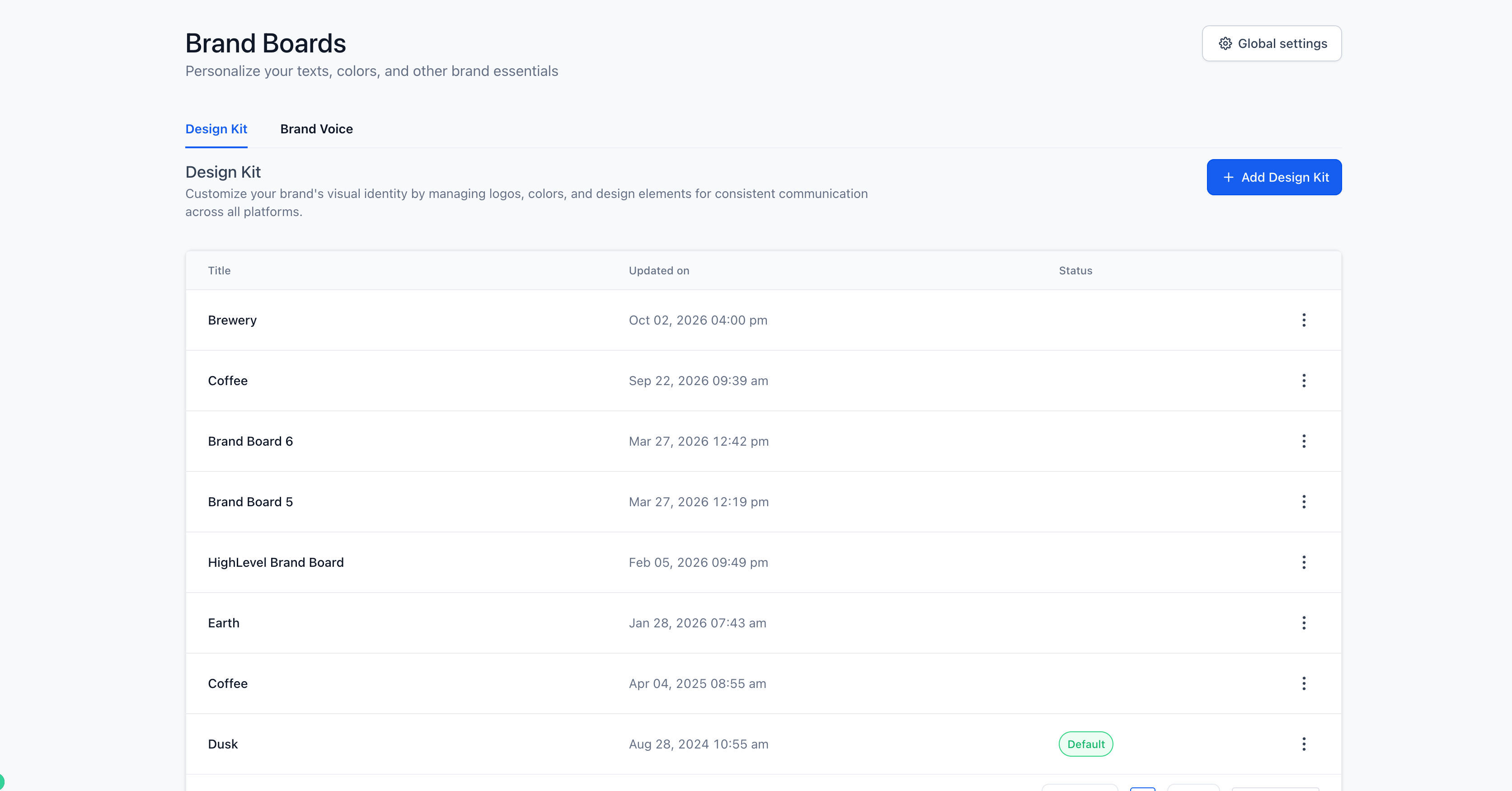
Design Kit (also called Brand Kit) keeps the visual elements, colors, fonts and logos, ready for use. Selecting a Design Kit on an Image or Video Generation node applies those visual styles to the output.
Both assets live in the Marketing > Brand Boards area and are automatically applied to future AI generations after you update them. The settings are configured per node, so a single flow can pull different voices or kits as needed.
03How businesses use brand voice and brand kit
- Real estate agency. The agency adds its Brand Voice to text generation nodes that write property descriptions, ensuring each listing talks in the same style. For video tours, it selects a Design Kit so the agency’s colors and logo appear on every video thumbnail.
- Fitness studio. The studio configures an Audio Generation node with its Brand Voice to produce motivational voice overs that sound like the brand’s trainer. Image Generation nodes use a Design Kit so all promotional graphics feature the studio’s font and color palette.
- Ecommerce retailer. The retailer sets a Design Kit on Image Generation nodes that create product images, automatically applying the brand’s logo and brand colors. Text Generation nodes use the Brand Voice to keep product copy consistent across the site.
04Before you start
- Create a Brand Voice or Design Kit in Marketing > Brand Boards before opening Flow Builder.
05How to set up and use brand voice and brand kit in HighLevel
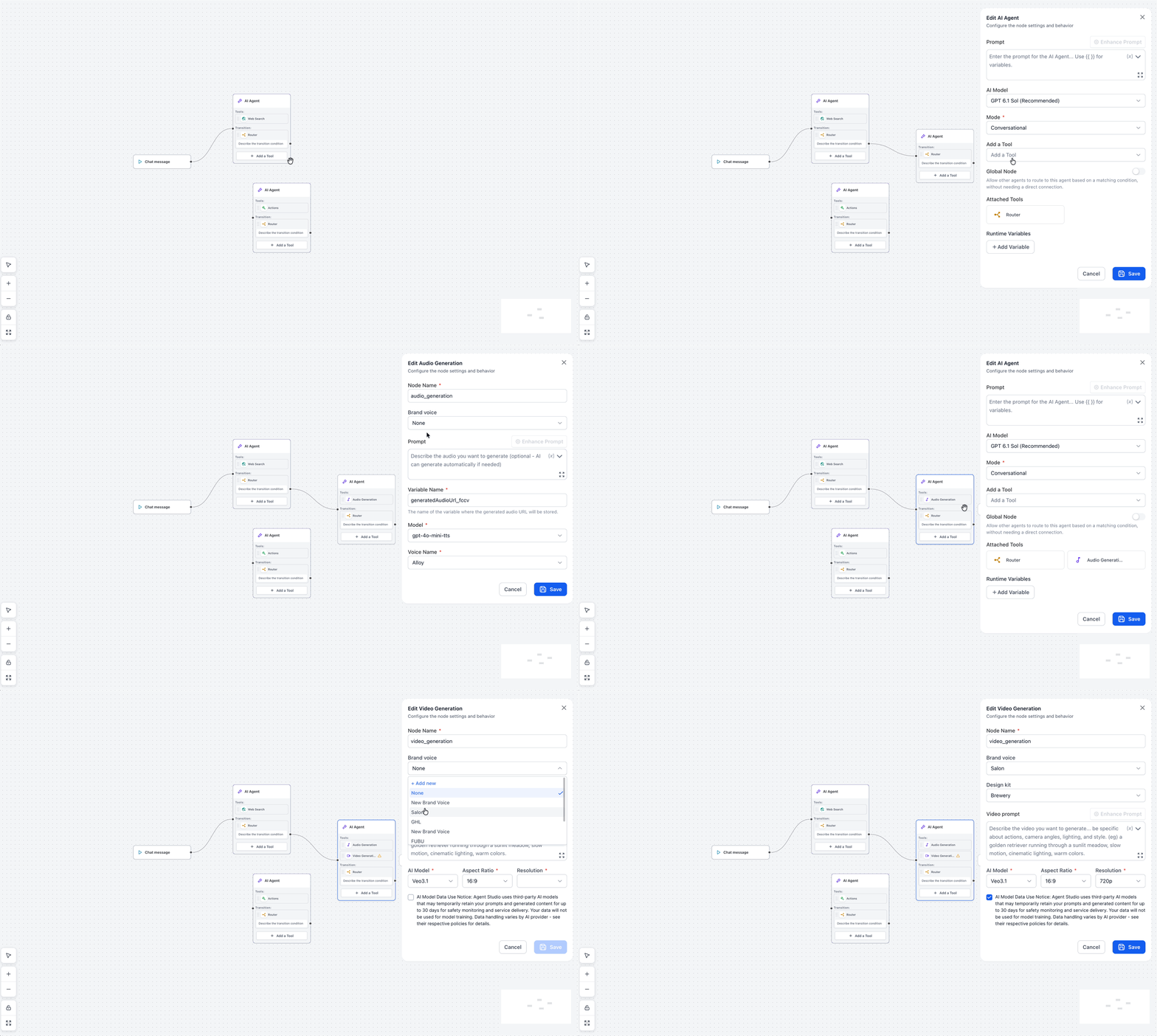
Apply brand voice and design kit to a Generative AI node
- Open the AI Agents > Agent Studio area.
- Select an existing Flow Agent or start a new one using Flow Builder.
- In Flow Builder, press the Add a processing node button.
- From the Generative AI section, choose one of the generation types such as Text Generation, Audio Generation, Image Generation, or Video Generation.
- In the node’s settings, pick the desired Brand Voice from the dropdown list, or choose None or + Add new to create one.
- If the node is set to Image Generation or Video Generation, also pick a Design Kit to apply the visual style.
- Finish filling out the remaining node options and press Save.
- Run a test of the agent to verify the output follows the selected branding.
06What it looks like in HighLevel
07Settings that matter
- Brand Voice. Controls the tone, language and messaging applied to text and audio generated by the node.
- Design Kit. Applies brand colors, fonts and logos to images and videos created by the node.
08Things to know before you rely on it
- Brand Voice works only with Flow Agents; Managed Agents use a separate interface and do not honor these settings.
- Design Kit can be selected only for Image Generation and Video Generation nodes.
- Each Generative AI node can have its own Brand Voice or Design Kit, allowing mixed branding within a single flow.
09How it connects to the rest of HighLevel
- How to create, test and publish flow agents in Agent Studio Flow agents guide
- Set up and Use Managed Agents in Agent Studio (different interface) Managed agents
- HighLevel pricing and plans for AI Employee access Pricing
Michael's take

Michael ReimerFounder of CRM Pros, HighLevel Commander and Certified Admin
Then I add a Design Kit for image or video nodes to apply our visual styling.
Get More InformationOpens on HighLevelPublished November 2, 2026 · Updated November 17, 2026