
01Who this is for
- Product managers can separate experimental bots from live versions, making it easy to locate the right agent for testing.
- Agency teams can assign agents to client specific folders, streamlining hand offs and reporting.
02Folders, explained
Folder Management introduces a folder hierarchy on the Agent Studio list page. You create parent level folders, optionally populate them with existing unfiled agents, and later move or delete items in bulk. The view can be toggled between showing agents first or folders first, and sorted by name, creation date, or last update.
The feature uses server side pagination, so you can choose 10, 25, 50, or 100 rows per page without slowing the interface. Status badges such as Draft or Published appear on each agent, giving instant insight into its publishing state.
All actions respect the current user’s permissions. Confirmation dialogs show the exact number of items affected, helping prevent unintended deletions or moves.
03How businesses use folders
- Marketing agency. The agency creates a folder for each client and drags relevant AI agents into it. When a new campaign launches, they bulk move the agents to a “Live” folder, keeping the workspace tidy and client specific.
- SaaS startup. Developers group experimental bots in a “Testing” folder and published bots in a “Production” folder. They use the bulk delete function to clear outdated test agents after each sprint.
- E learning platform. Content creators place course specific AI tutors into separate folders, then search by name to quickly edit the correct tutor. The row per page selector lets them view many agents at once during quarterly audits.
04The numbers and rules that matter
- Rows per page options: 10, 25, 50, 100.
05How to set up and use folders in HighLevel
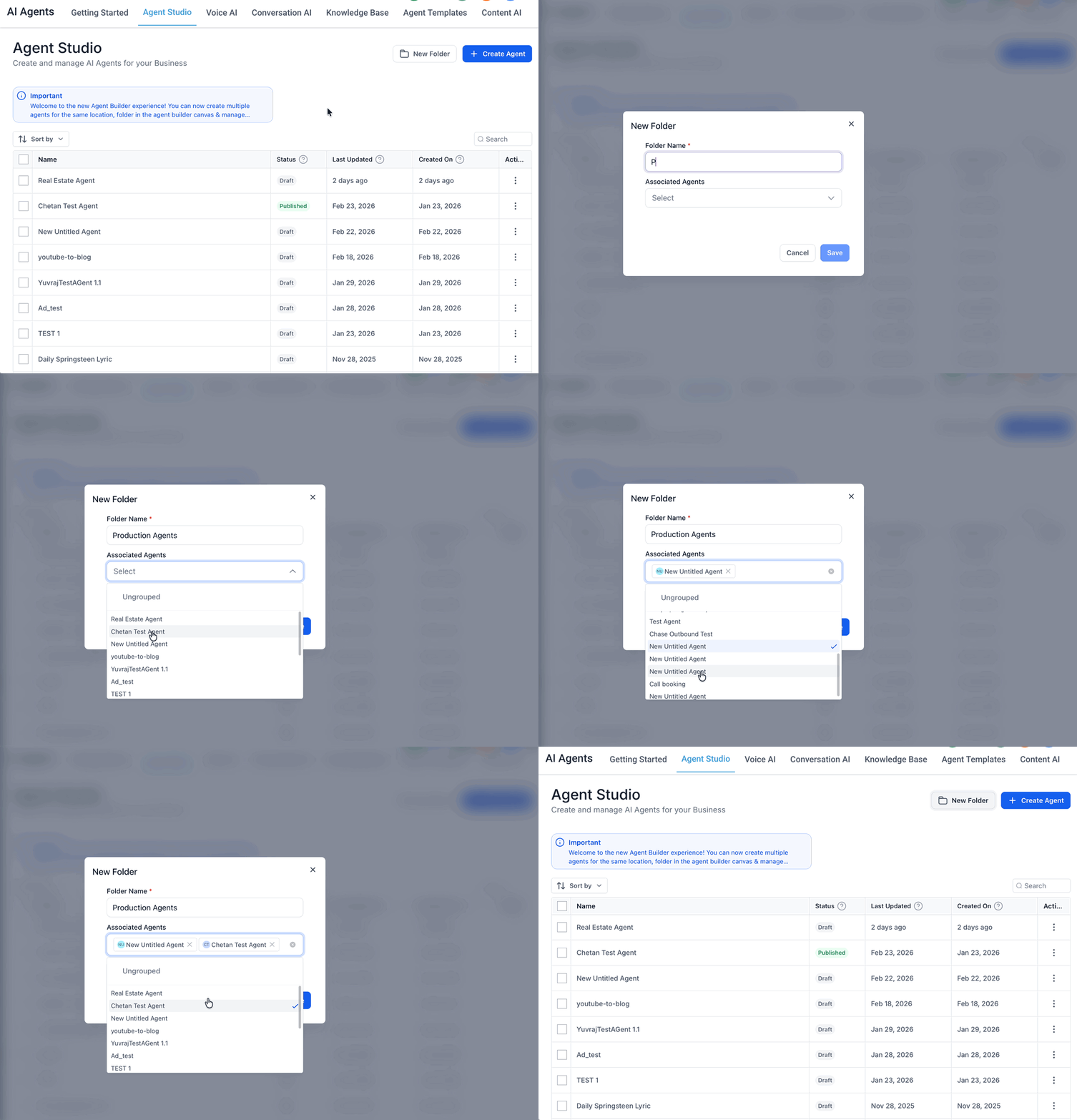
Create a new folder for agents
- Press the New Folder button at the top right of the Agent Studio list.
- Enter a clear title in the Folder Name input field.
- Optionally open the Associated Agents dropdown and select any unfiled agents to include.
- Click Save; the folder appears with the chosen agents listed beneath it.
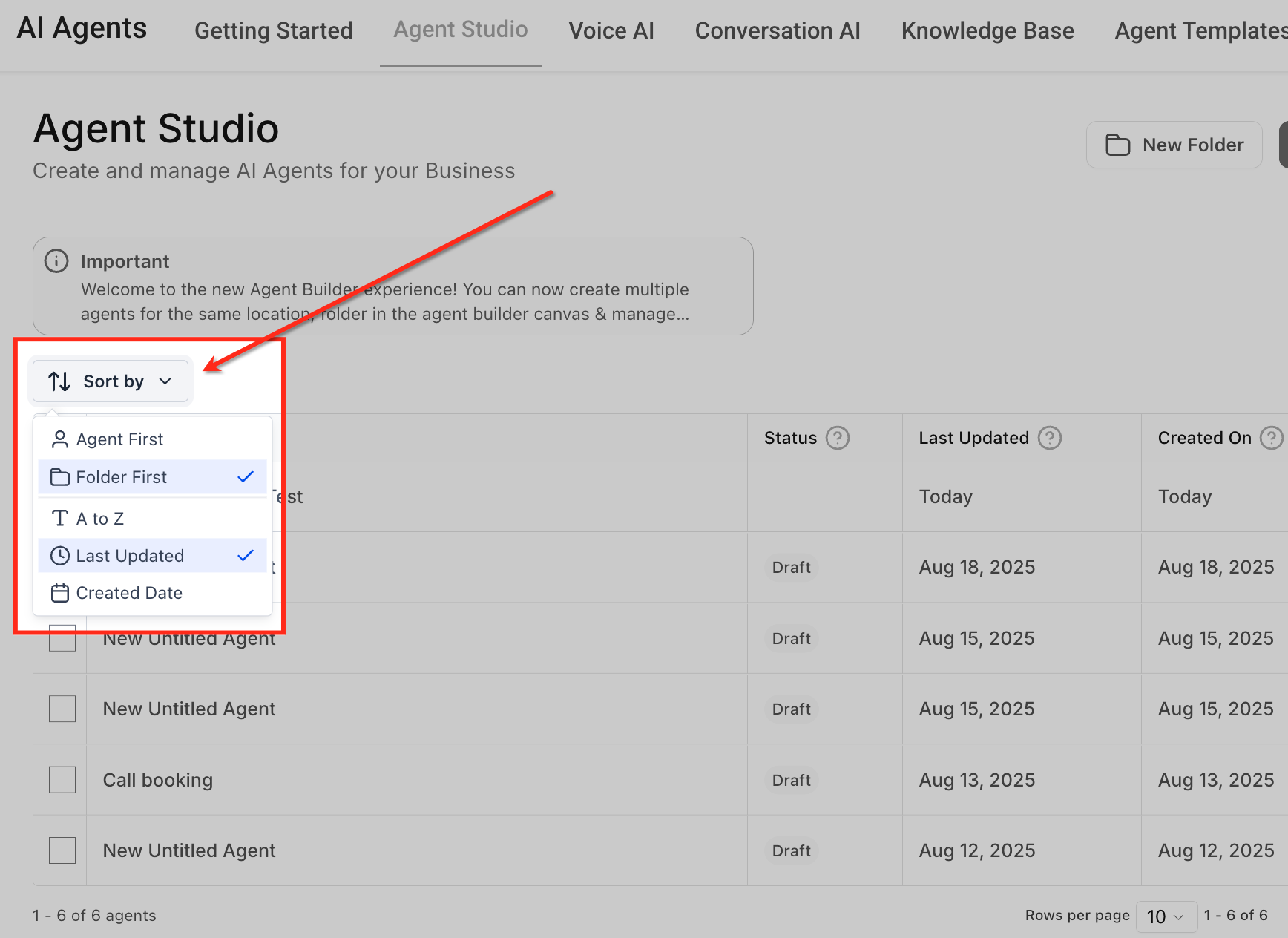
Adjust how agents are displayed
- Open the Sort by dropdown on the list toolbar.
- Select either Agent First or Folder First arrangement.
- Choose a sorting attribute such as Name, Last Updated or Created Date.
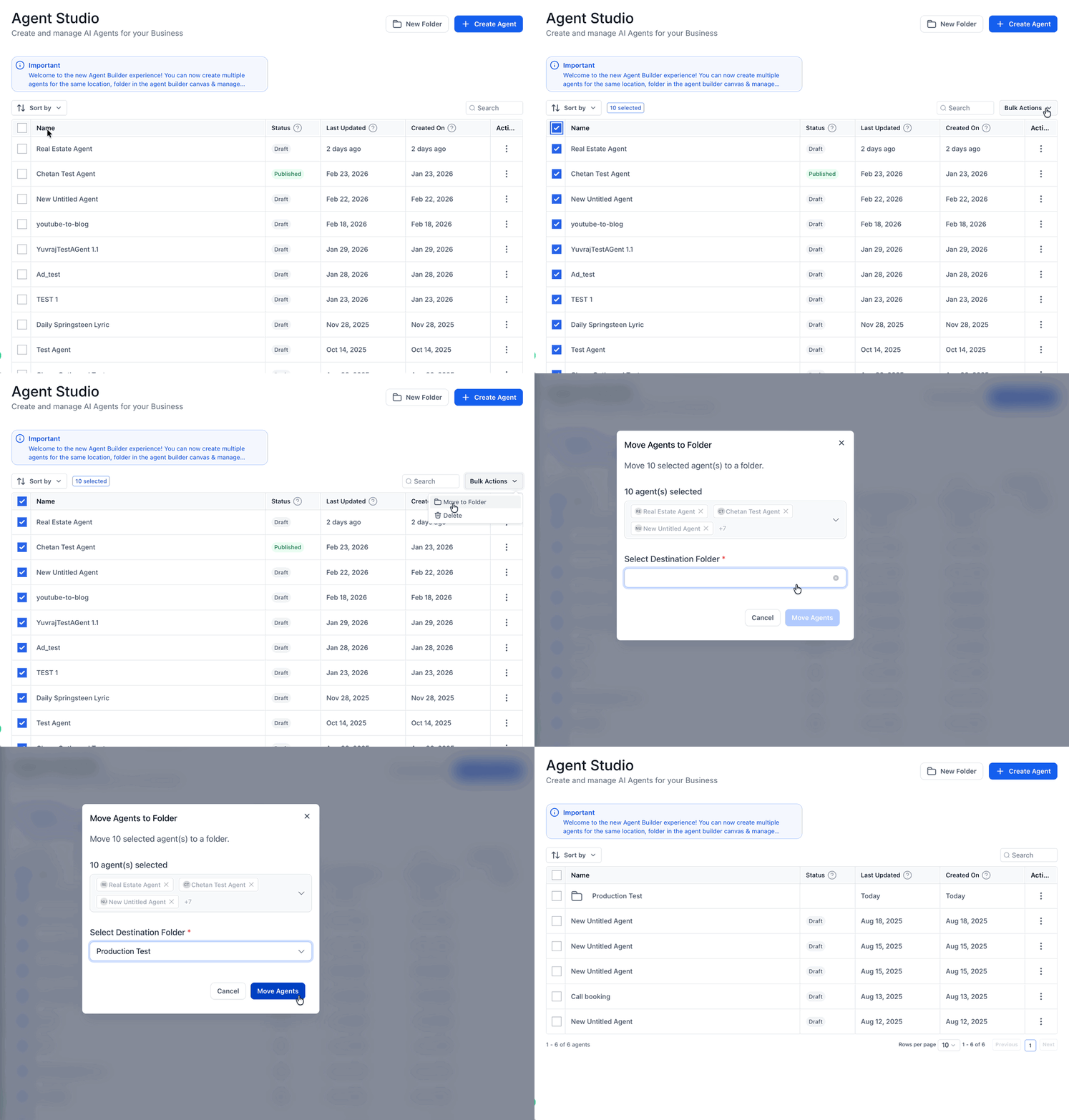
Run bulk move or delete operations
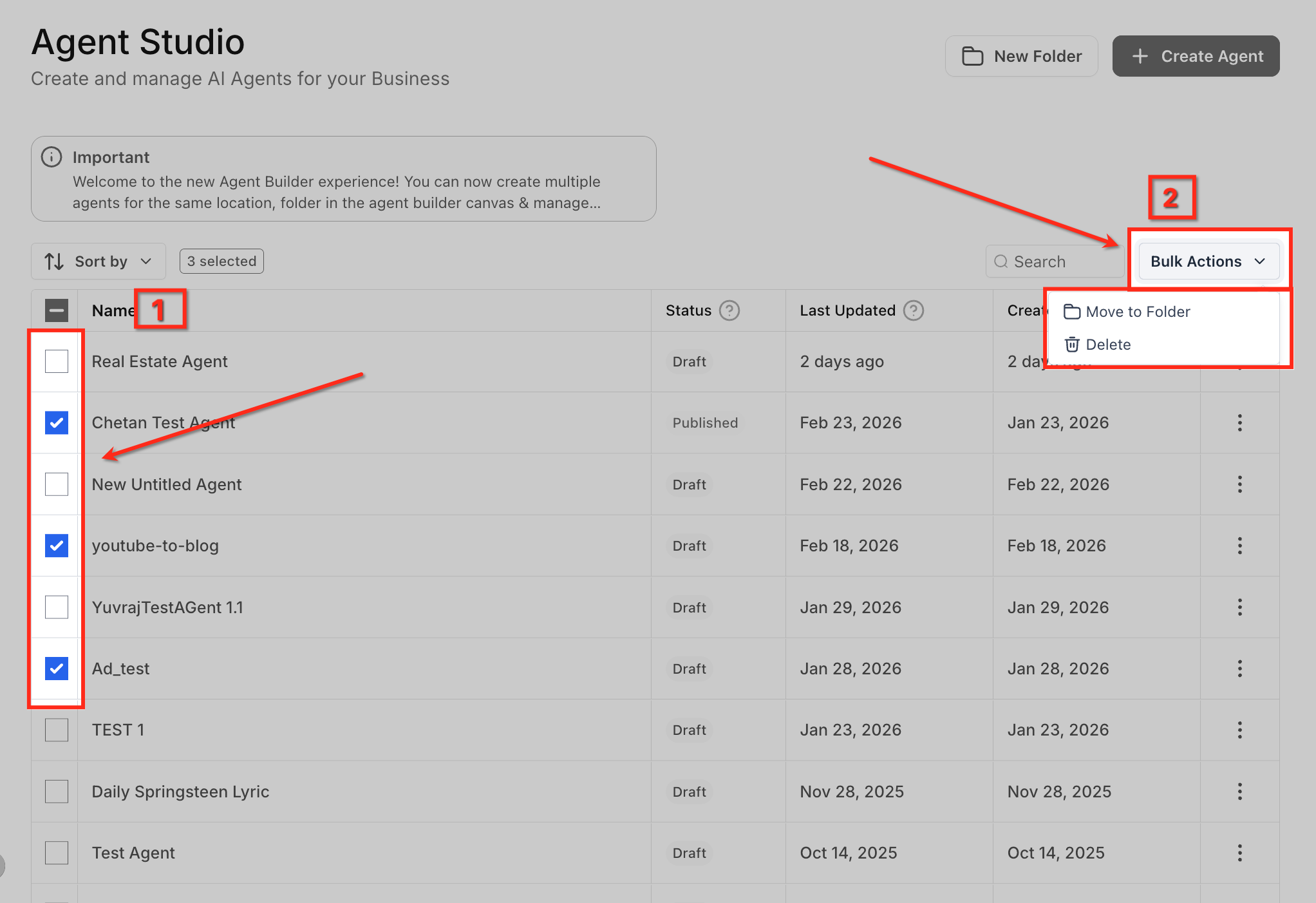
- Check the boxes next to each agent you want to affect.
- Note the selected count badge that appears near the top.
- Click the Bulk Actions dropdown in the upper right corner.
- Pick Move to Folder or Delete from the list.
- Confirm the action in the modal, selecting a destination folder for moves or confirming deletion.
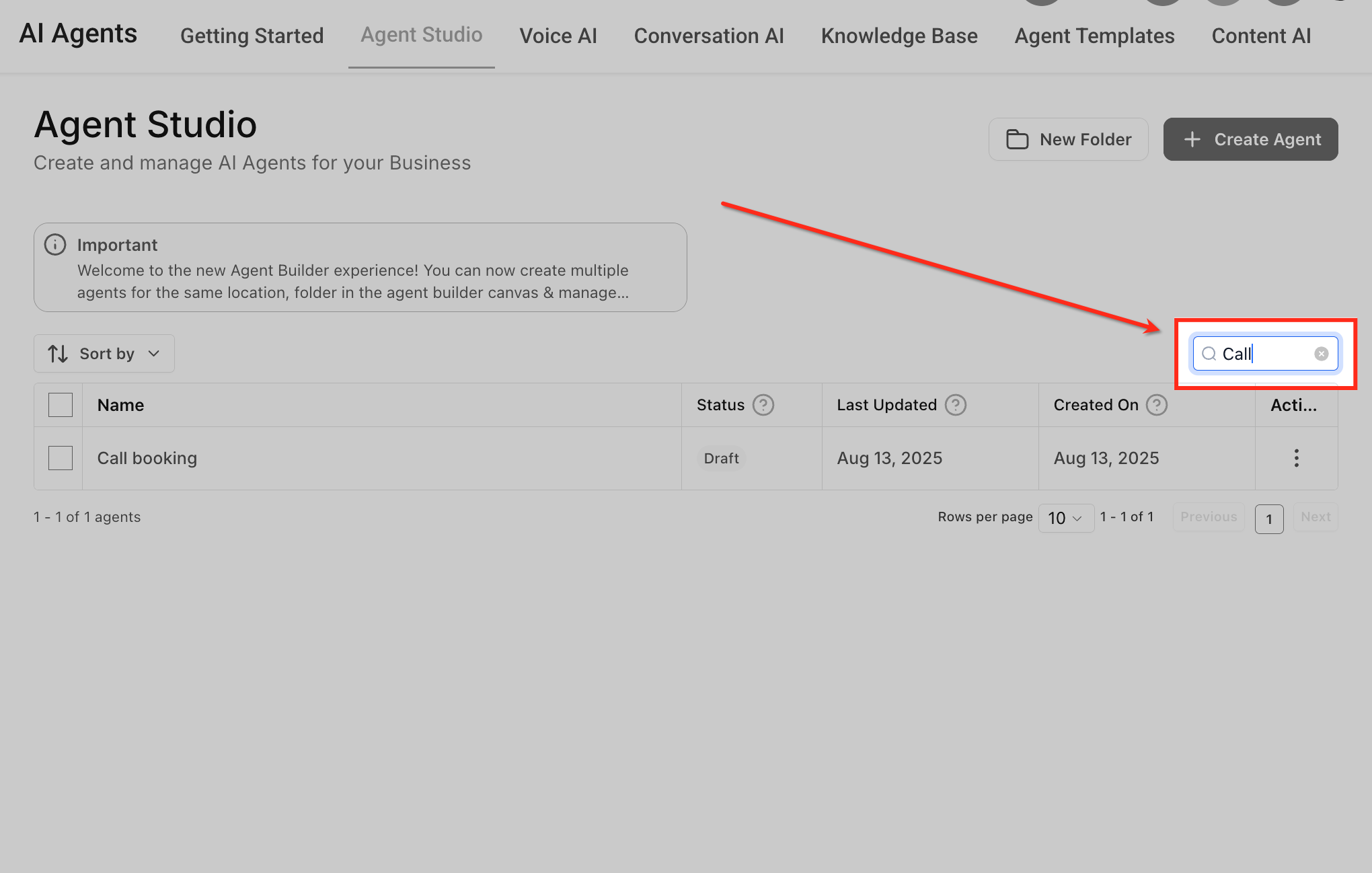
Find a specific agent quickly
- Locate the Search bar in the upper right corner of the list.
- Type the agent’s name or a portion of it.
- Observe the list filter right away to show matching agents.
06What it looks like in HighLevel
07Settings that matter
- Folder Name field. Defines the label that will appear for the new folder.
- Associated Agents dropdown. Lets you pre select ungrouped agents to place inside the new folder at creation.
- Sort by dropdown. Controls the grouping order (Agent First or Folder First) and the attribute used for sorting.
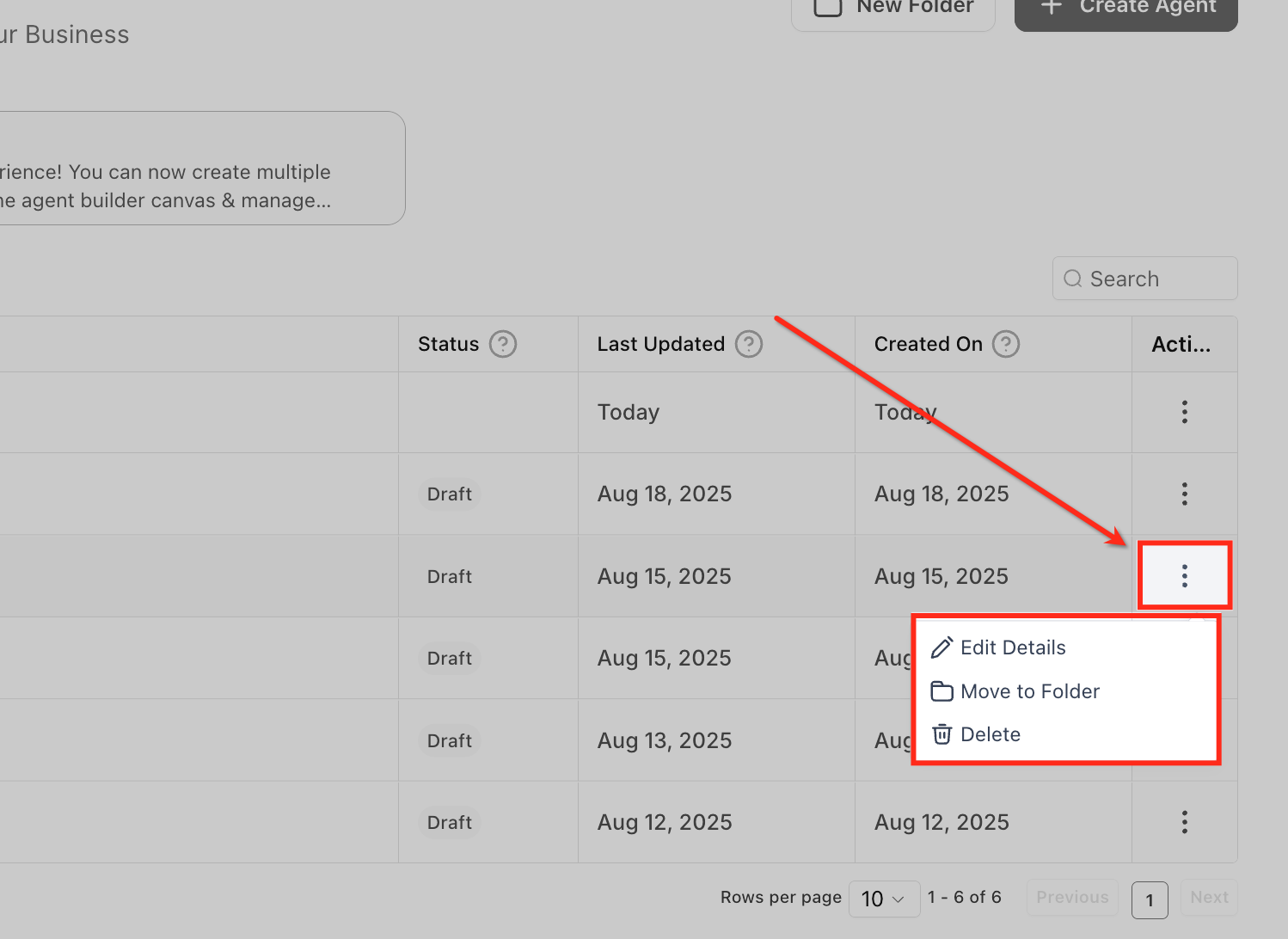
- Rows per page dropdown. Sets how many agent rows are shown on each page of the list.
- Bulk Actions dropdown. Provides options to move selected agents to a folder or delete them in one step.
08Things to know before you rely on it
- Only a single folder level is supported in this release; nested folders are planned for a future update.
- Bulk actions are only visible to users who have the appropriate delete or move permissions.
- Removing a folder does not delete its agents; they are moved to an “Unfiled” area.
- Server side pagination does not reset any active filters applied to the list.
- When two users edit the same agent simultaneously, the last saved change wins and a conflict notice appears if your view is outdated.
09If something goes wrong
- Two users attempt to move the same agent at the same time. The platform keeps the most recent change and shows a conflict notice to the user whose view was outdated.
10How it connects to the rest of HighLevel
- Create, test and publish flow agents in HighLevel Agent Studio Flow agents guide
- Managing existing flow agents in HighLevel Agent Studio Manage flow agents
- Set up and Use Managed Agents in Agent Studio Managed agents
Michael's take

Most people try to drag agents one by one and end up spending hours shuffling around a chaotic list. I would begin with creating a folder for each major project or client, then bulk move all related agents into it with a single click.
Once the folders are in place, I’d lock down the view to Folder First, set the rows per page to a comfortable number, and use bulk delete only when I’m absolutely certain everything in a folder is truly obsolete.