
01Who this is for
- Founders of agencies that need personalized client outreach, because AI generated copy can be created during a conversation.
- Small business owners running marketing campaigns, since images and videos can be produced without external design work.
02Generative AI tools, explained
Generative AI tools appear as processing nodes that you add inside an agent flow. Each node runs when the flow reaches it, sends the supplied prompt to an AI model, and returns the generated content. Text, audio and image nodes store the result URL or text in a variable you name. Video nodes generate a video file but do not include a Variable Name field.
You add a node from the Add a processing node panel, choose the type, Text Generation, Audio Generation, Image Generation or Video Generation, and then fill the required fields in the side panel. Settings let you apply Brand Voice, Design Kit, pick a model, define output length or size, and select a voice for audio. The node’s output variable can be referenced later in the same agent flow.
The feature lives inside Agent Studio, which you access via AI Agents > Agent Studio. It is separate from AI Studio and only works while building or editing an agent flow.
03How businesses use generative AI tools
- Real estate agency. Use Text Generation to draft property descriptions on the spot, inserting the listing address variable into the prompt. The generated description is saved in a variable for later inclusion in emails or listings.
- Fitness coaching business. Add an Audio Generation node to create a spoken workout instruction that includes the client’s name variable. The audio URL is stored in a variable and sent as a voice message in the flow.
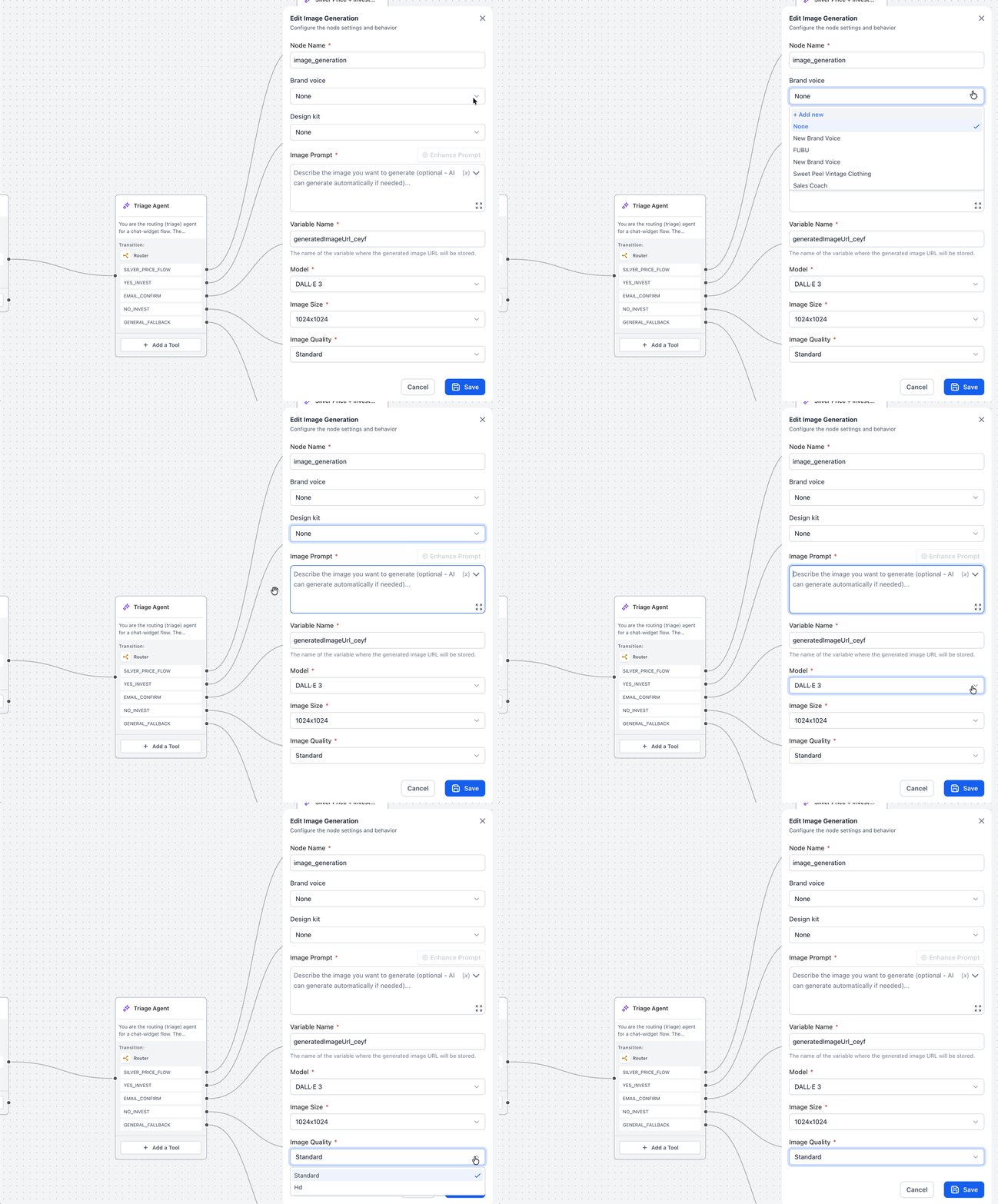
- Ecommerce retailer. Insert an Image Generation node to produce a product image that matches the brand’s Design kit. The image URL is saved in a variable and attached to a promotional message later in the agent.
04The numbers and rules that matter
- Text Generation models: Gpt 4.1, gpt 5 mini.
- Audio Generation model: Gpt 4o mini tts.
- Image Generation models: GPT Image 1, DALL·E 3, Gemini 2.5 Flash Image Preview.
- Image Size options: 1024x1024, 1024x1792, 1792x1024.
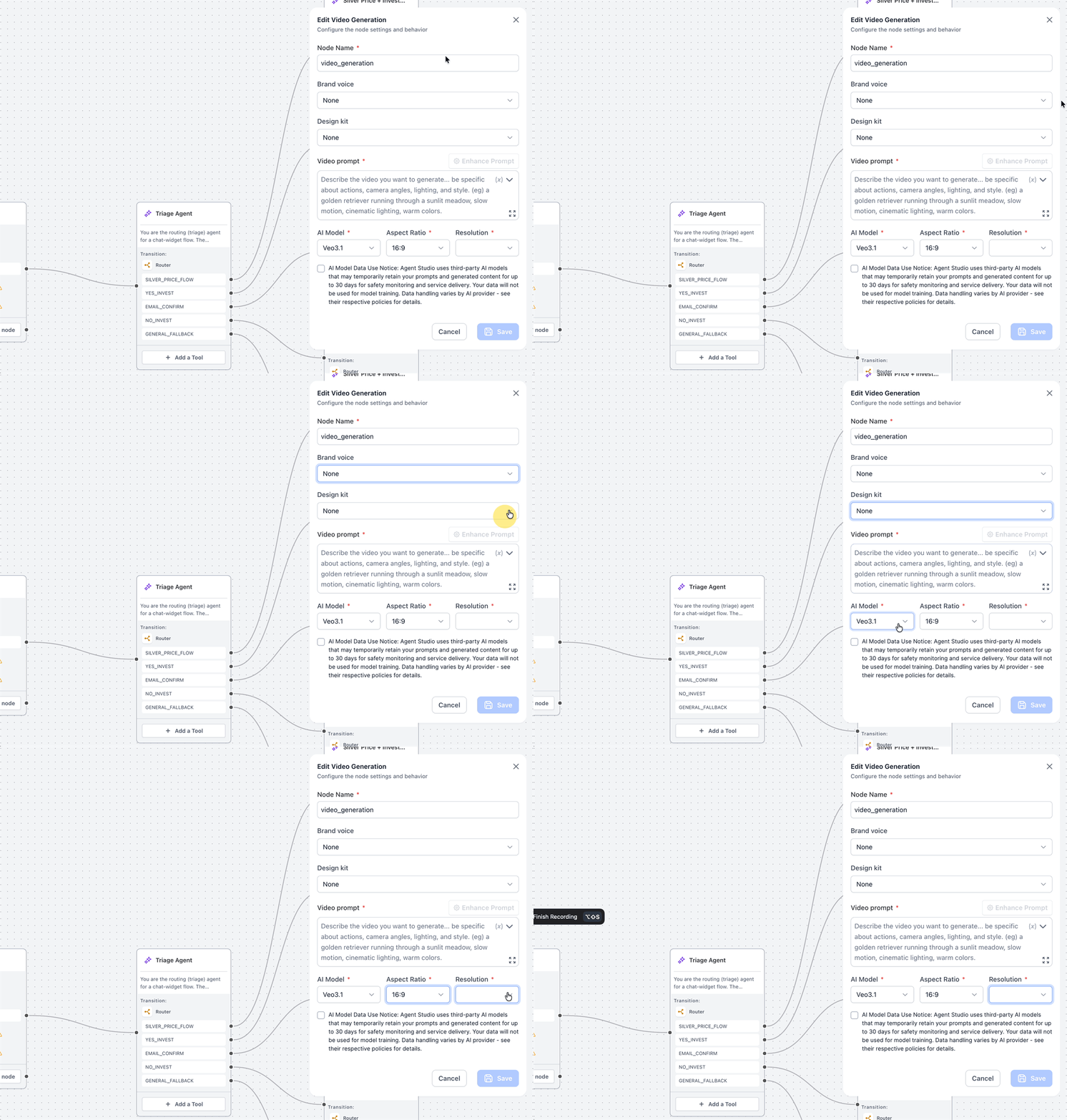
- Video Generation models: Veo3.1, Veo3.1 Fast.
- Video Aspect Ratio options: 16:9, 9:16.
- Video Resolution option: 720p.
- Text Length custom range: 5 to 20000 characters.
- AI Model Data Use Notice: Prompts and generated content can be retained for up to 30 days, not used for model training.
05Before you start
- Create any required Brand Voice or Design Kit entries before selecting them in a node’s dropdown.
06How to set up and use generative AI tools in HighLevel
Add a generative AI tool to an agent
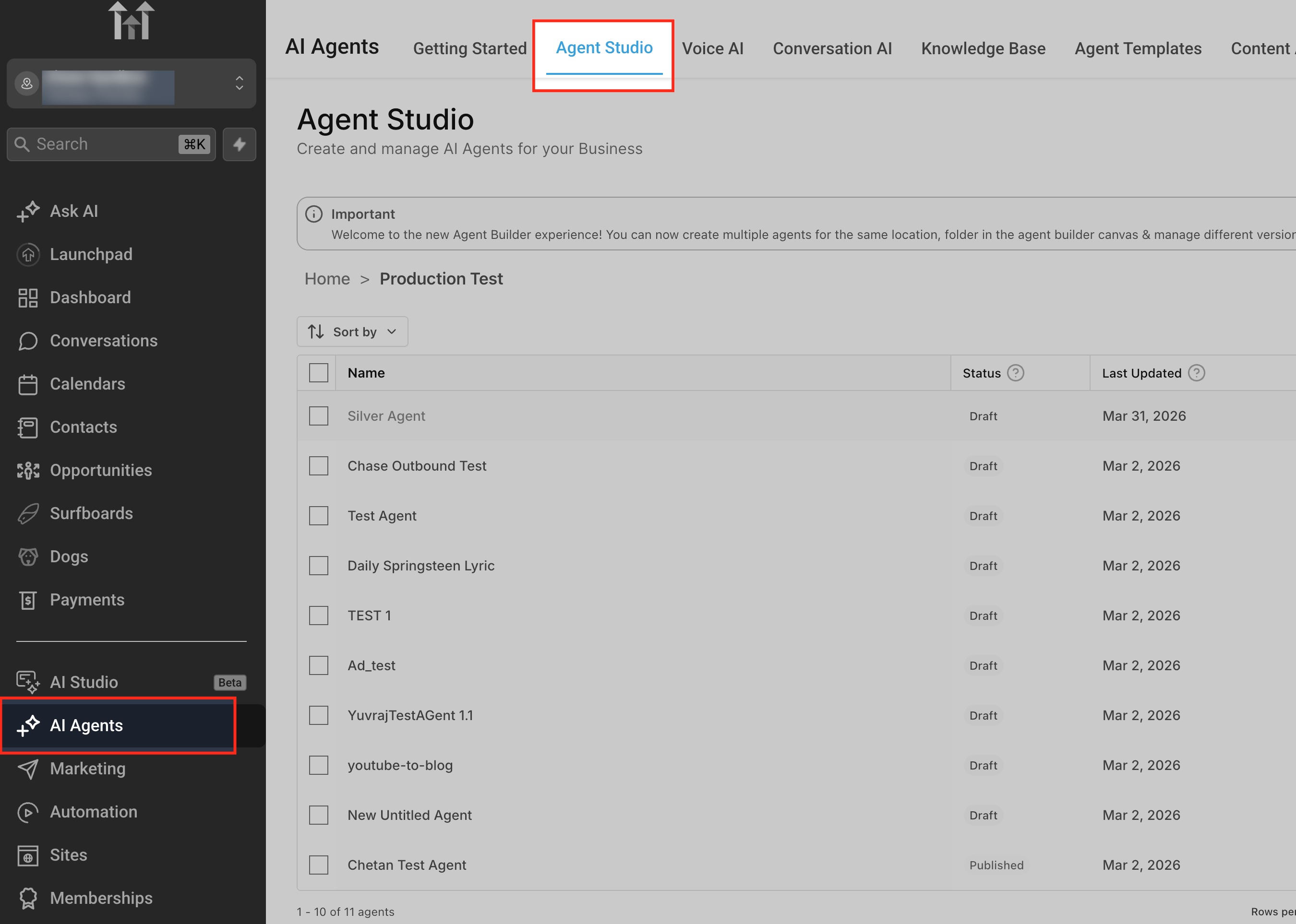
- Open AI Agents from the left navigation menu.
- Select the Agent Studio tab.
- Choose the agent you wish to edit.
- Find the node in the canvas where the AI action should occur.
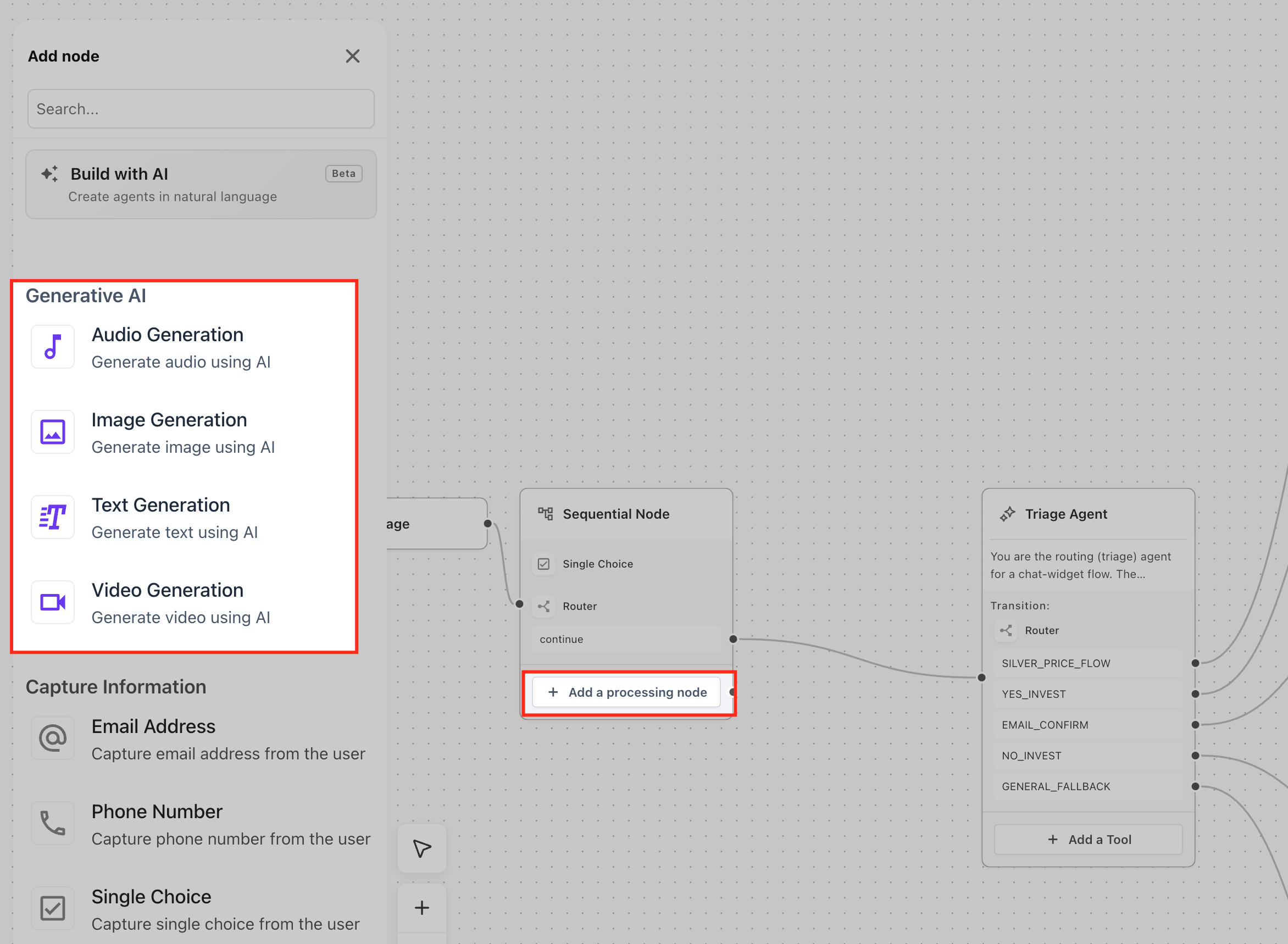
- Click Add a processing node.
- In the Add node panel, open the Generative AI section.
- Pick the desired tool: Audio Generation, Image Generation, Text Generation, or Video Generation.
- Enter the required configuration fields in the side panel.
- For video nodes, check the AI Model Data Use Notice before saving.
- Press Save when all required fields are completed; the Save button remains disabled until every required field is filled and any required notice is acknowledged.
07What it looks like in HighLevel
08Settings that matter
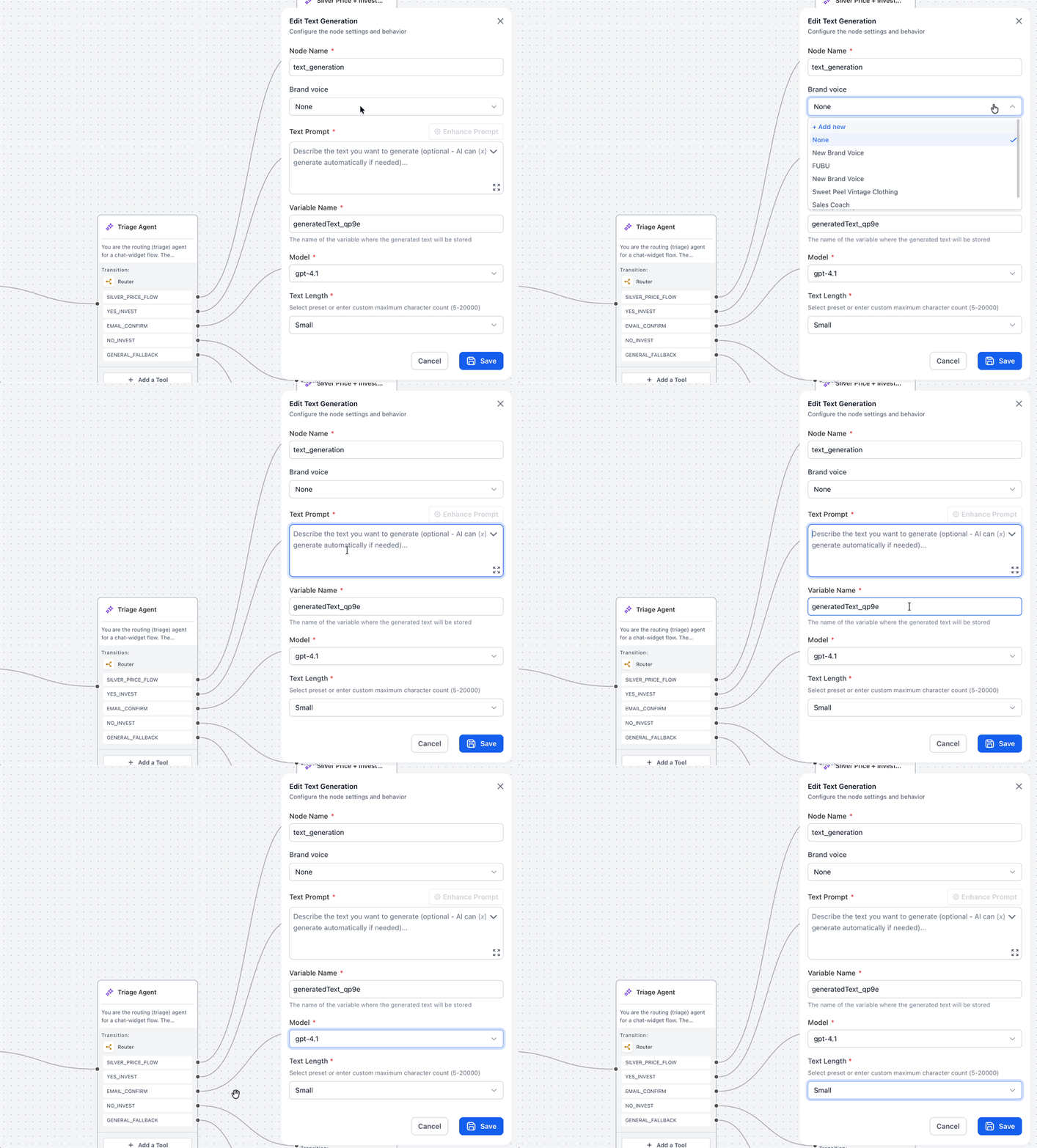
- Node Name. Identifies the processing step inside the flow; defaults to a type specific name but can be renamed for clarity.
- Brand voice. Applies a predefined communication style to the generated content; can be left as None or a new Voice can be added.
- Text Prompt. Provides the instructions that tell the AI what text to create; can include variables from earlier steps.
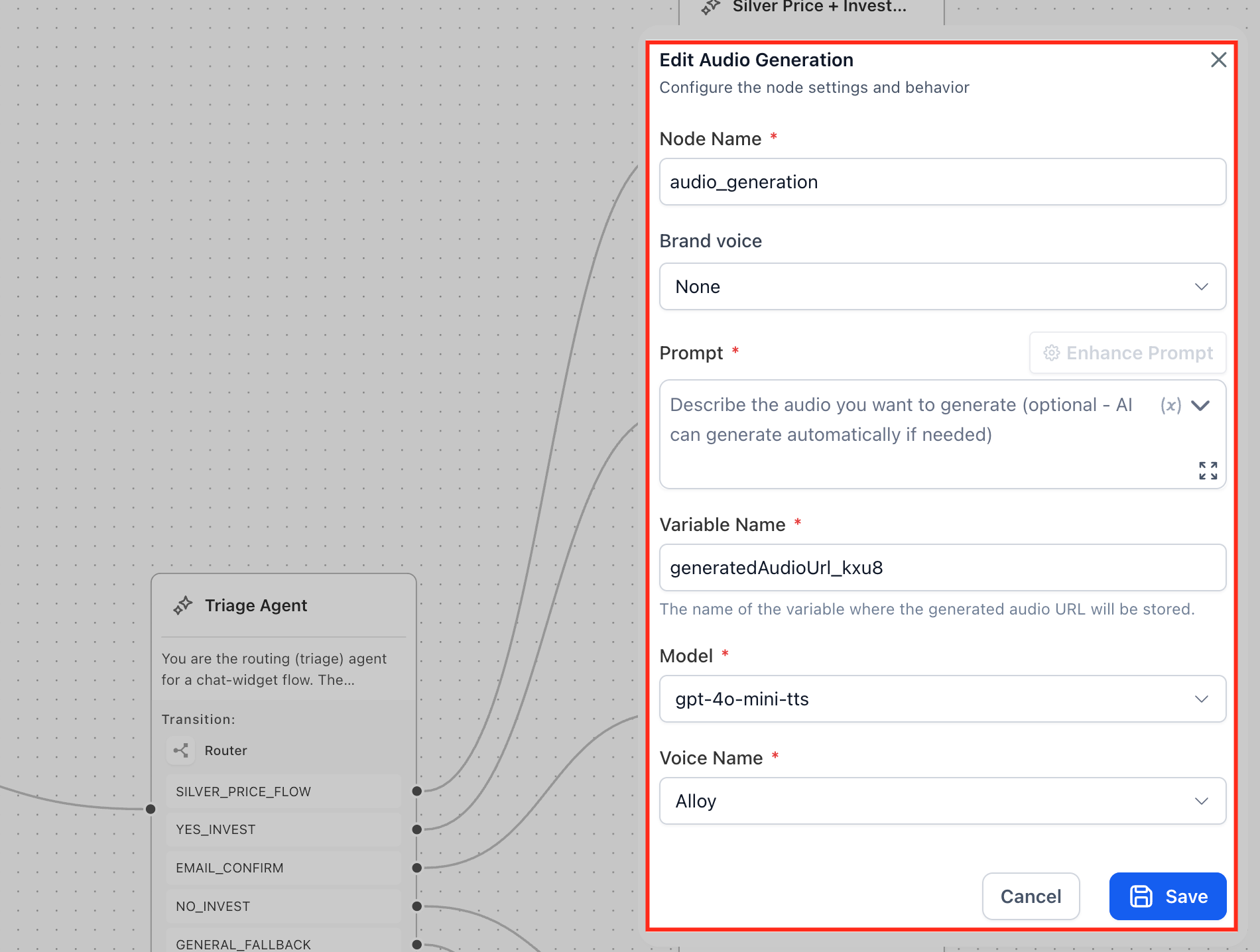
- Prompt. For audio nodes, supplies the instructions that describe the desired spoken content, supporting variable insertion.
- Image Prompt. Supplies the instructions that describe the desired image, supporting variable insertion.
- Video prompt. Supplies the instructions that describe the desired video, supporting variable insertion.
- Variable Name. Stores the generated output, text, audio URL, or image URL, so it can be referenced later in the flow.
- Model. Selects the AI model that performs the generation, such as gpt 4.1 for text or gpt 4o mini tts for audio.
- Text Length. Sets the maximum character count for generated text; can use Small, Big, or a custom value between 5 and 20000.
- Voice Name. Chooses the synthetic voice used for audio generation, with options like Alloy, Ash, or Nova.
- Design kit. Applies saved visual branding to generated images or videos, ensuring colors, fonts, and logos match the brand.
- Image Size. Determines the dimensions of the generated image, such as 1024x1024 or portrait/landscape sizes.
09Things to know before you rely on it
- Text Length can be customized only within 5 to 20000 characters.
- Image Size choices are limited to three preset dimensions.
- Video Generation does not provide a Variable Name field for storing the output.
- The Save button stays disabled until every required field is filled and the AI Model Data Use Notice is acknowledged.
- Brand Voice and Design Kit options must exist before they appear in node dropdowns.
10How it connects to the rest of HighLevel
- Manage existing agents and workflows Managing agents
- Create, test and publish flow agents Setup flow agents
- Set up triggers that fire your generative AI nodes Agent triggers
- Use custom values and variables inside prompts Custom variables
- View all AI Employee feature details AI Employee overview
Michael's take

Generative AI tools feel like a small convenience that can become a real shift in how you build agent experiences. They let the bot write its own copy, create a voice clip, spin up an image, or even pull together a quick video without you having to design each asset ahead of time.