
01Who this is for
- Agency owners who need to deploy the same AI agents across many client subaccounts quickly.
- Consultants who want to preserve agent configurations and knowledge bases for repeatable implementations.
- Marketplace sellers who plan to monetize pre built agents by offering snapshot links.
02Agent Studio snapshots, explained
Agent Studio snapshots capture the flow structure, node settings, version state and any chosen supporting assets such as knowledge bases, workflows or custom values. The snapshot lives in the Account Snapshots area of the platform. When you import a snapshot, the packaged agents appear in the target subaccount’s Agent Studio.
Snapshots can be created from any subaccount that holds the desired agents. They can be loaded into a single subaccount or pushed to many subaccounts in one action. Each snapshot keeps its own version history, so you can refresh it after making changes to the source agents. Snapshots can also be shared outside the agency via a link or listed on the Marketplace, subject to SaaS plan requirements.
03How businesses use Agent Studio snapshots
- Digital marketing agency. The agency creates a snapshot of its lead generation AI agent and pushes it to every client subaccount. This copies the agent, its knowledge base and workflow without rebuilding each instance.
- E learning platform. The platform builds a quiz assistant agent, selects the related knowledge base during snapshot creation, and shares the snapshot link with partner schools that load it into their own HighLevel accounts.
- SaaS reseller. The reseller lists a pre configured support chatbot snapshot on the Marketplace. Buyers purchase the listing and import the snapshot, receiving the agent in Draft, Staging or Production state as packaged.
04The numbers and rules that matter
- Preserved when snapshot includes them: Agent flow structure, node configurations, connected knowledge bases, version state (Draft, Staging, Production), associated supporting assets (if selected).
- Snapshots do NOT include contacts, conversation history, messages, live data.
05Before you start
- User must have the “Create Snapshots” permission to build a snapshot.
- User must have the “Share/Import Snapshots” permission to load or share a snapshot.
- You must be in Agency View and have a subaccount that contains the agents you want to package.
06How to set up and use Agent Studio snapshots in HighLevel
Create an agent snapshot
- Switch to Agency View.
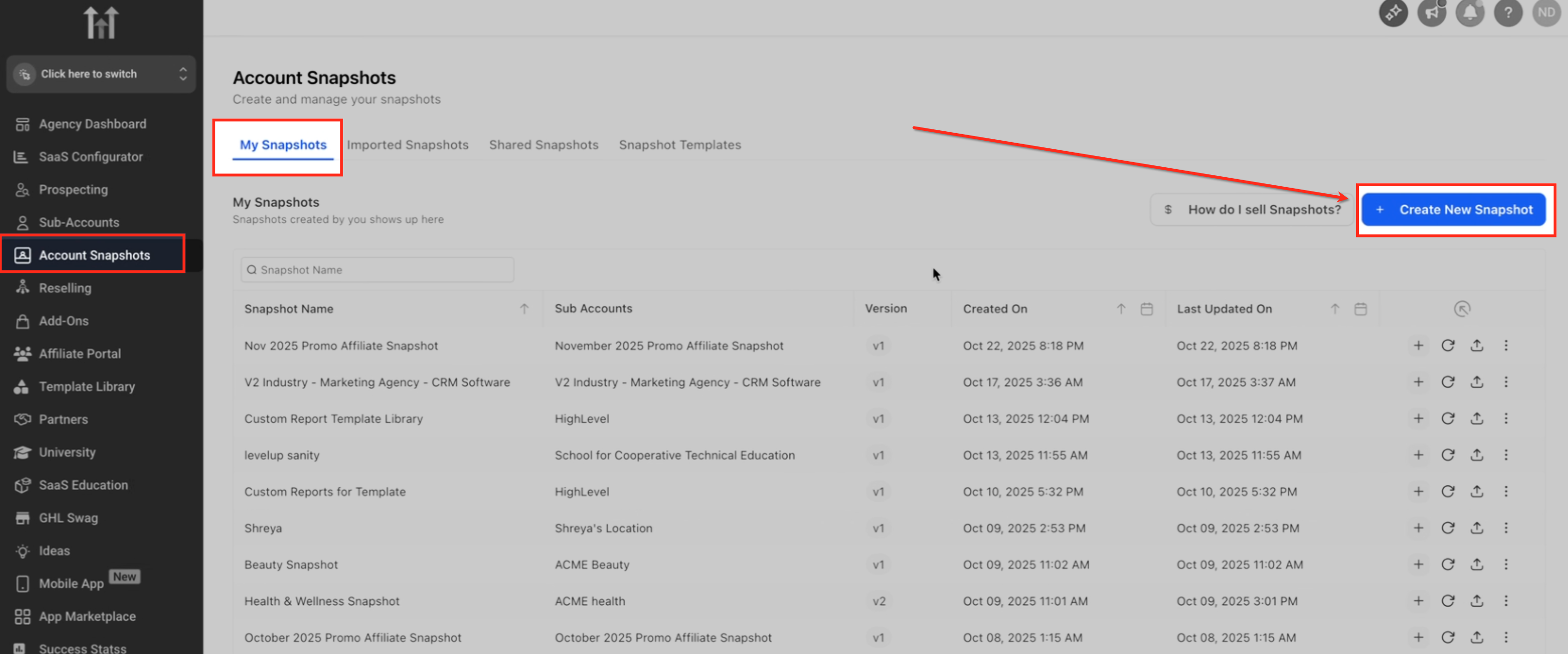
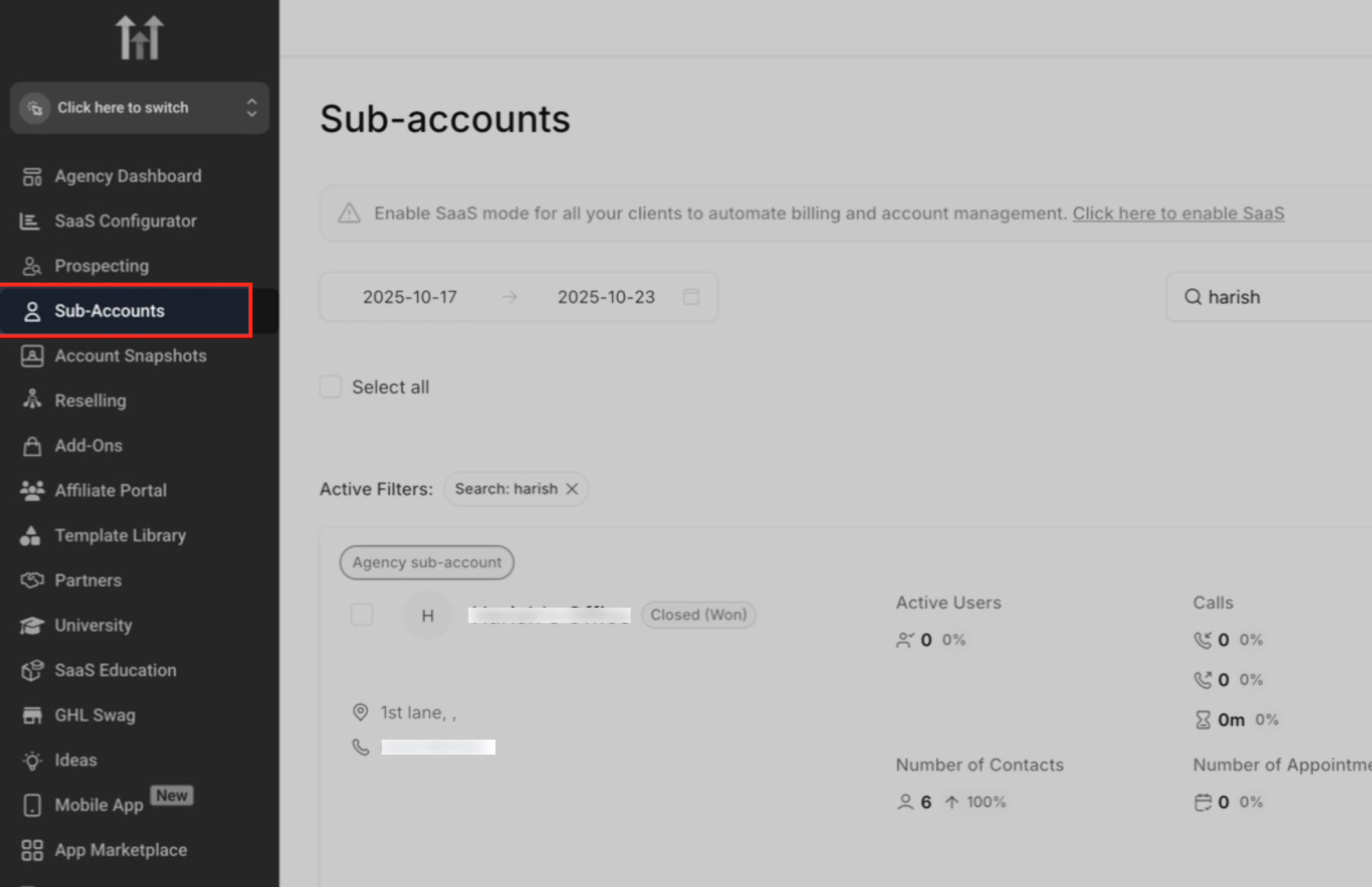
- Navigate to Account Snapshots.
- Click Create New Snapshot.
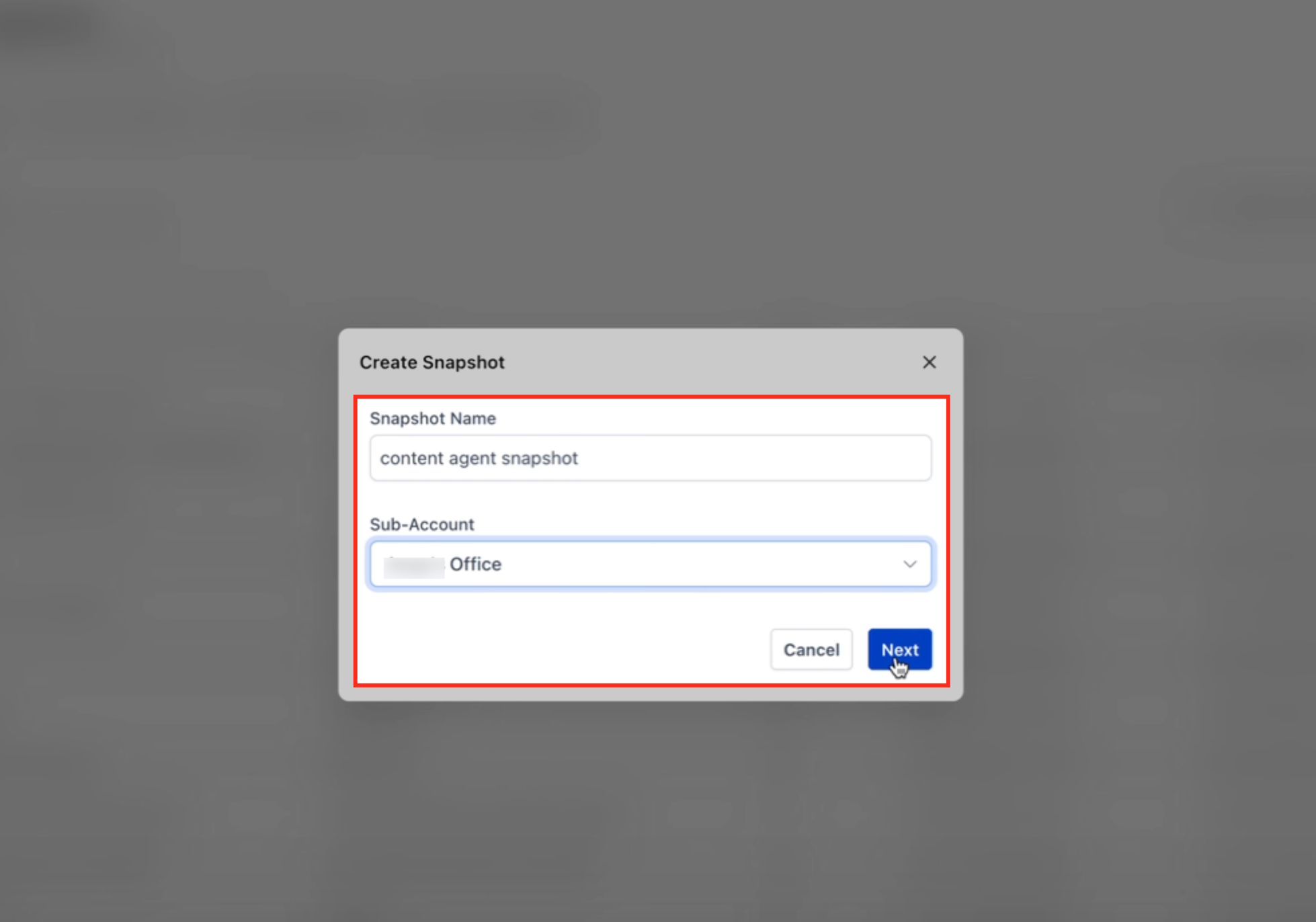
- Enter a name for the snapshot.
- Select the subaccount that holds the agent.
- Click Next.
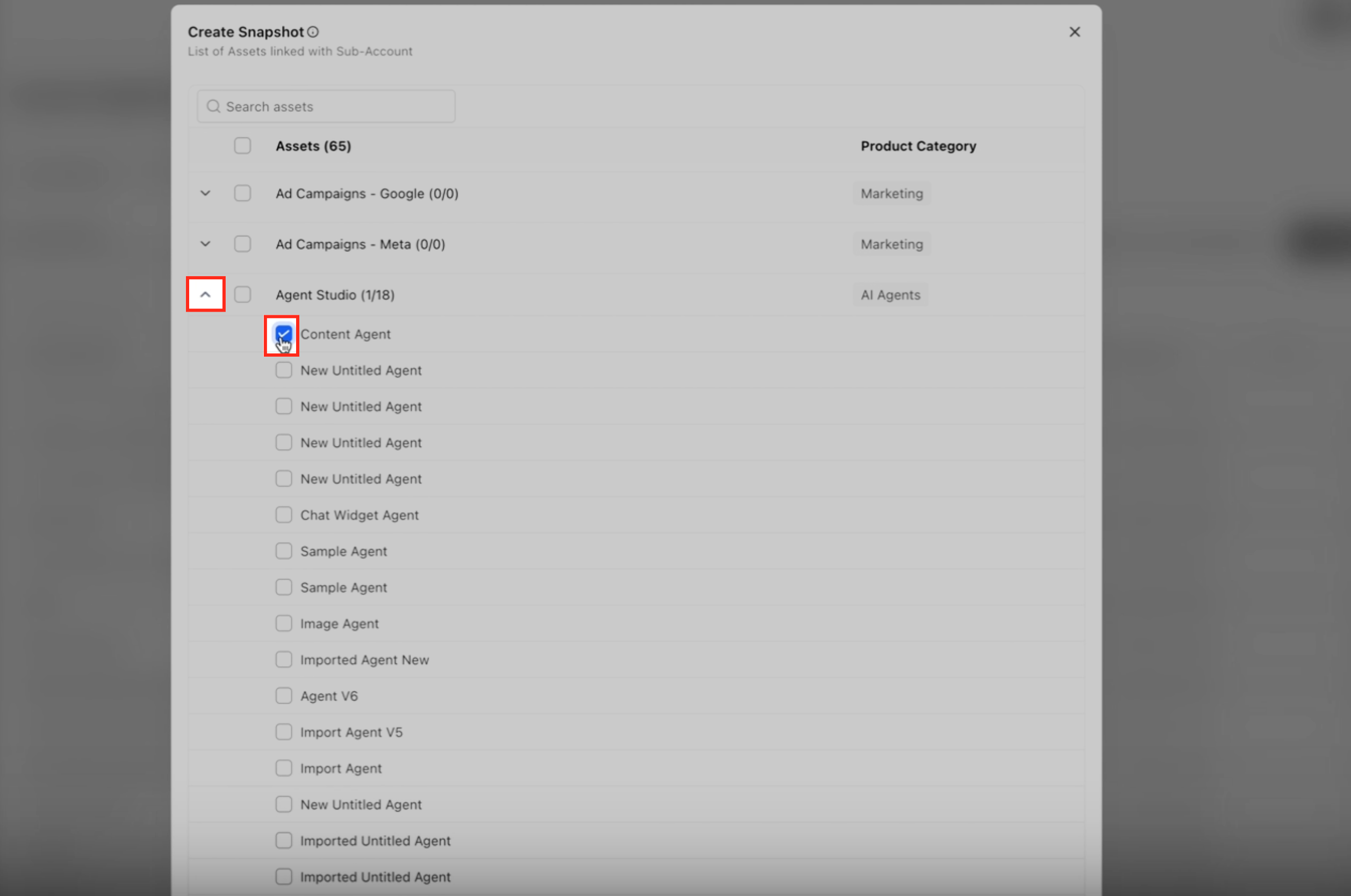
- Expand the Agent Studio category.
- Choose the agent or agents to include.
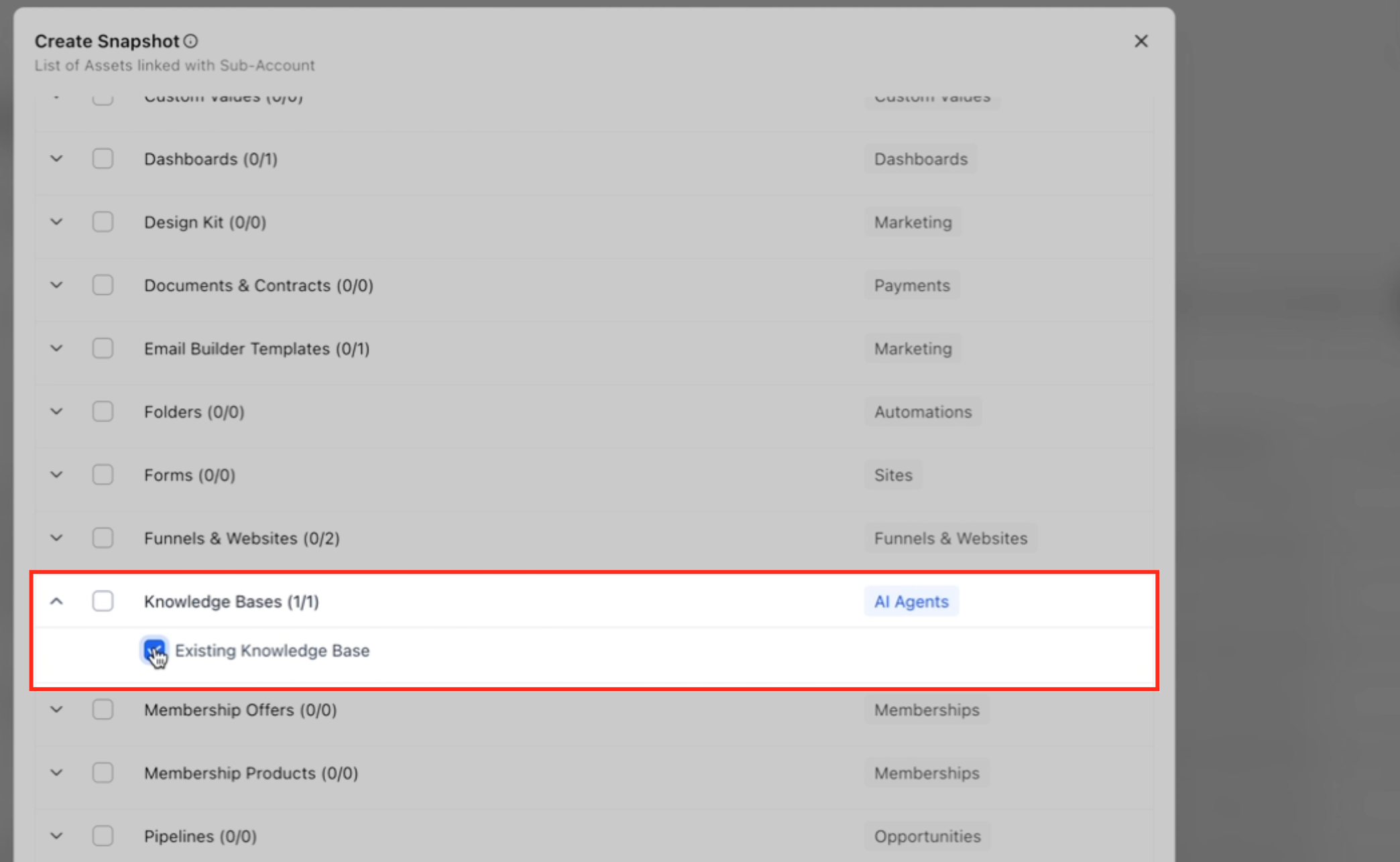
- Select any supporting assets such as knowledge bases, workflows or custom values.
- Click the Create tab at the bottom right.
Load a snapshot into a single subaccount
- Go to Agency View > Subaccounts.
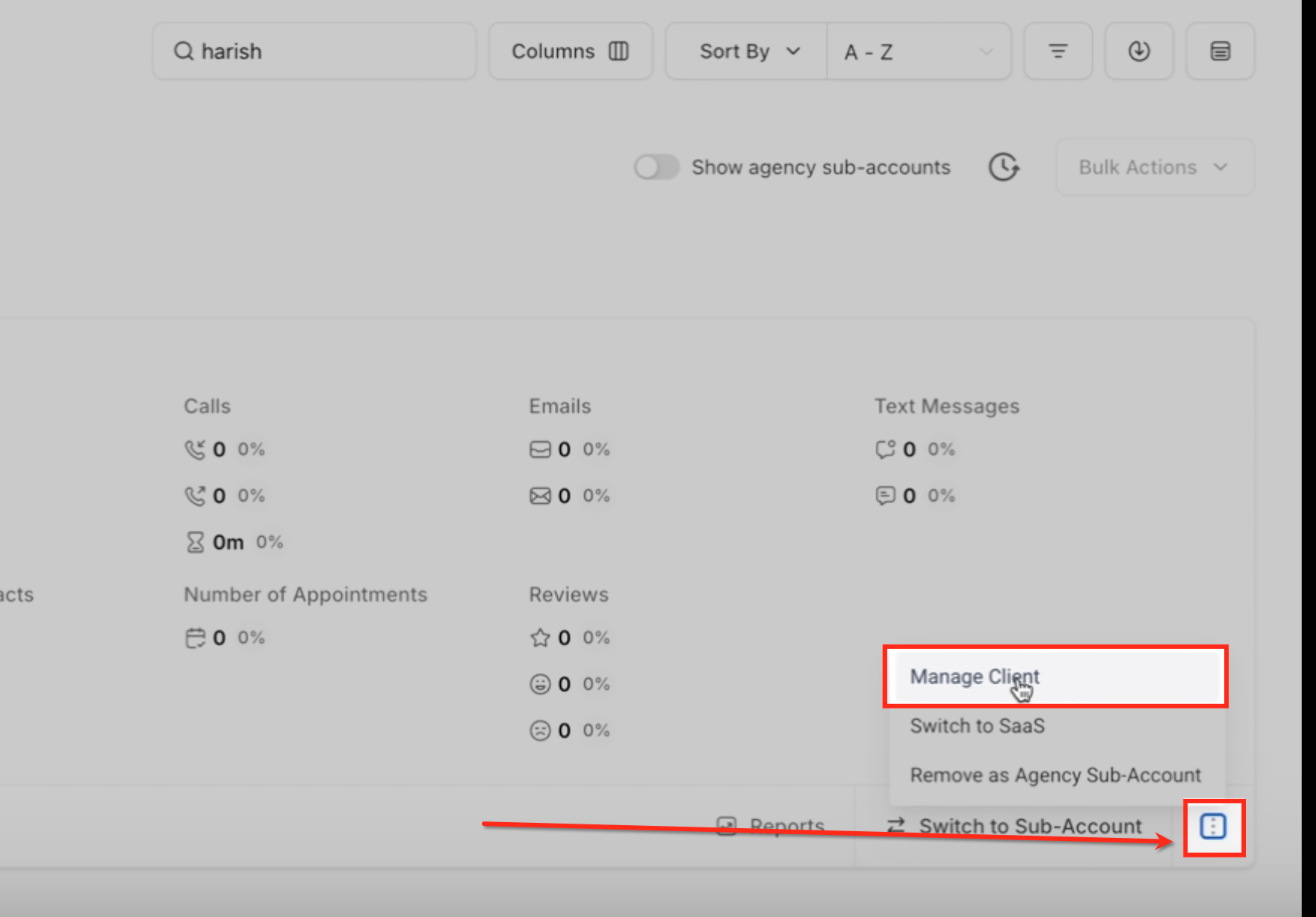
- Open the three dot menu beside the target account and choose Manage Client.
- Select Actions > Load Snapshot.
- Pick the desired snapshot from the list.
- Select the Agent Studio category or choose Select All.
- Confirm the import.
Push a snapshot to multiple subaccounts
- Open Account Snapshots.
- Select the snapshot you want to distribute.
- Click Push Snapshot.
- Choose the subaccounts that will receive the snapshot.
- Select the assets you wish to push.
- Proceed through the conflict check and confirm.
Refresh a snapshot version
- Return to Account Snapshots.
- Select the snapshot that needs updating.
- Click Refresh.
- The system rebuilds the snapshot with the latest agent configuration and creates a new version.
Share or sell a snapshot
- Open Account Snapshots.
- Click the three dot menu on the desired snapshot.
- Choose Share Snapshot.
- Generate a share link or create a Marketplace listing.
07What it looks like in HighLevel
08Settings that matter
- Create Snapshots. Controls whether a user can package agents and assets into an Account Snapshot.
- Share/Import Snapshots. Controls whether a user can load snapshots into other accounts or share them externally.
09Things to know before you rely on it
- Snapshots do not include contacts, conversation history, messages or live data.
- If a knowledge base is not selected during creation, the agent may load without its reference material.
- When an asset with the same name exists in the target account, a conflict prompt appears and must be resolved.
- Marketplace distribution requires a SaaS plan.
10If something goes wrong
- Agent loads without its knowledge base. Select the required knowledge base when creating the snapshot.
- Loading a snapshot overwrites an existing agent. Resolve the conflict prompt by choosing to keep both copies or overwrite as needed.
11How it connects to the rest of HighLevel
- Managing existing flow agents in HighLevel Agent Studio Manage flow agents
- Create, test and publish flow agents in HighLevel Agent Studio Setup flow agents
- Set up and Use Managed Agents in Agent Studio Managed agents
- HighLevel pricing and plans Pricing
- Start a 30 day HighLevel trial Free trial
Michael's take

Agent Studio snapshots are a quick way for a small agency to copy a high performing AI bot into every client account without rebuilding it each time, turning a one off effort into a repeatable product.
Skipping the asset selection screen can leave a bot without its Knowledge Base, rendering it useless.