
01Who this is for
- Marketing agencies that build client sites, because they can match the widget to each brand's style.
- Small business owners who want a single chat solution that works with HighLevel contacts and conversations.
02Chat widgets, explained
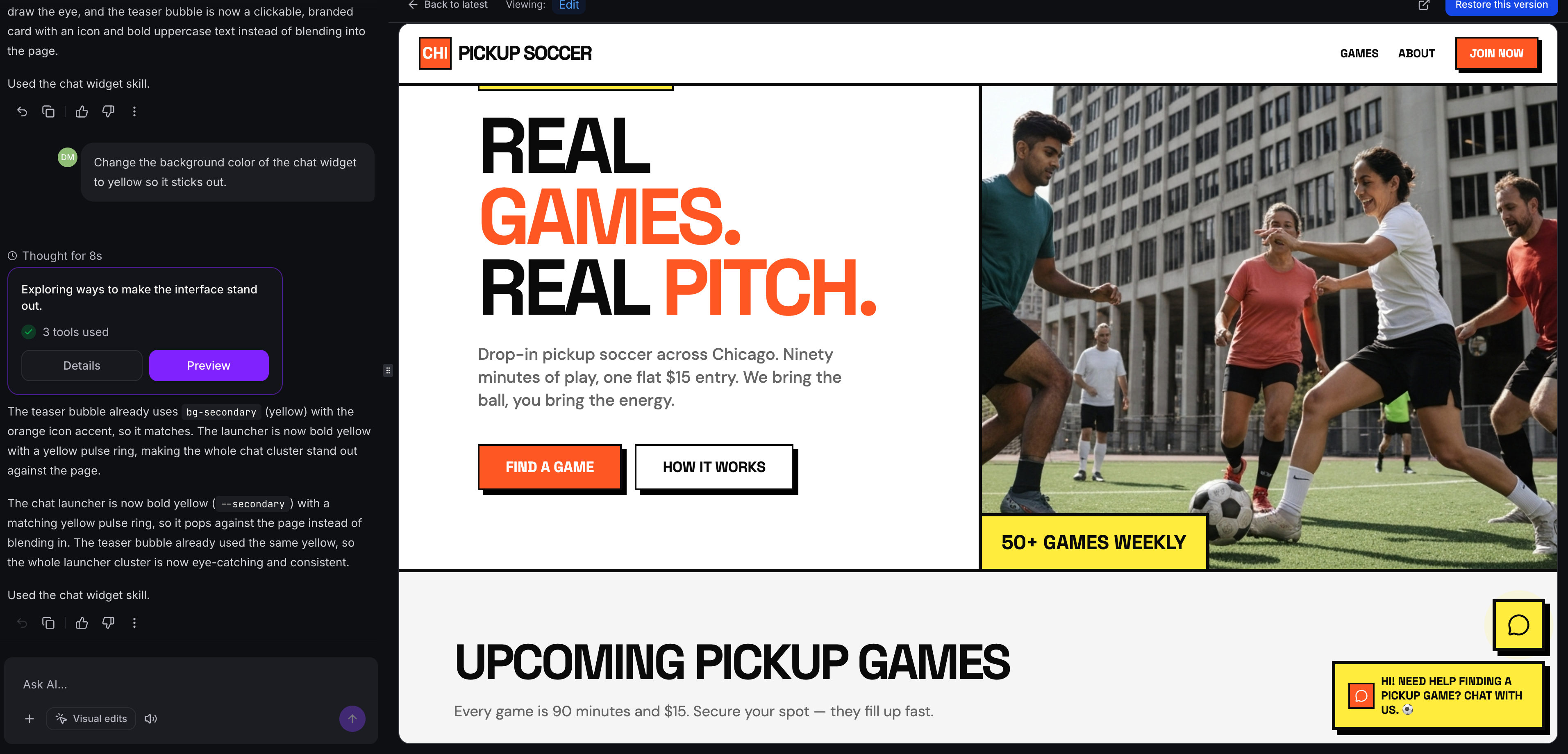
Chat widgets in AI Studio produce a visual chat window that feels like part of your website. The widget uses HighLevel's messaging backend, so conversations appear in the Conversations area and respect existing chat settings such as business hours and spam protection.
The widget is generated inside the AI Studio project's code, but it is listed under Sites > Chat Widgets in the HighLevel account. You can edit the widget through AI prompts or by changing the code directly. Multiple widgets can exist in one project for different pages or visitor experiences.
All supported chat types are Live Chat and SMS/Email Chat. The widget supports standard features like conversation history, file attachments, delivery status, and returning visitor continuity.
03How businesses use chat widgets
- Real estate agency. The agency asks AI Studio to add a chat widget that reflects its branding, then selects Live Chat. Visitors can start a conversation about property listings, and the leads appear in HighLevel contacts for follow up.
- Online fitness coaching service. The coach requests a widget that greets visitors with a friendly tone and places it on the homepage. When a prospect messages, the chat appears in Conversations, allowing the coach to schedule sessions using HighLevel's calendar integration.
- SaaS startup. The startup creates a widget that collects an email address before chatting. Using the Contact Form settings, the widget captures visitor details, which then populate the startup's HighLevel lead database.
04The numbers and rules that matter
- Unsupported chat types: Voice Chat, WhatsApp, Facebook Messenger, Instagram chat widgets.
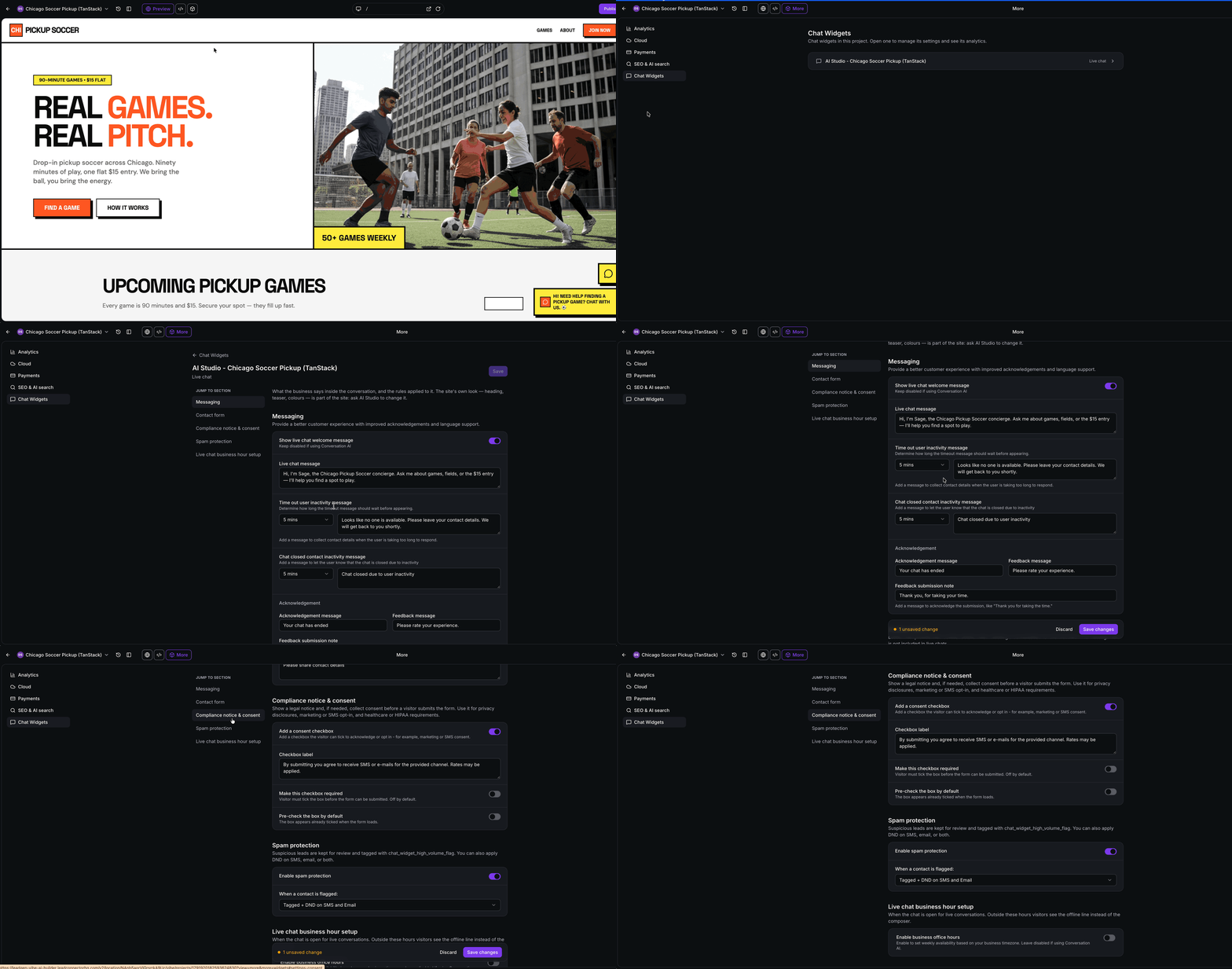
- Chat widget settings include Messaging, Contact Form, Compliance Notice & Consent, Spam Protection, Live Chat Business Hours.
05How to set up and use chat widgets in HighLevel
Add a chat widget in AI Studio
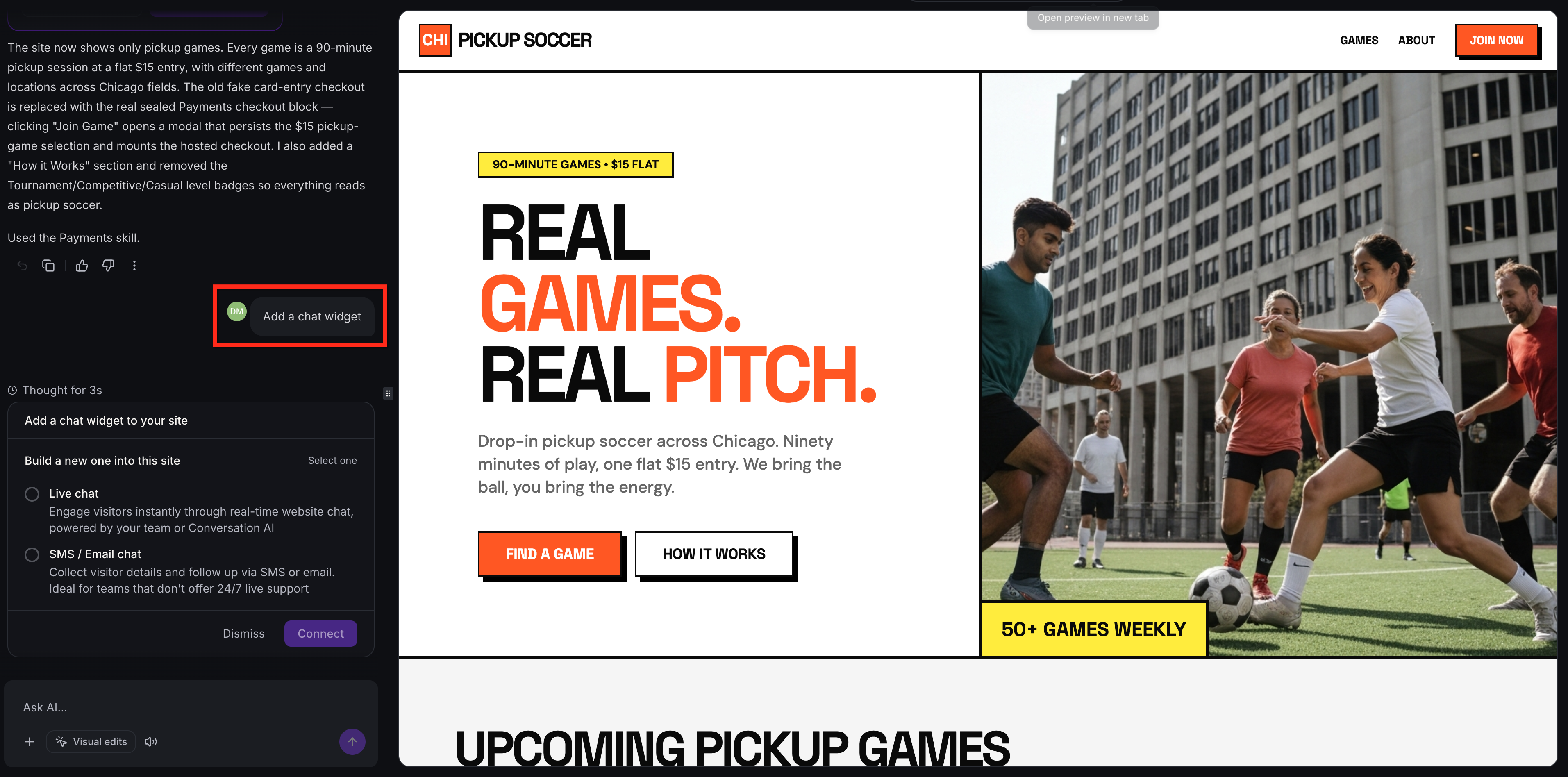
- In the AI Studio project, type a prompt such as “Add a chat widget to my website.”
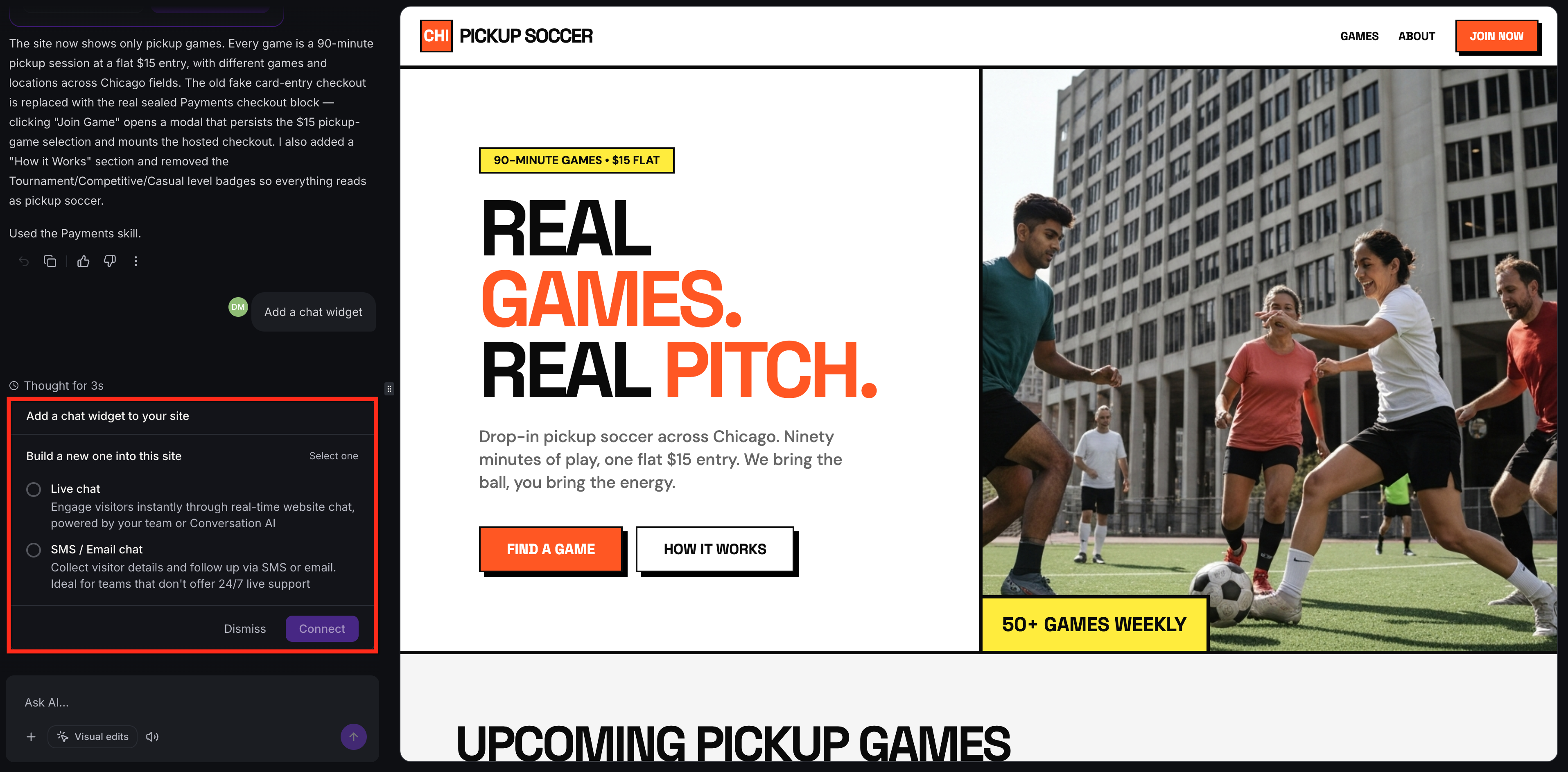
- Select the chat type you prefer and click the Connect button.
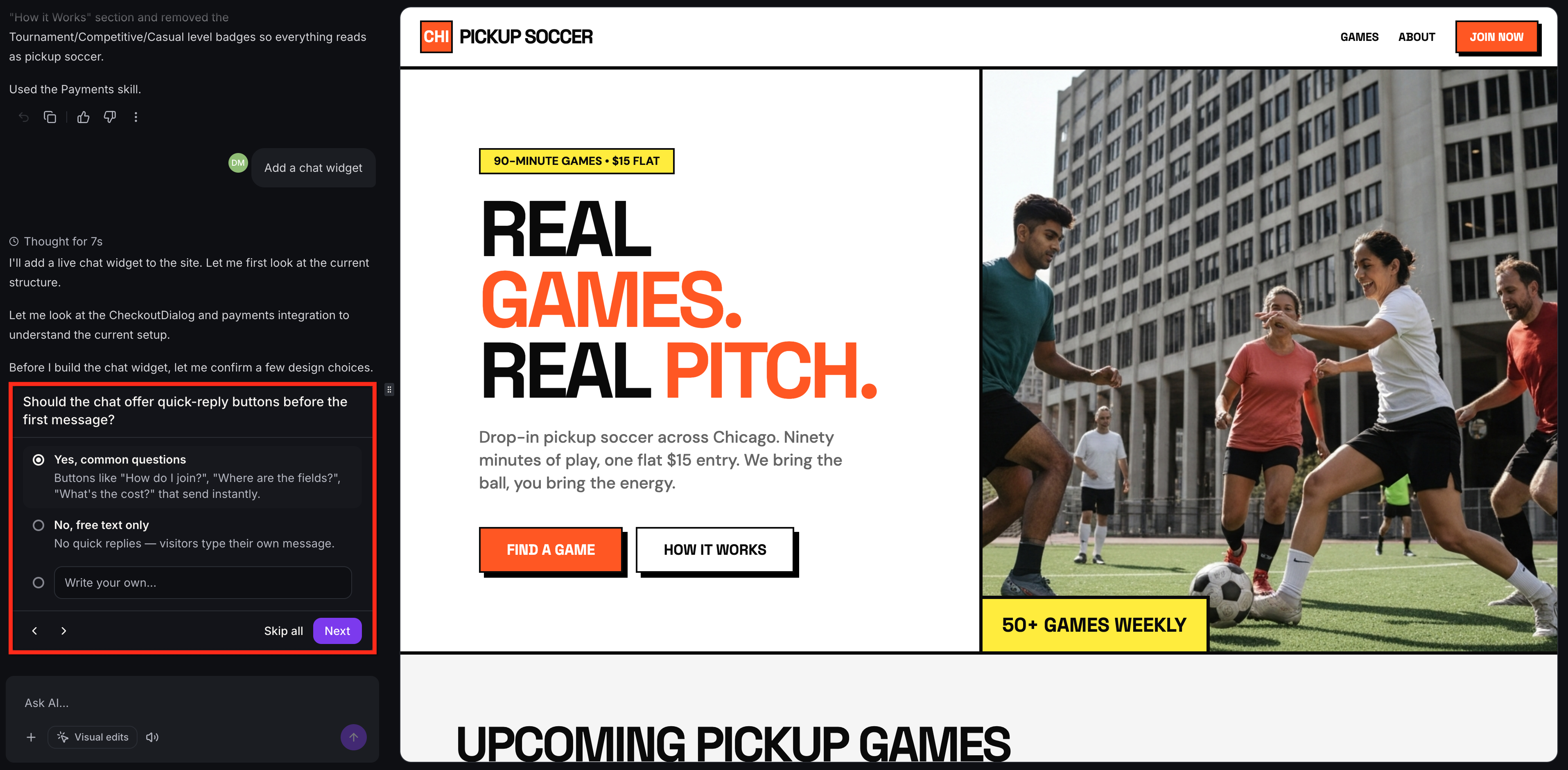
- Answer the design questions that AI Studio asks to set the greeting, placement and tone.
- If no widget exists yet, click Add a chat widget on the Chat Widgets page to have AI Studio create one.
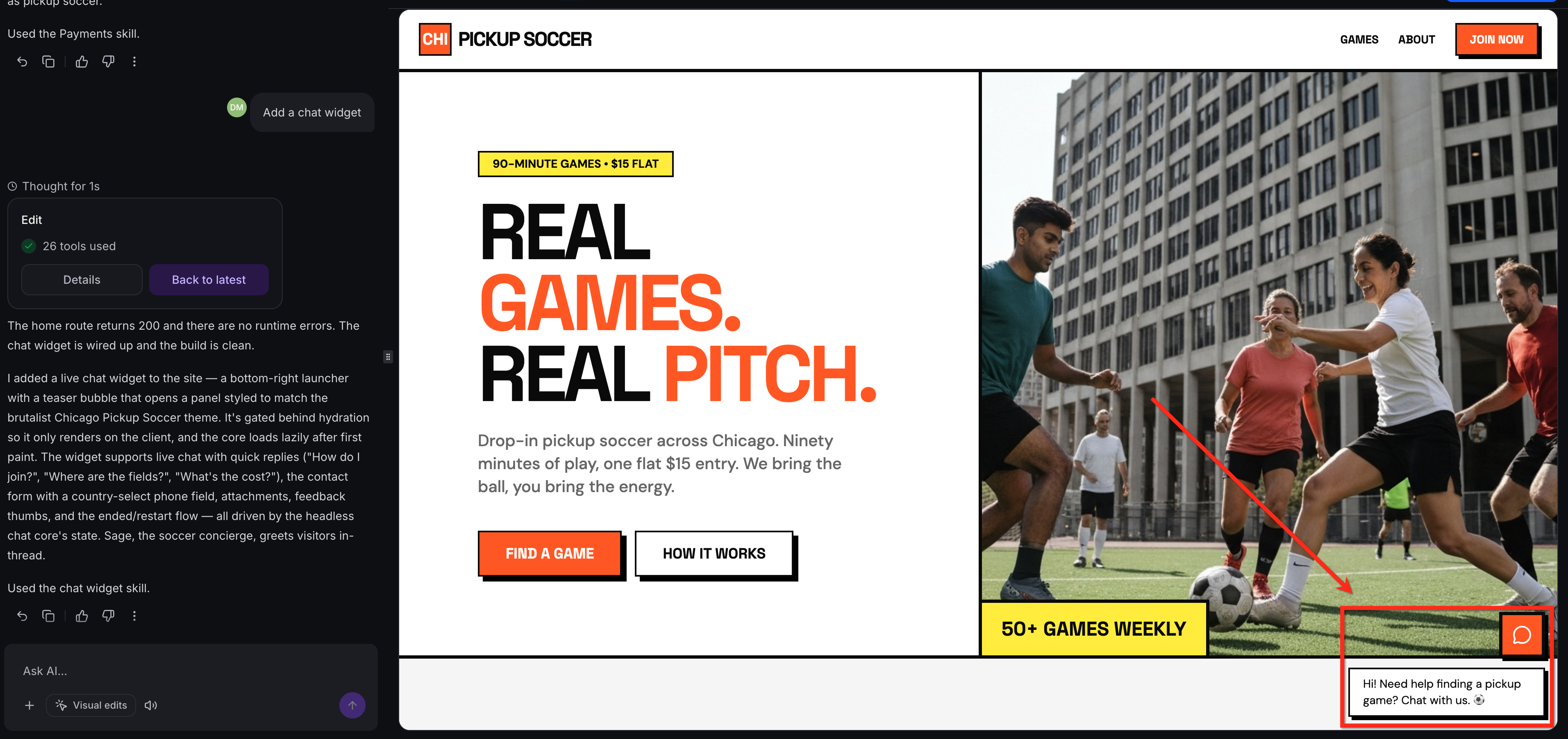
- Let AI Studio finish; it creates a widget named after the project and attaches it to the application.
- Open the application preview to see how the widget looks and interacts with visitors.
- To alter the widget later, ask AI Studio for an update or edit the generated code directly.
06What it looks like in HighLevel
07Settings that matter
- Messaging. Controls welcome text, inactivity timeouts, end of chat messages, acknowledgements and feedback prompts.
- Contact Form. Determines which visitor details must be entered before a conversation can start.
- Compliance Notice & Consent. Sets legal notices and consent options for privacy, marketing, SMS and applicable HIPAA requirements.
- Spam Protection. Manages how suspicious leads are handled, tagging options and optional Do Not Disturb restrictions.
- Live Chat Business Hours. Defines the hours your team is available and the message shown to visitors outside those times.
08Things to know before you rely on it
- Only Live Chat and SMS / Email Chat are supported; Voice Chat, WhatsApp, Facebook Messenger and Instagram are not available.
- Each widget created appears under Sites > Chat Widgets in the HighLevel account alongside other widgets.
09How it connects to the rest of HighLevel
- Chat widgets use the same Conversations area as standard Live Chat. Conversations integration
- Widget analytics are displayed in the AI Studio Analytics section. Analytics dashboard
- Pricing and usage limits for AI Studio affect how many widgets you can create. AI Studio pricing
Michael's take

Businesses often struggle with chat tools that feel tacked on and clash with their look. AI Studio chat widgets let you design a live chat that blends with your brand while still using HighLevel’s reliable messaging backend.
The first setting I’d get right is the welcome message and tone, because that’s the first impression visitors get. Getting the language and timing spot on makes the widget feel like a natural extension of your site.