
01Who this is for
- Founders building AI agents need fast ways to reuse proven logic blocks without rebuilding them.
- Product managers overseeing multiple Agent Studio flows benefit from bulk delete to keep graphs tidy.
- Developers testing variations of a workflow can duplicate sections quickly to experiment with alternative paths.
02Graph builder copy, paste, and bulk delete, explained
The feature lives inside the Graph Builder canvas of HighLevel Agent Studio. It adds copy, paste and bulk delete actions that work on any selected node or group of nodes. When you copy nodes, the selection is stored in the clipboard. Pasting creates new nodes with fresh IDs, preserving the connections among the copied nodes and offsetting the placement so the duplicates are easy to spot. Bulk delete removes every node you have selected in a single operation.
These actions are triggered via keyboard shortcuts (Ctrl + C / Cmd + C for copy, Ctrl + V / Cmd + V for paste) or the delete shortcut provided by the canvas. The tools work only within the current Graph Builder view and do not clone an entire agent; for full agent replication you should use snapshots instead.
03How businesses use graph builder copy, paste, and bulk delete
- SaaS startup. The team selects a group of nodes that handle user onboarding, copies them, and pastes the duplicate into a test version of the same flow. They then tweak the settings of the new nodes to trial a different onboarding approach.
- Online education platform. Course creators copy a quiz logic block from one agent and paste it into another agent that runs a different course, preserving the internal connections so the quiz works without rebuilding each question node.
- Customer support center. Support managers bulk delete outdated escalation branches from multiple agent graphs, cleaning up the canvas with a single delete action instead of removing each node individually.
04Before you start
- User must have access to Agent Studio and permission to edit the agent.
- The action must be performed inside the Graph Builder canvas.
05How to set up and use graph builder copy, paste, and bulk delete in HighLevel
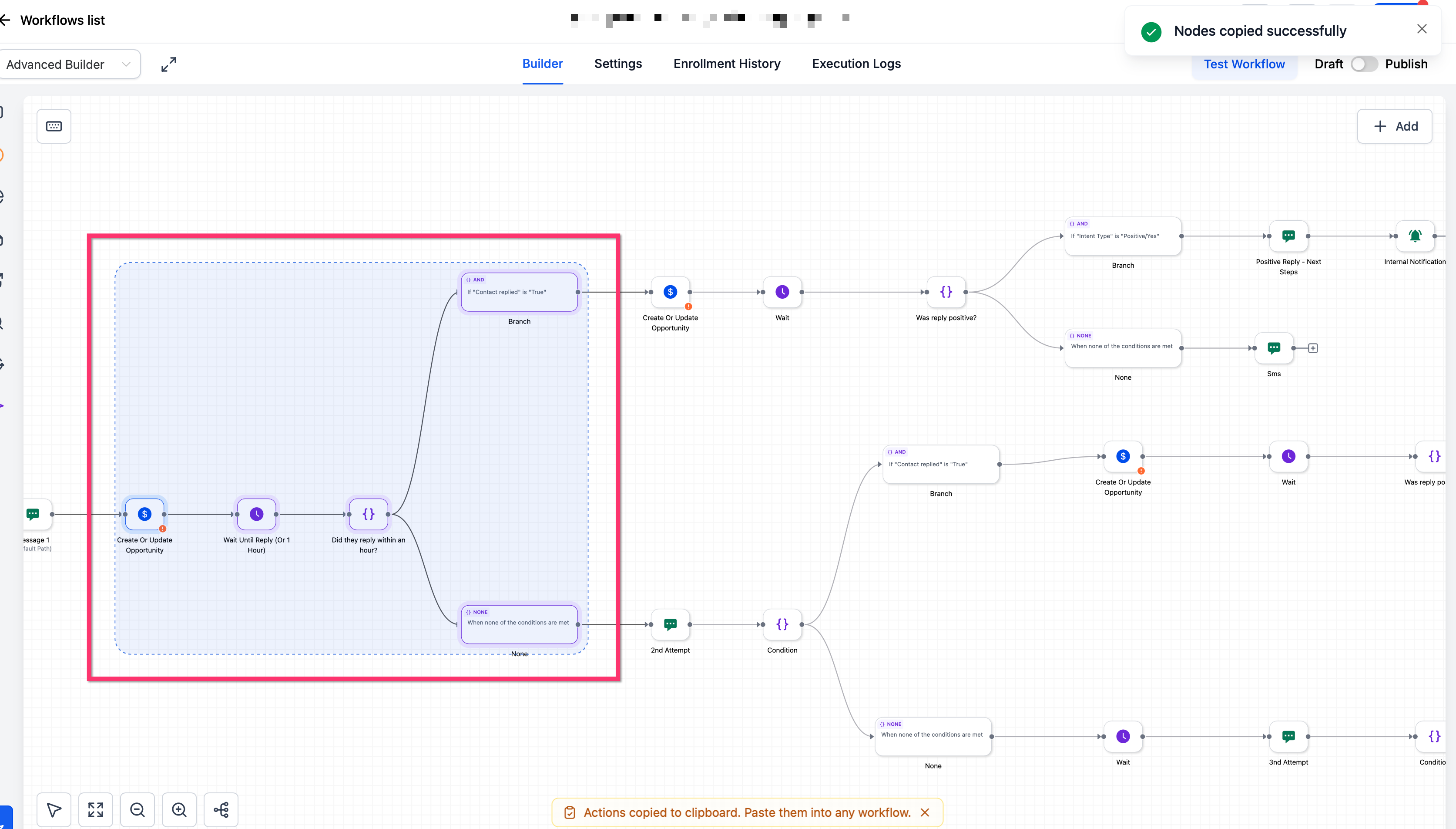
Copy one or more nodes
- Open the desired graph in Agent Studio.
- Select the node or group of nodes you want to duplicate on the canvas.
- Press the copy shortcut (Ctrl + C on Windows or Cmd + C on Mac).
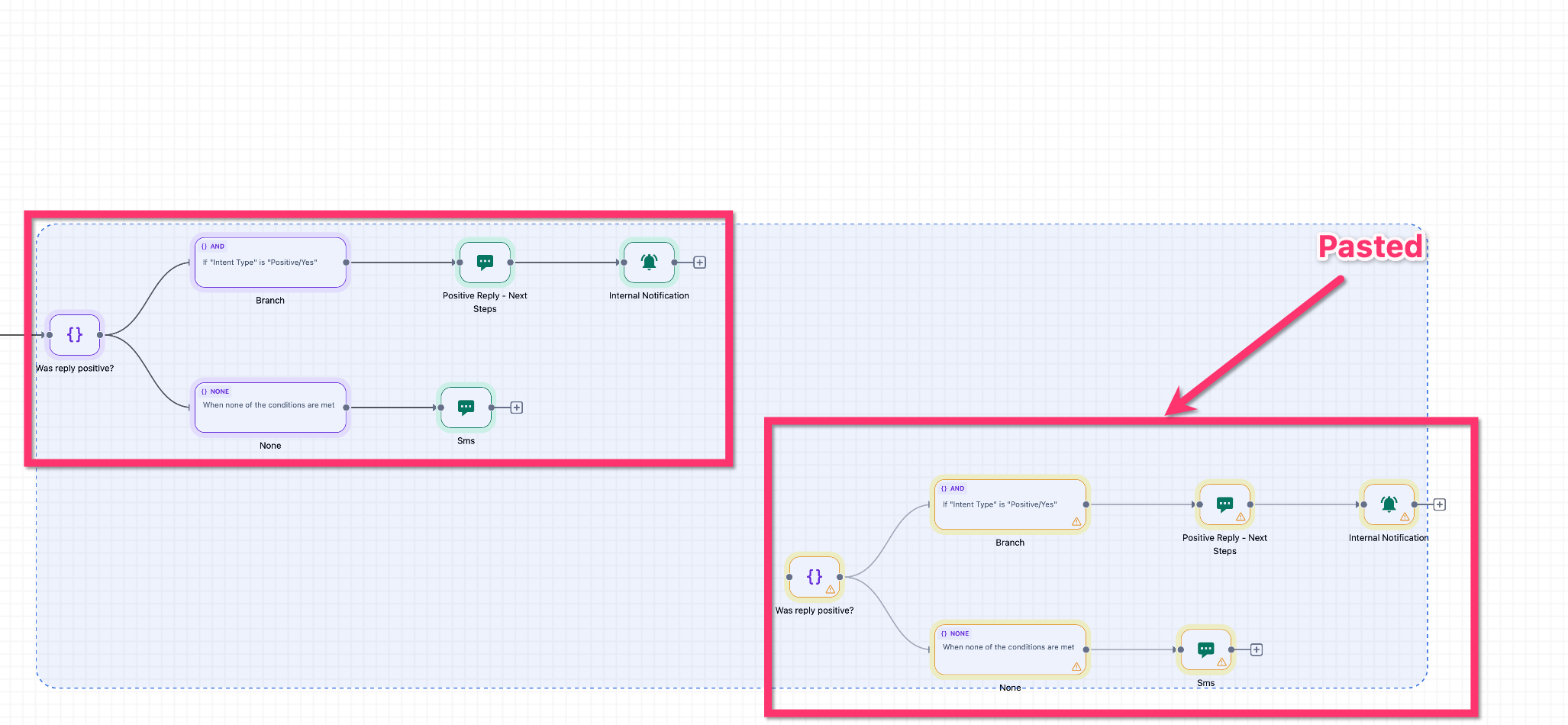
Paste copied nodes into the same graph
- Remain on the current canvas after copying.
- Press the paste shortcut (Ctrl + V on Windows or Cmd + V on Mac).
- Check that the newly pasted nodes appear with a slight offset from the originals.
- Verify that any internal connections between the pasted nodes are rebuilt correctly.
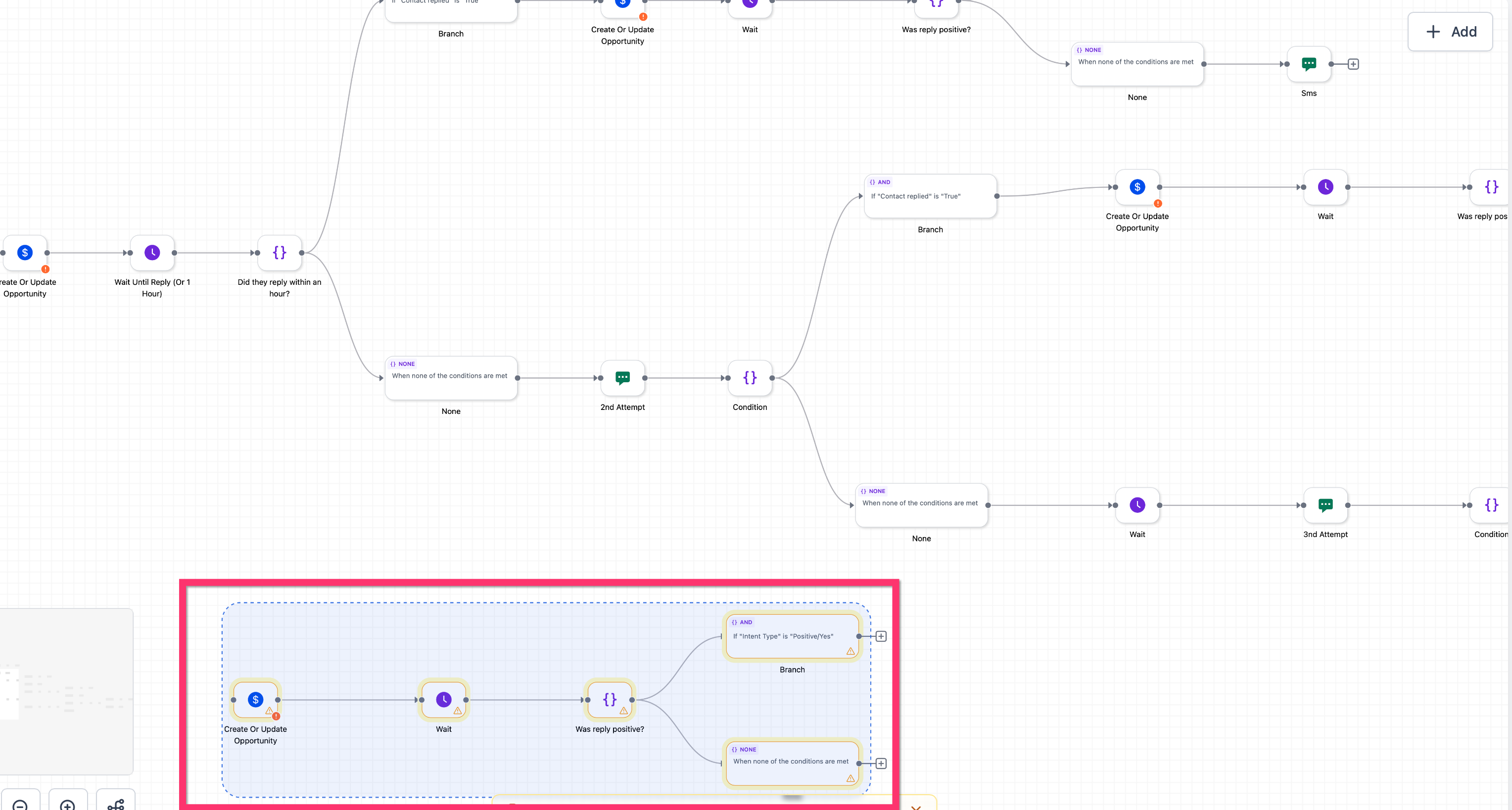
Paste copied nodes into another Agent Studio tab
- Open the destination Agent Studio tab where the nodes should be placed.
- Click into the canvas of that tab to focus it.
- Use the paste shortcut (Ctrl + V on Windows or Cmd + V on Mac) to insert the nodes.
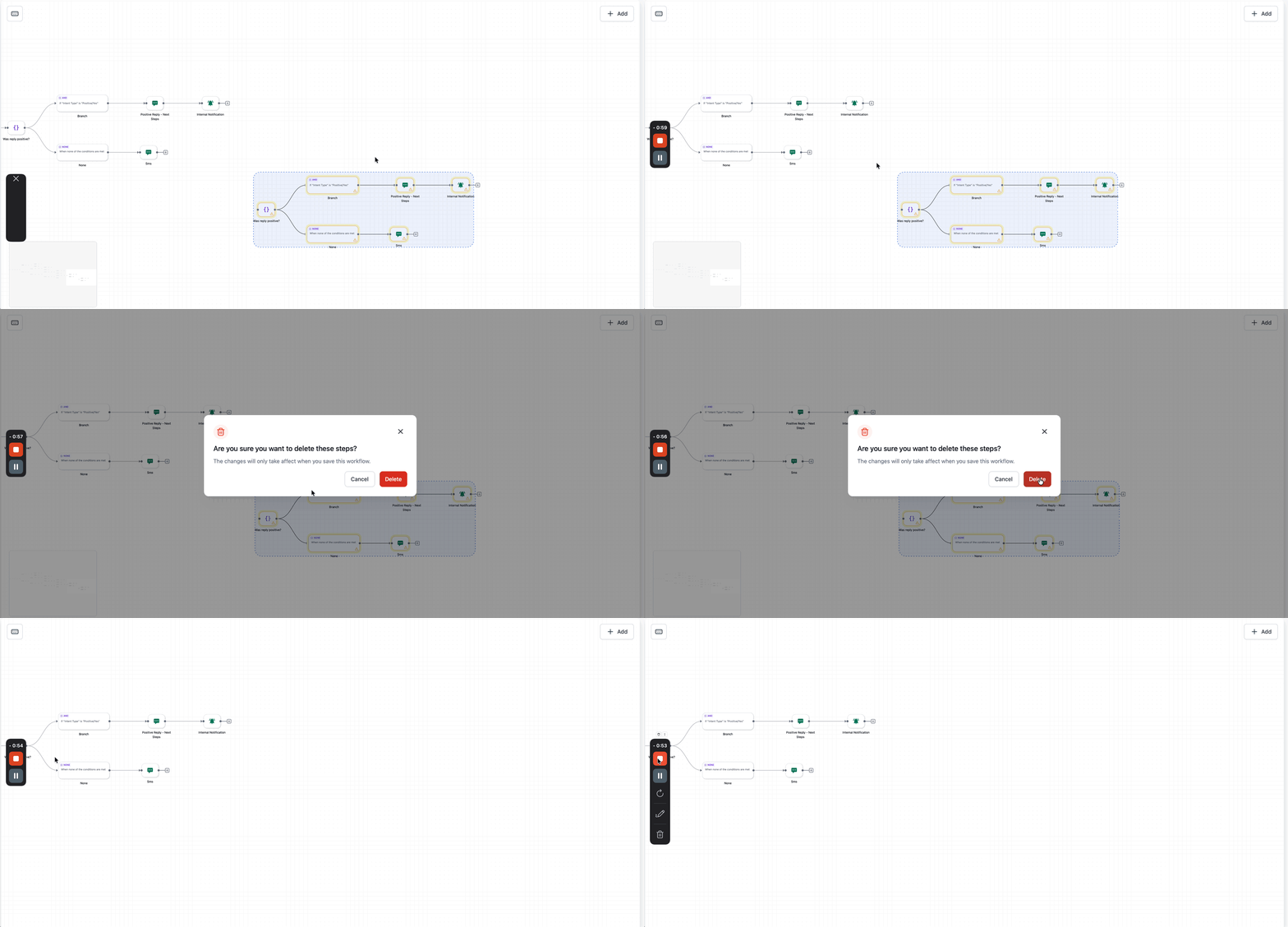
Bulk delete selected nodes
- Select one or more nodes you want to remove on the Graph Builder canvas.
- Use the delete shortcut provided by Graph Builder for your device.
- Confirm that the selected nodes disappear from the graph.
Review before publishing
- After pasting, examine the new nodes to ensure they are positioned correctly and connections are as expected.
- Make any required adjustments to node settings or paths.
- Save and publish the updated graph only after confirming it works as intended.
06What it looks like in HighLevel
07Settings that matter
- Copy selected node or nodes. Defines the keyboard shortcut that copies the currently highlighted node(s) to the clipboard.
- Paste copied node or nodes. Specifies the shortcut that creates new nodes from the clipboard contents, assigning fresh IDs and preserving internal links.
- Bulk delete selected node or nodes. Sets the shortcut used to remove all highlighted nodes from the graph in a single operation.
08Things to know before you rely on it
- The tools work only inside the Graph Builder canvas; they cannot clone an entire agent.
- Connections to nodes outside the copied selection are not automatically preserved and may need manual reconnection.
- Pasted nodes are given new unique IDs to avoid conflicts with the originals.
- Pasted nodes are offset to prevent overlapping the source nodes.
09How it connects to the rest of HighLevel
- Manage existing flow agents and their graphs in Agent Studio. Manage flow agents
- Learn how to create, test, and publish flow agents in Agent Studio. Create and publish agents
- Set up and use managed agents for more advanced workflow control. Managed agents
Michael's take

Copying and pasting nodes in Agent Studio can be a convenient way to move a whole logic block into another flow while keeping the internal wiring intact.
the first step would be to duplicate a proven path, tweak a few parameters, and then publish a test version. Before you roll it out, double check the new IDs and any external links, just to make sure nothing surprises you in production.