
01Who this is for
- Project owners who need full control over their AI Studio code for custom development.
- Collaborators who require a local copy to use external editors or version control tools.
- Agencies that must archive client projects or migrate them to separate hosting environments.
02Download codebases, explained
The feature creates a ZIP package containing every file that makes up your AI Studio project, HTML, CSS, JavaScript, assets and configuration files. You can request the package for the live version or select any point recorded in the project’s version history. The download option appears as a button in the Code view, as an option within Project Settings, and as an action in the Version History list. Selecting the button generates the archive and saves it to the browser’s default download folder.
03How businesses use download codebase
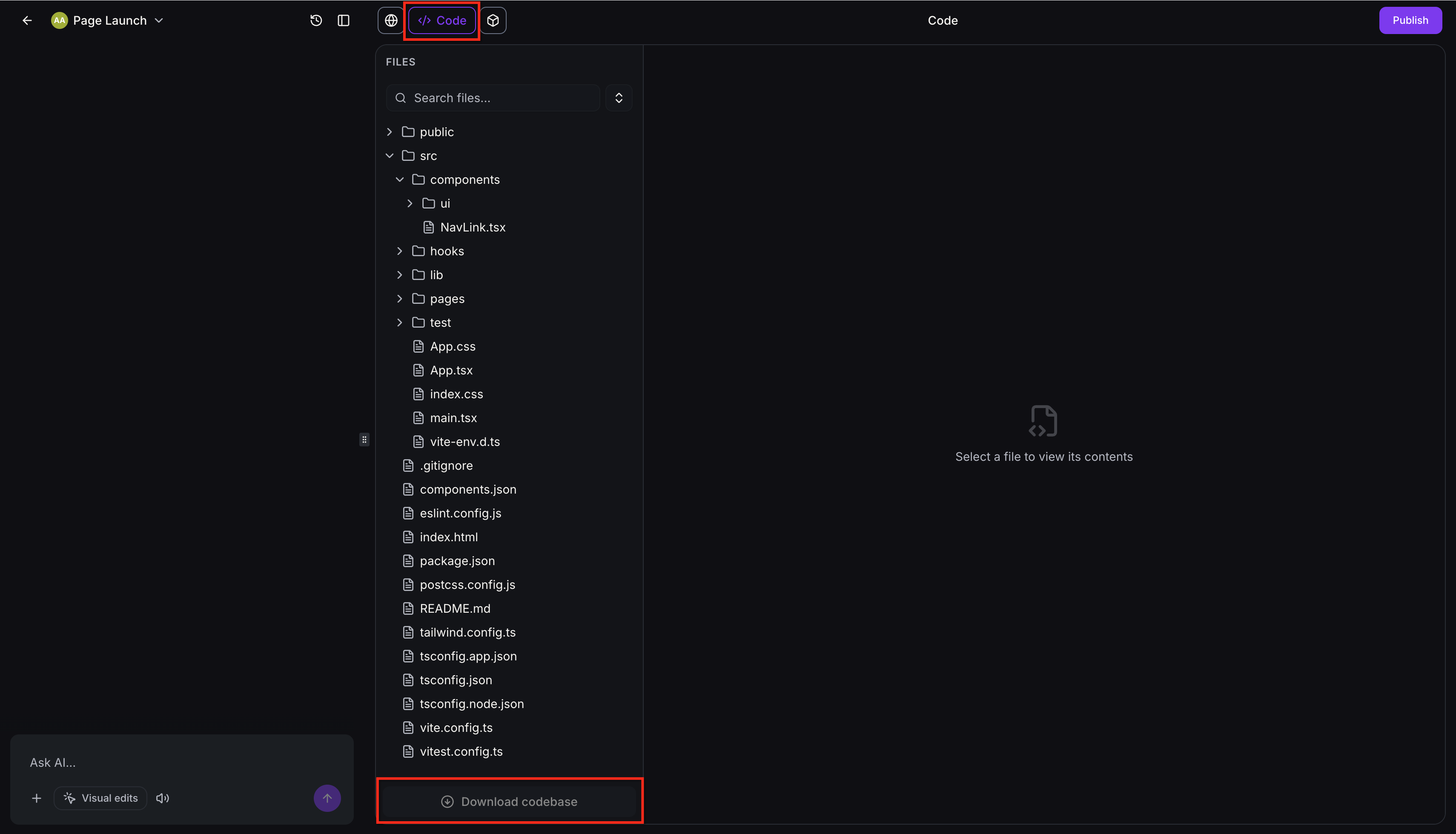
- Web design agency. The agency opens an AI Studio project, clicks the Code tab, scrolls down and presses the Download Codebase button. The resulting ZIP is stored locally for integration into the agency’s own deployment pipeline.
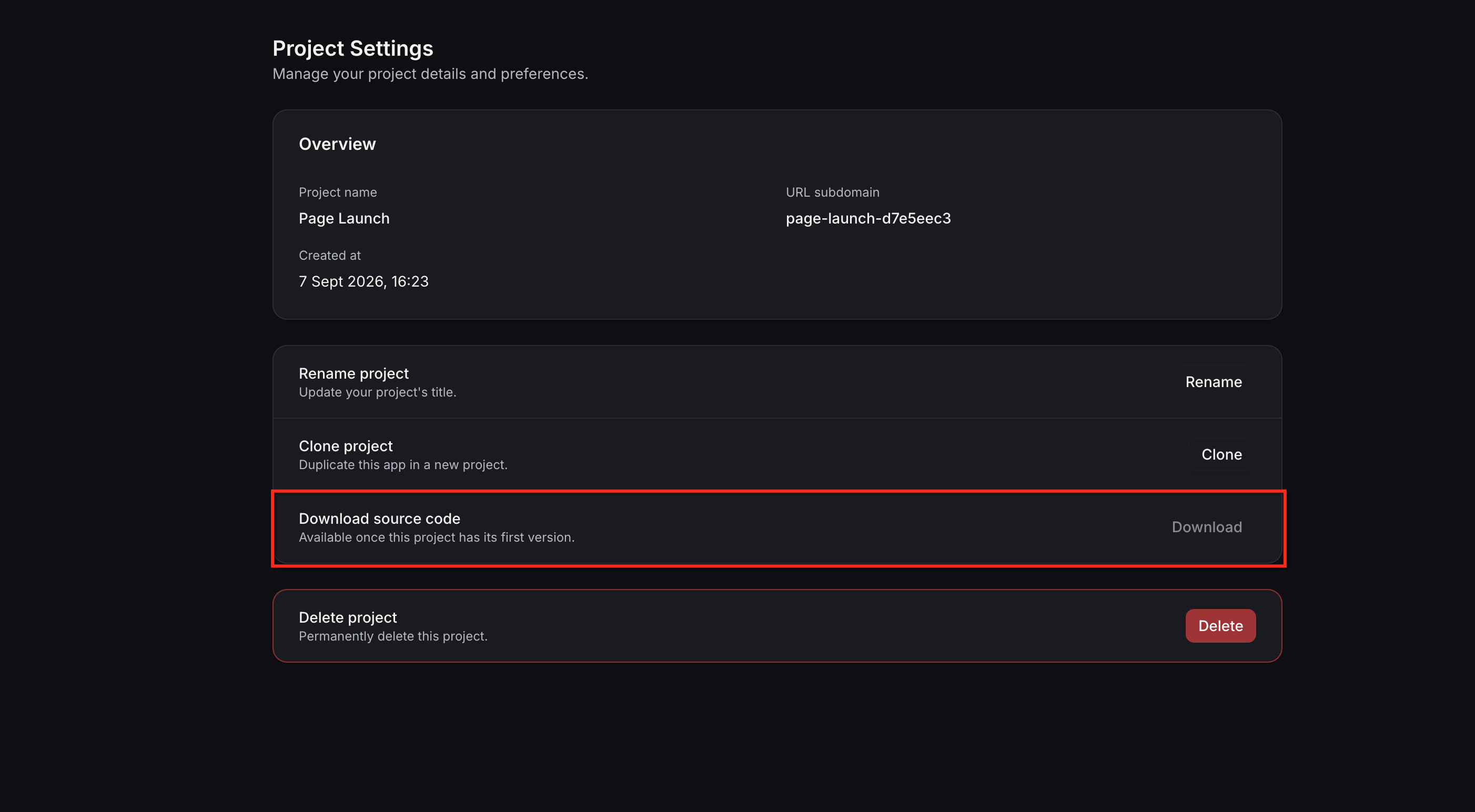
- SaaS startup. The startup navigates to Project Settings, finds the Download Codebase option and clicks it. The ZIP file is then uploaded to the startup’s cloud server where the code runs on their infrastructure.
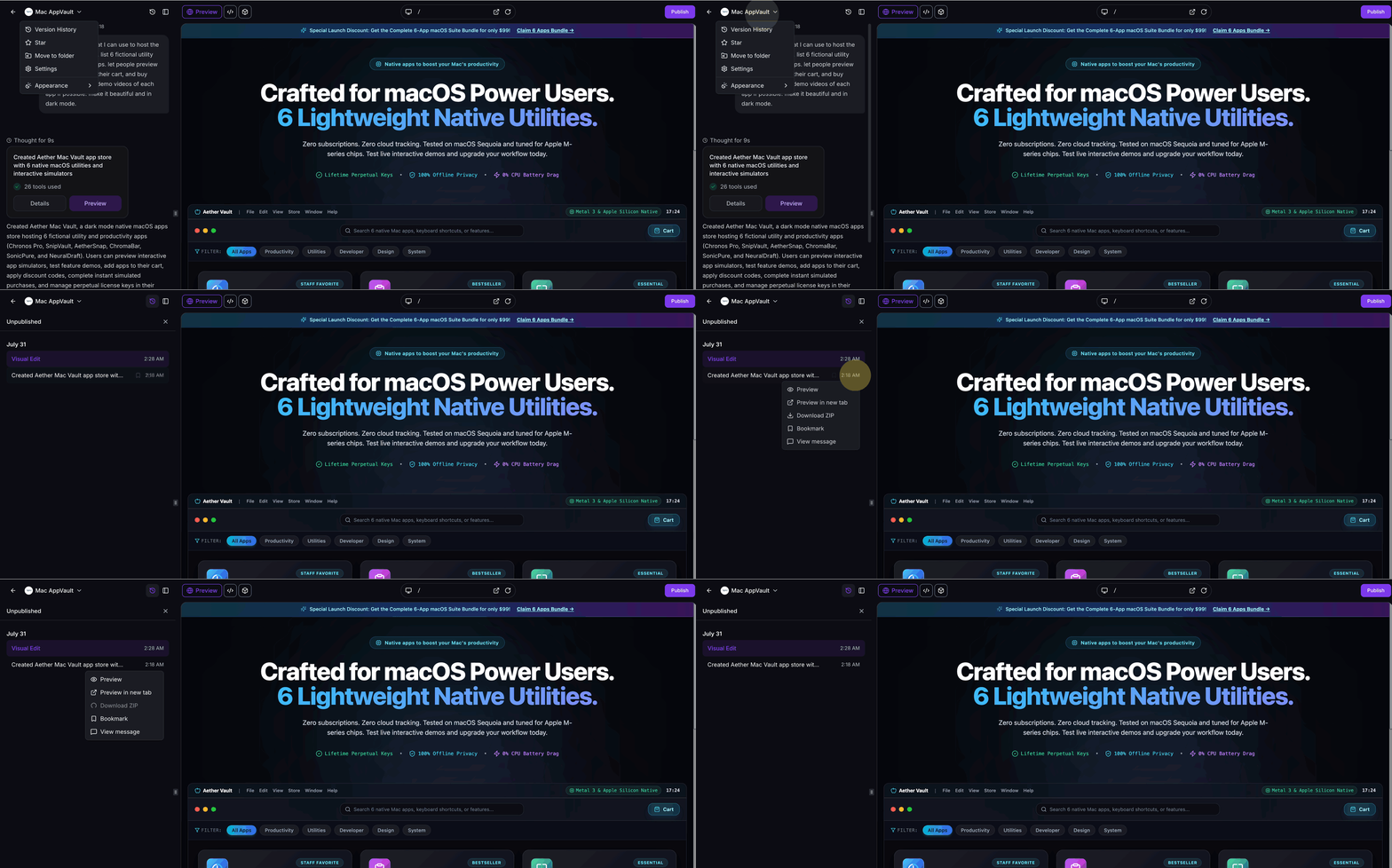
- Freelance developer. The developer opens Version History, selects a prior commit, uses the three dot menu to choose Download ZIP, and extracts the files to compare past implementations with the current build.
04Before you start
- You must be logged into an AI Studio project where you have sufficient access rights.
- The project should be open in the HighLevel interface before starting a download.
05How to set up and use download codebase in HighLevel
Download current version from the Code section
- Open the AI Studio project and click the Code entry in the top navigation bar.
- Scroll down until reaching the bottom of the code display area.
- Press the Download Codebase button to save the ZIP file to your computer.
Download current version from Project Settings
- Enter the Project Settings area of the AI Studio project.
- Locate the setting labeled Download Codebase.
- Click that button to receive a ZIP archive of the current code.
Download a previous version
- Open the Version History panel within the AI Studio project.
- Find the desired past version and click the three dot menu beside it.
- Select Download ZIP to obtain a separate archive of that version’s code.
06What it looks like in HighLevel
07Settings that matter
- Download Codebase. Triggers the creation of a ZIP file that contains the complete set of project files for the selected version.
08Things to know before you rely on it
- There is no explicit file size cap, but larger projects may need more time to prepare the archive.
- Only users with appropriate project permissions can use the download feature.
- You may download any number of versions that appear in the Version History.
09How it connects to the rest of HighLevel
- Learn how to edit code directly in AI Studio Code editor guide
- Set up custom domains and publishing for AI Studio projects Custom domains guide
- Understand AI Studio pricing and usage tiers Pricing overview
Michael's take

Exporting the code can be useful when you need to hand off work to an external development team, keep a reliable backup, or run your AI Studio app on your own servers.
If you are only using AI Studio for simple internal prototypes and have no plan to host or edit the code outside the platform, the extra step of exporting isn’t worth the effort.