
01Who this is for
- Founders building SaaS products need a quick backend for user data and file uploads, eliminating external server setup.
- Product managers creating internal tools benefit from built in authentication and storage to keep data within the platform.
- Marketing agencies developing client portals can rely on Cloud to manage client records and media without extra infrastructure.
02AI Studio Cloud backend, explained
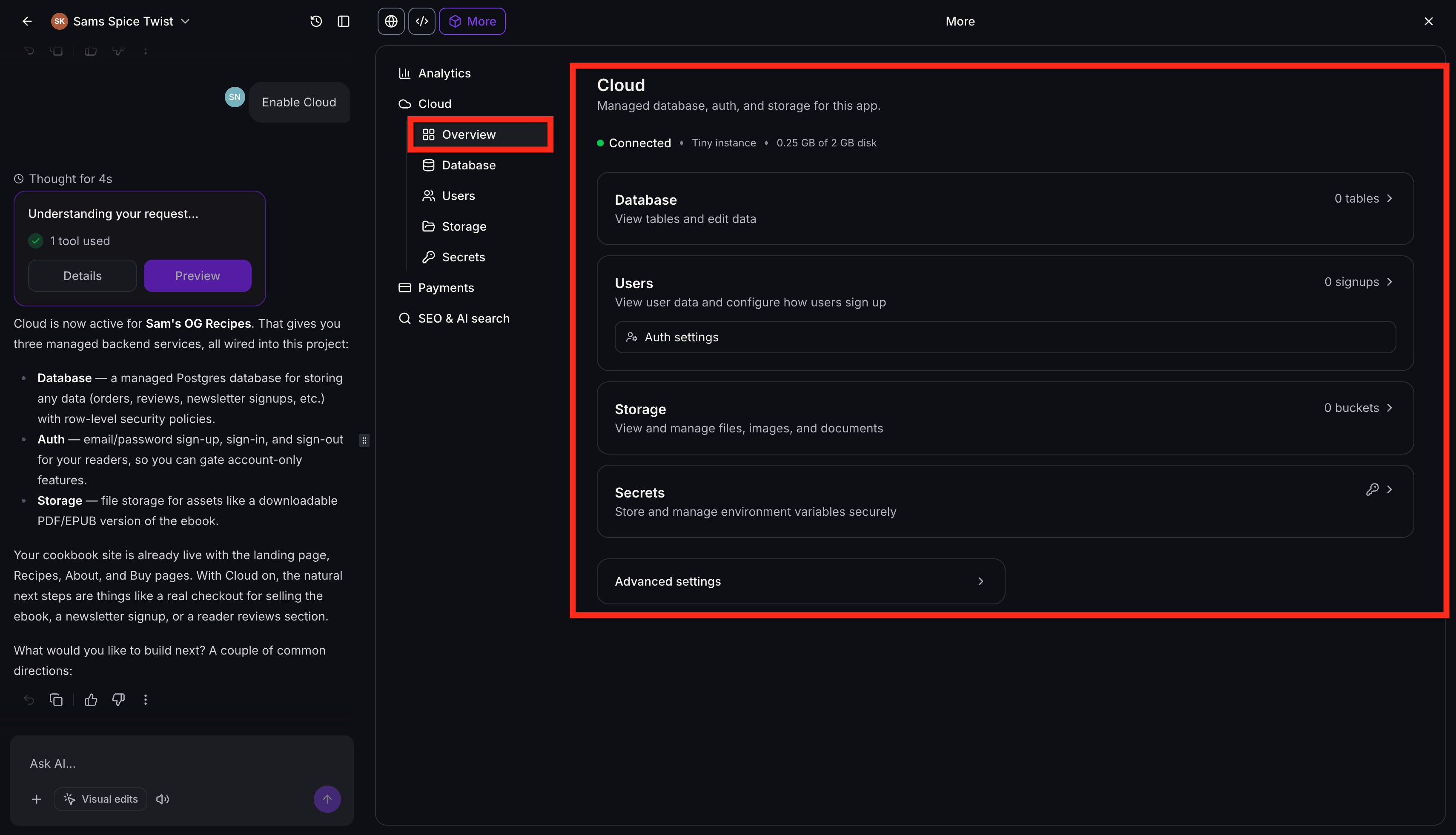
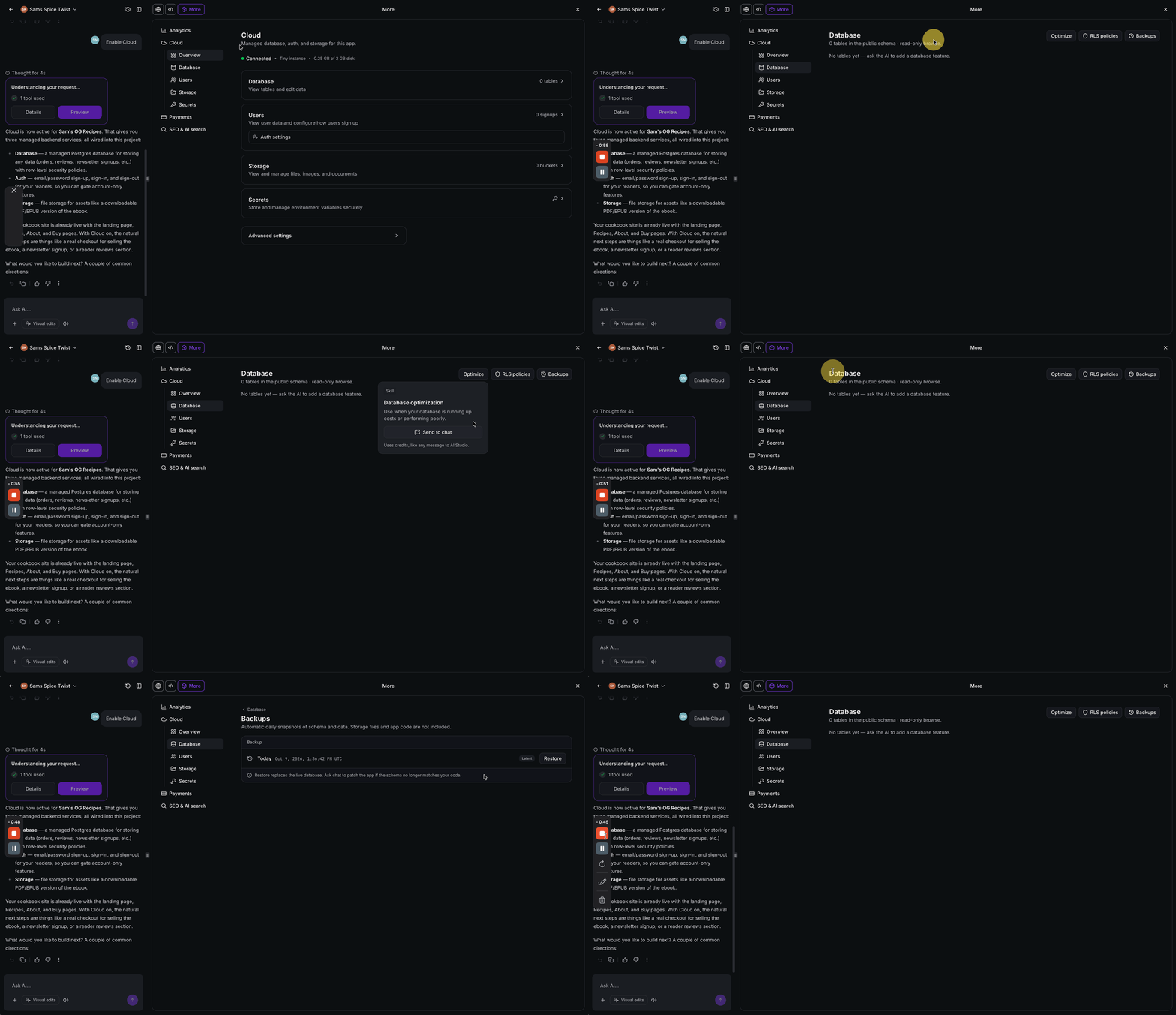
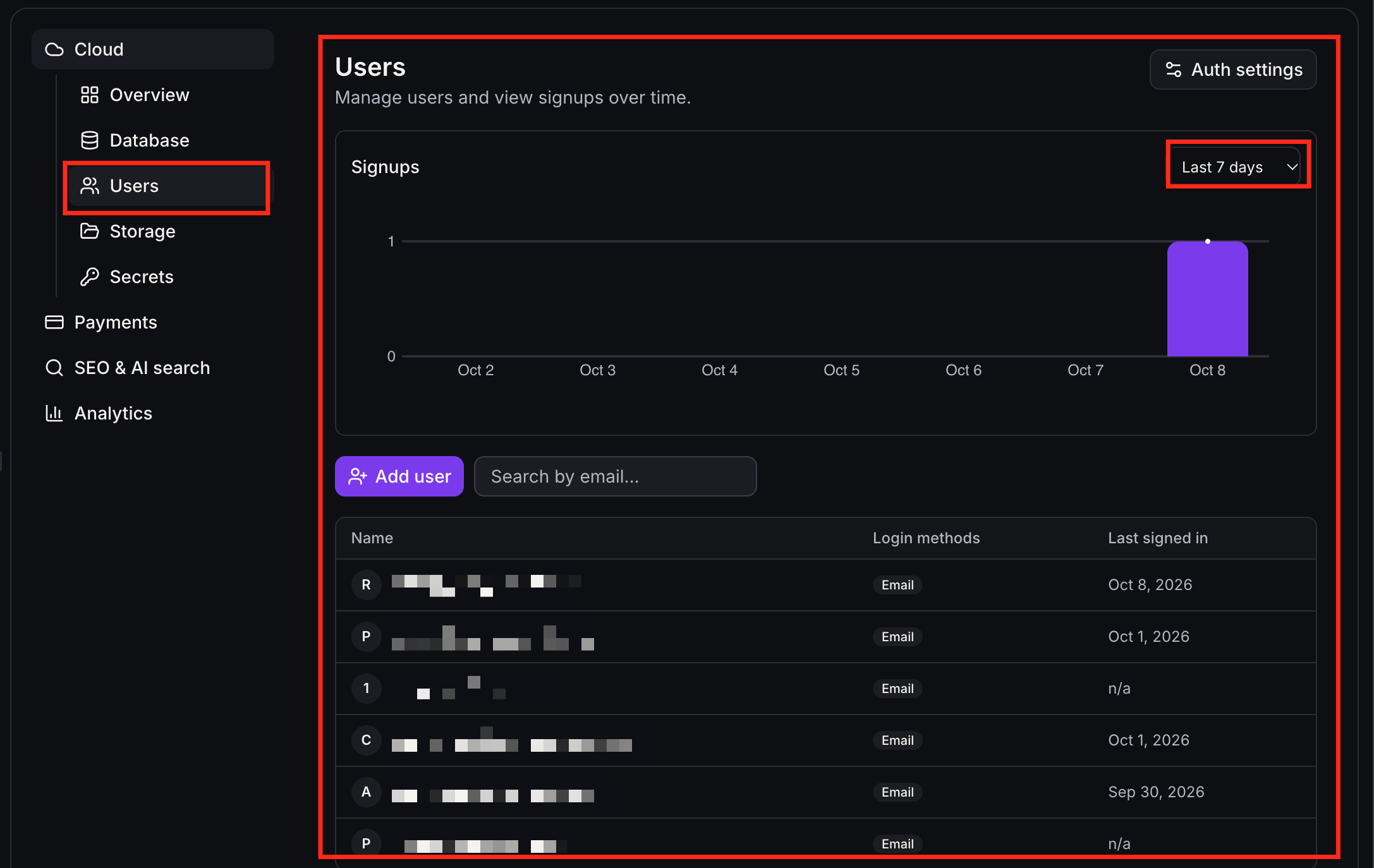
Cloud supplies a managed backend that lives inside each AI Studio project. When enabled, HighLevel creates a database, an authentication system and a storage service that the app can call directly. The backend appears as a Cloud dashboard where you can view connection status, tables, users, buckets and secrets.
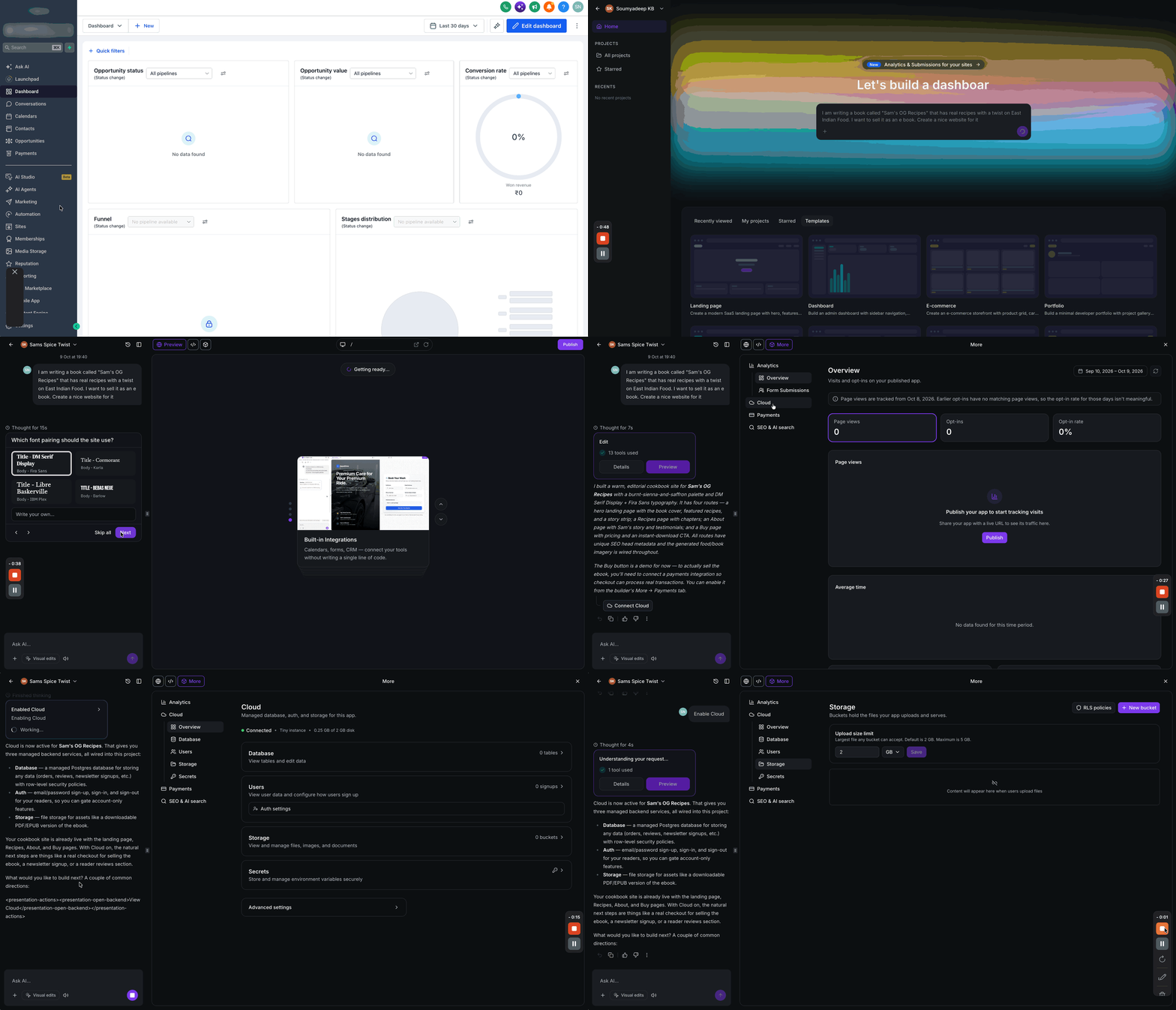
The Cloud feature is accessed from the AI Studio builder under the More ► Cloud menu. After enabling, the Overview page shows the new backend components and lets you jump to Database, Users, Storage or Advanced Settings for further configuration.
03How businesses use AI Studio Cloud backend
- Ecommerce store. Create a Cloud database table for product orders, enable row level security so customers only see their own orders, and store product images in a private bucket. The store’s checkout flow reads and writes data directly to Cloud.
- Real estate agency. Set up a Users table for agents, configure authentication to allow email sign in, and use a public bucket for property photos. Agents can upload listings, and the agency controls access with RLS policies.
- Online education platform. Define a database for courses and enrollments, enable authentication with password rules, and store video files in a private bucket. The platform restricts each student to view only their enrolled content.
04The numbers and rules that matter
- Minimum password length: 6 characters (8 or more recommended).
- Upload size limit default: 2 GB, maximum: 5 GB.
- Bucket name: 3, 63 characters, lowercase letters, numbers, hyphens.
- Database size can be changed once per hour.
- Database storage can be increased up to four times per day.
05Before you start
- Cloud only supports projects built on TanStack Start.
- If the project is a classic React app, migrate it via Project Settings ► Migrate to SSR before enabling Cloud.
06How to set up and use AI Studio Cloud backend in HighLevel
Enable Cloud backend for an AI Studio project
- Log in to your HighLevel account.
- Select AI Studio from the left hand navigation menu.
- Create a new project by entering a prompt describing your app, or open an existing project.
- In the AI Studio builder, click More then choose Cloud.
- Open the Overview tab and click Enable Cloud.
- Wait for the provisioning process to finish; you can continue editing the project while it runs.
07What it looks like in HighLevel
08Settings that matter
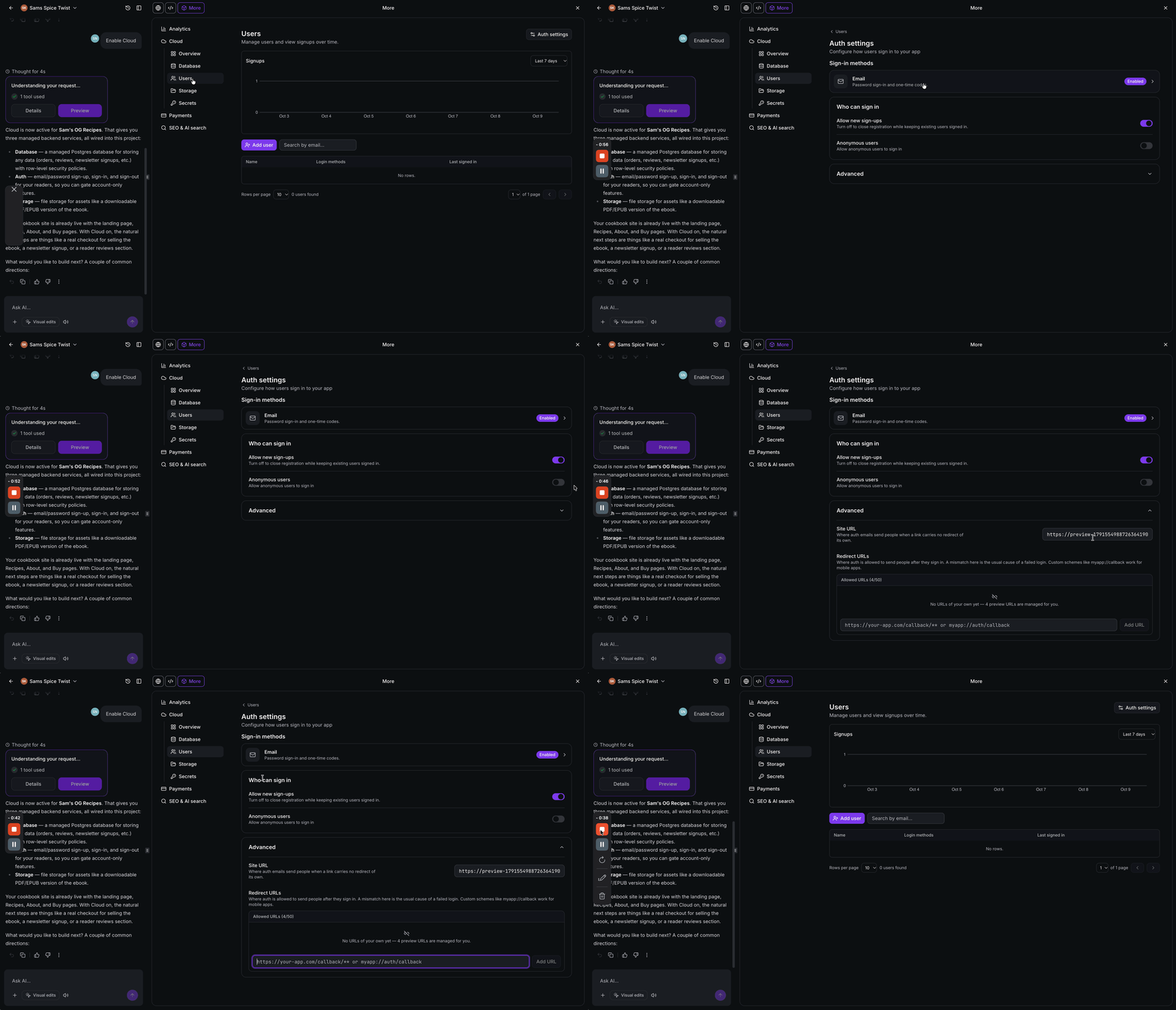
- Sign in methods. Specifies which authentication types are available; the initial release supports email and password.
- Allow new sign, ups. Turns on or off the ability for new users to register.
- Anonymous users. Enables authentication for users without a verified identity when activated.
- Advanced (Auth settings). Provides additional authentication configuration options beyond the basic settings.
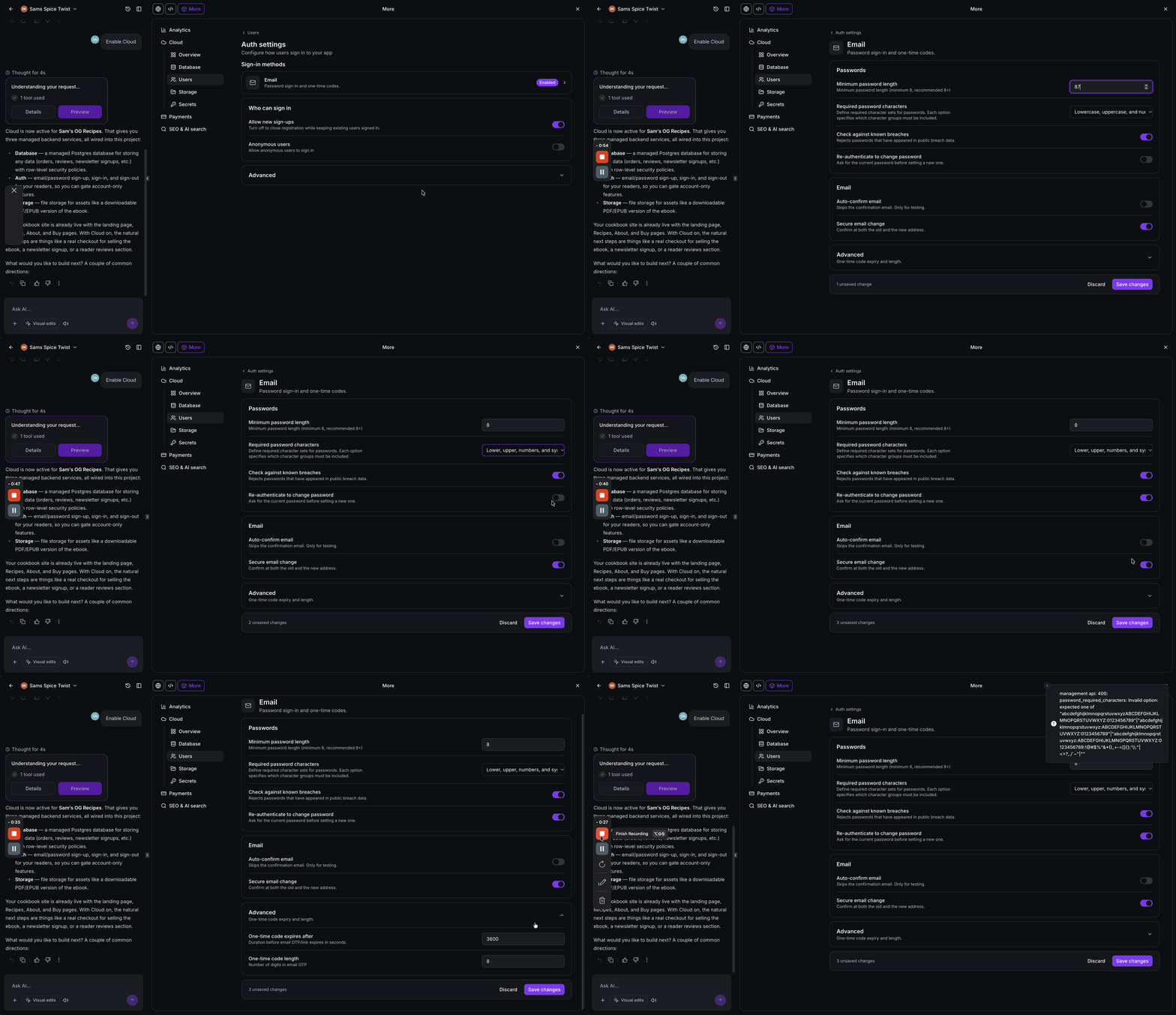
- Minimum password length. Defines the shortest allowed password; the minimum is six characters.
- Required password characters. Sets which character groups (e.g., numbers, symbols) passwords must contain.
- Check against known breaches. Rejects passwords that appear in publicly known data breaches.
- Re, authenticate to change password. Requires the current password before a user can set a new one.
- Auto, confirm email. Skips email verification for new accounts; intended only for testing.
- Secure email change. Requires confirmation from both the old and new email addresses when a user updates their email.
- Site URL. Sets the primary URL of the application for authentication redirects.
- Redirect URLs. Lists URLs users can return to after login, registration or password recovery.
09Things to know before you rely on it
- Cloud works only with TanStack Start projects; React projects must be migrated first.
- Bucket names must be 3 to 63 characters, lower case letters, numbers and hyphens; they cannot be renamed later.
- Upload size limit caps at 5 GB per file.
- Database instance size can be changed only once per hour.
- Database storage can be increased a maximum of four times per day and cannot be decreased.
- Charges for database storage continue even when Cloud is paused; file storage charges vary with actual usage.
- If the wallet balance is too low, Cloud may be paused automatically; it wakes up once funds are sufficient.
10If something goes wrong
- Cloud setup fails. Click Try again to resume the provisioning process.
11How it connects to the rest of HighLevel
- Learn how to add custom domains and preview publishing in AI Studio. AI Studio custom domains
- See the pricing and usage tiers for AI Studio Cloud. AI Studio pricing
- Connect forms and calendars to AI Studio projects. Forms and calendars
- Start a 30 day trial of HighLevel to test Cloud. 30 day trial
- Review the Founder Plan for unlimited access. Founder Plan
Michael's take

Wondering if you really need a built in backend for your AI Studio app? If you’re already spending time wiring up a separate server, Cloud gives you a ready made database, user system and file storage right inside HighLevel, so you can focus on the app itself.
I would begin with enabling Cloud on a fresh TanStack Start project, then add a simple users table and a storage bucket for profile pictures. Test the sign up flow and make sure the bucket URLs work before you scale up any resources.