

Home/HighLevel/Guides/Build a Voice AI agent
HighLevel Guides · Volume 02 · AI
How to build a Voice AI agent in GoHighLevel that answers and books.
This build puts a Voice AI agent on one of your HighLevel phone numbers. It answers inbound calls, answers common questions from your Knowledge Base and books appointments on your calendar while the caller is still on the line. By the end you will have a tested agent, a live number pointed at it and a schedule that controls when it picks up. HighLevel is the same platform many people still search for as GoHighLevel.

What you are building
What you are building and why it matters.
A caller dials your business number. The Voice AI agent answers, greets them, answers questions using the information you approved and offers real open times from your booking calendar. It collects the details it needs, confirms the appointment and the booking lands on your calendar with a transcript and summary saved to the contact. You decide whether the agent answers every call or only steps in as a backup, and you decide the hours it works.
- A custom Voice AI agent with a name, voice, prompt and welcome message
- A Knowledge Base attached so the agent answers questions with your approved information
- An Appointment Booking action that books real slots on your HighLevel calendar
- A live phone number routed to the agent with a Call Routing mode you chose
- Working Hours that control when the agent answers
- A transcript and summary saved to the contact after each call
Before you start
Before you start, have these ready.
Gather these first so you do not stop halfway through the build.
- A subaccount with Voice AI and a role that includes View & Manage Voice AI Agents permission
- A clear use case for the agent, such as appointment booking, lead qualification or basic support
- Approved business information for the prompt and Knowledge Base
- At least one HighLevel booking calendar with availability, duration, buffers and booking rules set
- A HighLevel phone number or Number Pool in the subaccount, or the ability to buy one
- A modern browser with microphone access for Web Call testing
Part 01 of 06
Create the agent and give it a voice.
Everything starts with a custom agent. This part names it, picks its voice and language, and writes the prompt and greeting that shape every call.
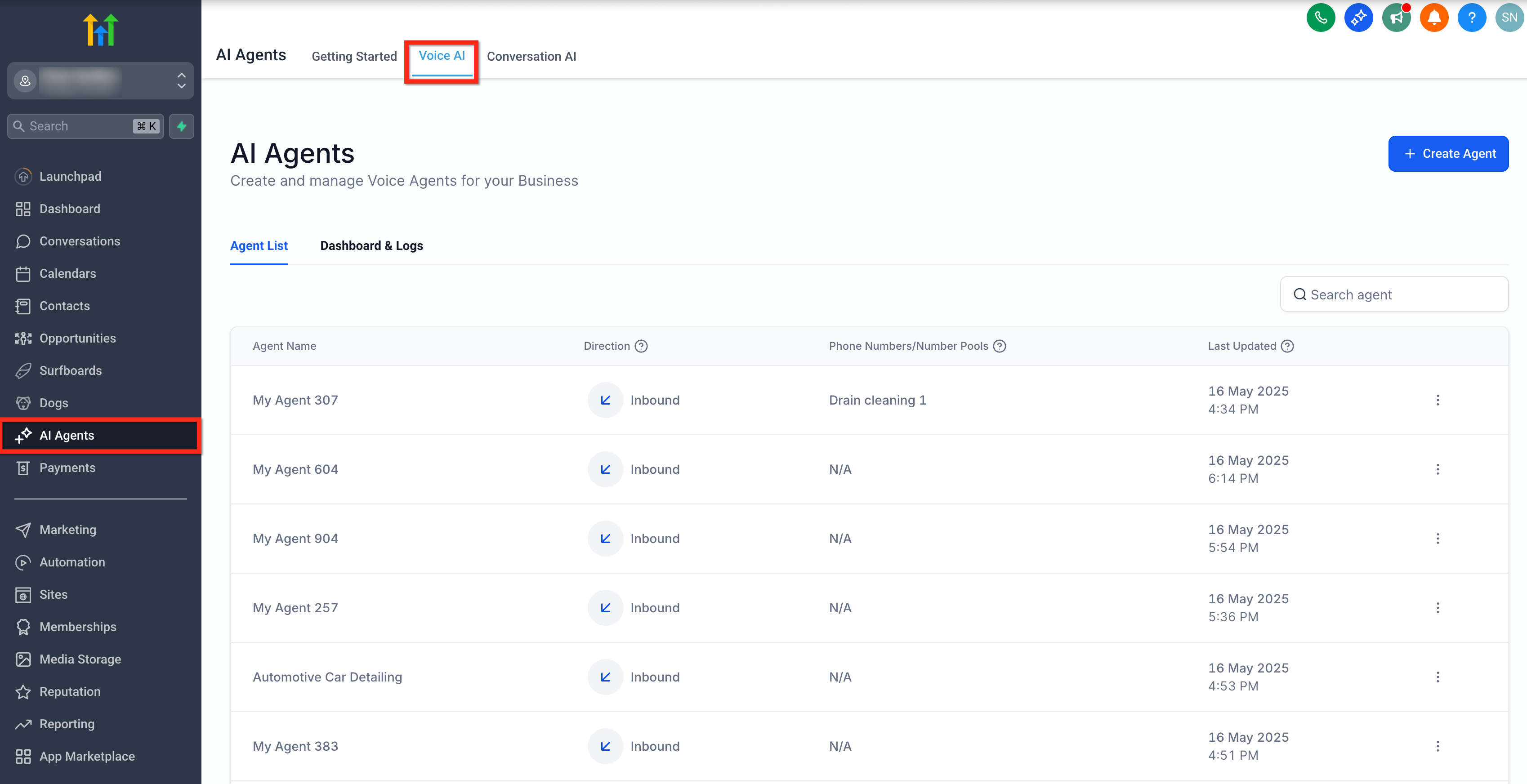
- Log in to the subaccount and go to AI Agents, then Voice AI.
- Open the Agent List tab and click + Create Agent.
- Select Create Custom Agent and click Continue.
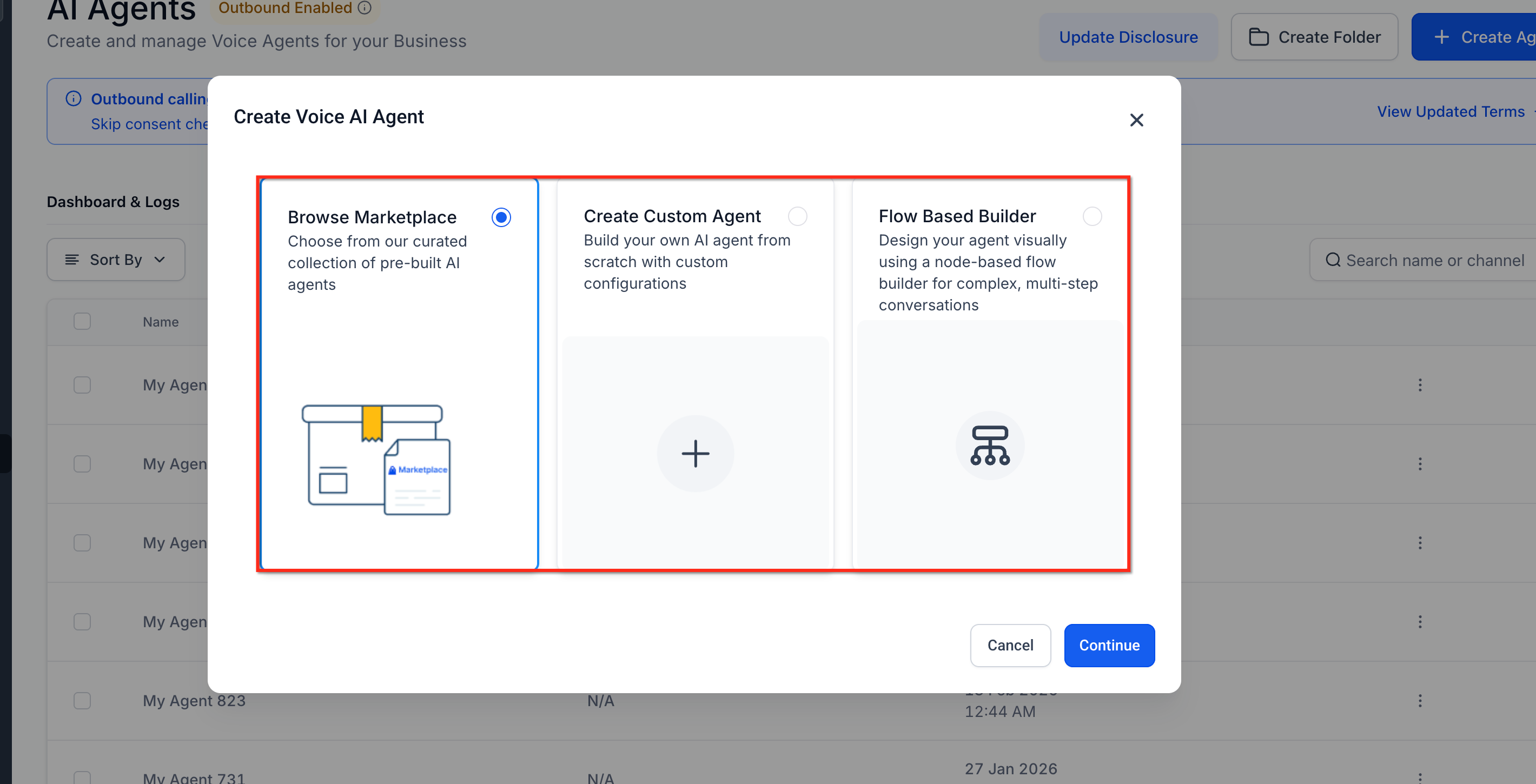
The three ways to create an agent. Custom Agent is the one this guide follows. - Enter a clear Agent Name.
- Select the agent's Voice, then select the Model and Language.
- Set the Timezone using the clock icon.
- Write the agent prompt. State the agent's role, the information it should collect and the actions it can take.
- Set the Welcome Message for inbound calls, choose whether the agent or the caller speaks first, set the pause before the agent speaks, and click Save.
Part 02 of 06
Attach a Knowledge Base so it answers correctly.
A Voice AI agent without a Knowledge Base gives generic answers. Attaching one lets it pull the exact information a caller needs, and the trigger prompt tells it when to look.
- In the agent editor, go to the Agent Goals tab.
- Under Select Knowledge Base, choose an existing base or click Create New.
- Add or update the sources the agent should draw from.
- In the When to use this Knowledge Base field, write a detailed trigger prompt that describes the questions that should send the agent to the base.
The Knowledge Base selector and trigger prompt under Agent Goals. - Click Save.
Part 03 of 06
Add appointment booking on your calendar.
This is the action that turns a conversation into a booking. The agent offers real slots, collects a missing email if needed and confirms the appointment without sending the caller to a link.
- In the Actions section on the right panel, click + New Action.
- Select Appointment Booking.
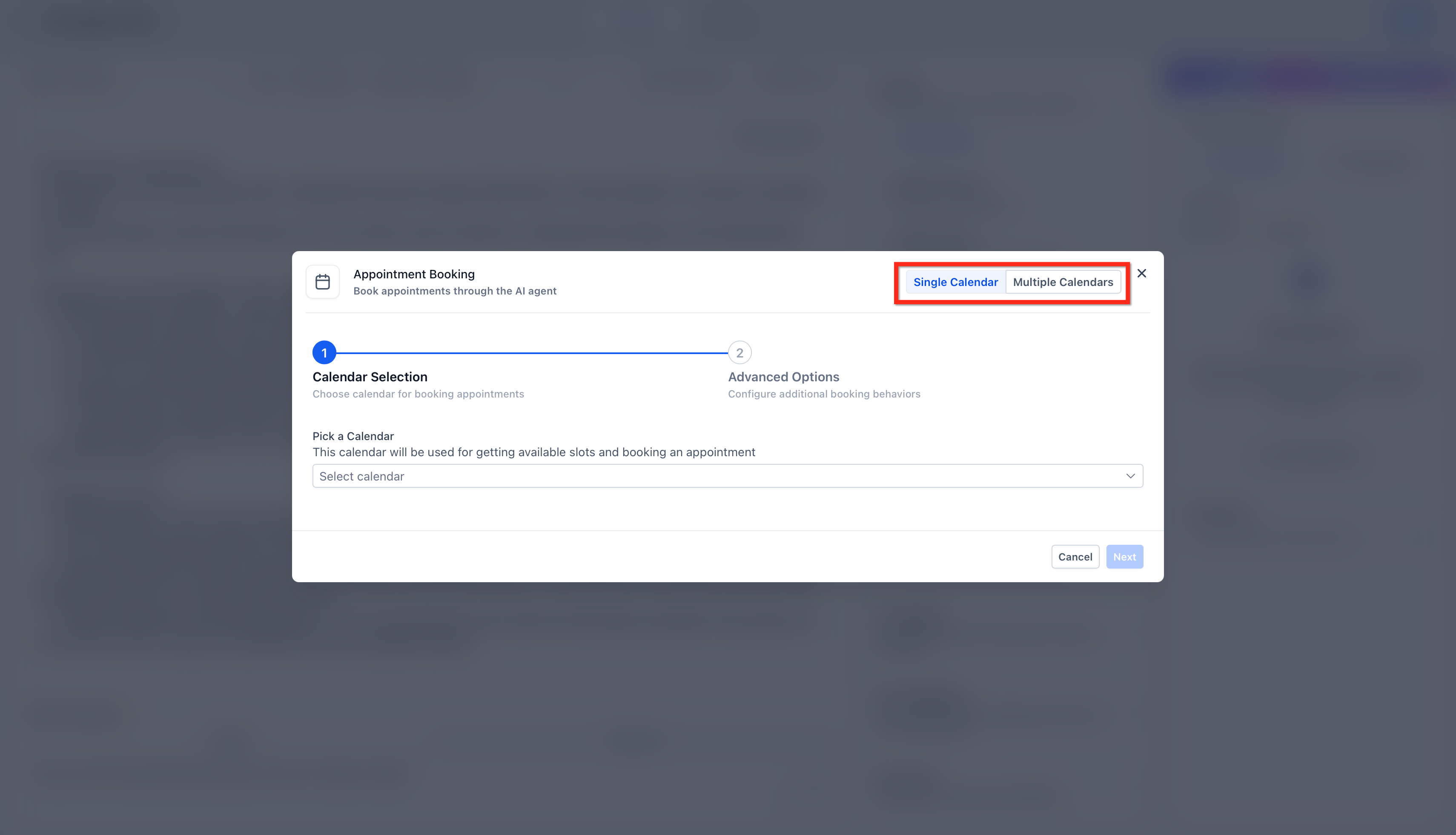
Single Calendar booking with Offering Days and Hours between slots. - Choose Single Calendar and select the booking calendar every request should go to.
- Configure Offering Days to set how many future days the agent offers.
- Configure Hours between slots to set the spacing between offered times.
- Enter a clear action name and define the condition that should trigger the booking.
- Save the action, then click Save on the agent.
Part 04 of 06
Test it against real scenarios.
Do not put an untested agent on a live line. Web Call tests prompts, Knowledge Base answers and booking from your browser. Phone Call tests caller ID, routing and transfers through your telephony.
- Click Save so the latest configuration is what you test.
- Locate the Test Your Agent panel and select Web Call.
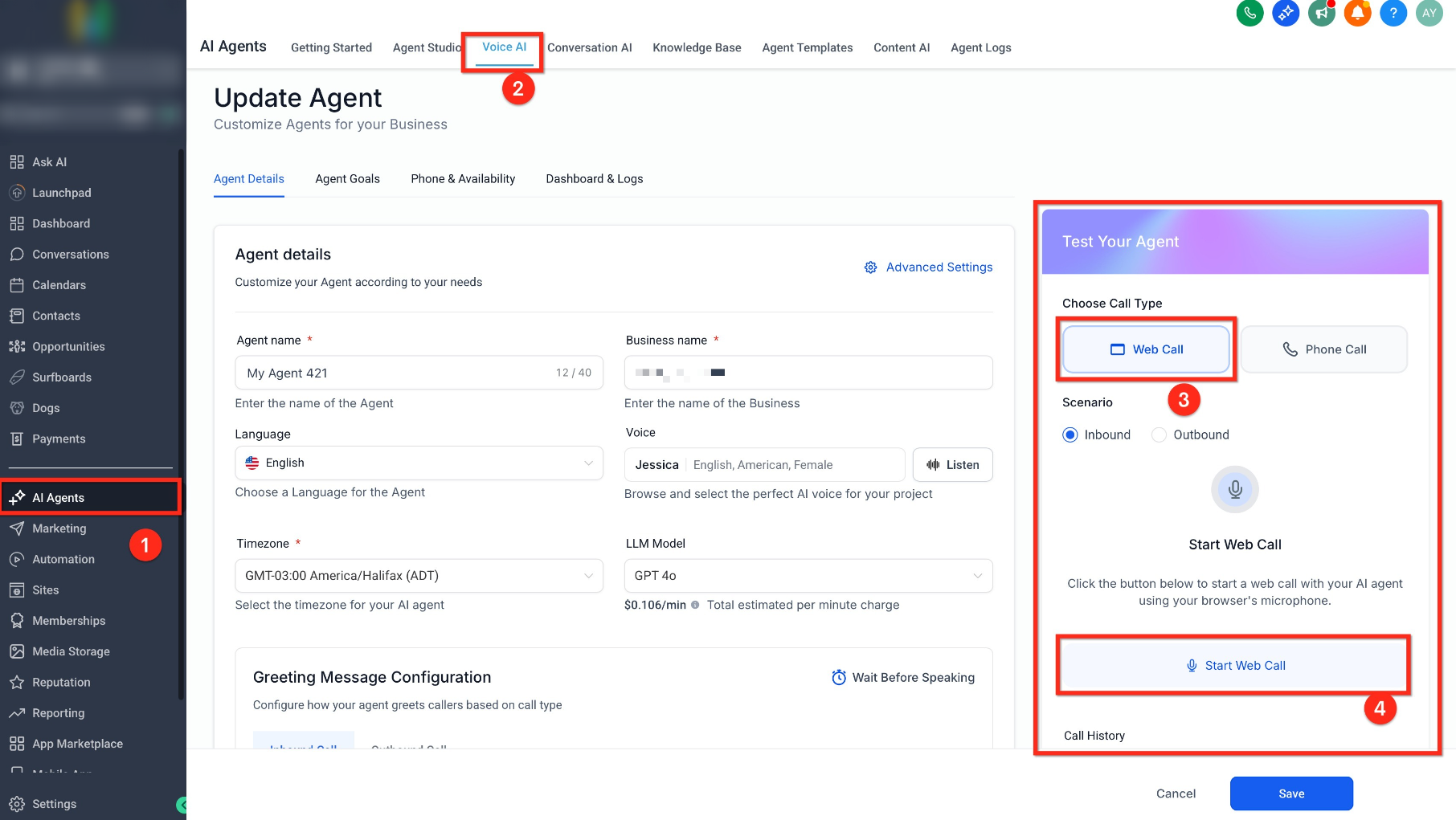
The Test Your Agent panel. Web Call first, Phone Call second. - Choose the Inbound scenario and click Start Web Call.
- Allow microphone access, then speak as a real caller: ask a Knowledge Base question and ask to book an appointment.
- Adjust the prompt, Knowledge Base, actions or settings based on what you heard, save, and repeat until the behavior is consistent.
- Select Phone Call, choose the Inbound scenario, select the Caller ID, enter your mobile number and click Call me.
- Answer the call and run the same booking scenario on a real phone.
- Go to AI Agents, then Voice AI, then Dashboard & Logs, set the Live/Test filter to Test, and review the transcript, recording, summary and action results.
Part 05 of 06
Deploy it to a live number with hours.
The Deploy tab is where the agent meets the phone system. You pick the number, decide whether it answers directly or as a backup, and set the hours it works.
- Open the agent's Deploy tab.
- In the Phone section, select an eligible phone number or Number Pool. If you need one, click Buy new number, complete the purchase and assign it.
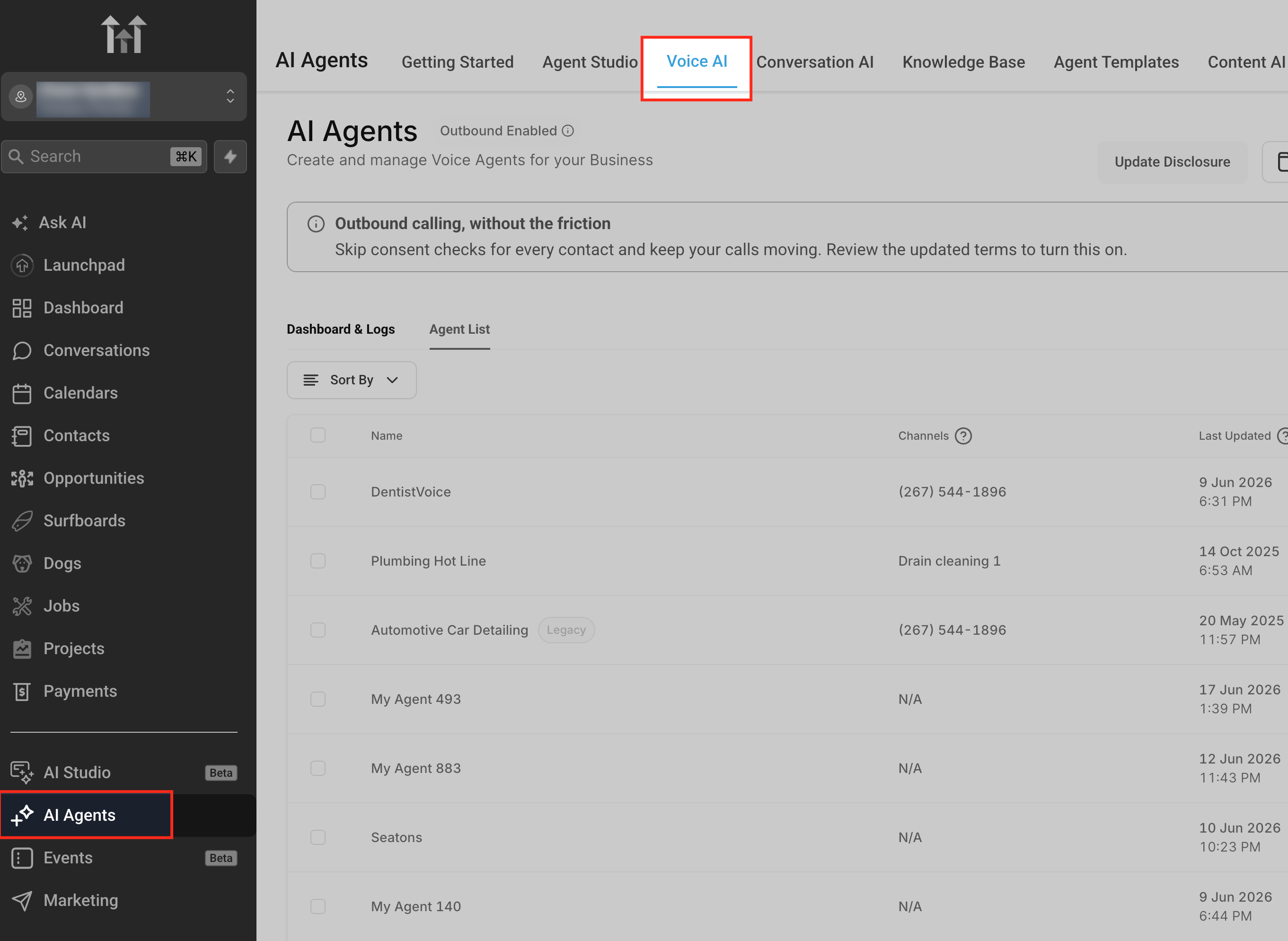
Number, routing mode and working hours all live on the Deploy tab. - Choose the Call Routing mode: Answer Calls Directly or Use as Backup.
- Under Working Hours, select All Hours or Custom Schedule.
- If you chose Custom Schedule, use the day chips to pick active days and set the start and end time for each day.
- Use the copy option to apply the same hours to other days, and use the bin icon to remove a day.
- Click Save.
Part 06 of 06
Point the number at Voice AI.
Assigning a number is not the whole job. The number's own call flow has to send inbound calls to Voice AI, and the timeout has to be short enough that callers reach the agent before voicemail.
- Go to Settings, then Phone System, then the Manage Numbers tab.
- Click the three dots beside the number and select Edit Configuration.
- Open the Call Forwarding tab.
- Under call routing, select Voice AI.
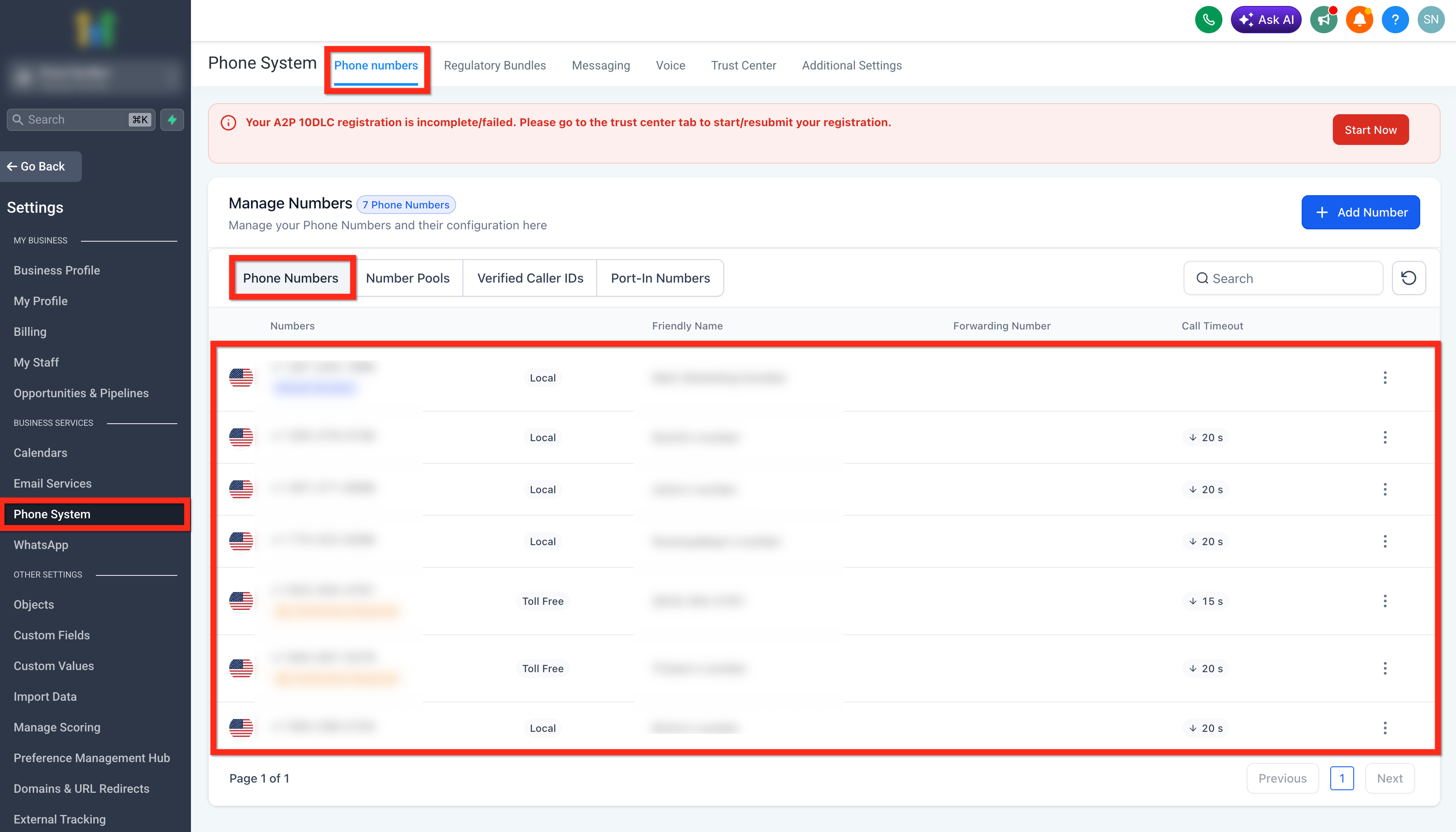
Voice AI selected under Call Forwarding for the number. - Locate the Timeout setting and reduce it to a low value, such as 0 to 3 seconds.
- Save your changes.
Test it
Test the live line before callers find it.
Call the deployed number from a phone that is not in the subaccount and run the full flow.
- Call the assigned number during Working Hours. The agent should answer with your inbound Welcome Message.
- Ask a question covered by your Knowledge Base. The agent should answer with your approved information, not a generic reply.
- Ask to book an appointment. The agent should offer open slots that match your calendar rules and ask for any missing details such as an email.
- Confirm a slot. Open the calendar and verify the appointment appears on the right calendar at the right time.
- Open the contact record. The call summary should be saved to the notes if PostCall is set to save it.
- Call the number outside Working Hours. The agent should not answer, and the call should follow the number's fallback path.
- Go to Dashboard & Logs, set the Live/Test filter to Live, and review the transcript, recording and action results for the call.
The prompt is the part most people rewrite, and the voice agent prompt framework gives it a structure. A shorter version of this build is in set up a Voice AI agent. Plan prices are on the GoHighLevel pricing hub and plans compared, and you can build and call your own agent during a 30 day trial through Michael's link.
When a step fails
When it does not work, check these first.
Most Voice AI problems are routing problems, not prompt problems.
- Voice AI does not appear under AI Agents
- Your role is missing the View & Manage Voice AI Agents permission. Ask a subaccount administrator to adjust it.
- The agent does not answer the assigned number
- Confirm the number is assigned to the correct agent on the Deploy tab and that Call Forwarding on the number shows Voice AI. Then review Working Hours, the Call Routing mode, forwarding, timeout, voicemail and the number's call flow.
- Calls go to voicemail before the agent picks up
- Lower the Timeout on the number's Call Forwarding tab to a value between 0 and 3 seconds. Once a call hits local voicemail, HighLevel marks it completed and the agent will not answer.
- Call Transfer fails during a Web Call test
- Call Transfer is not supported in Web Call tests. Use a Phone Call test or call the deployed number to validate the transfer.
- A test call is missing from Dashboard & Logs
- Check the selected agent, the date range and the Live/Test filter. Confirm the call completed and give the details time to finish processing.
- The agent answers from general knowledge instead of the Knowledge Base
- The caller's question did not match the trigger prompt. Rewrite the When to use this Knowledge Base prompt so it clearly covers that type of question. Changes apply immediately.
Questions
Common questions.
These questions come up most when people build their first Voice AI agent.
- What is the GoHighLevel AI voice agent?
- The GoHighLevel AI voice agent is Voice AI, an agent that answers inbound calls on one of your HighLevel phone numbers. It greets the caller, answers questions from your Knowledge Base, offers real open times from your calendar and books the appointment, with a transcript and summary saved to the contact.
- Can I test the agent without assigning a phone number?
- Yes. Web Call runs in your browser and tests prompts, Knowledge Base answers and most actions without buying or assigning a number. Call Transfer does not run during a Web Call test. Phone Call testing uses your telephony setup, so run Web Call first and Phone Call second.
- Can one Voice AI agent handle calls from several numbers?
- Yes. Assign multiple numbers to the agent, or assign a configured Number Pool when several numbers should route to the same agent. You pick the number or Number Pool in the Phone section when you deploy the agent, along with the Call Routing mode and Working Hours.
- Can I attach more than one Knowledge Base to the agent?
- No. Each agent links to one Knowledge Base at a time, and only HighLevel's built in Knowledge Bases are supported. Updates to the base reach the agent immediately, so correct a fact in the Knowledge Base and the agent uses the new answer on the next call.
- What happens if the caller does not give an email address?
- The agent can prompt for the missing email before confirming the appointment, so the booking record is complete. During the call it offers real slots, collects a missing email if needed and confirms the appointment without sending the caller to a link. Test this by booking without giving an email.
- Does assigning a number guarantee the agent answers every call?
- No. Call Routing mode, Working Hours, forwarding, timeout, voicemail and the number's call flow configuration all affect whether a call reaches the agent. If a caller reaches local voicemail first, HighLevel marks the call as completed and the agent never answers, so set the number's timeout to 0 to 3 seconds.
From the field
Michael’s take.

The first thing I would get right is the booking action, and I would start with a single calendar. Get the agent offering real slots that match your calendar rules before you add a second calendar or a transfer. Most of the value in this build is a caller hanging up with a confirmed appointment, so prove that part on a Web Call before you touch the phone system.
Where people go wrong is the number. They assign it on the Deploy tab, hear nothing, and start rewriting the prompt. The prompt was fine. The number's Call Forwarding was still pointed somewhere else, or the timeout was long enough that voicemail grabbed the call first. Check Deploy, check Call Forwarding, drop the timeout, then test again during and outside your Working Hours.
This build pays off when you have a steady stream of repetitive calls, like appointment requests and basic questions, that a person does not need to take. If your call volume is low or every call is personal, keep a human on the line and use the agent as a backup. A well scoped agent with a precise Knowledge Base trigger prompt is easier to maintain than a broad one, so keep its job narrow.
Go deeper
The features behind this build.
Every feature this guide touches has its own page in the library, with the settings, limits and Michael’s notes.
- AI EmployeeHow to Create Voice AI Agents
- AI EmployeeVoice AI: How to Configure Inbound Call Flow
- AI EmployeeHow to test Voice AI Agents in HighLevel
- AI EmployeeHow to Set Working Hours for Voice AI Agents in HighLevel
- AI EmployeeAppointment Booking in Voice AI for HighLevel
- AI EmployeeKnowledge Base integration for Voice AI Agents in HighLevel
- AI EmployeeHow to Assign Twilio Numbers to Voice AI Agents
Get the guide
Take it with you. The PDF is yours.
The whole build, cover to cover, as a PDF you can keep open on a second screen or print for the team. HighLevel's Founder page opens alongside it.
Next step
Want this built in your own account?
Start a HighLevel trial through CRM Pros and the team comes with it. We will help you get your first Voice AI agent answering and booking on a live number.
The how to library has step by step HighLevel builds for Conversation AI, Voice AI, funnels, calendars, workflows and AI Studio. Go back to the full list.
Back to the GuidesAll the step by step builds