
01Who this is for
- Customer support managers can give agents instant answers from a support FAQ knowledge base, reducing manual handling.
- Sales directors can equip sales voice agents with product detail knowledge bases to answer prospect inquiries accurately.
- Founders of online education platforms can provide learners with course content through a voice assistant that pulls from a curriculum knowledge base.
02Knowledge Base integrations, explained
The integration connects a single HighLevel knowledge base to an individual Voice AI agent. When a spoken request matches the trigger prompt, the agent searches the attached knowledge base and reads back the best answer. If the request does not match, the agent follows its normal script.
You configure the link inside the Voice AI agent editor under the Agent Goals tab. The settings let you pick which knowledge base to use and define the trigger prompt that activates the lookup. Changes to the knowledge base are reflected right away, so the agent always uses the latest information.
The feature lives in the AI Agents section of HighLevel. It works for both Basic and Advanced agent modes and relies on HighLevel’s built in knowledge bases.
03How businesses use Knowledge Base integration
- Real estate office. The office creates a knowledge base with property listings and policies. The voice agent uses a trigger prompt about property questions to fetch current details when callers ask about homes.
- Technical support company. A support team builds a knowledge base of troubleshooting steps. The agent activates the base when a user mentions an error code, delivering the relevant fix without human intervention.
- Online education platform. The platform assembles course outlines in a knowledge base. The voice AI agent answers student queries about enrollment or module content by searching that base when the prompt about course information is heard.
04The numbers and rules that matter
- There are no published limits, but performance may vary with extremely large knowledge bases.
05How to set up and use Knowledge Base integration in HighLevel
Set up Voice AI Knowledge Base integration
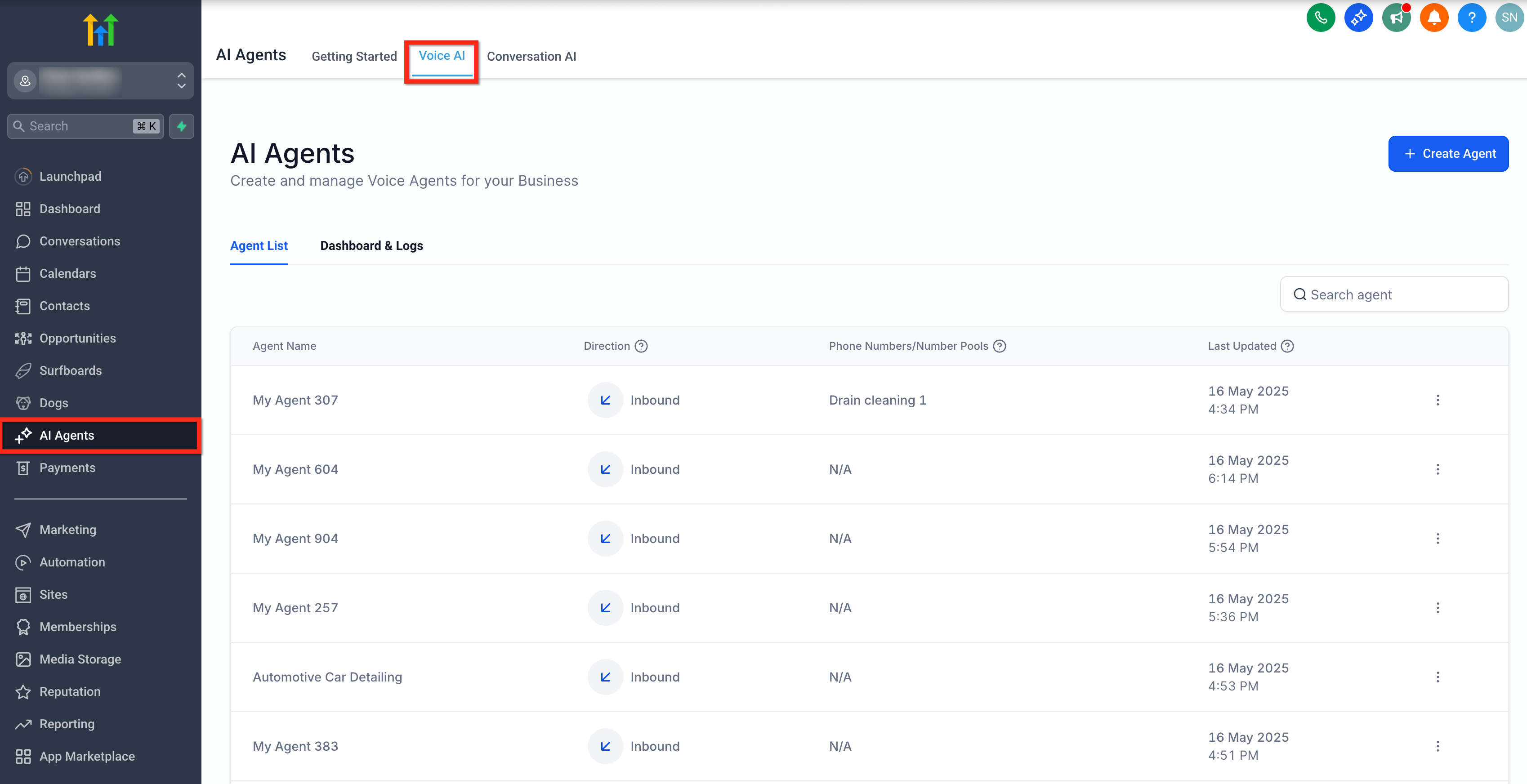
- Open the Voice AI Agents panel by selecting AI Agents then Voice AI.
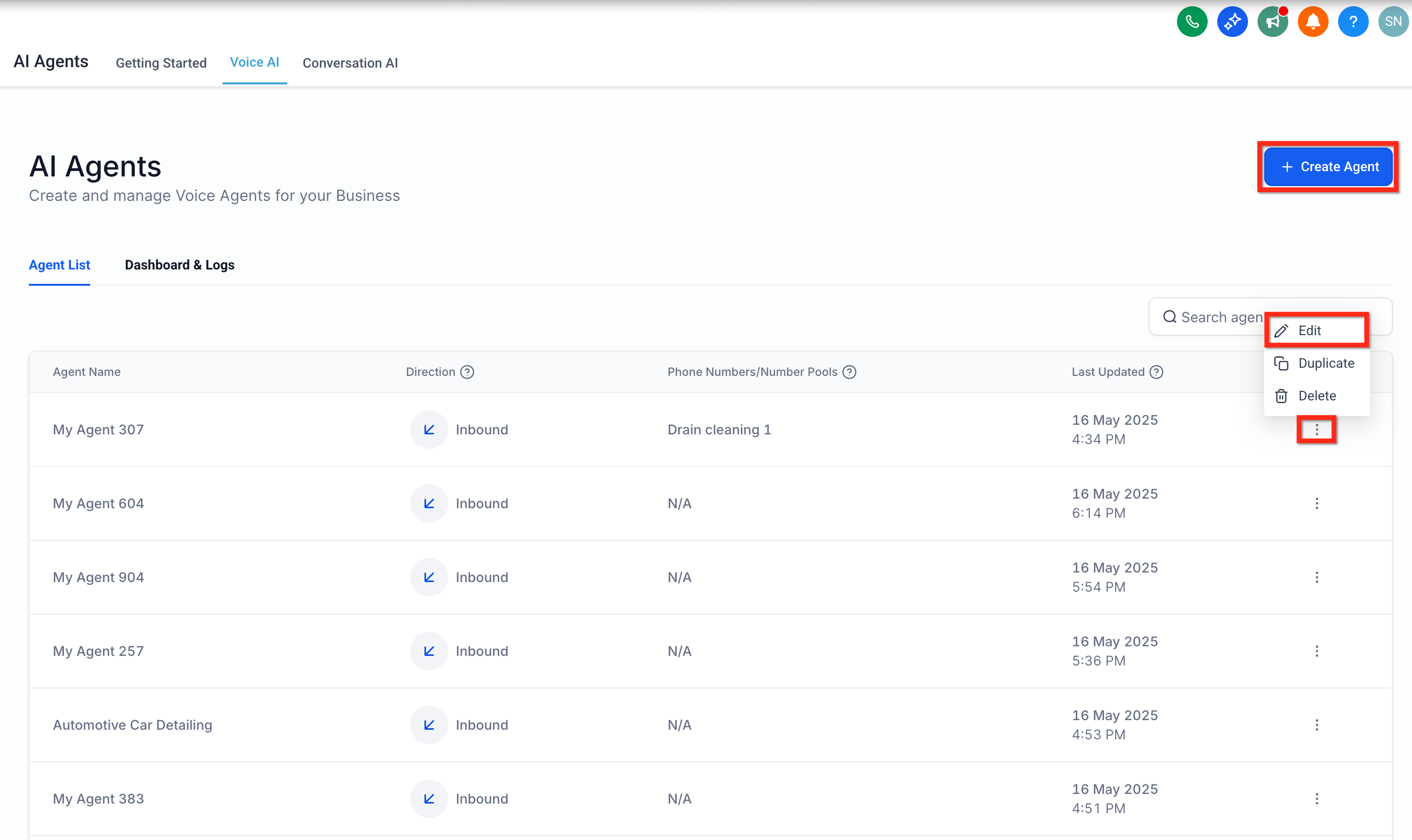
- Choose to edit an existing agent or create a new one; to edit, click the three dots beside the agent name and select Edit.
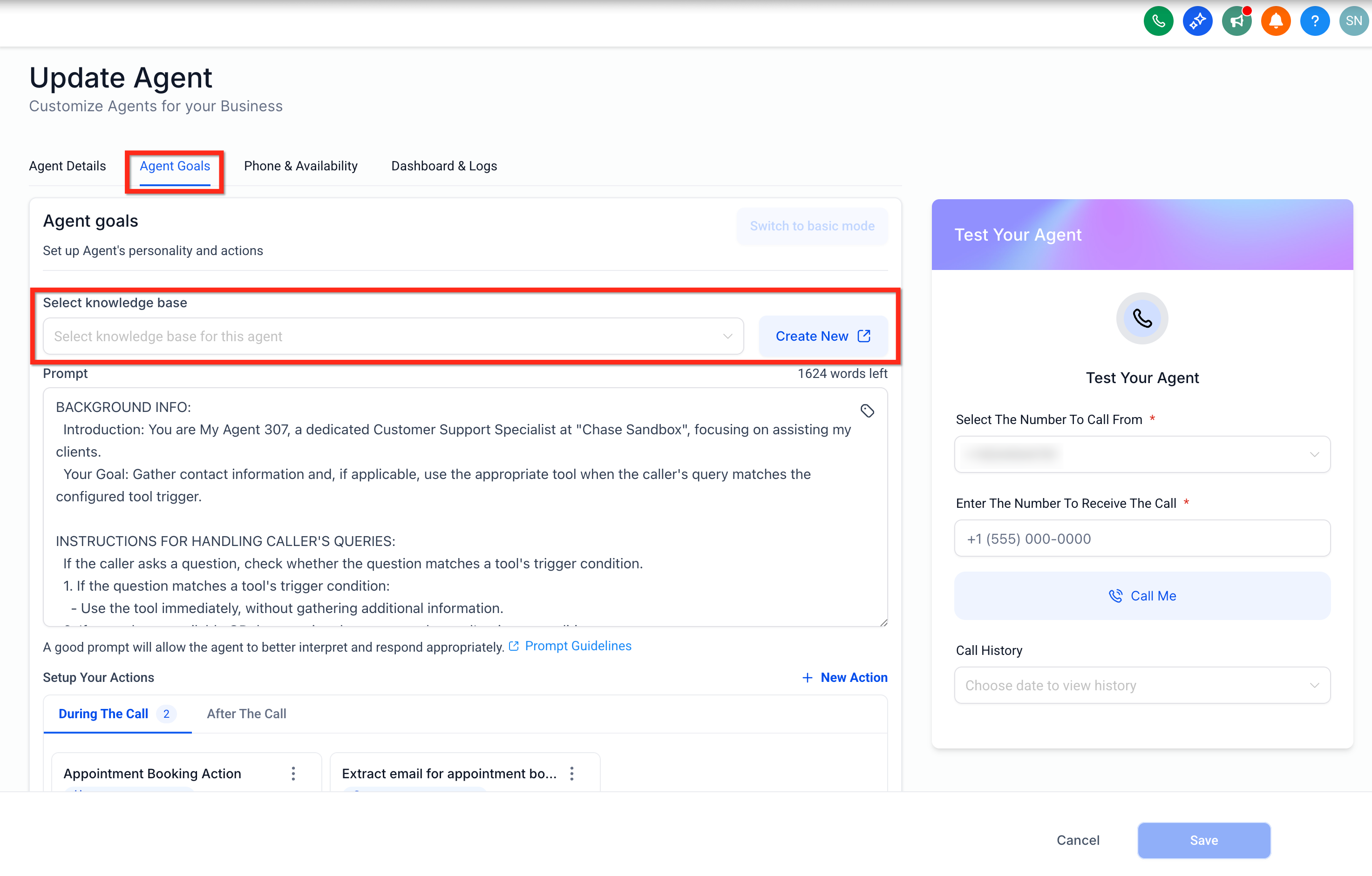
- Navigate to the Agent Goals tab within the agent editor.
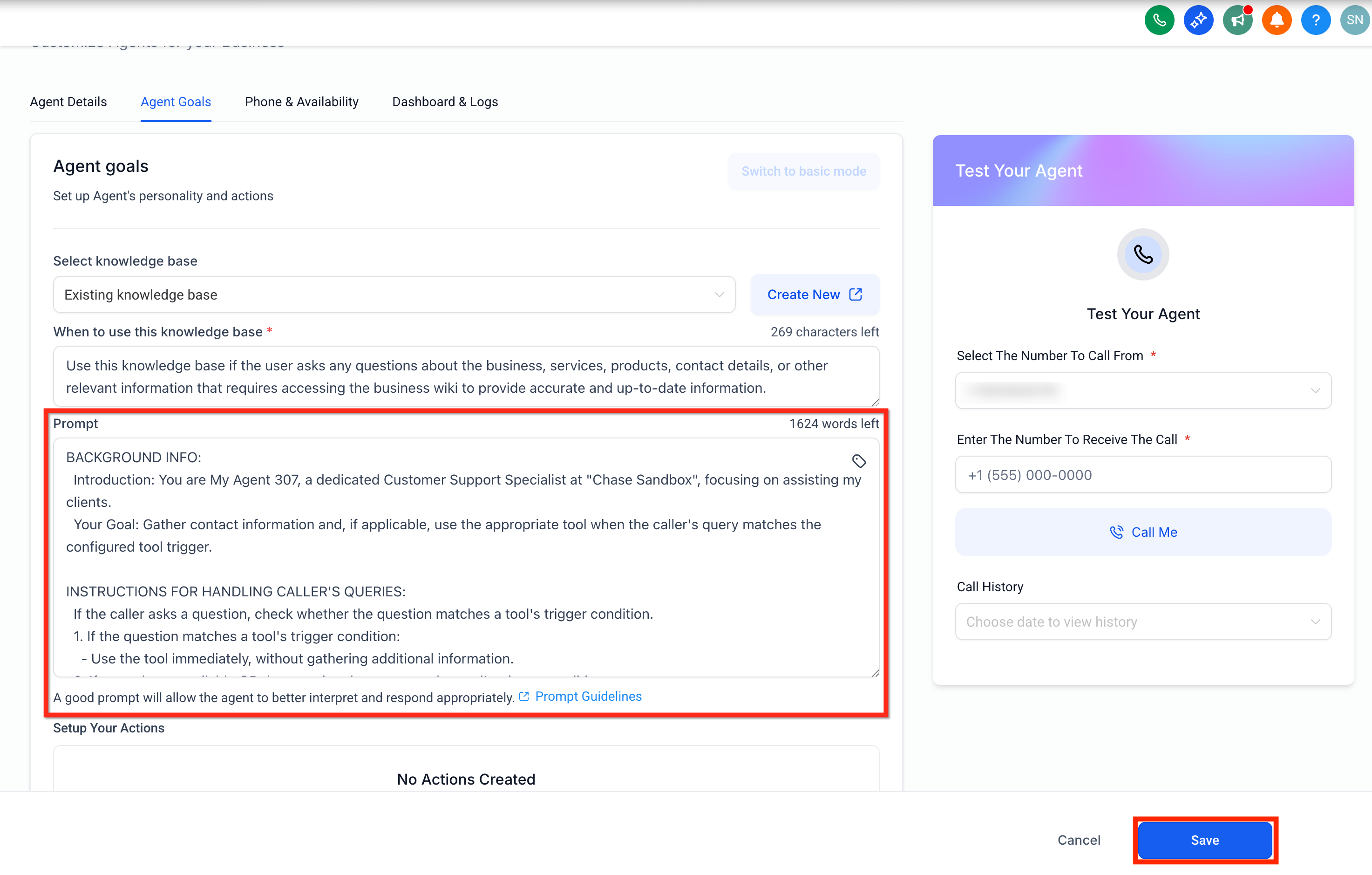
- In the Select knowledge base field, pick an existing knowledge base or click Create New to add one.
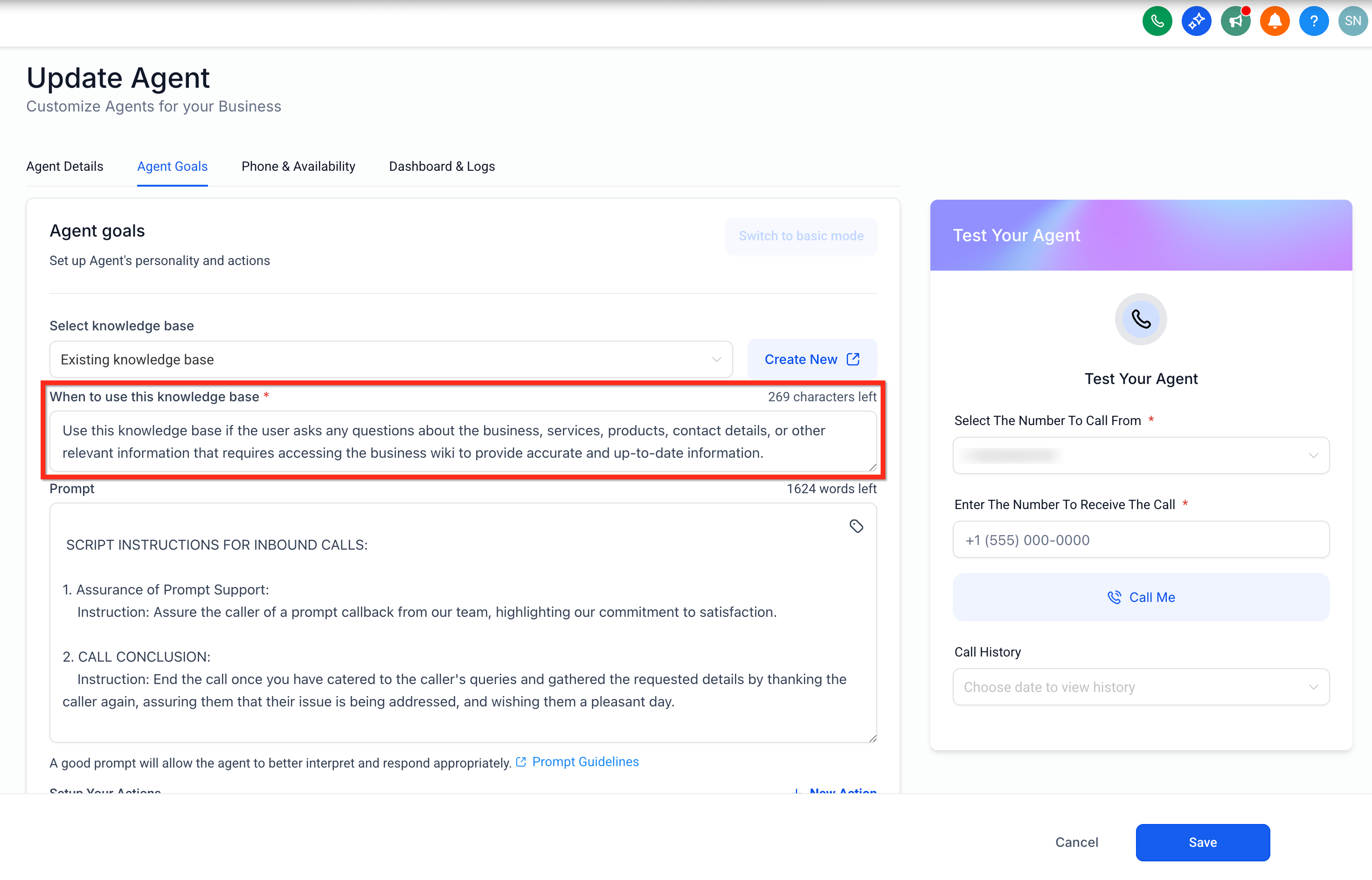
- In the When to use this knowledge base field, type a trigger prompt that describes when the knowledge base should be consulted.
- Write a clear and detailed prompt to improve the agent’s ability to match user queries.
- Click Save to store the configuration and link the knowledge base to the agent.
06What it looks like in HighLevel
07Settings that matter
- Select knowledge base. Determines which knowledge base the agent will search when the trigger prompt is activated.
- When to use this knowledge base. Contains the trigger prompt that tells the agent when to query the attached knowledge base.
08Things to know before you rely on it
- Each agent can be linked to only one knowledge base at a time.
- The feature works only with HighLevel’s built in knowledge bases.
- There are no published limits on knowledge base size, but very large bases may affect performance.
- If user input does not match the trigger prompt, the knowledge base is not queried.
- Knowledge Base Integration is available in both Basic and Advanced agent modes.
09If something goes wrong
- Agent does not retrieve information from the knowledge base. Check that the user utterance matches the defined trigger prompt and that the prompt is written clearly.
10How it connects to the rest of HighLevel
- Create a Voice AI agent before adding a knowledge base Create Voice AI Agent
- Set up inbound call routing to direct calls to the voice agent Inbound call flow
- Test the agent to verify the knowledge base responds as expected Test Voice AI
Michael's take

Businesses often struggle when their voice assistants give outdated or generic answers, leaving callers frustrated. The first thing I would get right is the trigger prompt. Make it as specific as possible so the agent knows exactly when to pull from the Knowledge Base.
Once the prompt is solid, I’d link the appropriate Knowledge Base and run a quick test call. Seeing the correct answer pop up confirms the integration is working, and you can start fine tuning prompts or expanding the base as needed.