
01Who this is for
- Businesses that receive inbound calls and want the AI to answer only during operating hours.
- Teams that use Voice AI for support or lead generation and need distinct schedules.
02Working hours for Voice AI Agents, explained
Working Hours control the periods when a Voice AI agent is allowed to answer inbound calls. The feature lets you choose between always on availability or a custom schedule that matches your operating hours.
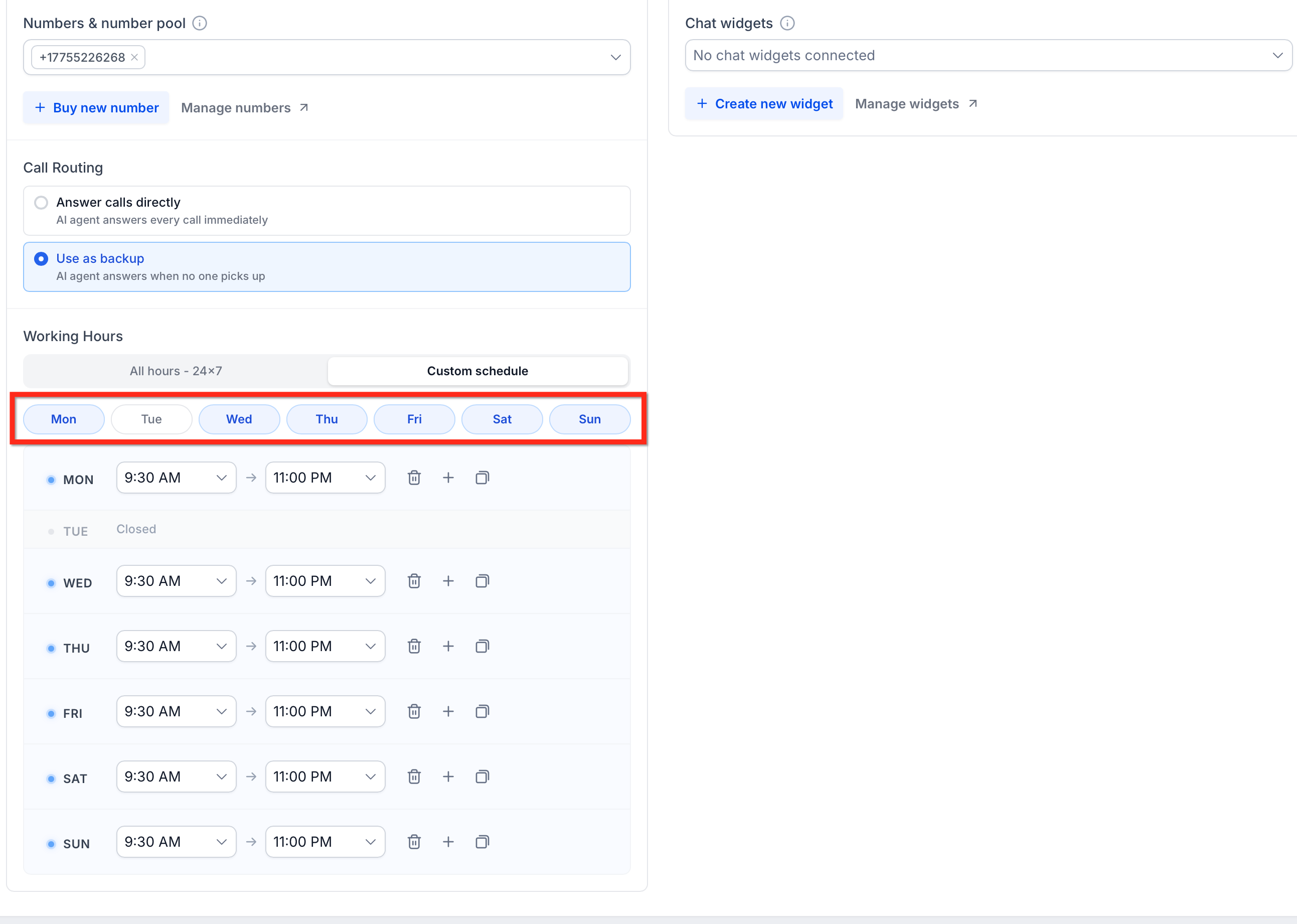
When you select All Hours the agent stays active 24/7. With Custom Schedule you pick the days, set start and end times for each day, delete days, and copy a day's pattern to other days. Schedules may extend through midnight.
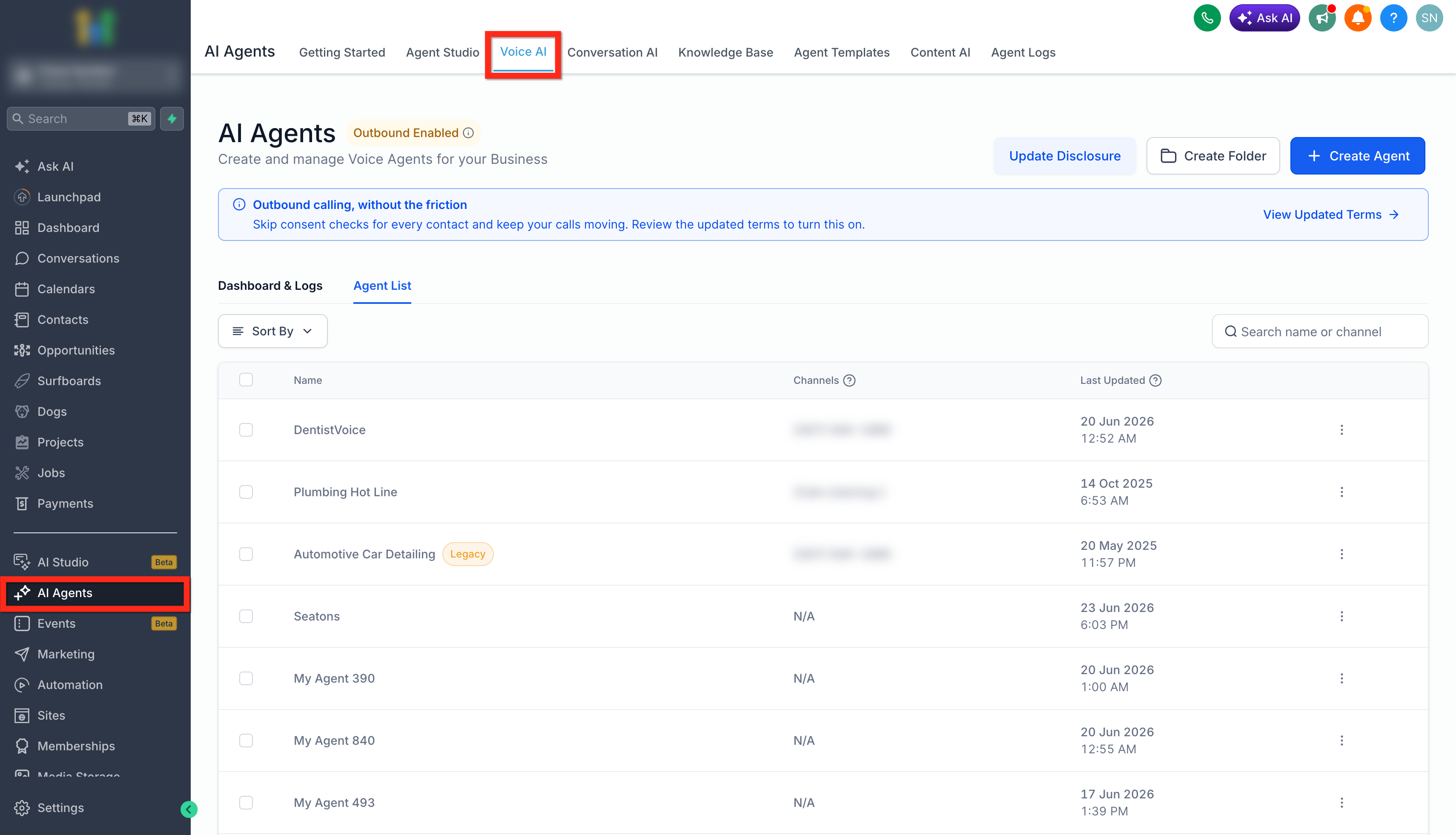
The configuration lives inside the platform under AI Agents > Voice AI. Open an agent, go to the Deploy tab, and you will find the Working Hours control there.
03How businesses use working hours for Voice AI Agents
- Dental practice. The practice creates a Voice AI agent and selects Custom Schedule. It marks Monday through Friday as active and sets 9 AM to 5 PM as the time range. The same hours are copied to each weekday, then saved.
- Real estate agency. The agency builds one agent for general inquiries with All Hours, and a second agent for appointment booking with a custom schedule that runs only during office hours. Each agent’s schedule is set in the Deploy tab.
- SaaS support desk. The support desk configures Working Hours on its Voice AI agent to restrict when follow up messages are sent. It chooses Custom Schedule, selects the weekday range, and defines the time window that matches its support shift.
04The numbers and rules that matter
- Working Hours are configured per agent.
05How to set up and use working hours for Voice AI Agents in HighLevel
Set up working hours for a Voice AI agent
- Log in to your HighLevel account.
- Navigate to AI Agents > Voice AI.
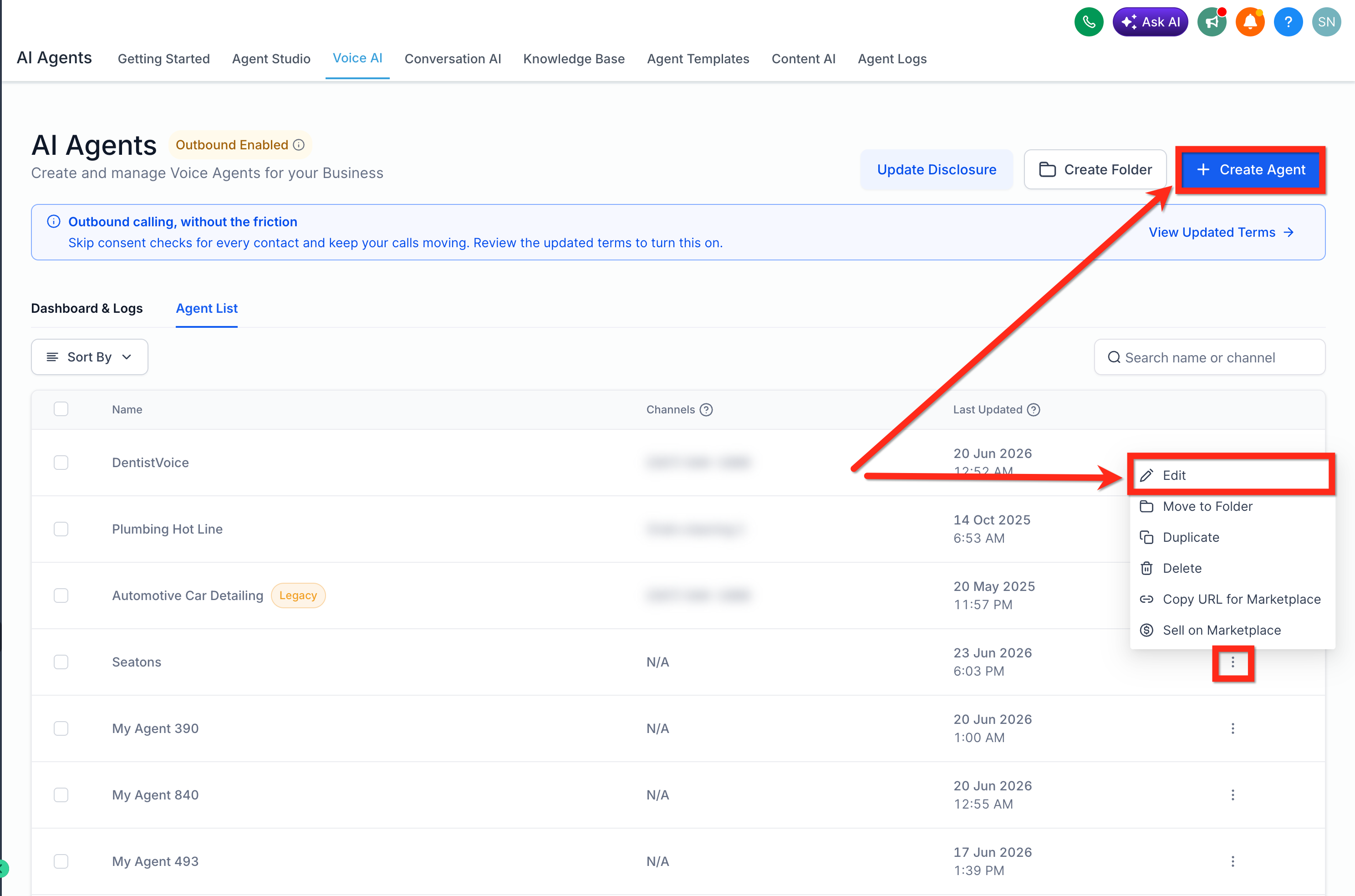
- Create a new Voice AI agent or edit an existing one.
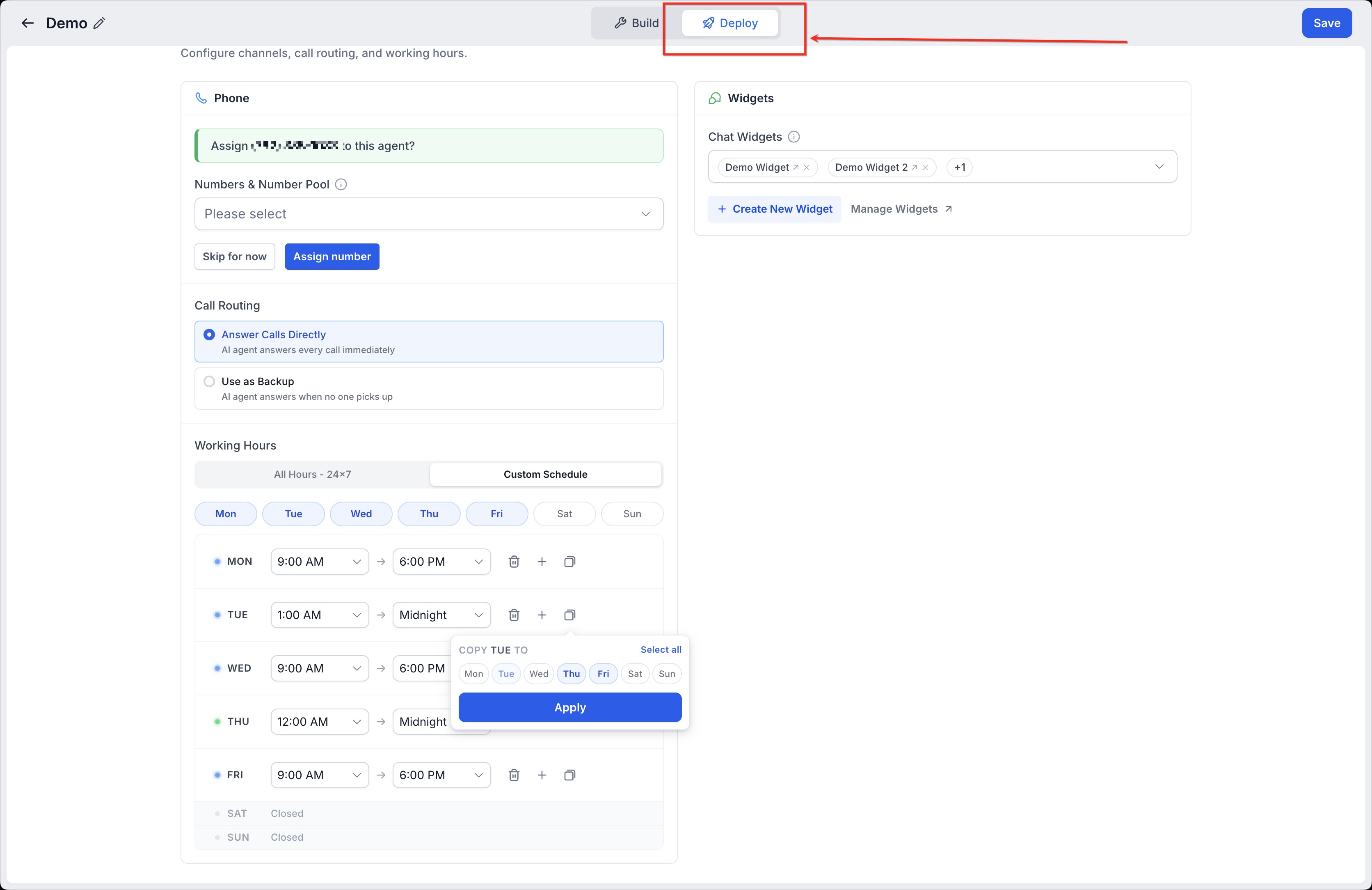
- Click the Deploy tab.
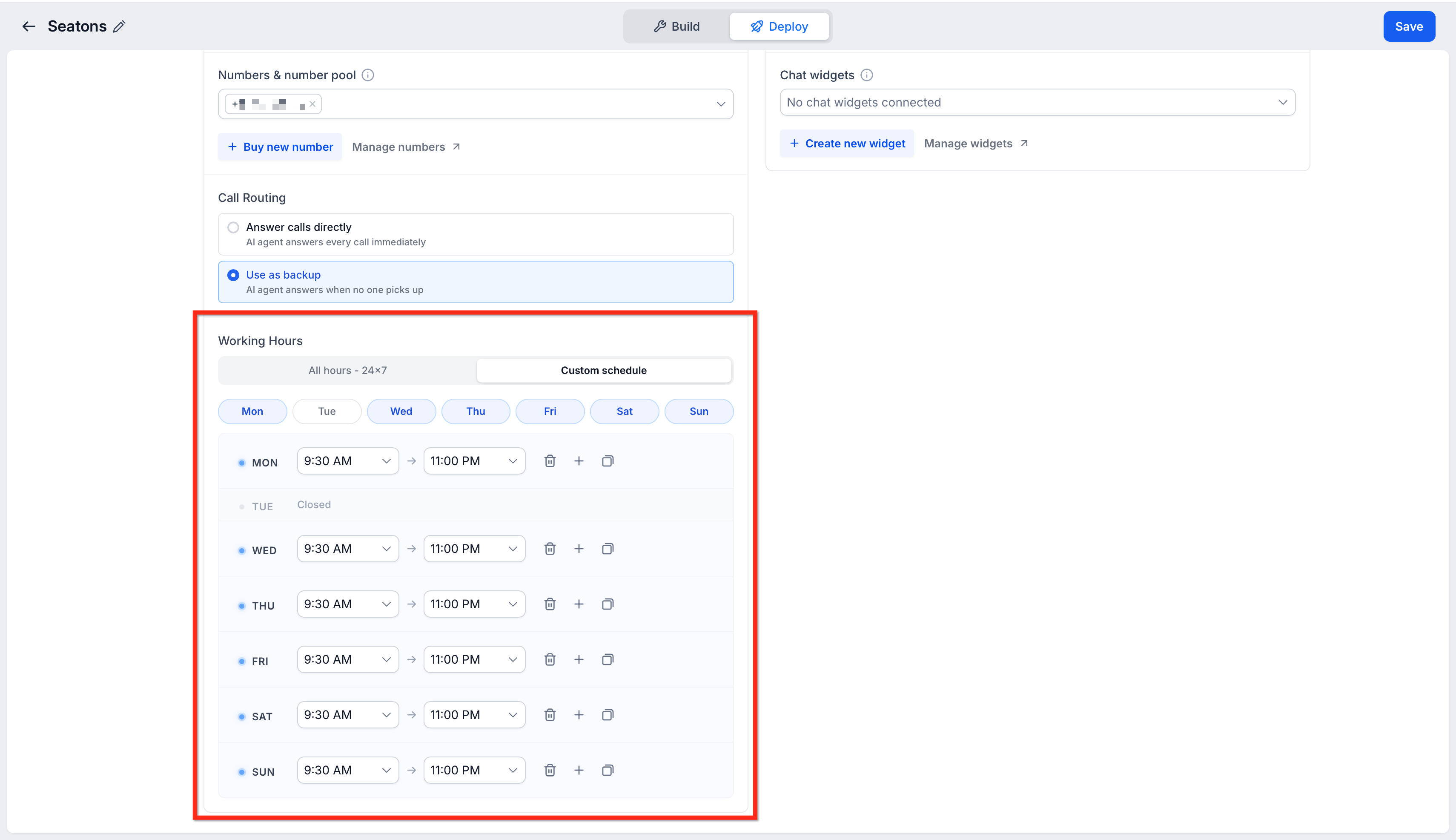
- Locate Working Hours in the Deploy tab.
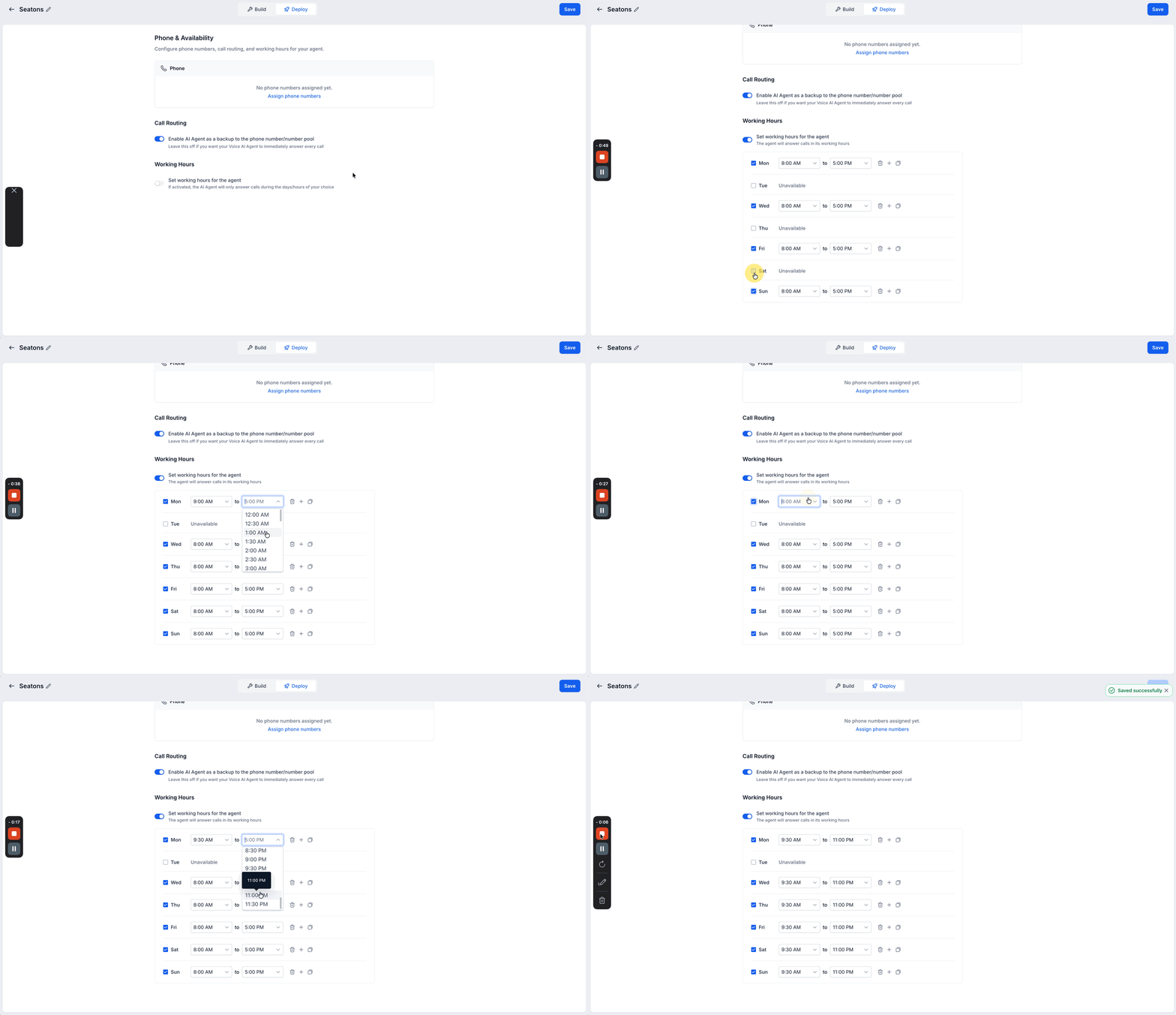
- Select the availability option for the agent (All Hours or Custom Schedule).
- If Custom Schedule is chosen, use the day chips to pick the active days.
- Set the start and end time for each active day; schedules can extend through midnight.
- Click the bin icon to remove a day’s selection if needed.
- Use the copy option to duplicate the same hours to other days.
- Click Save.
06What it looks like in HighLevel
07Settings that matter
- Working Hours. Controls whether the Voice AI agent can answer calls and defines the schedule type.
- availability option. Chooses between All Hours (always on) and Custom Schedule (specific days and times).
- All Hours. Keeps the agent available at all times, without time restrictions.
- Custom Schedule. Allows you to pick particular days and set start and end times for each day.
- day chips. Buttons that let you select which days of the week the custom schedule applies to.
- start and end time. Defines the active time window for each selected day; can span midnight.
- bin icon. Deletes the schedule for a specific day.
- copy option. Copies the defined hours from one day to other selected days.
08Things to know before you rely on it
- Custom schedules can extend through midnight.
- The AI does not automatically update its availability when you change the schedule; you must save the changes manually.
09How it connects to the rest of HighLevel
- Understand the business uses of Voice AI agents Voice AI overview
- Configure inbound call flow for Voice AI Inbound call flow
- Start a 30 day HighLevel trial to test Voice AI 30 day trial
Michael's take

In my experience, setting working hours helps avoid after hours calls and keeps notifications aligned with staff availability. If you run 24/7 or rely on live agents for every interaction, the benefit may be limited and maintaining separate schedules can add extra admin work.