
01Who this is for
- Founders building a new Voice AI agent need fast feedback on prompts and conversation flow, which Web Call provides.
- Support teams that rely on call transfers should use Phone Call testing to verify routing and transfer behavior.
- Small businesses with limited telephony budgets can validate agents without buying a phone number by using Web Call.
02Voice AI Agents, explained
Voice AI test calls are sandbox interactions that let you speak with an agent before it goes live. They generate call logs that include transcripts, recordings, and action details, but those logs are excluded from dashboard analytics.
Web Call runs directly in the browser, requires no phone number, and is ideal for rapid prompt or knowledge base validation. Phone Call uses your existing telephony configuration, so it confirms caller ID, routing, and transfer paths as a real caller would experience.
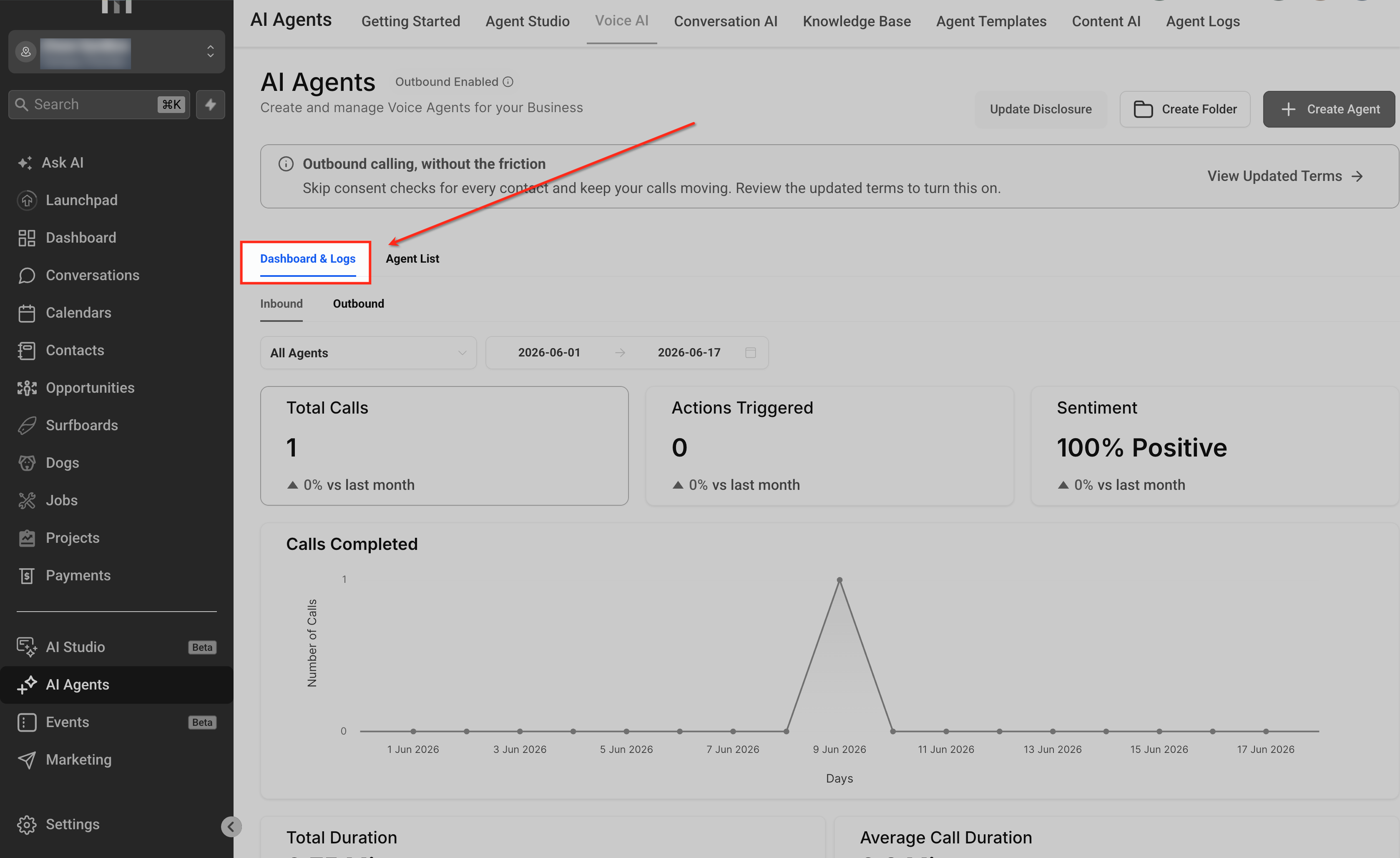
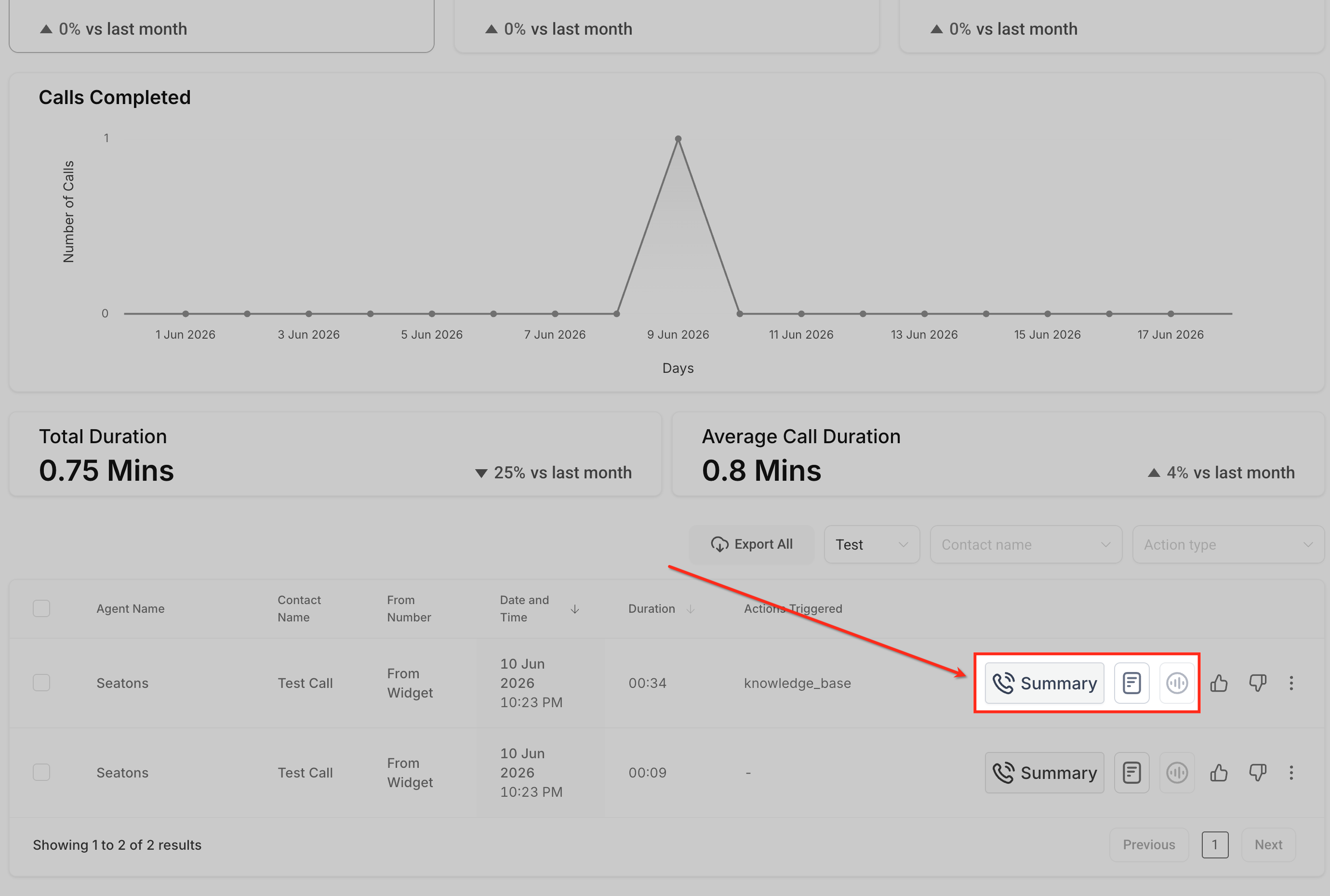
Both test methods are accessed from the Voice AI agent view under the Test Your Agent panel, and the results can be reviewed in the Voice AI Dashboard & Logs section.
03How businesses use Voice AI Agents
- Digital marketing agency. The agency opens a Voice AI agent, selects Web Call, chooses an inbound scenario, and runs a quick conversation to fine tune ad generated prompts. They repeat the test after each prompt change to ensure the agent replies as intended.
- Health clinic. The clinic selects Phone Call testing, picks the outbound scenario, sets the clinic’s caller ID, enters a test patient’s phone number, and answers the call to verify that appointment booking actions and transfer to a live receptionist work correctly.
- Ecommerce store. The store uses Web Call to validate that product information queries pull the correct Knowledge Base answers. After confirming prompts, they run a Phone Call test to ensure the outbound order status flow routes through the store’s existing phone system.
04Before you start
- Save the latest agent configuration before testing.
- Confirm prompts, greeting, Knowledge Base, and configured actions are ready.
- For Web Call, use a modern browser and allow microphone access.
- Select the correct input and output audio devices.
- Close or adjust other applications that may be using the microphone.
- For Phone Call testing, confirm the caller ID and destination number you intend to use.
05How to set up and use Voice AI Agents in HighLevel
Start a Web Call
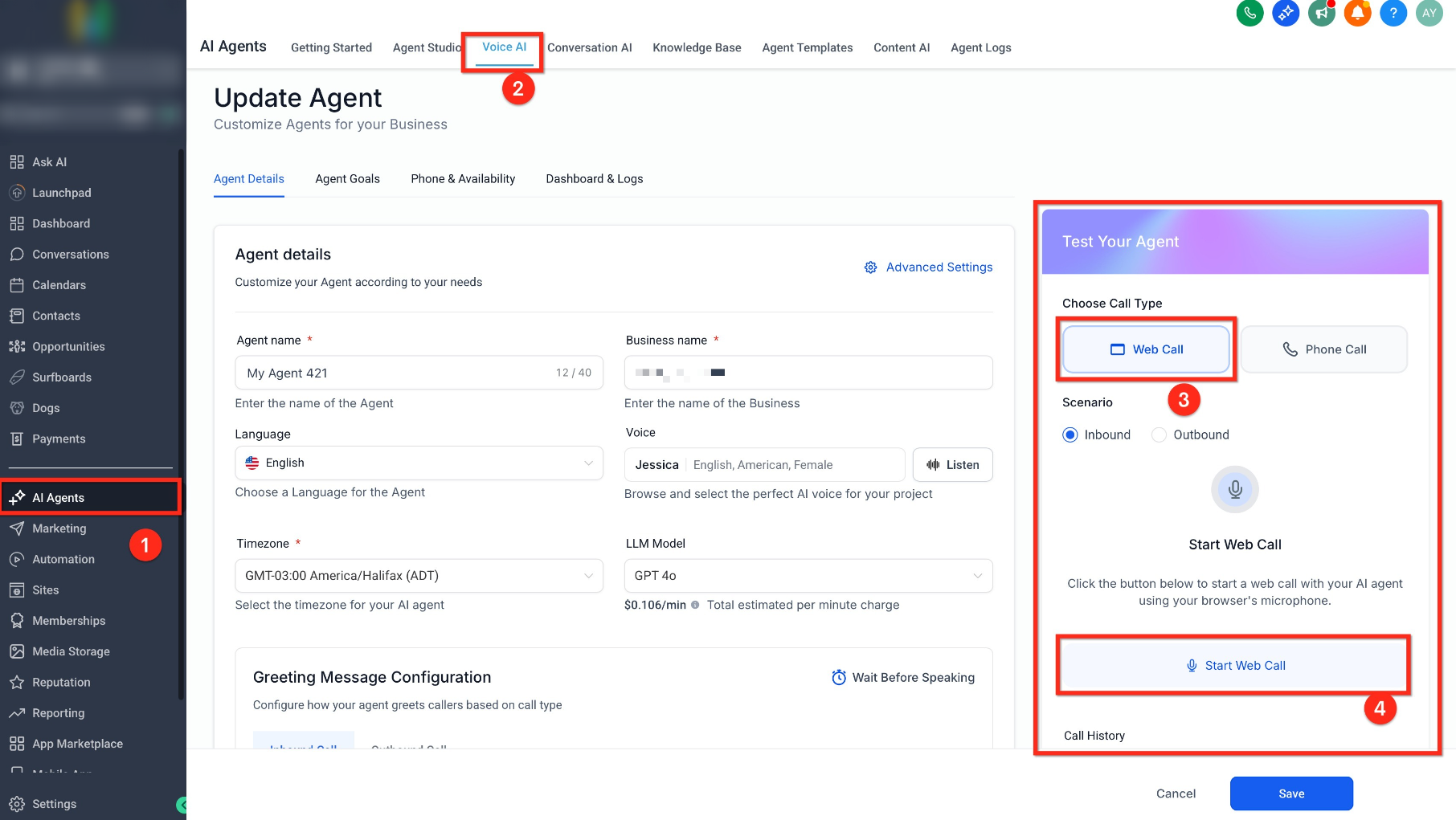
- Go to AI Agents > Voice AI.
- Open the Voice AI agent you want to test.
- Locate the Test Your Agent panel.
- Select Web Call.
- Choose the Inbound or Outbound scenario.
- Click Start Web Call.
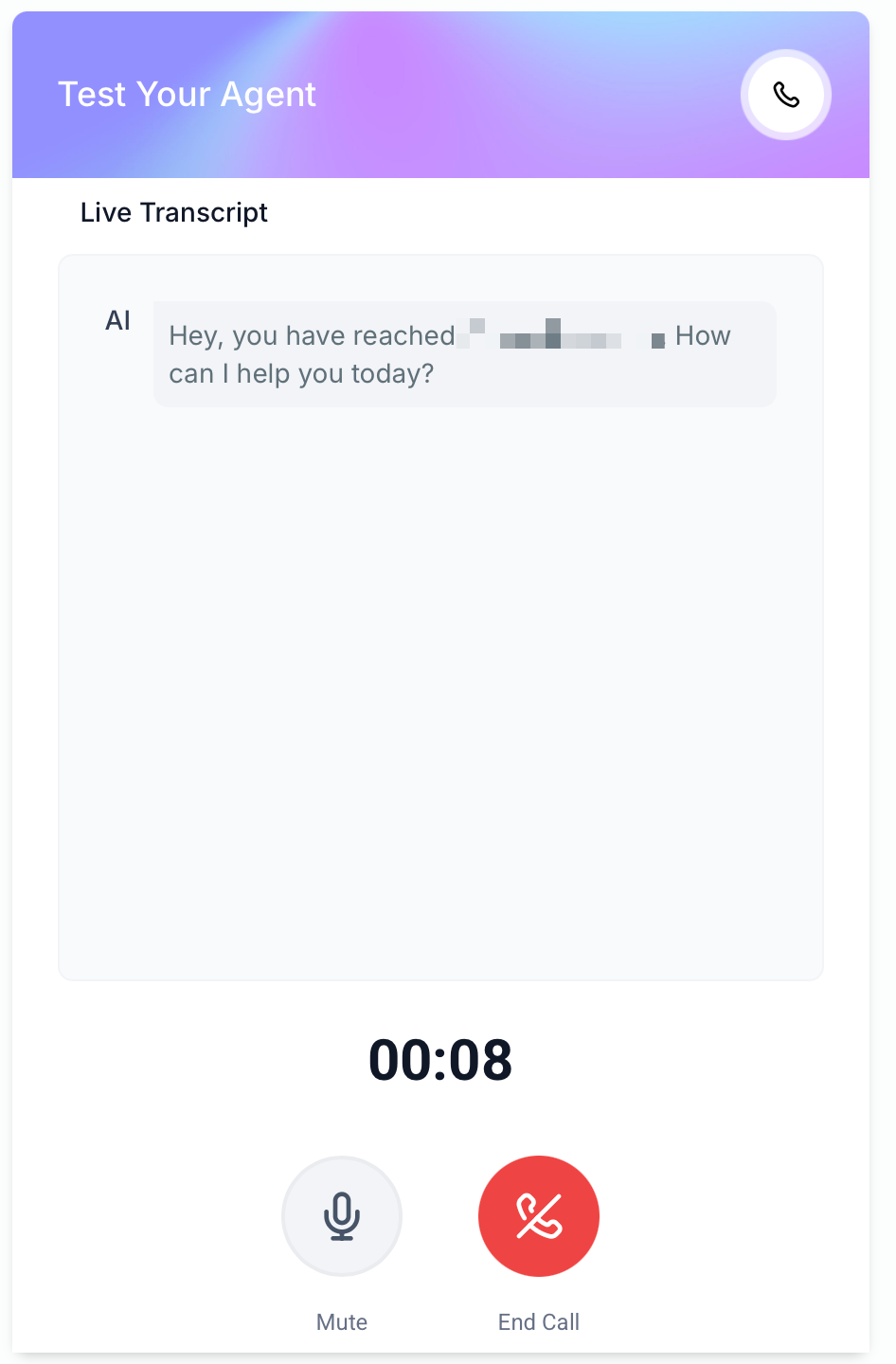
- Allow microphone access when prompted.
- Speak with the agent and evaluate its responses, actions, and conversation flow.
Start a Phone Call
- Open the Voice AI agent and locate the Test Your Agent panel.
- Select Phone Call.
- Choose the Inbound or Outbound scenario.
- Select the Caller ID the agent should call from.
- Enter the phone number that should receive the test call.
- Click Call me.
- Answer the call and test the agent as a real caller would.
06What it looks like in HighLevel
07Settings that matter
- Test Your Agent panel. Provides the options to initiate a Web Call or Phone Call test for the selected Voice AI agent.
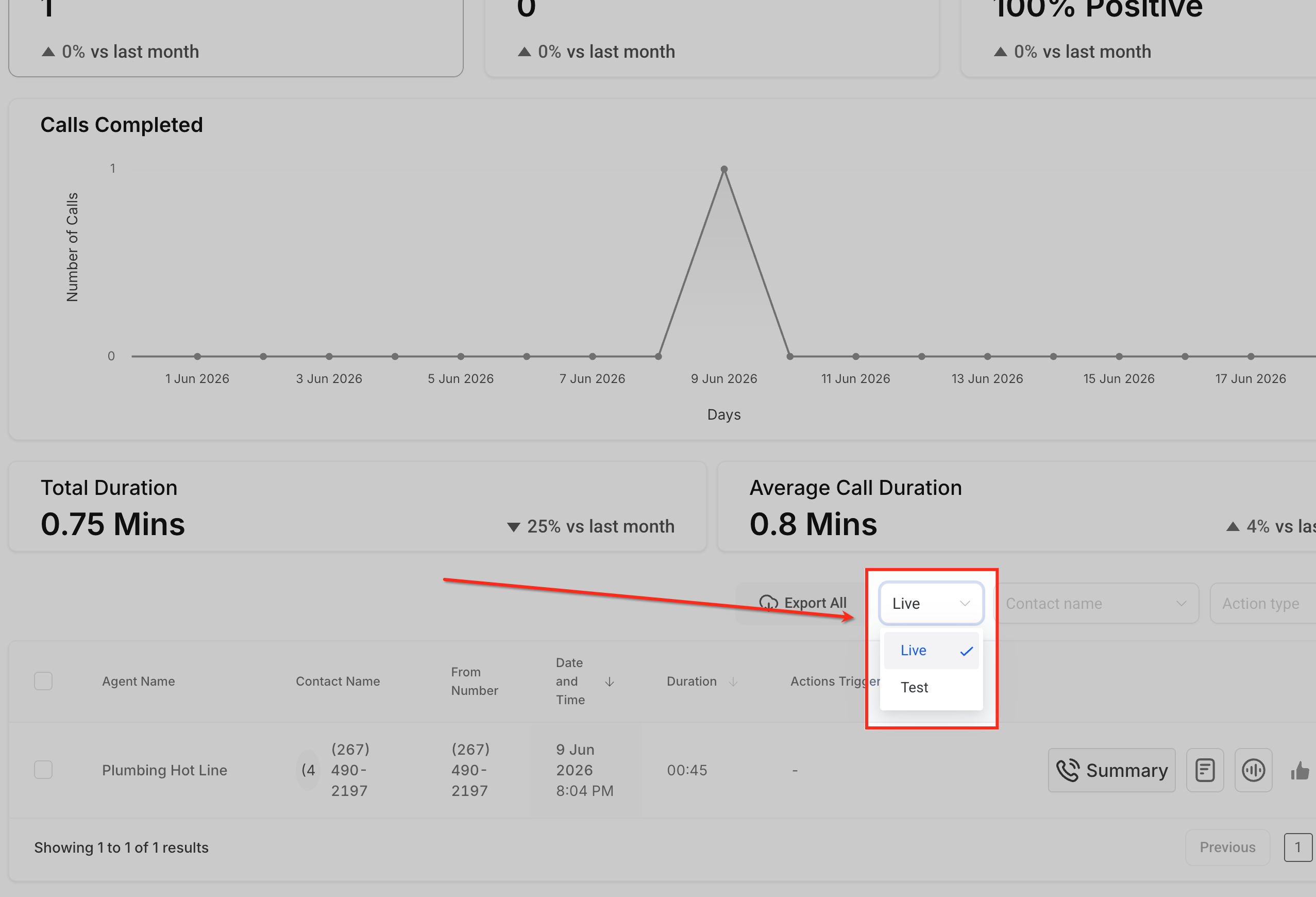
- Live/Test filter. Filters the Voice AI logs to show only test calls, separating them from live activity.
- Inbound or Outbound scenario. Selects whether the test simulates an incoming call or an outgoing call from the agent.
- Caller ID. Specifies which phone number the agent should use when placing an outbound test call.
08Things to know before you rely on it
- Call Transfer cannot be validated during Web Call trials; use Phone Call testing for transfer behavior.
- Web Call does not require a purchased phone number, but it does not replace phone based validation.
- Phone Call testing follows your normal telephony rates, which may apply to the test call.
- Outbound test scenarios are only available when the location meets Voice AI outbound eligibility and compliance requirements.
09If something goes wrong
- Test call does not appear in Dashboard & Logs. Check the selected agent, date range, and Live/Test filter. Ensure the test completed successfully and allow time for processing.
- Call Transfer cannot be tested with Web Call. Run a Phone Call test or use the deployed phone experience to validate transfer paths.
- Outbound scenario unavailable. Verify the location meets outbound eligibility, complete any required KYC or verification, ensure an eligible agent and number exist, and accept outbound terms when configuring the workflow action.
- Microphone access denied during Web Call. Allow microphone permission when the browser prompts, or adjust browser settings to enable microphone use.
10How it connects to the rest of HighLevel
- Learn how to build and launch a Voice AI agent in HighLevel Build Voice AI agent
- Configure inbound call flow for Voice AI agents Inbound call flow
- Set up outbound calling in Voice AI workflows Outbound calling
Michael's take

Voice AI testing is essential before you let real callers interact with your agent.
Teams that don’t use Voice AI or have no telephony integration can skip it.