
01Who this is for
- Founders can roll back accidental changes, ensuring automations stay reliable.
- Marketing managers gain visibility into who edited a workflow and when, supporting team accountability.
- Operations leads can create alternate workflow branches without disrupting the live version.
02Workflow version history, explained
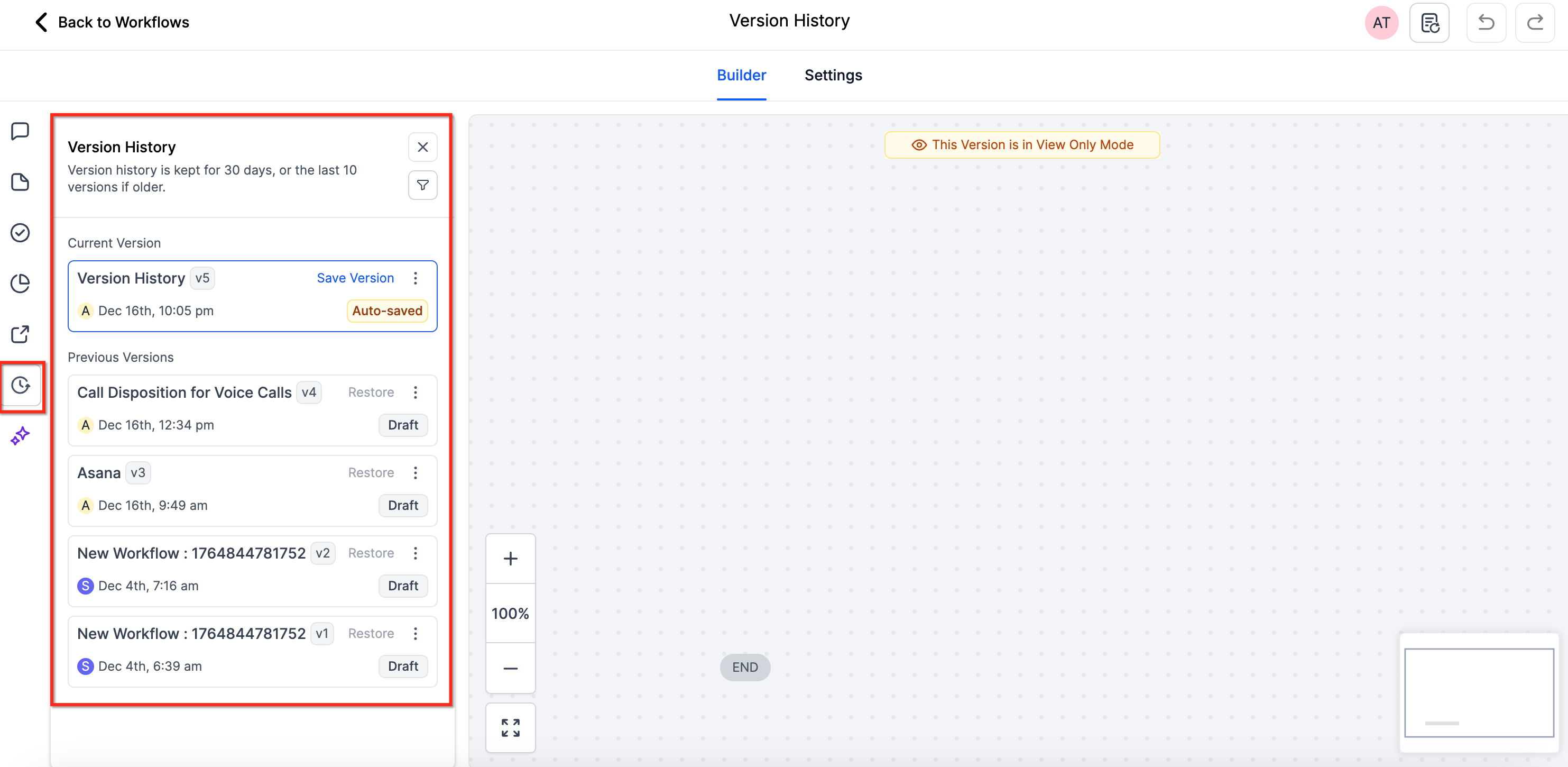
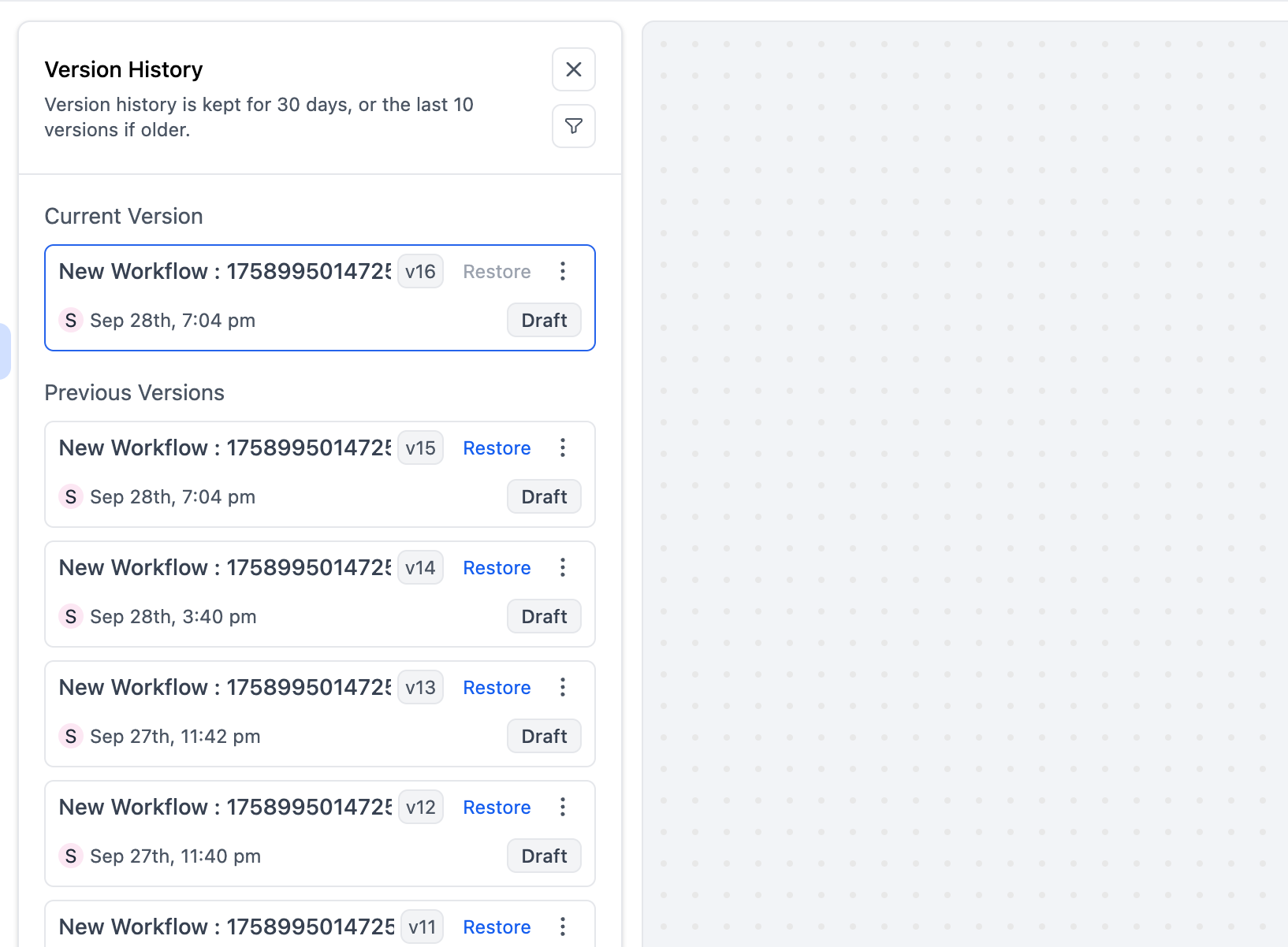
Version History is a built in timeline that captures each time a workflow is saved, a version is created, or the workflow status changes. Every entry logs the editor’s name, the exact timestamp, and whether the version was a draft or published build. The feature lives in the workflow editing area and appears as a sidebar that lists versions chronologically.
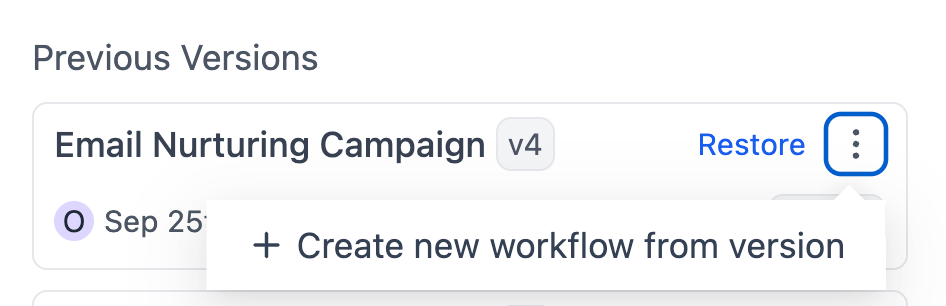
The sidebar shows the workflow name, version label (v12, v13, etc.), timestamp, editor, and status. Users can filter the list by editor and view up to ten versions or thirty days of history, whichever comes first. Restoring a version opens it as a new draft; the live workflow stays unchanged until the user publishes the draft. A separate workflow can also be created from any past version, allowing safe experimentation.
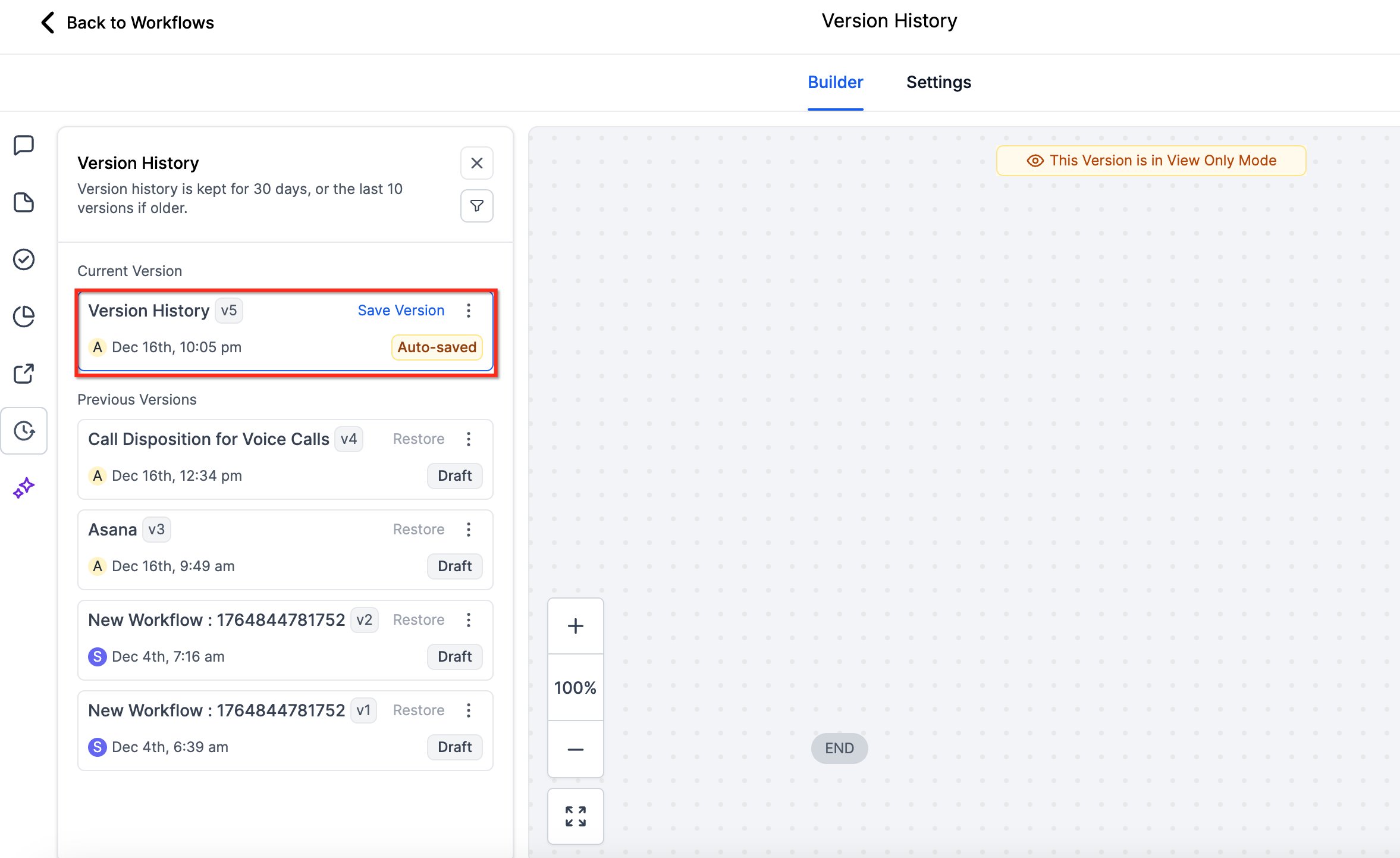
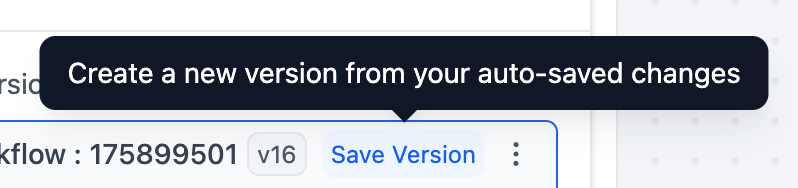
Version History works together with the platform’s auto save, save version, and undo/redo functions. Auto save does not generate a new version on its own; clicking Save Version snapshots the current auto saved state into the history. The feature is available as a Labs beta and must be enabled in Settings > Labs.
03How businesses use workflow version history
- Ecommerce store. The store manager can browse past workflow versions to see how checkout automations changed over the last month. If a recent edit broke a promotion email, they can restore the previous version as a new draft and republish it after testing.
- Digital marketing agency. Agency staff can filter version history by editor to audit which team member adjusted a lead nurturing sequence. They can create a new workflow from an earlier version to test a different campaign path without affecting the client’s active automation.
- Online coaching business. The coach can restore a prior version of a membership onboarding workflow after a mistaken step removal. The restored draft remains separate until they publish, ensuring members continue receiving the correct sequence.
04The numbers and rules that matter
- Up to 10 versions or 30 days of history (whichever comes first).
05Before you start
- Enable Version History in Settings > Labs for the account.
06How to set up and use workflow version history in HighLevel
Browse versions
- Open the workflow and launch the Version History sidebar.
- Read the list of entries that show workflow name, version label, timestamp, editor, and status.
- Use the filter option to narrow entries to a specific editor if needed.
- Confirm that you are viewing up to ten versions or thirty days of history.
Restore a version
- Open the Version History sidebar for the workflow.
- Locate the desired past version in the list.
- Click the Restore button next to that version.
- Verify that the workflow is in Draft status and has no enrolled contacts.
- The restored version opens as a new draft ready for further editing or publishing.
Create new workflow from a version
- Open the Version History sidebar for the workflow.
- Find the version you want to branch from.
- Click the Create new workflow from version option.
- Give the new workflow a name if prompted.
- A separate draft workflow is created, leaving the original unchanged.
07What it looks like in HighLevel
08Settings that matter
- Labs. Controls whether the Version History feature is enabled for the account.
09Things to know before you rely on it
- Version History retains up to ten versions or thirty days of history, whichever limit is reached first.
- Restoring a version requires the workflow to be in Draft status and to have no contacts currently enrolled.
- After a restore, the undo/redo history resets and starts fresh from the new draft.
- Auto save edits do not automatically create new versions; use Save Version to capture a snapshot.
- The feature is available as a Labs beta and must be turned on in Settings > Labs.
10How it connects to the rest of HighLevel
- Learn how to build a workflow from scratch with triggers, filters, and actions. Workflow creation guide
- Review detailed workflow settings that control contact flow and timing. Workflow settings overview
- Check plan eligibility for accessing Labs features like Version History. HighLevel pricing
Michael's take

Version history is a solid safety net for anyone editing automations.
Teams that rely on a single editor or don’t need to roll back changes can skip it.