
01Who this is for
- Automation specialists can quickly spot failed actions and adjust steps without digging through multiple pages.
- Support teams gain a clear view of a contact’s journey, helping them answer client queries faster.
02Execution logs & enrollment history, explained
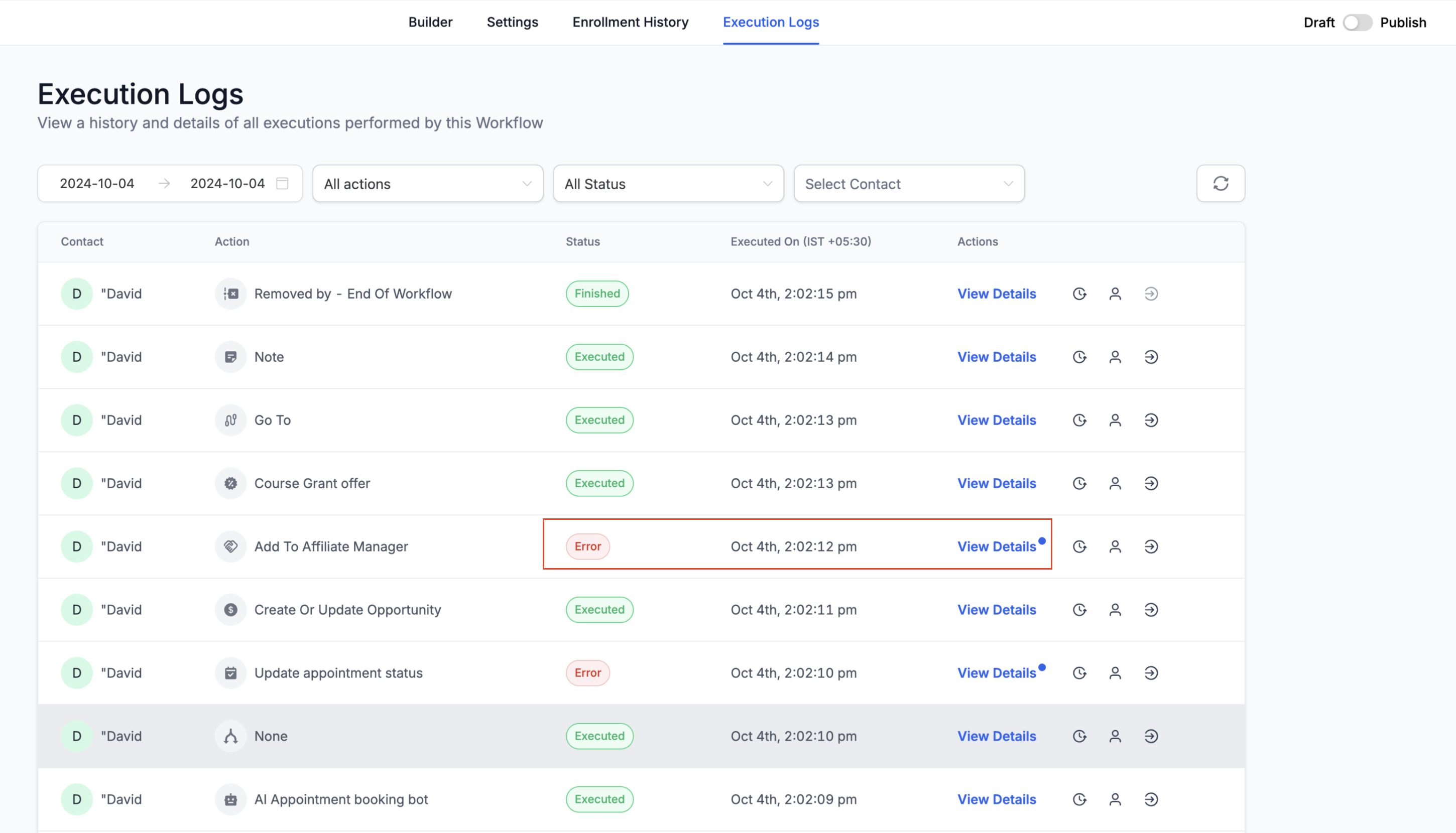
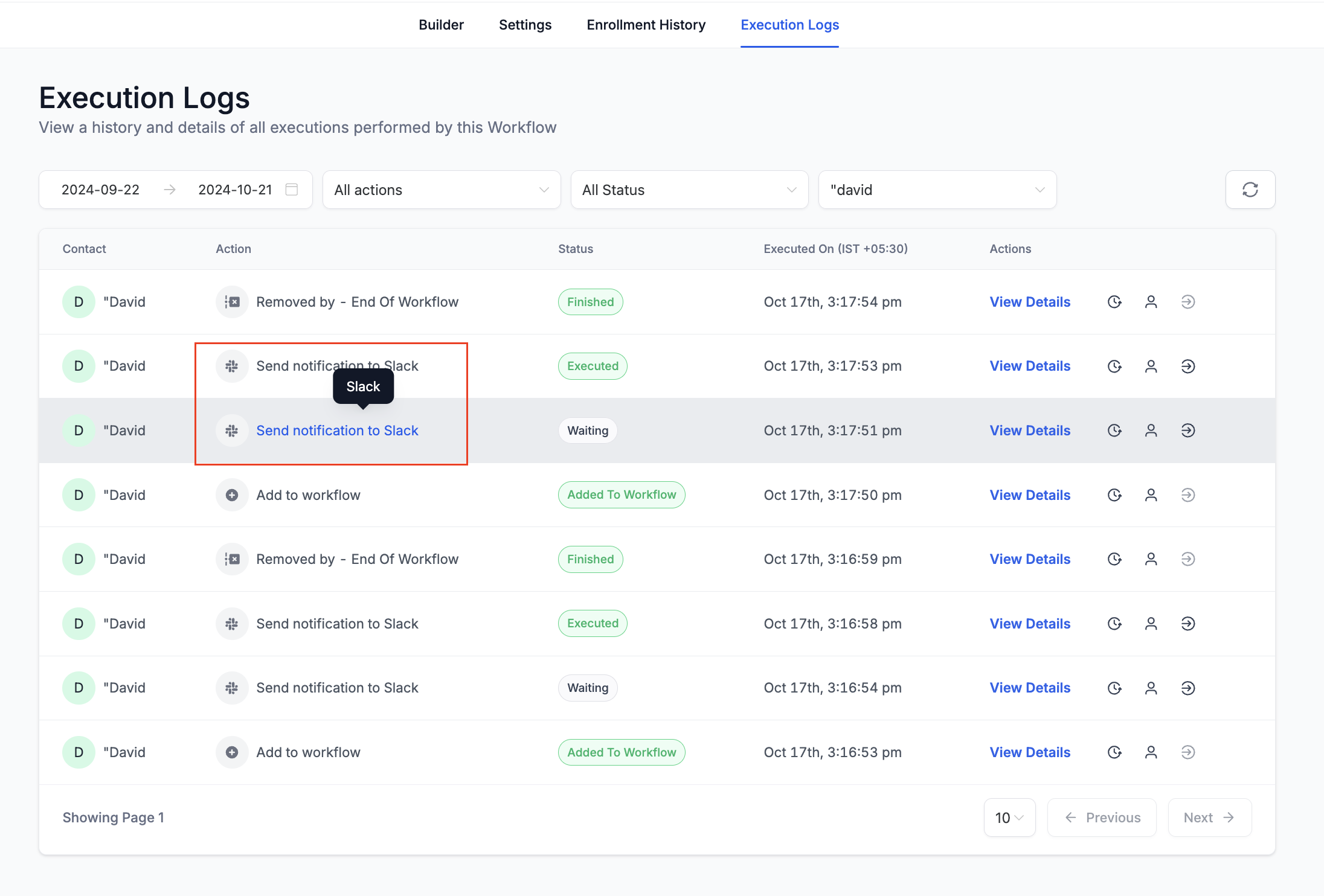
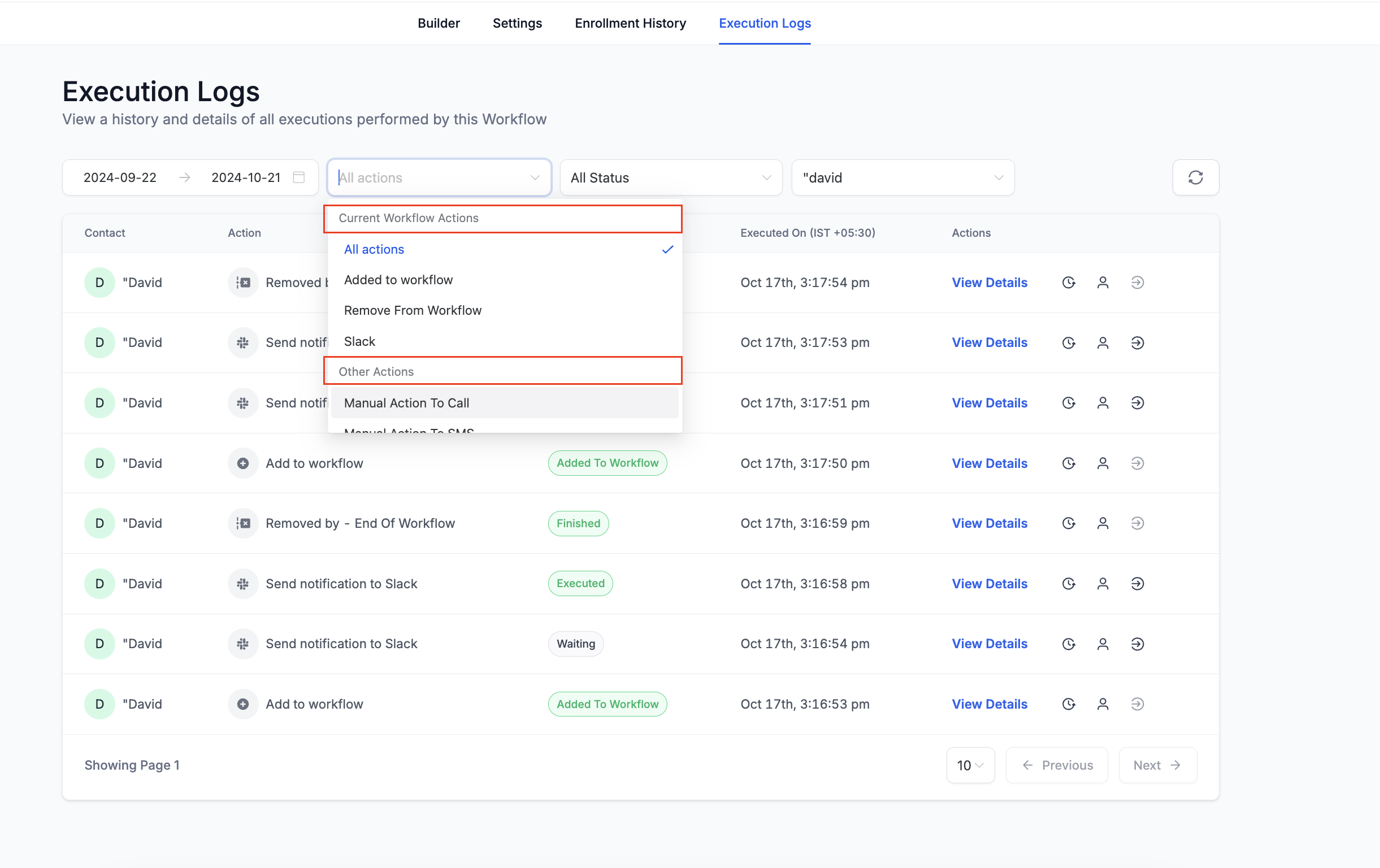
Execution Logs record every action a contact experiences within a workflow, showing status, timestamps, and the assigned action name. The new layout replaces the old icon with a clickable hyperlink, highlights rows when opened, and flags errors with a colored status field.
Enrollment History lists each time a contact enters or exits a workflow, now with clearer status labels such as “Workflow Completed” or “Removed by Workflow Action.” Both tabs support pagination (10, 25, or 50 rows) and a custom date range up to 30 days. A Highlight Contact Path button draws the contact’s route directly on the workflow canvas.
All features are accessed inside a workflow under the Automations tab. From there you can open Execution Logs, view detailed actions, jump to the builder, and explore related contact or execution histories.
03How businesses use execution logs & enrollment history
- Digital marketing agency. The agency opens a contact’s execution log from a conversation to verify why a lead did not receive a follow up email. Using the highlighted error row, they click the Go To Action button, adjust the email action in the builder, and save the change.
- Online course provider. When a student is removed from a course onboarding workflow, the provider checks the Enrollment History to see whether the removal was internal or caused by another workflow. The status label clarifies the reason without extra investigation.
- Health clinic. Clinic staff view a patient’s contact history from the execution logs to ensure appointment reminders were sent. The View Contact History icon opens a chronological list of all actions the patient experienced across enrollments.
04The numbers and rules that matter
- Pagination options: 10, 25, or 50 rows per page.
- Date format changed to MMM DD (e.g., Oct 21).
- Custom date range can be set up to a maximum of 30 days.
05How to set up and use execution logs & enrollment history in HighLevel
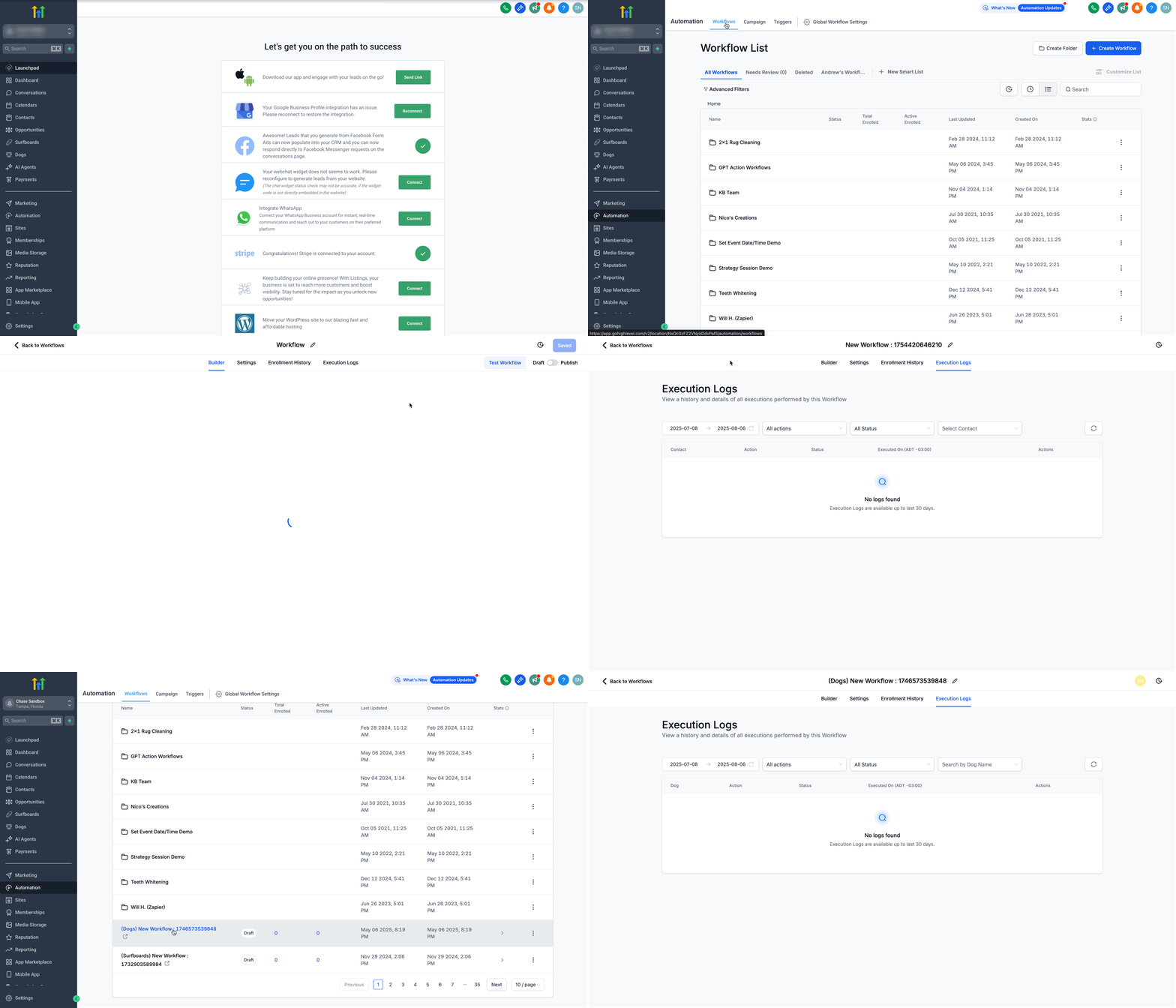
Open execution logs
- Log in to your subaccount and select Automations.
- Choose Workflows and open the desired workflow.
- Select the Execution Logs option.
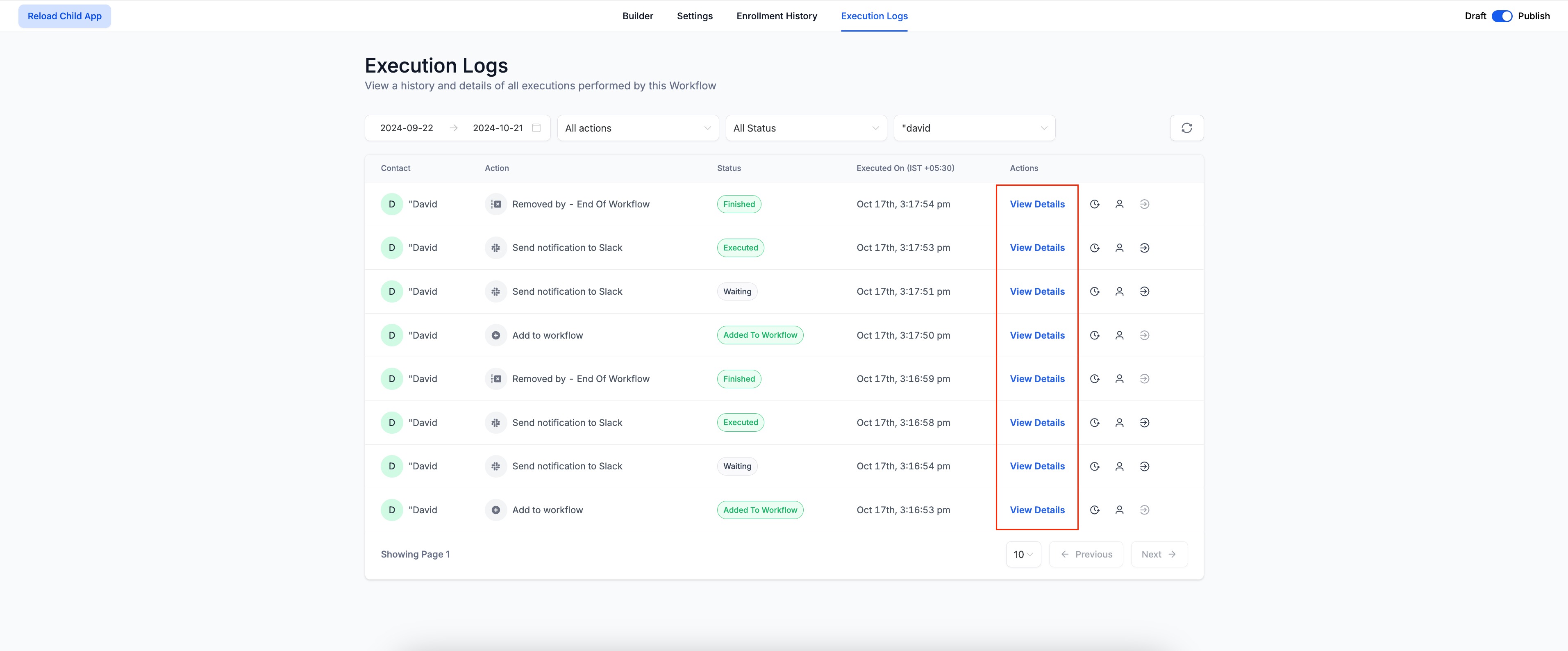
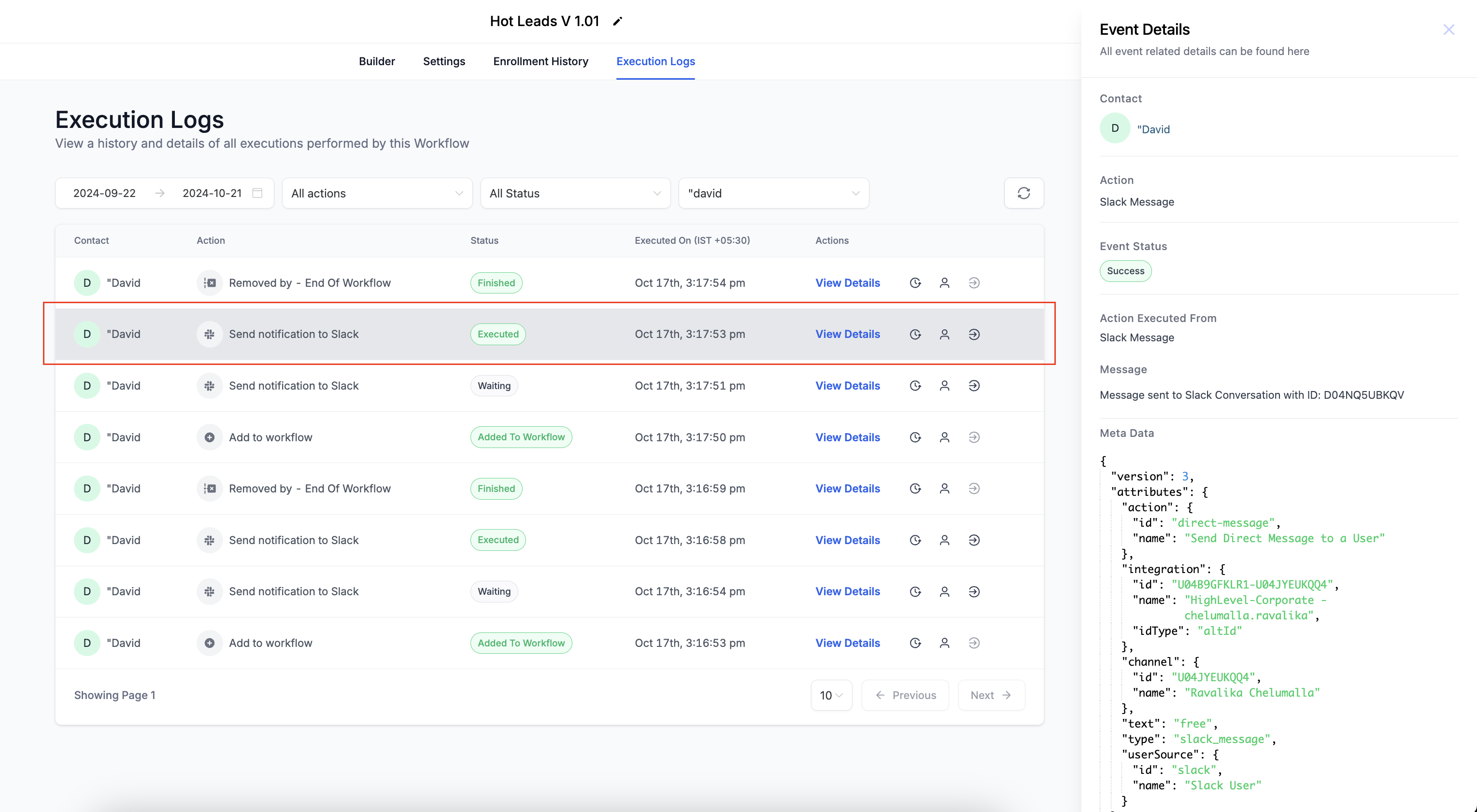
- Click the View Details hyperlink for the row you need.
Open a specific execution from message details (deep link)
- Open Conversations and locate the relevant message.
- Select the message to open its details panel.
- In the Workflow section, click the workflow link.
- HighLevel loads Execution Logs with that execution pre selected.
Go to an action from execution history
- In Execution History, find the action entry you want to edit.
- Click the Go To Action button on that row.
- The builder opens with the Action Sidebar ready for changes.
View contact history from execution logs
- Within Execution Logs, locate the row for the contact.
- Click the View Contact History icon.
- The contact’s full history page appears.
View execution history for a specific enrollment
- In Enrollment History or Execution Logs, find the enrollment row.
- Click the View Execution History icon.
- A tab showing that contact’s execution timeline opens.
06What it looks like in HighLevel
07Settings that matter
- Action Name. Displays the custom name you assign to an action, replacing the generic type label.
- View Details. A hyperlink that opens the detailed view for a specific execution row.
- Highlight Contact Path. When clicked, it draws the contact’s path on the workflow canvas, showing entry, errors, skips, and exit points.
- Go To Action. Opens the selected action directly in the builder with the Action Sidebar active.
- Date Format. Shows dates in the MMM DD format; time appears when you hover over the date.
08Things to know before you rely on it
- Pagination lets you display 10, 25, or 50 rows per page in both tabs.
- Custom date ranges can be selected with start and end times up to a 30 day maximum.
- The date field shows only the month and day; the full timestamp appears on hover.
- Timezone information is added to the Executed On column.
09How it connects to the rest of HighLevel
- Getting started with HighLevel workflow automation Workflow basics
- Full list of workflow features All Workflows features
- HighLevel pricing and plans overview Pricing
Michael's take

Execution logs & enrollment history give small businesses the transparency they need to keep automations running cleanly, pinpoint errors fast and understand exactly how contacts move through each step.
Avoid skipping the deep link from a conversation; it saves you from hunting through pages of logs.