
01Who this is for
- Founders who oversee dozens of automations and need a fast way to organize them.
- Marketing agencies managing client workflows across multiple folders and requiring consistent statuses.
- Service based businesses that need to update permissions or publish states for many workflows in one step.
02Bulk actions in workflow list page, explained
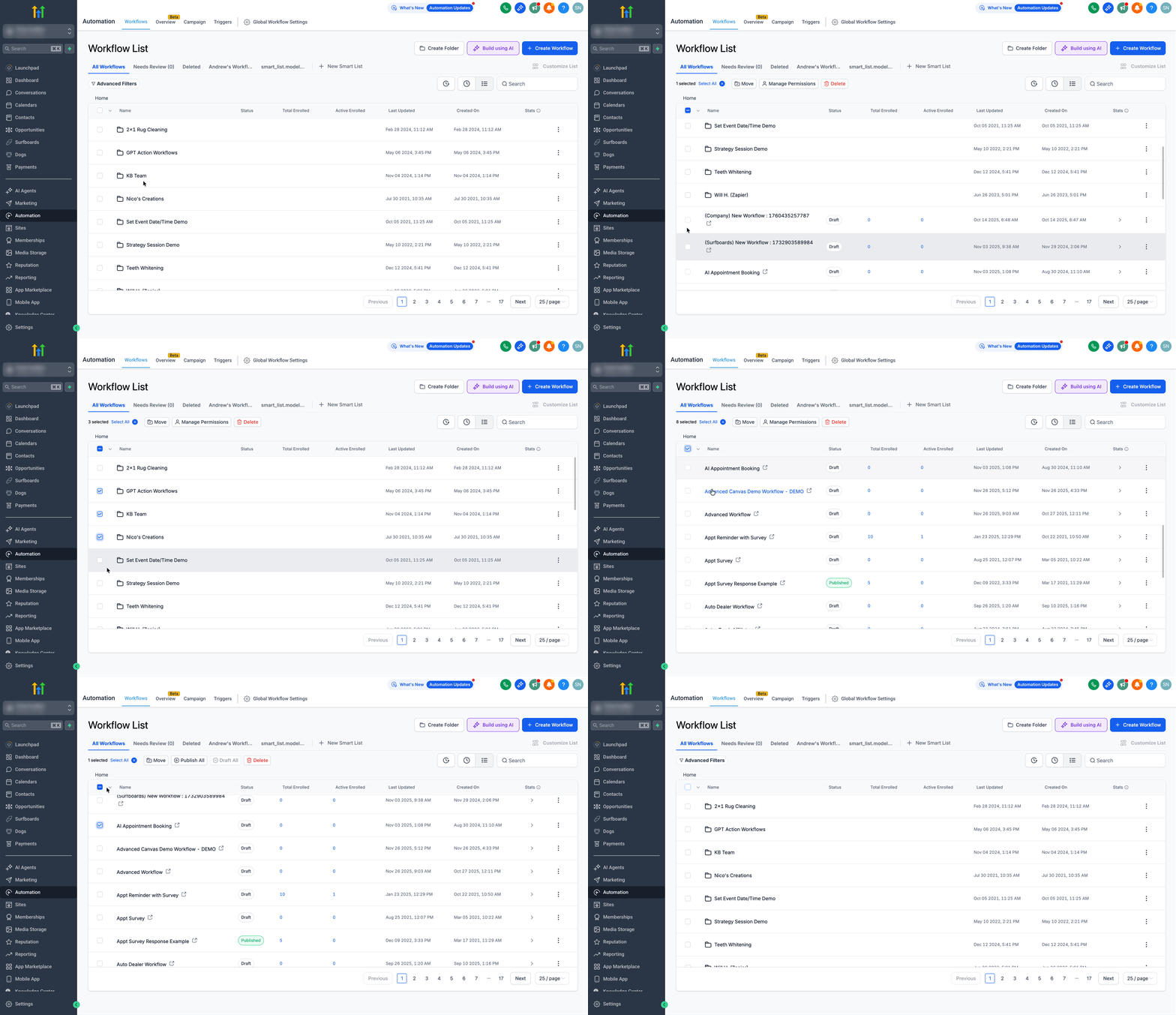
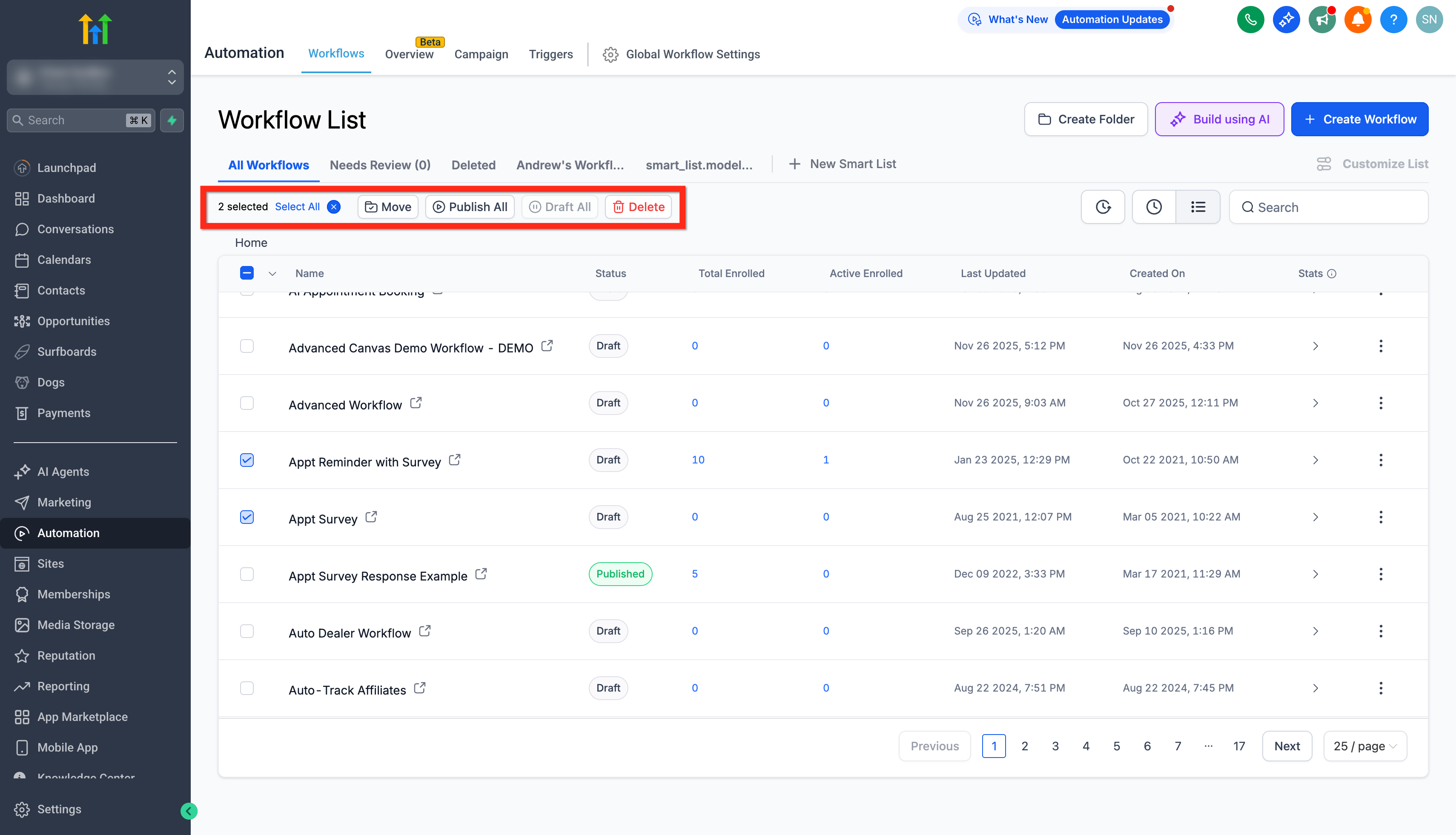
Bulk Actions appear on the Workflows list view. After selecting one or more items, a toolbar offers actions that affect all chosen records at once. The actions include publishing or drafting workflows, moving items to another folder, deleting them, or adjusting folder permissions.
The feature respects user roles. Only actions you are authorized for are enabled, and the bulk toolbar shows after you select at least one item. Selections are limited to what is visible on the current page unless filtered or displayed via a smart list. The behavior is built into the Workflows list page and may differ on very small screen sizes.
03How businesses use bulk actions in workflow list page
- Marketing agency. The agency selects all draft workflows for a client and uses the bulk toolbar to publish them together, saving time compared with opening each workflow individually.
- SaaS startup. The startup filters workflows by a smart list, selects all matching items, and moves them into a new folder to keep its automation library organized.
- Local service business. The business selects several folders and applies Manage Permissions in bulk, ensuring the correct team members have access to each folder.
04The numbers and rules that matter
- Actions available: Publish/Draft (workflows only), Move (workflows or folders), Delete (workflows or folders), Manage Permissions (folders only).
05Before you start
- Be logged into a subaccount with permission to perform bulk actions.
06How to set up and use bulk actions in workflow list page in HighLevel
Perform bulk action
- Sign in to your subaccount.
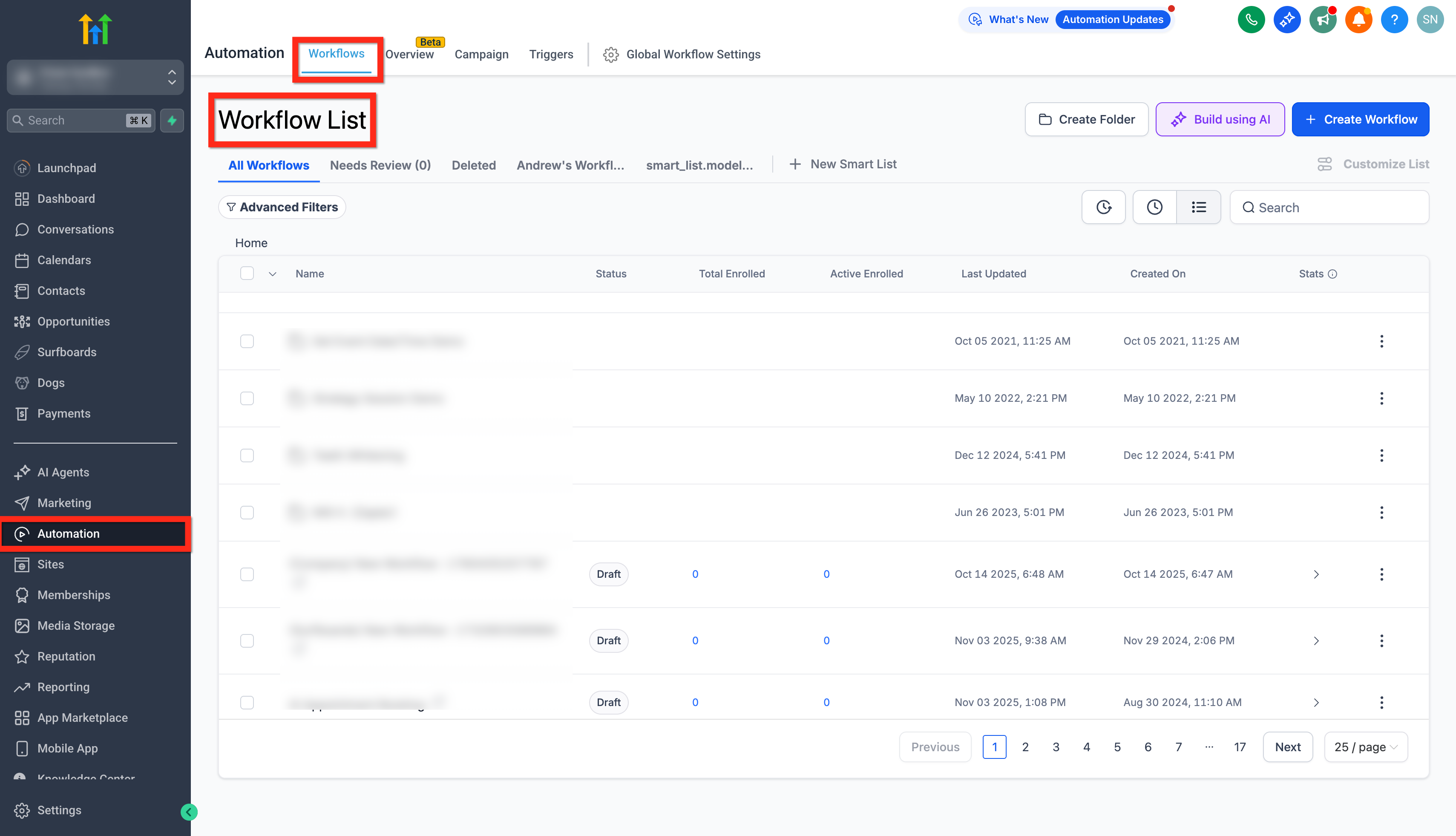
- Navigate to Automations > Workflows.
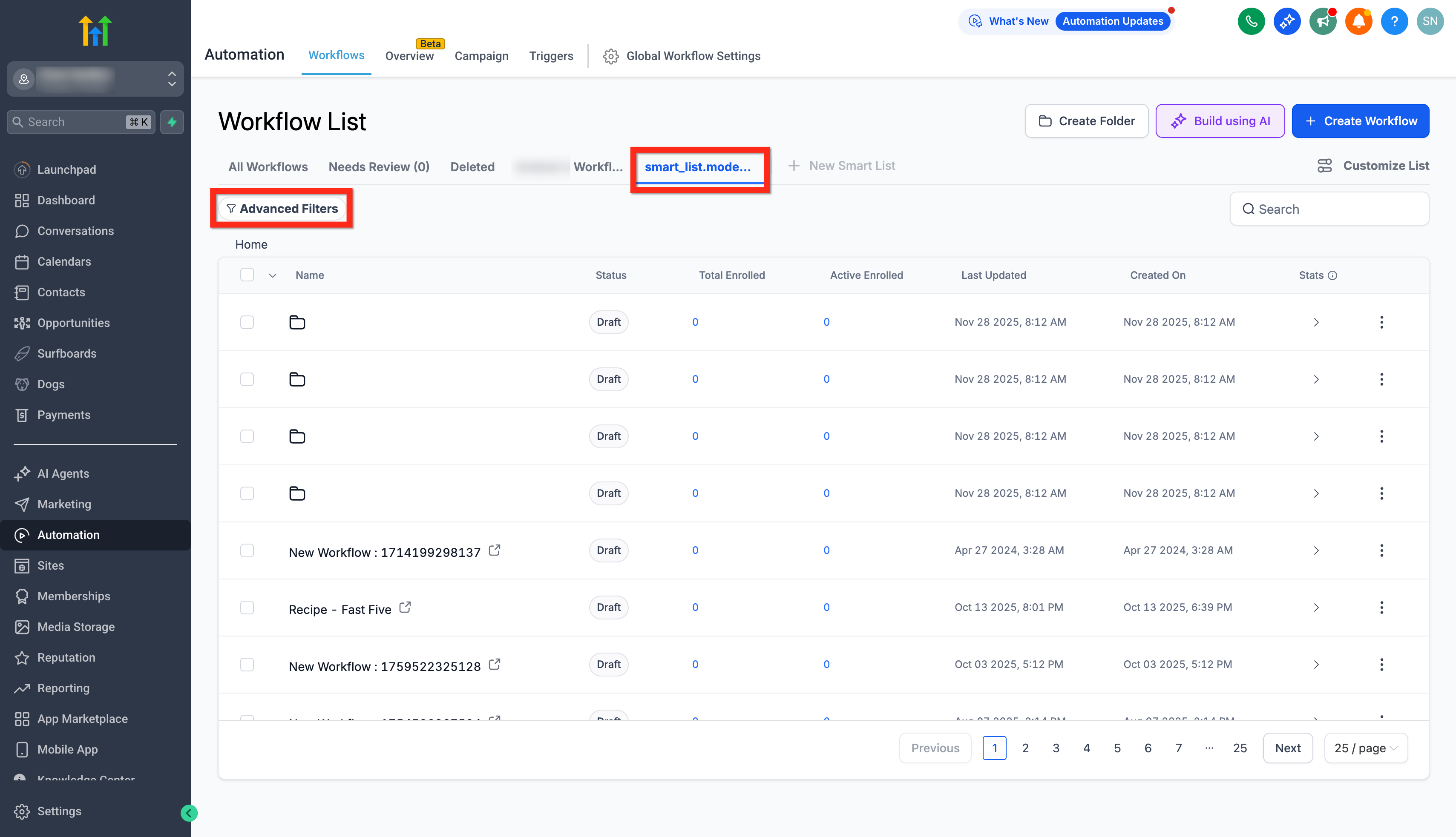
- Optionally apply filters or open a smart list to narrow the view.
- Tick the checkboxes next to the desired folders or workflows.
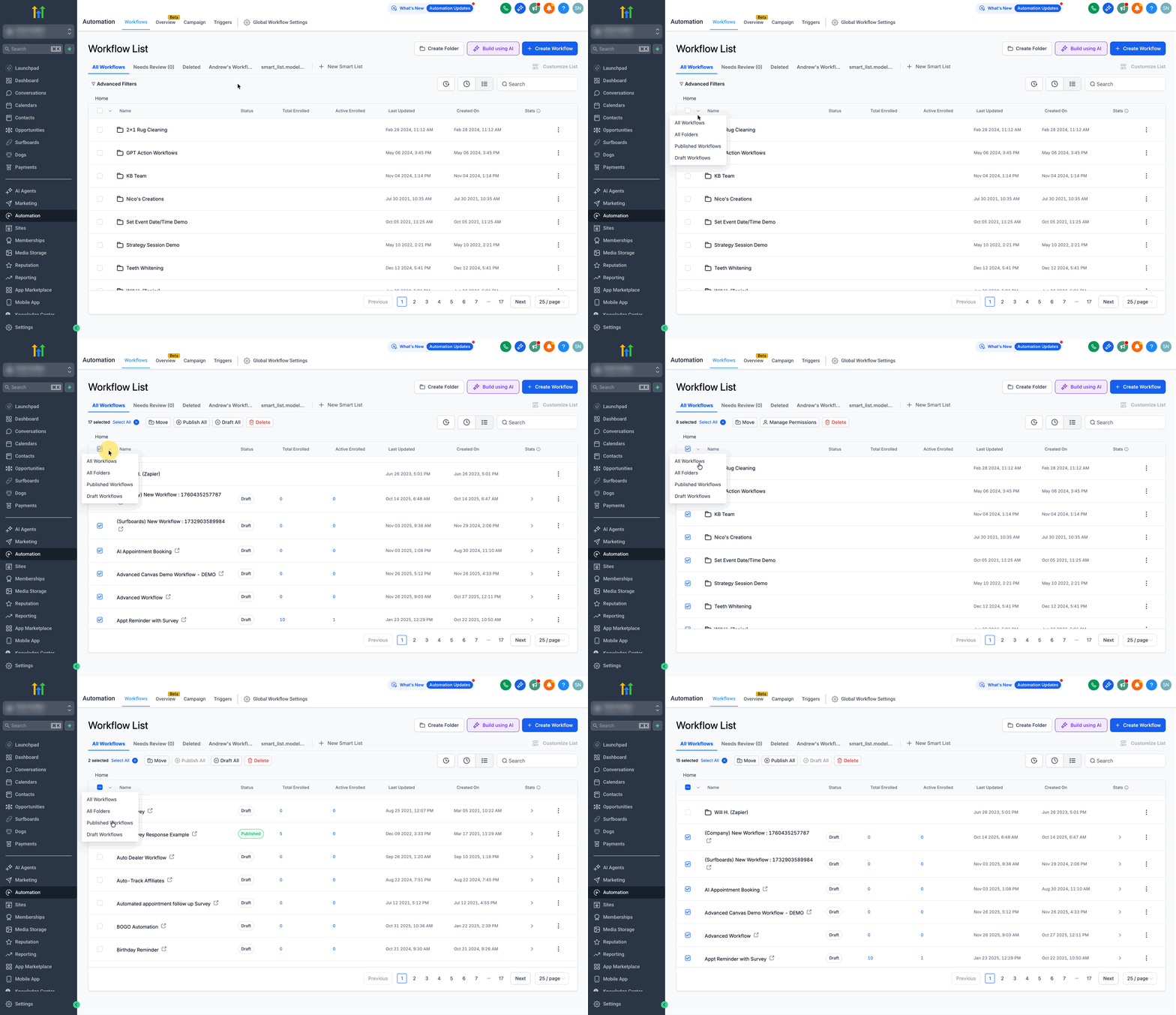
- Click Select All to pick every visible item on the page.
- Open the Select All dropdown and choose All Workflows, All Folders, Published Workflows, or Draft Workflows as needed.
- From the bulk toolbar, select the desired action, Publish/Draft, Move, Delete, or Manage Permissions.
- Always review the selected count and confirmation dialog before applying irreversible changes.
- Confirm the action in the dialog that shows how many items will be affected and any warnings.
07What it looks like in HighLevel
08Things to know before you rely on it
- You cannot select folders and workflows together; choose one type per bulk operation.
- Publish/Draft is available only when workflows are selected; it is disabled for folders.
- Manage Permissions applies solely to folders; it is disabled when workflows are part of the selection.
- Select All affects only the items visible on the current page; use filters or pagination to adjust the scope.
- You must have access to the destination folder to move items there.
- After moving, workflows inherit the visibility and permissions of the destination folder.
- The bulk toolbar appears only after at least one item is selected and may be hidden if you lack the required permission.
- Behavior can vary on smaller viewports.
09If something goes wrong
- Bulk toolbar does not appear. Select at least one item and verify you have permission for bulk operations.
- Publish/Draft option is disabled. Ensure only workflows are selected; deselect any folders.
- Manage Permissions option is unavailable. Select only folders; remove any workflows from the selection.
10How it connects to the rest of HighLevel
- Getting started with workflows overview Workflow basics
- Use advanced filters and smart lists to refine workflow views Advanced filters
- Review workflow pricing tiers for Pro plan features Pricing tiers
Michael's take

When you’re juggling dozens of workflows, clicking through each one to change status or location takes forever. The first thing I would get right is the bulk toolbar visibility. Make sure you can actually see it after selecting an item, otherwise nothing else matters.
Once the toolbar is there, I’d immediately test a nondestructive action like moving a couple of draft workflows into a test folder. That proves the permissions are correct and the move works before you start bulk publishing or deleting.