
01Who this is for
- Marketing agencies, keep client automation drafts safe while multiple team members edit.
- SaaS Founders, iterate on onboarding or billing workflows without risking live changes.
- Sales teams, build lead nurture sequences quickly, knowing each edit is saved as a draft.
02Auto save, explained
Auto Save is built into the Workflow Builder. As you add, remove, rename, or change settings of triggers and actions, the platform writes those edits to the draft version in real time. The draft stays separate from the published workflow until you deliberately click Publish.
The feature records canvas level changes, including adding or deleting steps, editing the Settings tab, renaming the workflow, and changing its status between Draft and Publish. Changes made inside a step’s configuration modal are not saved until you press the modal’s Save or Apply button, after which Auto Save captures the update.
Auto Save lives in two places. You can turn it on for a single workflow from the builder’s onboarding pop up, or you can enable it globally via Automations > Global Workflow Settings. Once active, every editing session creates entries in Version History, and you can create named checkpoints with the Save Version action.
03How businesses use auto save
- Digital marketing agency. An agency opens a client workflow, enables Auto Save once, and then adds, removes, and reorders steps while crafting a campaign. The draft automatically captures each change, allowing the team to experiment without affecting the live automation until they publish.
- Real estate lead team. The team enables global Auto Save, then builds a lead follow up workflow. As they adjust timing and add new actions, every edit saves to the draft. They can later create a named checkpoint before a major revision, ensuring they can revert if needed.
- Online membership site. The site owner activates Auto Save, then designs a new member welcome sequence. While tweaking email content inside modal windows, they click Save in each modal; the platform then records those changes in the draft, preserving the work until they publish the updated sequence.
04How to set up and use auto save in HighLevel
Enable Auto Save via Workflow Builder
- Log in to your subaccount.
- Navigate to Automations > Workflows and open any workflow.
- If an onboarding pop up appears, acknowledge it.
- Select Enable Auto Save Now to activate the feature.
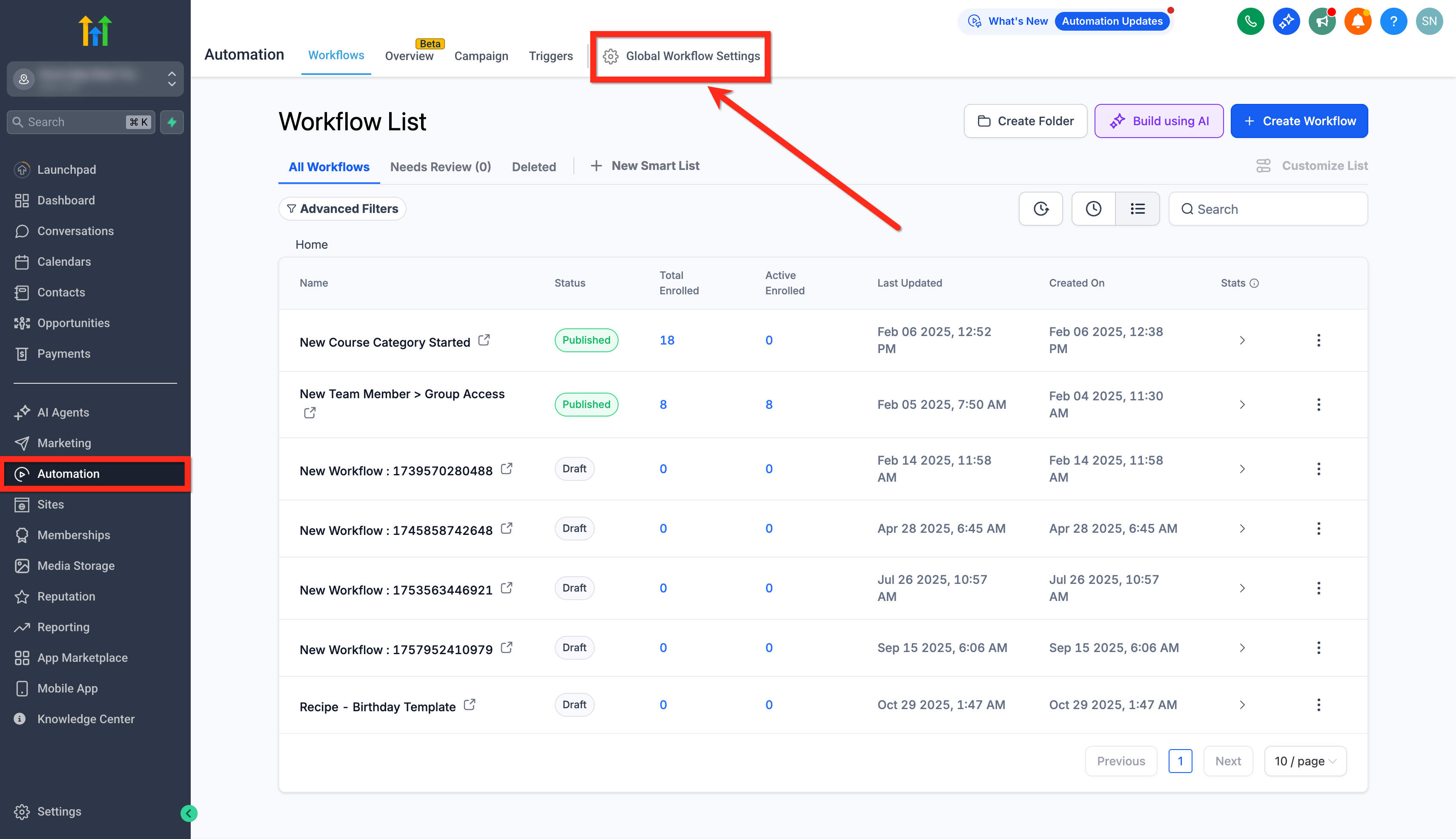
Enable Auto Save globally
- Log in to your subaccount.
- Go to Automations > Global Workflow Settings.
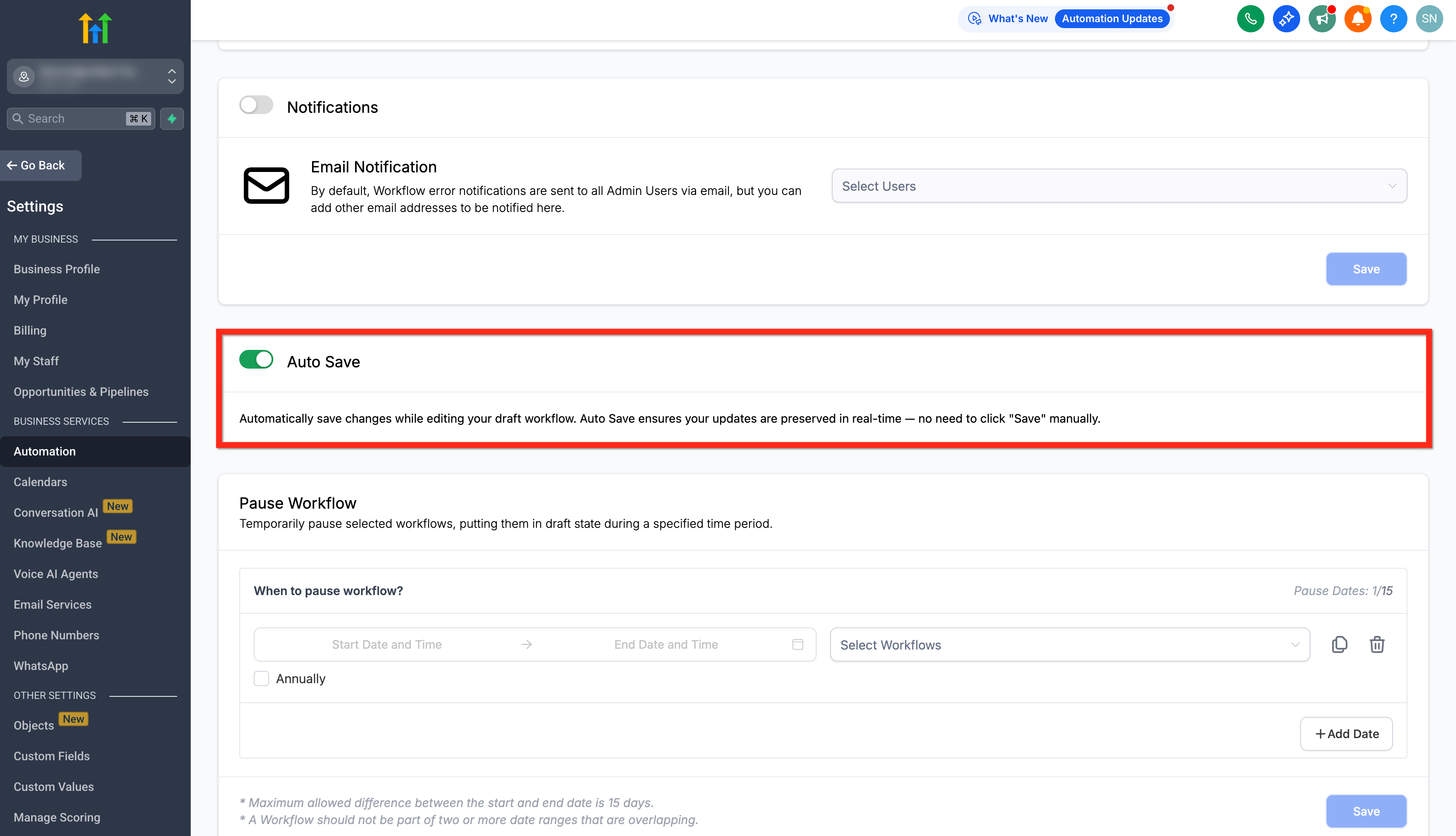
- Toggle the Auto Save switch to On.
05What it looks like in HighLevel
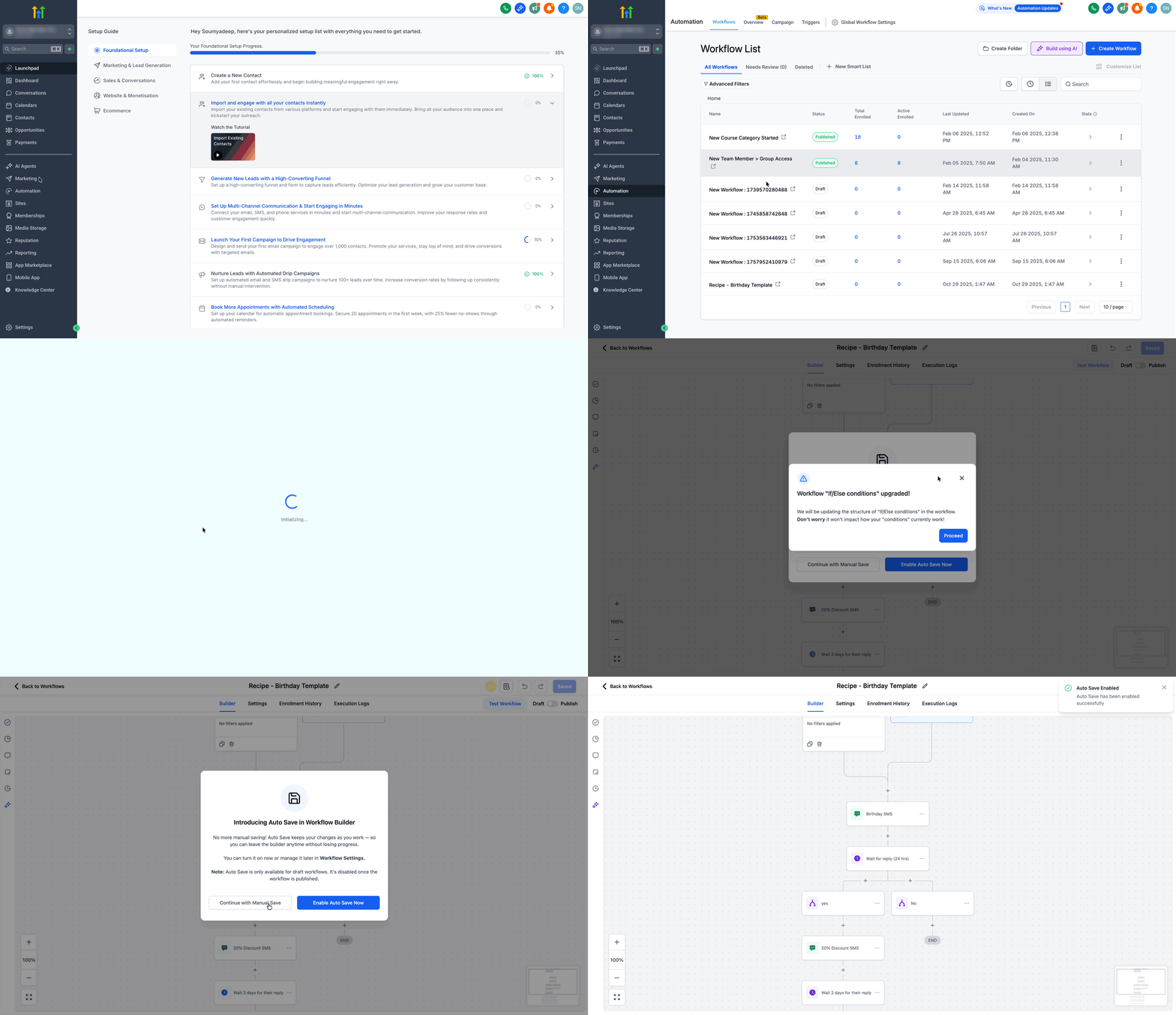
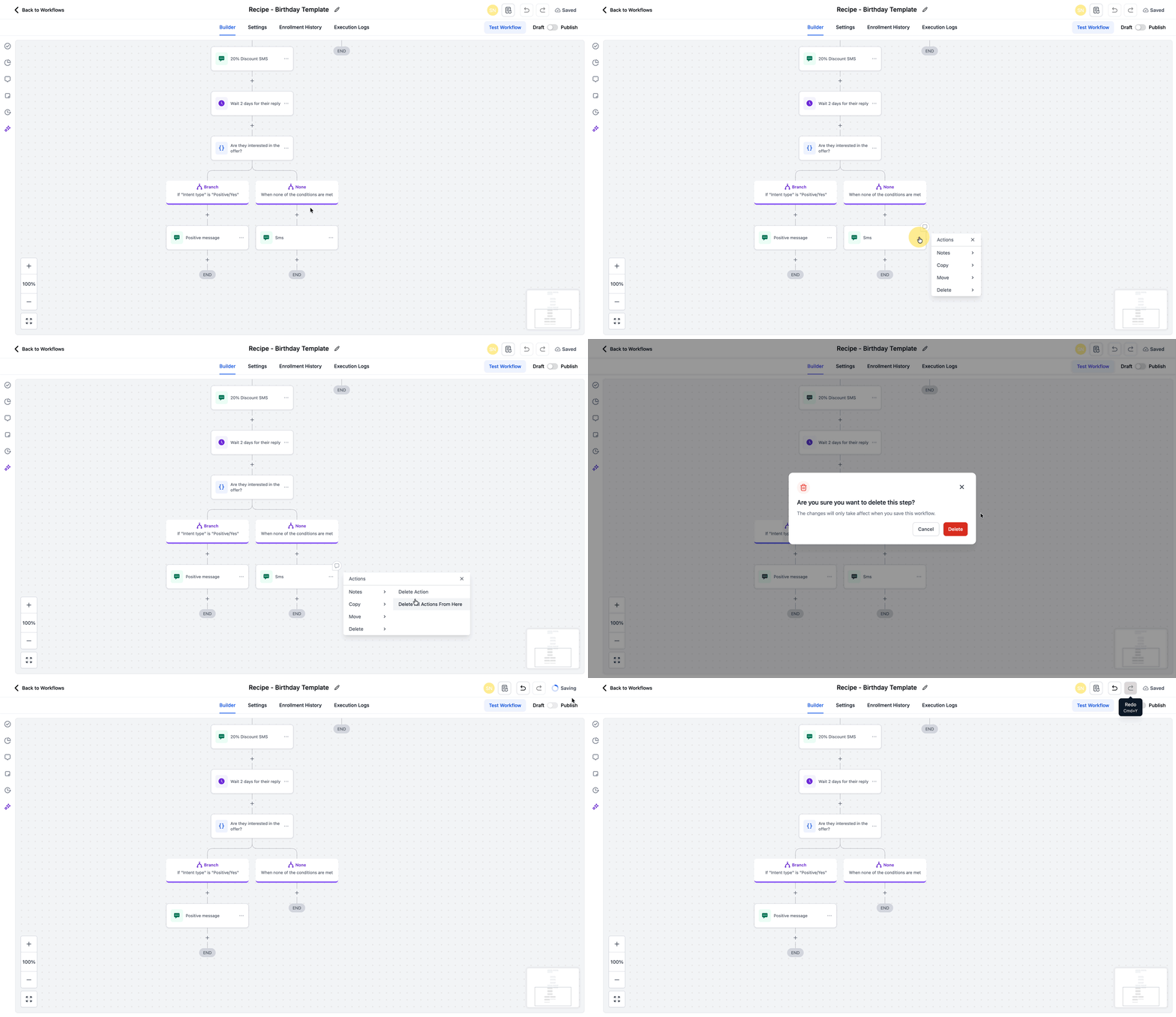
06Settings that matter
- Auto Save. Controls whether edits on a workflow canvas are written continuously to the draft version. When turned on, the platform saves each change automatically; when off, you must save manually.
07Things to know before you rely on it
- Auto Save does not record changes made inside individual action or trigger configuration modals until you click the modal’s Save or Apply button.
- When multiple users or browser tabs edit the same workflow, the most recent auto save overwrites earlier drafts; coordinate edits and refresh to see the latest version.
- If the internet connection drops, saving pauses; once connectivity returns, the canvas resumes saving. Refresh the workflow and review Version History if unsure which draft is current.
08If something goes wrong
- Auto Save appears to publish changes automatically.. Remember that Auto Save only updates the draft; you must click Publish to make changes live.
- Changes made inside a step’s modal are not reflected on the canvas.. Click Save or Apply inside the modal to commit the change; Auto Save will then capture the update.
- Draft does not reflect recent edits after a connectivity loss.. Refresh the workflow page and check Version History to confirm the latest draft state.
09How it connects to the rest of HighLevel
- Learn how to create workflows with triggers, filters, and actions. Workflow creation guide
- Review the full set of workflow settings that control draft and publish behavior. Workflow settings overview
- Explore version history and restore options for saved workflow drafts. All Workflows features
Michael's take

Auto Save feels like a small convenience that stops you from losing a half built automation. It lets you keep tweaking without the constant fear of wiping out work, and the version history gives you safety nets for big changes.