
01Who this is for
- Medical practice, uses the IVR to route patients to scheduling, billing, or after hours information.
- Service oriented small business, guides callers to sales, support, or hours of operation options.
- Consulting firm, directs inbound calls to the appropriate consultant based on keypad selection.
02Start IVR Trigger, explained
The Start IVR Trigger is a workflow trigger that starts an interactive voice response sequence whenever an inbound call arrives at a phone number that belongs to an LC Phone plan. The caller hears pre recorded prompts and can press keys to move through the menu, allowing the call to be routed to the correct department or to receive specific information.
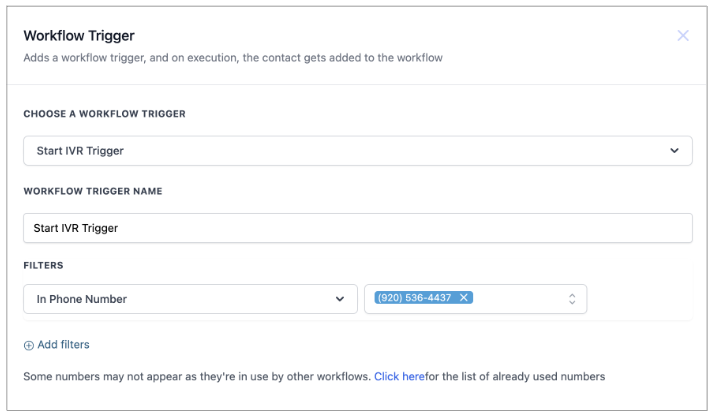
In HighLevel the trigger appears in the list of workflow actions. You select it, give the trigger a name, set the activation event to an inbound call, choose the IVR phone number, add any filter fields you need, and then save and activate the workflow. The trigger works only for accounts with an active LC Phone plan, and once a number is linked to an IVR workflow it cannot be linked to another.
03How businesses use start IVR Trigger
- Dental practice. The practice adds the Start IVR Trigger to a workflow, selects its clinic phone number, and creates a menu that lets callers choose appointments, emergencies, or billing. Filters can be added to capture caller details before the IVR runs.
- Home repair service. The service sets up the trigger with its main line, builds an IVR that offers options for scheduling, quotes, or after hours support, and activates the workflow so every inbound call follows the menu.
- Online coaching business. The coach creates a workflow trigger, assigns the coaching hotline number, adds a menu for new client intake, existing client support, or payment questions, then saves and activates the workflow to run the IVR on each call.
04Before you start
- The subaccount must have an active LC Phone plan.
- The phone number to be used for IVR must be set up in the LC Phone configuration.
- An IVR configuration must be created before it can be triggered in a workflow.
05How to set up and use start IVR Trigger in HighLevel
Configure Start IVR Trigger
- Select "Start IVR Trigger" from the list of available actions.
- Enter a descriptive name for the trigger.
- Set the activation event to an inbound call and choose the IVR phone number.
- Add any required custom fields in the filter section.
- Save the trigger and enable the workflow.
- Warning: Once a phone number is mapped to an IVR workflow it cannot be mapped to another IVR workflow.
06What it looks like in HighLevel
07Settings that matter
- Start IVR Trigger. Controls the launch of an IVR sequence when an inbound call matches the selected phone number and filters.
08Things to know before you rely on it
- Voicemail cannot be tracked using the IVR trigger.
- A phone number mapped to an IVR workflow cannot be mapped to another IVR workflow.
- The IVR trigger works only for subaccounts with an active LC Phone plan.
09How it connects to the rest of HighLevel
- Review the basics of workflow automation to understand where the IVR trigger fits. Workflow automation basics
- Check the pricing tiers for the Workflow Pro Plan to see which plans include the LC Phone features. Workflow Pro Plan pricing
- Start a trial to access the LC Phone plan and test the IVR trigger. 30 day trial
Michael's take

Running an IVR without first confirming you have an active LC Phone plan can leave callers hanging on a dead line. Make sure the phone number you intend to use is already set up in LC Phone and that an IVR flow exists.
Once those pieces are in place, the Start IVR Trigger gives you a clean way to route inbound calls through a menu you control. It’s a straightforward lift for any business that wants callers to reach the correct person faster.