
01Who this is for
- Membership site owners, they can greet new subscribers with a personalized introduction and login details.
- Online coaches, they can reinforce program branding and set expectations right after a client joins.
- Education platforms, they can deliver course access information and resources immediately to students.
02Customizable membership emails, explained
The feature creates an automated email that fires the moment a contact receives membership access. It pulls data from the membership record, such as the member’s name and the offer title, and inserts those values into the email body.
You edit a system template, add your brand elements, and then enable the email in the membership’s Email Settings. Once active, HighLevel delivers the message automatically for every new member.
All controls are found within the Marketing > Emails > Templates area for editing, and under Sites > Memberships > Settings > Email Settings for activation.
03How businesses use customizable membership emails
- Fitness coaching program. The coach edits the Membership Welcome Email template to add their logo, brand colors, and a custom greeting that includes {{contact.first_name}}. After enabling the welcome email in membership settings, each new client receives a personalized onboarding message with their login information.
- Cooking course platform. The platform selects the system template, inserts {{offer.title}} to display the specific cooking course name, and activates the email toggle. New students automatically receive a welcome email that outlines course access steps and links to introductory videos.
- Language learning membership. The language school customizes the email body to outline the first lesson plan and adds a link to a resource library. By turning on the welcome email feature, every learner gets a tailored message that includes their first name and the offer title.
04How to set up and use customizable membership emails in HighLevel
Set up customizable membership email
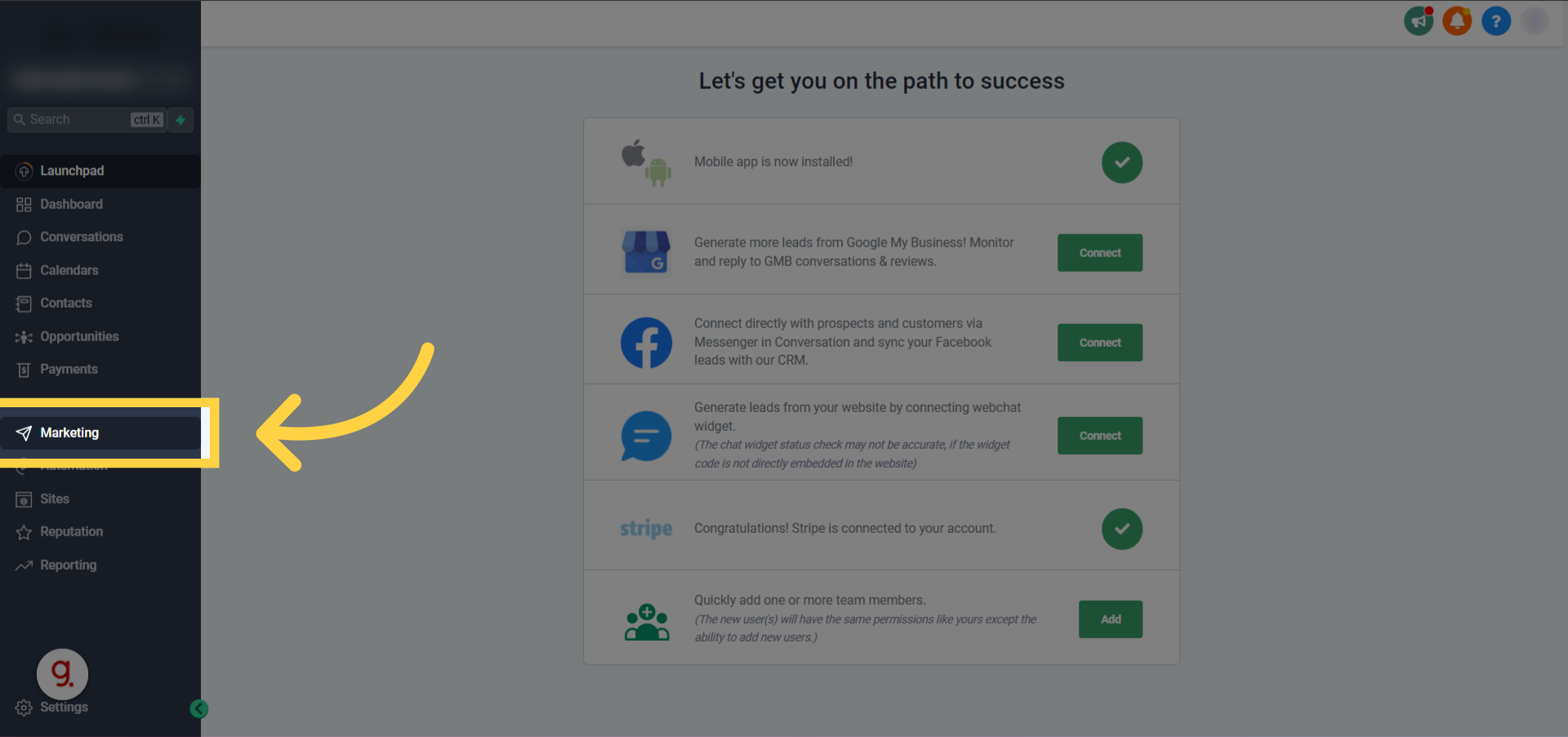
- Open the HighLevel dashboard and click the Marketing menu.
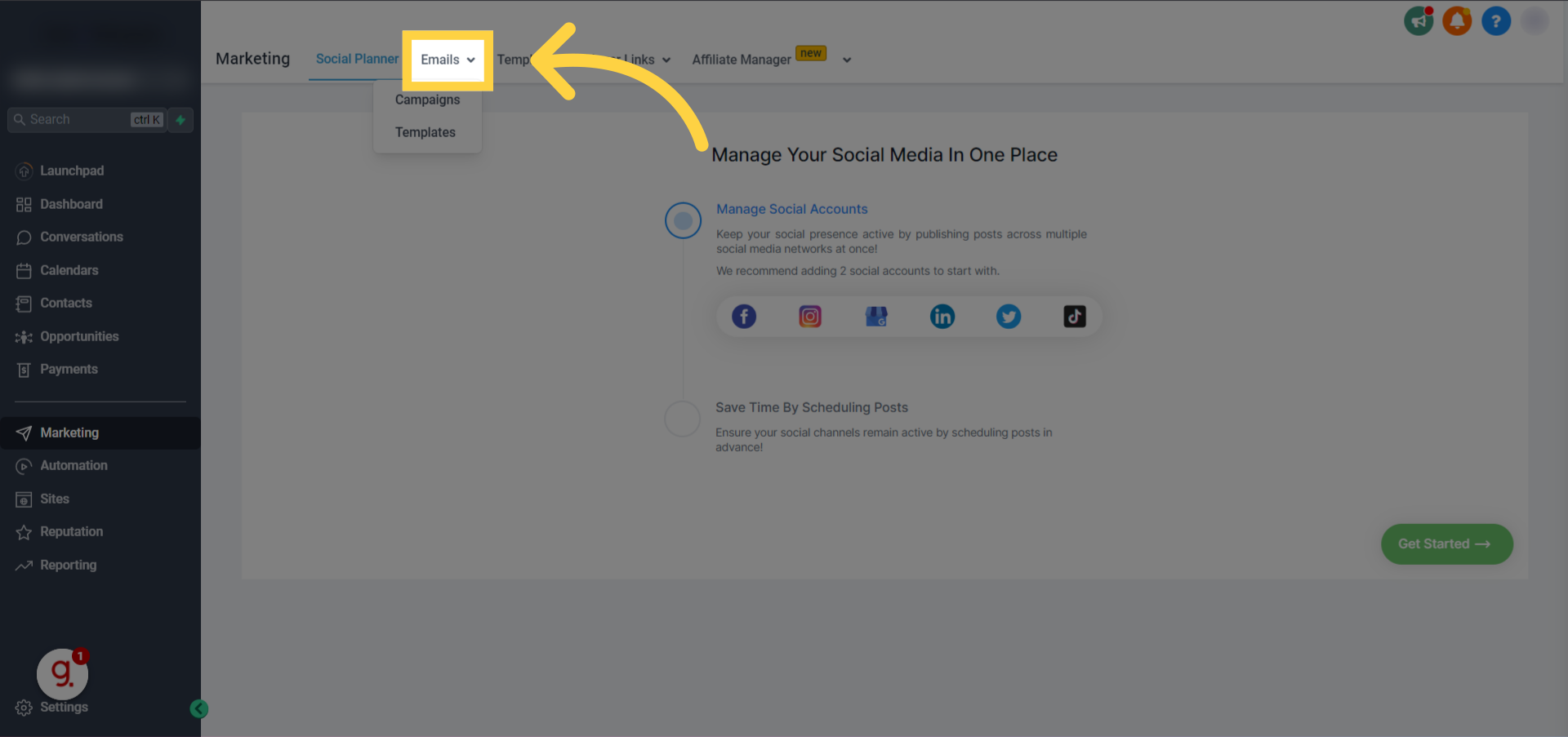
- Select Emails from the Marketing submenu.
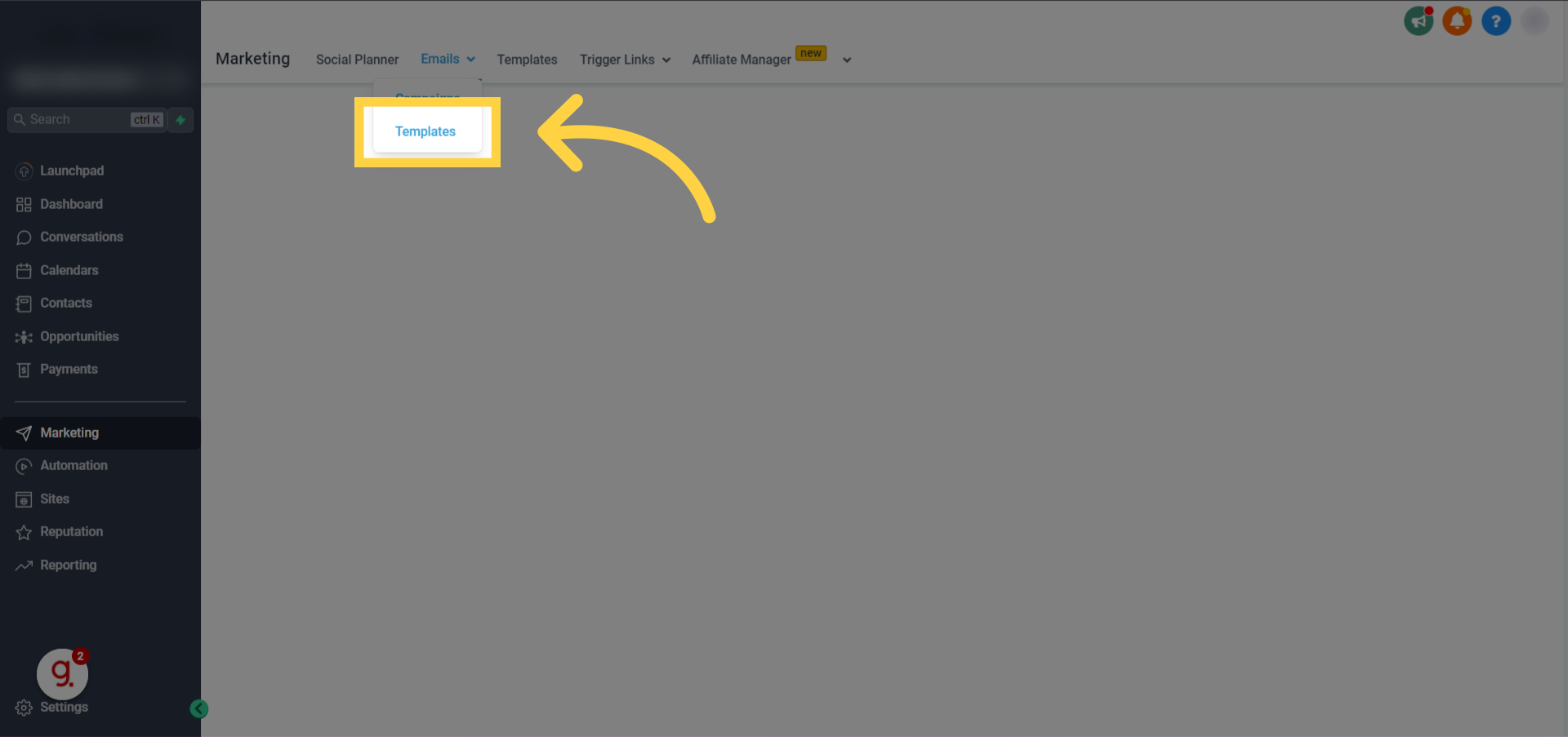
- Open the Templates dropdown.
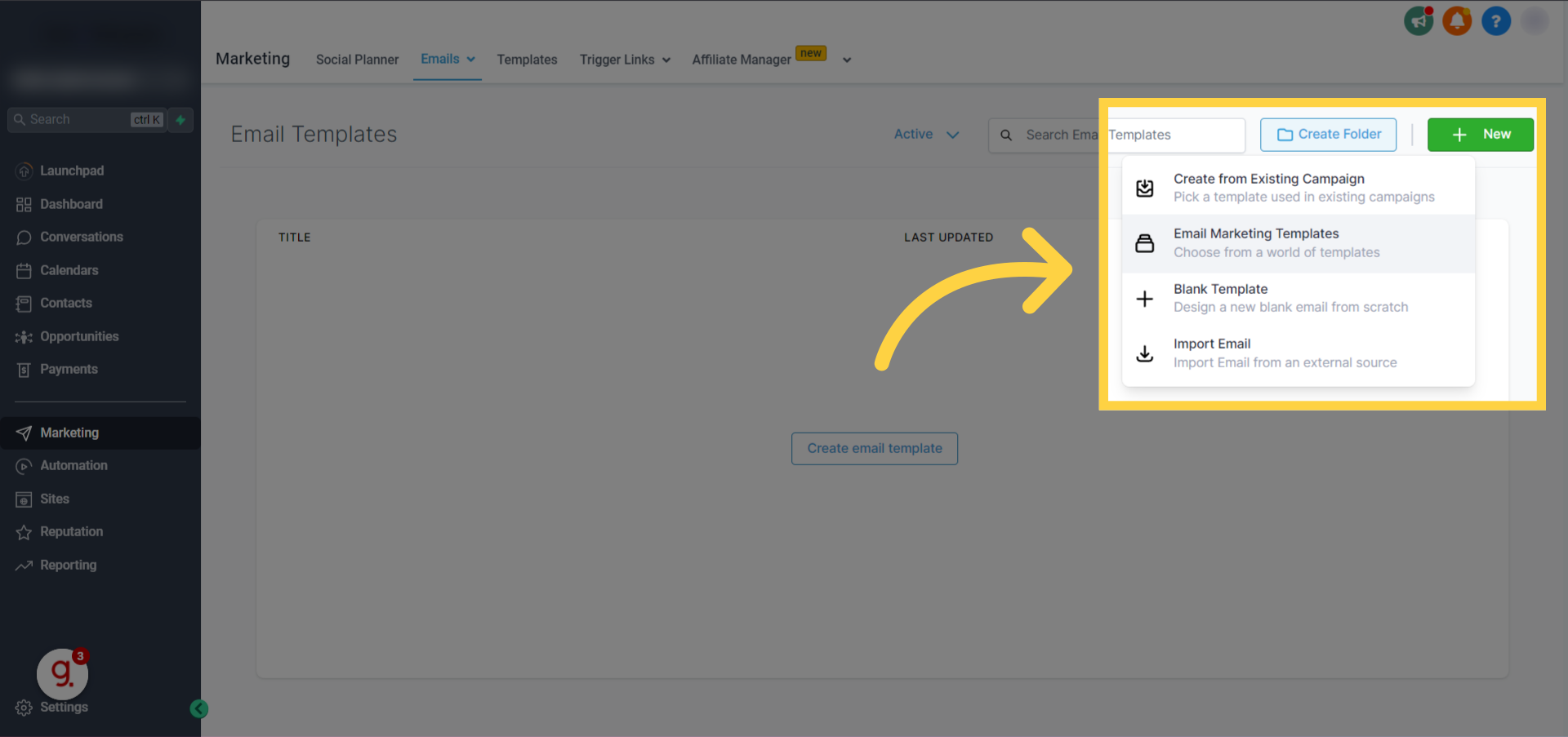
- Press the New button and choose Email Marketing Templates.
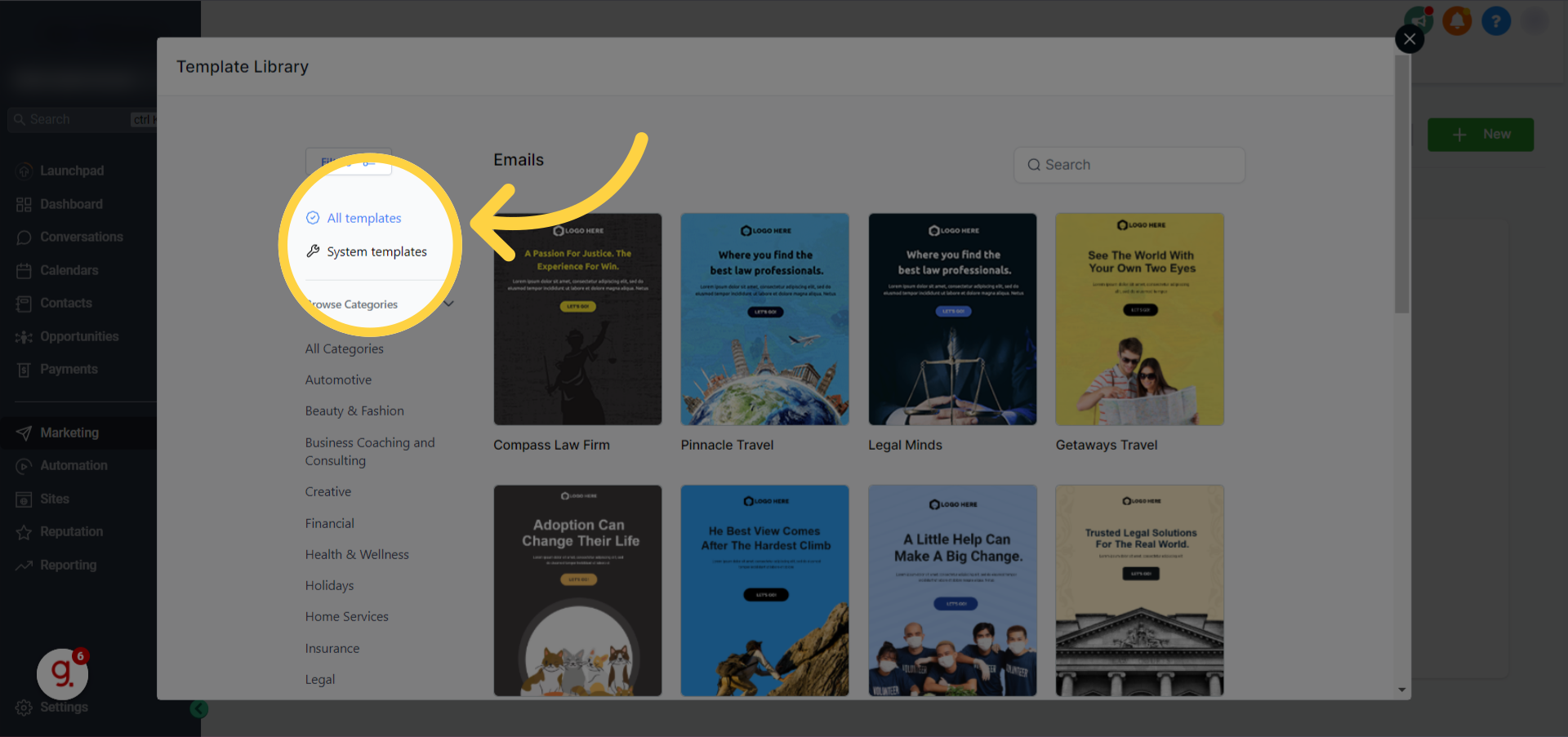
- Open the System templates library.
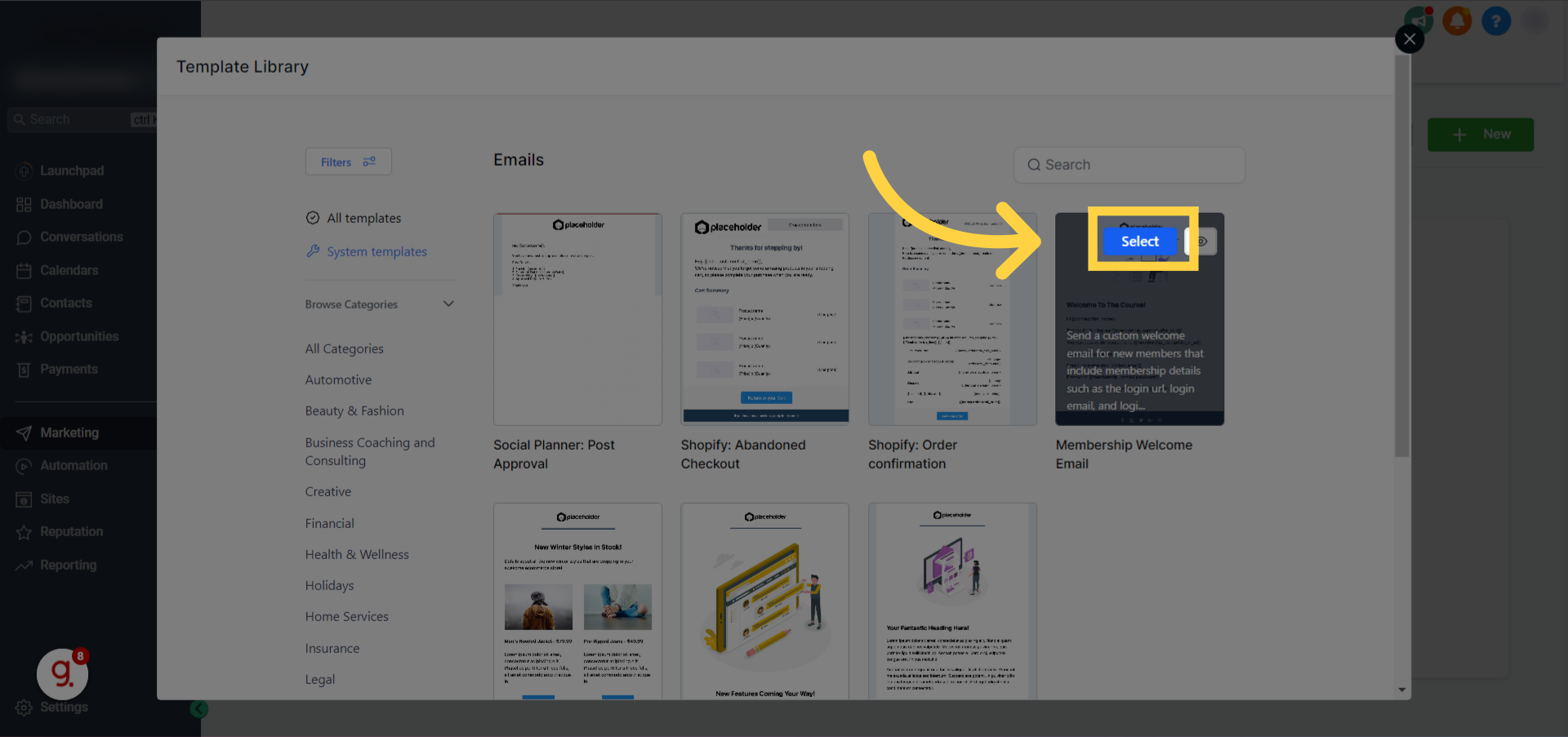
- Hover over the Membership Welcome Email template and click Select.
- Review the preview, then click Continue.
- Return to the Emails > Templates view.
- Click the pencil icon next to the new template to open the editor.
- Modify the subject line, body text, and insert custom values as needed.
- Ensure the template includes correct custom values such as {{contact.first_name}} and {{offer.title}} to personalize each email.
- Save the edited template.
- Navigate back to the main account view.
- Click the Sites tab.
- Choose Memberships.
- Open Settings under Memberships.
- Select Email Settings.
- Turn on the Send welcome email toggle.
- Pick the desired template from the dropdown list.
- Confirm the selection by clicking the System Template: Membership example.
- Click Save to apply the changes.
05What it looks like in HighLevel
06Settings that matter
- Send welcome email. Enables the automatic dispatch of the selected welcome template when a member gains access.
07Things to know before you rely on it
- Only the offer title can be added to the welcome email; product titles are not supported in this message.
- Branding elements can be customized, but the email must still comply with standard email best practices to avoid spam filters.
08How it connects to the rest of HighLevel
- Overview of workflow triggers that can start membership automations Workflow triggers overview
- How to create tasks and reminders within HighLevel campaigns Task events in campaigns
- Pricing details for HighLevel plans, including access to membership features HighLevel pricing
Michael's take

Michael ReimerFounder of CRM Pros, HighLevel Commander and Certified Admin
The customizable membership email is a solid way to make new members feel welcomed and informed.
Get More InformationOpens on HighLevelPublished November 2, 2026 · Updated November 16, 2026