
01Who this is for
- Founder of a SaaS business, wants to keep SMS campaigns effective by automatically handling bad numbers.
- Marketing manager at an ecommerce store, needs to remove contacts that consistently block promotional texts.
- Operations lead for a real estate agency, aims to prevent future outreach to unreachable phone numbers.
02Messaging error, SMS triggers, explained
The Messaging Error, SMS trigger watches outgoing SMS messages and starts a workflow when the platform reports an undelivered status with an error code.
When the trigger fires, the workflow can run any actions you have built, such as adding tags, moving contacts to a different list, or notifying a team member. The trigger only responds to messages that return an error; successful deliveries do not activate it.
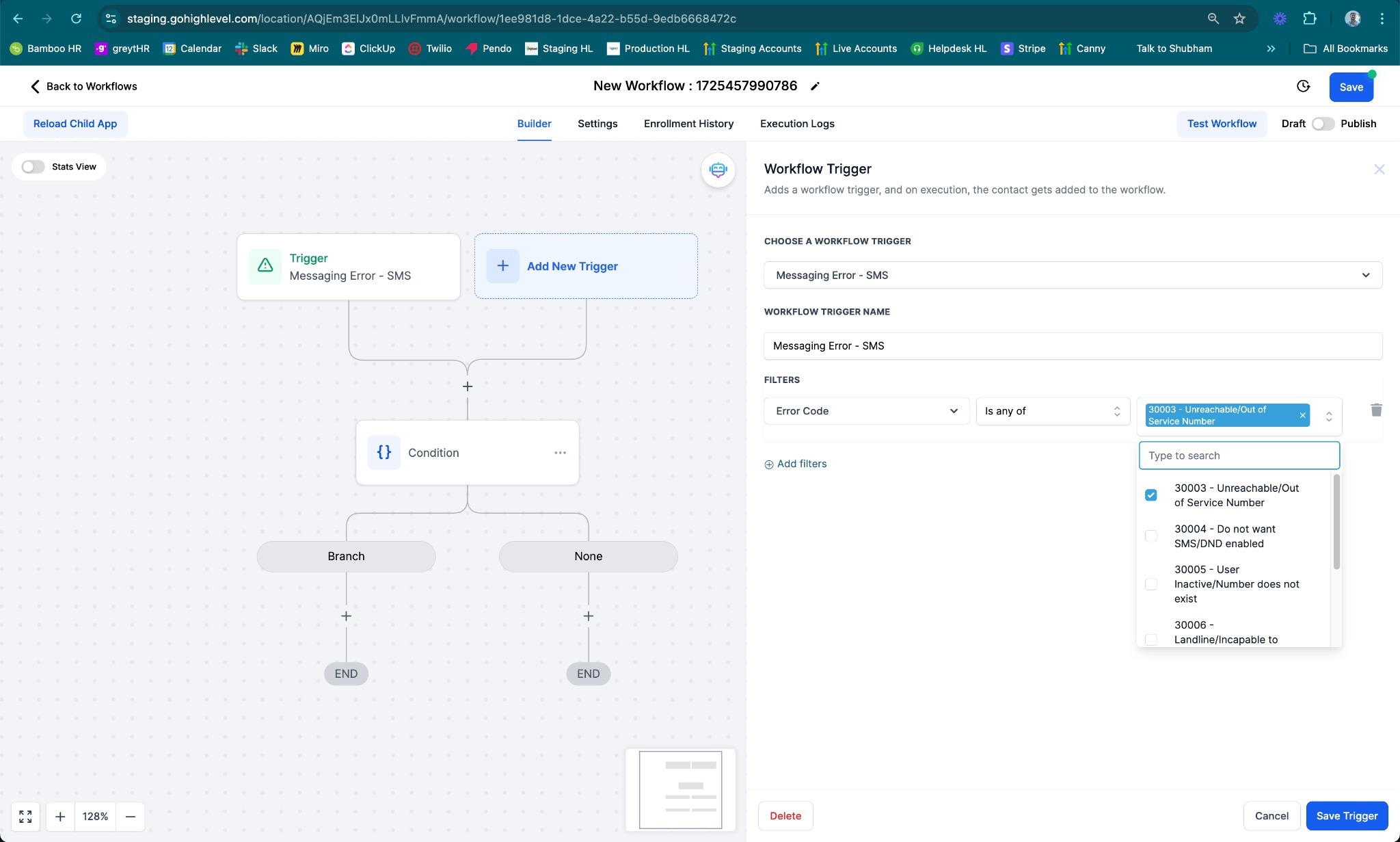
You find the trigger inside the workflow editor under the trigger dropdown. After selecting it, you give the trigger a name and optionally add filters to limit activation to particular error codes.
03How businesses use messaging error, SMS
- Ecommerce store. Create a workflow with the Messaging Error, SMS trigger, filter for error code 30007 (Carrier Violation), and add an action that tags the contact as "Bad Number". This keeps promotional lists clean without manual review.
- Real estate agency. Set up the trigger, filter for error code 21610 (User Replied with STOP), and add an action that moves the contact to a "Do Not Text" list. The agency avoids sending future messages to opted out leads.
- Health clinic. Choose the trigger, filter for error code 30005 (User Inactive/Number does not exist), and add an action that tags the contact as "Invalid Number" so staff can review the record.
04The numbers and rules that matter
- Error code 30007, Carrier Violation.
- Error code 30034, A2P Registration Pending on Number.
- Error code 30032, Toll Free Number not Verified.
- Error code 30005, User Inactive/Number does not exist.
- Error code 30003, Unreachable/Out of Service Number.
- Error code 30004, Do not want SMS/DND enabled.
- Error code 30006, Landline/Incapable to receive SMS.
- Error code 30023, US A2P 10DLC, Daily Message Cap Reached.
- Error code 21408, Permission to Send SMS Not Enabled for Region.
- Error code 30008, Unknown Error.
- Error code 21606, Invalid 'From' Phone Number.
- Error code 21211, Invalid 'To' Phone Number.
05How to set up and use messaging error, SMS in HighLevel
Set up messaging error trigger
- Open the workflow you want to edit and go to the trigger selection area.
- Select "Messaging Error - SMS" from the trigger dropdown list.
- Provide a descriptive name for the trigger so you can identify it later.
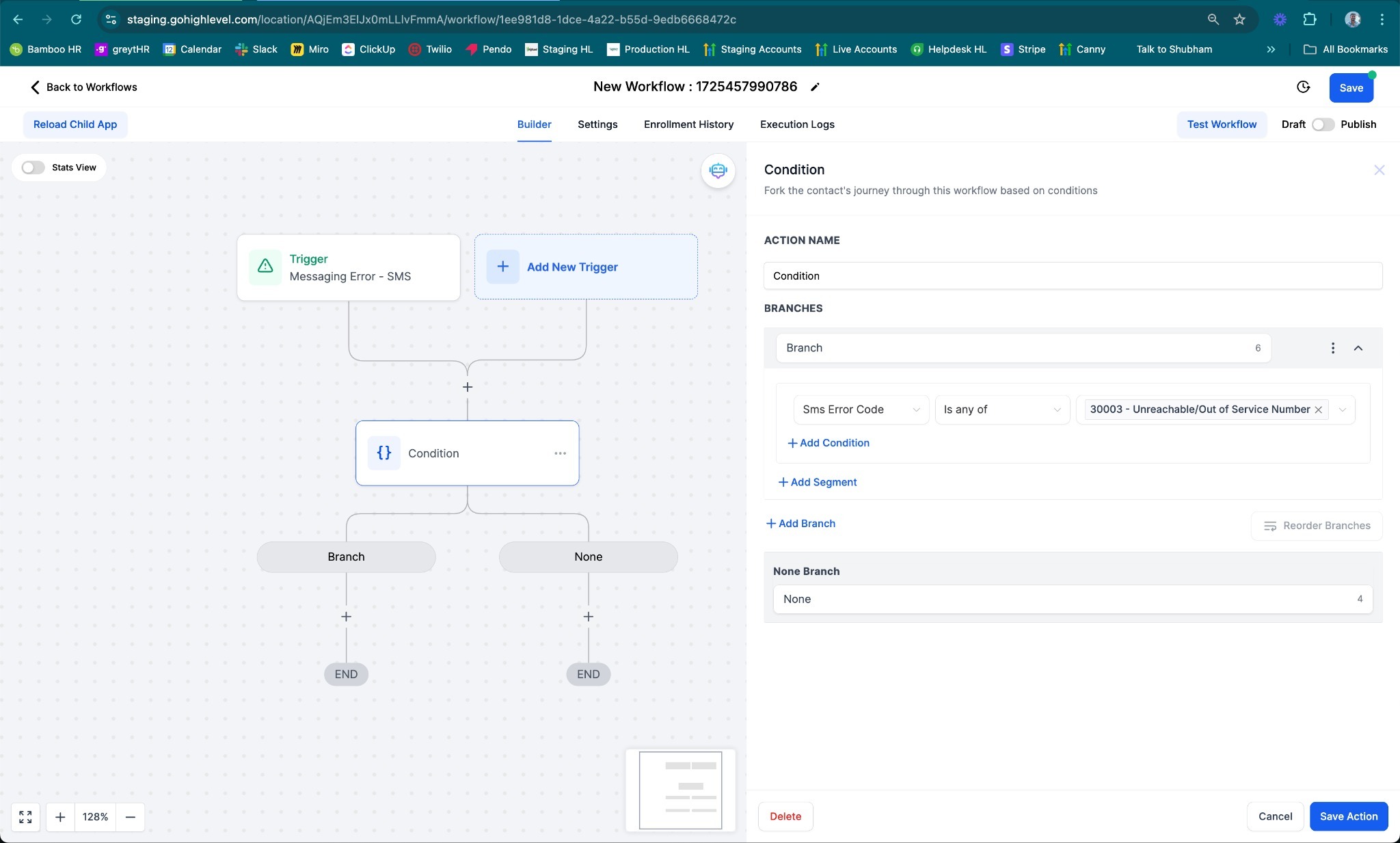
- Add a filter that matches the desired error code(s) from the provided list.
06What it looks like in HighLevel
07Settings that matter
- Messaging Error - SMS. Chooses the trigger type that starts a workflow when an SMS returns an error.
- Workflow Trigger Name. Identifies the trigger inside the workflow for easy reference.
- Filters. Limits the trigger to fire only when specific error codes appear.
08Things to know before you rely on it
- The trigger activates only for SMS messages that end in an undelivered state.
- You can filter by any of the error codes listed in the documentation, such as 30007, 21610, or 30005.
- The feature applies to messages sent through the platform; external SMS providers are not covered.
09How it connects to the rest of HighLevel
- View all available workflow triggers Triggers overview
- Learn how to build a workflow with triggers, filters, and actions Workflow creation guide
- Check HighLevel pricing and plan options Pricing
Michael's take

People often think the trigger will magically fix delivery issues. It simply tells HighLevel when a message failed, so you can decide what to do next.
If I were setting this up, I’d first filter for the most common hard failures like carrier violations or invalid numbers, then tag those contacts for removal.