
01Who this is for
- Founders of SaaS platforms looking to run regular data syncs without involving customer records.
- Marketing agencies that need to push daily summary posts to Slack or email teams on a strict schedule.
- Operations managers in service businesses who want to automate nightly data hygiene tasks without enrolling contacts.
02Workflow scheduler triggers, explained
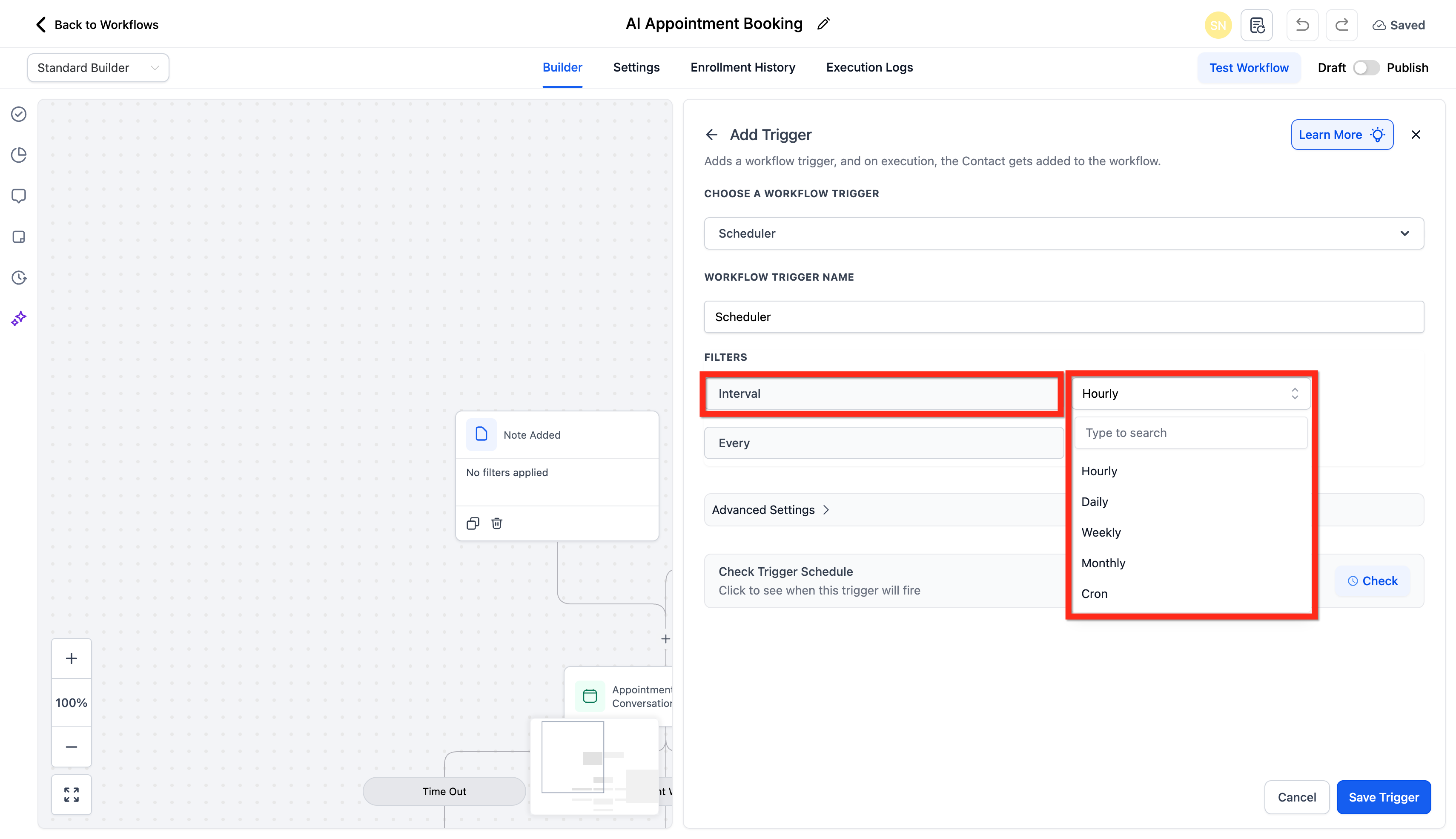
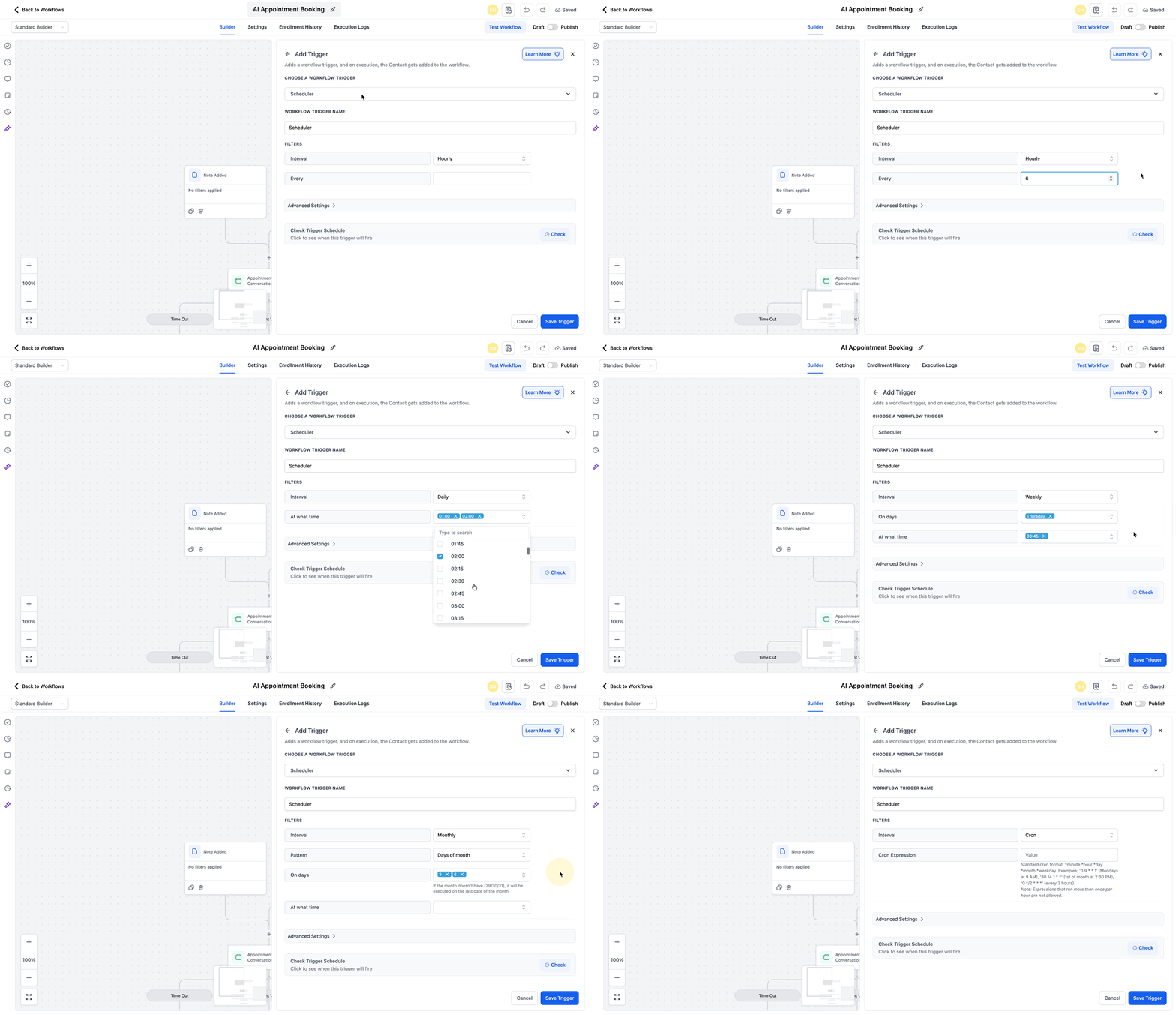
The Scheduler Trigger starts a workflow according to a clock you define. It can fire hourly, daily, weekly, monthly, on a single date and time, or using a cron expression for complex patterns. All executions use the account’s timezone, and built in safeguards let you skip weekends or set a final end date.
When the trigger runs, any step that requires a contact is ignored, and the workflow continues with the next supported action. This makes it ideal for actions such as outbound webhooks, Slack messages, Google Sheets updates, Airtable writes, internal email or SMS notifications, custom value updates, and task creation.
You find the Scheduler Trigger inside the workflow builder under Automations > Workflows. After adding the trigger you select the interval type, set times, optionally enable Skip Weekends or Stop On, preview the next five executions, add contactless actions, and then publish the workflow.
03How businesses use the workflow scheduler trigger
- SaaS platform. Create a workflow that uses the Scheduler Trigger set to run every 4 hours. Add an outbound webhook action to push usage metrics to an external monitoring service. Publish the workflow to keep the data flow continuous without enrolling any user records.
- Marketing agency. Build a workflow with a daily Scheduler Trigger at 8 AM. Add a Slack action that posts a performance snapshot to the agency’s channel. The trigger runs each morning, delivering the report automatically.
- Operations manager. Set up a one off Scheduler Trigger for a nightly run at 2 AM. Include a Google Sheets action that writes a data hygiene summary, then create a task for the team to review. The workflow executes the task without needing any contact information.
04The numbers and rules that matter
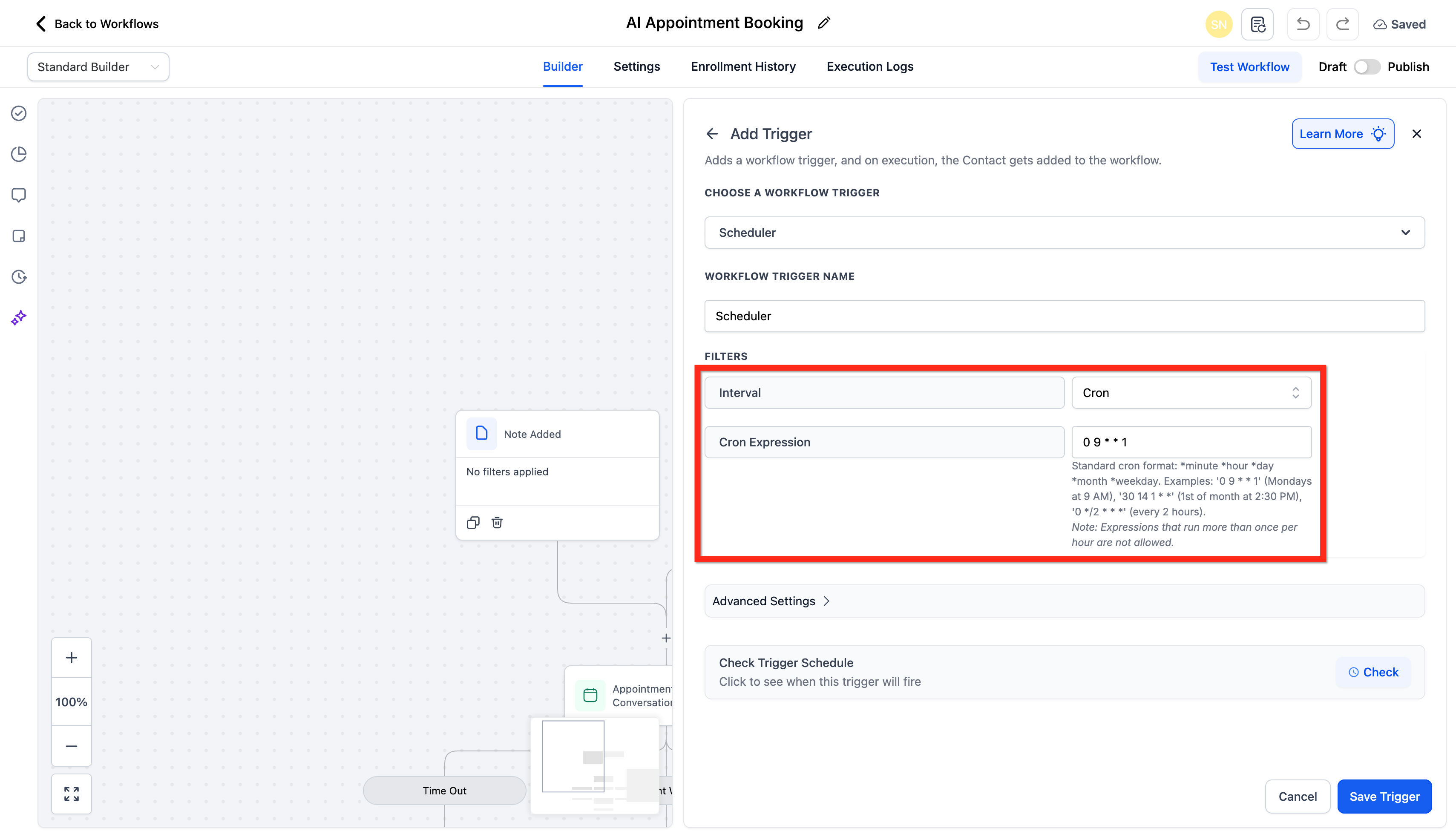
- Expressions that run more than once per hour are not allowed.
05How to set up and use the workflow scheduler trigger in HighLevel
Set up workflow scheduler trigger
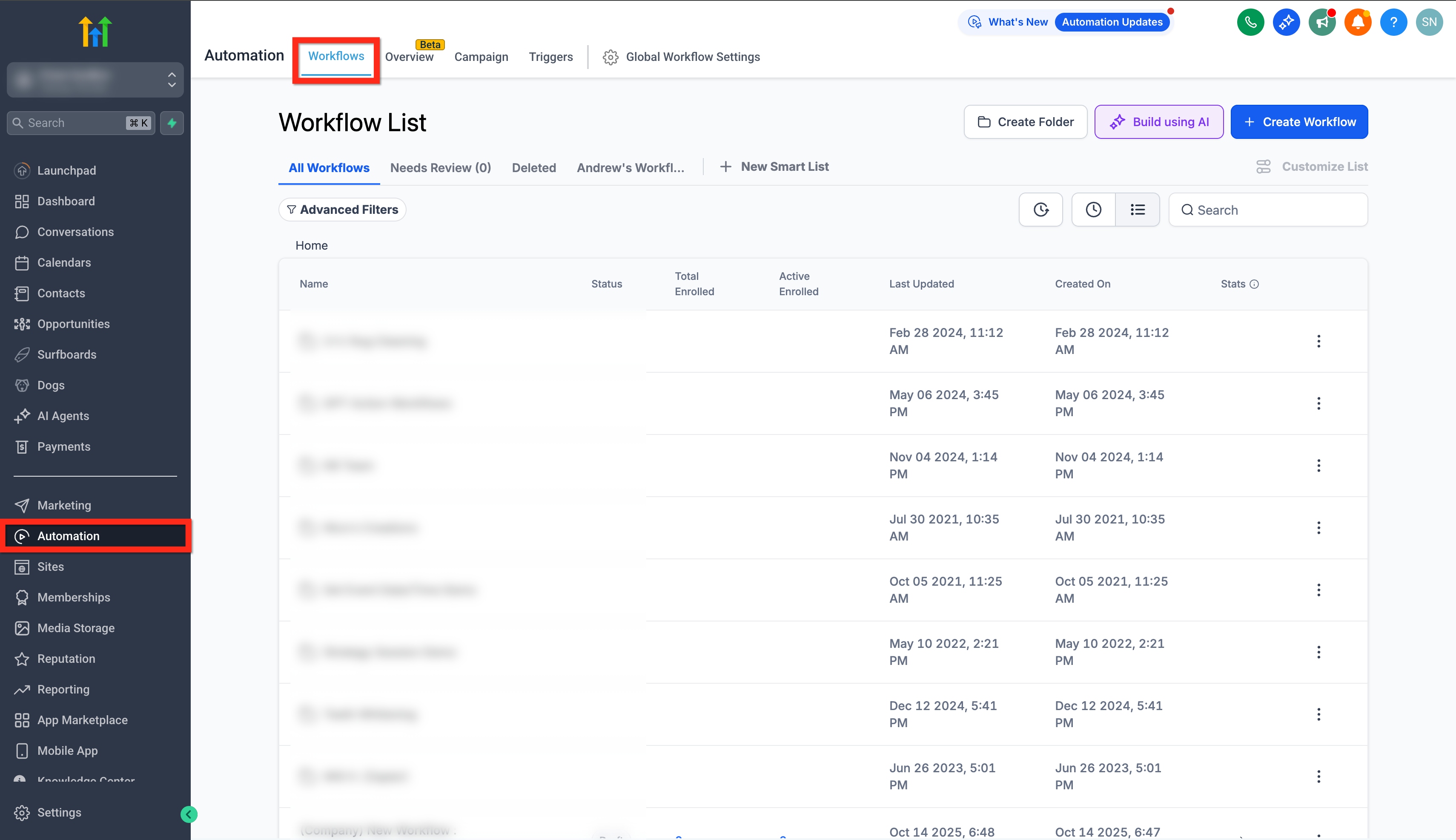
- Navigate to Automations > Workflows.
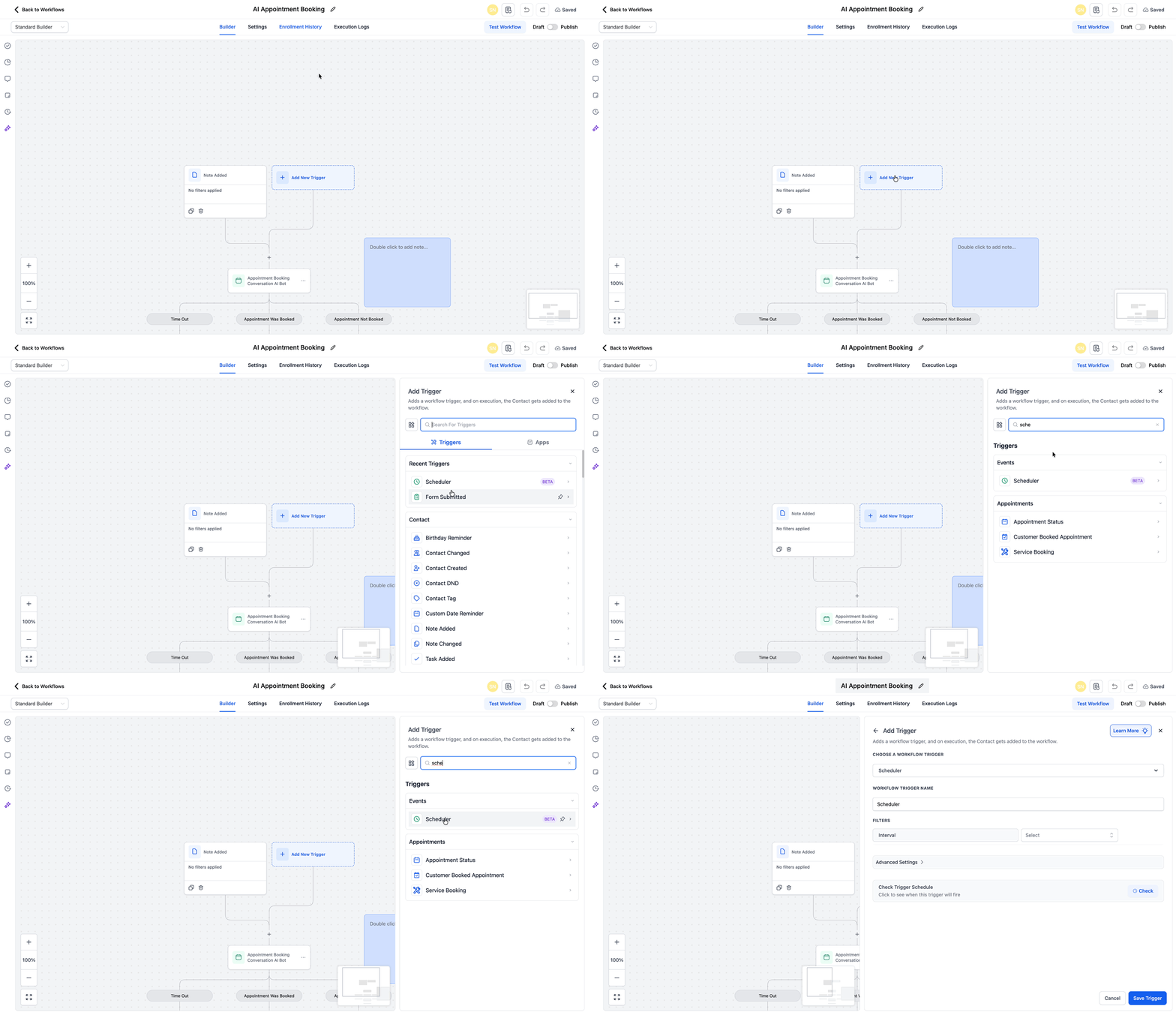
- Create a new workflow or open an existing one.
- Add a Trigger and select Scheduler.
- Choose the interval type you need.
- Set the time or times for the chosen interval.
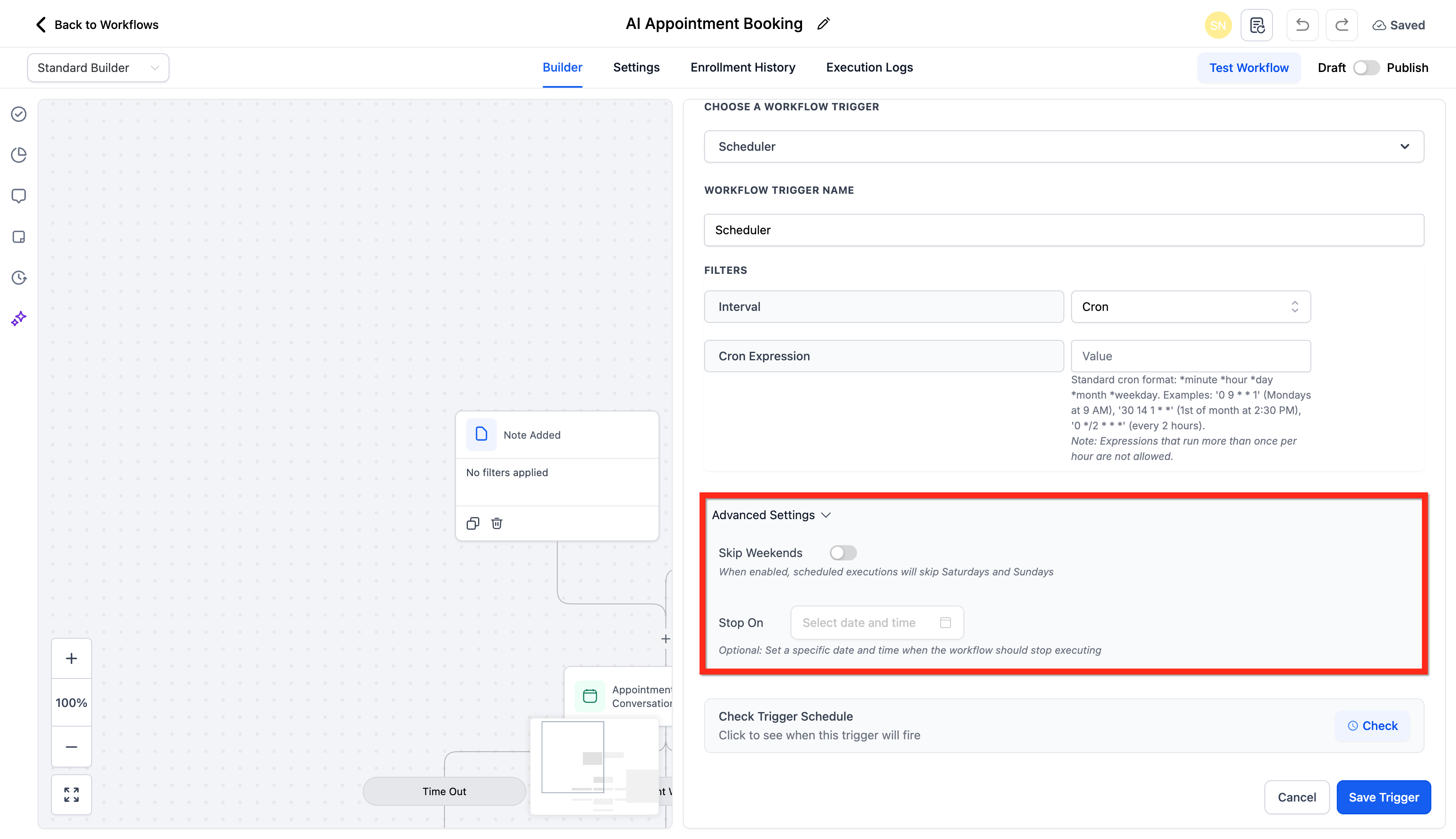
- Open Advanced Settings and optionally toggle Skip Weekends and set a Stop On date.
- Use Check Trigger Schedule to preview the next five run times.
- Add actions that do not require a contact, such as a webhook or Slack message.
- Publish the workflow to activate the schedule.
06What it looks like in HighLevel
07Settings that matter
- Skip Weekends. When enabled, any scheduled occurrence that would fall on Saturday or Sunday is removed from the execution list.
- Stop On. Defines a final date and time after which the Scheduler will no longer trigger the workflow.
08Things to know before you rely on it
- Cron expressions that would run more than once per hour are not allowed.
- Steps that need a contact, such as sending an SMS to a contact, are skipped during a contactless run.
- The Scheduler does not backfill executions that were missed before the workflow was published.
09How it connects to the rest of HighLevel
- Overview of all workflow triggers Triggers overview
- How to add task events and reminders in campaigns Task events
- Introduction to workflow automation and basic setup Workflow basics
Michael's take

Wondering if a time based trigger that doesn’t need contacts is worth setting up? The workflow scheduler trigger lets you run clean, contact free automations on any cadence you define, from hourly pings to monthly reports, all within your account’s timezone.
If I were building a nightly data sync or a daily summary Slack post, I’d start with the scheduler, preview the next five runs, and add only the actions that don’t rely on a contact. That way the workflow stays simple and reliable.