
01Who this is for
- Founders of SaaS companies who capture leads via LinkedIn ads and need immediate follow up automation.
- Marketing managers at B2B agencies that run multiple LinkedIn pages and want page specific routing.
- Sales directors in real estate firms using LinkedIn lead forms to assign leads to agents quickly.
02LinkedIn lead form submitted triggers, explained
The LinkedIn Lead Form Submitted trigger adds a contact to a workflow as soon as a LinkedIn Lead Gen form linked to your account is submitted. It can fire for any form submission and passes the mapped fields into the contact record, allowing instant actions such as emails, texts, or task creation.
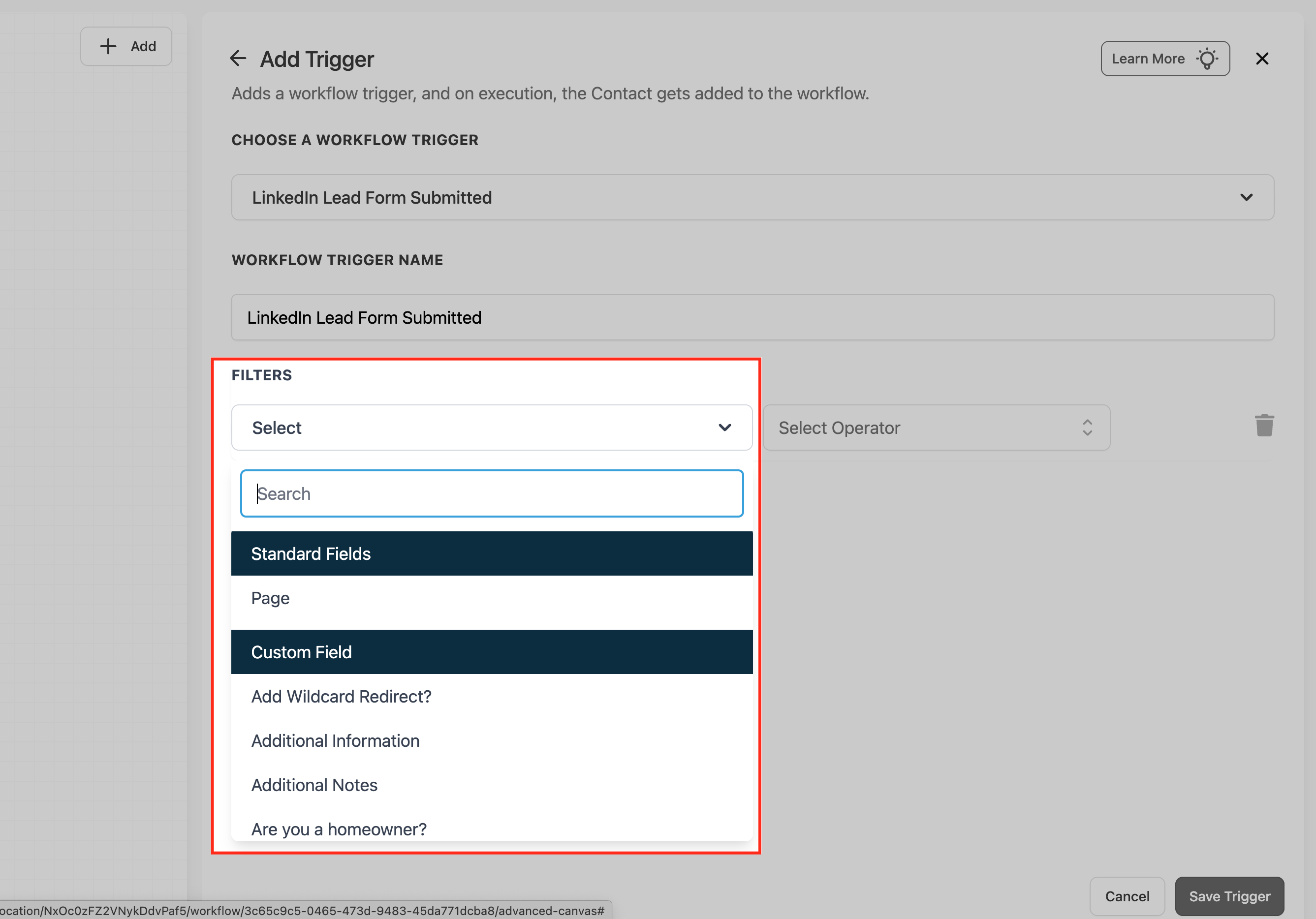
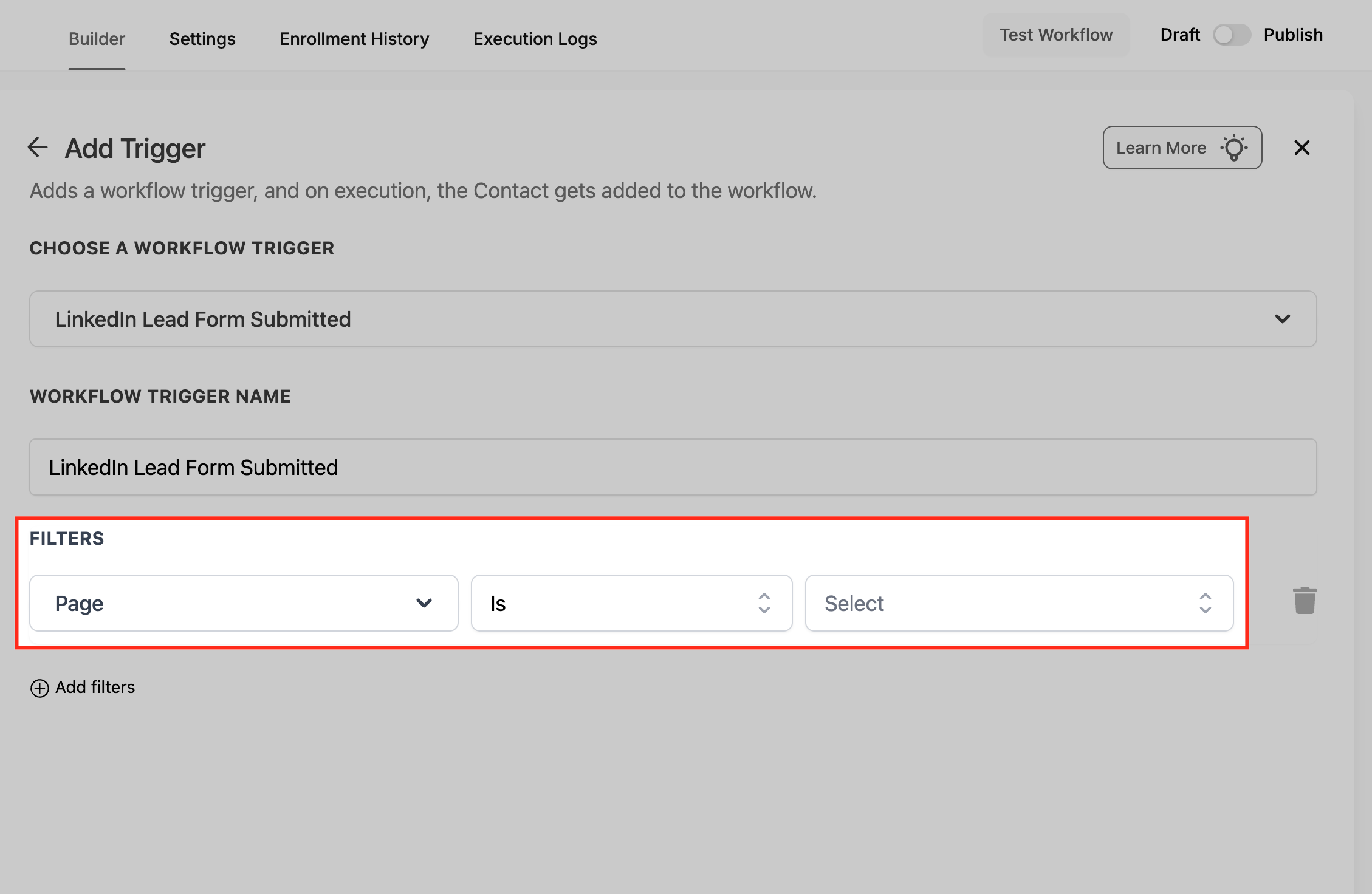
You find the trigger inside the workflow builder under Automation > Workflows. After adding it, you can attach filters, like Page or any custom field, using operators such as Is or Contains Phrase. All filters are evaluated together with AND logic, so only contacts that meet every condition enroll.
The trigger works with the platform’s standard workflow settings. You may enable Allow Re entry to let the same lead re enroll on subsequent submissions, or use Stop on Response to pause a nurture sequence when a lead replies.
03How businesses use LinkedIn lead form submitted triggers
- SaaS startup. Create a workflow, add the LinkedIn Lead Form Submitted trigger, filter by the company's LinkedIn Page, and launch an email onboarding series. The steps happen inside HighLevel without external tools.
- Real estate agency. Set up the trigger, filter for the agency's page, and add actions that assign the new contact to a specific agent and create a sales opportunity. The workflow runs automatically after each form submission.
- Recruitment firm. Use the trigger with a custom field that captures the job title, then start a task for the recruiter and add the lead to a nurturing sequence. All configuration is done in the HighLevel workflow editor.
04Before you start
- LinkedIn Lead Ads integration must be connected in Settings > Integrations with access to the correct LinkedIn Page and Ad Account.
- At least one LinkedIn Lead Gen Form must be published for the selected Page.
- Field mapping for key data such as Email, Phone, Company, and custom qualifiers should be planned.
05How to set up and use LinkedIn lead form submitted triggers in HighLevel
Set up LinkedIn Lead Form Submitted trigger
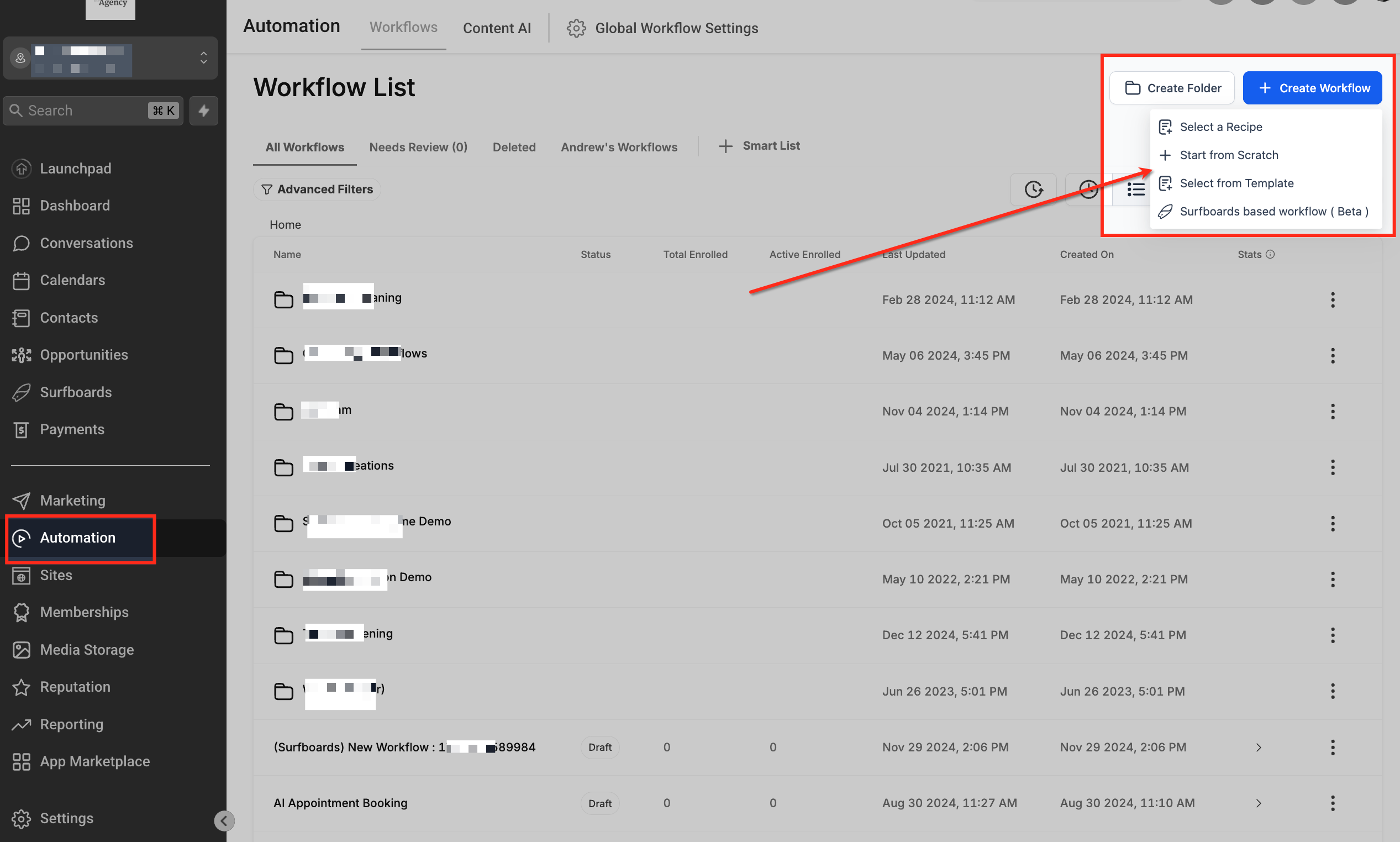
- Open Automation > Workflows and click Create Workflow.
- Choose Start from Scratch (or Select a Recipe) to open the builder canvas.
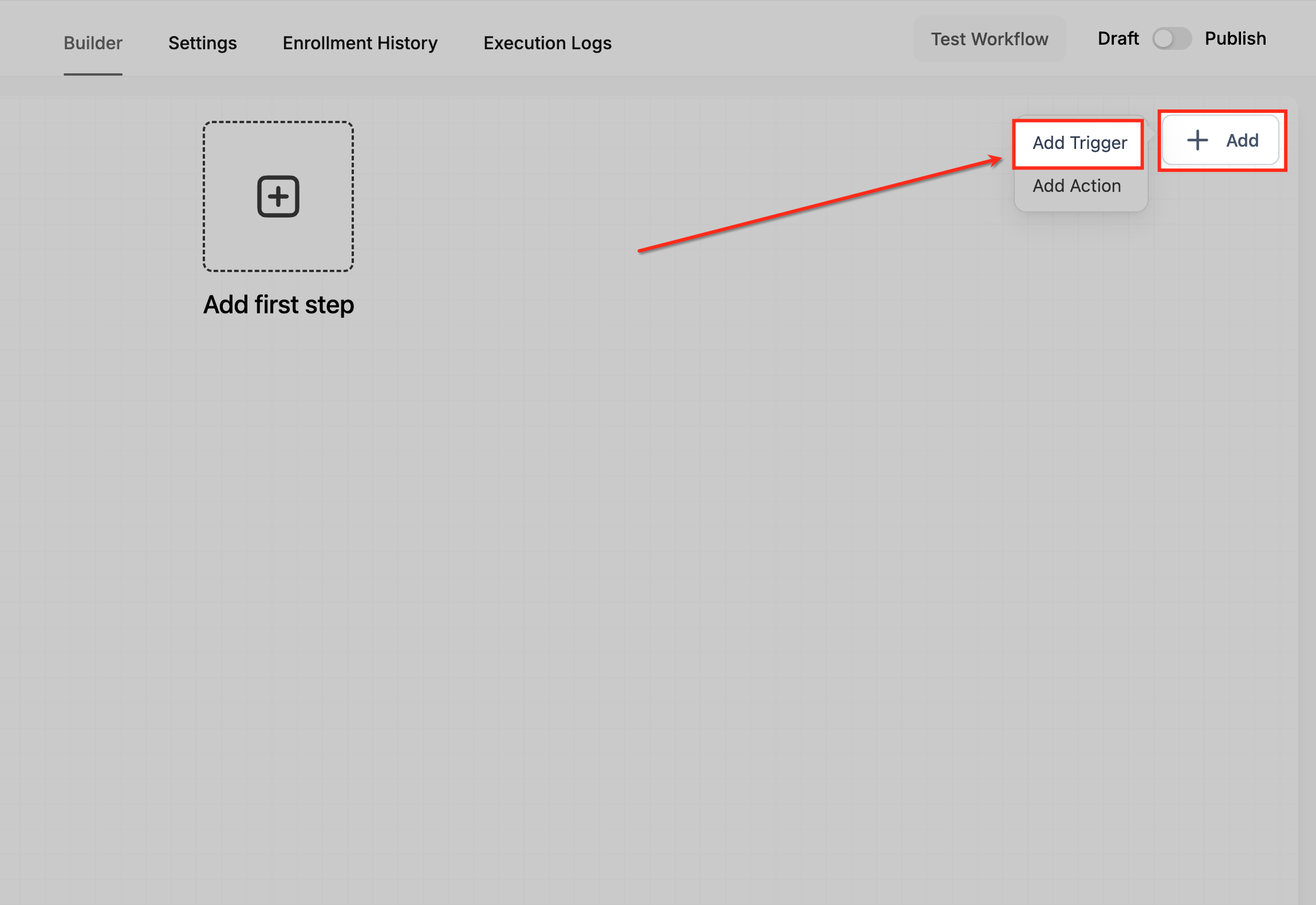
- Hover over + Add and select Add Trigger.
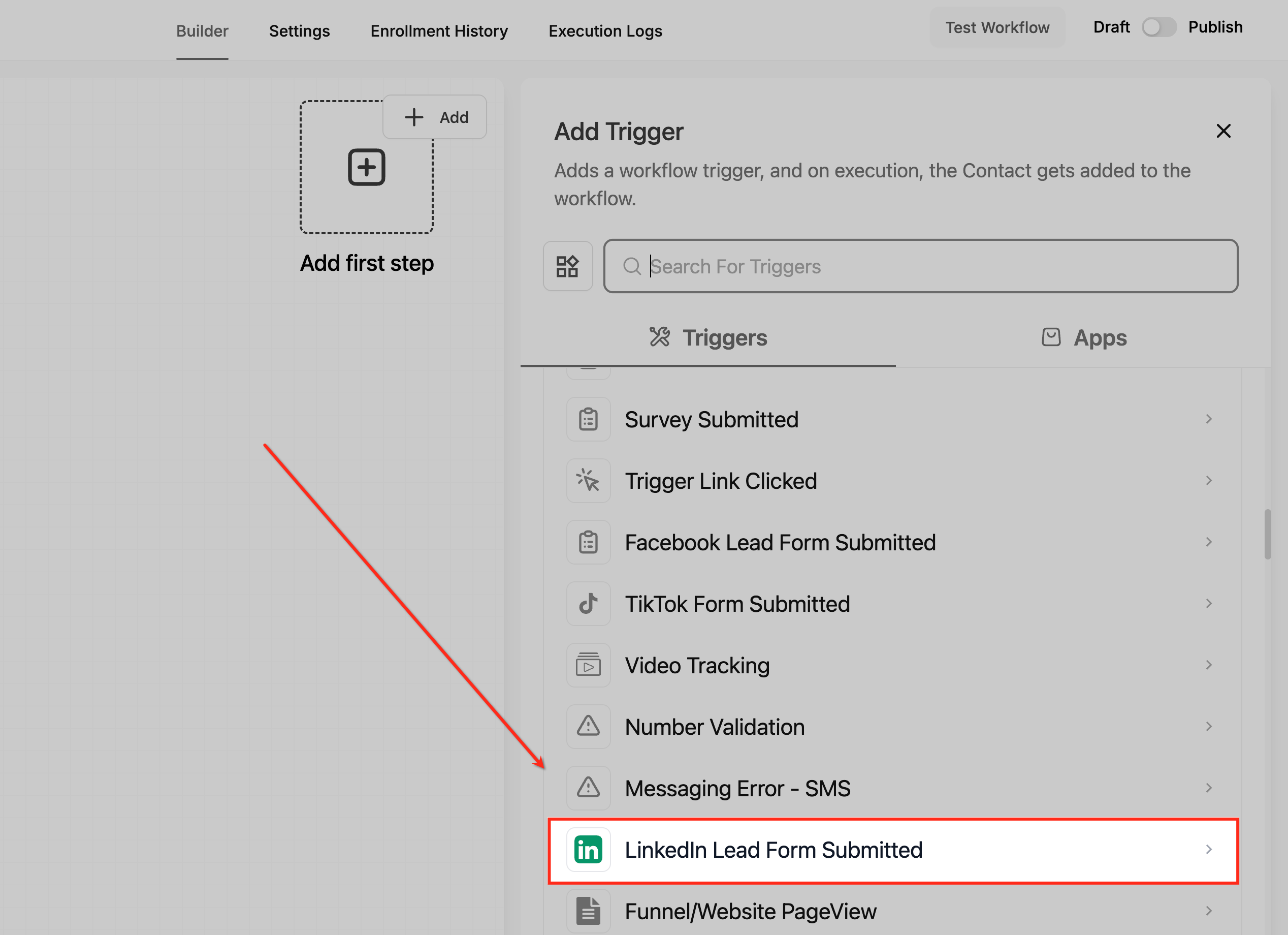
- Search for LinkedIn Lead Form Submitted and select it.
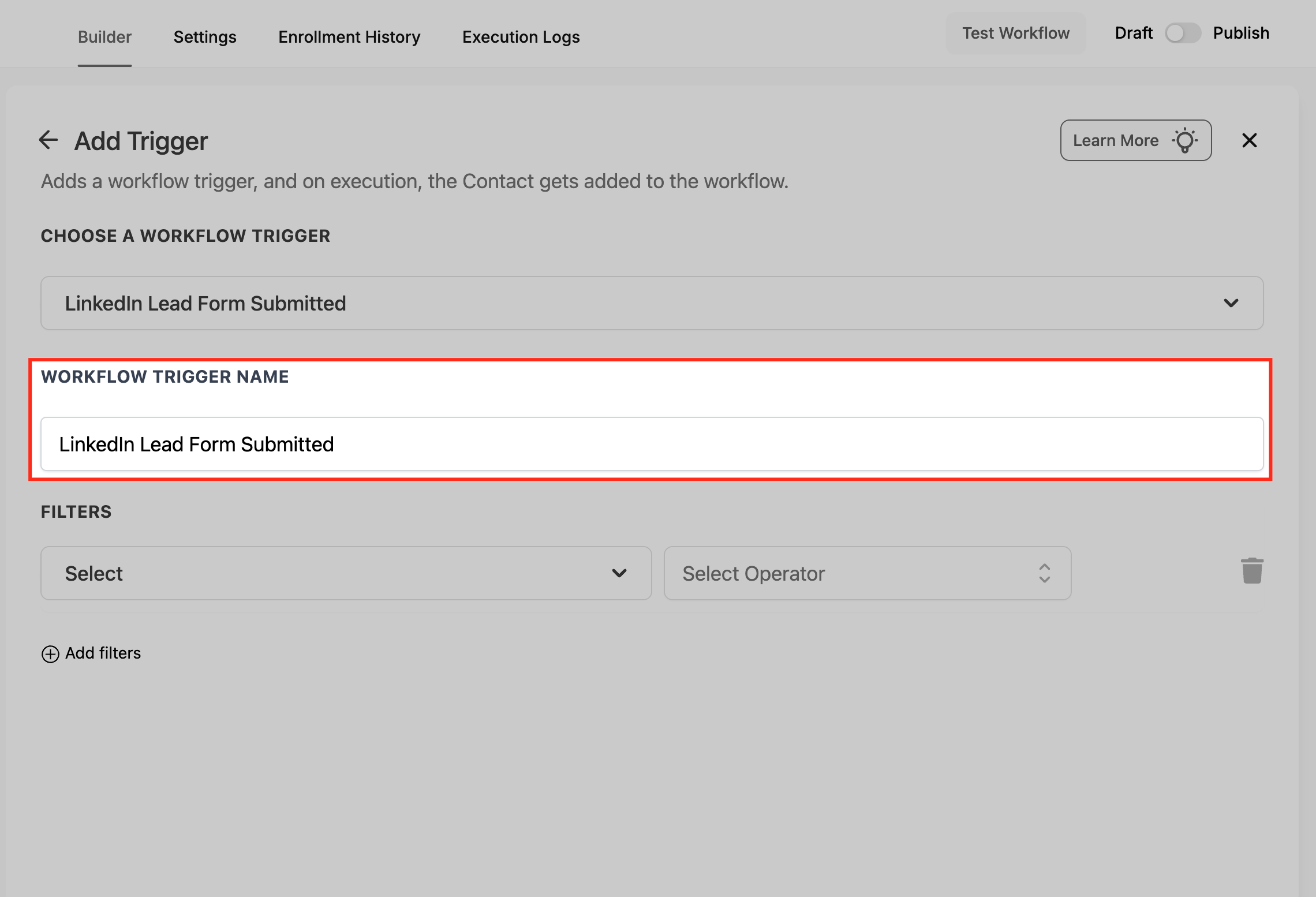
- Enter a clear name for the trigger.
- Click Add filters, choose the Page field, set the operator to Is, and pick the desired LinkedIn Page.
- Submit a test lead in LinkedIn Campaign Manager, open Contacts to confirm the contact was created or updated, and view the workflow’s Enrollment History or Execution Logs to verify the trigger fired.
- If you enable Allow Re entry, remember it should be used only when you want multiple enrollments from the same lead; otherwise keep it disabled to avoid duplicate outreach.
06What it looks like in HighLevel
07Settings that matter
- Allow Re, entry. Controls whether the same contact can enroll in the workflow again after a subsequent LinkedIn form submission.
- Stop on Response (optional). Pauses the workflow when the contact replies, preventing further automated actions until the pause is cleared.
08Things to know before you rely on it
- The Page filter is optional; without it, any form submission from any connected Page can enroll.
- Multiple filters are combined with AND logic, so all conditions must be true for enrollment.
- Duplicate contacts are matched on identifiers like email or phone; matching records are updated rather than creating new contacts.
09How it connects to the rest of HighLevel
- Understand workflow basics and automation concepts Workflow basics
- Learn how to add triggers and filters in a workflow Add triggers
- Check which plans include workflow features Workflow pricing
Michael's take

Most people assume the trigger will only fire for the exact form they created, so they skip adding the Page filter and end up pulling leads from other campaigns. I would start with a single Page specific workflow, set the Page > Is filter, and verify the enrollment in the logs before scaling.
Once the basic flow is solid, I would enable Allow Reentry during testing to make sure multiple submissions are handled the way I need, then turn it off for the live campaign if only the first lead matters.