
01Who this is for
- Founders who need to follow up leads based on which funnel page they visit, enabling targeted outreach.
- Marketing managers in small agencies wanting to tag contacts when they arrive on a specific website landing page.
- Sales teams aiming to send a timed email after a prospect reaches a checkout page in their sales funnel.
02Funnel/website pageview triggers, explained
The trigger monitors a selected funnel or website and activates when a contact views a page that matches the defined criteria. You can narrow the condition to a single page, a page path, or visits that contain particular UTM campaign, source, medium, or content values. Multiple filters can be stacked, each using operators like “is”, “is any of”, or “is empty”.
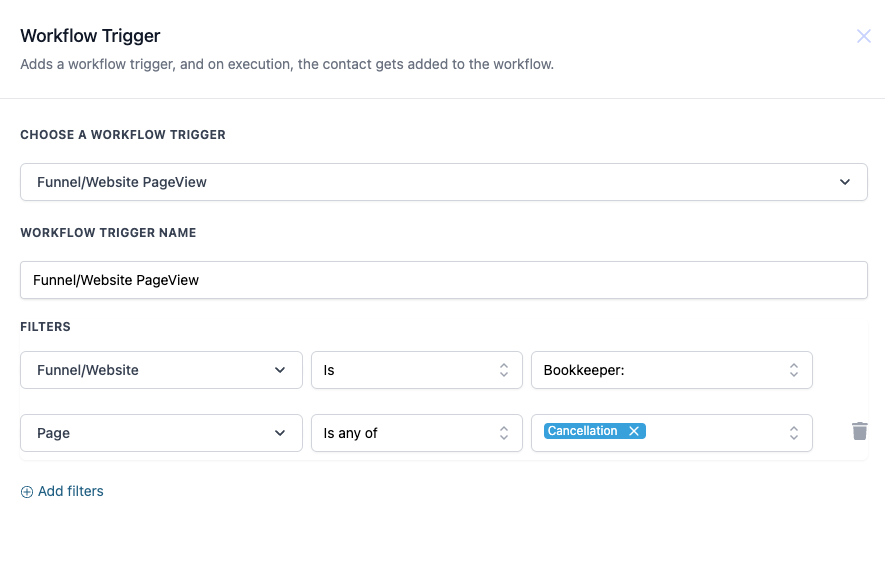
In HighLevel the trigger is chosen inside the workflow builder. After selecting the Funnel/Website PageView type, you set the mandatory funnel or website, then add optional page and UTM filters. Once saved, any subsequent workflow actions, email, SMS, tag, etc., run automatically when the trigger conditions are met.
03How businesses use funnel/website pageview trigger
- Coaching business. A coach creates a workflow that watches the “Booking” page of their funnel. When a prospect lands on that page, the trigger fires and the workflow sends a confirmation email with a calendar link.
- Ecommerce store. The store adds a trigger for the “Checkout” page. If a visitor reaches that page, the workflow tags the contact as “Cart Viewer” and schedules a follow up email offering assistance.
- Real estate agency. Agents set a trigger on the property details page. When a lead views a listing, the workflow logs the visit and sends a personalized text with next step instructions.
04How to set up and use funnel/website pageview trigger in HighLevel
Set up the Funnel/Website PageView trigger
- Open the workflow builder and pick the Funnel/Website PageView trigger from the trigger list.
- Enter a clear name for the trigger, such as “Checkout Page Visit”.
- Choose the funnel or website you want to monitor in the Funnel/Website field.
- Optionally select a specific page to track in the Page field.
- Add any UTM parameter filters you need, like UTM Campaign or UTM Source.
- Click Add filters to include additional conditions such as Page Path or more UTM values.
05What it looks like in HighLevel
06Settings that matter
- Funnel/Website. Selects which funnel or website the trigger will watch; this field must be filled.
- Page. Specifies a particular page inside the chosen funnel or website; optional.
- UTM Campaign. Filters visits that include a specific UTM campaign value; optional.
- UTM Source. Filters visits that include a specific UTM source value; optional.
- UTM Medium. Filters visits that include a specific UTM medium value; optional.
- UTM Content. Filters visits that include a specific UTM content value; optional.
- Page Path. Allows a more precise page match by specifying the exact URL path; optional.
07Things to know before you rely on it
- The Funnel/Website field is mandatory; the trigger will not save without it.
- All other fields are optional and can be left blank if not needed.
- Operators such as Is, Is any of, Is none of, Is empty, and Is not empty determine how filter values are evaluated.
08How it connects to the rest of HighLevel
- Learn the basics of creating workflows and adding triggers. Workflow basics
- Explore other trigger types like inbound webhook for real time data. Inbound webhook trigger
- Review plan options that include workflow capabilities. Pricing and plans
Michael's take

Prospects often drop off at key moments, like the checkout page, and you lose the chance to reach out when they’re most interested. The page view trigger lets you catch those moments automatically, turning a silent exit into a timely follow up.
The first setting to get right is the Funnel/Website field. Pick the exact funnel or site you want to watch. Everything else builds on that choice, so double check you’ve selected the correct funnel before adding any filters.