
01Who this is for
- Founders of service based businesses who need automatic reminders to reduce no shows.
- Team leads managing multi participant sessions, such as fitness classes or consulting workshops, who must notify every attendee.
- Operations managers at agencies that require internal alerts when high priority clients schedule appointments.
02Customer booked appointment triggers, explained
The Customer Booked Appointment trigger fires when a client books a one time appointment via a booking link. It does not react to recurring appointments or appointments entered manually by staff. When the trigger activates, the workflow can run actions like sending emails, SMS messages, or internal notifications.
The trigger lives inside the Workflow Builder. After opening Automation, you add the trigger, name it, decide which contacts are enrolled, and optionally filter by tags, calendars or calendar groups. The enrollment setting determines whether the primary contact, guests, or both receive the workflow actions.
Guests that are attached at the moment of booking are included. Any guest added later is ignored by this trigger. The default enrollment is Contact only, and existing workflows retain their current enrollment until manually changed.
03How businesses use customer booked appointment workflow trigger
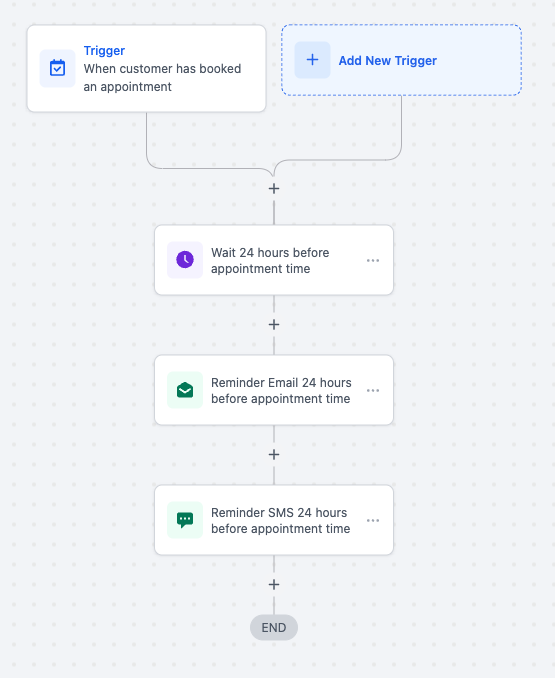
- Dental clinic. The clinic creates a workflow with this trigger to send an email and SMS reminder 24 hours before each patient’s appointment. The workflow runs for the primary contact, ensuring the patient receives the reminder automatically.
- Real estate agency. The agency sets the enrollment to "Contact and Guests" and adds actions that email the client a confirmation with directions and a document checklist. Guests listed at booking also receive the same information.
- Fitness center. The center selects the "Contact only" enrollment and adds an internal email action that alerts the trainer whenever a customer books a group class, so the trainer can prepare the session.
04How to set up and use customer booked appointment workflow trigger in HighLevel
Set up Customer Booked Appointment trigger
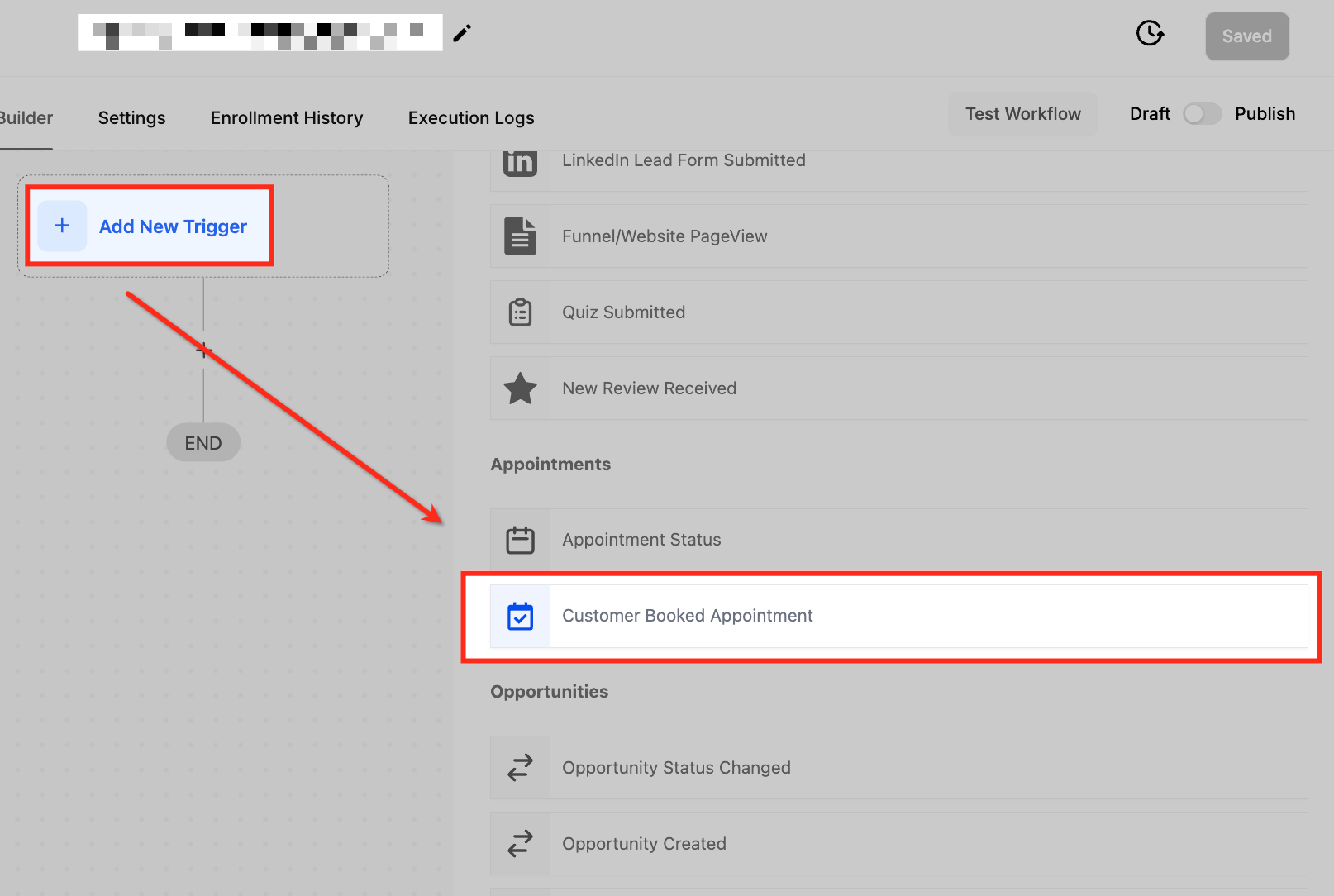
- Open the Automation area and launch the Workflow Builder.
- Click Add New Trigger and type Customer Booked Appointment, then select it.
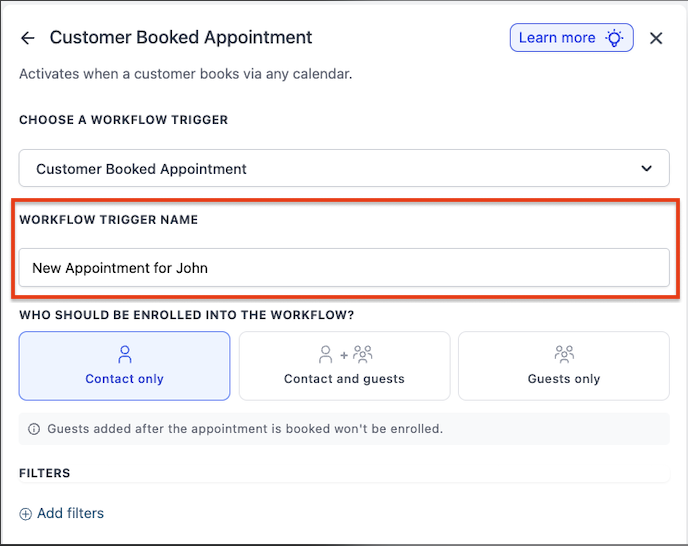
- Enter a clear name for the trigger, such as New Appointment Booking Trigger.
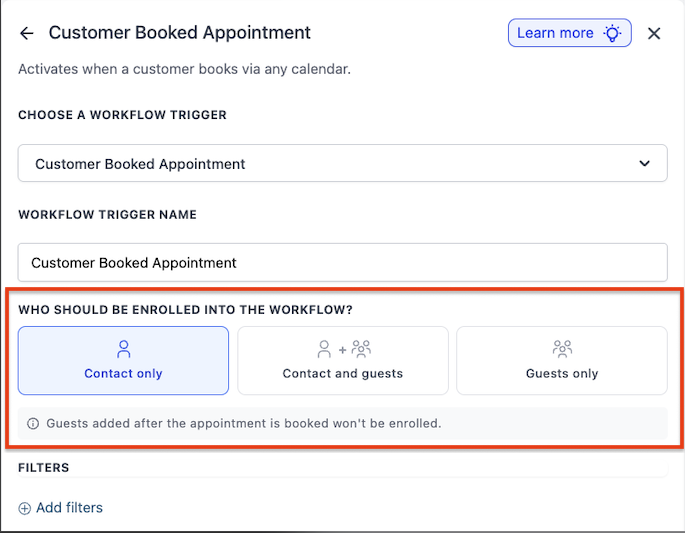
- Choose the enrollment option, Contact only, Contact and Guests, or Guests only.
- Note: Guests added after the appointment is booked are not enrolled by this trigger.
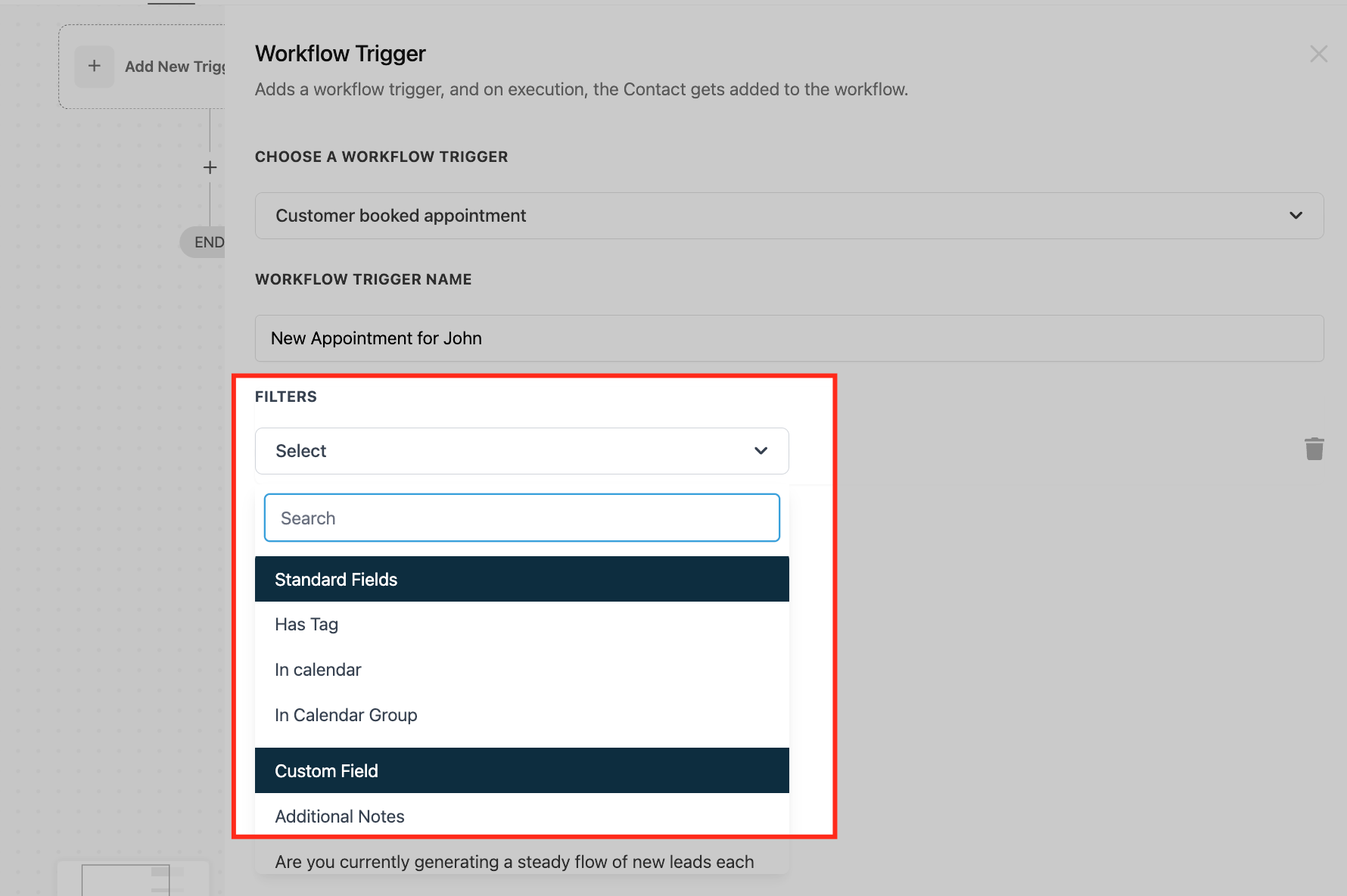
- Add any needed filters like Has Tag, In Calendar, or In Calendar Group.
- Click Save for the trigger and then save the entire workflow using the blue save button.
05What it looks like in HighLevel
06Settings that matter
- Who should be enrolled into the workflow?. Controls whether the workflow runs for the primary contact, the guests, or both when the appointment is booked.
- Has Tag. Filters the trigger so it only fires when a contact with a specific tag books the appointment.
- In Calendar. Limits the trigger to appointments booked in the selected calendar.
- In Calendar Group. Limits the trigger to any calendar within the chosen group.
07Things to know before you rely on it
- Works only for one time appointments; recurring appointments are not supported.
- Guests added after the booking are not enrolled by this trigger event.
- The trigger fires only when the client books independently via a booking link, not when staff book on the client’s behalf.
- Default enrollment is Contact only; existing workflows keep this setting until manually changed.
08If something goes wrong
- Trigger does not fire for recurring appointments.. Recurring appointments are not supported; use regular one time appointments for this trigger.
- Trigger does not activate when a team member books the appointment.. The trigger runs only for bookings made by the customer through a booking link.
09How it connects to the rest of HighLevel
- Workflow basics and how to start building automations Workflow basics
- Explanation of appointment status workflow triggers Appointment status triggers
Michael's take

Beware that this trigger only reacts to appointments booked directly by the client. If your team frequently books on behalf of customers, you’ll need another method to capture those events. Also remember that guests added after the initial booking won’t be pulled into the workflow, so plan any guest centric communications accordingly.
When you have a steady flow of client self booked appointments, the trigger can be used for confirmations, reminders and internal alerts, handling routine communications automatically.