
01Who this is for
- Founders who run client facing services and need automated reminders to keep appointments on track.
- Coaches who schedule multiple sessions and want each participant to receive status updates automatically.
- Team managers who must inform staff right away when an appointment is cancelled or rescheduled.
02Appointment status workflow triggers, explained
The Appointment Status Workflow Trigger is a built in automation that fires whenever an appointment is booked, confirmed, cancelled, showed, no show, or marked invalid. It lives inside the Workflow Builder under the Automation tab. After adding it, you name the trigger, decide which contacts are enrolled (primary contact, guests, or both), and then apply filters such as event type, calendar, tags or who modified the appointment. The workflow runs separately for each enrolled contact. When all conditions are satisfied, the workflow executes the defined actions. You then save and publish the workflow to make the automation live and test it by creating an appointment.
03How businesses use appointment status workflow triggers
- Medical clinic. The clinic adds the trigger, selects "Contact and Guests" and filters for the "Cancelled" status. When a patient or family member cancels, the workflow sends a reminder email with a reschedule link to both the patient and any accompanying guest.
- Coaching business. A coach configures the trigger for the "Confirmed" status, chooses only the primary contact, and adds a tag filter for "New Client". Once a client confirms a session, the workflow delivers a preparation guide via email.
- Event management company. The company sets the trigger to fire on "No show" appointments, enrolls "Guests only", and limits it to a specific calendar group for the conference venue. Each guest who misses a session receives a follow up email offering a recording.
04How to set up and use appointment status workflow triggers in HighLevel
Configure appointment status workflow trigger
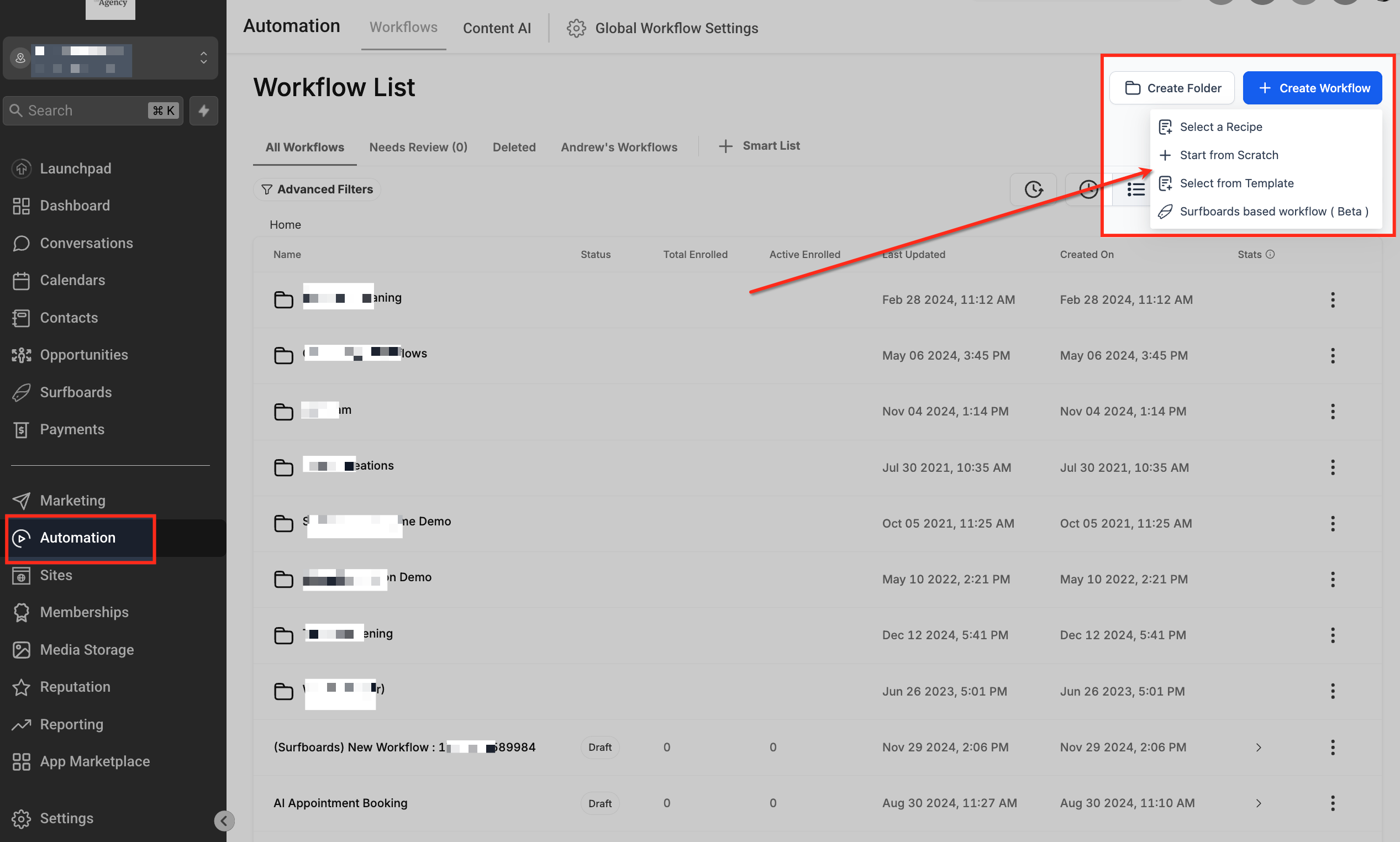
- Open the Automation tab, choose Workflows, and create a new workflow or edit an existing one.
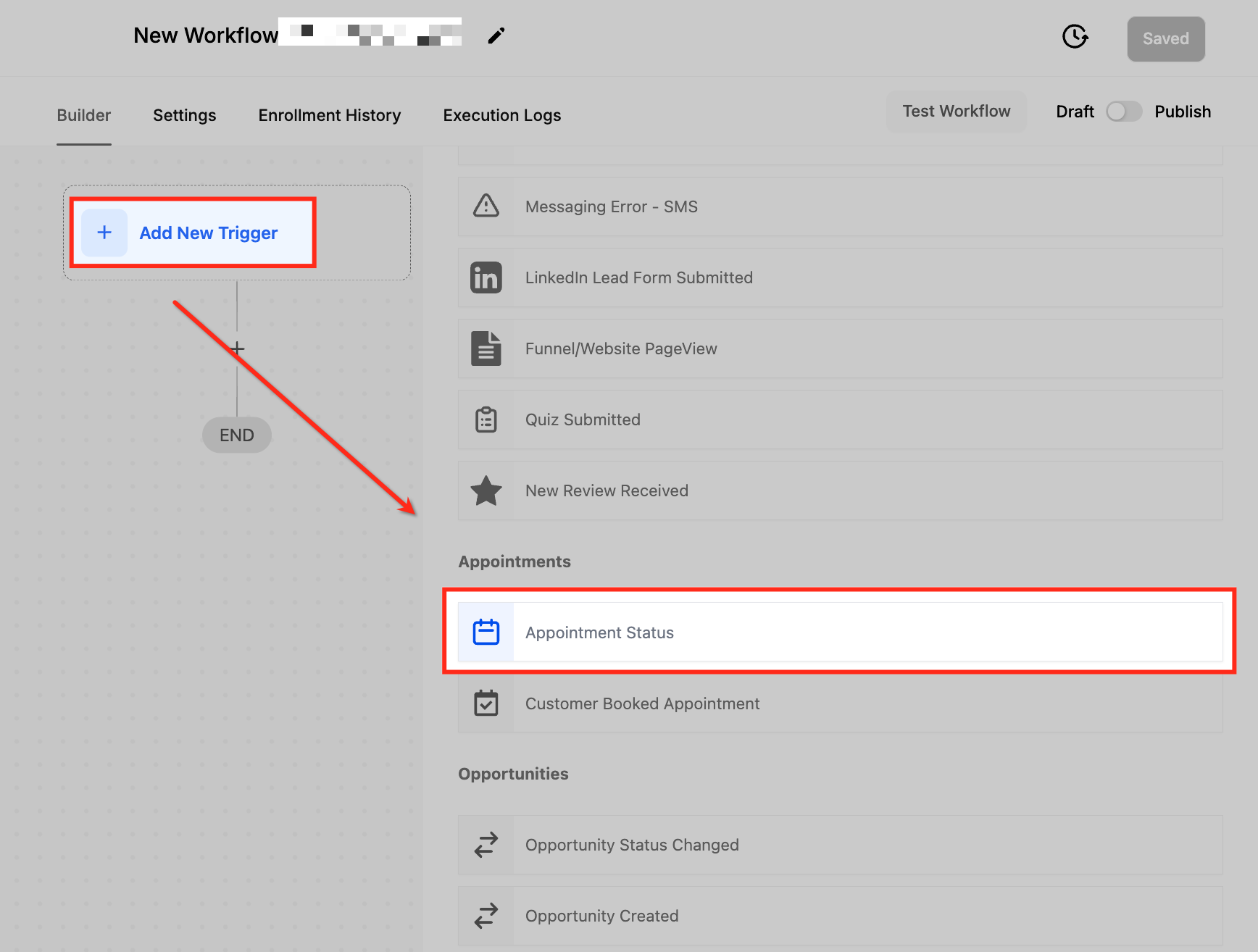
- Click Add New Trigger, search for Appointment Status, and select it.
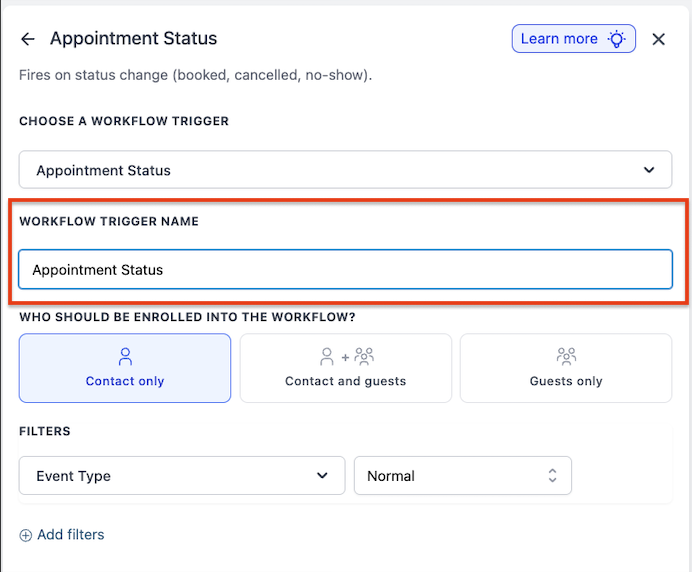
- Enter a descriptive name for the trigger instead of leaving the default name.
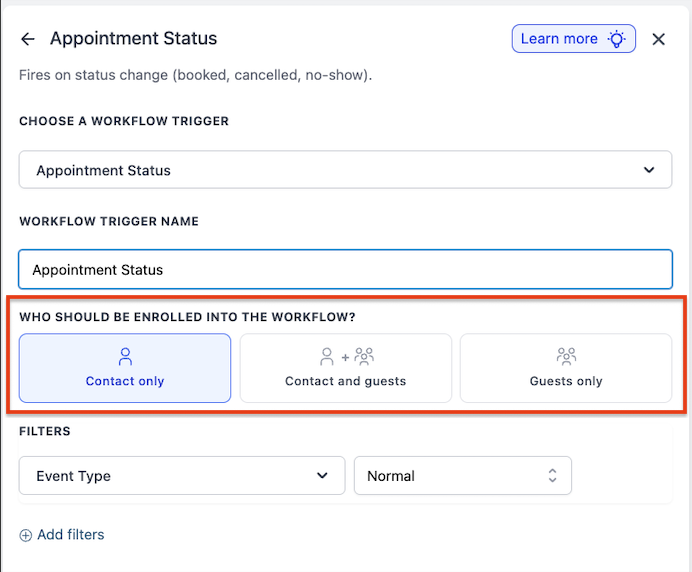
- Under "Who should be enrolled into the workflow?" pick Contact only, Contact and Guests, or Guests only, depending on the automation goal.
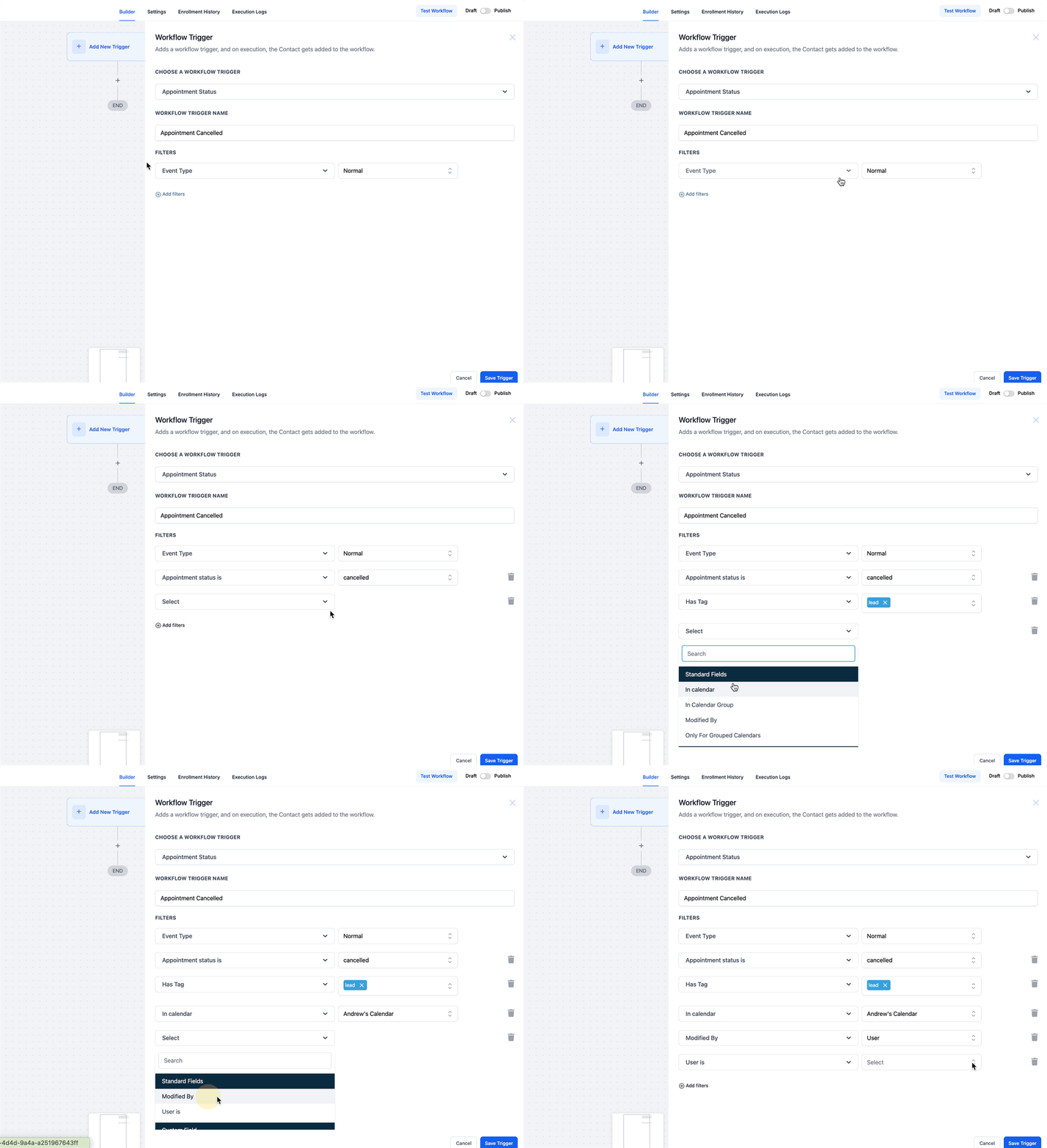
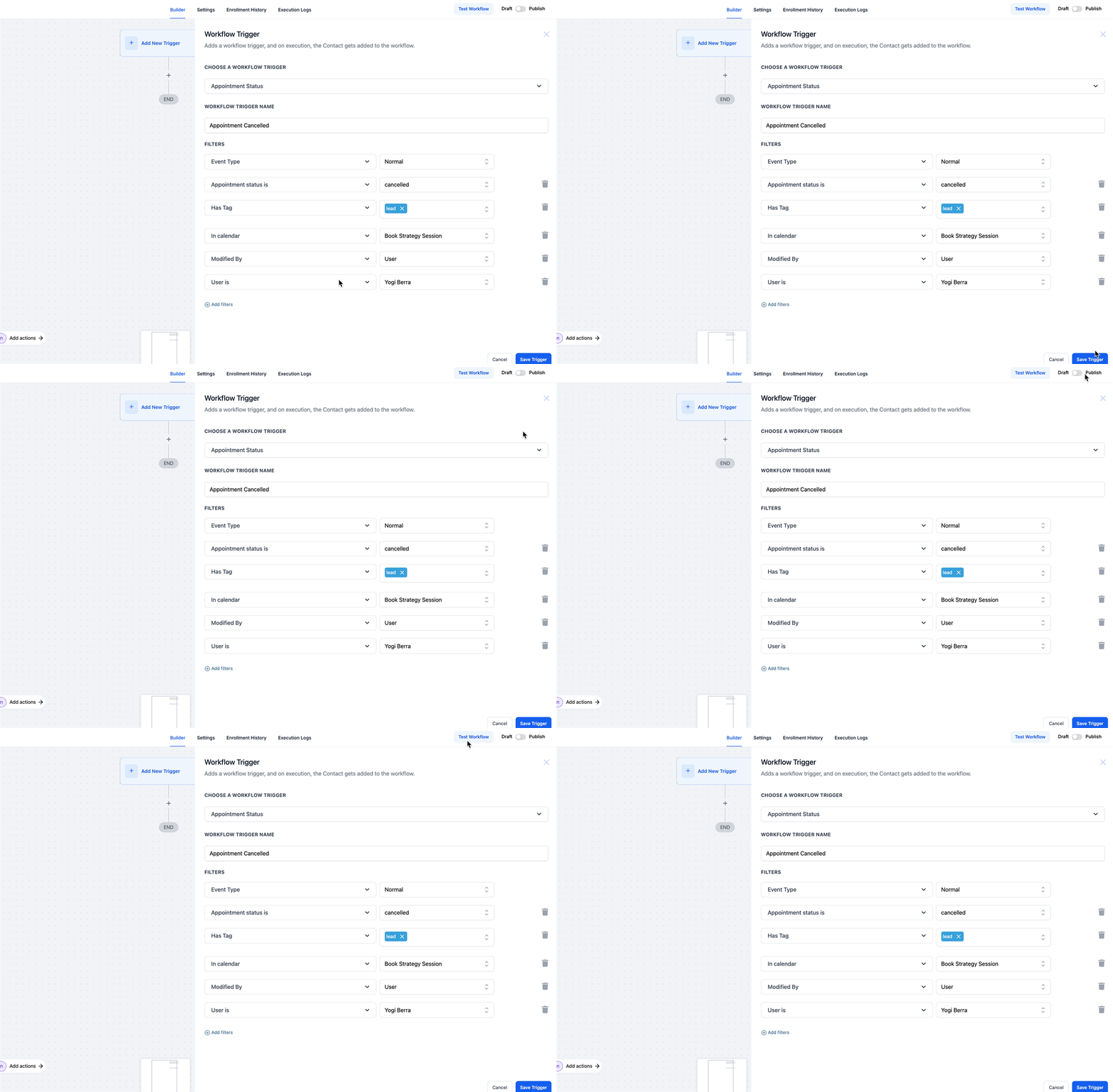
- Add filters such as Event Type, Appointment Status, Tag, In Calendar, In Calendar Group, Only for Grouped Calendar, or Modified By to narrow when the trigger fires.
- Click Save, then publish the workflow to activate the automation.
05What it looks like in HighLevel
06Settings that matter
- Appointment Status. Determines which appointment status changes (New, Confirmed, Cancelled, Showed, No show, Invalid) cause the workflow to run.
- Who should be enrolled into the workflow?. Controls whether the primary contact, the guests, or both are added to the workflow when the trigger fires.
- Filter By Event Type. Limits the trigger to normal, recurring, or any type of appointment.
- Filter By Tag. Runs the workflow only for contacts that have a specific tag assigned.
- In Calendar. Restricts the trigger to appointments scheduled in a selected calendar.
- In Calendar Group. Limits activation to appointments inside a chosen calendar group.
- Only for Grouped Calendar. Specifies whether the trigger applies solely to grouped calendars or to all calendars.
- Modified By. Filters the trigger based on who changed the appointment status, such as API, Customer, User, or another workflow.
07Things to know before you rely on it
- When "Contact and Guests" is chosen, the workflow runs once for the primary contact and once for each guest, creating separate executions.
- Multiple filters can be combined with AND/OR logic to create precise automation rules.
08How it connects to the rest of HighLevel
- Explore all workflow capabilities All Workflows features
- Learn the basics of workflow automation in HighLevel Workflow basics guide
- Review HighLevel pricing and plan options Pricing and plans
Michael's take

Jumping straight into appointment status triggers can feel risky if you haven’t mapped out how each status impacts your team’s workflow. A sudden change in a status could fire a cascade of emails you weren’t expecting, so keep an eye on the filters you apply.
When you get it right, the upside is huge. Automatic reminders, instant staff alerts, and the ability to keep every guest in the loop without lifting a finger. That level of coordination can cut no shows and keep your calendar humming.