
01Coupon code applied workflow triggers, explained
The coupon code applied trigger launches a workflow as soon as a customer enters a discount code during checkout. It does not wait for the purchase to finish, so actions run even when the cart is abandoned. This lets businesses react fast to coupon usage.
With this trigger you can add filters to fire only for certain codes, values, products, or order totals. After the trigger fires you can attach any workflow actions such as emails, tags, assignments, or notifications.
02How businesses use coupon code applied workflow trigger
- Abandoned cart recovery. When a shopper applies a coupon but leaves the checkout, the trigger can start an email or SMS reminder. The follow up nudges the buyer to return and finish the purchase.
- Personalized upsells. Detect the coupon type or value and immediately send a targeted upsell offer that matches the discount. The offer feels relevant because it is based on the exact coupon the customer used.
- Internal notifications. Alert a sales or support user as soon as a high value coupon is used. The team can then reach out proactively or monitor campaign performance.
- Contact tagging. Automatically add tags to the contact record that reflect the coupon code applied. Tags make it easy to segment customers for future marketing.
03The numbers and rules that matter
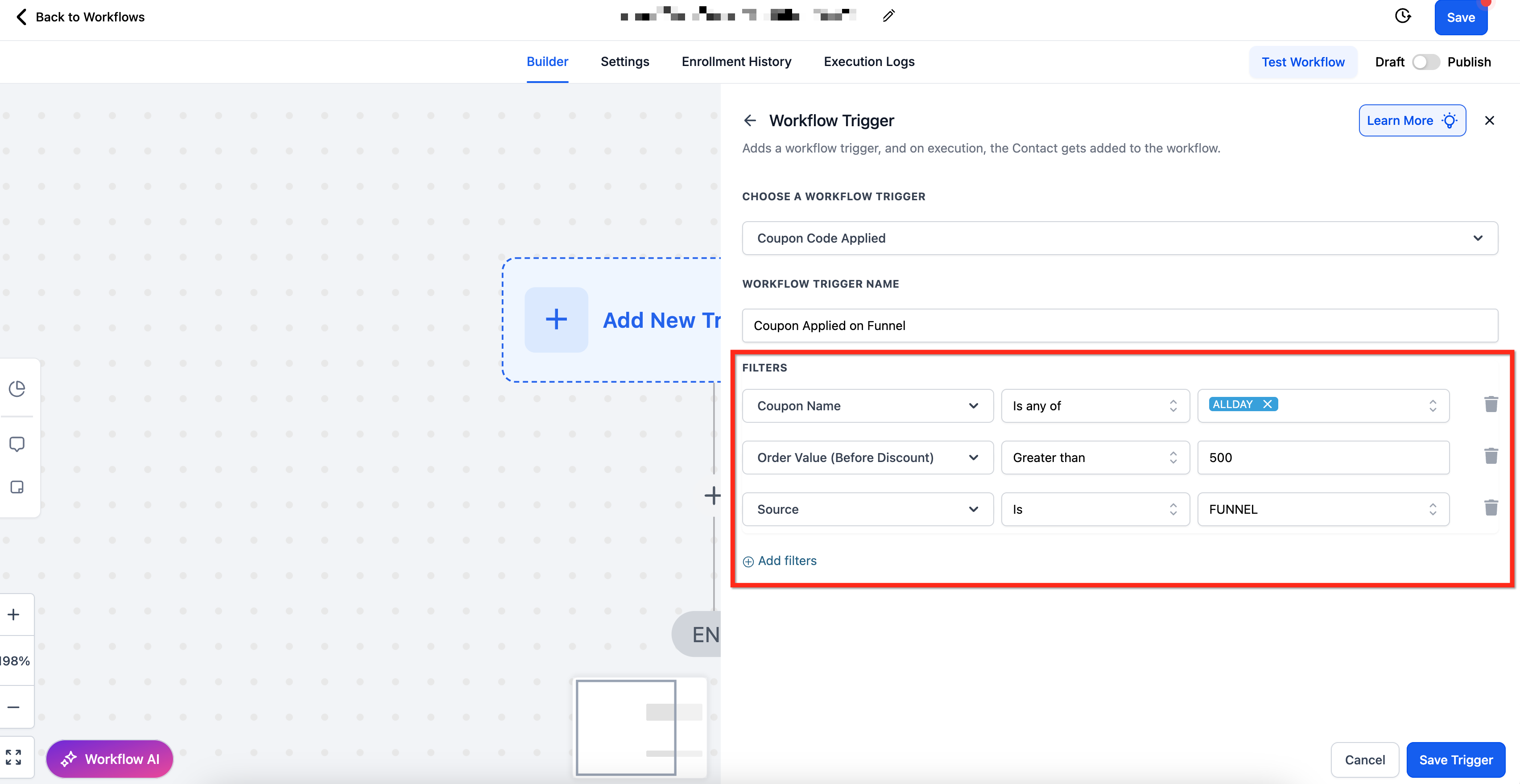
- Available filters: Coupon Code, Coupon Name, Coupon Type, Coupon Value, Order Value (Before Discount), Product Collection, Product Type, Product(s) In Order, Source.
04How to set up and use coupon code applied workflow trigger in HighLevel
Set up coupon code applied trigger
- Navigate to Automation > Workflows.
- Create a new workflow or edit an existing one.
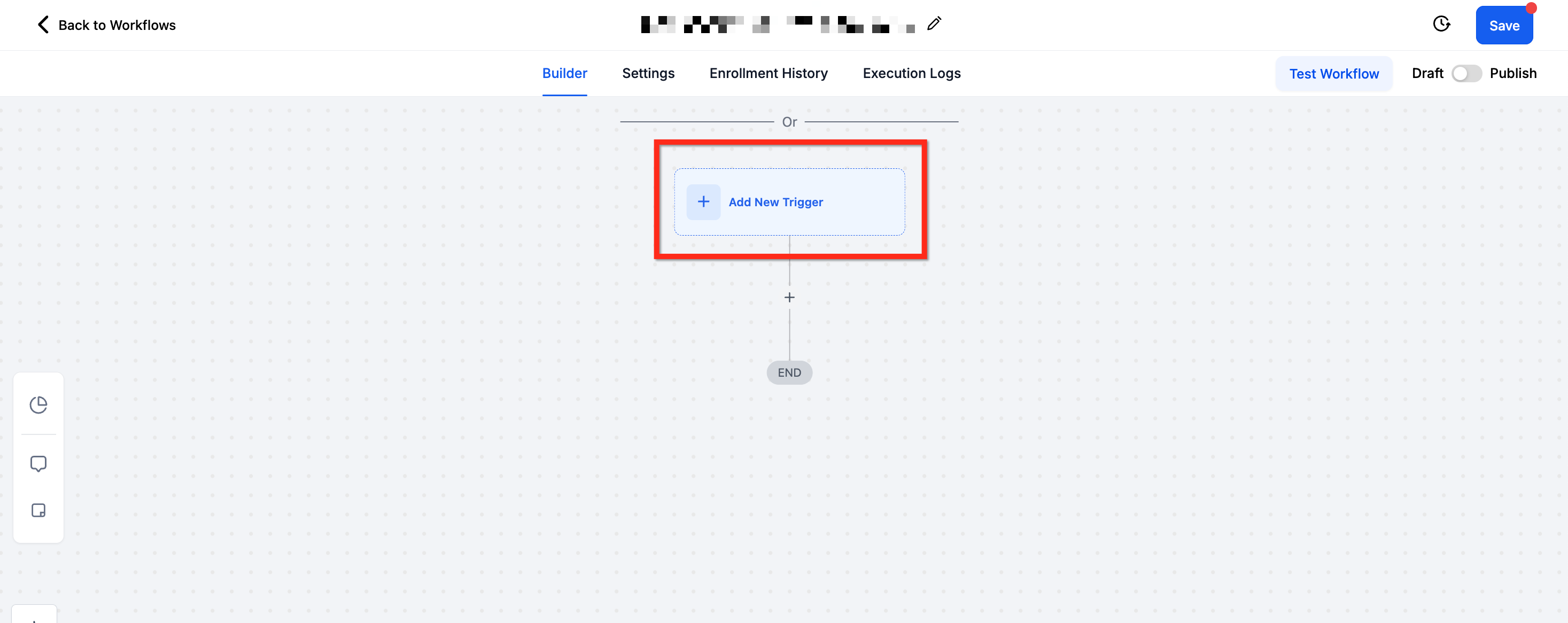
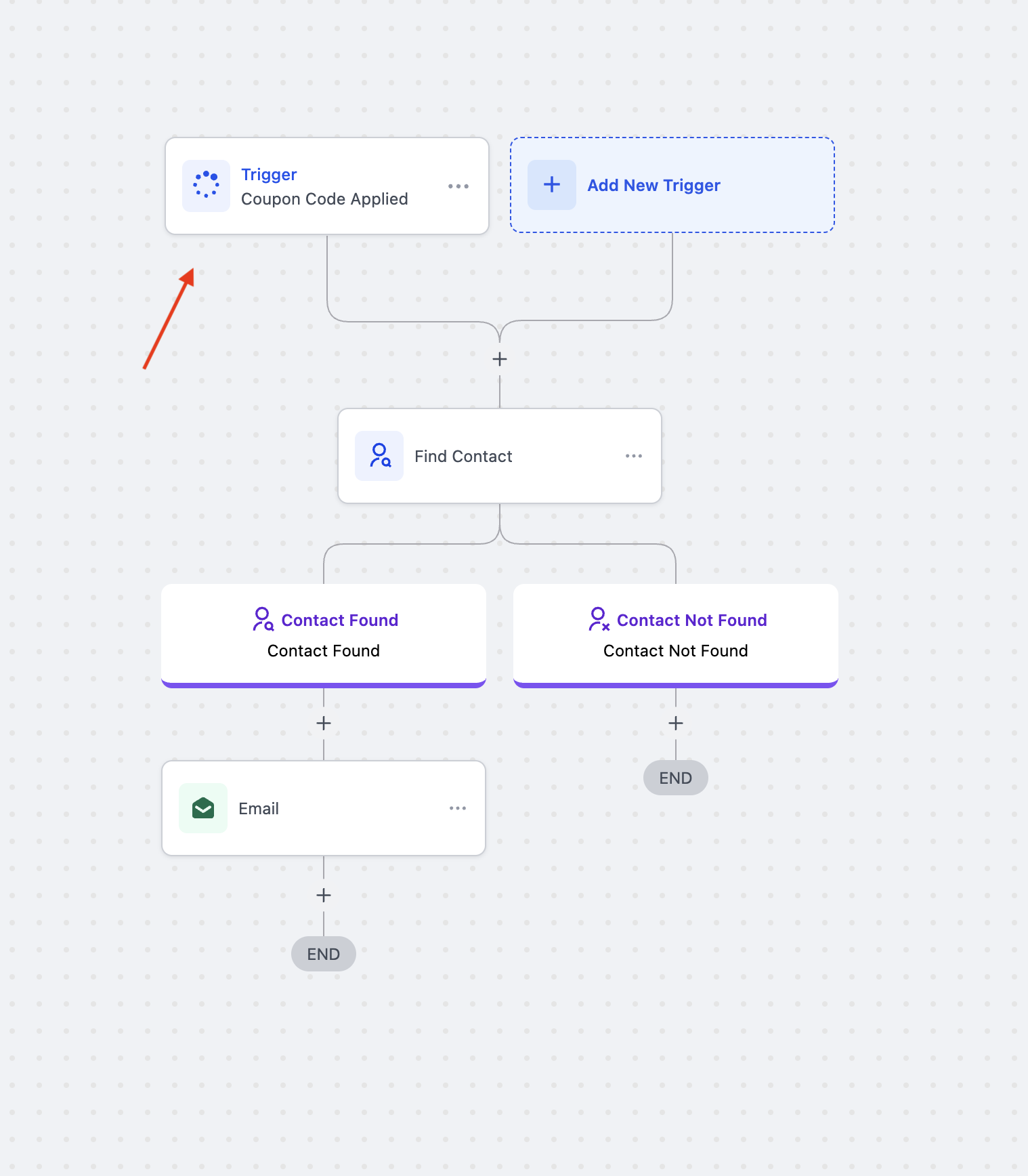
- In the Workflow Builder, click + Add New Trigger.
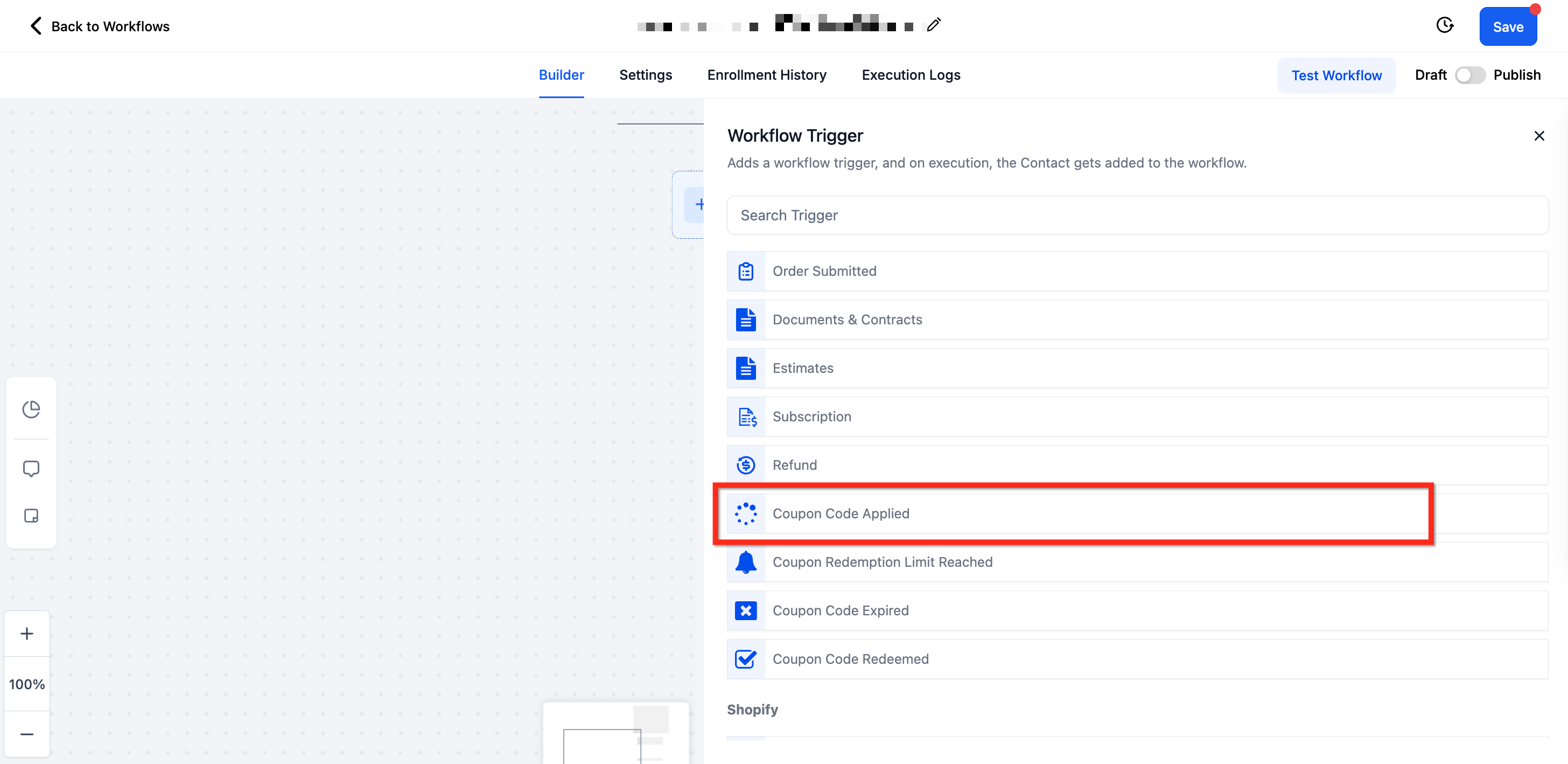
- Scroll to the Payments section and select Coupon Code Applied.
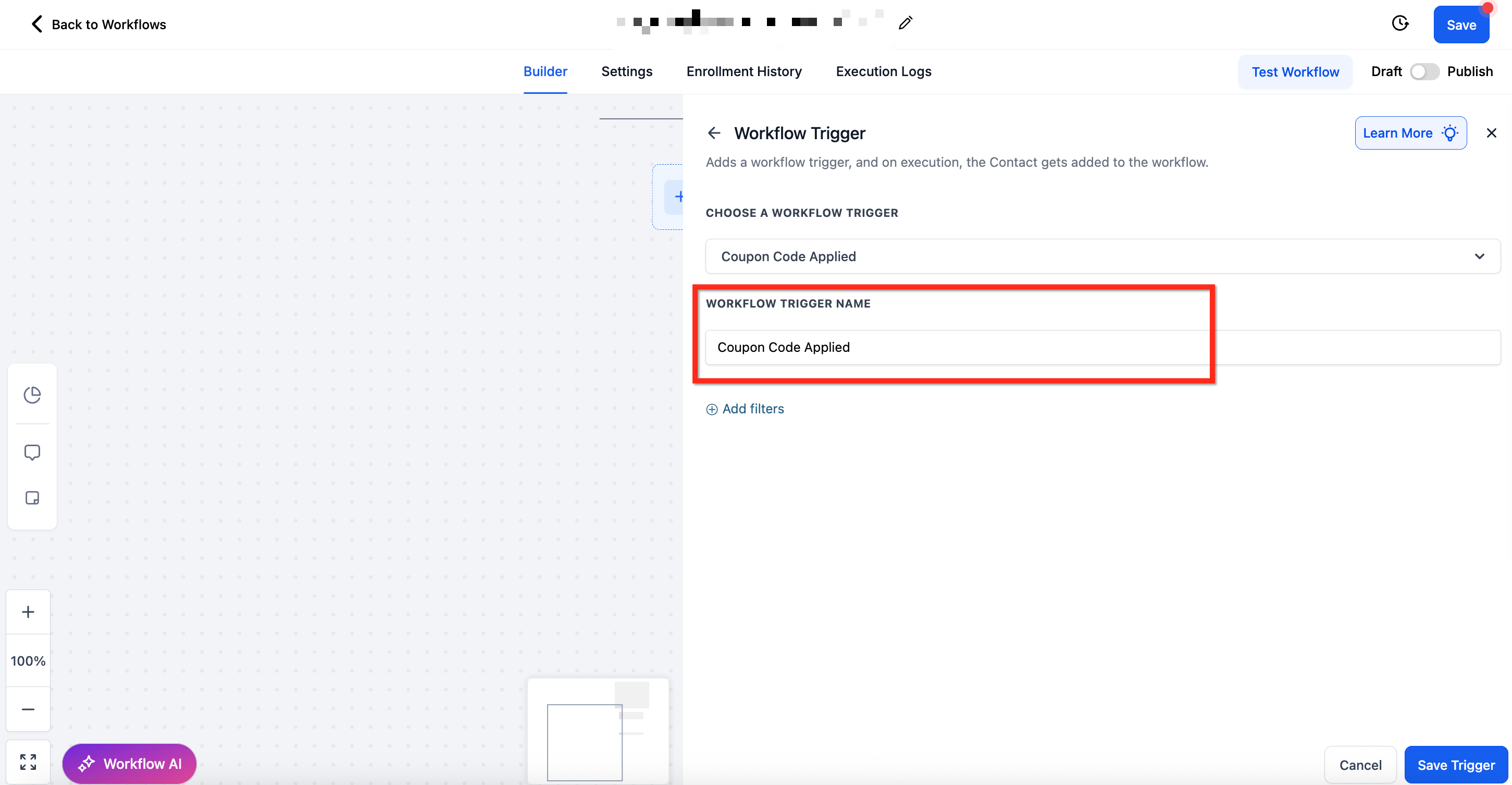
- Enter a descriptive name in the Workflow Trigger Name field.
- Click + Add Filters to narrow the conditions, using operators such as Is, Contains, Greater Than, Before/After, etc.
- Save Trigger and add the desired actions to the workflow.
- Use Test Workflow to verify functionality.
- Publish the workflow to activate it.
05What it looks like in HighLevel
06Things to know before you rely on it
- Trigger only fires when a coupon is actively applied at checkout.
- It does not fire for scheduled orders.
- Without filters the workflow triggers for any coupon code.
Michael's take

People often set the trigger and expect it to fire only after a purchase goes through, missing out on the chance to act while the shopper is still on the checkout page. The real value is in catching that moment the discount code is entered, even if the cart is abandoned.
If I were setting this up, I’d immediately add a filter for the high value coupon I’m tracking, then attach a quick email reminder and a tag for later segmentation. I’d run a test checkout, apply the code, and watch the workflow fire before the order is submitted to be sure everything lines up.