
01Who this is for
- Sales managers can enroll a company into a follow up workflow the moment its status field is updated.
- Onboarding specialists can start a welcome sequence when a company's industry field changes to a target value.
- Marketing teams can alert team members whenever a company's domain field is filled in.
02Company changed triggers, explained
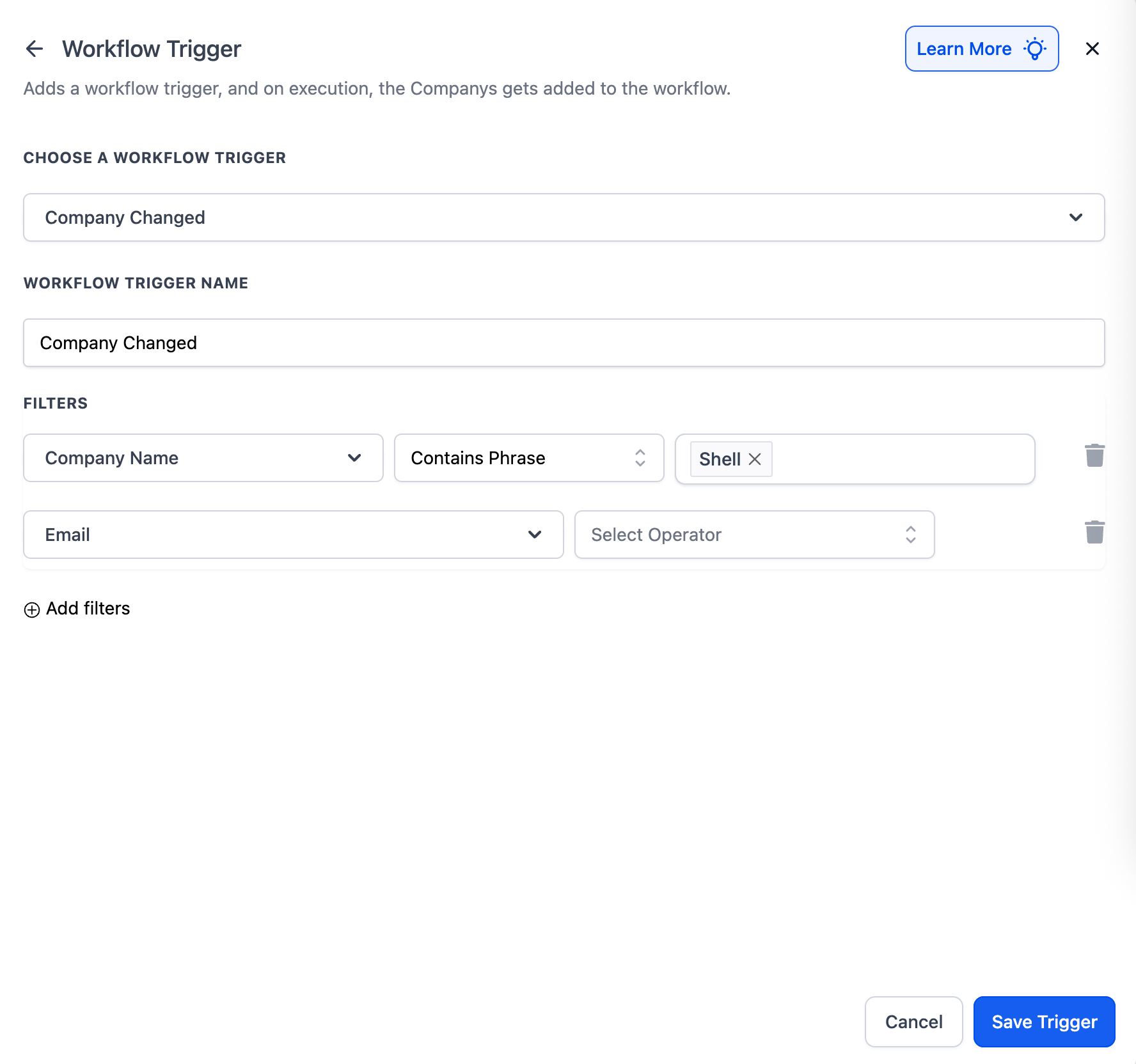
The Company Changed trigger belongs to the workflow module. It monitors updates to Company records and starts a workflow when the changes satisfy the conditions you set. You can pick any standard or custom Company field, such as Industry, Status, or Domain.
When you add the trigger, you define one or more filters. Each filter uses an operator, for example, "Is not empty" or "Contains Phrase", and you can combine several filters with AND logic. Only when every filter matches does the workflow enroll the Company.
The trigger is configured inside a workflow builder. After saving, any future Company updates that meet the criteria will automatically launch the workflow, keeping your automations aligned with the latest company information.
03How businesses use company changed trigger
- Healthcare consulting firm. Select the Industry field and set the operator to Contains Phrase with the value "Healthcare". When a company's industry is changed to include that phrase, the workflow enrolls the company in a healthcare onboarding sequence.
- Digital marketing agency. Choose the Domain field and apply the Is not empty operator. Each time a company's domain is entered or edited, the workflow triggers an internal notification to the sales team.
- SaaS provider. Monitor the Status field with a Contains Phrase filter for "Active" and add a second filter on Subscription Level with Is not empty. When both conditions are true, the workflow adds the company to a renewal outreach automation.
04How to set up and use company changed trigger in HighLevel
Set up the Company Changed trigger in a workflow
- Open an existing workflow or create a new one in HighLevel.
- Click the button to add a trigger to the workflow.
- Select "Company Changed" from the list of available triggers.
- Open the field selection panel for the trigger.
- Choose the first Company field you want to monitor, such as Industry.
- Set the operator for that field, for example "Contains Phrase".
- Enter the phrase value that must appear in the field, like Healthcare.
- Add another field to monitor, such as Domain, if needed.
- Select the operator for the second field, for example "Is not empty".
- Optionally, click to add an additional filter condition.
- Ensure the filter logic is set to AND so all conditions must match.
- Review all configured field conditions and operators.
- Save the trigger configuration to activate it.
05What it looks like in HighLevel
06Settings that matter
- Company Changed. Specifies that the workflow should start when a Company record is updated and meets the defined field conditions.
- Fields to Monitor. Lets you choose which standard or custom Company fields the trigger watches for changes.
- Operator. Determines how the field value is evaluated, such as "Is not empty" or "Contains Phrase".
07Things to know before you rely on it
- You can add multiple field filters, but all must be true because the logic uses AND.
- Filters are optional; a trigger can run with a single field condition.
- The trigger fires only on updates that match at least one of the configured field conditions.
08How it connects to the rest of HighLevel
- Learn the basics of HighLevel workflow automation Workflow basics guide
- Step by step instructions for building any workflow Workflow setup guide
- Review HighLevel pricing and plan options Pricing page
Michael's take

The company changed trigger feels like a small convenience that can become a real shift in how you keep data driven processes current. It watches key fields and kicks off automations the moment those fields update, so you never have to manually check for changes.
A healthcare services firm that needs to start a specialized onboarding flow as soon as a prospect’s industry is marked "Healthcare" will find this trigger a perfect fit. The moment the industry field flips, the prospect is automatically funneled into the right sequence without any extra effort.