
01Who this is for
- Founders who run outbound lead campaigns can avoid sending extra messages to contacts that have already engaged.
- Sales managers can ensure calls reach live prospects without the extra pause caused by voicemail detection.
02Stop on response and disable voicemail detect, explained
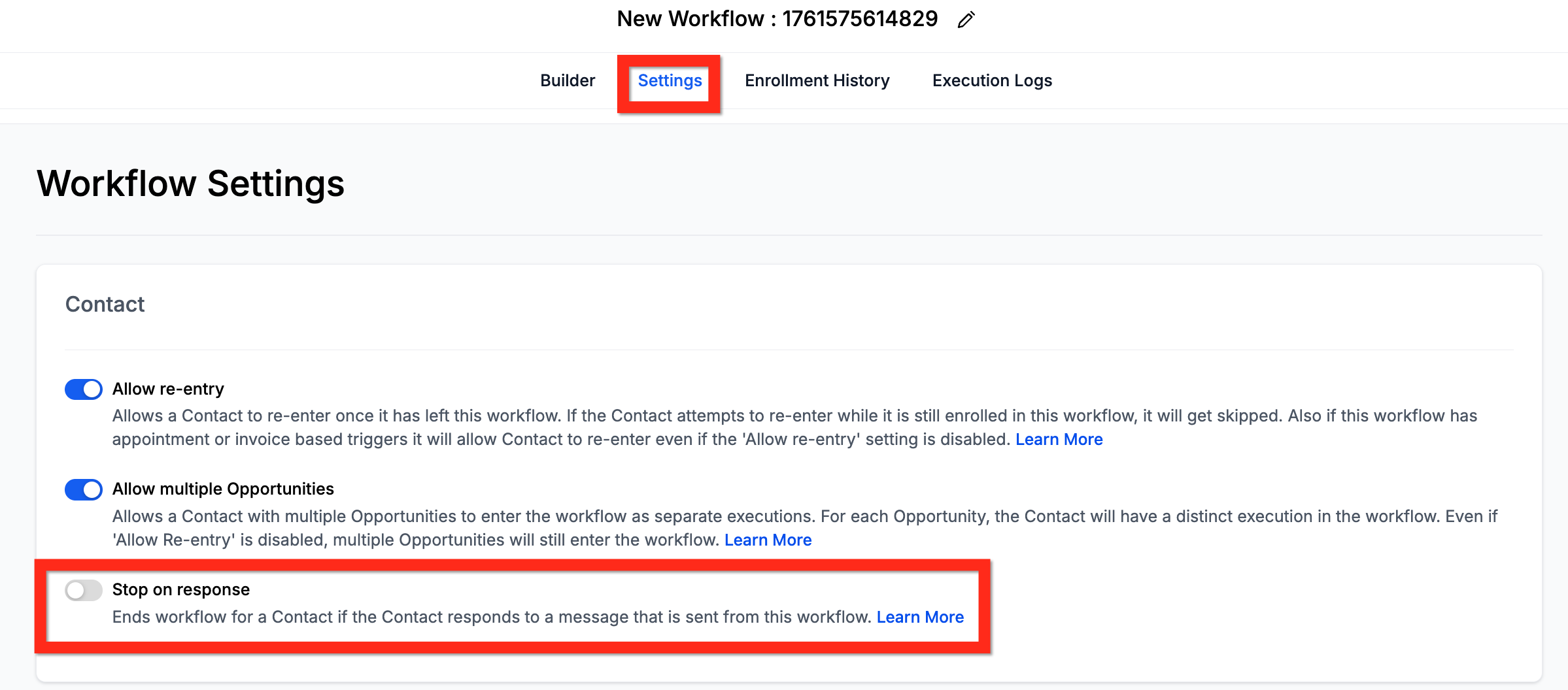
Stop on Response applies to the entire workflow. When it is turned on, any reply from a contact, whether by SMS, email, or call, automatically removes that contact from the automation, preventing further automated outreach.
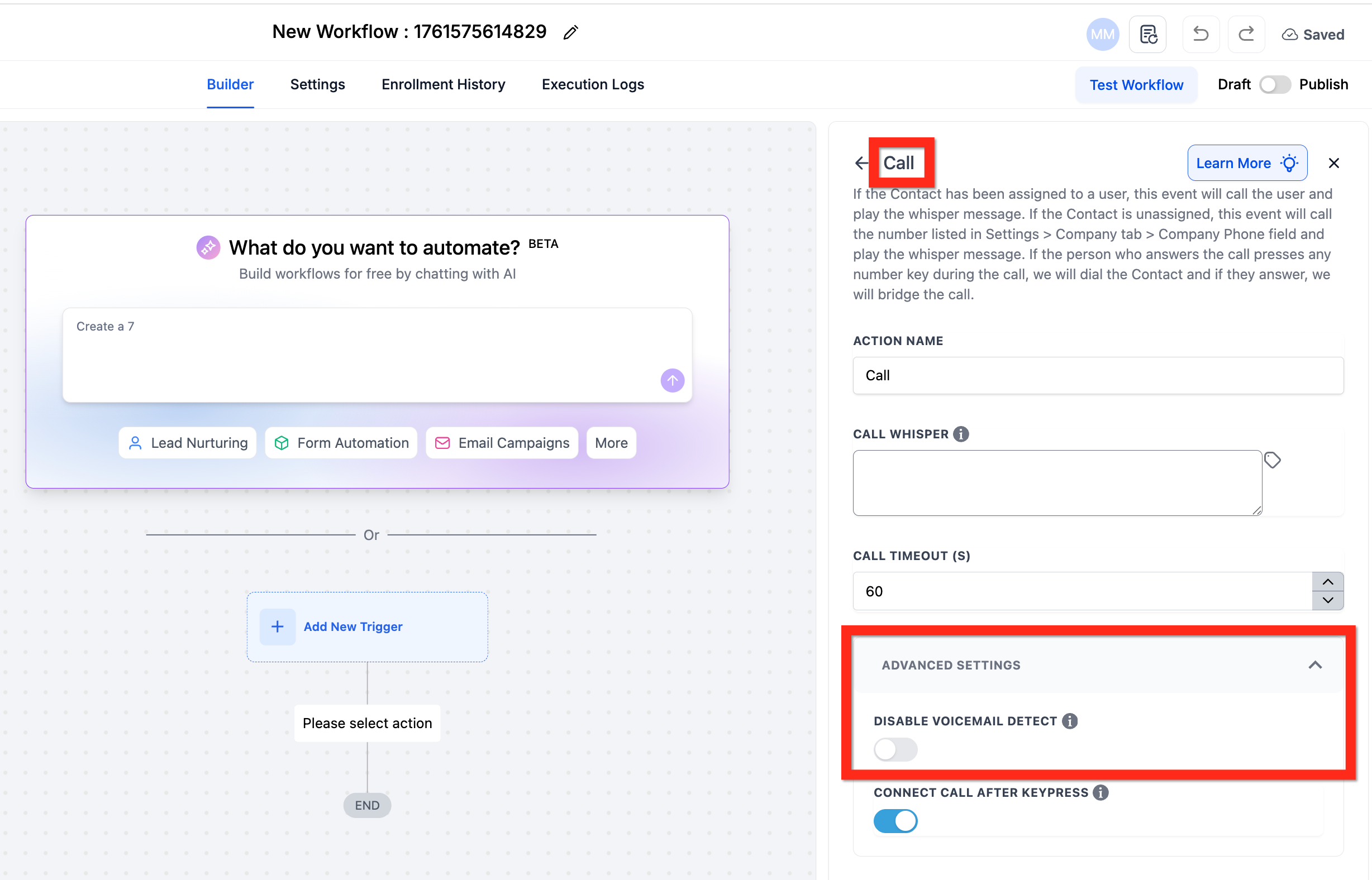
Disable Voicemail Detect is found only in the Call action. When it is off, HighLevel performs a short audio analysis after the call is answered to decide if a live person or a voicemail answered.
The two settings work together. Depending on which are enabled, a voicemail answer may stop the workflow, be ignored, or the workflow may continue regardless of any response. Adjust the call timeout to 20 seconds or less if you want to keep a voicemail from being treated as a response while both settings are on.
03How businesses use stop on response and disable voicemail detect
- Real estate agency. Enable Stop on Response so once a prospect replies to a call or text, the workflow stops sending additional automated messages, keeping outreach respectful.
- Dental practice. Turn off voicemail detection in the Call action to connect faster for appointment reminder calls, reducing the brief pause that occurs when detection is active.
- SaaS startup. Activate both settings to automatically remove leads who answer and reply, while allowing the system to skip stopping the workflow when a call reaches a voicemail.
04The numbers and rules that matter
- Stop on Response ON + Disable Voicemail Detect ON: The workflow will stop if the contact's voicemail answers. Set the call timeout to less than 20 seconds to ensure the call will not go to voicemail.
05What it looks like in HighLevel
06Settings that matter
- Stop on Response. When enabled, it takes a contact out of the workflow as soon as they reply to any automated message sent by that workflow.
- Disable Voicemail Detect. When turned on inside a Call action, it stops HighLevel from analyzing the call audio to decide whether a live person or a voicemail answered.
07Things to know before you rely on it
- If both Stop on Response and Disable Voicemail Detect are on, a voicemail answer counts as a response and stops the workflow.
- When Stop on Response is on but Disable Voicemail Detect is off, voicemail detection prevents the workflow from stopping on a voicemail answer.
- Turning off Stop on Response makes the workflow continue regardless of replies or voicemail, though the default voicemail detection adds a short pause.
- Disabling voicemail detection speeds up call connections but removes the ability to tell live answers from voicemail.
- A call timeout of 20 seconds or less is recommended to avoid voicemail triggering Stop on Response.
08If something goes wrong
- Workflow stops after a call even if the person didn't answer. Ensure the Call action's timeout is set to 20 seconds or less when both Stop on Response and Disable Voicemail Detect are enabled.
- Delay occurs when voicemail detection is enabled. Understand that the platform pauses a few seconds after the call is answered to analyze audio; this is expected behavior.
09How it connects to the rest of HighLevel
- Workflow settings overview Workflow settings guide
- Getting started with workflows Workflow creation guide
- HighLevel pricing and plans Pricing details
Michael's take

When contacts start answering your automated calls, you don’t want the workflow to keep trying to call the same person while also listening for voicemail. The sweet spot is to decide whether you care more about speed or certainty, and then set the two toggles accordingly.
The first setting I would lock in is Stop on Response. It protects you from overmessaging leads who have already engaged. After that, I’d test the Call Timeout at 20 seconds to see how often calls go to voicemail and adjust the Disable Voicemail Detect toggle based on the results.